Release Notes
Version R2026.10.1 (November 2026)
MHC NorthStar CCM release R2026.10.1 includes enhancements to the platform's PDF processing and printing capabilities, as well as a small enhancement to the template designer:
- Read, parse, extract, and render uploaded PDF files with greater accuracy and reliability.
- Embed document control and index data in PDF print streams to guide downstream processing.
- Find and replace terms in a template with a keyboard shortcut.
Read, parse, extract, and render uploaded PDF files with greater accuracy and reliability.
Enterprise Enterprise Plus
We've upgraded NorthStar CCM's Xpdf library to the latest supported version. The updated library will allow NorthStar CCM's Publishing Engine to more reliably and accurately parse modern PDFs that use newer document specifications, structures, fonts, encodings, or security features.
This update will be automatically applied to all workflows and API integrations.
Why did we make this change?
While our existing Xpdf library could correctly parse legacy PDFs, it could produce parsing or extraction errors when processing PDFs with newer features or elements. Updating to the latest supported library helps ensure NorthStar CCM can accurately and reliably process modern and legacy PDFs.
Embed document control and index data in PDF print streams to guide downstream processing.
Enterprise Enterprise Plus
NorthStar CCM can now embed control and index data, such as recipient, notice type, distribution method, and sheet number, at the document or page level of a PDF print output. Downstream systems, such as inserters and reprint workflows, can read this data and use it to sort, insert, and track documents. This allows NorthStar CCM to deliver correctly configured PDF print streams to your print production systems without requiring you to rebuild your existing print workflow.
Why did we make this change?
Enterprise print environments often depend on control data embedded in print streams to sort, insert, and track documents. Supporting control and index data in our PDF output lets organizations take advantage of NorthStar CCM without needing to rebuild their existing print production processes.
Find and replace terms in a template with a keyboard shortcut.
Enterprise Enterprise Plus
As an enhancement to the Find & Replace feature added to NorthStar Designer in the previous release (R2026.09.1), we've added a keyboard shortcut (Ctrl+F) that automatically opens the Find & Replace panel. Once you've entered a search term in the Find field, press Enter to find the next match.
Why did we make this change?
Ctrl+F is a common keyboard shortcut for the Find function in browsers, word processors, and other software. Adding this shortcut to NorthStar Designer makes the Find & Replace feature more intuitive and easier to access than clicking through the Home tab options.
Version R2026.09.1 (October 2026)
MHC NorthStar CCM Release R2026.9.1 includes several enhancements to the NorthStar Template Designer:
- Use dynamic image insertion to build templates with variable images or logos.
- Include multiple page sizes and page layouts within a single template.
- Build repeating or conditional sections into your templates.
- Quickly search and replace all instances of a given term within a template.
- Insert text or data into templates at absolute positional coordinates.
Use dynamic image insertion to build templates with variable images or logos.
Enterprise Enterprise Plus
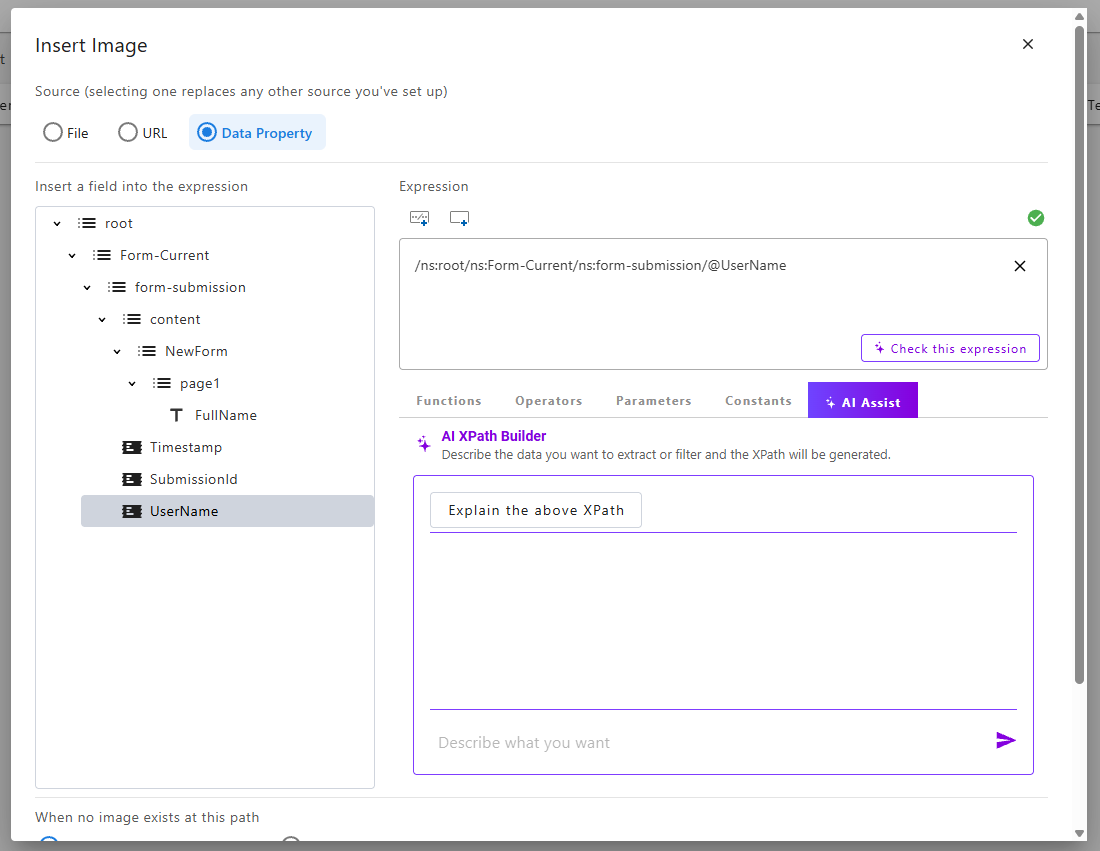
When inserting or editing an image in NorthStar Designer, you can now set a data property or data expression as the image source. This allows you to insert an image from the data at rendering (such as a customer logo).
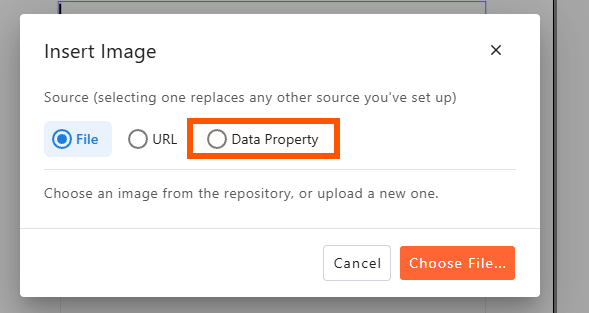
When inserting a dynamic image, you'll also need to define what happens if the property or expression is empty, null, or invalid; you can select a default backup image to be inserted instead, or you can hide the image.
Why did we make this change?
Previously, if you wanted to include a recipient organization's logo on a rendered document, you'd have to manually upload each logo, and maintain a different template for each recipient. This could be labor intensive to build and update. With dynamic image insertion, a single template can now serve any number of recipient logos. This functionality also allows you to create richer, more dynamic documents with visual elements that render differently based on the data being used.
Include multiple page sizes (or custom page sizes) within a single template.
Enterprise Enterprise Plus
You can now create a template in NorthStar Designer that renders pages in different sizes, including Letter, A3, A4, A5, and custom page sizes.
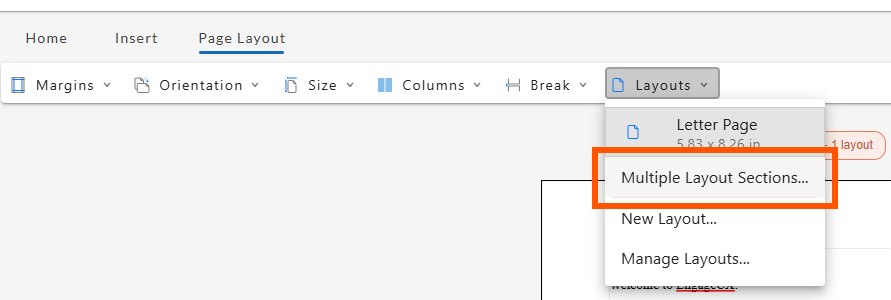
To include multiple page sizes in a template, start by selecting "Multiple Layout Sections..." from the Layouts dropdown menu in the Page Layout tab. From there, you can add multiple sections to your template and change a section’s page size by selecting ‘New Layout’ from the default ‘Letter Page’ dropdown, then choosing a page size from the New Layout Preset.
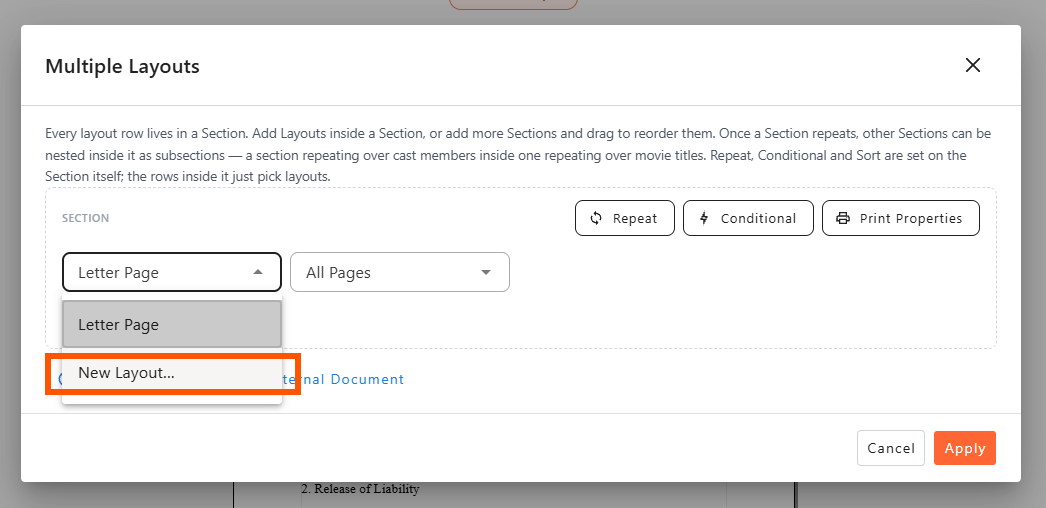
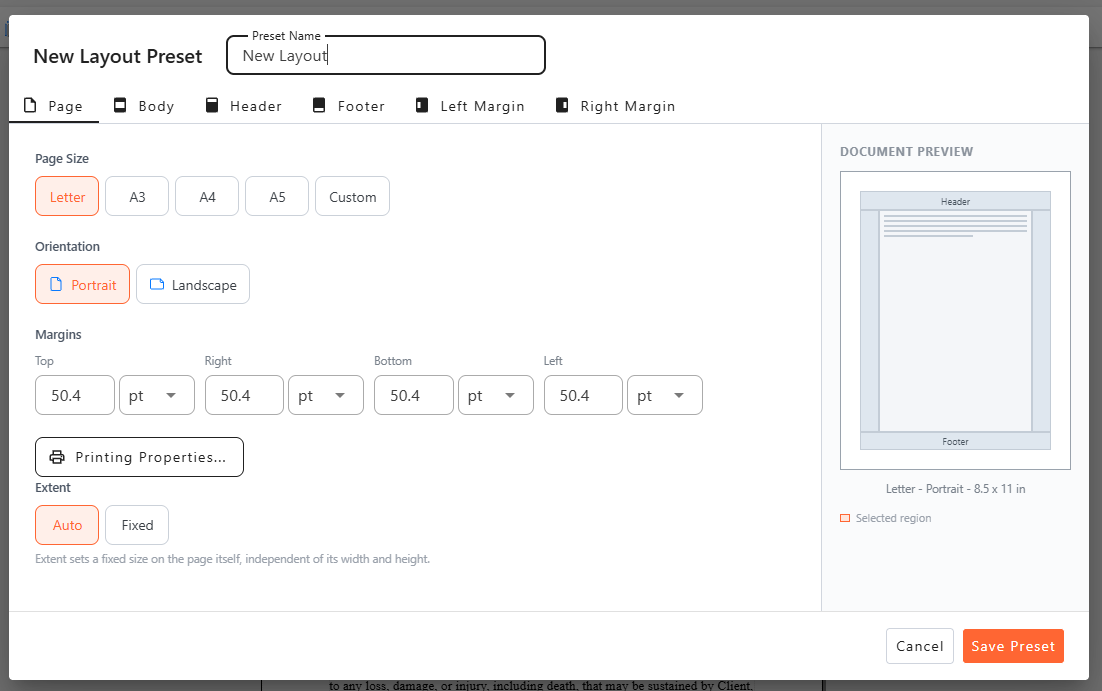
Once you've created a layout for a given page size and saved it with a distinct title, you can reuse it in other sections by selecting it from the dropdown menu. You can also use this feature to vary the page orientation, repeat pages based on data, conditionally include or exclude sections, add external documents, customize the printer properties of each section, and modify the alignment and appearance of each part of a page (Body, Header, Footer, etc.).
For more details, check out the Managing Multiple Layouts chapter of the NorthStar Designer Guide.
Why did we make this change?
For 95% of templates, a single, consistent page size is sufficient. But some templates may need to combine different sized documents and exhibits into a single PDF. Previously, these would need to be generated as separate documents and manually combined. With the introduction of this feature, those documents can be generated dynamically as a single PDF, eliminating the need for manual intervention.
This also allows for richer and more dynamic templates that can render sections in different page sizes based on the data supplied.
Quickly search and replace all instances of a given term within a template.
Enterprise Enterprise Plus
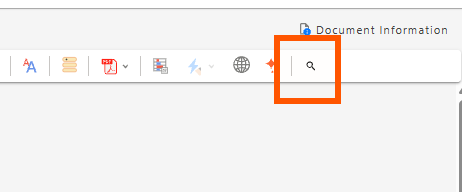
Within NorthStar Designer, you can now find and replace all instances of a term in your template by selecting the magnifying glass icon from the Home tab toolbar (depending on your screen size and resolution, you may need to select it from the "more options" dropdown).
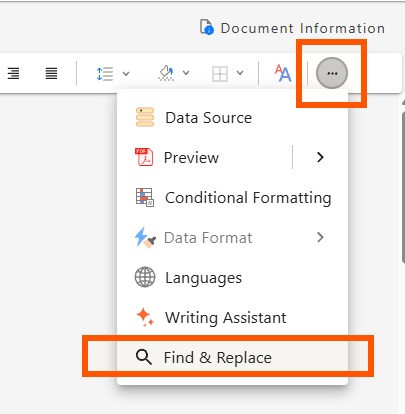
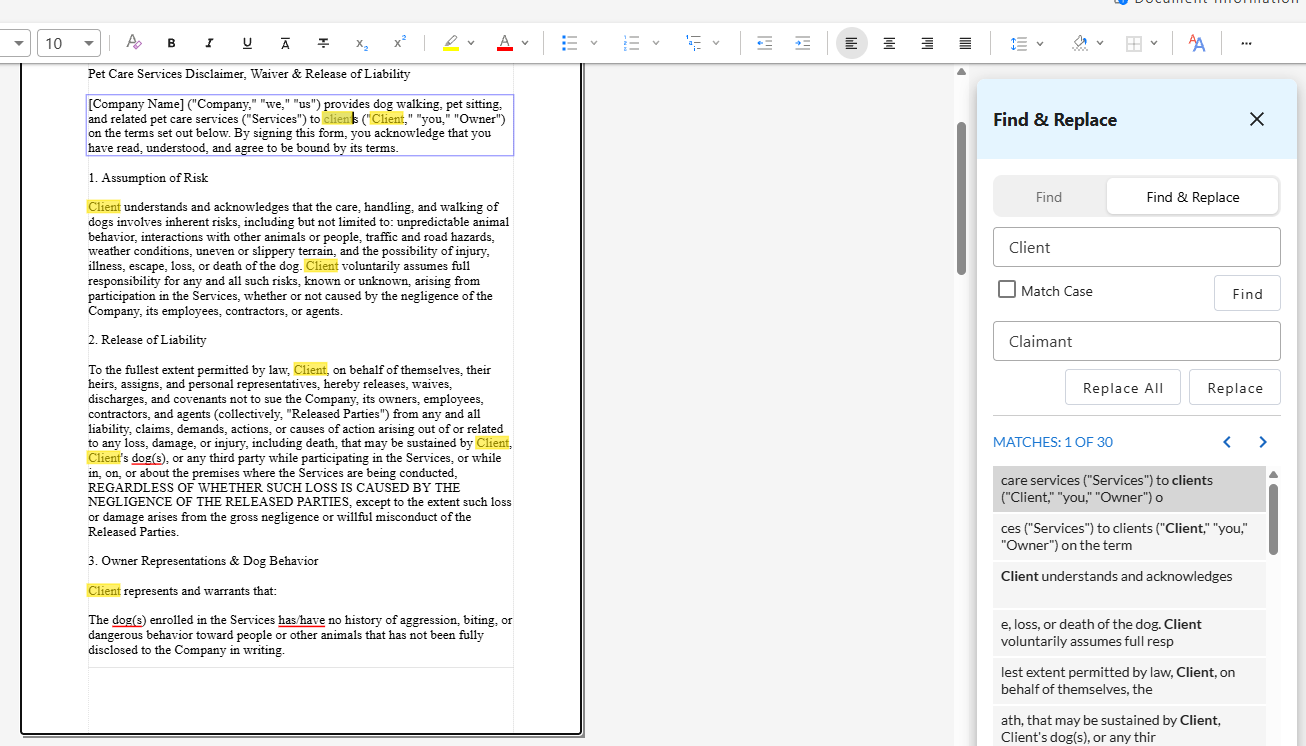
This will open a Find & Replace side panel. Entering a term in the "Find" field will highlight all instances of that term in your template, and builds a list of matches in the side panel. You can select the 'Match Case' checkbox to exclude terms that match your search term's spelling but not its capitalization.
Switching the toggle from "Find" to "Find & Replace" allows you to provide a substitute term in the "Replace with" field. Once you've entered text in the "Replace with" field, you can click "Replace All" to replace each instance of the term.
Alternatively, you can click through the list of matches in the side panel and select "Replace" for each individual replacement you'd like. Each time you click a match in the side panel, the main display will advance to that point in the template.
Why did we make this change?
Manually updating specific, repeated terms or language across multiple templates can be a time-consuming and error-prone task. A Find & Replace option allows you to make these updates with greater speed, precision, and accuracy; and by providing a condensed list of matches, you can quickly check the instances in context to safeguard against find-and-replace errors.
Insert text or data into templates at absolute positional coordinates.
Enterprise Enterprise Plus
You can now set the position of a text box in a template to specific x (horizontal) and y (vertical) coordinates, ensuring that the position of any text or data fields in that text box renders with absolute clarity and consistency.
- From the Insert tab, select "Text Box" from the toolbar.
- Right-click on the text box, and select "Position..." A Text Box Properties panel will open to the right side of the template.
- From the Position dropdown, three options are available.
- In Line with Content: The text box is positioned in the flow of other elements. Other content will shift to accommodate its addition, and the addition of other content may shift the position of the Text Box. You can't assign X/Y coordinates if this option is selected.
- Fix within Region: The text box floats above the selected region (body, header, footer, or margin) at a fixed position, relative to the top left corner of the region.
- Fix on Page: The text box floats above the page at a fixed position relative to the top left corner of the page.
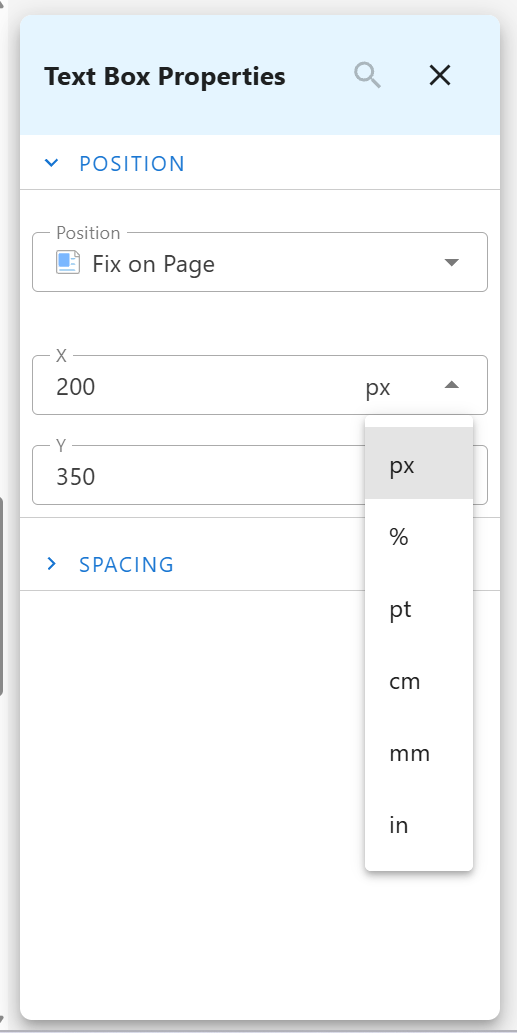
After selecting Fix within Region or Fix on Page, you can enter X and Y coordinates, along with your preferred units of measurement (px, %, pt, mm, cm, in). The top left corner of the text box will be positioned according to the X/Y coordinates you've entered. Note: You may also manually reposition the text box by dragging and dropping it on the page. The X/Y coordinates will be automatically updated.
Why did we make this change?
The requirements of certain specific forms, such as labels or window mailers, demand that key elements be absolutely positioned, regardless of the other elements in the template. Attempting to position such an element relative to other elements is unreliable and fragile. This feature allows you to position important elements with absolute assurance.
Note to MHC Publisher Users:
Templates created in MHC Publisher with positional attributes will be mapped as follows when imported to NorthStar Designer:
- "Auto" Absolute Position and "Static" Relative Position > "In Line with Content"
- "Fixed" Absolute Position > "Fix on Page."
- All other elements > "Fix within Region."
Conversely, templates created in Designer and exported to Publisher will map element positions in the following way:
- In Line with Content > Auto Absolute Position, Static Relative Position
- Fix within Region > Absolute Absolute Position, Static Relative Position
- Fix on Page > Fixed Absolute Position, Static Relative Position
Version R2026.08.1 (September 2026)
MHC NorthStar CCM Release R2026.08.1 includes several enhancements to the NorthStar Template Designer and Enterprise Site interface:
- Preview templates in Word and PowerPoint formats.
- Format templates with multi-level list styles.
- Delete text boxes or edit conditional text and formatting from the context menu (right click).
- Use AI Assist to generate multiple sample records for template previews.
- Open workflows and emails in edit mode by default.
Preview templates in Word and PowerPoint format.
Enterprise Enterprise Plus
When editing a template in the online template designer, you can preview how the document would look rendered as a Word document or PowerPoint deck. Select the Preview dropdown, and select "Preview as Word" and "Preview as PowerPoint."
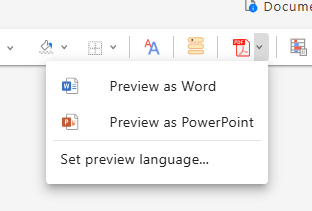
This will download a copy of your template in Word or PowerPoint format to your computer.
Why did we make this change?
The preview function helps you understand how your template will look once it's rendered. Since we've recently enhanced NorthStar CCM's ability to render Word and PowerPoint files, extending the preview functionality to these file types allows you to build and publish templates with greater confidence and more assurance in the appearance of the rendered document.
Format templates with multi-level list styles.
Enterprise Enterprise Plus
When building a template with complex or multi-level lists with nested items, you can now automatically format that list in a variety of styles.
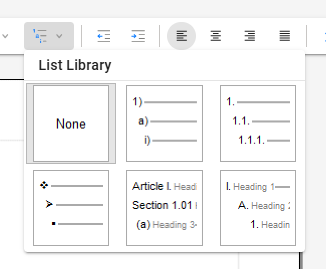
Select your list. Then, from the Home tab, choose a list style from the Multi-Level list dropdown.
Why did we make this change?
For documents with complex or multi-level lists, applying a clear and consistent multi-level list style makes the document more readable and gives it a more polished appearance.
Delete text boxes or edit conditional text and formatting from the context menu (right click).
You can now take several more actions from the context menu that will display when you right click on an object.
Right clicking on a text box will open the following context options:
- Position...
- Spacing...
- Delete Text Box
Right clicking on a paragraph with conditional text and/or formatting will open the following context options:
- Edit Conditions
- Edit Formatting
- Create Content Fragment
- Spacing...
- Alt Text...
Why did we make this change?
Making key actions available with a right-click makes the template designer more intuitive and efficient.
Open workflows and emails in edit mode by default.
We've updated NorthStar CCM so that workflows and emails open in edit mode instead of preview mode. Instead of requiring one click to open and a second click to edit the preview, editing mode is now the default state when opening an email or workflow.
Why did we make this change?
Based on usage data and user feedback, we observed that the primary reason for opening an email or workflow was to edit some element in it. The "click to preview, then click to edit" functionality was requiring an obligatory additional click. This update removes that extra click and makes both email and workflow management faster and more intuitive.
Use AI Assist to generate multiple sample records for template previews.
When previewing a template with a connected data source, a Sample Records panel will appear to the right. Clicking the "AI Assist" button in this panel will open an AI Sample Data Generator panel with a prompt input.
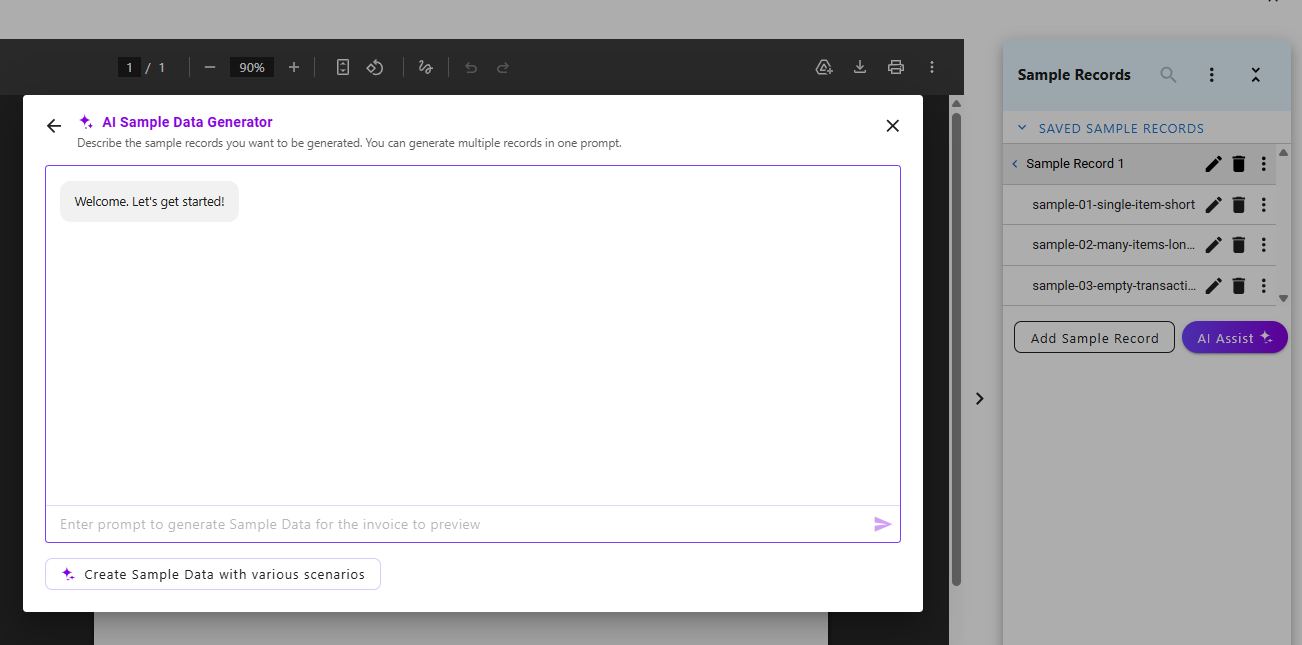
You can describe the type of record(s) you'd like the AI Assist to generate. For example, you could request:
- Create sample where all the text values have the maximum number of characters allowed
- Create an invoice with 100 line items
- Create a scenario to show what the table looks like when it's empty or has no data
- Create 10 different sample records to cover a variety of scenarios
- Create sample records that will help me verify all the conditional formatting for this template
- Create 50 sample records, one for each state
You can also click the "Create Sample Data with various scenarios" to generate a variety of different records for template previews.
However you prompt, the AI Assist will show a loading indicator as it generates the sample records. Depending on the complexity and number of records requested, generating the records could take more than a minute. If you attempt to close the AI Assist window while the system is generating records, you'll have the option to remain in the window (if you clicked by mistake), close the window and stop generating, or close the window but have the AI finish generating the records in the background.
Note: This feature is only available if AI Studio and AI Assisted Sample Data are enabled.
Why did we make this change?
Previewing how a template will render different types of data is essential to building a strong and flexible communication, but building sample records can be complicated and time-consuming. AI Assist can allow you to test a wider variety of hypothetical scenarios more quickly, and help catch issues that might have otherwise gone unnoticed until the workflow was actually running.
Version R2026.07.1 (August 2026)
MHC NorthStar CCM release R2026.07.1 includes several enhancements to NorthStar Designer:
- Add and edit column layouts in templates.
- Validate and correct XPath expressions with AI assistance.
- Generate sample data for template previews with AI.
- Edit, add, duplicate, export, and import sample data for template previews.
Add and edit multi-column layouts in your templates.
Enterprise Enterprise Plus
When editing a template with NorthStar Designer (through the Enterprise site), you can now add multi-column layouts to your templates. From the Page Layout tab, select "Columns," and choose One, Two, or Three from the dropdown menu. Your selection will be applied to the entire template.
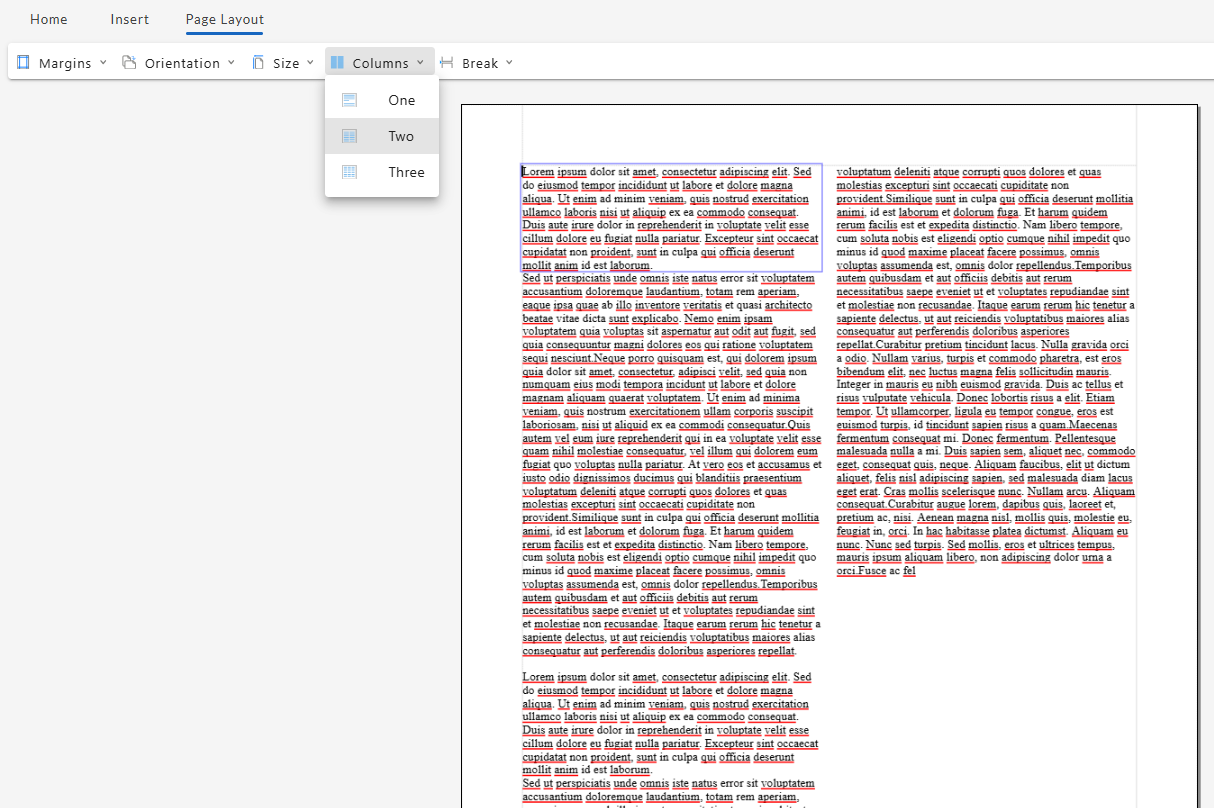
Why did we make this change?
This improvement provides more flexible layout control within Designer, allowing you to build a wider variety of templates within NorthStar CCM's Enterprise site.
Validate and revise your template XPath expressions with AI assistance.
Enterprise Enterprise Plus
When creating or editing an XPath expression in NorthStar Designer, your expression will automatically be checked for syntax errors.
- If the syntax is valid, a green checkmark icon will appear above the input window.
- If the expression contains syntax errors, a red exclamation point will appear above the input window. Clicking the exclamation point will open a popup window explaining the error.
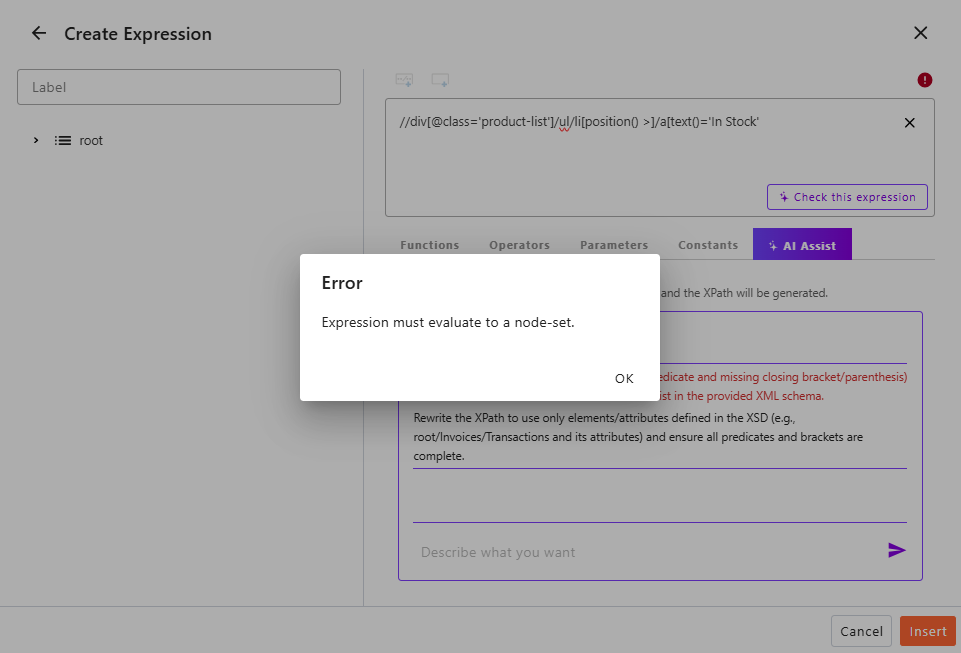
You can also click the "Check this expression" button in the input window to have the syntax and data references in your expression checked by AI. The AI Assist tab will open with an explanation of any syntax or data reference issues (if any), and suggestions for correcting them.
Why did we make this change?
These features can help prevent XPath errors, and allow non-technical users to understand issues with an XPath expression and how to correct them. This empowers more users to work with XPath expressions, reduces burden on technical teams, and helps identify small errors before they cause larger issues.
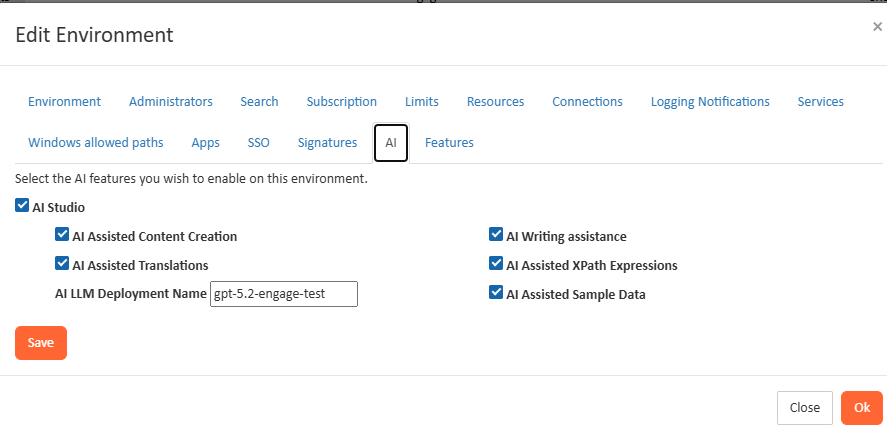
Note: AI assisted XPath expression help will only be available if both the AI Studio and the "AI Assisted XPath Expressions" feature is enabled for your environment.
Add, edit, and duplicate sample data for template previews.
Enterprise Enterprise Plus
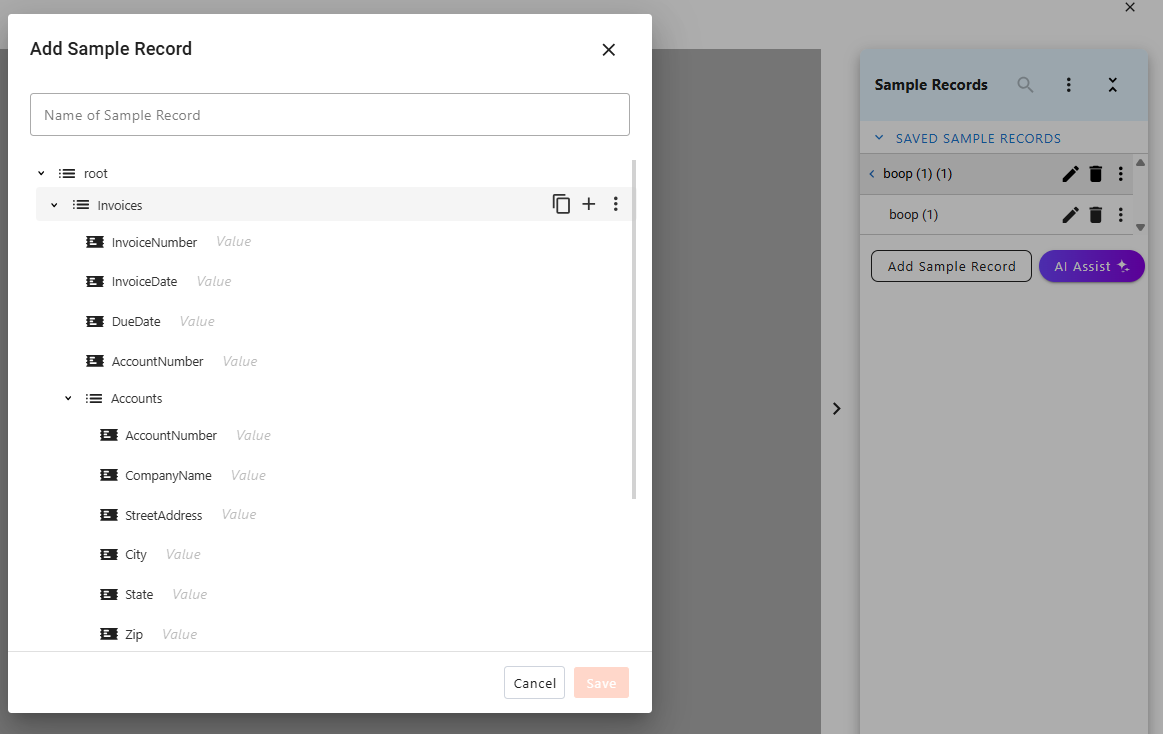
When previewing a template in Designer, a Sample Records panel will appear on the right side of the preview window.
- Selecting Add Sample Record will open a window with a blank record. You can fill in the value of each data element to preview how those values would be displayed by the template.
- Hovering over a data element will display "Duplicate item" and "Add item" icons. Clicking on "Duplicate item" will create a copy of that data element and all its values. Clicking on "Add item" will create a copy of that data element with blank values.
- Once you've created a sample record, you can click on the three-dot icon to the right of the record and select "Duplicate" from the dropdown to create a duplicate of that record (along with all its data elements and values). You can then edit the duplicate by clicking the pencil icon.
Why did we make this change?
These features make it easier to create rich, detailed and varied sample records for previewing the template across different scenarios. Instead of creating each record or data element manually, you can duplicate what you've made and make targeted changes to the duplicate.
Generate sample records for template previews with AI.
Enterprise Enterprise Plus
Instead of creating sample records manually, you can select the "AI Assist" button in the Sample Records to open an AI Sample Data Generator window. Use the prompt input to describe the type of record(s) you want, and the AI Assist feature will generate up to 50 records at once to meet your specifications, with sample values for each parameter.
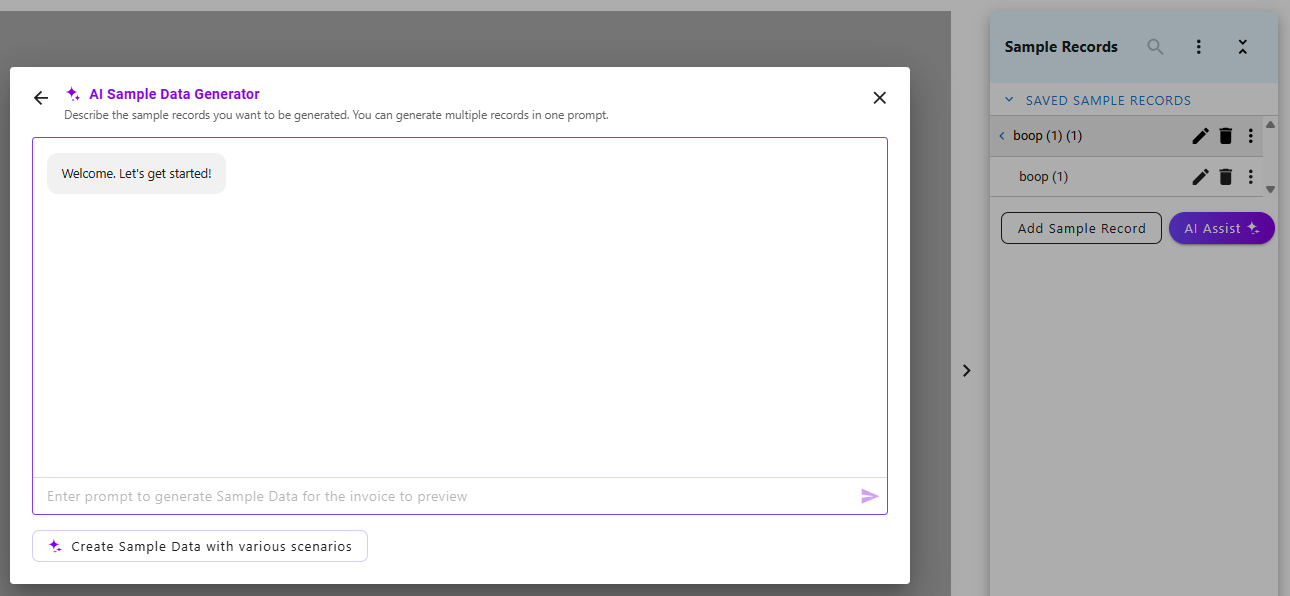
Note: AI assisted sample data generation will only be available if both the AI Studio and the "AI Assisted Sample Data" features are enabled for your environment.
Why did we make this change?
AI-generated sample records allow you to preview templates much more quickly than manually entering dummy data, leaving you to focus your energy on testing the most relevant key parameters. Reviewing multiple AI-generated sample records can also help you catch minor template issues before they cause larger downstream problems.
Export and import sample data across templates for easier and more consistent template previews.
Enterprise Enterprise Plus
If you have multiple templates that share a common data source, you can now transfer sample records between them for easier and more consistent previewing.
- When previewing the first template, click the three-dots icon to the right of the record in the Sample Records side panel, and select "Export" from the dropdown menu. The record will automatically download in .xml format. Alternatively, you can click the three-dots icon from the Sample Record panel header and choose "Export All" to download all sample records.
- Open the second template, select Preview Template from the Home tab, and click the three-dots icon in the Sample Records panel header, and choose "Import" from the dropdown. Select or drag and drop a sample record file into the Import Sample Data window to import it to the template preview.
Why did we make this change?
If you have multiple templates that share a common data source, it can be time-consuming and inefficient to create sample records for each template to preview. This feature allows you to create rich, purposeful sample records once and then export and import them across multiple templates using the same data source for faster, more consistent template previews.
Version R2026.06.1 (July 2026)
MHC NorthStar CCM release R2026.06.1 includes enhancements to PowerPoint outputs, the forms editor, and the template designer:
- Generate editable PowerPoint (.pptx) files from Publisher with preserved styling and native tables.
- Add multiple sections to a form for richer layouts.
- Use AI to get simple explanations of XPath expressions in your template.
MHC Studio Publisher: Adding/Removing Sections
Enterprise Enterprise Plus
Generate editable PowerPoint (.pptx) files with preserved styling and native tables.
We've updated NorthStar CCM to output richer PowerPoint slides that translate your content into editable PowerPoint elements with preserved branding and layout. When using NorthStar CCM to generate a .pptx file, you'll see the following enhancements:
- Files can be opened, edited, saved, and shared within Microsoft PowerPoint. You can adjust text, modify tables, add or remove rows, and copy table content into Excel.
- Tables and grids in the Template Publisher will be rendered as PowerPoint tables, preserving the formatting and content of each row and column. Rows, columns, and cells can be edited, styled, and formatted using standard PowerPoint controls.
- PowerPoint files will retain the fonts, colors, and layout of the template, with predictable slide breaks, and will support PowerPoint slide templates and master layouts. PowerPoint outputs will continue to support accessibility and compliance requirements.
Why did we make this change?
Previously, template content that was output to PowerPoint was generated as a series of static artifacts which couldn't be edited within PowerPoint, and often lacked the layout or branding elements of the original template. This limited the value of those outputs and frequently required manual rework to revise the content.
With this enhancement, your template content accurately translated into PowerPoint objects and elements, allowing you to review, edit, and share your content using standard PowerPoint tools and processes. This lets you easily leverage your NorthStar templates and content in PowerPoint form.
Forms Editor: Adding/Removing Sections
Enterprise Enterprise Plus
Add multiple sections to a form for richer layouts.
Within the form editor, selecting a section displays a + icon to the upper-right corner of the section. Clicking the icon provides two options:
- Add section below: Clicking this adds a new empty section immediately below the selected section.
- Add section above: Clicking this adds a new empty section immediately above the selected section.
Each section can contain its own components, formatting, and styling, enabling richer and more flexible form layouts.
Once your form has more than one section, you can delete a section by selecting it, clicking on the gear icon in the upper-right corner, and clicking Delete Section.
Why did we make this change?
Previously, forms were limited to a single section of content, which limited how granular the styling, formatting, and layout could be. This enhancement enables the design of richer and more complex forms to support a wider variety of aesthetic and functional requirements.
Template Designer: XPath Expressions
Enterprise Enterprise Plus
Use AI to get simple explanations of XPath expressions in your template.
When reviewing an XPath expression in the template designer's expression builder, you can open the AI Assist tab and select the "Explain the above XPath" button to receive an AI-generated explanation of the expression in natural language.
From there, you can use the AI XPath Builder to edit or replace the expression, and use the "Explain the above XPath" button to have AI confirm your expression's behavior in simple terms.
Why did we make this change?
Non-technical users may find complex XPath expressions intimidating or struggle to connect the syntax with its practical impact on templates. This feature allows non-technical users and template designers to leverage AI to understand and employ XPath expressions, without being slowed down by the need for continuous developer support.
Version R2026.05.1 (June 2026)
MHC NorthStar CCM release R2026.05.1 includes enhancements to project creation, template designer, the forms editor, and the data modeler:
Project Creation
- Automatically generate a data model to support an uploaded file.
Template Designer
- Convert key pieces of content into reusable content fragments.
- Adjust the vertical spacing of lines of text in your template for improved accessibility.
- Preview templates within the same window.
- Add sorting rules to order your repeating rows when rendering.
Forms Editor
- Add hyperlinked text to your forms.
- Create forms faster with default sections.
Data Modeler
- Improve processing performance and efficiency by optimizing your XML data.
Project Creation: Data Models
Enterprise Enterprise Plus
Automatically generate a data model to support an uploaded file.
NorthStar CCM projects require a data model to define how data is used when building templates and workflows. Now, when you create a new project, you can automatically create a data model based on your data.
When clicking "New" in the Projects area of NorthStar CCM, you'll be able to select the "Data Model from File" option and upload a CSV, XML, JSON or Excel file. NorthStar CCM will immediately create a data model based on the data in the file, which will then be saved to the project folder. The data model will automatically point to the uploaded file as its data source. This data model can be used immediately when designing templates or workflows, and can be further edited with the Data Modeler.
Note that with this release, the automatically generated data model will use the field names from the data file and will treat all fields as if they were text. This can be changed in the Data Modeler, and future versions may enable the adjustment of field names, field types, or further modifications using an AI chat interface.
Why did we make this change?
For many projects, a simple data model will suffice for workflow or template design, but non-technical users may find the full data modeler tool to be confusing or overwhelming, or may not have easy access to a machine with the desktop data modeler application. With this enhancement, the base data model needed to start a project can be generated with this cloud enterprise site, without any technical expertise or additional steps. This makes it faster and easier to create new projects in NorthStar CCM.
Template Designer: Content Fragments
Enterprise Enterprise Plus
Create reusable content fragments within the template designer.
Within NorthStar Designer, you can now easily turn template content into reusable "content fragments," which can be used repeatedly in your template and shared across other templates.
In NorthStar Designer, select the content you want to convert into a fragment, right-click, and select "Create Content Fragment" from the context menu. You can then name the fragment and select a save location (by default, the location will be the same folder as the current template).
Once you click Save, the selected content in your template is be replaced by the newly created content fragment. You can add additional instances of the fragment to any template by selecting Insert > Content Fragment from the Designer toolbar.
Note: Content fragments can only be edited by opening them individually from the project folder. A content fragment that has been added to a template cannot be edited within that template.
Why did we make this change?
Content fragments allow you to create a polished and up-to-date content element once, and then share it across multiple templates. They allow for faster template creation, and make it easier to keep key pieces of content updated. This change gives you greater flexibility and ease when creating content fragments. If you already have a template with the key information you need, you can immediately convert that information into a fragment within the template designer, instead of needing to copy and paste the content into a new file.
Template Designer: Formatting & Accessibility
Enterprise Enterprise Plus
Adjust the vertical spacing of lines of text in your template for improved accessibility.
Within NorthStar Designer, you can right-click on a paragraph to open a Paragraph Properties panel. That panel now includes a "Line Height" field. This allows you to increase the amount of vertical space between the lines of text in your paragraph. A line height of 1.5 will add space between lines equal to half the height of a single line; this line height is recommended by WCAG guidelines to improve readability.
Why did we make this change?
The Web Content Accessibility Guidelines (WCAG) AA criteria require that text on the web must be readable and functional when users adjust the line height to at least 1.5 times the font size. This doesn't specifically require that lines of text be spaced to that level, but only that the web content must support that level of spacing without breaking.
But for static PDFs, you can't rely on your readers to be able to adjust the line height of your PDF once it is generated; therefore, you may want to proactively address this by setting the line height of your paragraphs to 1.5x, which ensures your content remains readable at 1.5x line height, and enhances readability for your entire audience.
Template Designer: Template Previews
Enterprise Enterprise Plus
Preview templates more easily.
When selecting the "Preview Template" option from the Home tab in NorthStar CCM Designer, the preview will now open within the same window, as an overlay over the editing interface. From here, you can scroll through your template pages or use your browser's PDF viewing features (print, zoom, download, etc.). Closing the preview will return you to the Designer's editing interface.
Why did we make this change?
Previously, the preview would open in a separate browser tab. This enhancement makes previewing templates more efficient and intuitive, and lays the groundwork for future preview features.
Template Designer: Repeating Row Tables
Enterprise Enterprise Plus
Sort the dynamic, repeating data rows in your rendered PDFs.
Connecting data to a table in NorthStar Designer allows you to create "repeating rows," which will dynamically add rows to the table as the PDF is rendered, based on the data source. We've enhanced this feature to allow you to sort the rows at runtime, displaying them in a more intuitive order than in the raw data.
When you select a table with repeating rows in NorthStar Designer, the Table tab will display a "Sort Rows" option. Clicking this option will open an "Edit Sort" modal, within which you can add, edit, or remove "Sort By" rules. For each rule, you select a data element to sort by, an order (ascending or descending) and a data type for the sorted element (number or string). If "String" is selected, you can also choose a "Case Order" to add a case-sensitive tiebreaker when sorting two entries with the same letters -- "upper-first" will put the capitalized version before the lowercase version, and "lower-first" will do the opposite. Adding a second or third rule provides additional levels of sub sorting, providing greater granularity and control over how rows are displayed in the rendered document.
Once you've saved your sorting rules, both previews and rendered documents will be sorted according to the rules. You can return to the Edit Sort modal at any time to edit, adjust, or remove any rules.
Why did we make this change?
When displaying rows of data in a rendered document, you may not always be able to rely on the original data to be organized in the exact order you want it to be displayed. Rather than requiring you to edit or adjust the data, this feature allows you to order the displayed elements however you like at runtime, ensuring consistency and giving you greater leeway and flexibility over the original data source.
Forms Editor: Hyperlinked Text
Enterprise Enterprise Plus
Add hyperlinked text to your forms.
The text editing toolbar in the forms editor now displays a hyperlink option. Selecting text and then clicking the hyperlink option will open an "Insert Hyperlink" panel. Within this panel you can add a URL to the selected text (shown as the Display Text). When you are satisfied with the URL and Display Text, click OK to add the hyperlink to your form.
Users can open the link by clicking on it. The linked URL will open in a new browser tab, so the user doesn't lose any progress on their form.
Why did we make this change?
In some cases, you might want to give a user access to a larger, fixed document without including the entire document in your form. This could include Terms of Service, Frequently Asked Questions, or an explanatory article or video. Adding a hyperlink to your form allows you to keep your form concise and focused, while including access to important context or helpful information.
Forms Editor: Layout
Enterprise Enterprise Plus
Make forms faster with default sections.
As part of layout enhancements to the forms editor, form content is now grouped into sections. Because content can't be added outside of a section, we've updated the forms editor to automatically add a blank section when a new form is created.
Note: For existing forms, the content of each form has been wrapped in a default section. This will have no impact on the appearance or function of the form, but the initial default section cannot be removed, and content cannot be added outside a section (or moved outside of a section).
Why did we make this change?
Adding a default section to each new form allows you to start adding content to your form immediately, instead of having to manually add a section first. This is part of an overall enhancement of the forms editor layout, allowing you to build richer and more flexible forms with greater clarity and control.
Data Modeler: XML Optimization
Enterprise Enterprise Plus
Improve processing performance and efficiency by optimizing your XML data with the Data Modeler.
In NorthStar CCM Data Modeler, when you select an XML Data Source, you'll now see an "Optimize" checkbox in the Properties side panel. Checking this box will set following attributes:
- Optimize=true (XML Data Source)
- Transform-to-attribute=true (all HierarchicalDataSources nodes without nested structures or multiple fields)
These changes will be saved to your data diagram and persist across sessions, and XML Data Sources in the data diagram will have their HierarchicalDataSource children marked as "Optimized."
Why did we make this change?
XML optimization simplifies and clarifies the structure of simple XML data, allowing that data to be processed more efficiently. Using this option may improve the performance of NorthStar CCM jobs using that data, especially when working with large or complex XML data.
Version R2026.04.1 (May 2026)
MHC NorthStar CCM release R2026.04.1 contains enhancements to NorthStar Designer and forms editor, including:
NorthStar Designer:
- Add alternative text to hyperlinks
- Adjust letter spacing in paragraphs
- Build XPath expressions with AI assistance
- Filter data when generating repeating rows
- Preview your template in different languages and remove unneeded languages
- Split table cells
Forms Editor:
- Apply bullets and rich text styling to forms components
NorthStar Designer: Accessible Hyperlinks
Enterprise Enterprise Plus
Add alternative text to hyperlinks to improve document clarity and accessibility.
When selecting a hyperlink in NorthStar CCM Designer, you can now click "Alt Text" to open a properties panel and add a text description of where the link goes or what it does, with a limit of 150 characters. This alternative text can be used by screen readers to clarify the presence and purpose of links in your document.
Why did we make this change?
Alternative text for hyperlinks is a common requirement of accessibility standards. Alternative text allows someone using a screen reader to understand the presence or purpose of the link in your document. NorthStar CCM's accessibility compliance checker will flag missing alternative text from hyperlinks, and this feature allows you to correct those issues to ensure your document meets accessibility standards and is readable to a larger audience of users.
NorthStar Designer: Letter Spacing
Enterprise Enterprise Plus
Adjust the letter spacing of paragraphs to create more readable documents.
With NorthStar CCM Designer, right-clicking a paragraph will open a Properties panel with a "Letter Spacing" field. The default value of this field will be "Normal," which applies the chosen font's default character spacing. Adding a 'pt' value adds additional spacing between letters of the selected paragraph. This allows you to ensure letters in your paragraph can be spaced 10-12% wider than the default setting, which can improve readability for users with low vision or other processing difficulties.
Why did we make this change?
This enhancement gives you more control over the appearance of your documents, and allows them to be easily readable by a larger audience.
NorthStar Designer: AI Assist
Enterprise Enterprise Plus
Create data expressions more easily with AI assistance.
When inserting data fields, dynamic elements, or conditional text into your document, NorthStar Designer allows you to create expressions to filter or transform your data, and Designer's AI Assist functionality can now help transform plain language instructions into formatted expression syntax.
To build an expression with AI Assist, click on the AI Assist tab within the expression builder when adding a data field, content fragment, conditional text/formatting, or repeating rows. Type a simple description of the expression you want to build in the text window, and then click "Send."
AI Assist will build an XPath expression based on your description, which you can either revise or click "Apply" to add to your document.
Why did we make this change?
Expressions allow you to filter or transform data in order to generate specific, personalized, and relevant documents, but the requirement to know XPath expression syntax could be a barrier to some template designers. AI Assist's expression builder allows non-coders to leverage the expressions to improve their templates.
NorthStar Designer: Accessible Repeating Row Filtering
Enterprise Enterprise Plus
Filter data when building repeating rows.
When you create repeating rows in Designer (a table with a variable number of rows based on linked data), you can now apply conditions to filter the data used by the table. This ensures that when the document is rendered, only rows that meet your requirements will actually display.
To add filters to a repeating row, select the row and then choose "Filter Rows" from the Table tab. This will open an "Edit Filters" modal, from which you can add and insert conditions into the table, and then click Apply to save the changes.
Why did we make this change?
The ability to filter data when rendering repeating rows enables a document to use data more discreetly and selectively, and allows a greater range of raw data to be used without needing to format or edit it specifically for the document.
For example, if you wanted an invoice document to include unpaid items, and you had a master list of items with a "Status" field for "Unpaid" or "Paid" items, you could filter that data to populate the repeating rows with only unpaid items, instead of having to create a smaller "unpaid only" dataset.
This enhancement makes NorthStar CCM a more flexible and functional tool for converting raw data into relevant, accurate, and effective documents.
NorthStar Designer: Language Support
Enterprise Enterprise Plus
Streamline and simplify your templates by removing unneeded languages.
NorthStar Designer allows you to add multiple languages to your template, but if a language is no longer needed (or was added mistakenly), you can now remove it.
From the Home tab of NorthStar Designer, select the Manage languages icon (the globe). This will open a panel listing all languages that have been added to the template. To remove one, select the language from the list, and then select the "Delete Language" button.
Note: If a language has been set as the default language for the template, it cannot be deleted.
Why did we make this change?
You may occasionally need to simplify a template by removing unsupported or unnecessary languages. This change allows you to more easily keep your template language options lean and relevant.
NorthStar Designer: Language Support
Enterprise Enterprise Plus
Preview your templates in different languages.
If you have set up a template in Designer with multiple languages, you can easily preview your template in any of the languages you've chosen. When you click the dropdown arrow by the "Preview Template" icon (a red PDF) on the Home tab, you'll see a "Set preview language..." option. Clicking it will open a "Set preview language" dropdown selection, from which you can choose any of the languages you've added to the template and click "save." Clicking the "Preview Template" button will then generate a preview in your selected language.
The language you've saved will persist for all future previews (and CCM sessions), until you manually change it again.
Why did we make this change?
When building a multi-language template, it's essential to be able to preview the final form of the document in each language to verify proper layout and formatting. This update makes it easier to preview your document across multiple languages, and set the default language you'd like to use for image previews.
NorthStar Designer: Table Editing
Enterprise Enterprise Plus
Split table cells in your templates.
If you're designing a table for a template, and you need to subdivide an existing cell, you can now select the cell and click on the "Split" button in the table tab. This will allow you to choose how many rows and columns you'd like to split the cell into, clicking "OK" to apply your changes.
Note: A cell can only be split up to 15 times.
Why did we make this change?
Enabling both cell merging and cell splitting gives you more control over customizing your template's tables to fit your needs, with greater ease and control than merging alone.
Forms Editor: Text Styling
Enterprise Enterprise Plus
Add bullets and rich text formatting to your forms.
Within the NorthStar CCM Forms Editor, selecting a paragraph element will now open a Paragraph panel. From this panel, you can compose and format the Display Text for your form element with rich text styles and elements, including:
- Bold, italicized, or underlined text
- Bulleted lists
- Numbered lists
Why did we make this change?
Enabling rich text styling for Forms elements allows you to elevate the style of your forms, emphasize key information, and structure your form for enhanced readability.
Version R2026.03.1 (April 2026)
MHC NorthStar CCM R2026.03.1 includes enhancements to NorthStar Designer and the Forms Editor.
NorthStar Designer: Table Editing
Enterprise Enterprise Plus
Merge table cells when editing templates.
You can now merge adjacent cells in templates, giving you more control over table layouts.
Why did we make this change?
The merge feature allows you create cleaner, more flexible table designs without workarounds.
NorthStar Designer: Paragraph Editing
Enterprise Enterprise Plus
Adjust the spacing between lines of text.
We've added a "Line Spacing" icon to the toolbar. After selecting a paragraph, click the Line Spacing icon and choose from one of the spacing options (1, 1.5, 2, etc.).
Why did we make this change?
Being able to configure line spacing makes it easier to meet visual and branding requirements for your templates, and provides additional options for readability or paragraph sizing.
NorthStar Designer: Accessibility
Enterprise Enterprise Plus
Easily see which fonts can be embedded for greater accessibility.
When viewing the font dropdown menu in NorthStar Designer, embeddable fonts will be marked with a small icon (hovering over this icon will display the label "Embeddable Font").
Why did we make this change?
Font embedding is a requirement of many accessibility standards. Allowing you to view which fonts are embeddable within Designer helps you choose a font that will support your accessibility requirements and avoid building templates with unembeddable fonts.
NorthStar Designer: Admin AI Controls
Enterprise Enterprise Plus
As an admin, enable or disable AI-assisted translations in NorthStar Designer.
From the AI tab of the Edit Environment section of NorthStar CCM, you can now enable or disable AI translations by selecting or clearing the corresponding checkbox.
Disabling AI-assisted translations will hide the "AI" button from the Language Properties panel, as well as the column of checkboxes that are used to select sentences for AI translation.
Why did we make this change?
Adding this control allows administrators to have finer control over the translation options available to template designers. For organizations that have preferred translation processes, disabling NorthStar CCM's native AI-translation streamlines the interface and helps ensure that translations are generated by the intended tools and processes.
Forms Editor: Images
Enterprise Enterprise Plus
Add images to the body of your forms.
When designing a form, you can now add images. From the form editor, double-click or drag the Image icon onto your form body. This will add a placeholder image to your form, and open an editing panel on the left side of the window. Click "Browse" and select an image from your project's component library, or click "Upload File" to add a new image.
Once added, you can add alternate text to your image, adjust its size, or apply style elements to it; these options are all available in the editing panel.
Why did we make this change?
Adding images or icons to your form can allow you to build richer layouts and reinforce your brand.
Version R2026.02.1 (March 2026)
MHC NorthStar CCM R2026.02.1 includes several enhancements to NorthStar Designer, including AI support for text revision and translation. We've also provided a version of the Software Development Kit (SDK) with .NET 4.8 support for legacy or enterprise applications using that framework, and we've made some UX improvements to forms.
AI Assist
Enterprise Enterprise Plus
Make your templates more effective with AI-assisted text refinements.
If you have enabled the MHC AI Studio, you'll find an "Open AI Writing Assistant" icon in Home tab of NorthStar Designer. Selecting this icon will open the AI writing assistant panel.
When you select text from your templates, the AI writing assistant panel will analyze the sentiment of your text. To refine your text, choose your desired sentiment (positive, neutral, negative), tone (professional, casual, informational), and length. Then click "Generate Draft" for a revised version of your selected text. If you approve of the revision, you can instantly update the original text by clicking "Update."
Why did we make this change?
This feature allows you to leverage AI with your own knowledge of your audience and preferences. You can quickly revise sections of text to ensure that your templates are consistent and meet your requirements for tone and sentiment.
AI Translation
Enterprise Enterprise Plus
Use AI to translate your templates instantly.
If you have the MHC AI Studio enabled, when you click on the "Manage Languages" icon in the Home tab, you'll see an "AI" button on the Language Properties panel.
Clicking the AI button will immediately generate an AI-provided translation for each text string in your document. Note: This action will overwrite any existing translations.
If you approve of the translations, you can save them by clicking "OK," or you can manually revise any number of translations before saving. You can also click "Cancel" to discard all changes and revert to the prior state.
Why did we make this change?
This feature allows you to effortlessly translate your document into multiple languages, allowing you to efficiently reach and speak to a wider audience.
Table Formatting
Enterprise Enterprise Plus
More easily format and edit multiple table cells or columns at once.
We've updated NorthStar Designer to allow the selection of multiple cells, rows, and columns within a table by clicking and dragging. Once selected, any formatting or styling selections will be applied to all selected cells.
Why did we make this change?
This improvement makes it easier to apply formatting changes to specific cells, rows, or columns in a table.
Forms
Enterprise Enterprise Plus
Edit and rearrange forms more easily.
We've made two user experience (UX) improvements to forms:
- Clicking on a form from the project or workspace view will immediately open the form in editor mode. Previously, clicking on a form would open a "preview" page, requiring a second click to open the editor.
- Form components can now be rearranged by clicking, dragging, and dropping them. Components can be freely reordered within the page, moved to different pages, or moved in or out of a container field.
Why did we make these changes?
Both of these enhancements allow you to edit and customize a form with fewer clicks and greater ease. Making incremental changes like this allow us to continuously improve the user experience based on the customer usage and feedback.
Software Development Kit (SDK) .NET 4.8 Support
Essentials Enterprise Enterprise Plus
Integrate your legacy and enterprise applications with our .NET 4.8 compatible Software Development Kit.
We now offer a Software Development Kit (SDK) that can build and run successfully in a .NET 4.8 application, with no dependency requirements for .NET 2.1+ or .NET 6+ features. This SDK supports the same core API endpoints as our .NET 8.0 SDK, and matches the same authentication flows (e.g. API keys, OAuth, etc.).
Why did we make this change?
We became aware that some developers using our software were running legacy or enterprise applications on the .NET 4.8 framework, which is incompatible with the .NET 8.0 SDK we offer. By providing an SDK option for developers working in the .NET 4.8 framework, we make NorthStar CCM easier and more effective for a broader range of legacy and enterprise applications.
Version R2026.01.1 (February 2026)
MHC NorthStar CCM R2026.01.1 includes the launch of NorthStar Designer, a new design tool that allows you to create, design, and style rich CCM templates with integrated data and conditional formatting. You can learn more about the features of NorthStar Designer in our user guide.
This release also includes:
- Enhancements to accessibility reporting
- Synchronized text box fields in forms
- Improved template migration functionality
NorthStar Designer
Enterprise Enterprise Plus
Create, design, and style rich CCM templates within NorthStar CCM.
Opening a document template or content fragment within NorthStar CCM will now open that template within NorthStar Designer, our new template editing tool. NorthStar Designer includes a suite of standard styling and formatting features, along with support for connecting a template to a data source, embedding data elements and content fragments in the template, and conditionally formatting or adding content based on the data.
Why did we make this change?
NorthStar Designer enables a rich level of template editing and design from any browser, ensuring that your tools and templates are accessible and up-to-date.
Accessibility Report Improvements
Enterprise Enterprise Plus
Review accessibility reports with improved ease, clarity, and readability.
We've updated accessibility reports to remove inessential information, reduce redundancy, and highlight the most relevant information from the report. This includes the following changes:
The report will no longer display internal rule codes (such as RC4 or RC6), since these have no external relevance. The full description for an accessibility rule will only be provided once in the section header, instead of repeating it with each violation of the same rule. Content fragments will be listed as a separate location in the report, enabling users to more easily locate issues in content fragments. The report will not require that content fragments have a title or language. If the document fails multiple contrast standards, only the highest selected standard will be shown. The report will display the document name, but not the long alphanumeric template ID, which isn't generally helpful as user identifier. The "Required" or "Not Allowed" status for rule issues has been removed, since all issues found on a report share this status. We've improved the text/background contrast of the report banner to make it more accessible.
Why did we make this change?
These changes make the report easier to read, easier to understand, and more actionable for users, while reducing visual noise.
See the Communications App Guide.
Text Box Fields
Enterprise Enterprise Plus
Keep repeated instances of a form textbox synchronized.
We've updated the form functionality so that when multiple text boxes share the same field name, such as the same field appearing on multiple pages, entering or displaying a value in one instance will now be reflected in all other instances, for consistent Adobe-compatible behavior.
Why did we make this change?
Previously, repeated text boxes could behave as separate fields even when they shared a name, which could lead to inconsistent outputs. This change ensures repeated fields function as a single shared form field across the document, improving consistency for templates that reuse the same value in multiple locations.
Template Migration
Enterprise Enterprise Plus
Migrate existing templates and route documents more efficiently with workflow parameters.
Business rules now support workflow parameters to drive conditional logic when selecting the routing paths for templates. This enhancement allows organizations to route documents dynamically based on parameter values provided by the workflow, rather than relying on rigid or duplicated configurations.
Why did we make this change?
Previously, migrating complex folder setups required separate workflows or templates to accommodate each variation in document structure. With this update, a single business rule can evaluate a workflow parameter (such as a template name or document type) and conditionally apply the appropriate template path. This change simplifies large-scale migrations, reduces configuration overhead, and increases flexibility when handling documents with varying XML structures.
Template Migration
Enterprise Enterprise Plus
Reference workflow parameters with XPath expressions.
XPath expressions used in business rules can now reference workflow parameters, enabling more flexible and dynamic rule evaluation. This enhancement allows XPath conditions to incorporate parameter values—such as file names or naming patterns—when determining how documents are processed.
Why did we make this change?
This change allows XPath expressions to evaluate workflow parameters to replicate existing file-based routing logic, such as selecting templates based on XML file name patterns. This makes it easier to migrate complex folder setups to NorthStar CCM's cloud services, reduces the need for duplicate workflows, and provides greater control when handling documents with varied XML structures.