High Availability Setup (Double Instance)
This section describes how to set up High Availability (HA) using two servers, each with a full instance of the NorthStar CCM deployment (except the database). The instances in this topology are configured to synchronize both storage and their background activity (triggers, schedules, health check, search data crawling, etc.).
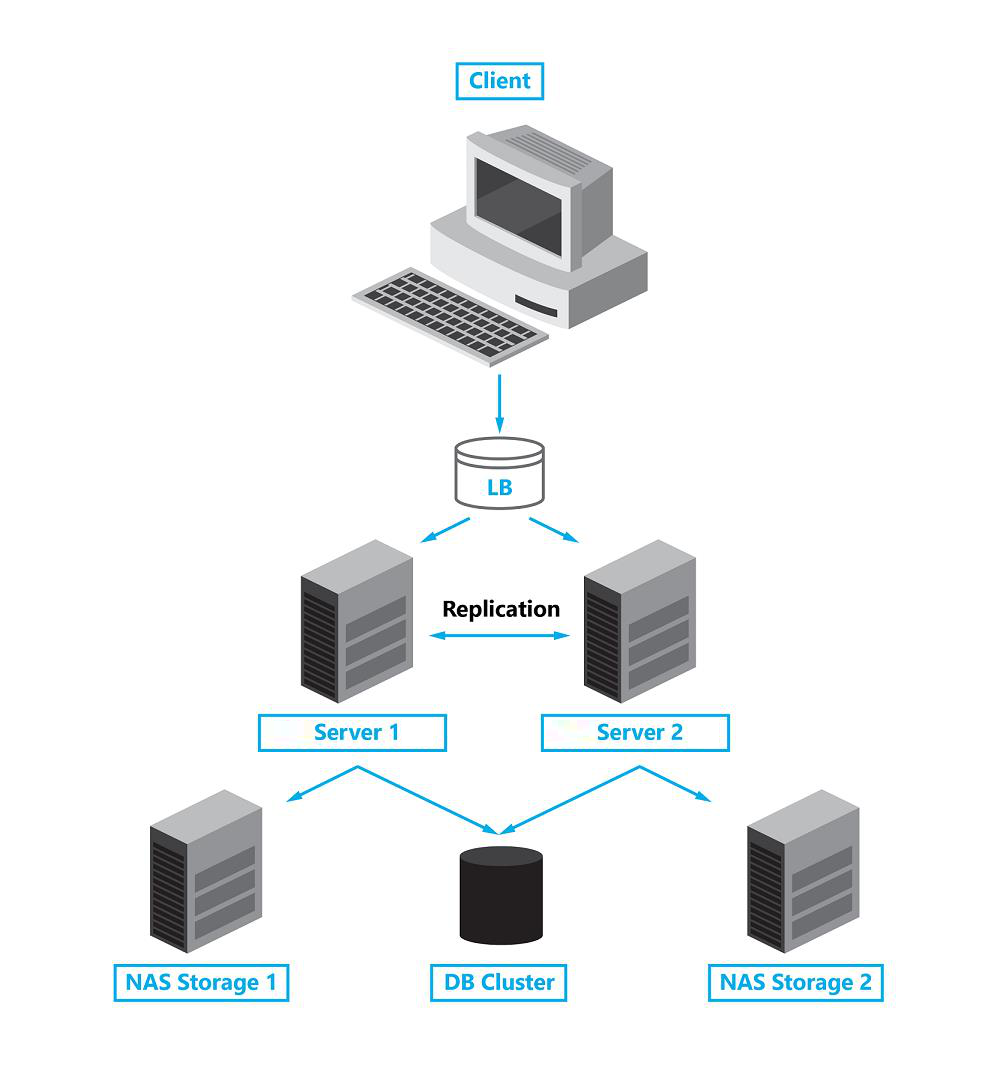
Conventions
For the example below, we use the following conventions:
- Server 1:
EngageCXServer1(IP address:X.X.X.X) - Server 2:
EngageCXServer2(IP address:Y.Y.Y.Y)
Requirements
- Both server nodes must meet the system requirements. See Requirements.
- Prepare the SQL Database cluster. See NorthStar CCM Database.
- Make sure both servers have the appropriate ports open. See Port Requirements.
- Run the NorthStar CCM setup and complete the installation process on each server node, following the HA configuration below.
High Availability (HA) Configuration
Particular configuration is required to set up High Availability successfully.
1. Running the Setup
While running the NorthStar CCM setup, make sure the following options are enabled. These settings are required for both nodes.
- Configure Publishing Engine: Enable Configure firewall rules to allow remote connections.
- Configure Data Engine: Enable Configure firewall rules to allow remote connections.
- Configure Analytics Engine: Enable Configure firewall rules to allow remote connections.
- Database Settings: Both NorthStar CCM instances must point to the same database.
- Storage Service Settings: Enable Configure firewall rules to allow remote connections.
- Configure Lock Service: Enable Configure firewall rules to allow remote connections.
- Configure Engagement Service: Enable Configure firewall rules to allow remote connections.
- Configure Workflow Service: Enable Configure firewall rules to allow remote connections.
- Configure Search:
- Enable Configure firewall rules to allow remote connections.
- Both NorthStar CCM instances must point to the same Search database.
- Configure Licensing Server:
- Enable Configure firewall rules to allow remote connections.
- Enable Peer Licensing Server.
- Enter the IP address of the opposite NorthStar CCM server in the Peer Licensing Server Address box.
- Backend Services Settings: Enable Configure firewall rules to allow remote connections.
- Configure MasterLog Server: Enable Configure firewall rules to allow remote connections.
- Enterprise Website Settings:
- Enable Configure firewall rules to allow remote connections.
- To ensure remote access, it might be necessary to replace
localhostwith*(to accept all connections) in the Website Host Name box.
- Administration Website Settings:
- Enable Configure firewall rules to allow remote connections.
- To ensure remote access, it might be necessary to replace
localhostwith*in the Website Host Name box.
- Portal Website Settings:
- Enable Configure firewall rules to allow remote connections.
- To ensure remote access, it might be necessary to replace
localhostwith*in the Website Host Name box.
- Dependent Services Settings:
- Verify that the correct IP addresses and ports are set up for your NorthStar CCM deployment.
- If a load balancer is added between the two NorthStar CCM server nodes, it might be necessary to configure the load balancer's IP address in the services boxes.
2. Updating the Configuration Files
After the setup completes, stop the NorthStar CCM Services and Websites before proceeding with the server synchronization configuration:
- The easiest way to stop NorthStar CCM Services is from Windows Task Manager → Services. NorthStar CCM uses the following services:
MHC Analytics Engine,MHC Data Engine,MHC Engagement Windows Service,MHC Licensing Server Service,MHC Lock Windows Service,MHC Omni System 4 Service,MHC Publishing Engine,MHC Storage Windows Service,MHC Workflow Windows Service. - The easiest way to stop NorthStar CCM Websites is from IIS Manager. NorthStar CCM uses the following websites:
ADMINEOS4,EOS4,PORTALEOS4.
On EngageCXServer1, access the main configuration file (EOS4.config) and add the lines below, based on your needs:
EngageCX Server 1 (IP Address: X.X.X.X)
ClusterNodeName=EngageCXServer1
ClusterServiceEnabled=true
Enables HA clustering and sets a unique name for the server.
StorageFolder={Path_To_EngageCXServer1_Storage_Folder}
StorageEncrypted=true
Enables storage encryption and configures the path to the storage location.
ESSPeerAddress=Y.Y.Y.Y
TriggerPeerAddress=Y.Y.Y.Y
SchedulerPeerAddress=Y.Y.Y.Y
BackgroundPeerAddress=Y.Y.Y.Y
BackupPeerAddress=Y.Y.Y.Y
Sets up the IP addresses for the HA peer services.
On EngageCXServer2, access the main configuration file (EOS4.config) and add the lines below:
EngageCX Server 2 (IP Address: Y.Y.Y.Y)
ClusterNodeName=EngageCXServer2
ClusterServiceEnabled=true
Enables HA clustering and sets a unique name for the server.
StorageFolder={Path_To_EngageCXServer2_Storage_Folder}
StorageEncrypted=true
Enables storage encryption and configures the path to the storage location.
ESSPeerAddress=X.X.X.X
TriggerPeerAddress=X.X.X.X
SchedulerPeerAddress=X.X.X.X
BackgroundPeerAddress=X.X.X.X
BackupPeerAddress=X.X.X.X
When the Peer Licensing property is enabled during setup, you will see the following configuration inside LicensingServer.config:
StorageClustered=true
ClusterSynchronizationEnabled=true
LicensingPeerServerAddress=<Peer_Server_IP_Address>
Note
To specify how long a peer should wait for a response from another peer before the connection fails, add the following parameter to Licensing.config:
ClusteredPeerConnectionTimeout=<Number>
- Once the above configurations have been applied on both
EngageCXServer1andEngageCXServer2, save and close the main config files (EOS4.config,LicensingServer.config). - Then, start the NorthStar CCM services and websites.
3. Testing the Configuration
Once the setup is complete, it is best practice to verify the following to ensure the HA configuration is working properly:
- On both servers, open the
EOS4.logfile (by default located atC:\ProgramData\MHC Software\Log) and wait until storage synchronization finishes. This can be confirmed by reviewing the log file for the relevant synchronization status entries. - Access
EngageCXServer1and install your domain product keys (HA Experience or HA Converse keys). Once installed, accessEngageCXServer2and verify the installed keys are available on the second server. - On
EngageCXServer1, create an environment and add some projects to it. Then accessEngageCXServer2and verify that the newly created environment and assets are synchronized.
Complex Deployments
The NorthStar CCM Platform provides a scalable architecture that can accommodate various scenarios. This section describes how to install the NorthStar CCM Platform across multiple servers.
Briefly, when installing NorthStar CCM components across multiple servers, consider the following:
- Run the executable on each server where you want to deploy NorthStar CCM software.
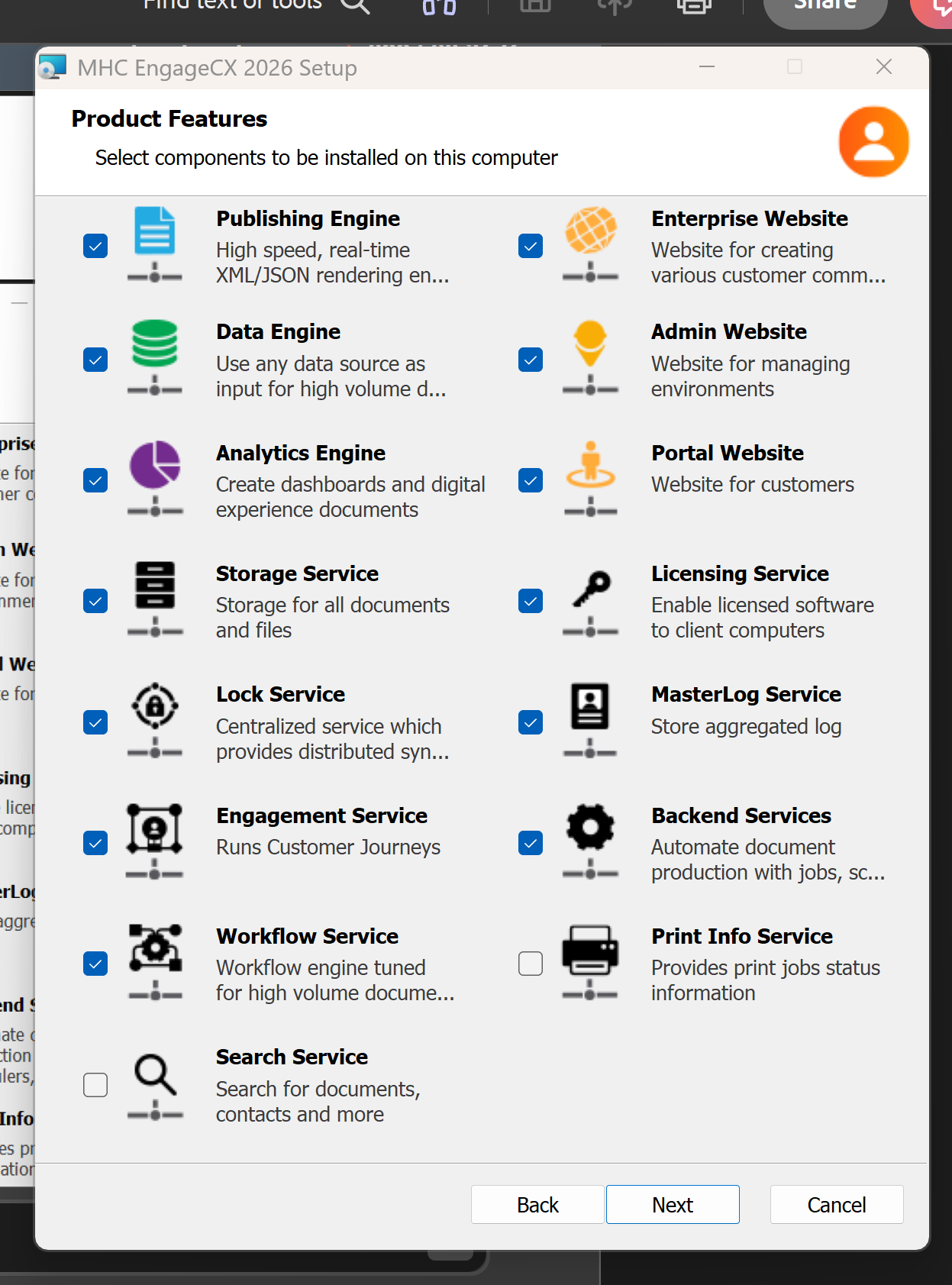
- On the Product Features Selection step, select only the components you want to install on the server you're running the executable on.
- Check Configure firewall rules to allow remote connections for each component.
- On the Dependent Services Settings step, configure the host name and port number for each component to ensure they're connected and can communicate.
- On the Licensing Server step, configure the IP address of the Peer Licensing Server component or of the Load Balancer.
Example scenario
In this example, the NorthStar CCM websites are installed on one server (FrontEnd Server), the NorthStar CCM database is placed on a separate server (SQL Server), and the other components (Publishing Engine, Data Engine, Analytics Engine, Licensing Engine, Backend Engine, Storage Engine, Lock Engine) are installed on a separate server (BackEnd Server).
SQL Server
When configuring the NorthStar CCM database on the SQL Server, ensure the following:
- Create a new database to use for the NorthStar CCM software.
- The database needs to be created under Microsoft SQL Server 2008 or later.
- After the database is created, ensure that the user under which database authentication will be made has at least Database Admin rights (
db_owner). For Windows Authentication, the Network Service account must have permission to log on as a service.
NorthStar CCM Back End Server
Run the NorthStar CCM executable on the Back-End Server to start the installation. The steps below highlight the changes needed within the Installation Wizard for this scenario. For more general detail on each step, see Single Instance Installation.
- Start the Installation Wizard, accept the End-User License Agreement, then click Next.
- On Destination Folder, either change the default installation location (
C:\Program Files\MHC Software\MHC EngageCX 2026) or keep the default, then click Next. - On Product Features Selection, select all components other than websites: Publishing Engine, Data Engine, Analytics Engine, Search Engine, Storage Engine, Lock Engine, Backend Services, Licensing Server, and Print Info Service.
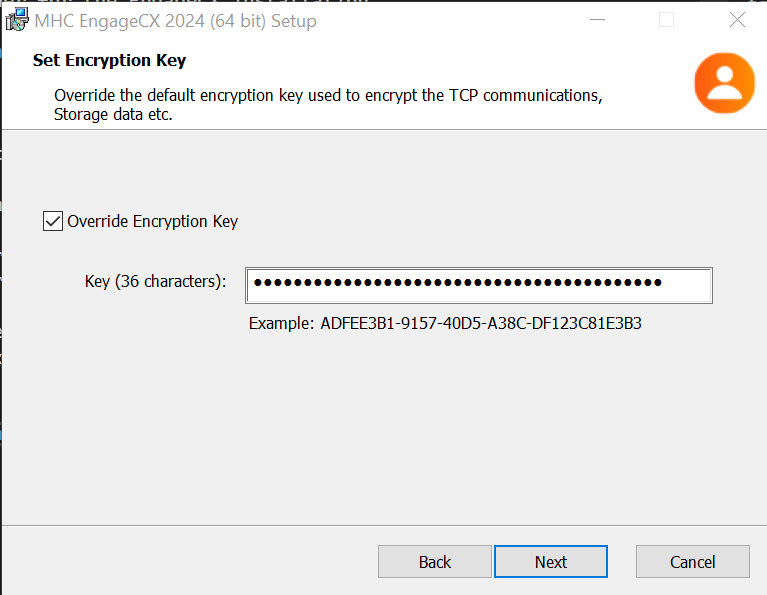
- On Set Encryption Key, check Override Encryption Key to override the default encryption key used to encrypt TCP communications, storage data, etc., then click Next.
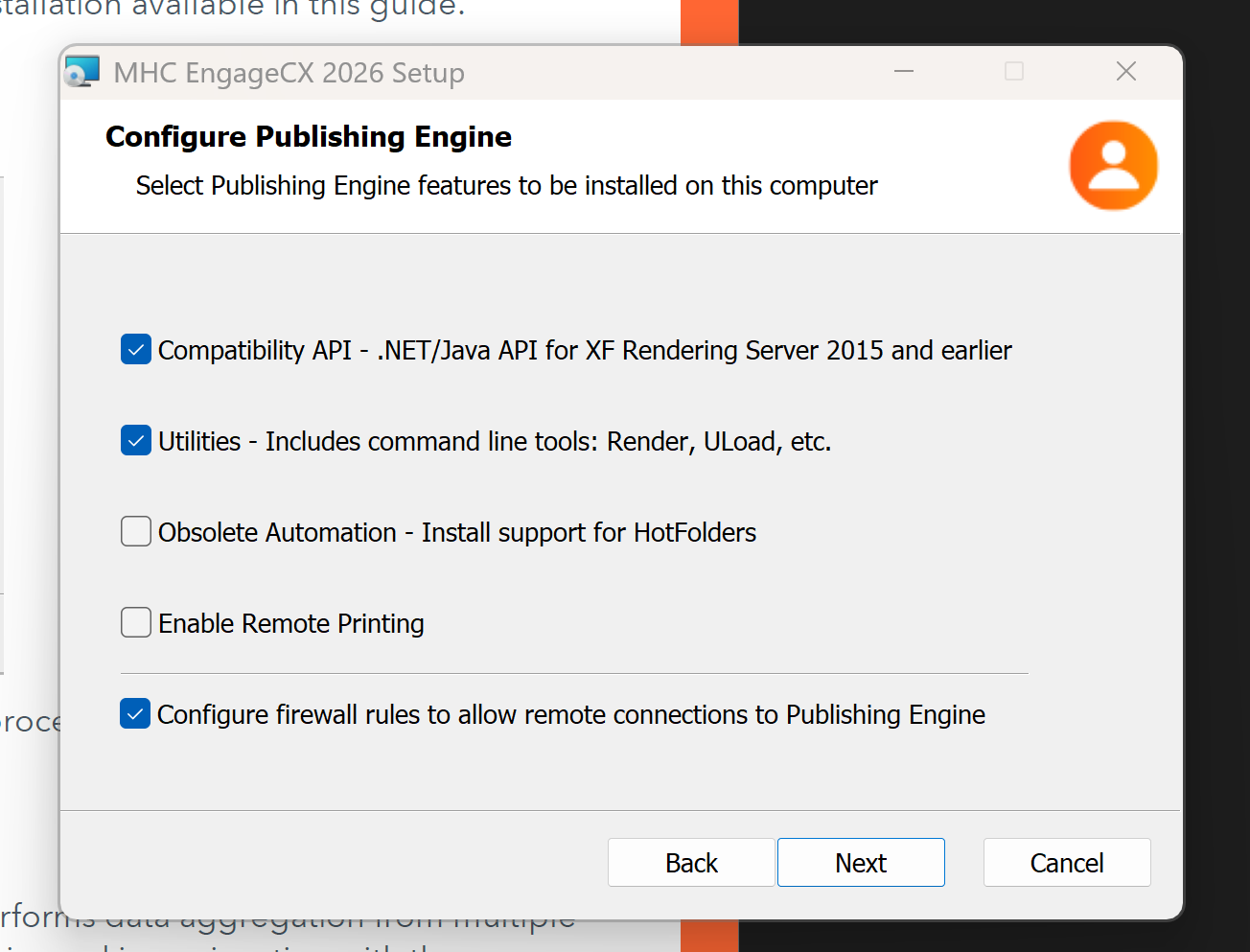
- On Configure Publishing Engine, check Configure firewall rules to allow remote connections to Publishing Engine, then click Next.
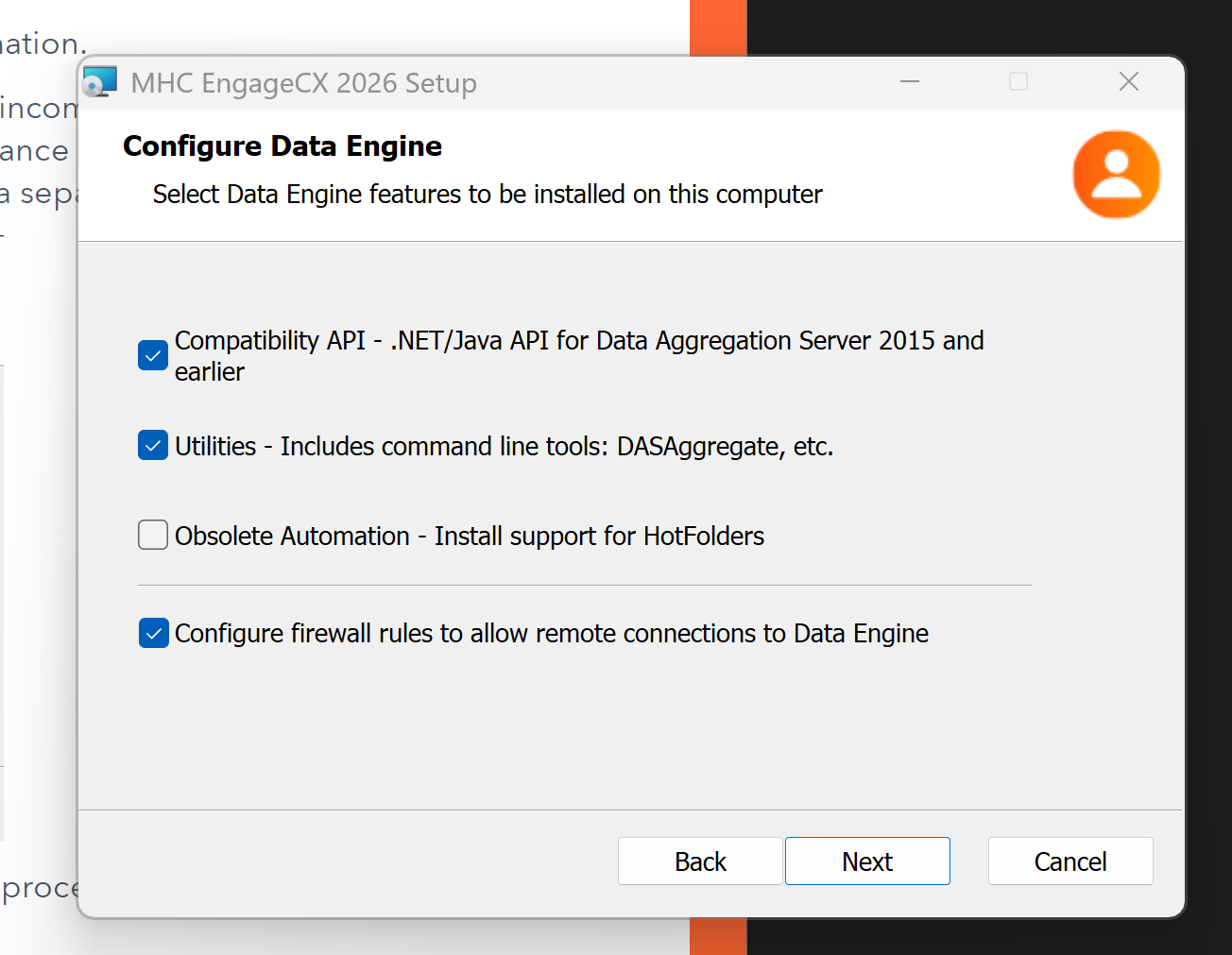
- On Configure Data Engine, check Configure firewall rules to allow remote connections to Data Engine, then click Next.
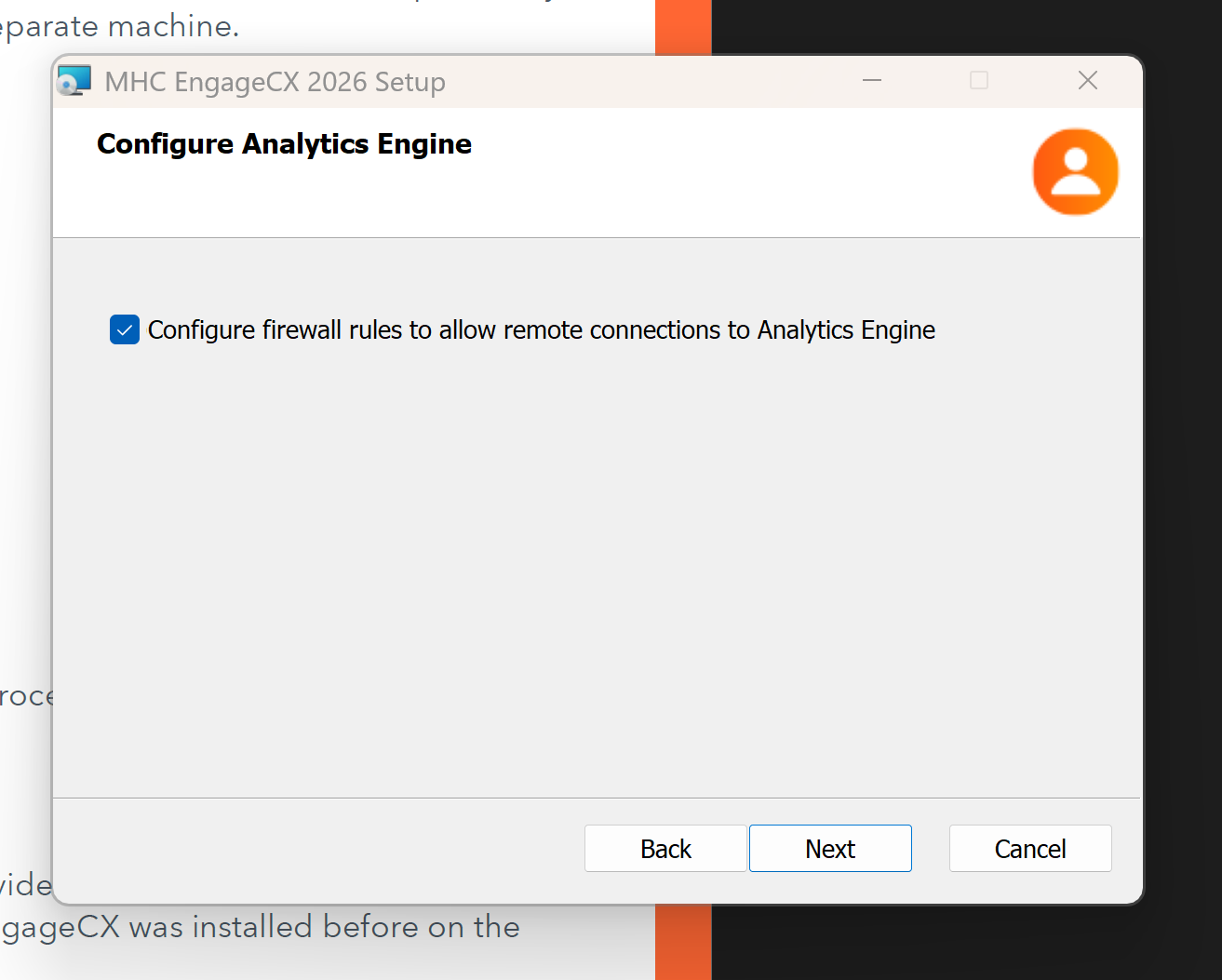
- On Configure Analytics Engine, check Configure firewall rules to allow remote connections to Analytics Engine, then click Next.
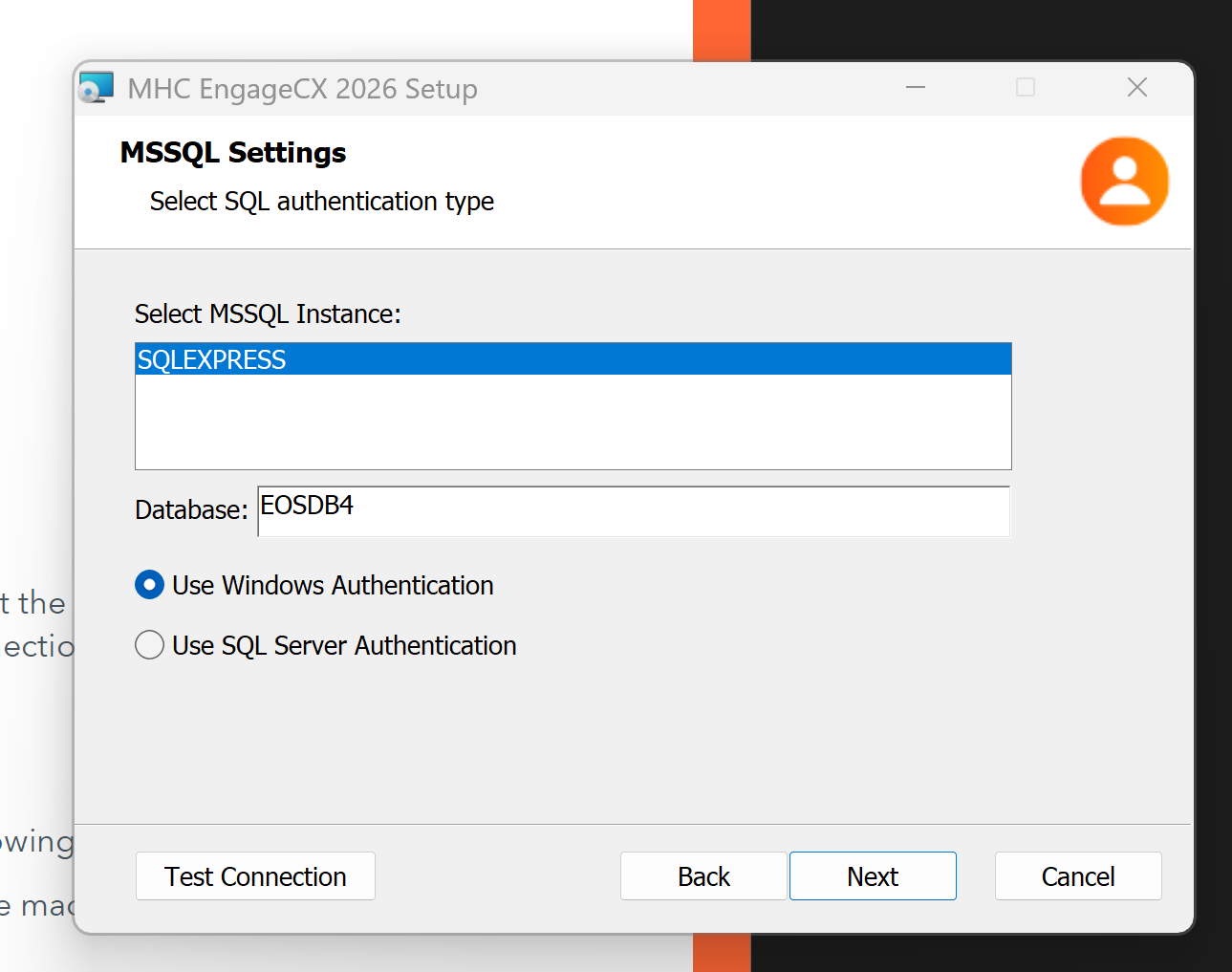
- On Database Settings, establish a reliable connection to the SQL Server. Select the Provider Type, add the Server Name, Database Name, and login credentials for SQL or Windows Authentication. Make sure the user has permission to read/write/list in the specified database.
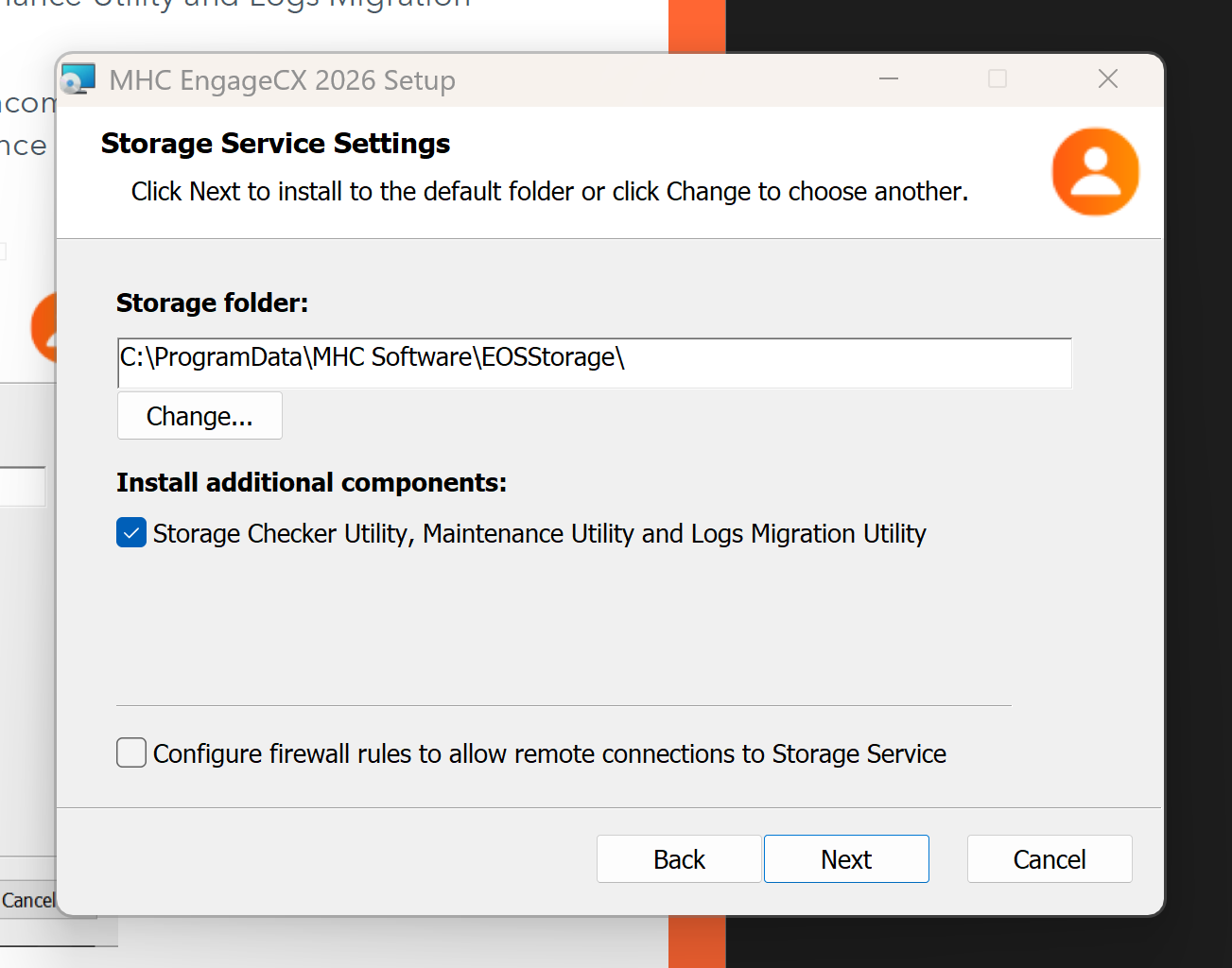
- On Storage Service Settings, add a path to the storage folder. If using NAS storage, use network paths (e.g.,
\\ServerName\EngageCXStorage).
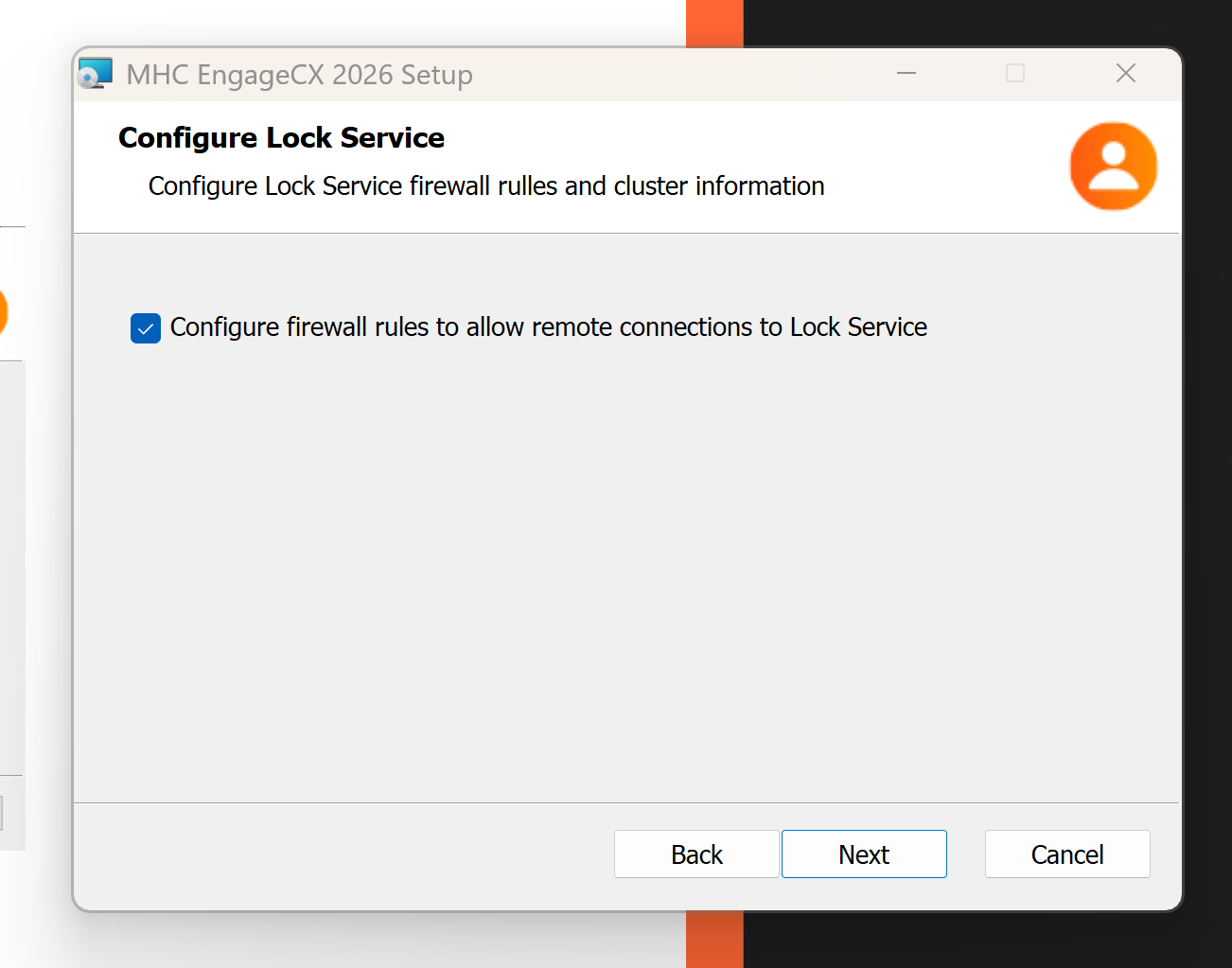
- On Configure Lock Service, check Configure firewall rules to allow remote connections to Lock Engine, then click Next.
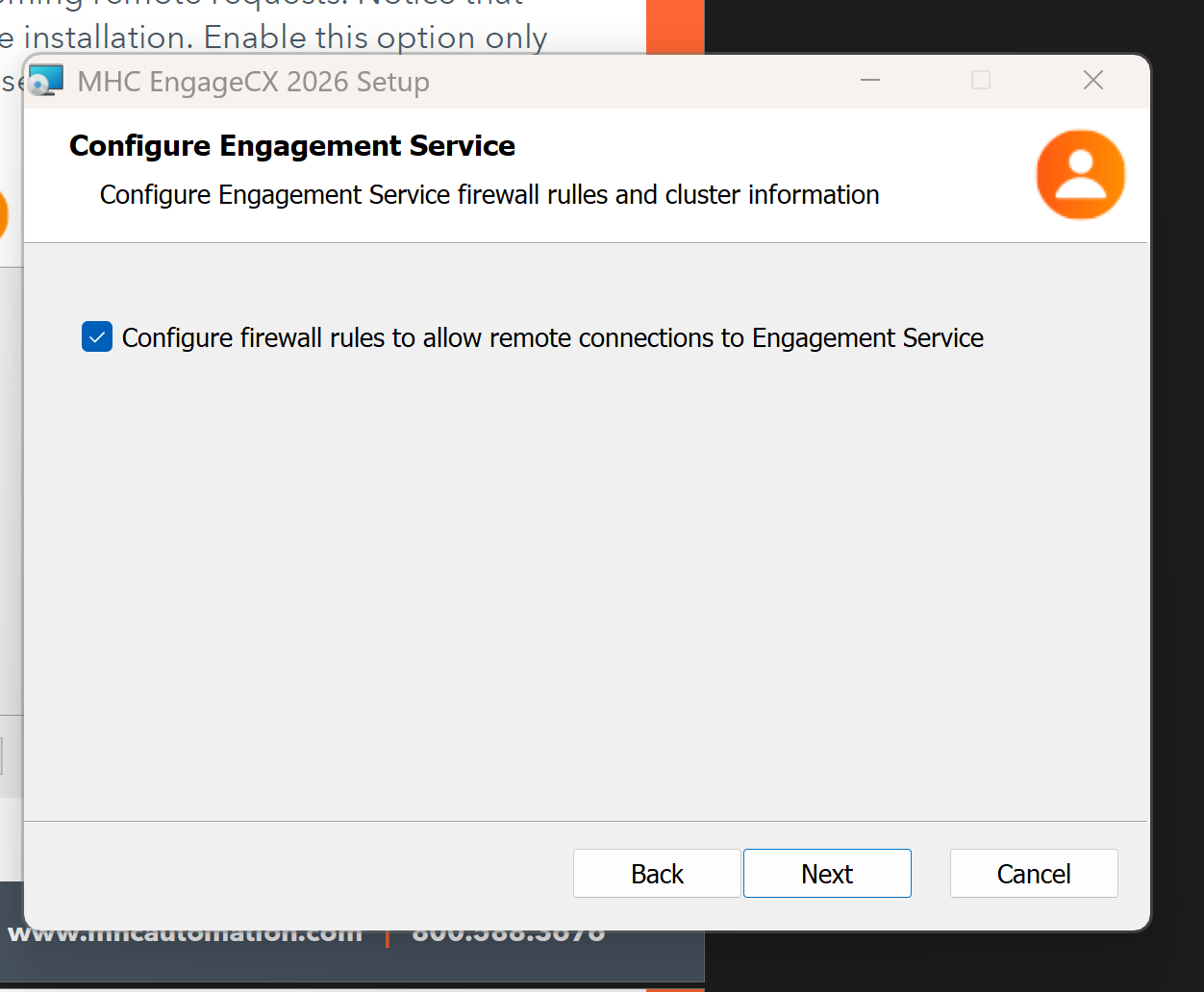
- On Configure Engagement Service, check Configure firewall rules to allow remote connections to Engagement Service, then click Next.
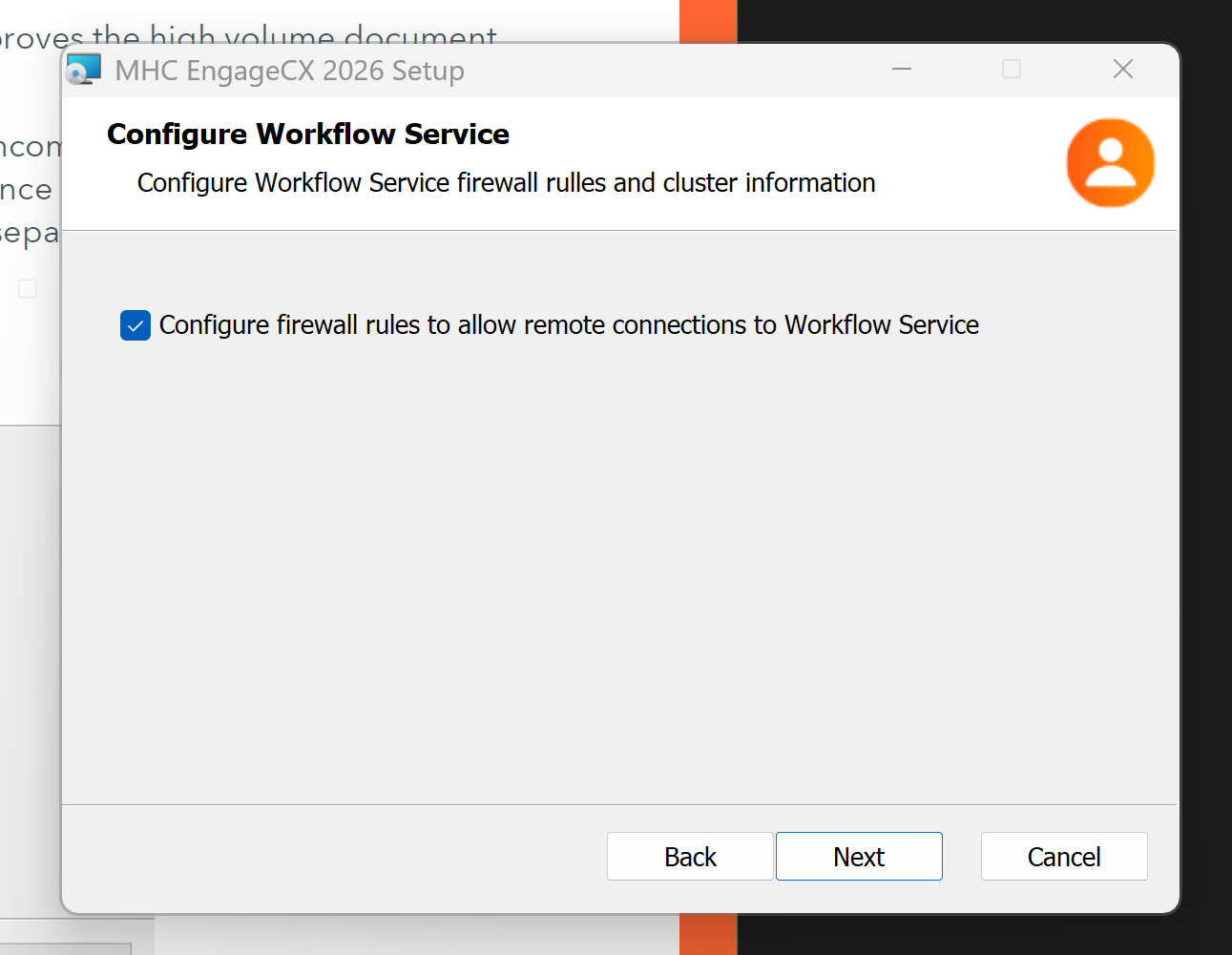
- On Configure Workflow Service, check Configure firewall rules to allow remote connections to Workflow Service, then click Next.
- On Search Engine Settings, establish a reliable connection to the SQL Server that contains your Search database. Select the Provider Type, add the Server Name, Database Name, and login credentials for SQL or Windows Authentication. Make sure the user has permissions to read/write/list in the specified database.
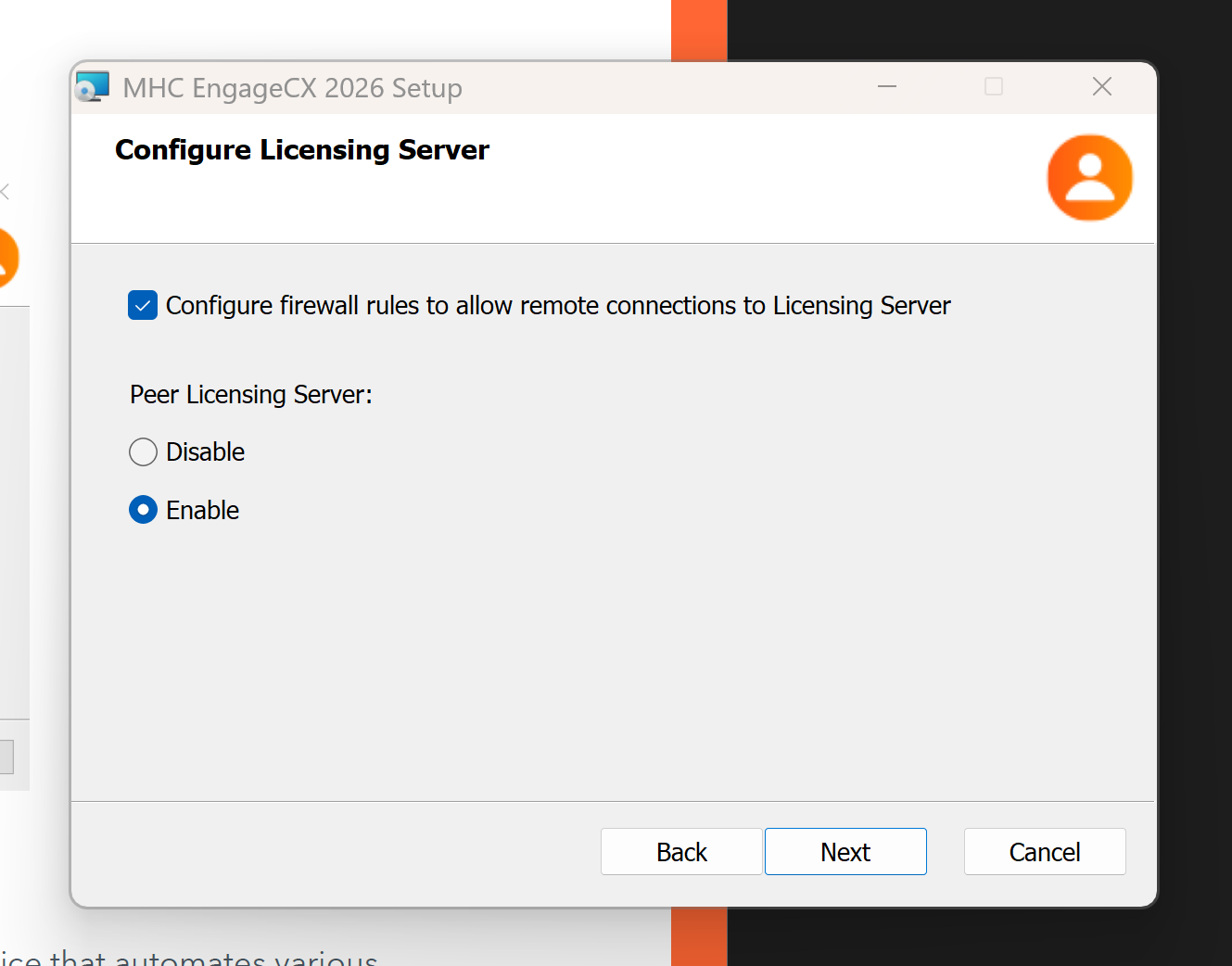
- On Configure Licensing Server, check Configure firewall rules to allow remote connections to Licensing Server, then click Next. For a HA deployment of the Licensing Server, enable Peer Licensing Server Address and enter the IP address of the Peer Licensing Server.
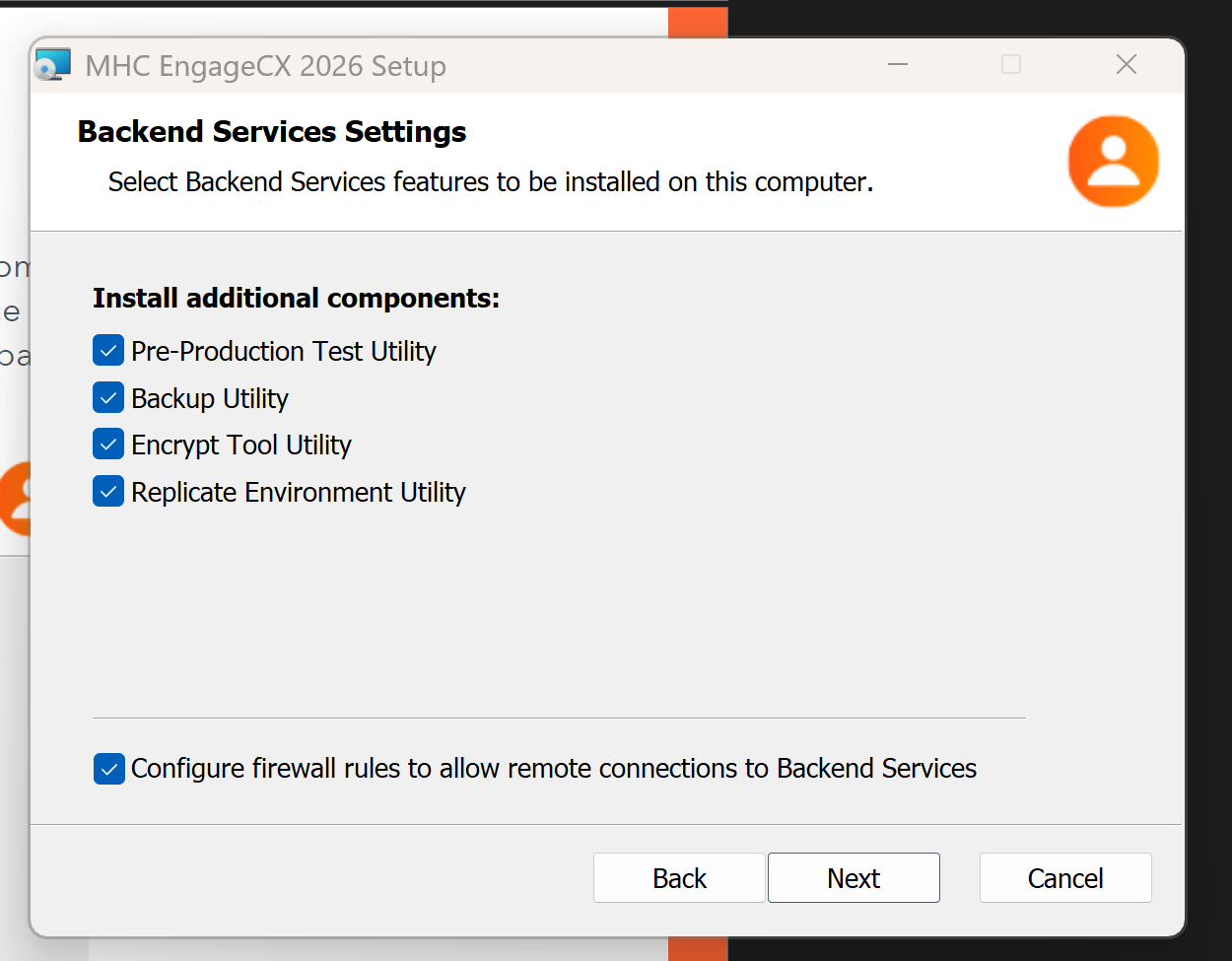
- On Backend Services Settings, check Configure firewall rules to allow remote connections to Backend Services, then click Next.
- On Configure MasterLog Service, check Configure firewall rules to allow remote connections to MasterLog Engine, then click Next.
- On Dependent Services Settings, update the Host Names/IP Addresses for the NorthStar CCM websites. In this example, the host name would be the NorthStar CCM Front-End Server.
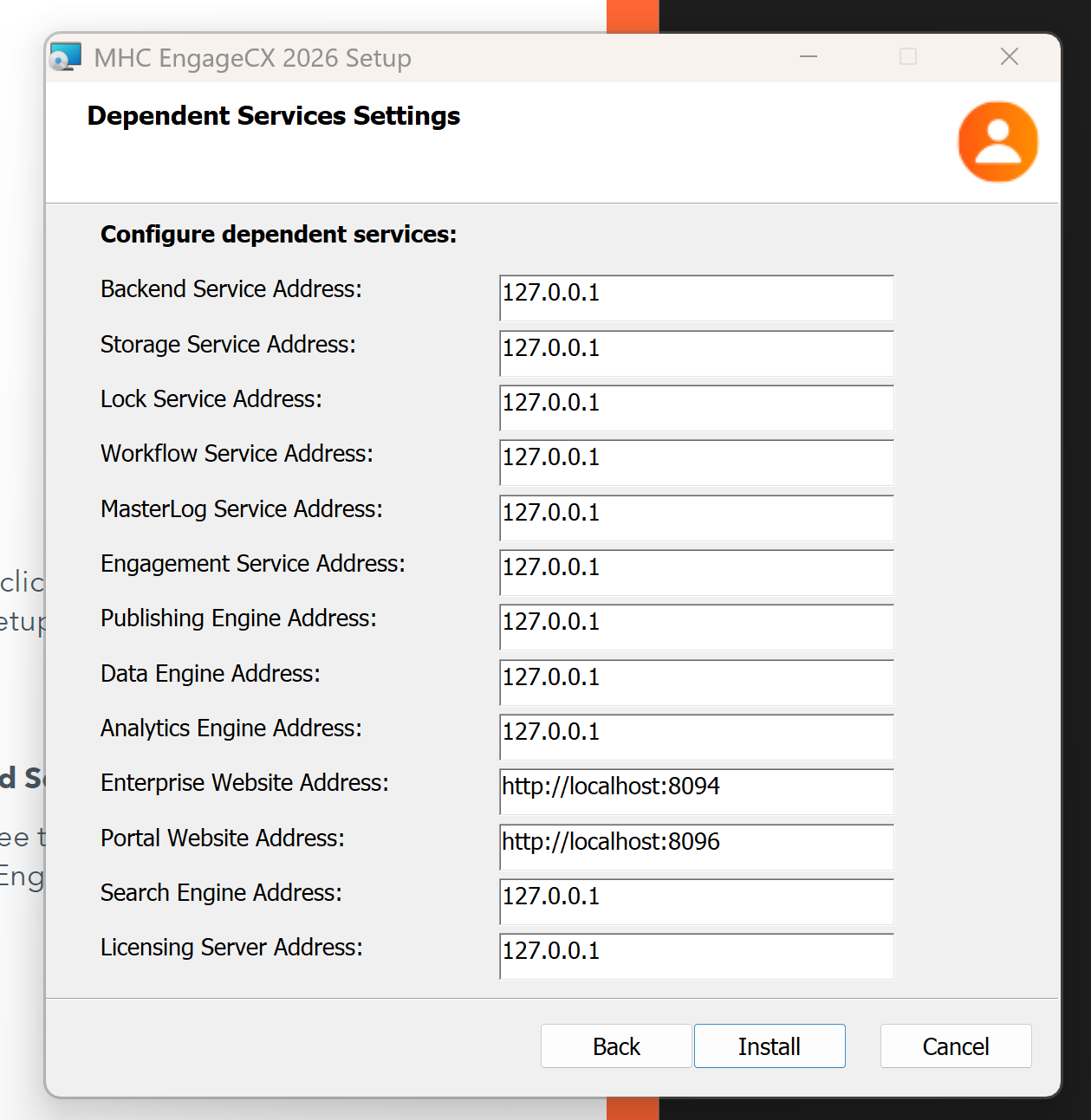
- Once ready, select Install to start the installation process.