People
NorthStar CCM People enables organizations to get more visibility in customer actions, generate more high-quality people and engage more efficiently.
With People, organizations can generate better quality customers, get more insight and close more business.
This guide covers all the information you might need while using People. For a detailed understanding of the capabilities in the People App, please skim over the functionalities detailed within this guide.
Getting Started
The People app allows companies to manage information about the persons involved in the organization. If you're ready to take People experience to the next level, follow the instructions in this section to find out more.
Installing the App
Follow the steps below to learn how to install the app.
- Start by accessing your NorthStar CCM Account.
- Access your cloud organization.
- Click your account name in the top-right corner and select
Explore Apps. - Identify the
Peopleapp in the Grid Apps Menu and clickMore >button. - Select
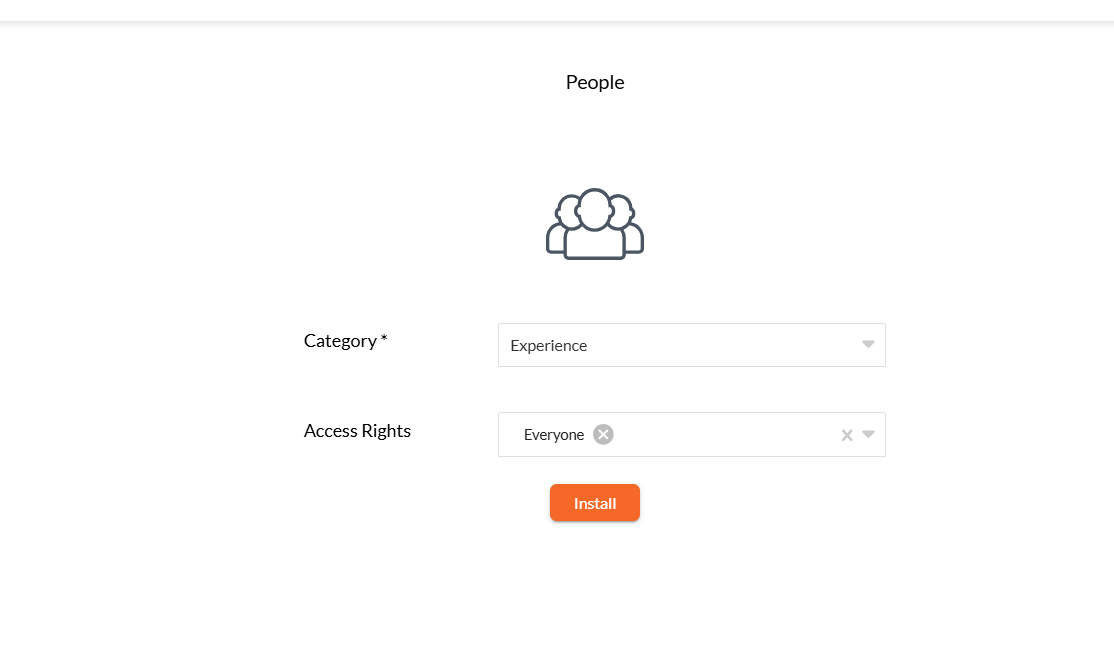
Get It Now >, then fill in the form fields as below:- Category: Choose the category where you want to include this App to;
- Access Rights: Use the drop-down list to configure the App permissions for your existing users or groups.
- Once ready, select
Install.
Note
If the user does not have the corresponding App keys installed, after the installation, you will be automatically redirected to install the licenses. To continue with this, select Manage Licenses, then click the Add button to install the product keys.
People Interface
This section provides a detailed tour of the most common components that add interactivity to the People Interface. Find below the touchpoints for the users as they navigate throughout the app and learn how to make full use of them.
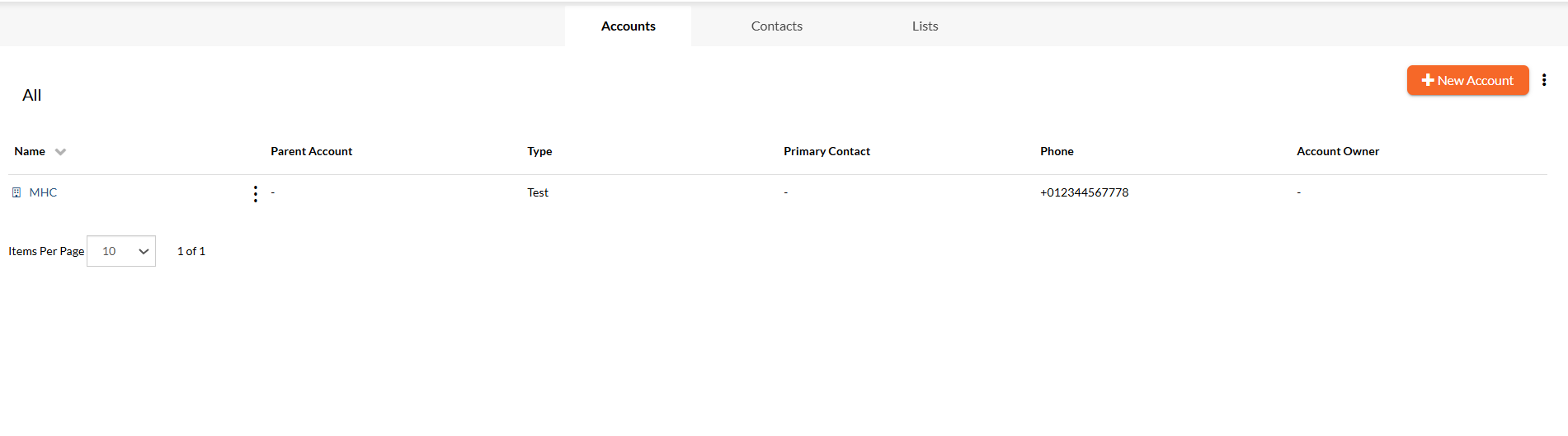
(A) Navigation Bar - appears at the top of the app screen and it is split into 3 sections - left, center and right.
- In the left side, there is the Organization name, from where you can access the Cloud Organization welcome page and view the installed apps.
- In the center of the navigation bar, there is the Name of the app from where you can redirect to the main People's Accounts view from whatever page you are visiting at the moment.
- In the right side of the navigation bar, there is the Help Center that offers options for support, access to the NorthStar CCM Documentation, user feedback, etc. Next to the Help Center, there is also the Account Name that enables a list of right sidebar options, such as organization, account, users configurations or exploring the available apps.
(B) Toolbar - displays the main views of the application you are currently working with.
- Accounts - a view with all the existing accounts displayed in detail mode.
- Contacts - a view with all the existing contacts and leads displayed in a detail mode.
- Lists - a view with all the existing static and dynamic lists displayed in a detail mode.
(C) Page Content - is the dedicated region that you will use to easily navigate through your categories of people (accounts, contacts or lists) and find the associated information, such as the name of the account, its parent account, the type, the primary contact, the phone number and the account owner.
People App Basics
People allows you to record and manage information about the persons involved in your organization. These persons vary from sales accounts, including leads, prospective customers to individual contacts and households.
Accounts
Accounts allow you to view and manage all the organizations that you're doing business with and store contacts that are people who work for them. For example, if your organization is involved with a single person, such as a solo contractor, you should store the information in an individual account.
To stay organized, it is a best practice to provide a relevant account name that represents a CompanyBranch, a CompanyGroup or an Individual business.
Note
There are no restrictions in using special characters or spaces within the names of accounts. For example, Christ Paul, BlueSky Properties Inc., Lincoln Estate, National Invest, etc.
Creating Accounts
Creating a new account requires having at least one Account Type defined in your organization. If none exists, visit the Managing Account Types section to learn how to create one.
Follow the steps below to learn how to create a new account.
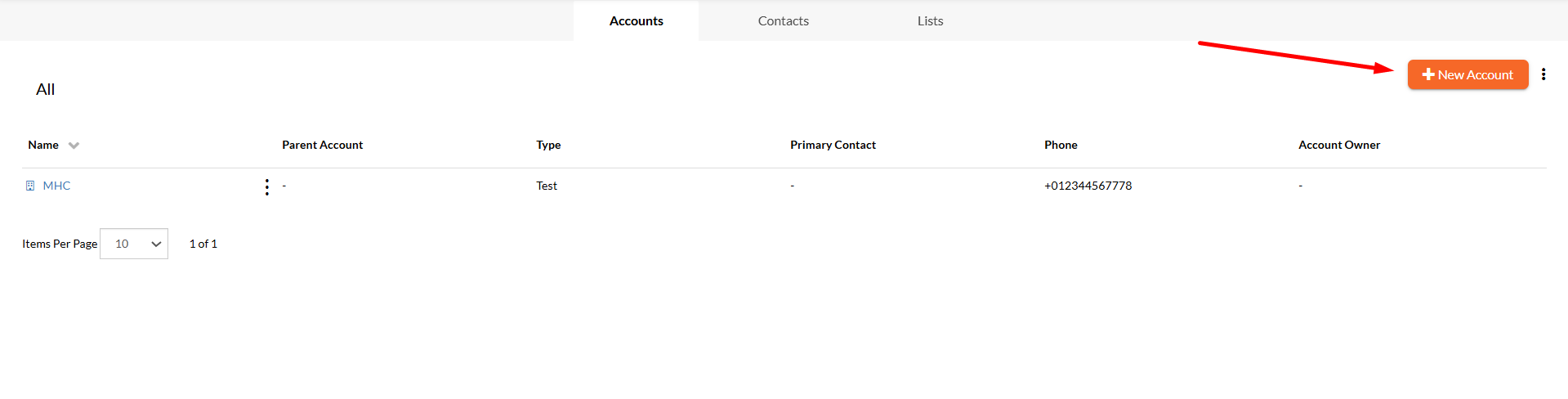
- Access the
Accountstab on the sidebar. - Select the
+ New Accountbutton from the right-corner of the page. - Fill out the form with the appropriate values:
Account Type: indicates the account purpose. Expand the drop-down list and select the needed type. To configure account types, read the instructions from here.Parent: helps you to create a hierarchy of accounts by allowing you to specify a parent account for those accounts created on behalf of customers' partners.Account Information: enter specific information for the current account. When creating a new account, it is necessary to enter an organization name, a phone number and a website URL. Additionally, you can add address information and set up other account preferences.
- Once you're ready, click
Save.
Managing Account Types
By default, all the accounts within People can be defined according to three categories: Customer - Channel, Customer - Direct or Individual. The Accounts page allows you to define also custom types. Follow the steps below to learn how to create a new account type.
- Starting from the Accounts view, select the
More Actions( ) button in the right-corner of the page. - Select
Manage Account Typesfrom the drop-down menu. - Select
+ Add Account Typefrom the bottom of the dialog to create a new account type. - Choose an appropriate name for the new type of your account.
- Once you're ready, select
OKto save the changes.

Contextual Account Types Options
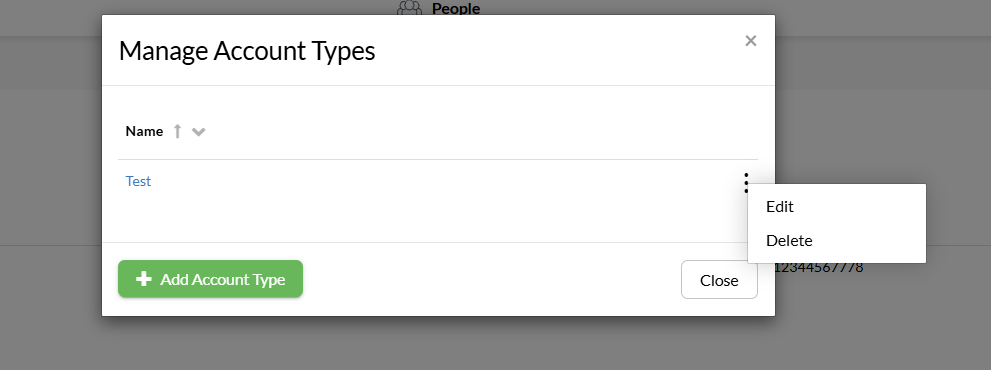
Follow the steps below to explore the options from the contextual menu of an account type.
- Starting from the Accounts view, select the
More Actions( ) button in the right-corner of the page. - Select
Manage Account Typesfrom the drop-down menu. - In the Manage Account Types dialog, select the
More Actions( ) button of an account type. - From the contextual menu displayed, you can select the following options, according to your needs:
- Edit: Use the
Editbutton to rename the account type. - Delete: Use the
Deletebutton to permanently remove the account type.
- Edit: Use the
Accessing Accounts Information
Working with accounts, there are certain data stored in the Account Information page of each synchronized entity. Follow the steps below to learn how to access/edit account information.
- Starting from the Accounts page, identify the account from the available list of which information you want to update/check.
- Click on the name of the account you are interested in and you will be redirected to the Account Information page.

Exploring the Accounts Information Page
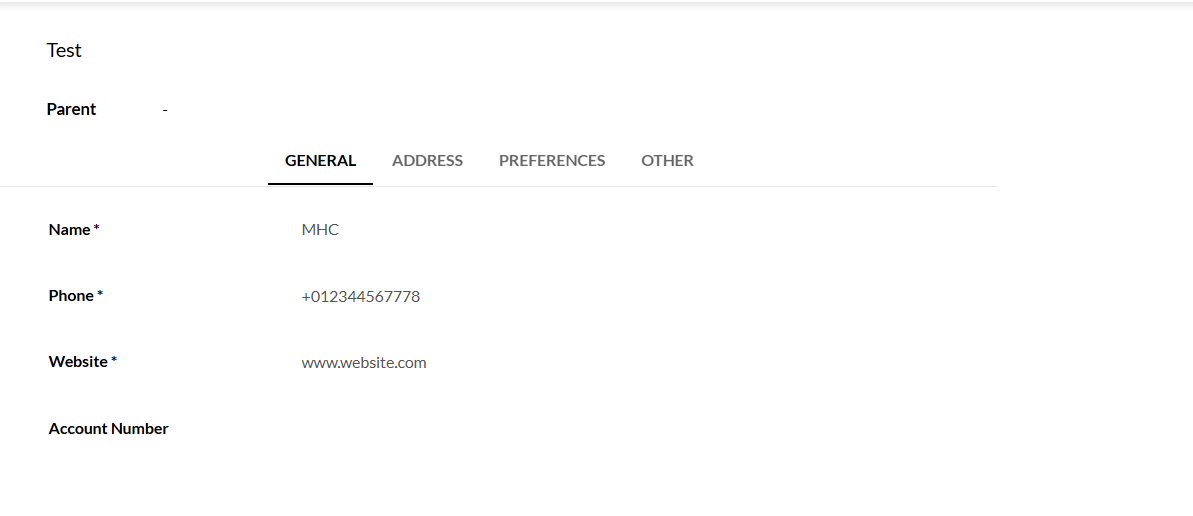
All the data corresponding to an account is categorized in different tabs, storing specific information gathered mostly from the external system:
- Personal Information (Name, Phone, Website, etc.) - stored within the
GENERALtab - Address Information (Street, ZIP code, Country, etc.) - stored within the
ADDRESStab - Preferences defined in the NorthStar CCM system - stored within the
PREFERENCEStab
Besides the mapped fields in the left, there are also details about the associated contacts in the right side of the page. The Contacts Pane offers a view with all the contacts included in this account. To access the Contact Information page, you can click on a contact from the pane.
Updating Accounts Information
Follow the steps below to learn how to update account information.
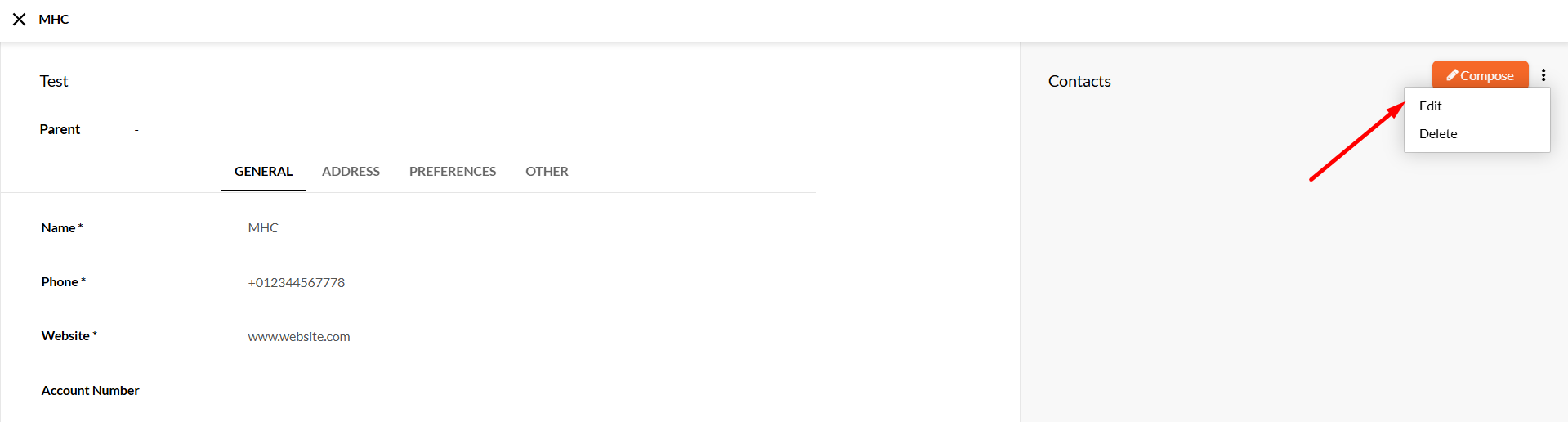
- Starting from the Account Information page, to edit any of the fields already mapped of the current account, select the
More Actions( ) button in the right-corner of the page. - Select
Editfrom the contextual menu. - The fields become editable, therefore you can update the data as you need.
Saving Accounts Information
Follow the steps below to learn how to save the updated information.
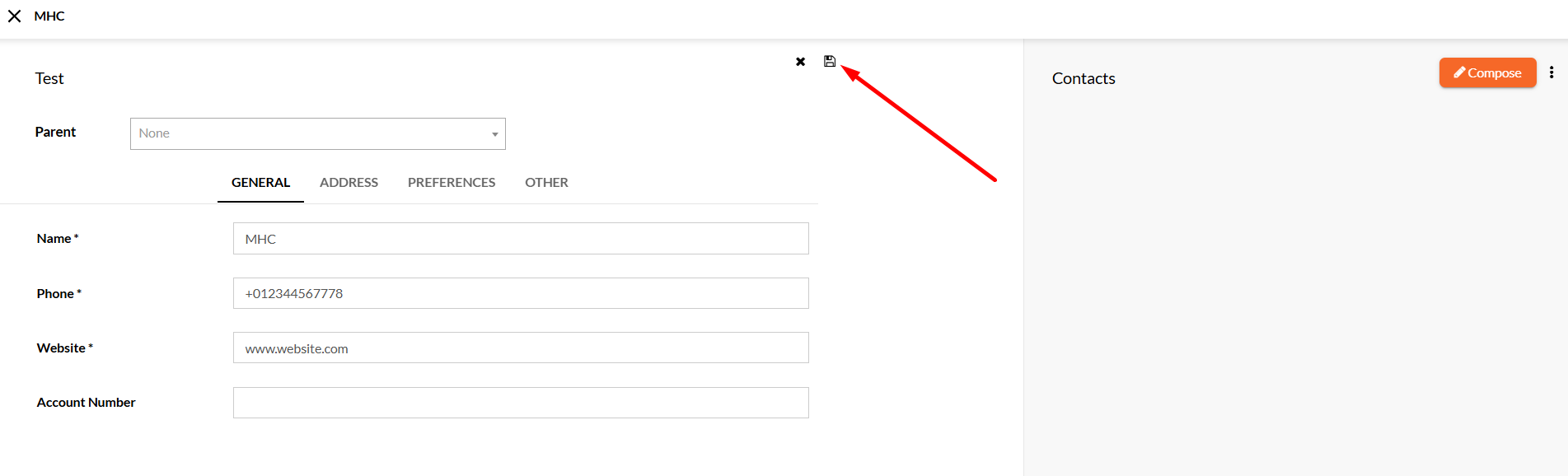
- Starting from the Account Information page, in editing mode, modify all the necessary data.
- If you want to discard the changes you are currently updating, select the
Discard changes( ) button beneath the toolbar. - Once you're ready, select the
Save( ) button.
Generating Documents for an Account
Info
For generating documents, you must have another NorthStar CCM App installed, called Communications. This app will open directly when trying to create a new communication. The only requirement is to have an appropriate product key for Communications app.
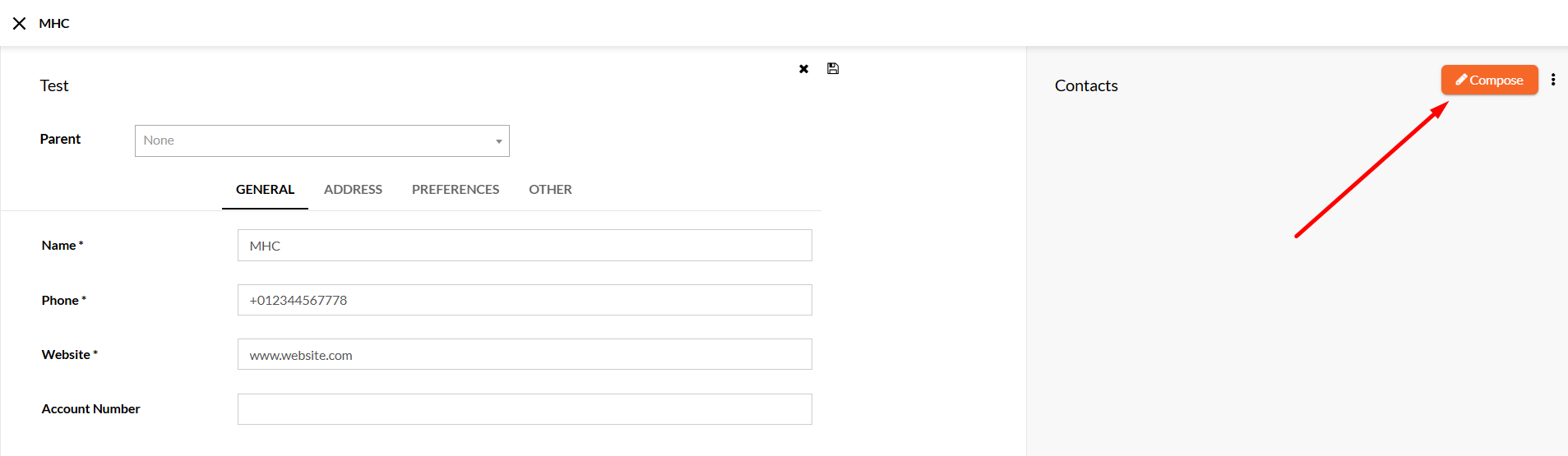
A common scenario for document generation involves producing a document at the same time for a certain account that includes many contacts. Follow the steps below to learn how to send one document to multiple recipients, all contacts included in an account.
- Starting from the Accounts view, choose the account for which you want to send documents.
- Select the
Composebutton from the top-right corner of the page. - Choose a
Projectfrom the available communication project displayed in the page and clickContinue.- Additionally, you can use the
Search( ) button from the left sidebar to look up for a specific project or navigate to a specific destination folder.
- Additionally, you can use the
- Once you're ready, select
Run( ) from the toolbar or clickSubmitif the communication is a form. - The Communication Run page will open in a new page, where you are able to see the Summary of the output document. In addition, you can also view the communication documents, emails and SMS, besides the Log files during the communication jobs execution.
Note
For more details regarding how to send bulk communication, please visit the Communications App Guide.
Sorting Accounts
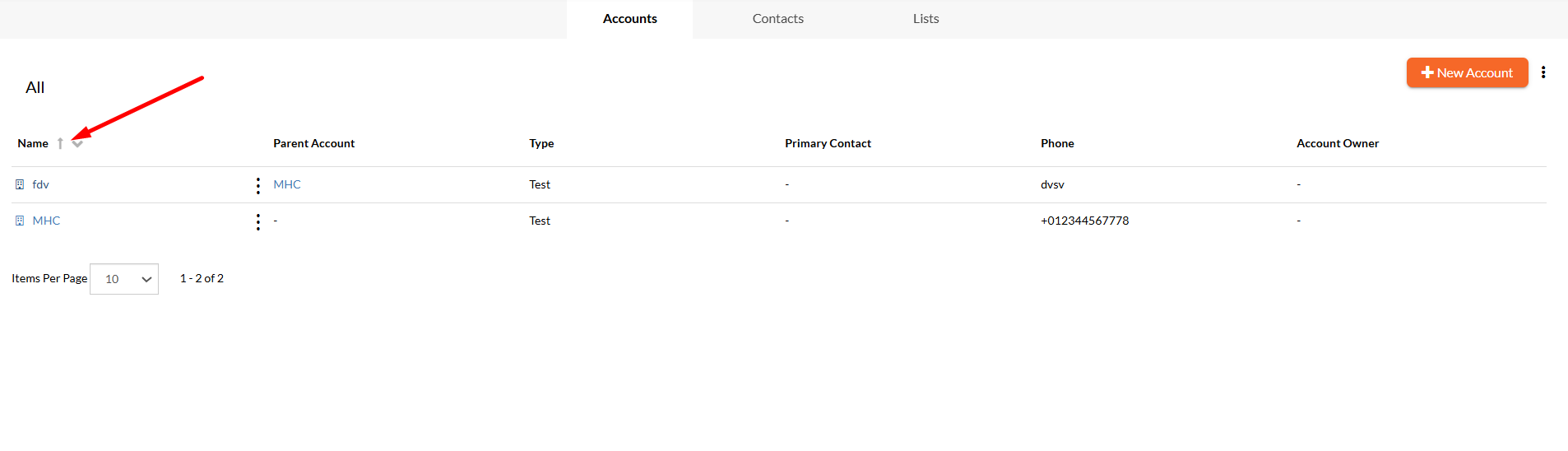
Starting from the Accounts page, you can sort the entities listed within by using the only available column-header: Name.
- To sort the accounts information displayed, select the column-header (e.g. Name) and the list will sort the results in ascending ( ) or descending ( ) order.
Contextual Accounts Options
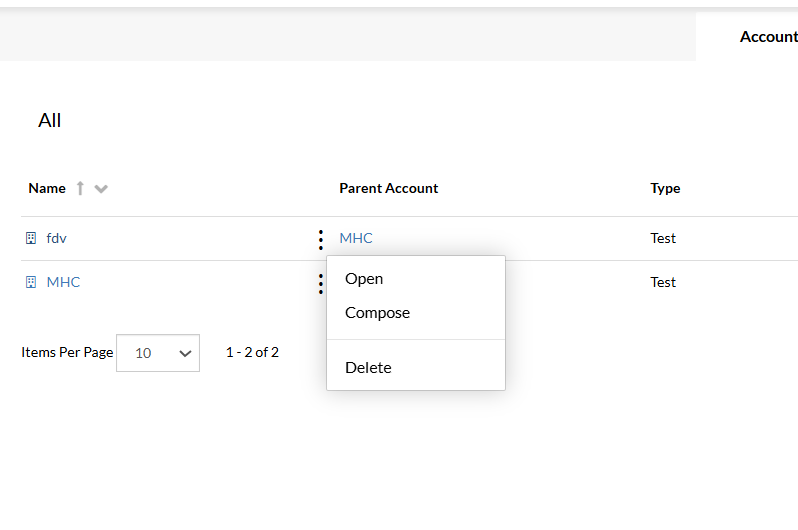
Follow the steps below to explore the options from the contextual menu of an account.
- Access the
Accountstab from the toolbar. - Select the
More Actions( ) button of an account from the Page Content. - From the contextual menu displayed, you can select the following options, according to your needs:
- Open: Use the
Openbutton to update the personal account details or to view a list with all the contacts integrated into the current account. - Compose: Use the
Composebutton to submit a communication project for all the contacts of the account. - Delete: Use the
Deletebutton to permanently remove the account.
- Open: Use the
Contacts
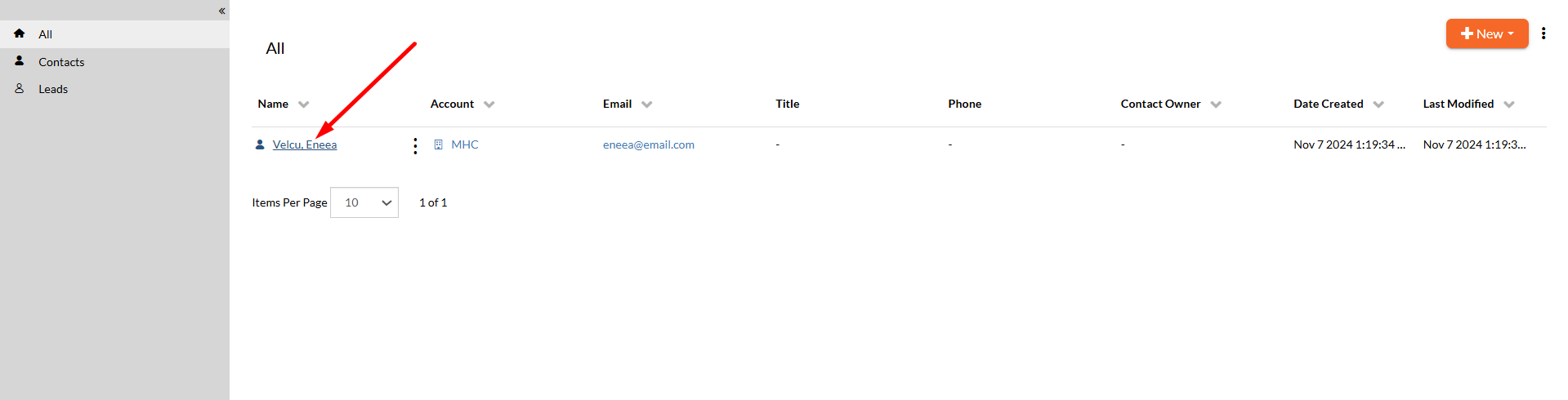
Contacts enable to manage contact information and communicate with individuals connected to an account. There are two different types of contacts supported by People: contact and lead. The difference is that contacts store existing customers, while leads are persons interested in your products.
The Contacts tab offers a good an easy way of finding and navigating through existing contacts inside your organization. The page provides a left sidebar with three views, from where you can filter the existing contacts. The sidebar has two states: Hidden or Locked. These can be set up by correspondingly clicking on the Shrink ( ) or Expand ( ) buttons. When expanded, you can select from the following listed options:
- All - displays a view with all types of contacts (contact and lead) in detail mode.
- Contacts - displays a view with the contacts only.
- Leads - displays a view with the leads only.

Managing Contacts
Contacts are the people in your organization with whom the company has business communications.
Note
As a naming convention for Contacts, we recommend that it should consist of the given name, surname or first name of the individual. Other additional information regarding the Contact should be avoided in order to reduce confusion or misunderstanding. There are no restrictions in using special characters or spaces within the names of contacts. For example, John Doe is a valid name.
Creating Contacts
Follow the steps below to learn how to create a new contact.
- Access the
Contactstab on the sidebar. - Select the
Newbutton from the right-corner of the page. - Select
Contactfrom the drop-down menu. - Fill out the form with the appropriate values:
Account- indicates the parent account in which the current contact is included, if any. Use this option if you want to create a hierarchical relationship between your contact and an account.Contact Details- enter specific information for the current contact. When creating a new contact, it is necessary to enter the last name and the email of the person you want to add.Is Primary Contact- make the current contact the main contact person, for example, the representative of your organization. This option enables to the primary contact more privileges than a basic one.Don't sync with CRM- allows you to keep this contact out whenever the CRM synchronization occurs. Otherwise, the synchronization will override the updated values with the mapped values from the CRM system (e.g. Salesforce).
- Once you're ready, click
Save.

Managing Leads
A lead is a prospect who may be interested in your business.
Creating Leads
Follow the steps below to learn how to create a new lead.
- Access the
Contactstab on the sidebar. - Select the
Newbutton from the right-corner of the page. - Select
Leadfrom the drop-down menu. - Fill out the form with the appropriate values:
Contact Details- enter specific information for the current lead. When creating a new lead, it is necessary to enter the last name and the email of the person you want to add.Don't sync with CRM- allows you to keep this lead out whenever the CRM synchronization occurs. Otherwise, the synchronization will override the updated values with the mapped values from the CRM system (e.g. Salesforce).
- Once you're ready, click
Save.

Accessing Contacts Information
Working with contacts or leads, there are certain data stored in the Contact Information page of each synchronized entity. Follow the steps below to learn how to access/edit contact information.
- Starting from the Contacts page, identify the contact/lead from the available list of which information you want to update/check.
- Click on the name of the contact/lead you are interested in and you will be redirected to the Contact Information page.
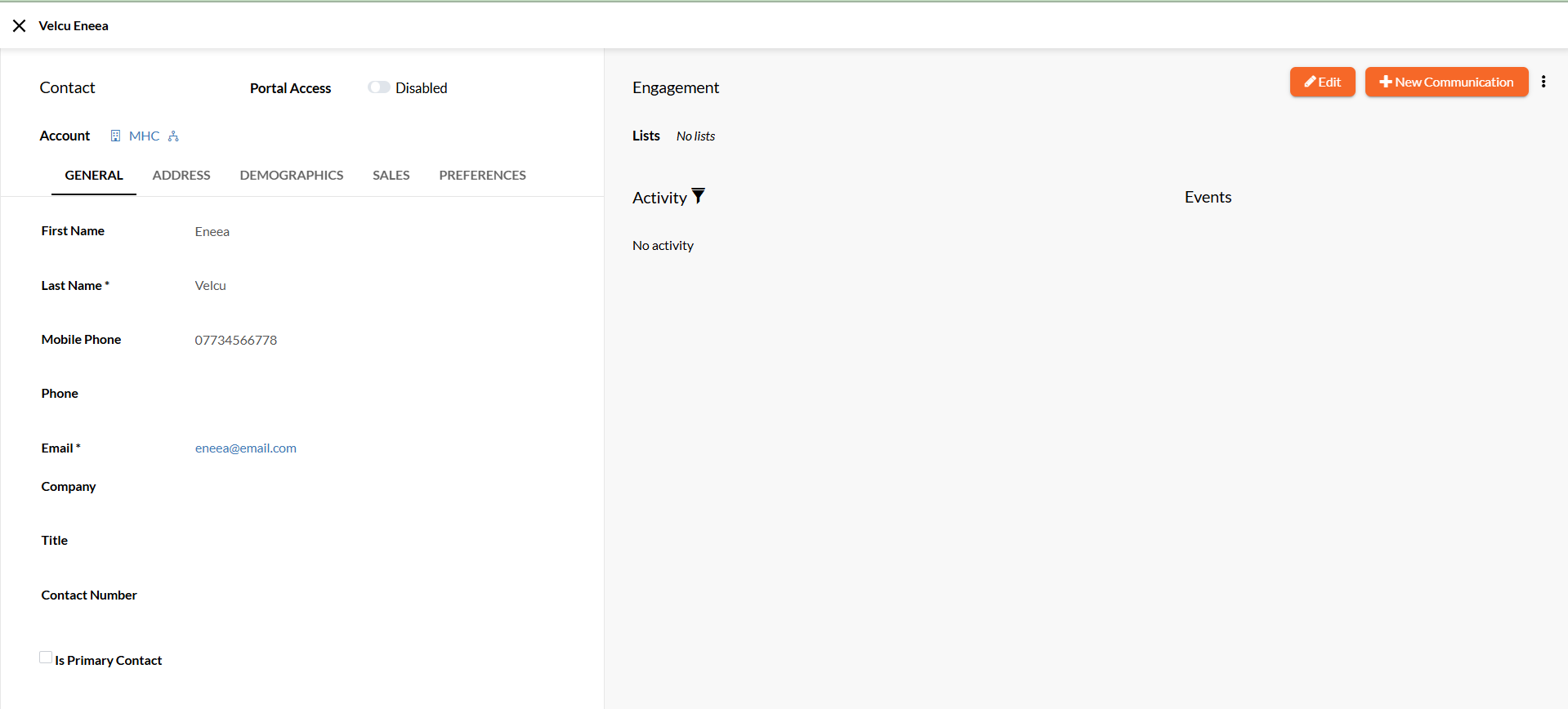
Exploring the Contacts Information Page
All the data corresponding to a contact/lead is categorized in different tabs, storing specific information gathered mostly from the external system:
- Personal Information (First Name, Last Name, Mobile Phone, Email address, Company, etc.) - stored within the
GENERALtab - Address Information (Street, ZIP code, Country, etc.) - stored within the
ADDRESStab - Demographic Information (Gender type and Date of Birth) - stored within the
DEMOGRAPHICStab - Sales-related Information (Lead Status, Industry, Campaign data, Owner data, etc.) - stored within the
SALEStab - Preferences defined in the NorthStar CCM system - stored within the
PREFERENCEStab
Besides the mapped fields, there are also details about the engagement of the contact/lead and its activity within the organization along with the associated events.
The Engagement part covers information about the lists which the contact/lead subscribed to in the organization.
In the Activity section, you will see the contact's activity. Information such as accessed date, website context, or other tracking details will be displayed. If the link of the website contains flags as utm_*, particular referral sources in campaigns can be identified also and displayed within this section.
- To filter the activity displayed, select
Activity Filter( ) and check the assets for which you want to display contact/lead actions (ex. Documents, Emails, Submitted Forms, etc.). - To clear the whole activity, select
Clearfrom the Activity Filter drop-down menu. Before clearing all the Engagement and Tracking activities for a specific contact/lead, a confirmation will be required.
Updating Contacts Information
Follow the steps below to learn how to update contact/lead information.
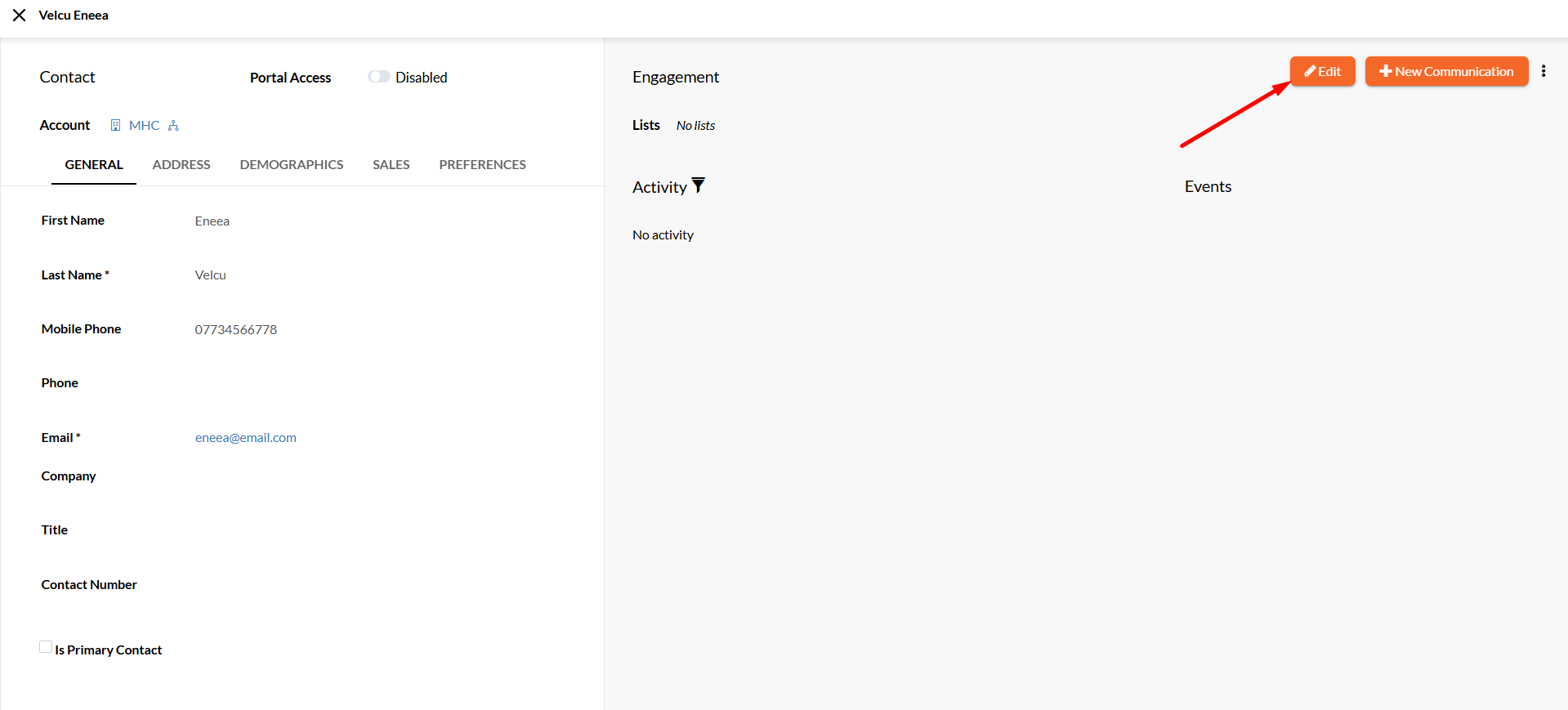
- Starting from the Contact Information page, to edit any of the fields already mapped of the current contact/lead, select the
Edit( ) button on the right-corner of the page. - The fields become editable; therefore, you can update the data as you need.
Saving Contacts Information
Follow the steps below to learn how to save the updated information.
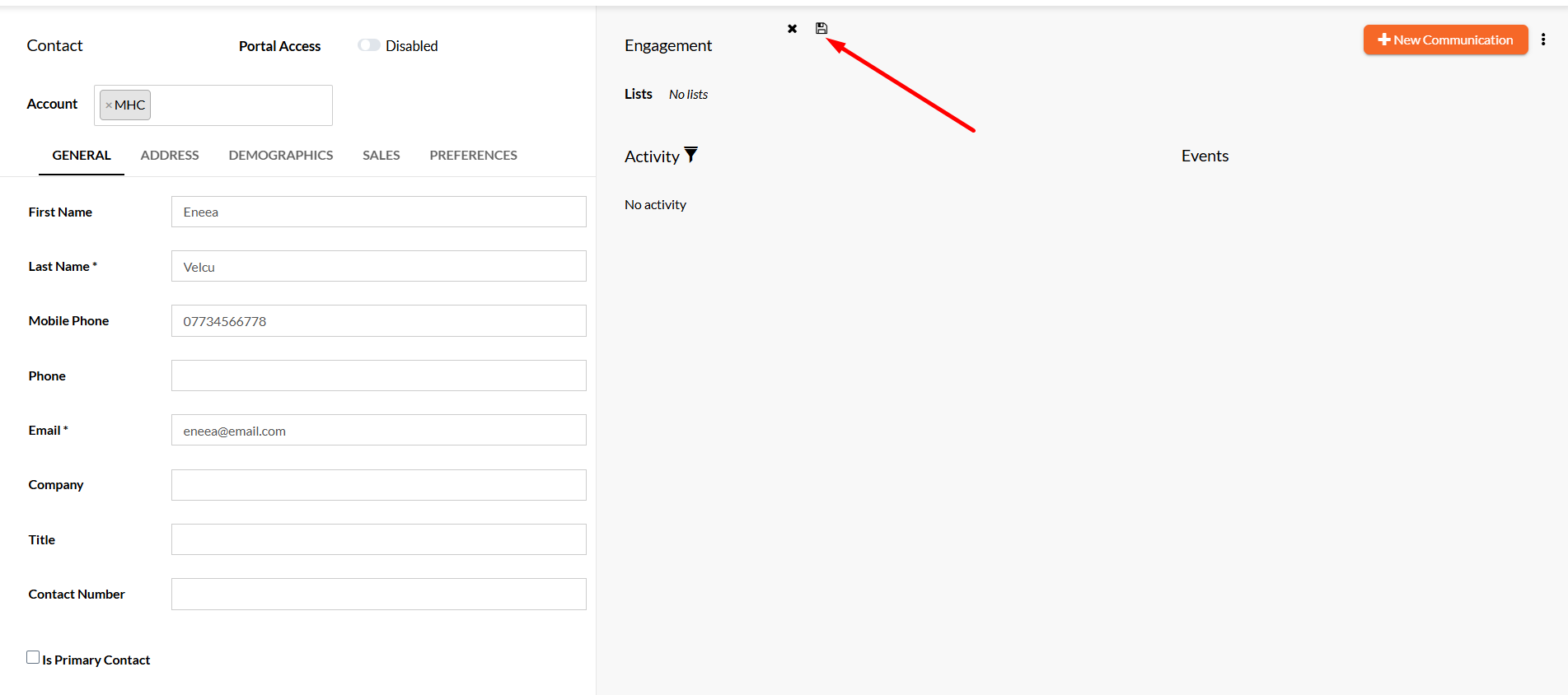
- Starting from the Contact Information page, select the
Edit( ) button on the right-corner of the page and update the information you need. - If you want to discard the changes you are currently updating, select the
Discard changes( ) button beneath the toolbar. - Once you're ready, select the
Save( ) button.
Importing Contacts
People provides the ability to load contact/lead records from a CSV file. Follow the steps below to import contacts.
- Starting from the Contacts view, select the
More Actions( ) button in the right-corner of the page. - Select
Importfrom the drop-down menu. - Select
Choose Fileto browse for the .csv file in your local machine. The dialog will display the contacts count. - Choose the
CRM Type, depending on what type of contacts (Contact or Lead) are stored in the CSV file. - Enabling the
Don't sync with CRMoption allows you to keep the imported contacts out whenever the CRM synchronization occurs. - Optionally, enable the
Don't import duplicatesto exclude duplications of contact rows.- Select the unique
Contact Fieldbased on which the duplicates are determined (Contact Id or Email).
- Select the unique
- Map the .csv file headers to the Contact fields available in the
Contact Fielddrop-downs. - Once ready, select
Importto save the changes.
Note
The first row in the .csv file is reserved for headings and it is used to map contact fields. Excluding the first row will determine that each row in the .csv file to create a new contact in your list.

Filtering Contacts
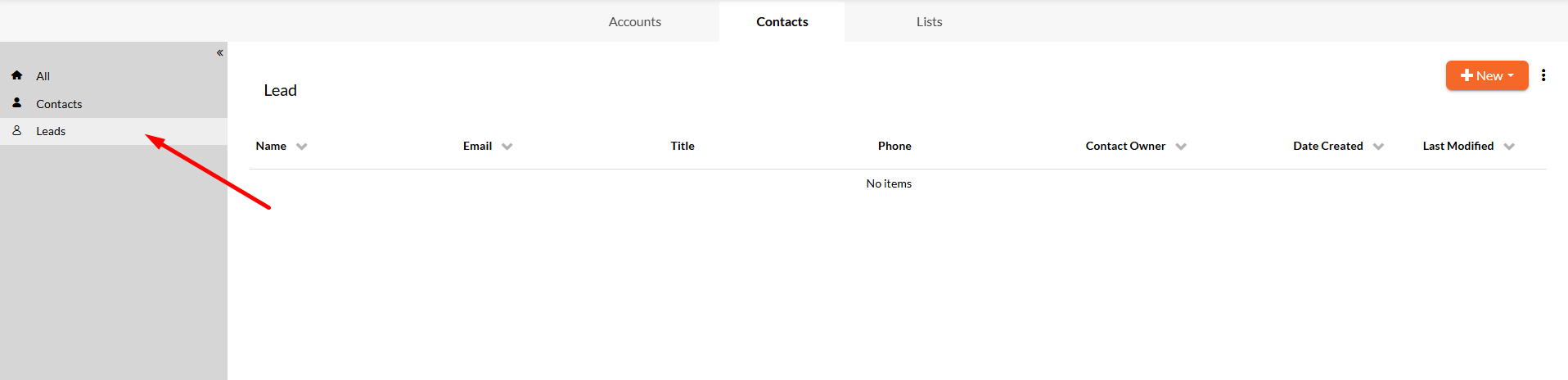
Starting from the Contacts page, you can filter the entities listed within.
- To filter the contacts information displayed, select from the left sidebar a filter based on which you want to filter the results (e.g. Leads).
Sorting Contacts
Starting from the Contacts page, you can sort the entities listed within by using the available column-headers, such as Name, Account, Email, Contact Owner, Date Created or Last Modified.
- To sort the contacts information displayed, select a column-header (e.g. Name) and the list will sort the results in ascending ( ) or descending ( ) order.
- If multiple sorting criteria are applied, such as Name, Email, and Last Modified, the high-priority is received by the last criteria set.

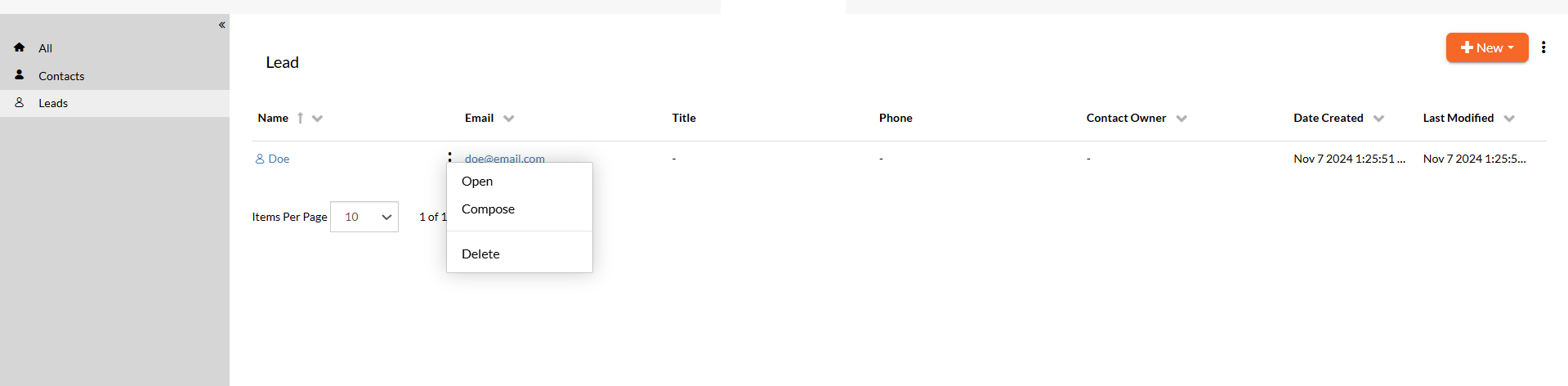
Contextual Contacts Options
Follow the steps below to explore the options from the contextual menu of a contact.
- Access the
Contactstab from the toolbar. - Select the
More Actions( ) button of a contact from the Page Content. - From the contextual menu displayed, you can select the following options, according to your needs:
- Open: Use the
Openbutton to view and update personal contact details or activity in the Contact Details page. - Compose: Use the
Composebutton to submit an interactive communication project for the contact. - Delete: Use the
Deletebutton to permanently remove the contact.
- Open: Use the
Lists
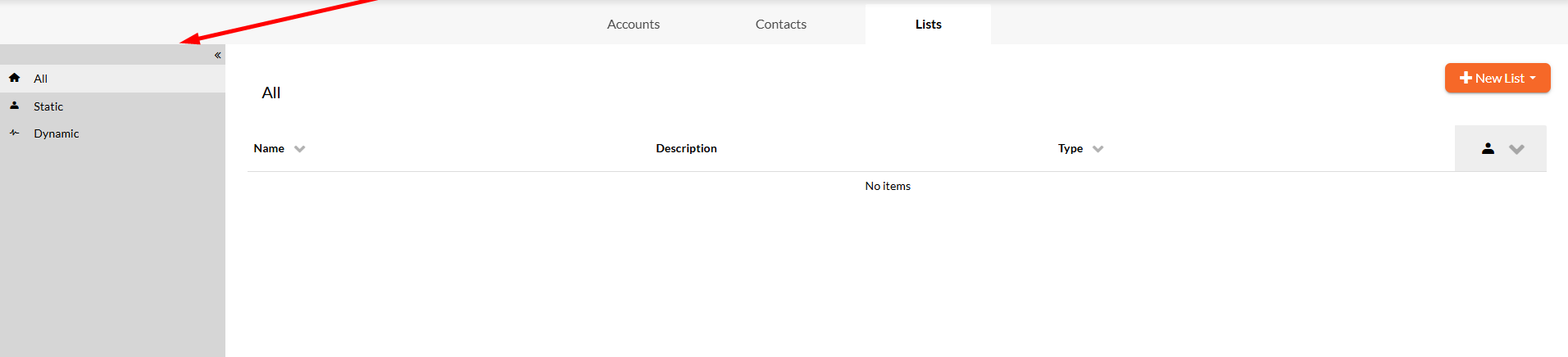
Lists are used to organize a set of contacts and group them together for a specific purpose (e.g. receiving mass emails). There are two different types of lists supported by People: static and dynamic.
Note
There are no restrictions in using special characters or spaces within the names of lists. For example, Customers, Suppliers, Last Month Leads, etc. Static lists consist only of contacts added when you created the list. You can use static lists in your organization for emails sent infrequently or only one time.
The Lists tab offers a good an easy way of finding and navigating through existing lists inside your organization. The page provides a left sidebar with three views, from where you can filter the existing lists. The sidebar has two states: Hidden or Locked. These can be set up by correspondingly clicking on the Shrink ( ) or Expand ( ) buttons. When expanded, you can select from the following listed options:
- All - displays a view with all types of lists (static and dynamic).
- Static - displays a view with the static lists only.
- Dynamic - displays a view with the dynamic lists only.
Static Lists
Lists are useful to classify a community of users that share common interests, so when creating a new list, generic and pointful names are unavoidable.
Creating Static Lists
Follow the steps below to learn how to create a new static list.
- Access the
Liststab on the toolbar. - Select the
New Listbutton from the right-corner of the page. - Select
Staticfrom the drop-down menu. - Fill out the form with the appropriate values:
- Provide a relevant name for the new list.
- Provide a description of the list.
- Select from which subscription list(s) the contacts in this list to be excluded.
- Once you're ready, click
Create.

Adding Contacts to Static Lists
Follow the steps below to learn how to insert contacts into a static list.
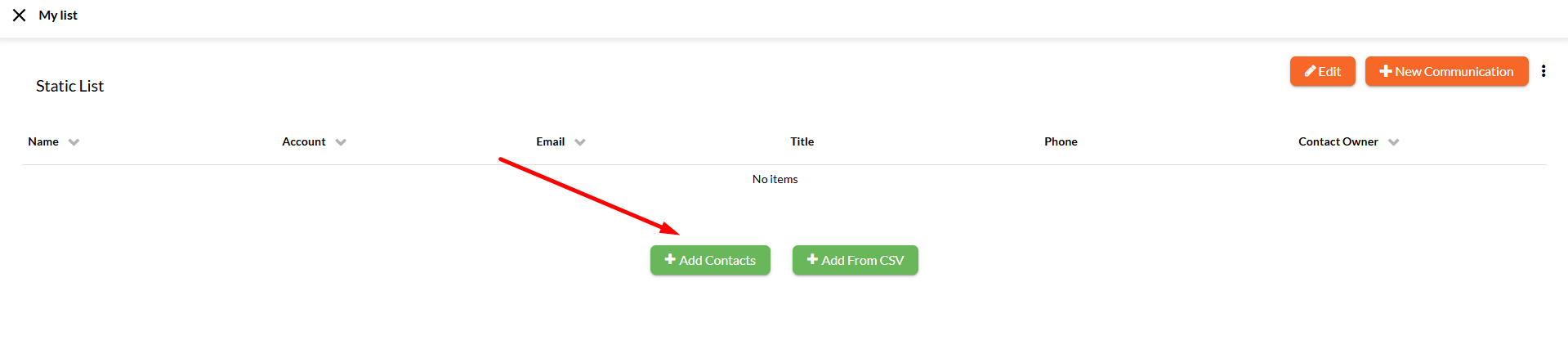
- Starting from the Lists view, choose a static list that you want to populate.
- Select
Add Contactsor chooseAdd Contactsfrom theMore Actions( ) button in the right-corner of the page. - Select
+More/Add by Criteriaand then+Addto create a rule for quickly adding contacts to the list. The rules can be created based on the contact's fields, events of a communication project, engagement elements or list memberships. - Additionally, you can select as many contacts as you want for the
Additional Contactsdrop-down to explicitly include them into the static list. - Once ready, select
Saveto update the changes.
All the contacts that met the criteria specified will appear on the list. Also, the rule previously configured will not add automatically the contacts to the static list.
Note
To automatically add contacts based on a defined rule you should use Dynamic Lists.
Importing Contacts from CSV
If you need to add a large number of contacts to a static list, you can upload a CSV file of your clients' contact information. This is especially useful when importing contacts from another marketing list or management system.
Follow the steps below to upload contacts to a static list.
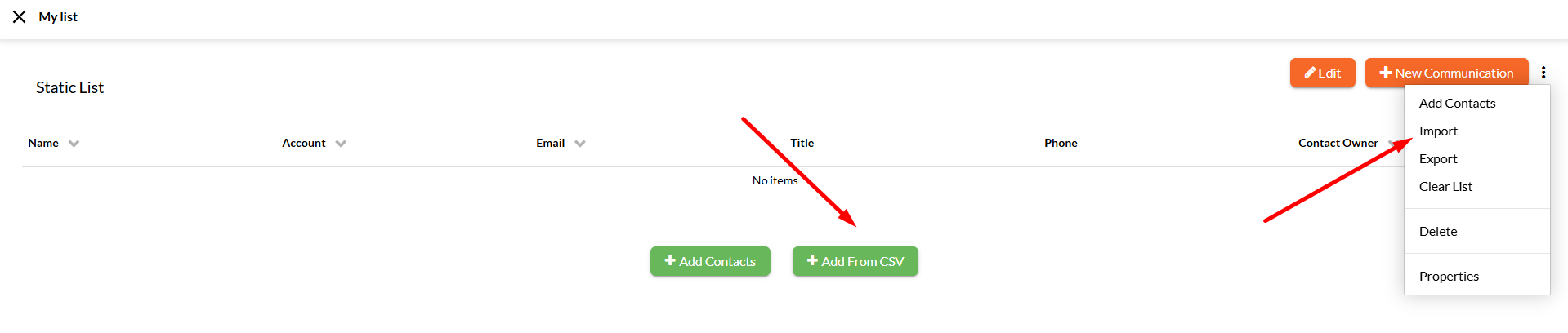
- Starting from the Lists view, choose a static list that you want to populate.
- Select
Add From CSV, if the list is empty, or chooseImportfrom theMore Actions( ) button in the right-corner of the page. - Select
Choose Fileto browse for the .csv file in your local machine. The dialog will display the contacts count. - Choose the
CRM Type, depending on what type of contacts (Contact or Lead) are stored in the CSV file. - Enabling the
Don't sync with CRMoption allows you to keep the imported contacts out whenever the CRM synchronization occurs. - Optionally, enable the
Don't import duplicatesto exclude duplications of contact rows.- Select the unique
Contact Fieldbased on which the duplicates are determined (Contact Id or Email).
- Select the unique
- Map the .csv file headers to the Contact fields available in the
Contact Fielddrop-downs. - Once ready, select
Importto save the changes.
Note
The first row in the .csv file is reserved for headings and it is used to map contact fields. Excluding the first row will determine that each row in the .csv file to create a new contact in your list.
Dynamic Lists
Dynamic lists consist of contacts added automatically when a set of rules are satisfied. You can use a dynamic list when you want to send emails more than once to a certain group of contacts that changes and get updated frequently. The Dynamic List's principle is: Contacts who match the criteria rules are added to the dynamic list.
Creating Dynamic Lists
Follow the steps below to learn how to create a new dynamic list.
- Access the
Liststab on the toolbar. - Select the
New Listbutton from the right-corner of the page. - Select
Dynamicfrom the drop-down menu. - Fill out the form with the appropriate values:
- Provide a relevant name for the new list.
- Provide a description of the list.
- Select from which subscription list(s) the contacts in this list to be excluded.
- Once you're ready, click
Create.
Adding Contacts to Dynamic Lists
The rules configured in dynamic lists go against static lists principle. When a rule is configured for a dynamic list, the contacts that match will be automatically added into the list and constantly verified. In People, you can manually include or exclude contacts to dynamic lists.
Follow the steps below to learn how to insert contacts into a dynamic list.
- Starting from the Lists view, choose a dynamic list that you want to populate.
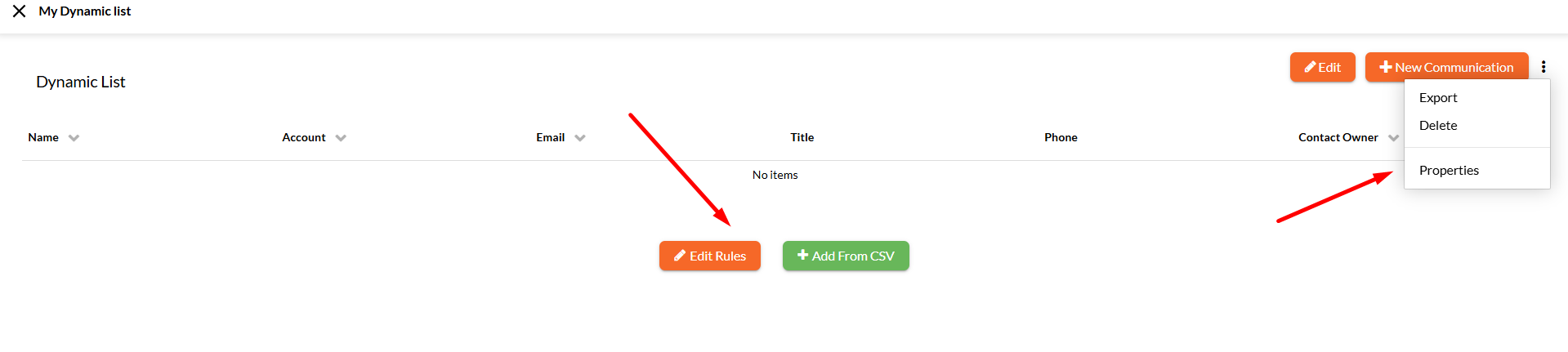
- Select the
Edit Rules( ) button or choose thePropertiesoption from theMore Actions( ) drop-down menu in the right-corner of the page. - Fill in the form with the required fields:
Rules: select+Addand use contact's fields to create dynamic rules based on which the contacts will be added to the list. Besides defining single conditions, you can also group multiple rules connected through logical operators. When editing rules, you can choose any Contact or Parent Account field, as well as Engagement properties (such as Persona, Journey, Stage or current Touchpoint), Events, etc.+More > Include Additional Contacts: to manually add contacts to the dynamic list, even if they do not meet the criteria rule.+More > Manually Exclude Contactsto manually remove contacts from the dynamic list, even if they meet the criteria rule.
- Once ready, select
Saveto update the changes.
All the contact(s) that met the criteria specified will appear on the dynamic list and it will be automatically updated.
Note
A Contact can be assigned to only one Persona, but it can be part of many Lists. For more details regarding Personas, please visit the Journeys App Guide.
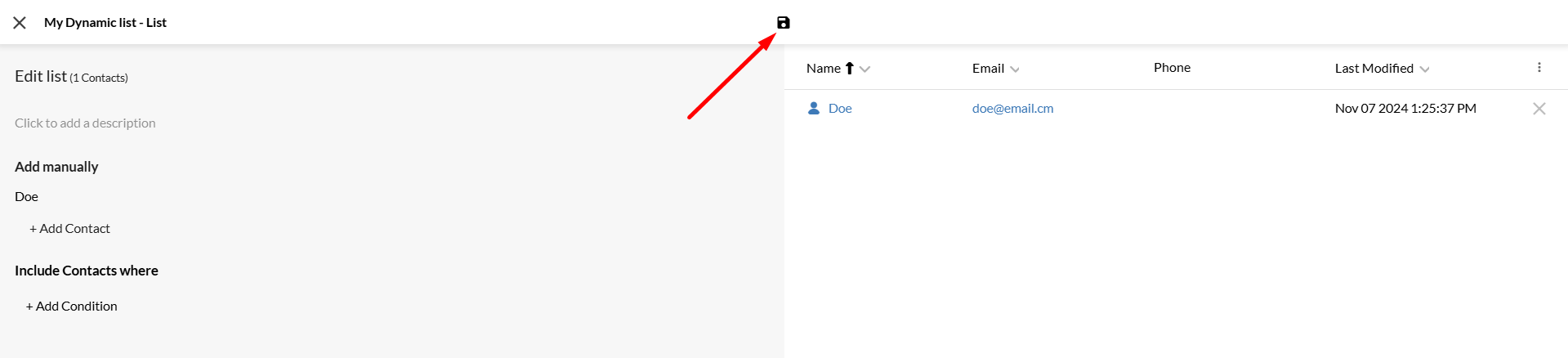
To edit any of the lists already configured, select the Edit ( ) button on the right-corner of the page. You will be redirected into another page, as a List Editor, where you can edit the contacts included in the list. The sections in the left sidebar become editable, therefore you can update the data as you need. In the right side of the page the content of the list will instantly modify according to your updates. If you want to save the changes you are currently updating, select the Save ( ) button from the toolbar.
Importing Contacts for Dynamic Lists
If you need to add a large number of contacts to a dynamic list, you can upload a CSV file of your clients' contact information. This is especially useful when importing contacts from another marketing list or management system.
Follow the steps below to upload contacts to a dynamic list.
- Starting from the Lists view, choose a dynamic list that you want to populate.
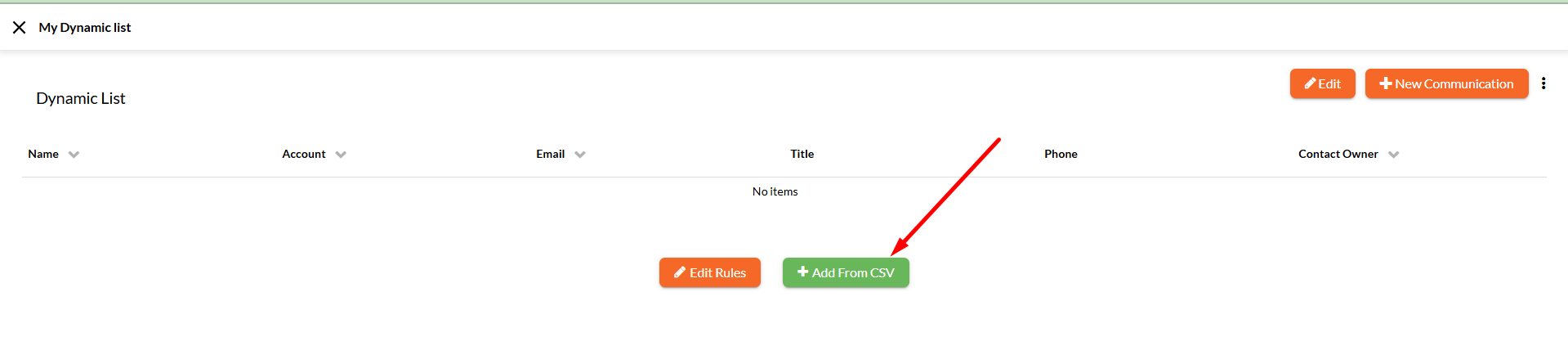
- Select
Add From CSVbutton in the bottom of the page. - Select
Choose Fileto browse for the .csv file in your local machine. The dialog will display the contacts count. - Choose the
CRM Type, depending on what type of contacts (Contact or Lead) are stored in the CSV file. - Enabling the
Don't sync with CRMoption allows you to keep the imported contacts out whenever the CRM synchronization occurs. - Optionally, enable the
Don't import duplicatesto exclude duplications of contact rows.- Select the unique
Contact Fieldbased on which the duplicates are determined (Contact Id or Email).
- Select the unique
- Map the .csv file headers to the Contact fields available in the
Contact Fielddrop-downs. - Once ready, select
Importto save the changes.
Note
The first row in the .csv file is reserved for headings and it is used to map contact fields. Excluding the first row will determine that each row in the .csv file to create a new contact in your list.
Sending Documents to List Contacts
Info
For sending documents, you must have another NorthStar CCM App installed, called Communications. This app will open directly when trying to create a new communication. The only requirement is to have an appropriate product key for Communications app.
Follow the steps below to learn how to send one document to multiple recipients, all contacts included in a list.
- Starting from the Lists view, choose the list for which you want to send documents.
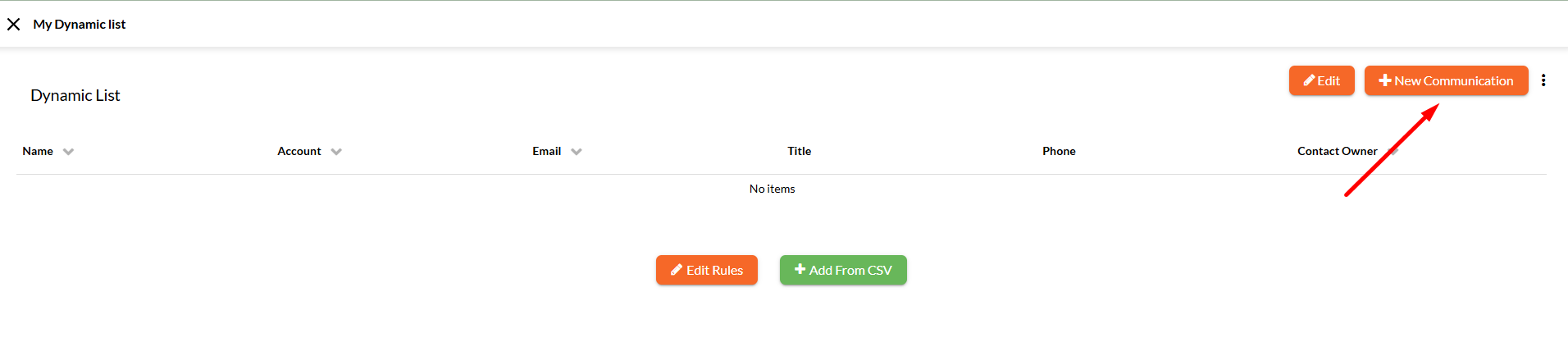
- Select the
+New Communicationbutton from the top-right corner of the page. - Choose a
Projectfrom the available communication project displayed in the page and clickContinue.- Additionally, you can use the
Search( ) button from the left sidebar to look up for a specific project or navigate to a specific destination folder.
- Additionally, you can use the
- Once you're ready, select
Run( ) from the toolbar. - The Communication Run page will open in a new page, where you are able to see the Summary of the output document. In addition, you can also view the communication documents, emails and SMS, besides the Log files during the communication jobs execution.
Note
For more details regarding how to send bulk communication, please visit the Communications App Guide.
Contextual List Contacts Options
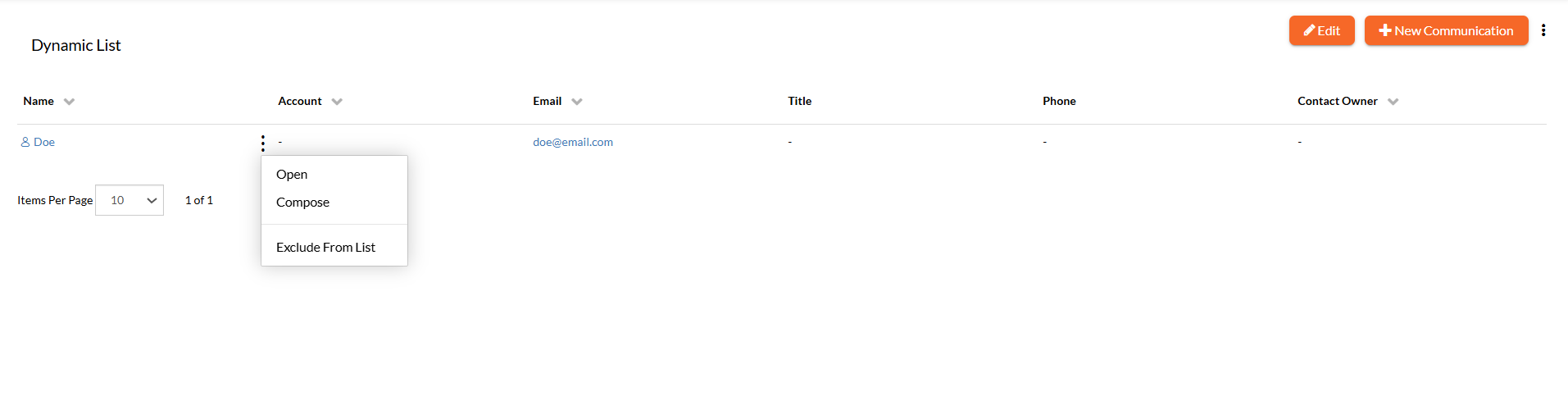
Follow the steps below to explore the options from the contextual menu of a contact in a list.
- Starting from the Lists view, choose the list for which you want to see its contacts.
- Select the
More Actions( ) button of a contact in a list. - From the contextual menu displayed, you can select the following options, according to your needs:
- Open: Use the
Openbutton to open the Contact Details and view all the Account, Engagement, Activity related information. - Compose: Use the
Composebutton to send a communication to a contact included in the list. - Remove From List: Use the
Remove From Listbutton to remove the contact from the current list.
- Open: Use the
Filtering Lists
Starting from the Lists page, you can filter the entities listed within.
- To filter the lists information displayed, select from the left sidebar a filter based on which you want to filter the results (e.g. Dynamic).
Sorting Lists
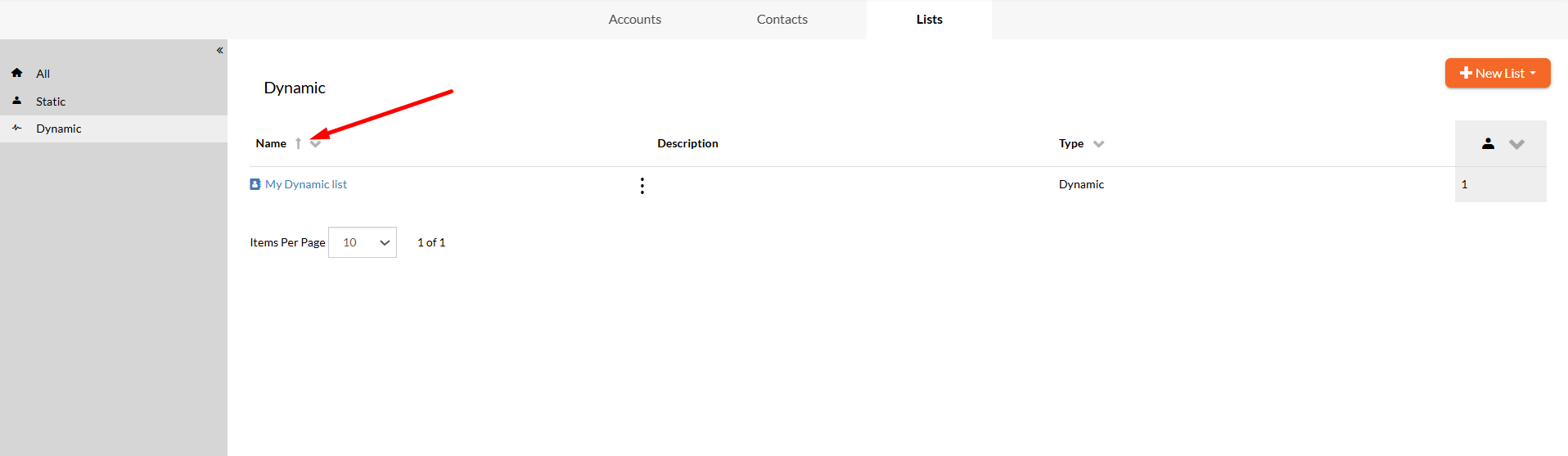
Starting from the Lists page, you can sort the entities listed within by using the available column-headers, such as Name, Type or Number of Contacts.
- To sort the lists information displayed, select a column-header (e.g. Name) and the list will sort the results in ascending ( ) or descending ( ) order.
- If multiple sorting criteria are applied, such as Name, Type, and Number of Contacts, the high-priority is received by the last criteria set.
Contextual Lists Options
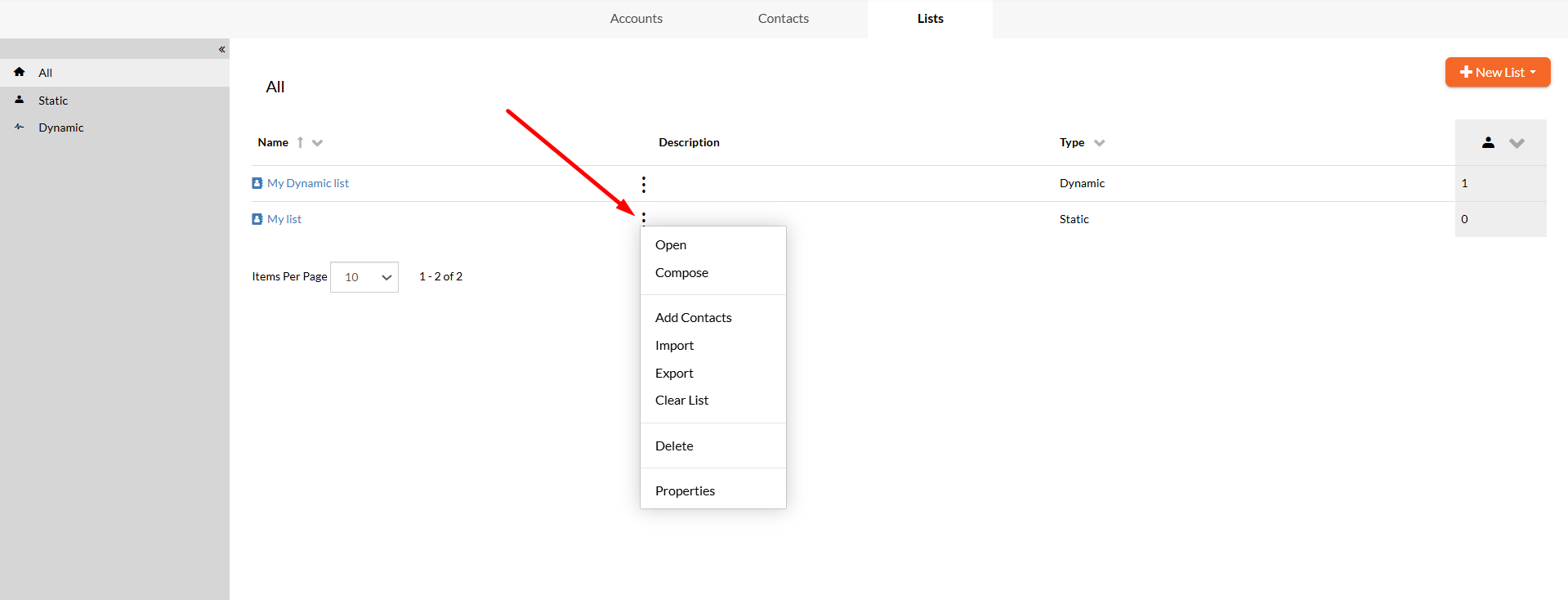
Follow the steps below to explore the options from the contextual menu of a list.
- Access the
Liststab from the toolbar. - Select the
More Actions( ) button of a list from the Page Content. - From the contextual menu displayed, you can select the following options, according to your needs:
- Open: Use the
Openbutton to open the selected list and view all the contacts included within. - Compose: Use the
Composebutton to send mass emails to all contacts included in the list based on the communication project chosen by you. - Add Contacts: Use the
Add Contactsbutton to add contacts in the selected static list. - Import: Use the
Importbutton to import contacts from a CSV file. - Export: Use the
Exportbutton to open a dialog that allows you to choose the fields to export from the list. - Clear List: Use the
Clear Listbutton to remove all the contacts assigned to the current list. - Delete: Use the
Deletebutton to permanently remove the list. - Properties: Use the
Propertiesbutton to open a dialog that allows you to edit the current list information.
- Open: Use the