Sysadmin Guide
Overview
About NorthStar CCM Platform
NorthStar CCM provides a complete, end-to-end customer communication management solution that integrates every process involved in the creation of professional documents into a smart unified and easy-to-use platform.
Audience
This guide is designed to help system administrators to set up, configure and utilize the NorthStar CCM Platform.
The System Administrator Guide is the primary source to follow when you start using the NorthStar CCM Platform. This guide will help you understand how to configure various settings within NorthStar CCM Platform.
Resources
After your platform is ready to be used, access the User Guide to learn how to add users, produce documents and use all the other features provided by NorthStar CCM or visit Developer Guide.
Contact Us
If you encounter any issue while using the NorthStar CCM Platform, do not hesitate to contact us, at northstarccmsupport@mhcautomation.com.
System Overview
This section introduces the platform components and provides a general overview of the entities you will use to configure and manage the solution on your system.
Components
NorthStar CCM Platform contains the following components:
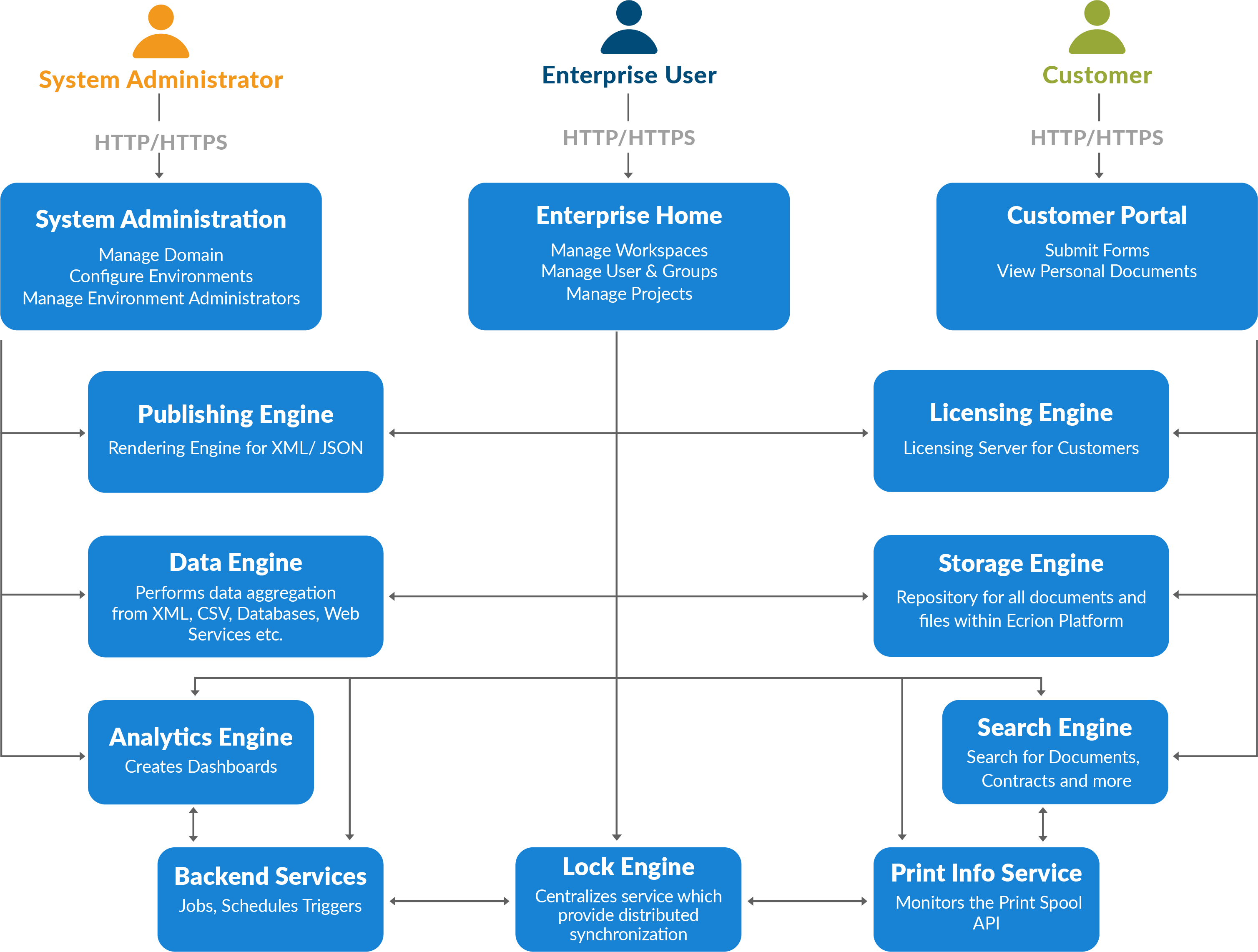
- Enterprise Website: An NorthStar CCM Website that provides access to the enterprise users to work with all the important NorthStar CCM features. It is installed as a website on IIS. By default, the port number associated with the website is
8094. - System Administrator Website: An NorthStar CCM Website that provides access to the system administrators to manage environments or domain. It is installed as a website on IIS. By default, the port number associated with the website is
8095. - Customer Portal Website: An NorthStar CCM Website that provides access to your customers from where they can see all individual documents. It is installed as a website on IIS. By default, the port number associated with the website is
8096. - NorthStar CCM Publishing Engine: A server component that performs XML/JSON conversion to various output formats. It is installed as a service on Windows Services.
- NorthStar CCM Data Engine: A server component that performs data aggregation from multiple data sources. It is installed as a service on Windows Services.
- NorthStar CCM Analytics Engine: A server component used to create dashboards and digital experience documents. It is installed as a service on Windows Services.
- Backend Services: Backend Services involves different windows services for jobs, schedules, triggers.
- Storage Engine: Repository for all documents and files within NorthStar CCM Platform.
- Lock Engine: An NorthStar CCM component that centralizes the service which provides distributed synchronization.
- Search Engine: An NorthStar CCM component that allows administrators to enable the search feature across environments.
- Licensing Engine: An NorthStar CCM component that allows administrators to manage NorthStar CCM product keys.
- Print Info Service: An NorthStar CCM component that monitors the Print Spool API for printing jobs done by the Publishing Engine.
Files & Folders
System files for NorthStar CCM solution are placed in the following locations:
Application Installation Folder
This is where the product is installed. The installation directory contains all the binaries for the websites, backend services or components.
In a default installation, this is C:\Program Files\MHC Software\<Product Name>.
Application Data Folder
This directory contains the configuration files for the NorthStar CCM Components. In a default installation, the configuration files are located under C:\ProgramData\MHC Software.
Main Configuration File
The main configuration file is EOS4.config and is loaded on start-up by all websites and main NorthStar CCM Service (Omni System 4 Service). It contains system settings which enable additional functionalities, such as distributed configurations and high availability. Any changes made to the main configuration file require a restart of both the main NorthStar CCM Service (e.g. from Windows\Task Manager\Services) and websites (e.g. using iisreset).
The configuration file location is %Application_Data%\MHC Software\EOS4.config.
By default, you will notice that inside the config file you can find the IP Addresses and port numbers of all NorthStar CCM Services and Websites. All of the IP Values mentioned throughout should be taken to mean “the IP through which this service can be accessed”. Usually, this is the intranet IP of the machine hosting the component. If a component is load balanced, then it’s the IP of the load balancer. Essentially, if someone were to specify all IPs explicitly on each machine, the list of IPs should be the same across all the machines.
To change the default values, you will need to log in as a system administrator and navigate the Domain Settings:
- To change NorthStar CCM Website values, visit the URLs section.
- To change NorthStar CCM Services values, visit the Services section.
Components Configuration Files
Publishing, Data, and Analytics services have separate configuration files named the same as the corresponding executable and located in the Application Data folder, respectively:
- NorthStar CCM Publishing Engine:
- Configuration File:
PublisherSvc.config - Configuration File Location:
%Application_Data%\MHC Software\PublisherSvc.config
- Configuration File:
- NorthStar CCM Data Engine:
- Configuration File:
DASSvc.config - Configuration File Location:
%Application_Data%\MHC Software\DASSvc.config
- Configuration File:
- NorthStar CCM Analytics Engine:
- Configuration File:
BISvc.config - Configuration File Location:
%Application_Data%\MHC Software\BISvc.config
- Configuration File:
Any changes made to the configuration files require a restart of the associated service, from Windows Task Manager.
Domain
An NorthStar CCM system is comprised of three entities: domain, organization, and apps.
The NorthStar CCM Solution provides the following hierarchy:
- The NorthStar CCM domain contains one or more organizations.
- Each organization contains one or more apps.
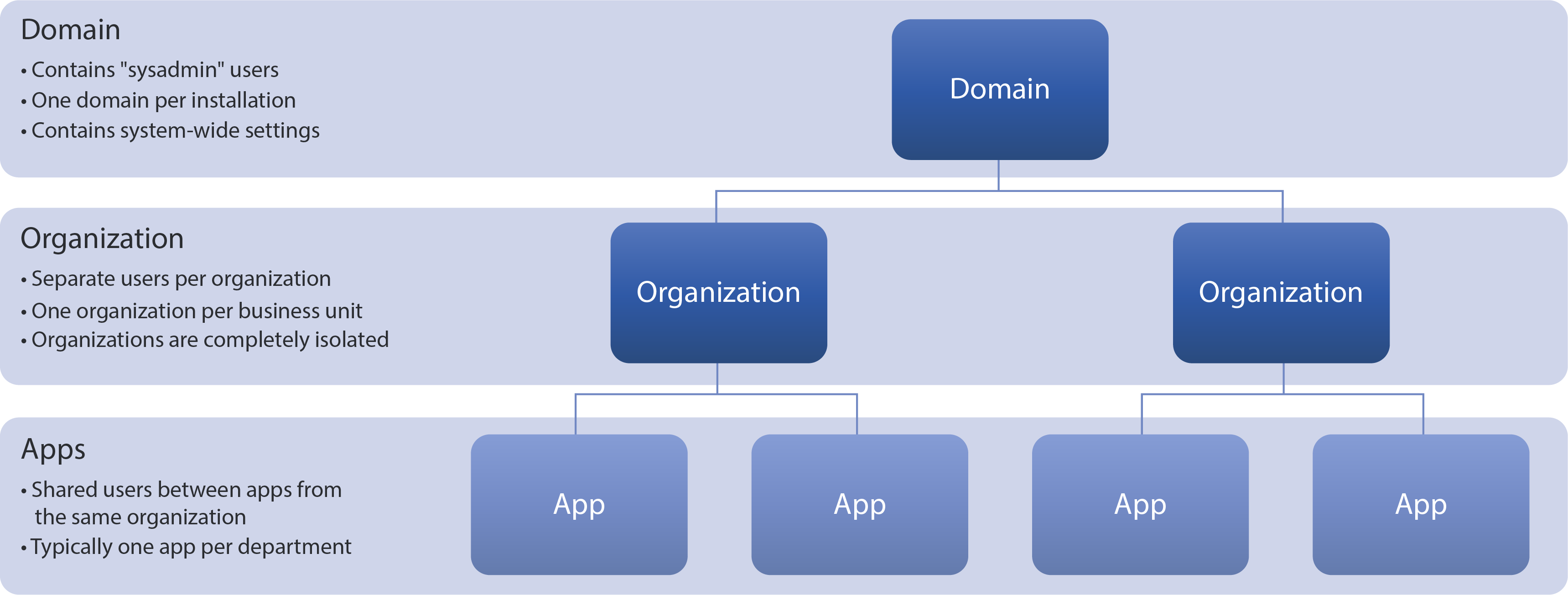
The domain refers to the entire NorthStar CCM Platform setup - it is the top-level node. An installation of NorthStar CCM Software, whether it's across one or multiple machines, will contain a single domain.
Note
There is no way to add multiple domains other than having separate NorthStar CCM full instance installations with no connection to each other.
Organizations
The domain contains multiple organizations, each with its own set of users and features. An organization may be necessary for your company in order to provide a sequential structure for your projects management needs. This is also where enterprise users log into and perform all of their work.
The purpose of organizations is to have completely separate NorthStar CCM instances within the same installation, which may be useful in some scenarios. Here are some examples of when you might consider multiple organizations:
- DTAP (or similar) setups – a different organization for each stage of a development process (Development, Testing, Acceptance, Production);
- These organizations are more or less clones of each other, with projects being worked on in Development, then being published through Testing, Acceptance and eventually Production.
- In this type of scenario, a user will likely have access to multiple organizations.
- For performance and stability reasons, it’s highly recommended that the Production organization is part of a different NorthStar CCM domain/installation altogether.
- Multi-tenant setups – a different organization for each customer (or “tenant”)
- This type of setup is intended to separate your customers into their own organizations because it doesn’t make sense for any overlap to exist;
- A good practice is to give each user an account with their corporate email as the username; this way, customers will be naturally separated: @company1.com to the Company1 organization, @company2.com to the Company2 organization, etc.
- Built-in NorthStar CCM authentication is recommended for this type of setup.
- Single purpose organizations – a “one-off” organization to try a specific feature, perform a demo or a training session.
- Creating a new organization for trying out a new feature allows you to properly isolate your work from other operations being performed on the server.
Apps
NorthStar CCM suite of applications enable organizations to streamline digital interactions and engage with audiences in new and exciting ways.
Apps are subdivisions of an organization, containing files, jobs, and settings. They are only visible in the Enterprise Home website, to enterprise users logged into an organization.
The purpose of apps is to allow you to better organize your assets into meaningful categories, e.g. per department. You can also assign different permissions to the apps available so that certain users or groups will only be able to use the apps you allow them to have access.
If you want to learn more about each one of the available apps, please visit the User Guide.
Licensing
After deploying the NorthStar CCM solution, you will need to install and activate the product key(s). This section provides guidelines on how to set up product keys in NorthStar CCM.
Product Keys
The NorthStar CCM solutions cannot be used until they have been licensed. After you download and install the NorthStar CCM platform, you are given the rights to use it through the product keys you have purchased. Each product key dictates what features or components are available and how long can it be used.
Note
To obtain a product key or learn more on what is the best solution for your needs, please reach out to your Customer Success Executive, or contact us at northstarccmsupport@mhcautomation.com.
The NorthStar CCM product keys can be of two types, server-side keys, or environment-based keys.
The server-side keys can be installed and managed from the Sysadmin Website, under the Licensing page. These incorporate users' access to the various components of the NorthStar CCM Platform. For a full instance, you will have to install four (4) product keys, one for the NorthStar CCM Platform functions (providing access to multiple functionalities, such as Sysadmin settings and enterprise modules and functions), and other three product keys for the NorthStar CCM native engines, representing the Publishing Engine, Data Engine or Analytics Engine.
The server-side keys can be further divided into volume-based keys or LCPU-based keys. The volume product keys are tailored to the size of the assets you want to generate within the NorthStar CCM Platform. The LCPU-based product keys come with limits to the number of logical processors available on your system.
In addition, the new licensing system allows you to distribute and use multiple NorthStar CCM workers (e.g. engines) with the same product key, sharing the product key limits. For example, a Publishing Engine license with limits for Page Count restrict to 1000 pages can be shared by two Publishing Engine workers installed on two separate machines. Both workers can generate documents until the 1000 pages limit is reached by one of the servers. In the same way, a Publishing Engine license with limits of 16 LCPU can be used to activate 4 Publishing Engine workers running on 4 separate machines with 4 LCPU each.
Environment-based keys can be installed and managed from the Enterprise Website. These provide access to the MHC Studio application.
Licensing Server
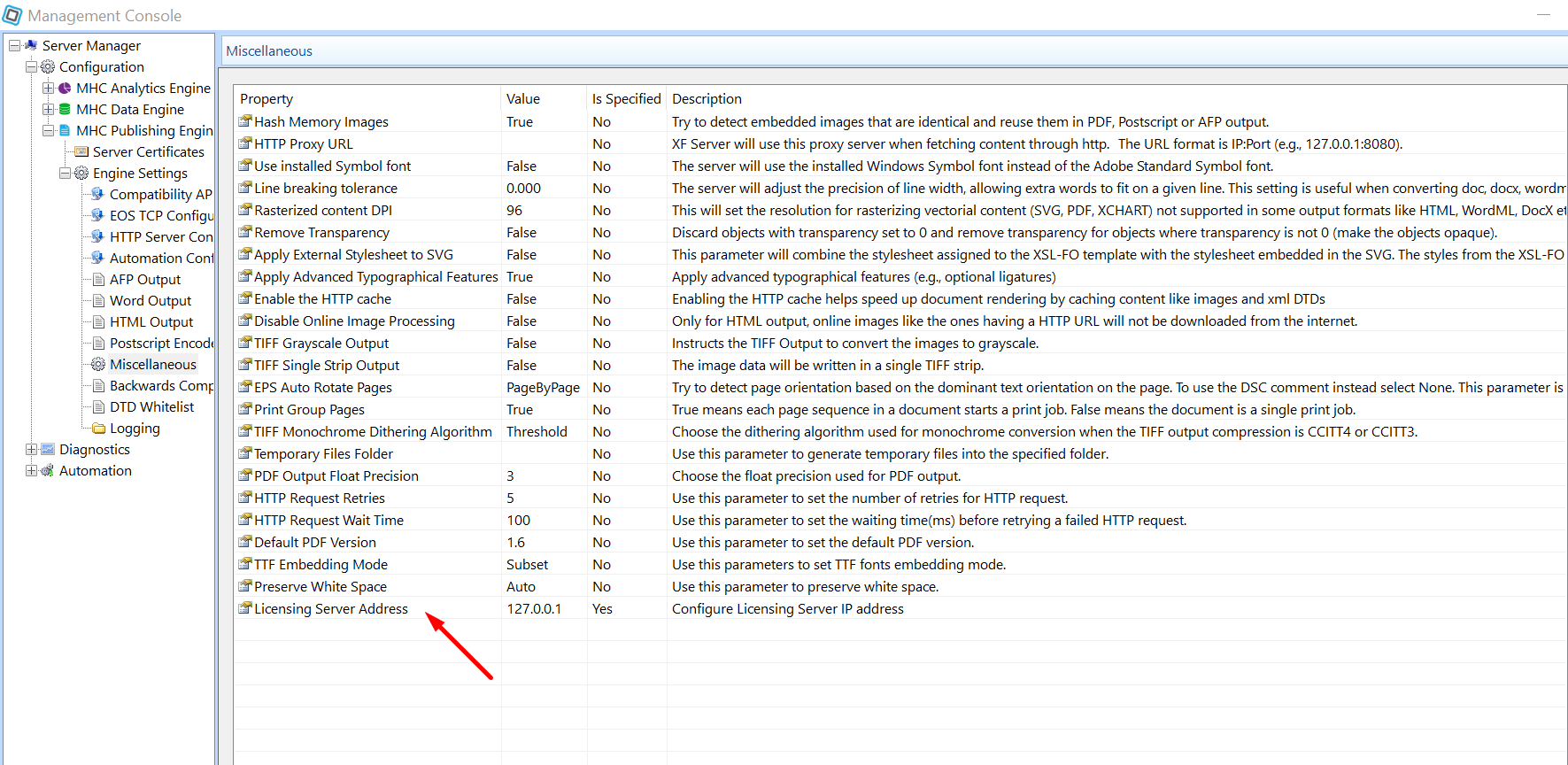
For individual engine components (Publishing Engine, Data Engine or Analytics Engine), open the Management Console tool, access Engine Settings\Miscellaneous of the needed engine and update the Licensing Server Address parameter with the correct IP Address.
Install
In this section, you can learn how to install server-side keys within the System Administrator website. Please select from the table below, the installation method you would like to proceed.
| Online Installation | Offline Installation |
Online Installation
If your server has an Internet connection, we recommend using the Online Installation option. Below you can find step by step instructions on how to install a product key online.
- Sign in to the Sysadmin website and access the
Licensingtile. - Select the
Add Product Keybutton on the right-corner of the page.
- Click
Log into install online product keys.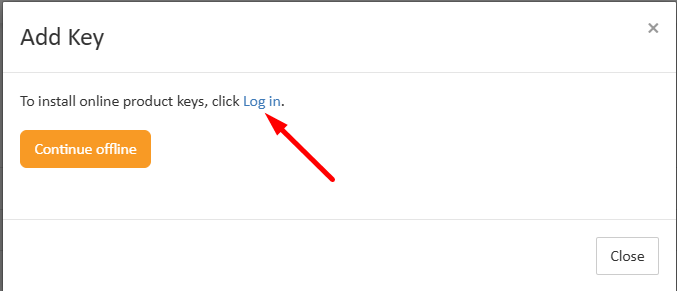
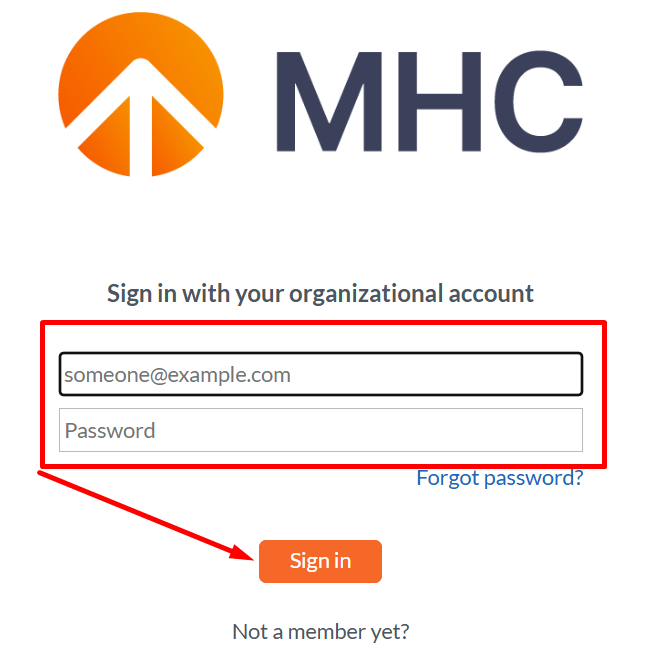
- Next, you will be redirected to the NorthStar CCM Accounts website. Use your provided credentials to log.
- Once you are connected to the NorthStar CCM Account, a list with your available product keys will be displayed. Select the key(s you want to install, then click on the
Install licensesbutton.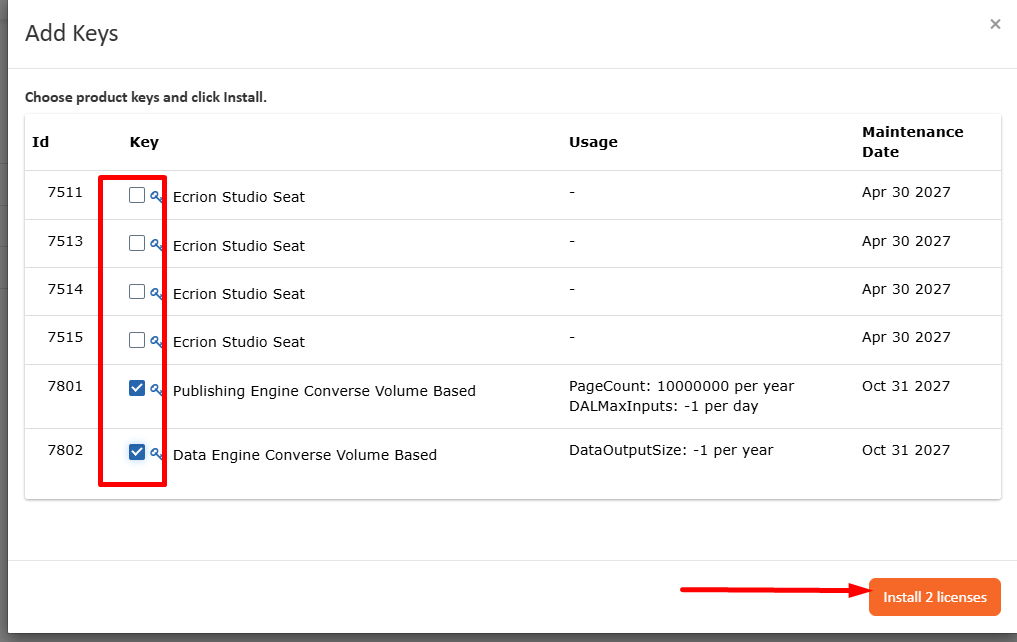
- Your product key(s) is now installed and ready to use on your NorthStar CCM Domain.
Offline Installation
If your server is offline or cannot otherwise communicate with our licensing server, you can use the Offline Installation option. Below you can find step by step instructions on how to install a product key offline.
- Sign in to the Sysadmin website and access the
Licensingtile. - Select the
Add Product Keybutton on the right-corner of the page. - Click
Continue offlineto install offline the product keys.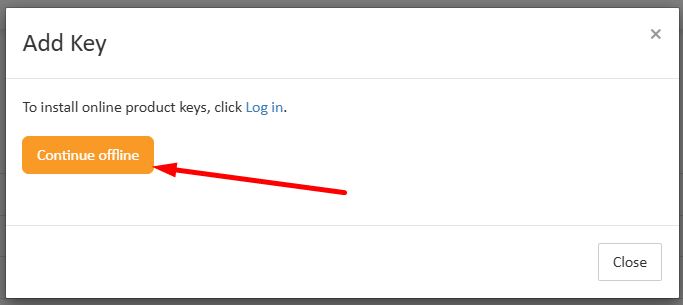
- In the Add Key dialog, copy the string generated in the Step 1 box.
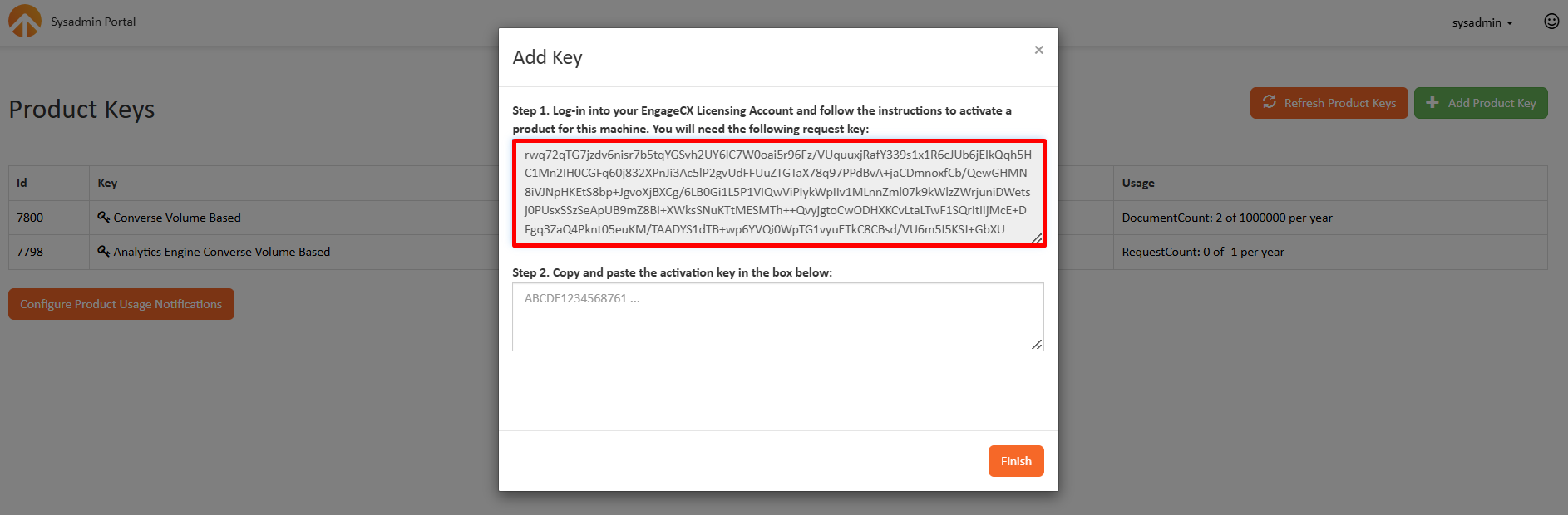
- Next, in a web browser, access your NorthStar CCM account, then select the corresponding
Key Idfrom the Product Keys tab.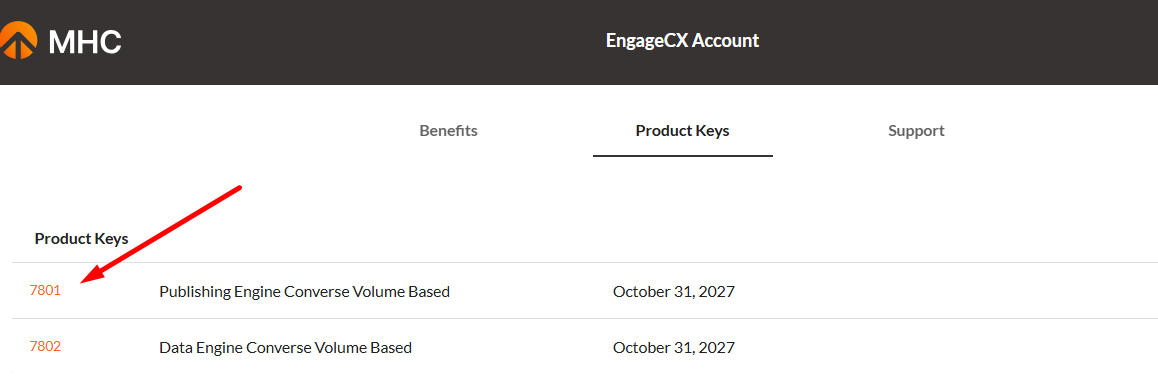
- In the license dialog, select the
Installbutton and consequently paste the string into theActivation Keybox, then clickInstall.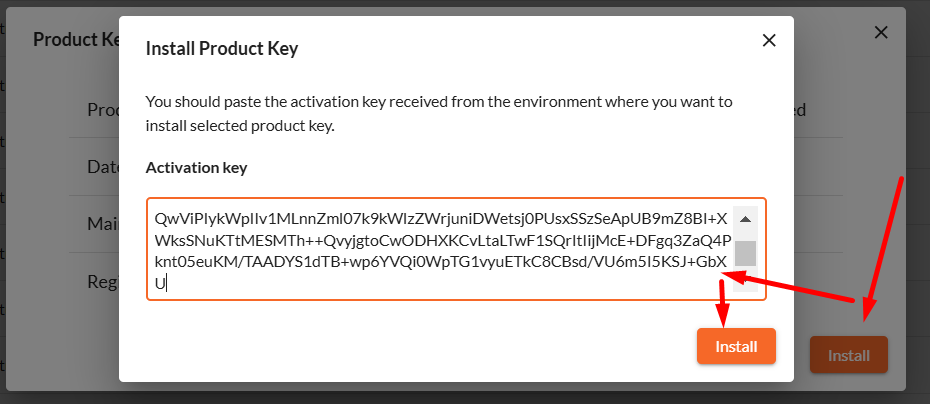
-
Next, copy the activation string, then go to your NorthStar CCM domain page and paste the string into the Step 2 box. Once you're ready, select
Finish.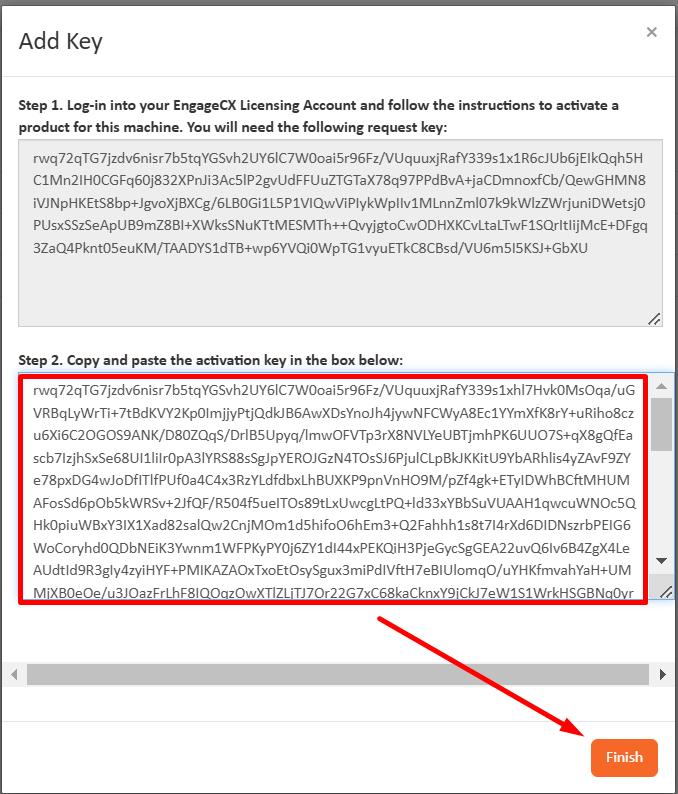
-
Your product key(s) is now installed and ready to use on your NorthStar CCM Domain.
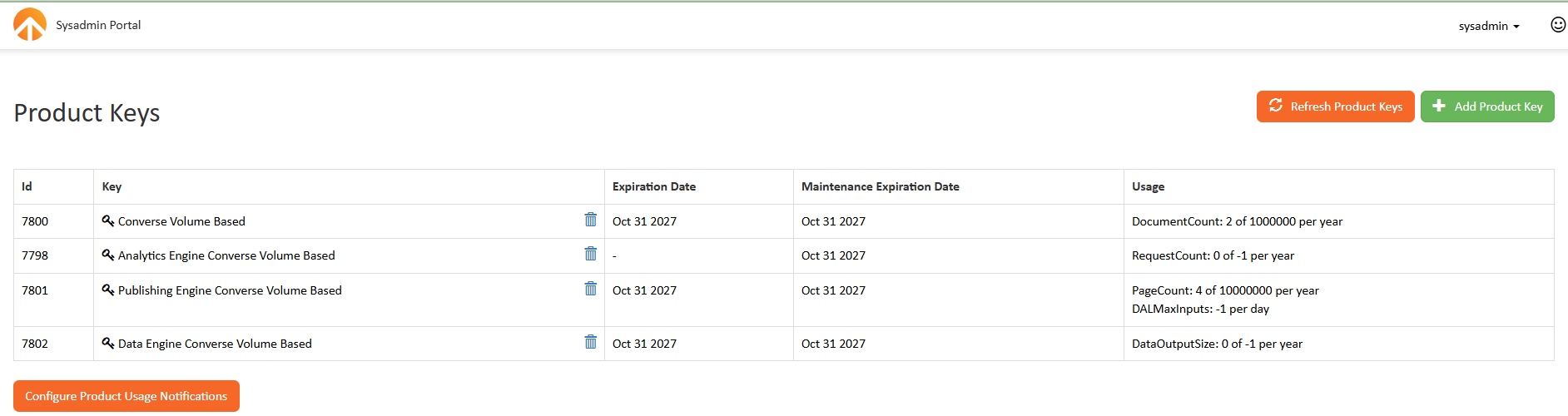
Notice the Product Keys page that displays meaningful information about your product keys, such as the date on which the license has been activated, the date until the key can be used or usage statics about CPU or utilized volume.
Uninstall
The uninstall process is very similar to the install process, providing both, an online and offline method. Please select from the table below, the uninstallation method you would like to proceed.
| Online Uninstallation | Offline Uninstallation |
Online Uninstallation
- In the Product Keys page of the Sysadmin Website, find the product key you want to uninstall, then click the
Deletebutton next to its name.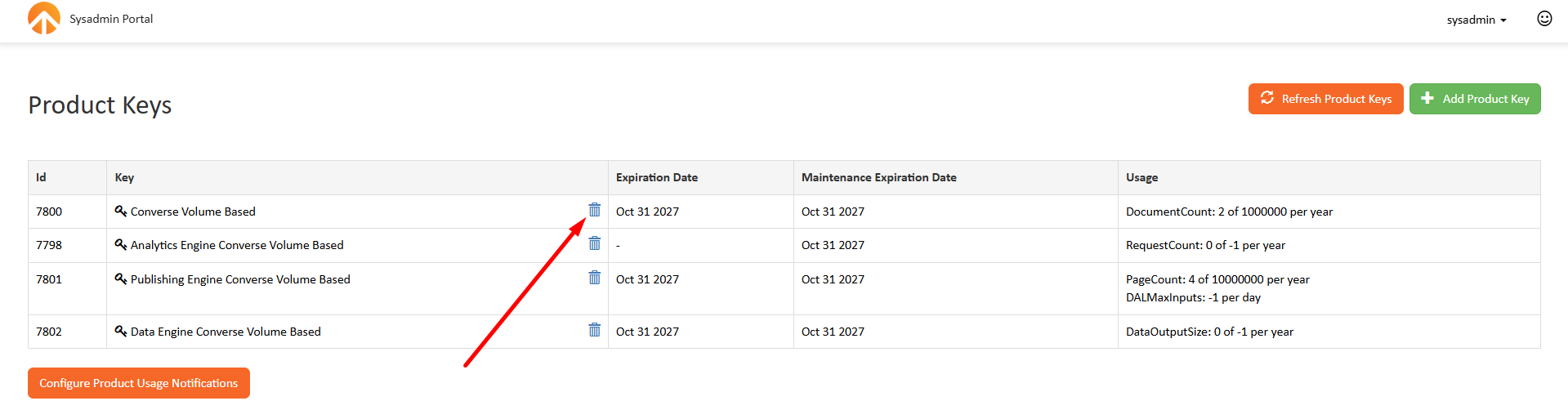
- Click
Log into remove online the product key. - Next, enter your organizational account credentials (email address & password) and select
Sign in. -
Once you are connected to the NorthStar CCM Account, you will be prompted to confirm your selection.
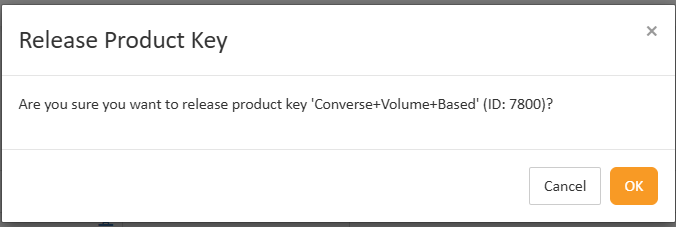
-
Your product key is now uninstalled from your NorthStar CCM Domain.
Offline Uninstallation
- In the Product Keys page of the Sysadmin Website, select the
Deletebutton next to the product key you want to uninstall. - If NorthStar CCM Platform is not synchronized with NorthStar CCM Account, you will be switched to the Offline Uninstallation. Click
Continue offlineto remove offline the product key. - You will be prompted to confirm your selection.
- A new dialog will provide an uninstall key which you need to copy and use on the account website.
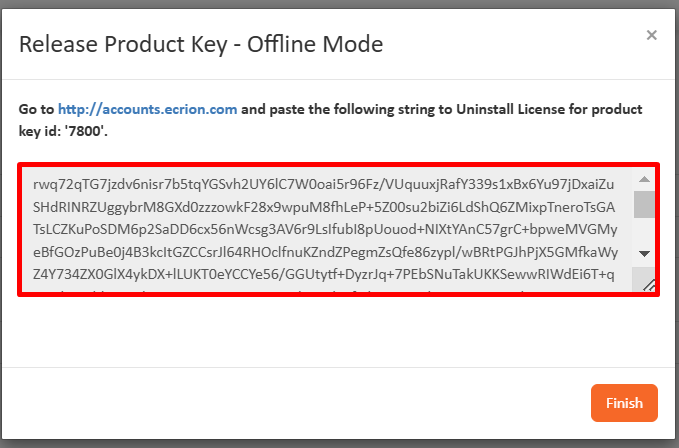
- Next, sign in to your NorthStar CCM Account, find the license that you are uninstalling and click its
Key IDin the list.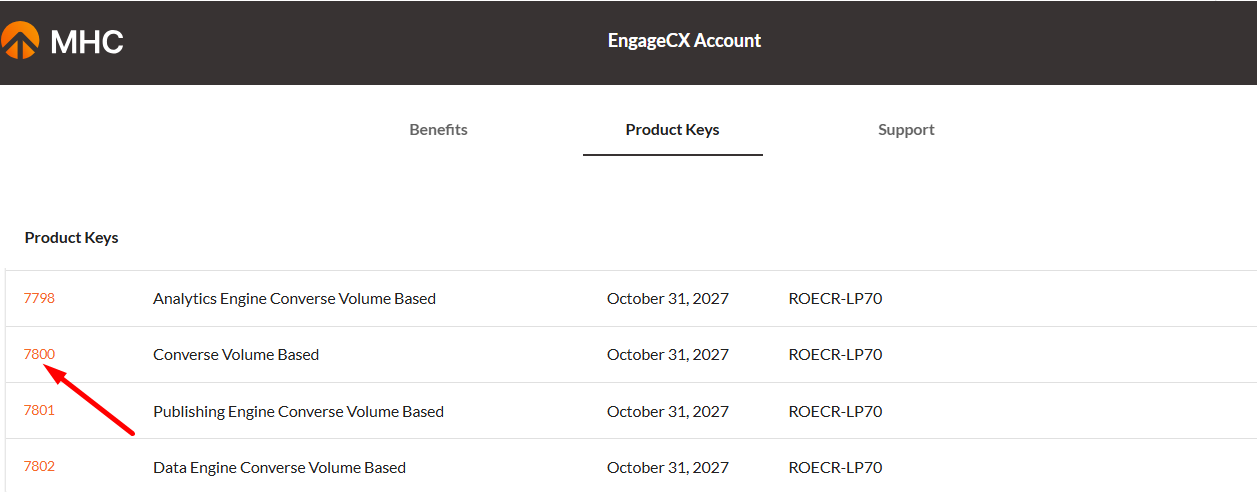
-
In the opened dialog, select
Uninstall Product Keyand paste the string in the empty box, copied at point 3. ClickUninstallto complete the process. Note that if you skip this step, the product key will continue to appear as being used and you cannot install it on another machine unless manually freed by NorthStar CCM Support.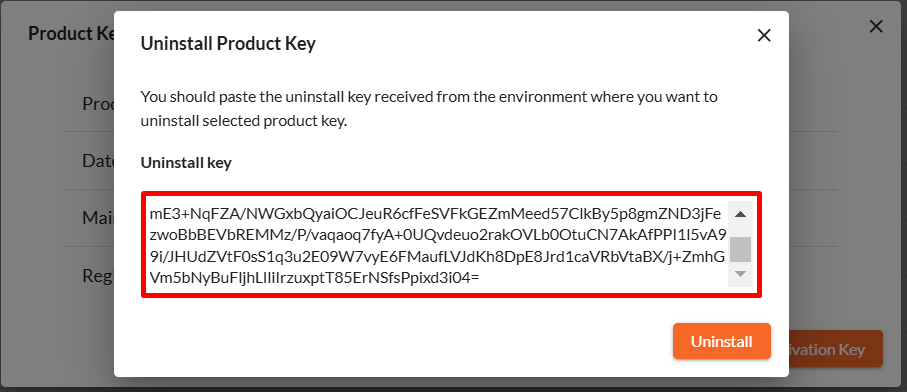
-
Your product key is now uninstalled from your NorthStar CCM Domain.
Notification Services
For volume-based product keys, NorthStar CCM provides the Notification Service tool useful to track the volume counter. It enables system administrators to receive e-mail notifications when the product key’s counter is close to reaching its maximum value, based on the selection from the drop-down.
By default, the NorthStar CCM services will send email notifications every day, a week before the licenses would be expired.
Before configuring the Notification Services, you must ensure the following:
- A valid email address is set up at least for one of the NorthStar CCM Sysadmins.
- An operational SMTP connection is configured on the NorthStar CCM Domain.
Configuring Notification Services
- Sign in to the Sysadmin Website and access the
Licensingtab. - Click on the
Configure Product Usage Notificationsbutton. - Select a percent from the drop-down list. When the value from the drop-down will be overcome, the NorthStar CCM Platform will start sending email alerts. For example, for a Publishing Engine key with PageCount equal to 100, and the Notification Service set to 50%, NorthStar CCM will notify you when Page Count reaches 50 pages.
- Once you're ready, select
Finish.
System Configuration
In this section you can learn how to manage various features and configuration that comes with the NorthStar CCM solution.
System Administrators
NorthStar CCM Domain contains its own system-wide users called system administrators, or sysadmins. These users have full access to the System Administration website, giving them the following permissions:
- Create, edit or delete environments.
- Create, edit or delete users with full access within any environment (also called environment admins).
- Change domain-level settings.
Sysadmins cannot directly log into any environment; however, they can easily gain access to it by creating a new environment admin for that environment. This is because there is no overlap between sysadmin users (stored at the domain level) and regular users (stored at the environment level).
During the software installation, a default username called sysadmin with the password sysadmin is added to the system. For the first login to NorthStar CCM Platform, you will have to use these credentials.
Note
At the first sign in, you will be prompted to change the default password, that will help you ensure security across NorthStar CCM domain.
To add other system administrators:
- Sign in to the Sysadmin Website and select the
Userstile. - Select the
New Userbutton, at the top-right corner. - Fill in the form fields. You will have to enter:
- A unique
usernamefor the domain administrator to use when signing in. - A strong and secure
password. - A valid
e-mail addressfor the administrator. All e-mails from the system will be sent to this address.
- A unique
- Once you're ready, select Ok.
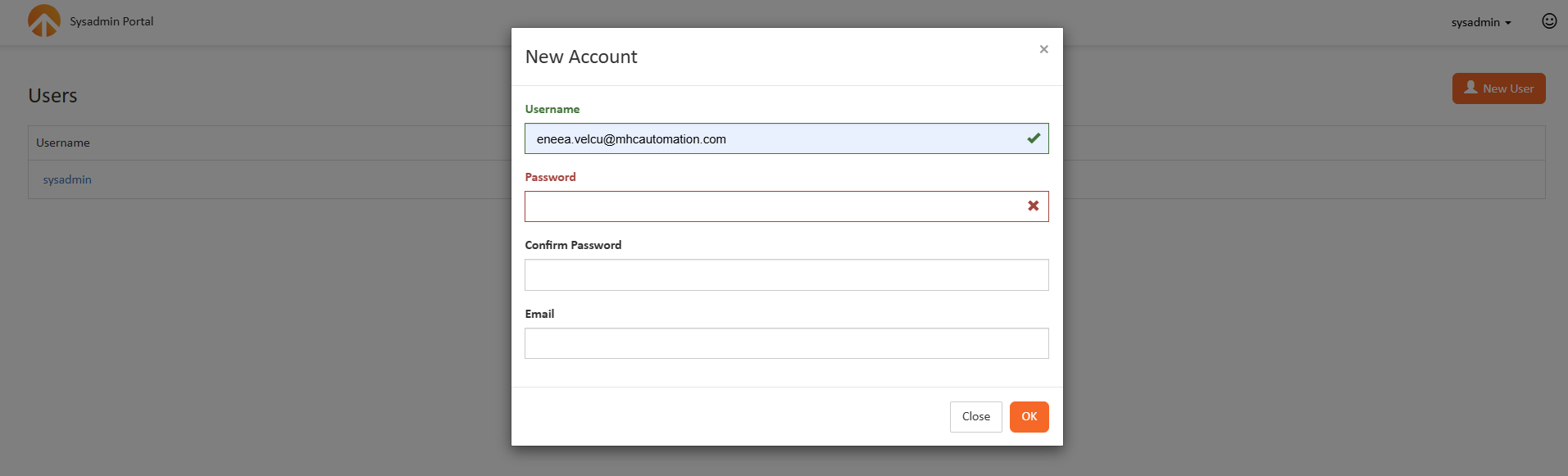
The system administrator will appear on your Users page.
Environments
Environments are completely isolated business units that separate same targeted types of users in a company. For example, all the developers might have one department per business unit - Development.
Please select from the table below actions to proceed with, on the environments present on your server.
| Creating environments |
| Initializing environments |
| Searching environments |
Creating environments
Follow the steps below to learn how to create a new environment.
- Sign in to the Sysadmin Website and select the
Environmentstile. From the page that opens, you can view or manage all existing environments present on the server. - Select the
New environmentbutton, at the top-right corner of the page. - In the dialog, fill in the form with the mandatory fields:
- A unique name for the environment.
- An e-mail address, to be used as a username.
- If an E-mail Connection is set up on your domain, keep the
Generate password automatically. Once the new environment is created, a notification e-mail with generated password will be sent to the e-mail configured. - If an E-mail Connection is not set up, disable
Generate password automatically. Then, enter a password in the provided boxes.
- Once you're ready, select
Create.
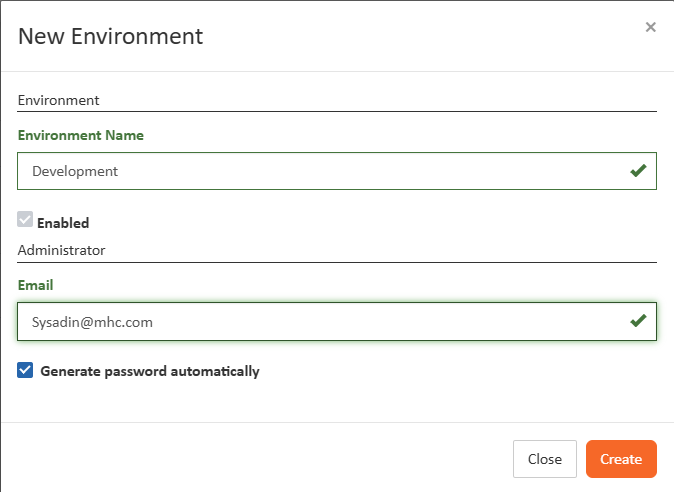
The Edit Environment dialog will appear on your screen from where you can either navigate through tabs to start editing environment settings, either select Ok to configure it later.
Initializing environments
Enabling environments
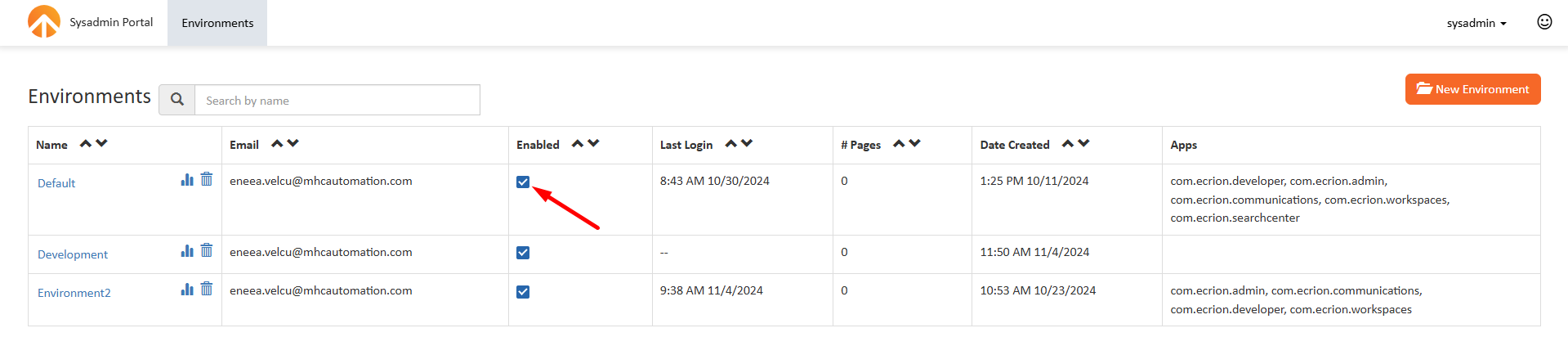
By default, each new environment is enabled. To enable or disable an environment, go to the environments page.
- To enable, check the
Enabledoption, next to the environment you want to edit. - To disable, uncheck the
Enabledoption, next to the environment you want to edit.
Sending Welcome E-Mails
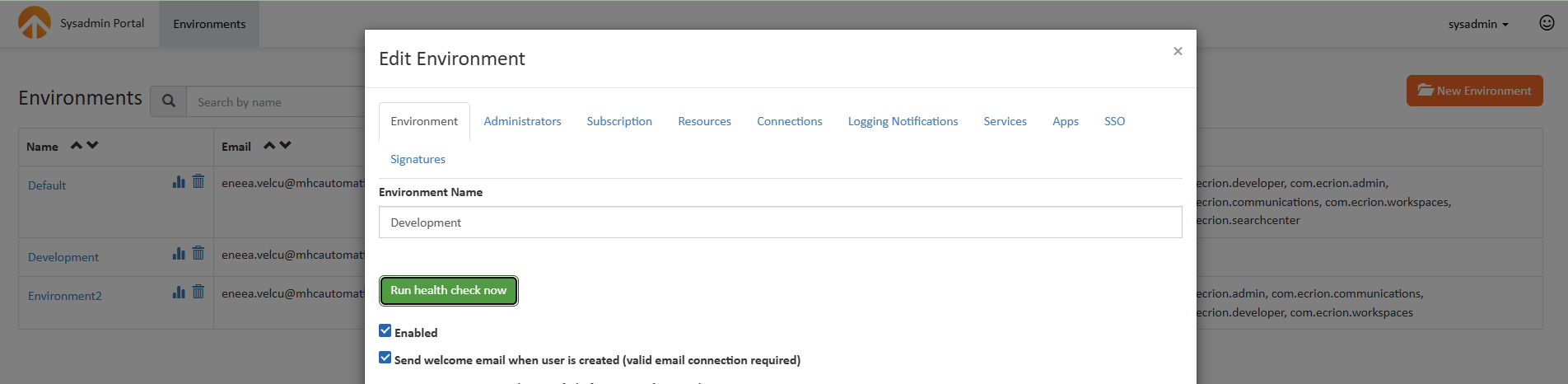
When a new user is added to an environment, you may want to send them a friendly welcome e-mail to notify it about their new NorthStar CCM account. Within NorthStar CCM Platform, you can use automation to send or not welcome e-mails to new users, based on your necessities. For each environment, the Sysadmin Website provides an option for the domain administrator users to enable or disable welcome e-mails for the new users created.
To enable/disable welcome e-mails, go to the environments page and access the environment you want to edit.
- To enable, check the
Send welcome email when user is createdoption. - To disable, uncheck the
Send welcome email when user is createdoption.
Note
Sending welcome e-mails require a valid and working e-mail connection within Sysadmin Website. To configure an e-mail connection, please visit the E-mail chapter of this guide.
Enabling environment Apps
Functionalities in NorthStar CCM Solution are grouped and placed in apps so you can easily select the desired app to access all applicable features available to you. To gain access to each app, you will need to visit the Enterprise Website and choose from the list available under the Explore Apps page.
Note
By default, we recommend keeping the environment apps to a minimum, based on your company needs, as they use system resources. If your company decide to use other features, you can enable the apps later. For more information, please contact the NorthStar CCM Technical Support, at northstarccmsupport@mhcautomation.com, to establish the apps you might need to install.
Installing Apps
Follow the steps below to learn how to install apps on your environment.
- Sign in to the Sysadmin Website and select the
environmentstile. - Select the environment you want to edit from the page.
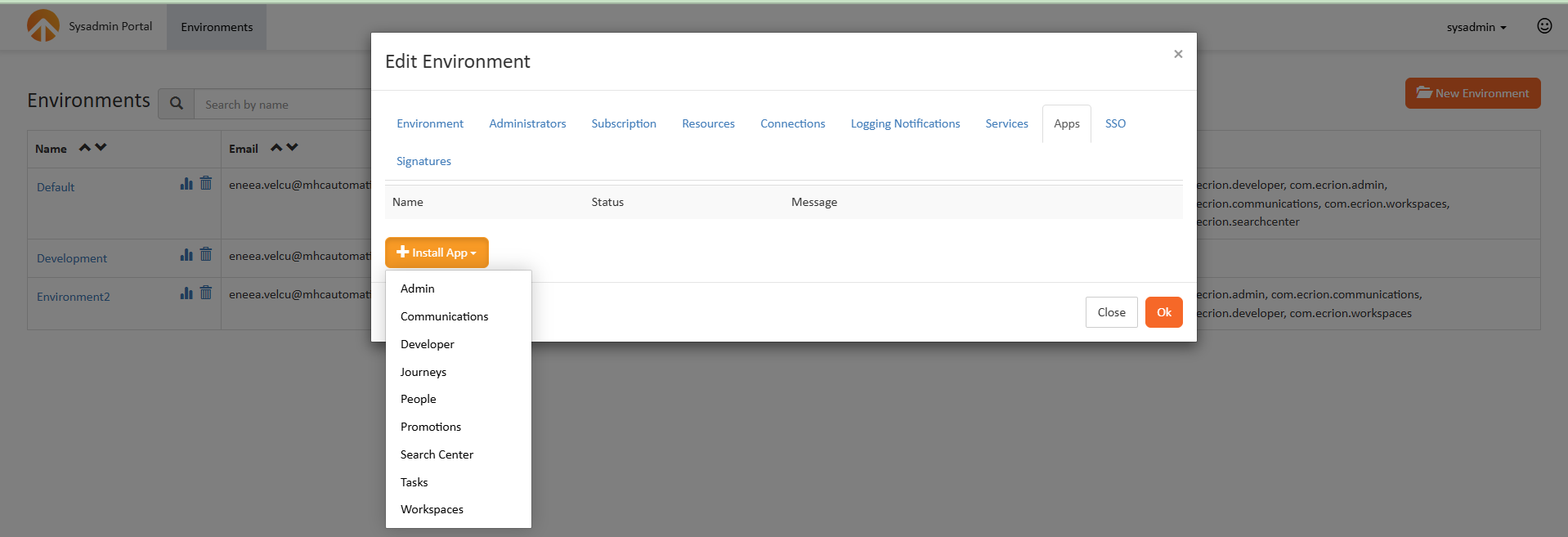
- Next, access the
Appstab from the Edit environment dialog. From the Apps tab, you can view a list with all the environment applications currently installed. - To add new apps to the environment, select
Install App, then choose from the drop-down list the app you intend to install in your environment. - To finalize the process, choose from the provided options:
- Choose a category for your app. This will determine in which group will be displayed the app after signing in to the environment.
- Set up users or groups permissions from the
Access Rightsbox. Keep in mind that only environments users and groups will be available, while sysadmin users will be excluded.
- Once you're ready, click
Install.
Searching environments
Follow the steps below to learn how to search through existing environments within your NorthStar CCM Domain.
- Access the environments page by selecting
environmentsfrom the Sysadmin Portal. - A list with the existing environments will be displayed. If you want to search for a specific environment in the list, you can use the
Searchfeature ( ) at the bottom of the page. - Type in the
Searchbox the full or just a part of the name of the needed environment and hitENTER.
Setting Up Environment Administrators
The first user created during the environment creation is mandatory. It is created along with the environment and it is also called environment administrator. Environment admins have unlimited permissions in their own environment. By design, it’s impossible to enforce restrictions on an environment admin within the environment they are managing.
Environment Admins are the only users who have access to the Admin page of the Enterprise Website, as they by default, are included in the Administrators group that has Manage Environment permissions.
Environment admins can also manage access and publish assets to the Customer Portal website, change the accounts and customers schema, design new communications and share them (with enterprise users or customers).
To set up new administrators for an environment:
- Access the Environments page and select the environment you want to edit.
- Go to the
Administratorstab in the Edit Environment dialog. The Administrators tab will display the existing administrators and their last login, and also allows you to enable/disable one admin or reset the password. - To create a new environment administrator, select the
+Newbutton. - In the Configure Admin dialog, fill in the mandatory fields:
- Select the Authentication type: EOS Authentication or Windows Authentication.
- An e-mail address, to be used as a username.
- If an E-mail Connection is set up on your domain, keep the
Generate password automatically. Once the new environment is created, a notification e-mail with generated password will be sent to the e-mail configured. - If an E-mail Connection is not set up, disable
Generate password automatically. Then, enter a password in the provided boxes.
- Once you're ready, select
Create.
The admin user will appear now on your Administrators list.
Authentication
Authentication is the process through which system administrators grant a user access to the NorthStar CCM Platform. Authentication to the NorthStar CCM Enterprise Website can be accomplished in different ways, such as built-in users created through the NorthStar CCM Platform, using an external system that stores user's credentials, such as Active Directory or accessing NorthStar CCM Platform through Single Sign-On.
Users can log in to the Enterprise Website by various methods. Please select from the table below the login method with which you would like to proceed.
| EngageCX Authentication | Active Directory Authentication | Single Sign-On |
NorthStar CCM Authentication
This type of authentication contains all the NorthStar CCM Platform built-in users created by an environment administrator.
To add a new user to the Enterprise Website:
- Sign in to the Enterprise Website and access the
Adminmodule. - Select the
Userstab. - Click the
+New Userbutton, at the upper-right side. - For each user, you will have to provide an e-mail address, username and password. Optionally, you can enable or disable the user, add the user to groups or provide different permissions.
Active Directory Authentication
One of the most common way to authenticate to NorthStar CCM Platform is by using Active Directory users. This allows your users to use the same credentials to log in to the NorthStar CCM Platform as they use with their computer or other services, and also allows you to keep all information in a central location, preventing you for losing data. When a user signs in using an Active Directory, NorthStar CCM will validate their username and password through the Windows principles in the operating system. If you intend to share environments between users, using an external system to store user credentials, such as Active Directory is a good practice.
Using Active Directory users with NorthStar CCM requires you to enable the Use Active Directory to authenticate users option available in the Domain\Authentication page of the NorthStar CCM Sysadmin Website.
Enable Active Directory
- Login to the Sysadmin Website.
- Access the
Domainmodule from the Welcome page. - Select
Authenticationunder the Settings section. - Enable the
Use Active Directory to authenticate usersoption.
Note
Subsequent changes to the AD user or to the Group permissions in NorthStar CCM Platform will require the user to re-login to apply the new properties.
Single Sign-On
Single Sign-On (SSO) is an authentication process that allows users to enter one set of credentials and access multiple applications. The process authenticates the user for all the applications they have been given rights to and eliminates further prompts when they switch applications during a session.
An NorthStar CCM environment can be configured to use two different methods for the SSO authentication. Please select from the table below the method with which you would like to proceed.
| Windows Authentication | SAML or WS-Fed |
Single Sign-On using Windows Authentication
Windows SSO uses the Active Directory user that is currently logged into the computer to access the NorthStar CCM Platform. The same authorization and synchronization principles described in the Authentication using Active Directory are applicable for Windows SSO.
Configuration
To use Windows Authentication, you will need to make the following settings in IIS Manager:
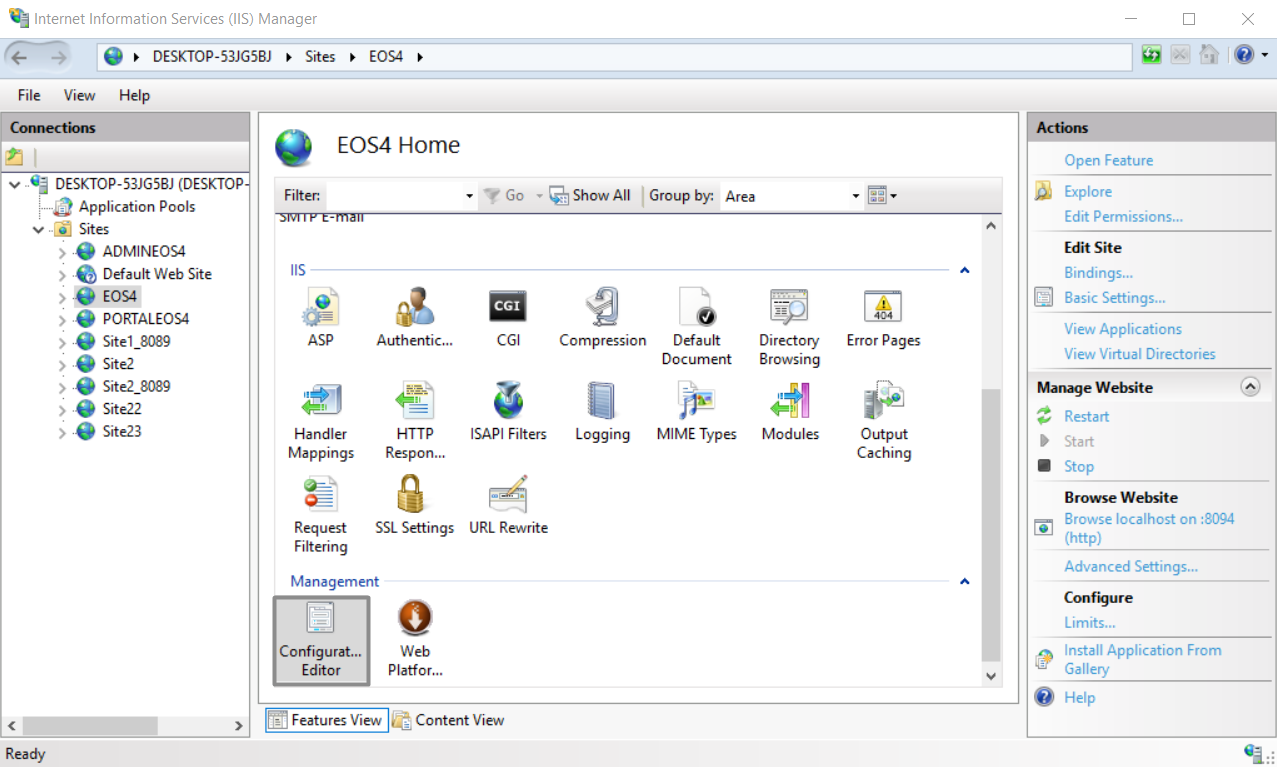
- From the Connection Tree View, navigate to the NorthStar CCM Website that you wish to enable windows authentication.
- Double click on the Configuration Editor button, under the Management section.
- From the Configuration Editor dialog, select
system.Webserver\security\authentication\windowsAuthentication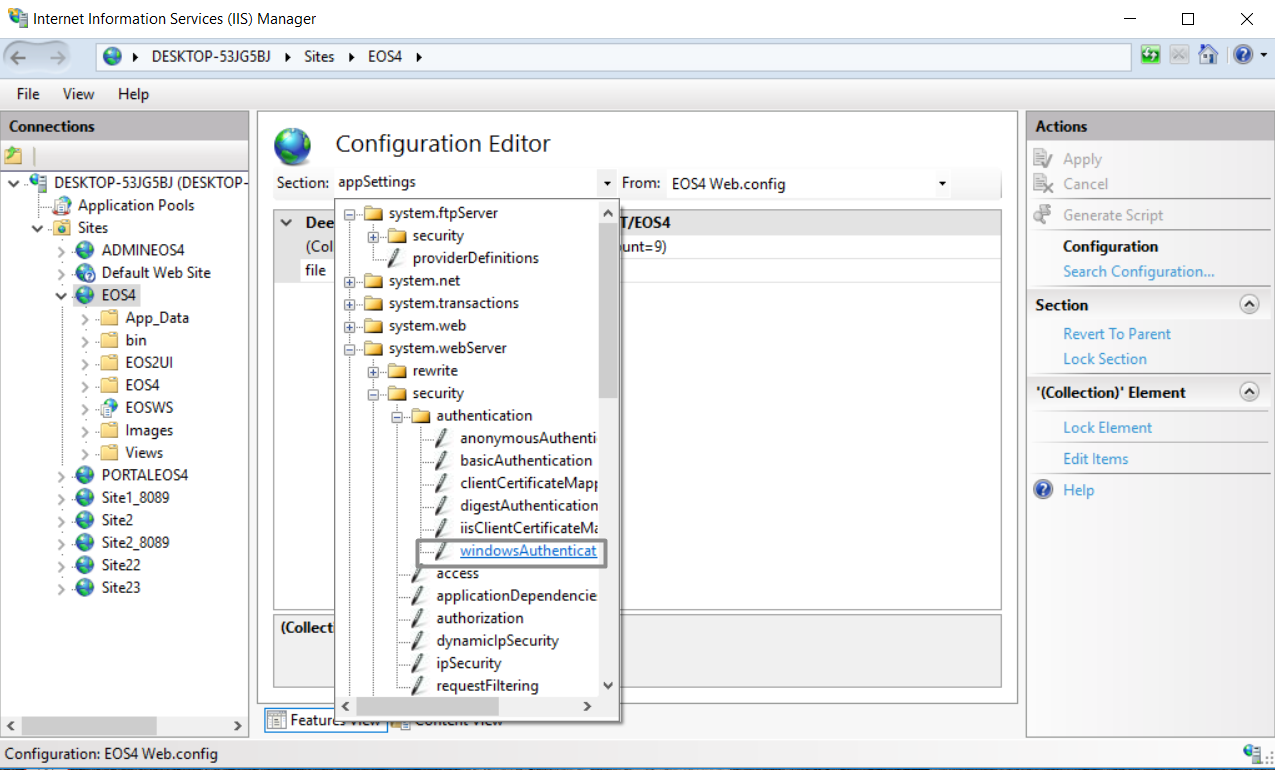
- Unlock the configuration by selecting the
UnlockSection button.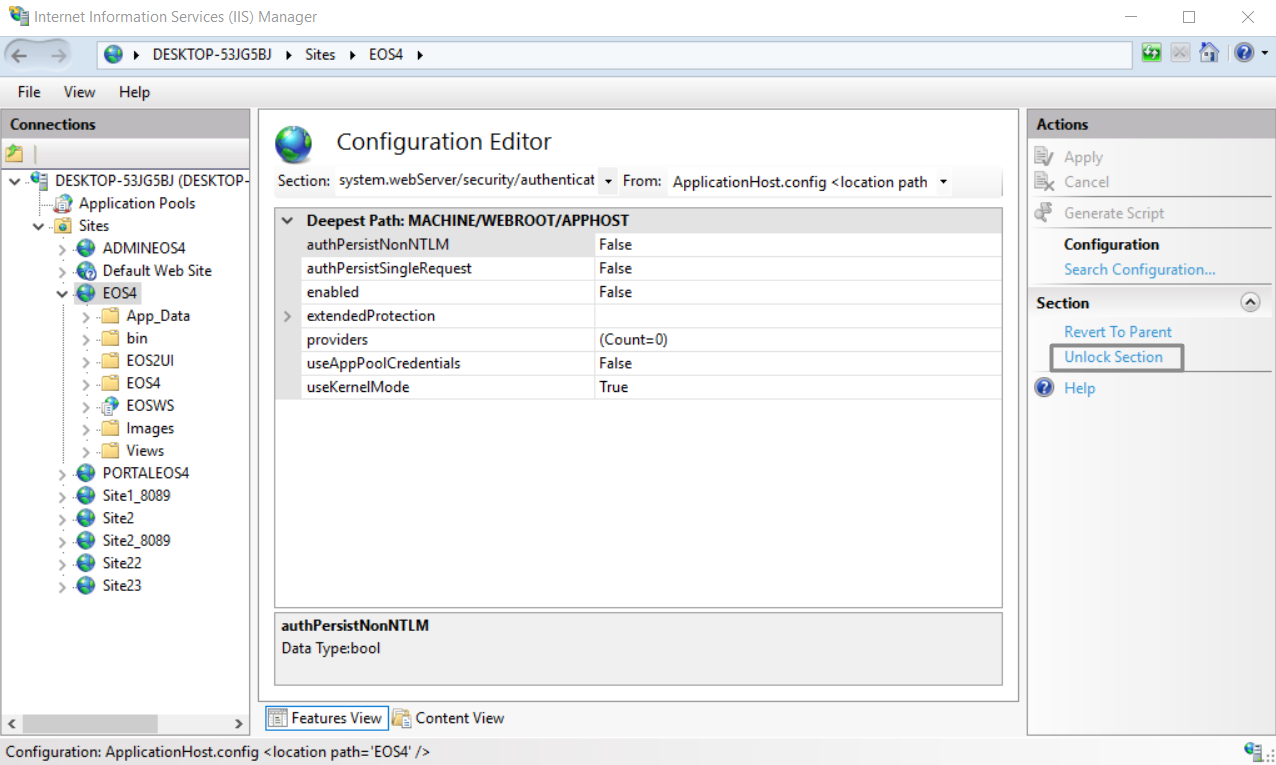
- Change the value of the enabled property to True.
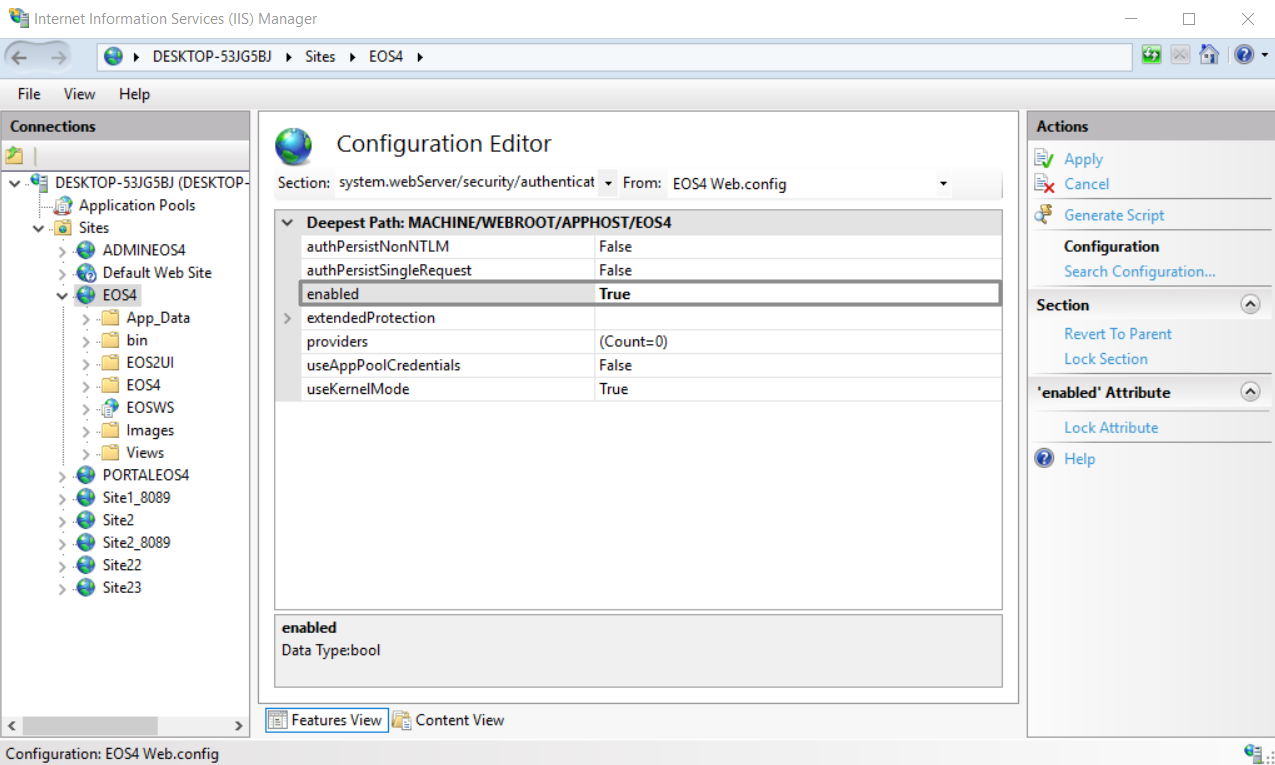
- Repeat the steps from above to unlock configuration for the anonymousAuthentication property, as well:
- From the Configuration Editor dialog, select
System.Webserver\security\authentication\anonymousAuthentication - Unlock the configuration by selecting Unlock Section
- Make sure that the enabled property is set to true.
- From the Configuration Editor dialog, select
Note
Windows Authentication within NorthStar CCM Platform uses Kerberos authentication. Kerberos authentication requires having set a Service Principal Name for IIS Server.
To check what SPN is registered, you can run the following command on the AD Machine:
SetSpn -L
If you need to set a new SPN, you can read more information here.
Login
To log in to Enterprise Website with windows authentication, you need to access the following URL:
{Enterprise_Website_URL_and_Port_Number}/windows/login?environment={environmentName}
Single Sign-On using SAML or WS-Fed
Single Sign-On consists of using a single set of credentials to log into multiple applications. Setting up the Single Sign-On solution in NorthStar CCM Platform, provides authorized access to users through a simple and easy process. NorthStar CCM comes with a friendly setup assistant and a series of well-defined steps for Single Sign-On configurations. The Single Sign-On process can be enabled either for NorthStar CCM Enterprise users, either for Customer Portal users.
NorthStar CCM Platform acts as a service provider(SP) for SSO. When setting up SSO, a trusted relationship between the Identity Provider and the NorthStar CCM Platform will be created. This enables users to authenticate to the Identity Provider website, then access NorthStar CCM Solutions in a secured way.
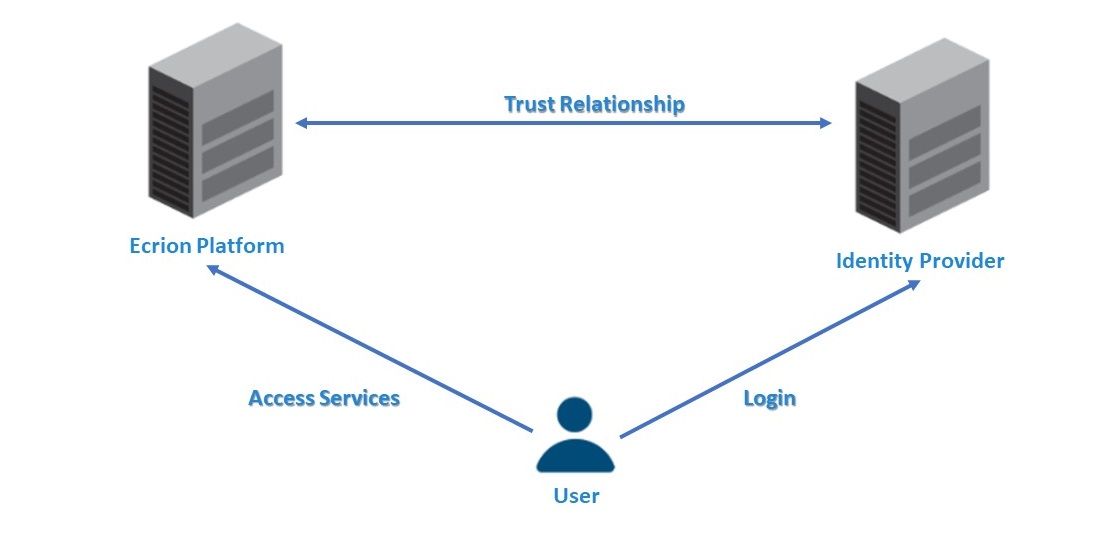
NorthStar CCM offers two ways to use Single Sign-On. For more details regarding this, please select the SSO method with which you would like to proceed from the table below.
| Security Assertion Markup language (SAML 2.0) | Web Services Federation (WS-Federation) |
In a nutshell, setting up a Single Sign-On connection through NorthStar CCM involves the following steps:
- Set up your Identity Provider using NorthStar CCM Information.
- Configure NorthStar CCM Single Sign-On using information received from your IdP.
- Verify the Single Sign-On configuration.
Single Sign-On using SAML
-
When you set up the Single Sign-On connection with SAML protocol, you will have to provide to your IdP the following information:
ACS URL This indicates the location to which the SSO Tokens will be sent. Access the Single Sign-On dialog wizard, go to the Setup IDPstep and select Copy to Clipboard, next to the ACS URL box, then forward the link to your IdP. For example, the link should like this:https://EngageCXServer:PortNumber/Security/ConsumeSAMLToken?environment=EnvironmentNameSingle LogOut When the Single Sign-On is enabled, logging out from NorthStar CCM Website will bring users back to their NorthStar CCM login page. To enable log out, the Single Logout URL that needs to be configured should look like this: http://ecrionserver:8094/Security/LogOut -
Once the Identity Provider has finished configuration of the Single Sign-On process, to create the setup within NorthStar CCM Enterprise Website, you will have to follow the SSO wizard provided by NorthStar CCM. For more details, please visit the Single Sign-On page from the NorthStar CCM User Guide to learn how to configure it.
-
Once the configuration is ready on both sides, open a web browser and navigate to the Single Sign-On URL. It should look like this:
http://EngageCXServer:PortNumber/security/login?environmentName=envName
You will be redirected to the IdP Sign-in page. Log in using your IdP credentials. If everything is working properly, you will be redirected to the NorthStar CCM Enterprise Website.
Setting Up SSO with WS-Federation
-
Setting up the Single Sign-On with WS-Federation protocol, will require to work with you your Identity Provider to create a relying party trust connection. While creating the Relying Party Trust, you will have to forward the following information to your IdP:
ACS URL This indicates the location to which the SSO Tokens will be sent. Access the Single Sign-On dialog wizard, go to the Setup IDPstep and select Copy to Clipboard, next to the ACS URL box, then forward the link to your IdP. For example, the link should like this:http://EngageCXServer:PortNumber/Security/ConsumeSAMLToken?environment=EnvironmentNameNorthStar CCM URL If you want to enable Single Sign-On for Enterprise Users, you will have to provide the Enterprise Website URL to your IdP.
If you want to enable Single Sign-On for Customer Portal Users, you will have to provide the Customer Portal Website URL to your IdP. -
Update the NorthStar CCM web.config file:
Go to the NorthStar CCM Installation folder (Web.config file. The file needs to be updated as follows:
a. Comment the <customErrors> lines:
    <customErrors mode="On" defaultRedirect="~/Error">
        <error redirect="~/Error/NotFound" statusCode="404"/>
        <error redirect="~/Error/InternalServer" statusCode="500"/>
    </customErrors>
system.IdentityModel, as follows. Note that it should be included between the </runtime> and </configuration> tags.
    <system.identityModel>
        <identityConfiguration>
            <audienceUris>
    <!--The value indicates the URL to the NorthStar CCM Website on which you enabled Single Sign-On (Enterprise or Customer Portal)-->
                <add value="https://ecrionserver:portnumber" />
            </audienceUris>
    <certificateValidation certificateValidationMode="None" />
    <issuerNameRegistry type="System.IdentityModel.Tokens.ConfigurationBasedIssuerNameRegistry, System.IdentityModel, Version=4.0.0.0, Culture=neutral, PublicKeyToken=b77a5c561934e089">
        <trustedIssuers>
    <!-- Add the Certificate Thumprint and the Certificate Name (e.g. Subject) used in the Relying Party Trust configured by your Identity Provider -->
            <add thumbprint="********" name="*****"/>
        </trustedIssuers>
    </issuerNameRegistry>
    </identityConfiguration>
    </system.identityModel>
    <system.identityModel.services>
    <federationConfiguration>
    <!-- Issuer = the IdP Server URL
         Realm = the IIS NorthStar CCM Website URL, e.g.  https://ecrionserver:portnumber
         Reply = the IIS NorthStar CCM Website URL, e.g. https://ecrionserver:portnumber  -->
            <wsFederation passiveRedirectEnabled="true" issuer="https://idpserver" realm="https://ecrionserver:portnumber" reply="https://ecrionserver:portnumber" requireHttps="true" />
            <wsFederation passiveRedirectEnabled="true" issuer="https://idpserver" realm="https://ecrionserver:portnumber" reply="https://ecrionserver:portnumber" requireHttps="false" />
            <cookieHandler requireSsl="false" />
    </federationConfiguration>
    </system.identityModel.services>
- Once you're ready, save the configuration file, then access the NorthStar CCM Enterprise Website and go to the Single Sign-On page to add the information received from your IdP to the SSO wizard.
Other Authentication Settings
From the NorthStar CCM Sysadmin Website, you can also manage other important authentication settings. To access the authentication page, you need to follow the steps below:
- Sign in to the System Administrator Website and access the
Domaintile. - Select the
Authenticationoption under the Settings group.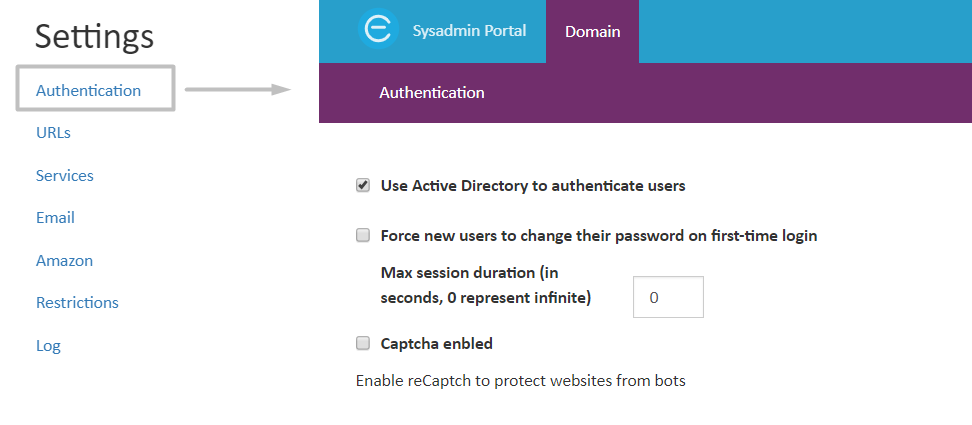
The Authentication page allows you to configure the following:
| Use Active Directory to authenticate users | Check this option if you want to toggle Active Directory logins to the NorthStar CCM system. |
| Force new users to change their password on first-time login | This option will force a new user to change the password at the first log in. It is not available for users that authenticate with Active Directory or SSO. The option is useful for two reasons, it will simplify the process of adding new NorthStar CCM users for system administrator and also adds a security benefit. |
| Max session duration | In addition to the property from above, you can also specify the session duration, in seconds (0 represent infinitely) of the new user’s login. After the set period ends, users will be logged out from their Environment. |
| Captcha enabled | Checking this option will enable Google reCaptcha. The keys retrieved by configuring reCaptcha on Google website are necessary to be added here to invoke Google reCaptcha. |
Services
The Services section offers details on the available services, domain settings that can be configured at environmental level.
Domain Services
To perform management and operational tasks on an NorthStar CCM distributed environment, an administrator must ensure that all the IP Addresses and Port Numbers of the remote servers that host NorthStar CCM Components are correct and are pointing out to the right NorthStar CCM service, allowing NorthStar CCM to establish a stable and reachable connection between its components. These connections have to be configured from the Domain Services page. Initial services values (for Publishing Engine, Data Engine, Analytics Engine, etc.) are also called default workers.
A typical use case when you have to update the Domain Services can be when you installed all NorthStar CCM components on a server, (e.g. having IP Address X.X.X.X), lesser the Search component, which is isolated on a separate server (e.g. having IP Address Y.Y.Y.Y). To access the Search component, from the server that contains the Admin Website, you will have to update the Search Services with the corresponding IP Address (e.g. for our case, you will have to enter the following address - Y.Y.Y.Y) and Port Number of the server hosting the Search component.
To access the Domain page:
- Sign in to the Sysadmin website and access the
Domaintile. - Select the
Servicesoption under the Settings group.
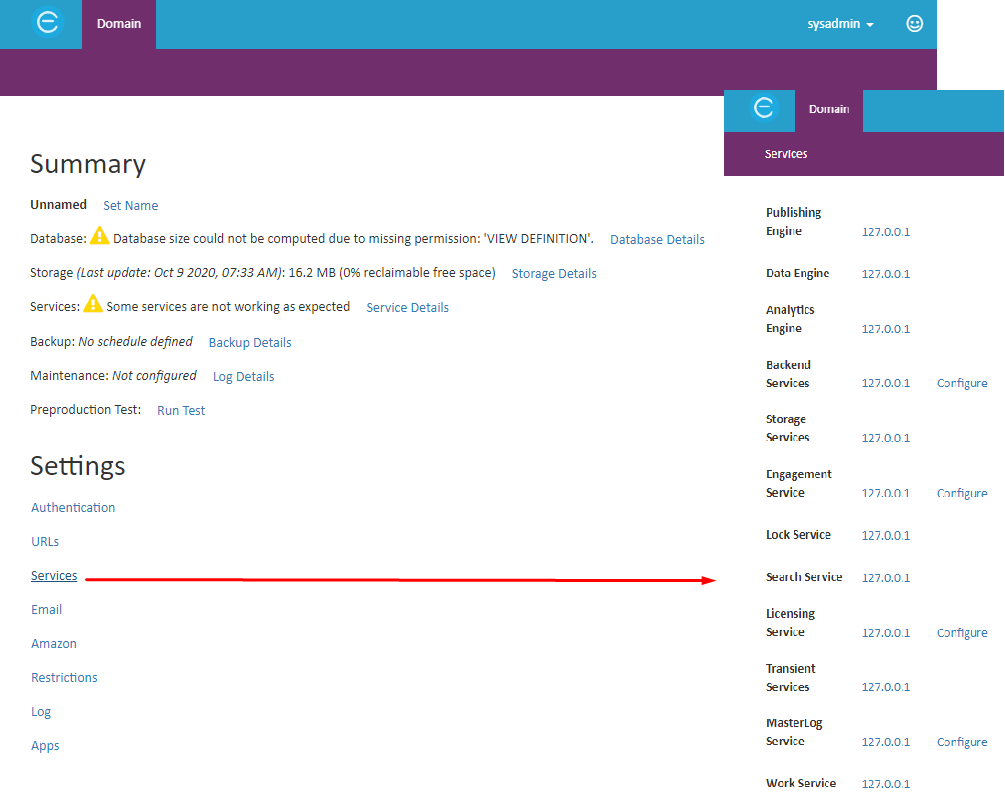
By default, no nodes are configured, in which case NorthStar CCM will look for the services at the address specified by the initial values in the main configuration file. Within the Services page you can configure the following:
| Service | Description | Default Port |
|---|---|---|
| Publishing Engine | Configures the IP Address and the port number on which the publishing engine will run. | 40017 |
| Data Engine | Configure the IP Address and the port number on which the data engine will run. | 40021 |
| Analytics Engine | Configures the IP Address and the port number on which the analytics engine will run. | 40023 |
| Backend Services | Configure the IP Address and the ports for services related to the healthcheck settings. | Workflow Port: 40015Log Port: 40018Repository Port: 40016Triggers Port: 40020Scheduler Port: 40022Alert Port: 40025Distribution Port: 40024Notification Port: 40029Crawler Port: 9100Background: 40026Backup Port: 40030Synchronization Port: 40031 |
| Storage Services | Configure the IP Address and the ports for services related to the storage. | 40014 |
| Engagement Service | Configures the IP Address and the port number for the engagement service. | 40042 |
| Lock Service | Configures the IP Address and the port number for the lock service. | 40038 |
| Search Service | Configures the IP Address and the port number for the search service. | 40028 |
| Licensing Service | Configures the IP Address and the port number for the licensing service. | 40035 |
| Transient Services | Configure the IP Address and the port numbers of the transient services. | Transient Workflow Port: 40037Transient Repository Port: 40036Publishing Engine Port: 40017Data Engine Port: 40021 |
| MasterLog Service | Configures the IP Address and the port number for the MasterLog service. | 40043 |
| Work Service | Configures the IP Address and the port number for the workflow service. | 40015 |
For each change, select Save to apply the changes and refresh the page.
Multiple Workers
NorthStar CCM also provides you with options for using additional Publishing Engine, Data Engine or Analytics Engine per environment. These connections are also called "multiple workers", while the initial connections, set up in Domain Services, are called "default workers".
Multiple Publishing, Data and Analytics nodes may be used by the same NorthStar CCM server to boost throughput. When more than one connection are defined on the environment, the load is balanced to all connections by using the Round Robin Algorithm.
For more information regarding how these workers function or how can be configured, please access the option with which you want to proceed from the table below.
| Working with Multiple Workers | Setting Up Multiple Workers |
Working with Multiple Workers
While in older versions, the load balancer did not provide a failover, therefore, in case of invalid connections, the request failed, starting with the 12.0 (Nido) release, the load balancer brings failovers, meaning that unreachable connections will be handled successfully.
The Load Balancer (and failover) is available for all the Publishing, Data and Analytics workers. Each instance of the NorthStar CCM services has its own Load Balancer.
The failover reacts when one of the workers become unavailable at connection time, not if the connection will be dropped while processing or if the request will fail due to input or other external issues. For example, if you are using a wrong input template, the failover will remain idle.
Note
If the network connection is not stable enough and it drops while processing (for the rendering process), a recommendation would be to use the Retry Count parameter within the Render(advanced) step of the workflow. Please note that this is NOT part of a failover.
Below, you can find some scenarios showing the intervention of a failover, based on various use cases:
Scenario 1 - No custom workers are defined on the environment
- In this case, the default connections defined in the Domain Settings will be used.
Scenario 2 - One custom connection is added on the environment
- The default connection will be overwritten with the custom one.
Scenario 3 - Two or more connections are defined on the environment
-
Here, all the custom connections will be used with a distributed load. In case one connection will become unreachable, but the rest of them will be available, no failure will be experienced by the user and only warning messages will be registered in the log.
-
This scenario can be further divided into others sub-scenarios, detailed as follows:
-
A: One unavailable connection
-
If one of the connections becomes unavailable, it is marked as
Unavailableand it will be removed from the Robin algorithm for a specified period of time. By default, the value is 180 seconds. -
This can be modified within the main config file through the parameter below:
WorkerLoadBalancerFailOutSeconds=<enter_time_period_value> -
For example, to set up the unavailability time to 240 seconds, the parameter should be added in the EOS4.config file as follows:
WorkerLoadBalancerFailOutSeconds=240.
-
-
Note
- The minimum value that can be set is 30 seconds.
- There is a polling interval equals to 30 seconds when the connection is verified for the expiration period. Then, the connection will re-enter in the Robin algorithm after the interval [WorkerLoadBalancerFailOutSeconds, WorkerLoadBalancerFailOutSeconds + 30 seconds].
-
B: One connection is marked as unavailable and all the others become unavailable
- When a connection is marked as
Unavailableand all the others become unavailable as well, the first connection will be retested before the out period to expire. If the connection succeeded, it will be marked asAvailable. Therefore, if at least one connection is available at some point in time the request will not fail.
- When a connection is marked as
-
C: All connections are unavailable
- If all the connections become unavailable the request will fail.
Configuring Multiple Workers
Follow the steps below to learn how to set up multiple workers per environment.
Note
When adding multiple workers per environment, the services configuration from Domain Services will be ignored. Additionally, the settings from the main configuration file will be updated.
- Sign in to the Sysadmin website and access the
Environmentstile. - Next, select the environment you want to edit, then navigate to the
Connectionstab.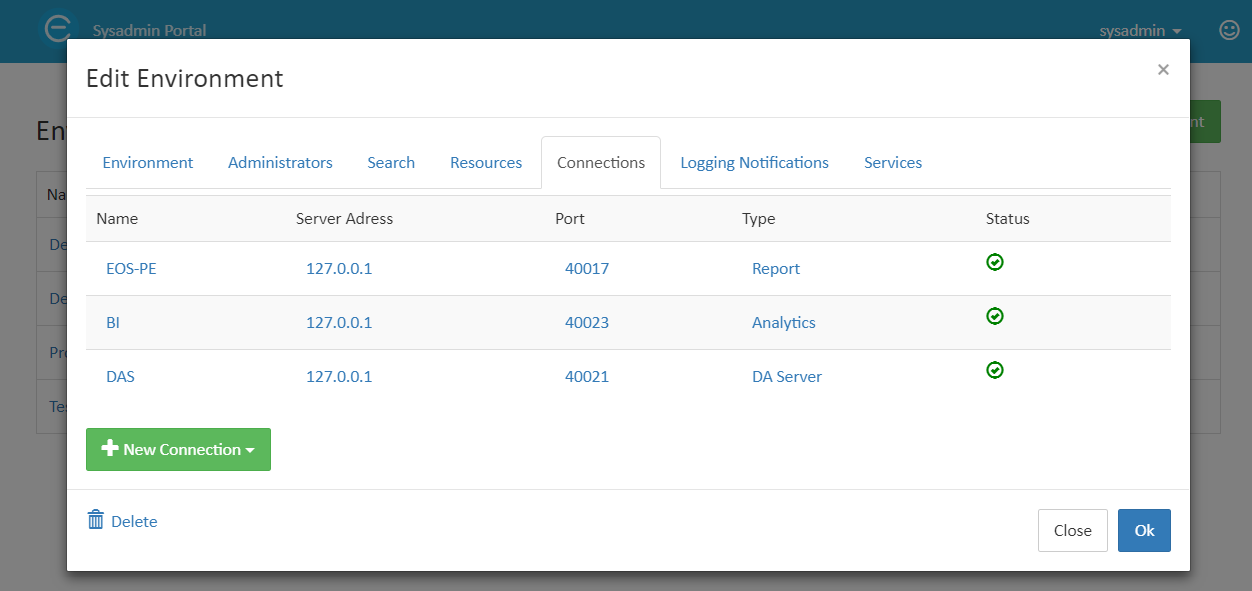
- By default, default workers are visible. To configure a new connection, select the
+New Connectionbutton, then choose the engine you want to configure: for a server that hosts Publishing Engine, selectReporting Server, for a server that hosts Data Engine, selectDA Server, and for Analytics Engine select theAnalytics Server. - Next, fill in the form fields. You will have to provide:
- A unique name for the connection.
- The IP Address of the server that hosts the component you want to point out.
- The corresponding Port Number that will be used to communicate with the server.
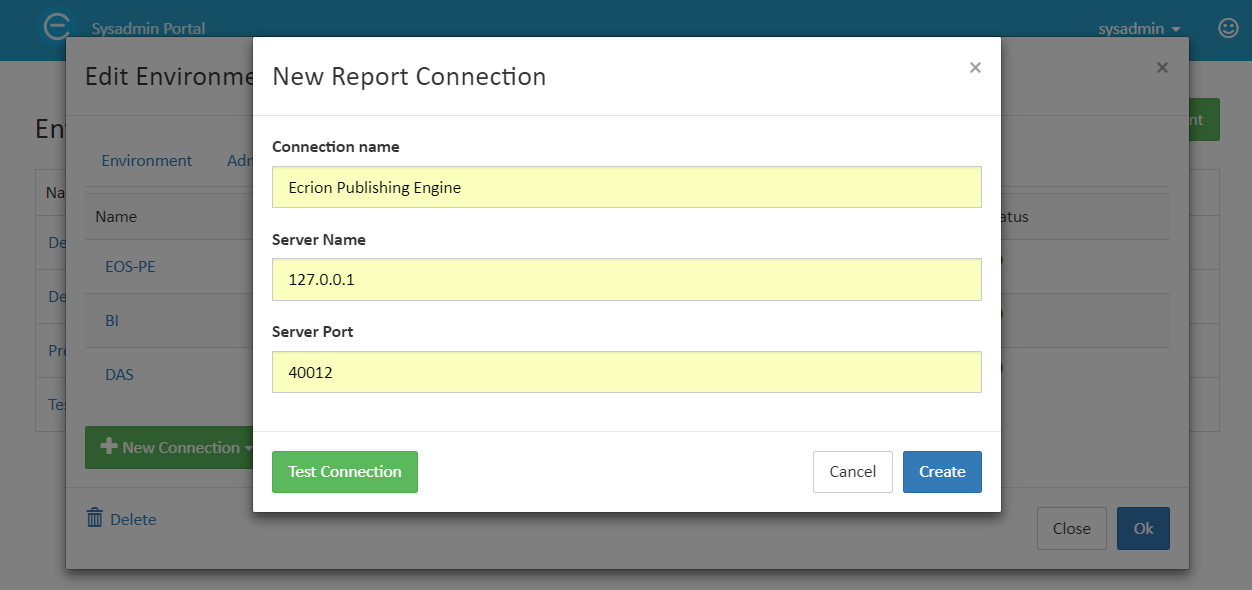
The machine containing the NorthStar CCM Service will need to have in its main configuration file the following line:
RepositoryAddress=<NorthStar CCM Service IP>
The IP used above must be the IP as seen from the machine(s) where the Publishing, Data and/or Analytics nodes are installed.
Apps
To be able to use an app, and all its features that it comes, from your environment, you have to complete the following steps in the same order:
- Physically install the app on your local machine.
- Make sure you have the .manifest file corresponding to the app. In case you do not have this file, please contact our Support Team at northstarccmsupport@mhcautomation.com.
- Add the app to the Marketplace. For more details, visit the Adding Apps section of the same guide.
- Install the app per environment. The installation of the app, after it is included in the marketplace can be done by two methods: either through the Sysadmin Website, or by using the Explore Apps page within your environment.
- For more details on how to enable environment apps through Sysadmin, visit the Installing Apps section of the same guide.
Warning
Make sure your computer has an active and secure internet connection.
Accessing Apps Configuration
Follow the steps below to learn how to access the app marketplace.
- Access the
Domaintile from the Sysadmin Portal. - Select
Appsfrom the bottom of the Settings list. - In the Apps view, there will be displayed the app name, along with its version and the App Host URL. The URL of the app and the app itself has a one-to-one relationship, meaning that once the installation is finished, to each app it is associated a different port.
Adding Apps
Follow the steps below to learn how to add a new app into the marketplace.
- Starting from the Apps view, select
Add new appfrom the bottom of the page. - Fill in the form with the required fields:
- Click
Choose fileto select the .manifest file (e.g. letters.manifest) of the app you intend to add. - Provide the
App Host URLof the app. The URL is configured once with the installation of the app on your machine. If you have not installed on your machine any App, please visit the App Installation section of the same guide.
- Click
Setting Up Apps
Follow the steps below to learn how to configure an app from the marketplace.
- Starting from the Apps view, identify the app you intend to edit from the NorthStar CCM Marketplace.
- Click on the app and update the App host URL field.
- Once you're ready, click
Ok.
Deleting Apps
Follow the steps below to learn how to remove an app from the marketplace.
- Starting from the Apps view, identify the app you intend to remove from the NorthStar CCM Marketplace.
- Select the
Deletebutton next to it. - Click
OKto confirm the deletion.
Search
For each environment, you may enable or disable the Search module. In a new environment, the search will be off, by default. Below you can find step by step instructions on how to configure Search in an environment. Note that the configuration steps should be repeated for every environment.
Configuring Search
- Sign in to the Sysadmin Website and access the
Environmentstile. - Select the environment you want to edit, then navigate to the
Searchtab. - Select the
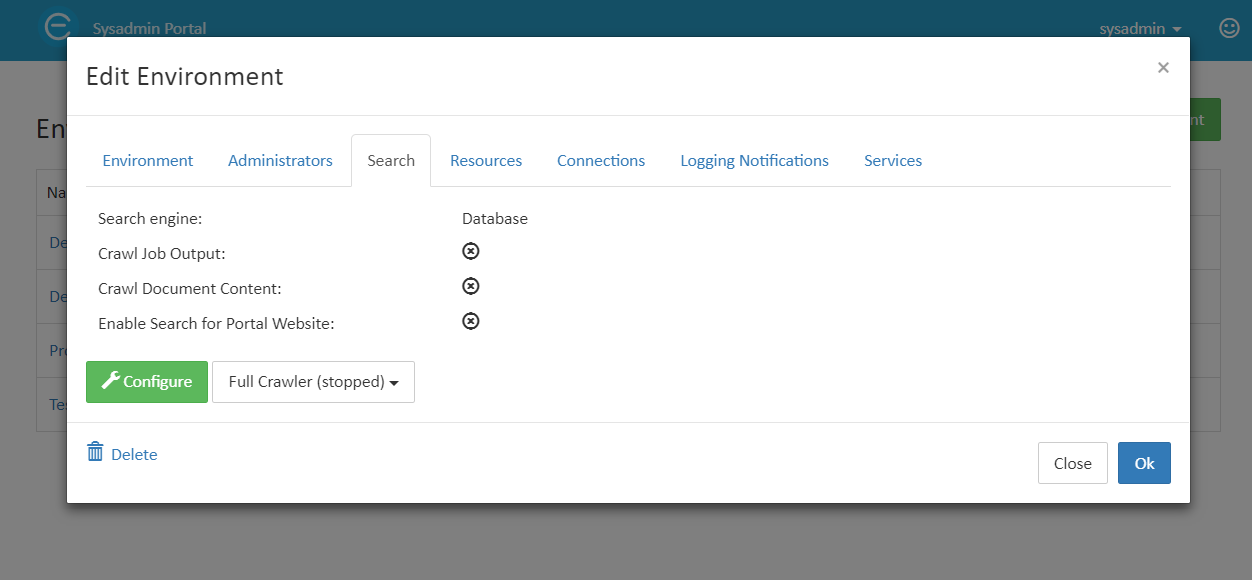
Configurebutton. - Within the Search Configuration dialog, select the search engine:
Database: use the database configured during installation for search.- Elastic: use an Elastic Search instance.
- Configure additional crawling options by checking the following options:
Crawl Job Output: will crawl the generated files, i.e. the files under Jobs; this could significantly increase crawl time if you generate many documents;Crawl Document Content: will also use full-text search, so as to crawl the contents of documents; having a large collection of documents will significantly increase crawl time.Enable Search for Portal Website.
- Once you are finished, select
Save. The Search bar will be available in the Enterprise Website, at the top right side of the window.
Note
The Search Engine Address will be added, by default in the main configuration file(EOS4Svc.config.)
Long crawl times don’t affect the system’s performance. Instead, what this means is that new and modified items will take longer to appear in the search results due to the fact that the service takes a long time to index them.
Full Crawl
A Full crawl is required the first time when the Search database is configured. Once a Full Crawl is started, it can either find no results, if the NorthStar CCM database is empty, or it can display status information. To run it, click on the Full Crawler dropdown next to the Configure button and select Start. Information about the current configuration, crawler status, and indexed items will appear on the page. When the drop-down says Full Crawler (finished), your search is configured.
Users logging into the environment (on the Enterprise Home website) will now see the search bar at the top right of each page, on the navigation bar.
If you are trying to set up e-mail notifications or amazon connections, then the settings below should help you get up and running in no time.
Domain e-mails
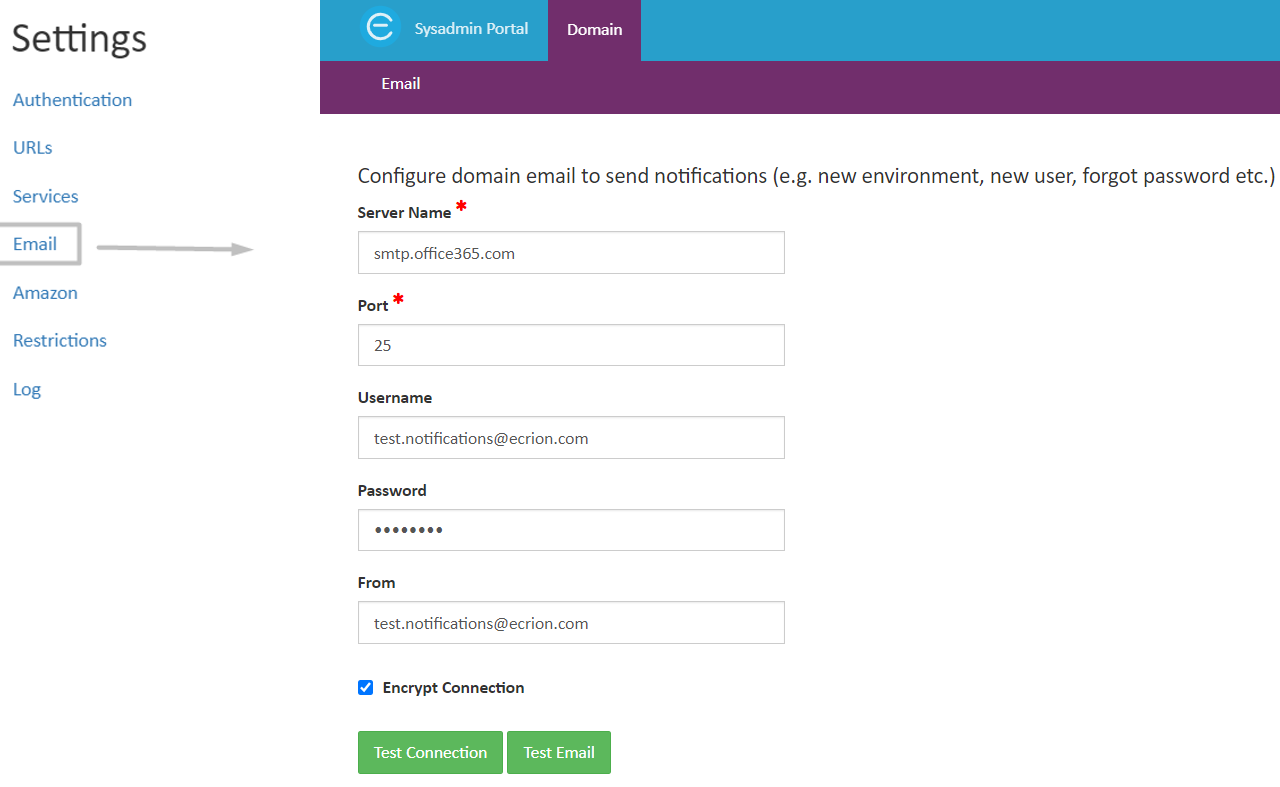
System Administrators can configure an e-mail connection to use it for e-mail notifications. For example, when new accounts are created, the user will retrieve a welcome e-mail, for which NorthStar CCM Platform will use the e-mail connection configured here. Or, when this connection is configured, users will be notified when new tasks are assigned.
To configure a domain e-mail:
- Sign in to the Sysadmin website and access the
Domaintile. - Select the
e-mailoption under the Settings group. - Fill in the form fields. You will have to enter:
- A server hostname or an IP Address.
- A port number. By default, the port number is 25.
- A username and a password.
- An e-mail address that will be used when sending e-mails using this connection.
- Decide if the connection is encrypted or not.
- Lately, to ensure your e-mail connection has been successfully set up, choose from the following two options:
Test Connection: Select this option to validate the e-mail information provided.Test Email: Select this option to send a test e-mail to a provided address.
Note
You can set up configurations for general e-mails (e.g. e-mails send to customers through an NorthStar CCM workflow) from the Admin Settings page of the Enterprise Website. Also, e-mail configurations from Domain can be overwritten by the SMTP e-mail connections from each environment.
Miscellaneous
In this section you will find various settings and integration configuration (ex. Amazon connection). Please access from the table below, the setting with which you want to proceed.
| URLs |
| Lock Service |
| Print Info Service |
| Engagement Service |
| MasterLog Service |
| Work Service |
| Amazon |
| MHC Studio |
| Restrictions |
URLs
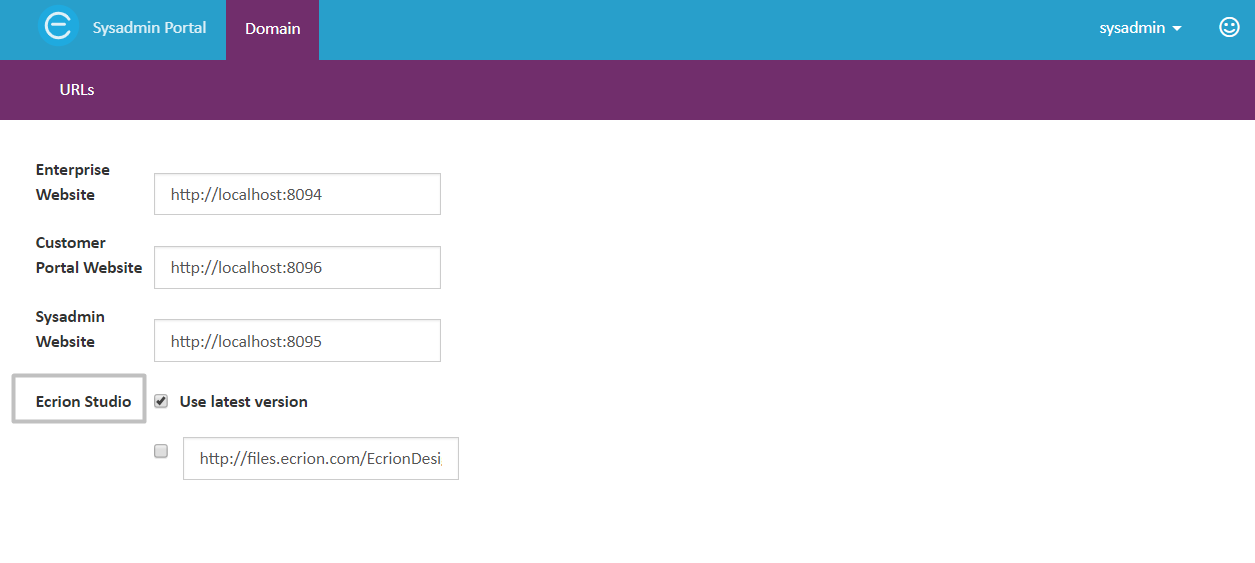
From URLs page, you can configure or update the URL used to access the NorthStar CCM Websites: Enterprise, Customer Portal or Sysadmin. These are used in both, single or distributed installation.
If you deployed NorthStar CCM components across multiple servers, to ensure a reliable communication between instances, you have to update the corresponding URLs. Each URL needs to reflect an existing website. For example, if you want to change the port of a website, you must ensure that the same configurations are done in IIS/HA, as well.
Aside from this, these websites also have other roles. For example, the Enterprise URL is used to send e-mails when a new user is created. Or, Portal URL is used to distribute e-mails that contain links to shared files for your environment customers.
To access the URLs page:
- Sign in to the Sysadmin website and access the
Domaintile. - Select the
URLshyperlink under the Settings group.
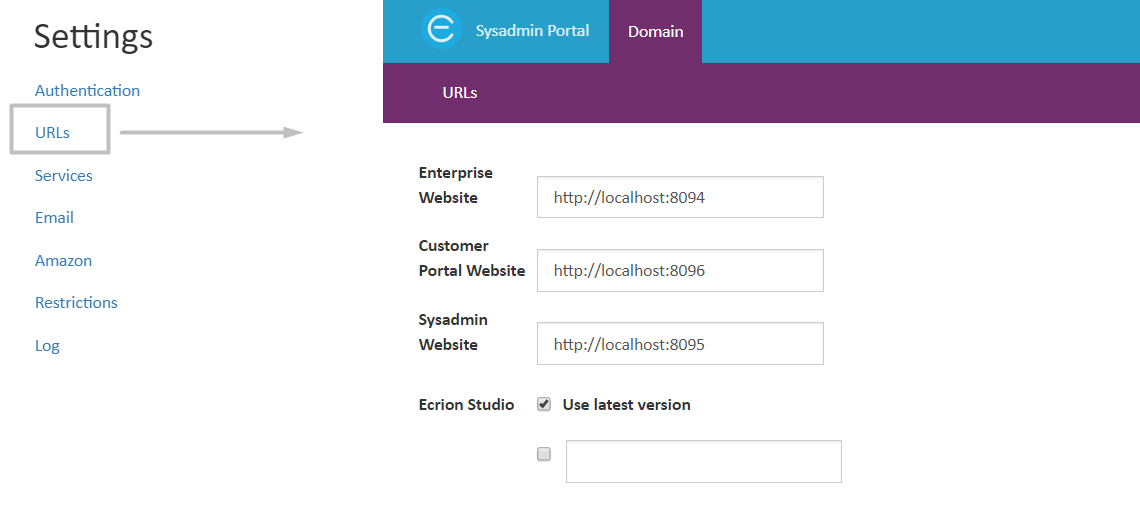
Each URL must contain the IP Address or the domain name of the server hosting the website, as well as the port number on which the website is available.
By default, NorthStar CCM Websites are available at the following ports:
- Enterprise Website: port
8094 - Customers Portal Website: port
8096 - Sysadmin Website: port
8095
Note
The URLs you configured above will not overwrite the existing values in the main configuration file (usually, there are the values configured at installation time). However, NorthStar CCM Software will ignore the config values and it will consider the values configured in Domain\URLs.
Lock Service
Lock Service is a centralized service that provides distributed synchronization. In a distributed network, its purpose is to facilitate an unlimited number of clients by avoiding overlapping of locking the assets. As an additional functionality, it also provides flexibility in a High Availability mode.
Configuring Lock Service
The lock service(s) configuration can be done by administrators under Domain Settings. Here’s how:
- Starting from the Sysadmin website, select the
Domaintile and go toSettings > Services. - Click on the
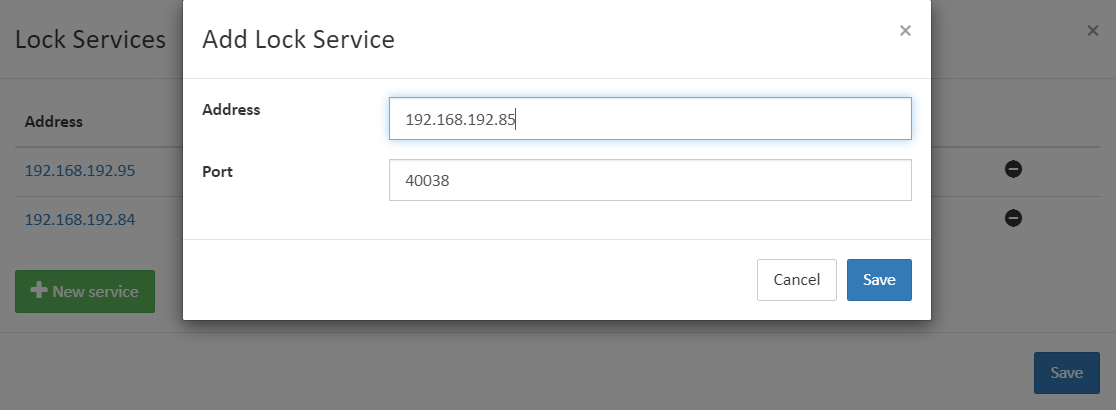
IP Addressnext to Lock Service. - Each NorthStar CCM domain supports the use of multiple Lock Services on multiple servers. Depending on your current NorthStar CCM deployment type, update the Lock services as below:
- Click the
New servicebutton to set up a new lock service. - Next, enter the
IP AddressandPort Numberof the corresponding server containing the lock service. - Once ready, select
Save. Notice that the new lock service appears in the list now.
- Click the
Note
The Storage Service is dependent on the Lock Service. Therefore, the Lock Service is a mandatory option for users to check at installation time.
Follow the steps below to configure a lock service as Active:
- Starting from the Domain Services page of the Sysadmin website, access the
IP Addressnext to Lock Service. - In the Lock Service dialog, check the
Activeoption next to the lock service address you intend to set as an Active one.
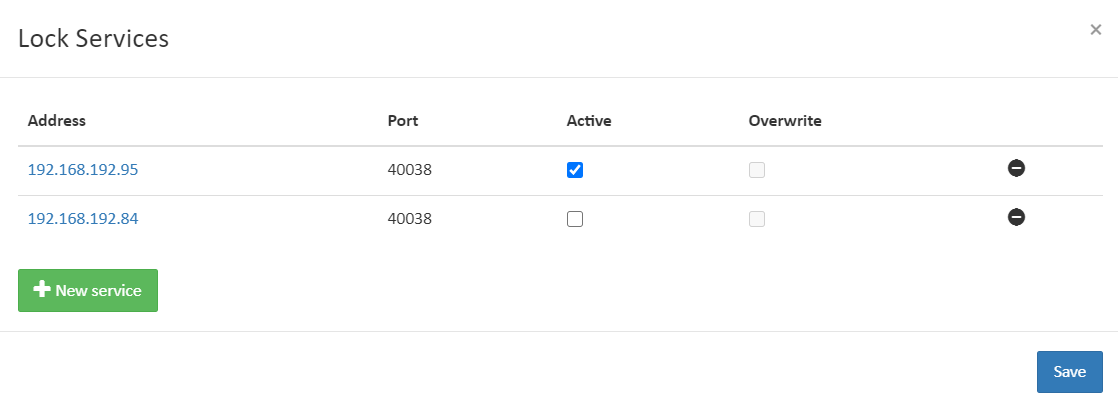
By default, the NorthStar CCM Process Reporter service will send a check once in a while to verify if everything is working as expected with the Active Lock service. In case the lock service does not reply back with a heartbeat, the Process Reporter service will look for the next available lock service configured in the list, and it will overwrite automatically the configurations of the lock service with the new service by setting it as an active lock service. You can also check if this process happened by viewing the Overwrite column in Lock Services list.
In addition, note that once the Process Reporter starts this process, an email notification will be sent to all Sysadmin Users.
Note
For more details regarding the service troubleshooting, please visit the Lock Service Logs section of the same guide.
Engagement Service
Engagement module's role is to perform actions defined in Customer Journey and Touchpoints due to Engagement Services. As an additional functionality, it also provides flexibility in a High Availability mode.
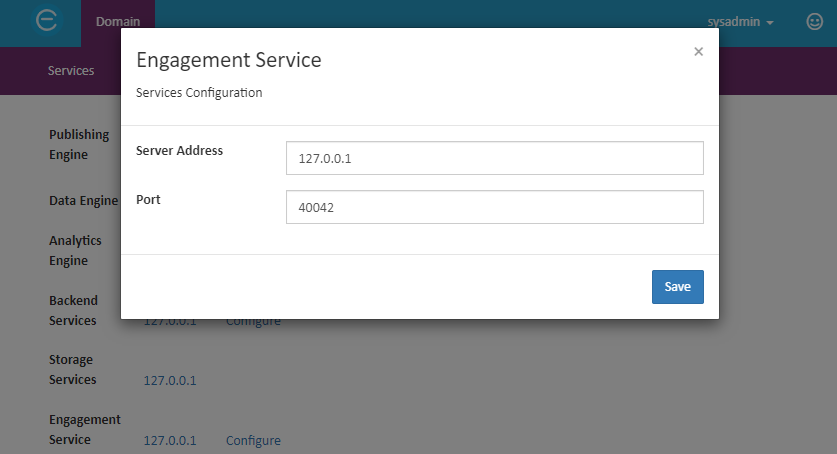
Configuring Engagement Service
The engagement service configuration can be done by administrators under Domain Settings. Here’s how:
- Starting from the Sysadmin website, select the
Domaintile and go toSettings > Services. - Click on the
IP Addressnext to Engagement Service. - Next, enter the
IP AddressandPort Numberof the corresponding server containing the engagement service. - Once ready, select
Save. Notice that the new service appears in the list now.
Note
The Engagement Service is dependent on the Lock Service in the High Availability mode. Therefore, the Lock Service is a mandatory option for users to check at installation time. To learn more, please check the NorthStar CCM Installation guide.
MasterLog Service
MasterLog service is a centralized log of all NorthStar CCM services. It is an independent service that has to be installed only once, not dependable on the deployment type.
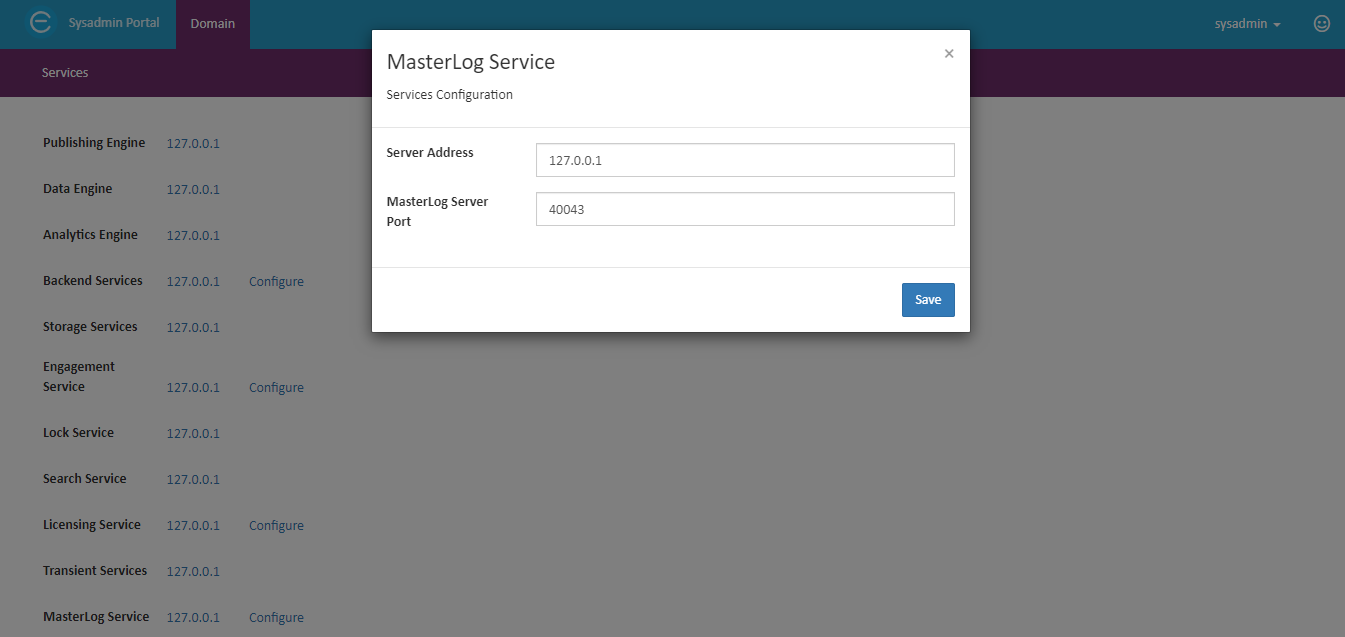
Configuring MasterLog Service
The MasterLog service configuration can be done by administrators under Domain Settings. Here’s how:
- Starting from the Sysadmin website, select the
Domaintile and go toSettings > Services. - Click on the
IP Addressnext to MasterLog Service. - Next, enter the
IP AddressandPort Numberof the corresponding server containing the MasterLog service. - Once ready, select
Save. Notice that the new service appears in the list now.
Work Service
Workflow engine's role is to perform actions defined in the high volume of document production and distribution. It is installed as a standalone Windows Service.
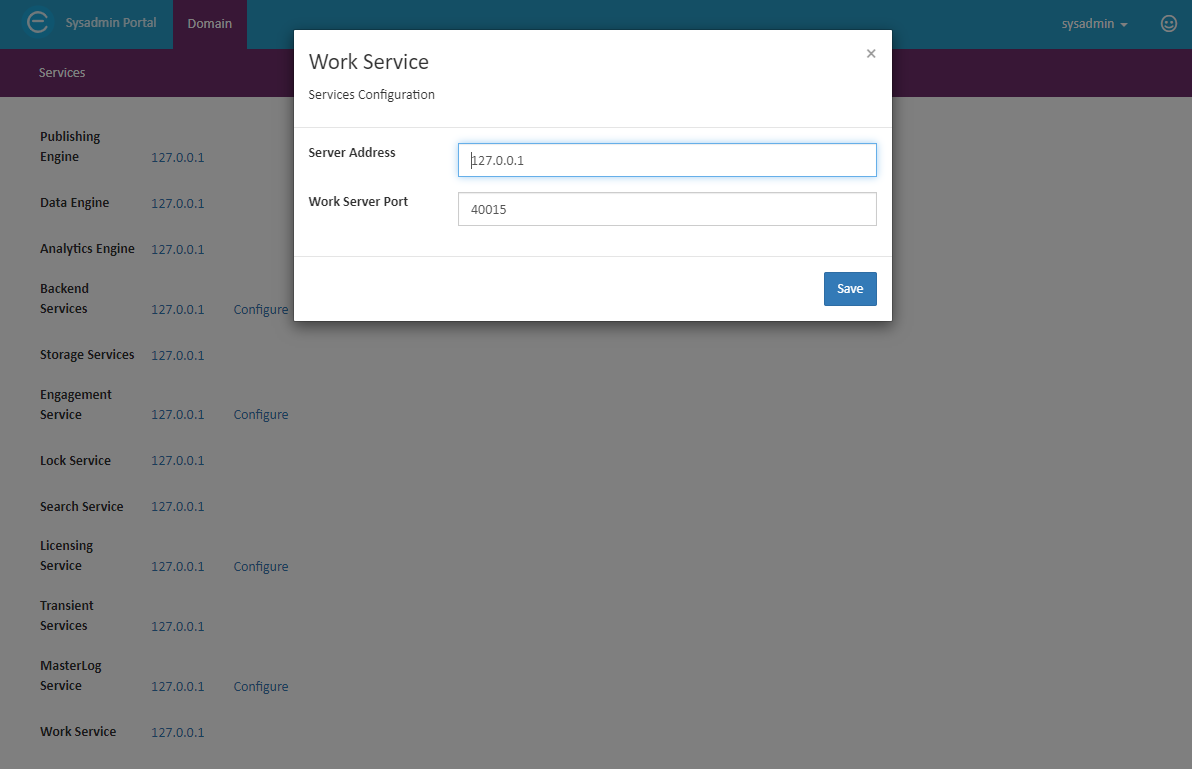
Configuring Work Service
The Work service configuration can be done by administrators under Domain Settings. Here’s how:
- Starting from the Sysadmin website, select the
Domaintile and go toSettings > Services. - Click on the
IP Addressnext to Work Service. - Next, enter the
IP AddressandPort Numberof the corresponding server containing the Work service. - Once ready, select
Save. Notice that the new service appears in the list now.
Print Info Service
Print Info Service provides more information about the status of the print jobs. It is a service that monitors the Print Spool API for printing jobs done by the Publishing Engine and it notifies a specified HTTP API about the statuses of these jobs.
For example, when the Publishing Engine prints a document, it does not actually mean that that document was physically printed by a printer device, but it means that it was successfully created in the Printer Spool. Let's assume that the Publishing Engine prints 10k documents very fast and the physical printer cannot keep up. All these documents will be generated in the Printer Spool and the printer device will take a document, physically print it and then remove it from the Spool. This service monitors the Printer Spool and offers information about the current documents' states.
Note
The Print Info Service should be installed on the same machine as the Publishing Engine, in order to have access to the same Spool API.
Configuring Print Info Service
After installation, it may be necessary to create a configuration file (PrintInfoSvc.config) for the service at the default location of the main config file (C:\ProgramData\EngageCX) and set up some parameters within.
| Name | Value | Description |
|---|---|---|
| Printers | Bullzip PDF PrinterMicrosoft Print To PDF | The printer devices that the service should monitor. |
| NotifyServersUrls | http://localhost:8094/api/v2/interop/ecrionprintnotification | The server URLs to be notified about the print job statuses. |
If the service is configured to notify the Enterprise Portal, then it will send notifications to NorthStar CCM Print Queues.
Note
For more details about the generated logs when the Print Info service starts, visit the Print Logs section of the same guide.
Amazon
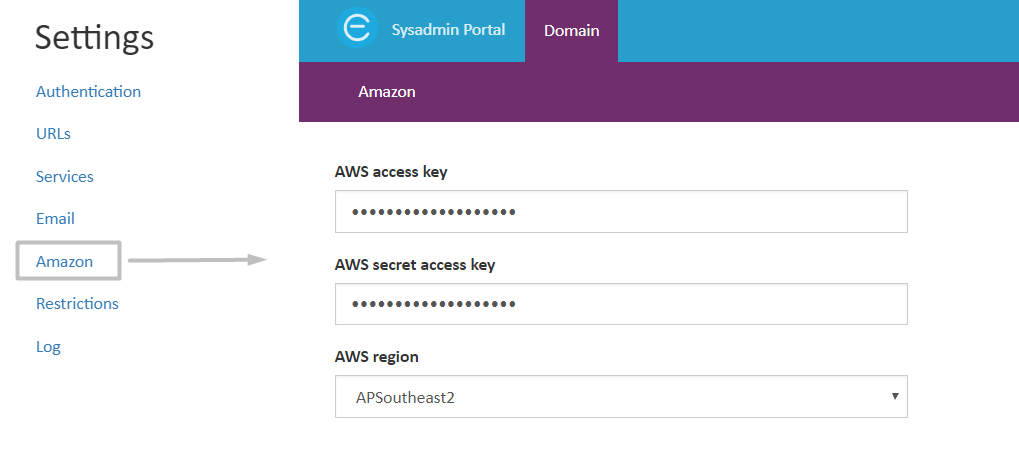
If you intend on setting up an Amazon connection through NorthStar CCM Platform, you will have to set Amazon in the NorthStar CCM Domain Settings.
To configure Amazon:
- Sign in to the Sysadmin website and access the
Domaintile. - Select the
Amazonoption under the Settings group. - Fill in the form fields. You will have to enter:
- The Amazon AWS access key.
- The Amazon AWS secret access key.
- The Amazon AWS region.
While Amazon is configured in NorthStar CCM Domain, environment users will be able to configure e-mail SES Connections and SMS Connections in the Enterprise Website. e-mail SES is useful if you want that e-mails configured in Enterprise Website to have a better status, such as delivered, complained or rejected.
MHC Studio
MHC Studio is a powerful software, integrated into the NorthStar CCM Platform that comes with multiple tools that will help you to create dynamic documents, uniforms outputs, powerful dashboards or synchronize local files with the NorthStar CCM platform. The product suite provided by MHC Studio is formed by four products:
Publisher, a visual design tool used to design professional document templates, which integrates well with the other NorthStar CCM products. These templates are used at runtime by NorthStar CCM server software to generate documents dynamically from data in high volumes.Modeler, a visual design tool used for designing a singular powerful data source from combining, cleansing, and transforming your enterprise data from wherever it resides in a graphical environment. Having the ability to view where your data is coming from and change mappings help speed up the development process.Analyst, a powerful dashboard design application for visualizing, filtering, analyzing and interpreting enterprise data.- Additionally, with the installation tool, MHC Studio will also install the
EngageCX Drivecomponent, that allows you to synchronize your local files with the NorthStar CCM Solutions assets.
To download the design software, you will have to access the Enterprise Website and go to the Developer\Software page. For more details on how to use each MHC Studio product, please visit the MHC Studio Documentation.
NorthStar CCM Solutions allows the administrators to handpick the build version available in the Enterprise Website, from URLs page.
To configure the MHC Studio version:
- Sign in to the Sysadmin website and access the
Domaintile. - Select the
URLsoption under the Settings group. - Next, you can choose to use the latest version available of NorthStar CCM Studio, by checking
Use latest version, or click the empty box and enter the URL to the MHC Studio tool.
Restrictions
A job is one of the most important element when creating documents through NorthStar CCM Platform. It refers to a process (e.g. workflow) that is executing or has finished executing. Jobs can be run from the Enterprise Website.
Each time when running a job, a new access token is created. The access token has limited availability and this can be managed from the Job revocable token validity option. If the job will exceed the time you have set up, your job will fail. For example, you have created a workflow that contains a manual step. You can use the token validity option to restrict the time other users can solve that manual step.
Note that the same validity is imposed on the token generated through API Keys.
- Sign in to the Sysadmin website and access the
Domaintile. - Select the
Restrictionsoption from the Settings group. - Enter the new value under the corresponding box:
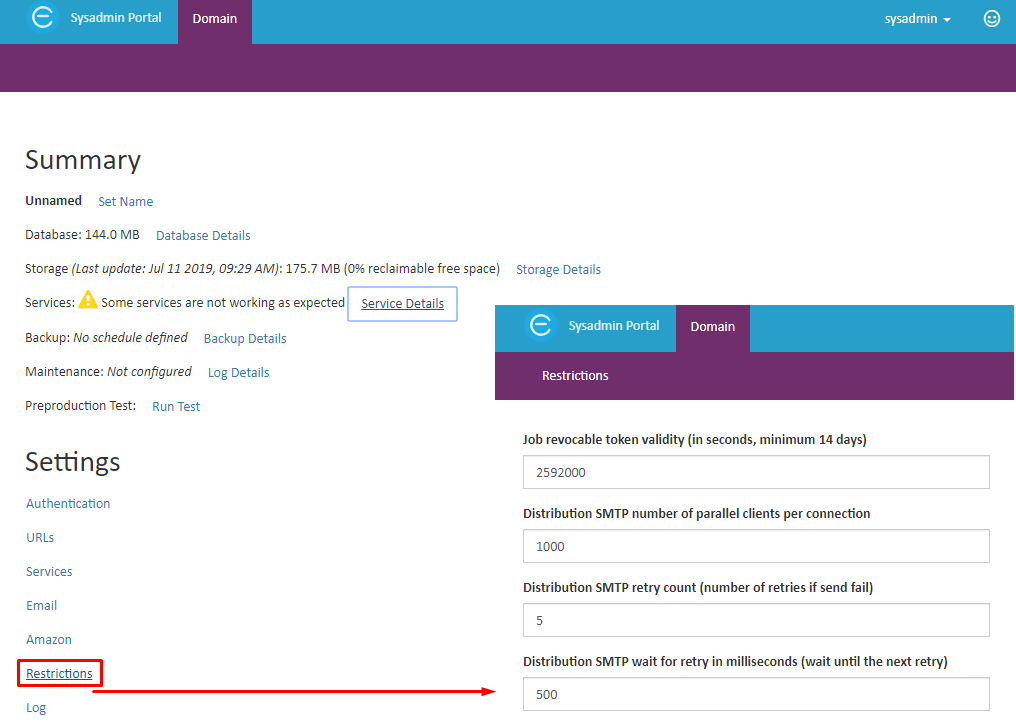
Below there are some configurations that will give to the sysadmin more control over the distribution of services within SMTP connections.
Job revocable token validity- To change the validity time of an access token.Distribution SMTP number of parallel clients per connectionDistribution SMTP retry count (number of retries if send fail)Distribution SMTP wait for retry in milliseconds (wait until the next retry)
Number of Threads
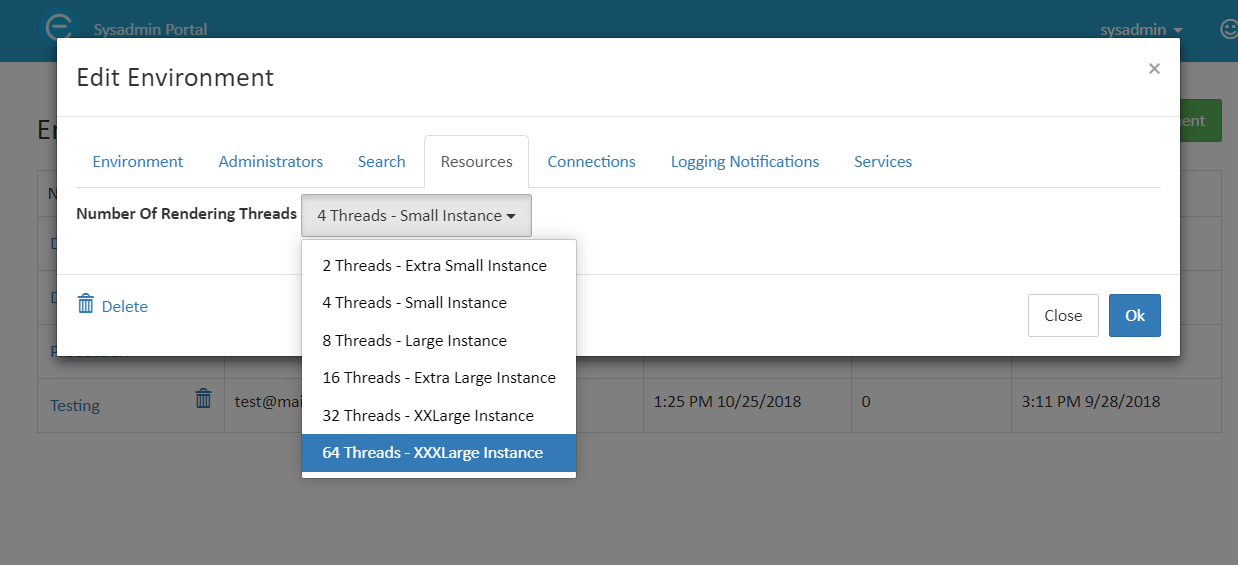
For each environment, you can specify how many threads to use for NorthStar CCM services to run the jobs. By default, each environment will use a small instance of 4 threads. To change the number of threads, simply select the needed value from the drop-down menu.
Note that, adding multiple threads doesn't speed up the processing of a single document. It will enable users to process multiple documents at the same time. If the server has adequate resources, then processing multiple documents should scale linearly.
Maintenance
Read through this section to find more on how to maintain your storage and database, and learn the ways in which you can backup and restore the NorthStar CCM data.
Storage
As the Storage is designed to support continuous operations, NorthStar CCM provides a series of features to help system administrator to maintain it at a high-level.
There are two ways of maintaining the NorthStar CCM Storage. From more information regarding this, please access a section from the table below.
| Accessing the Storage Page | Using the Storage Tool |
Storage Page
NorthStar CCM provides the Storage Page that allows you to monitor and perform additional administration tasks on your storage folder.
To access it:
- Sign in to the Sysadmin website and select the
Domaintile. - Under the Summary section, you can see the Storage space and the percentage of the space you can save after running the compact command. Select the
Storage Detailshyperlink for more details and additional tasks.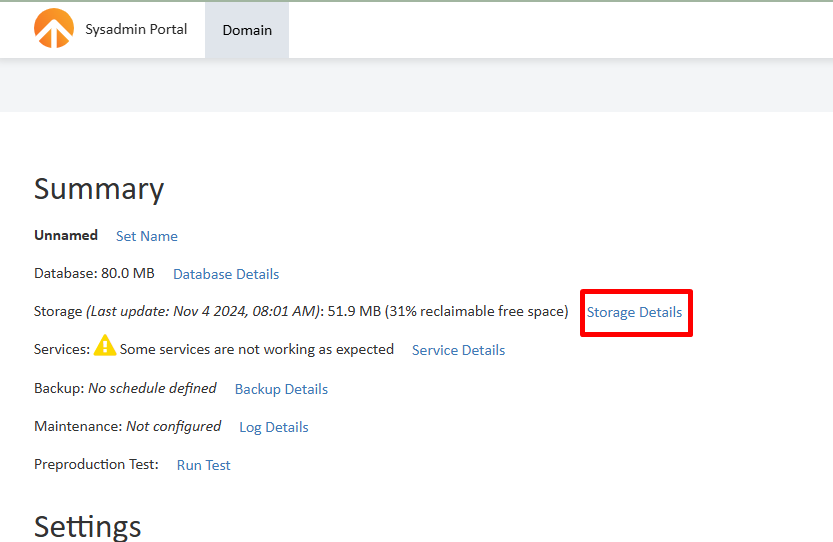
- The Storage page provides information regarding the storage location and checks disk space. In addition, you can perform operations in case of storage breakage, such as:
Repair Now: If the Status shows errors, proceed with selecting theRepair Nowbutton. This operation will start a process in the background that will verify if there are any corrupted data in the storage folder, and will try to fix the files.
Important Note
We highly recommend contacting NorthStar CCM Technical Support to discuss the best options for your organization before running the repair storage command.
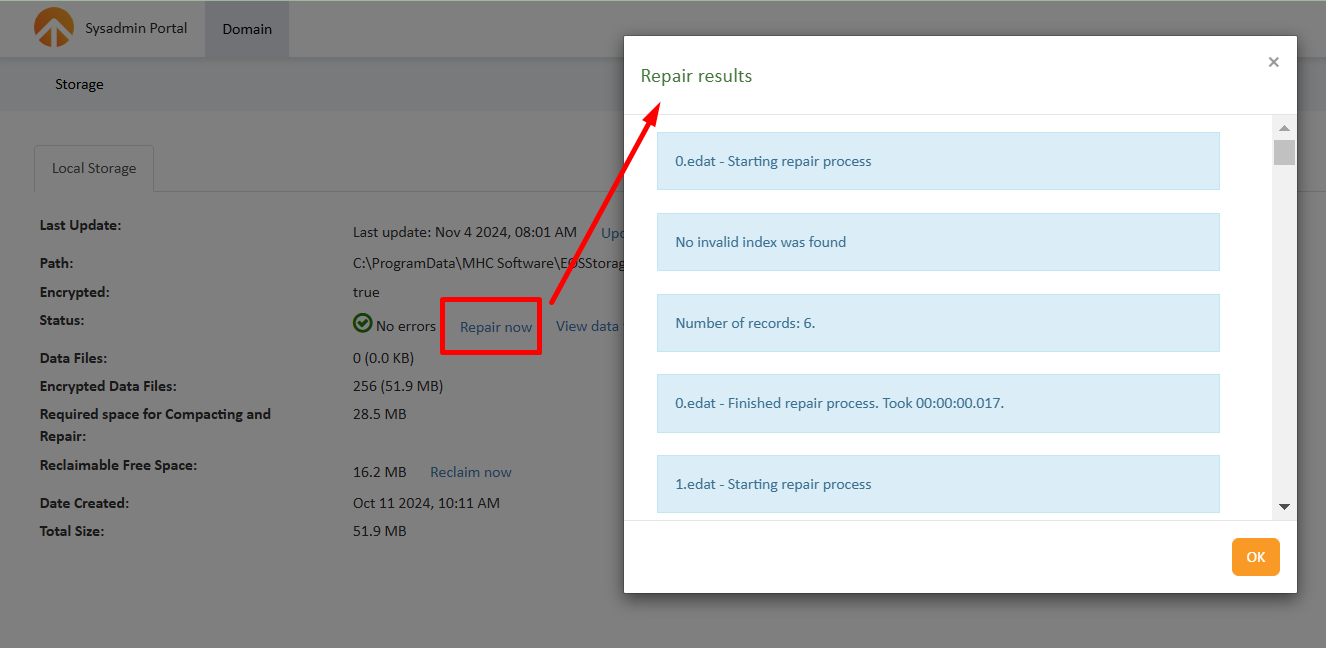 *
* Reclaim Now: The option allows you to free up the NorthStar CCM storage by deleting old data you do not longer need. You will be prompted to confirm your selection to start the compact process. When the process is ready, you will be able to see a list with all the storage data file that has been compacted.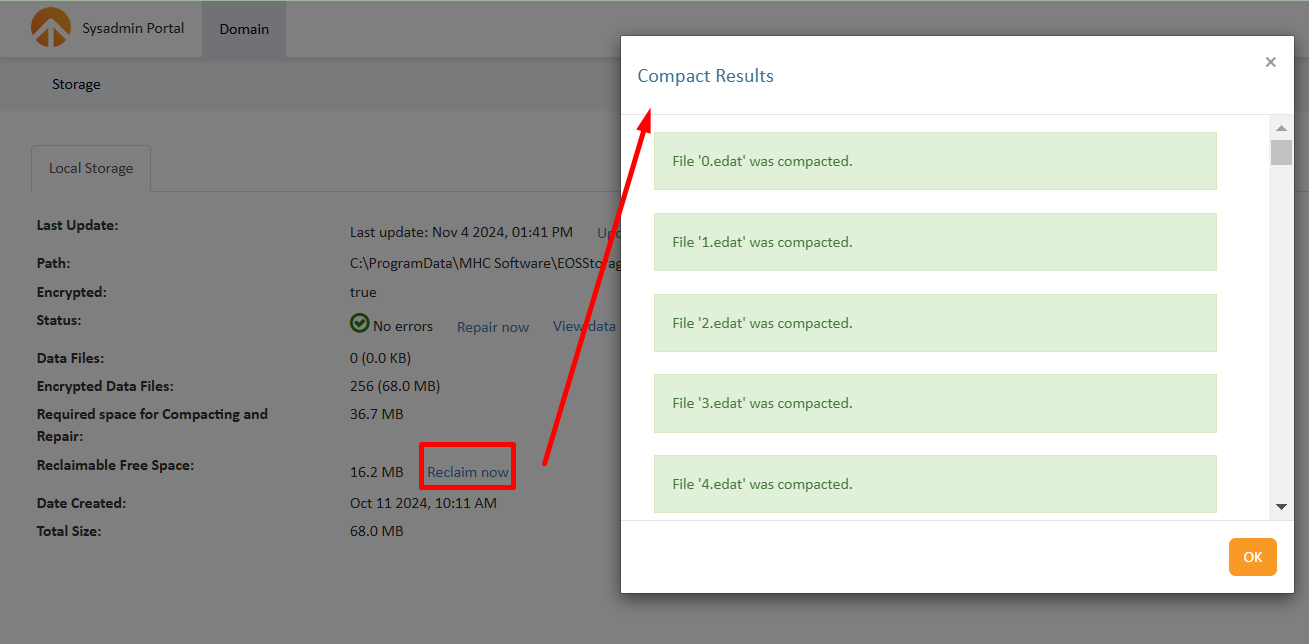 *
* View data files running status: This option is valuable for a HA installation to see if the nodes are synchronized in parallel and their statuses (RunningorNot running). Each node has 256 files encrypted and the same 256 files decrypted for security purposes.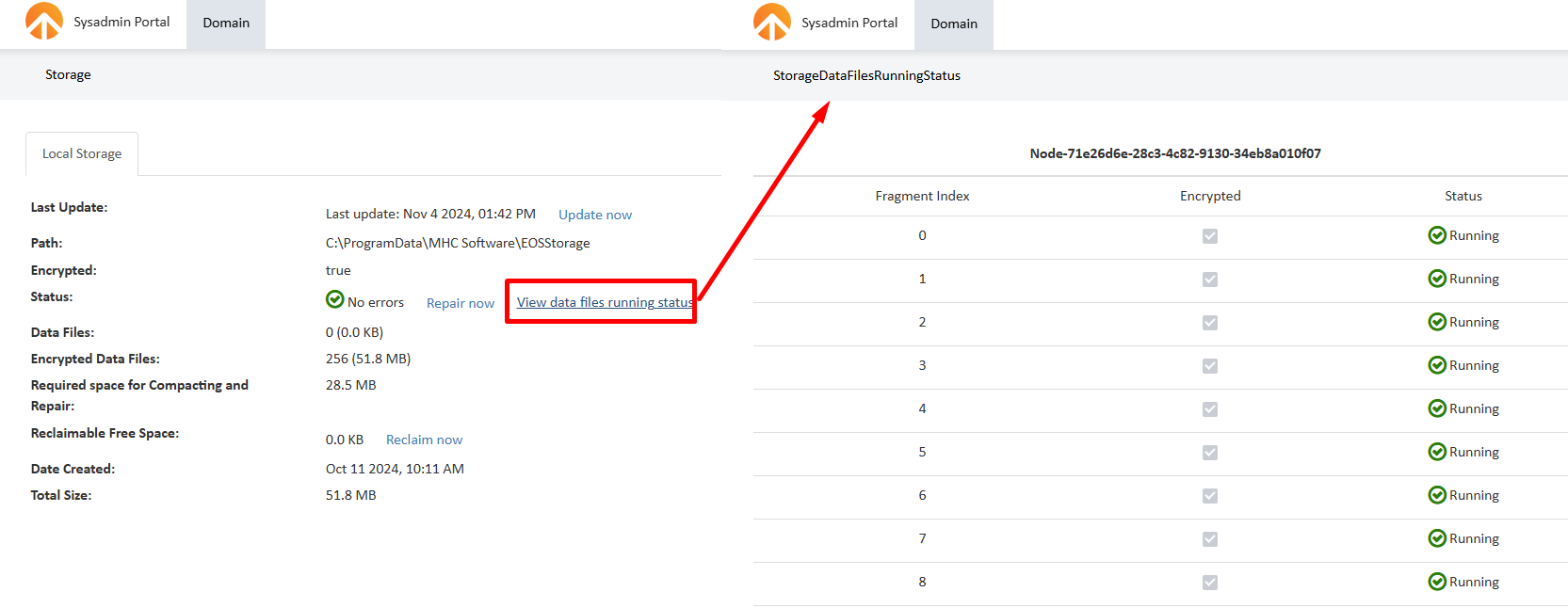 *
* Update now: The option allows users to keep the storage data updated in the page after several changes have been performed within the repository. The data displayed in the Storage Details is cached, it does not provide real-time information. The information will be retrieved from the last update performed. For more updated results, use this feature.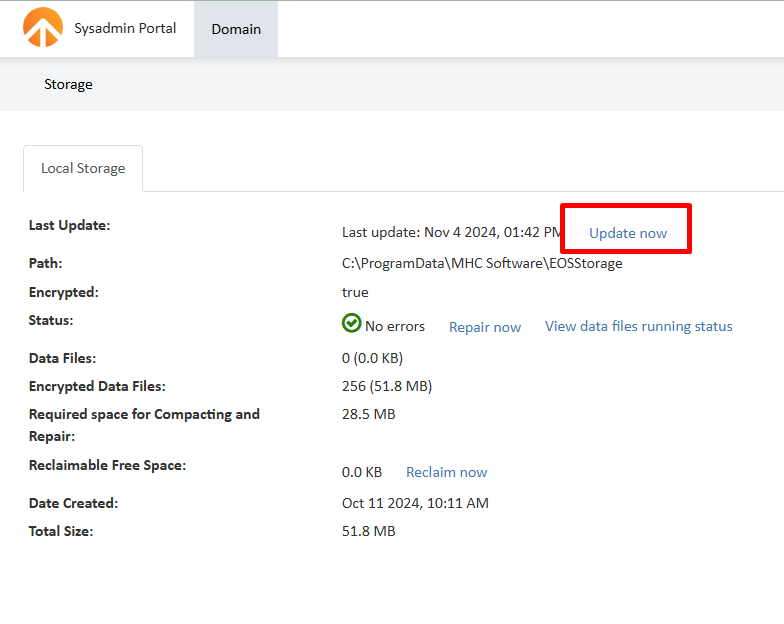
Storage Checker Tool
Another way to manage the NorthStar CCM storage is by using the Storage Checker tool. To have access to the Storage Checker tool, you need to check the
Storage Checker Utility, Maintenance Utility and Logs Migration Utility option, available in the Document Repository Settings step of the installation wizard.
The tool can be found in
< Installation Folder >\Windows Service\EOSUtility\StorageChecker\StorageUtility.exe
The Storage tool uses the following general syntax:
StorageUtility.exe
        [-command checkStorage|compactStorage|repairStorage|encryptStorage|sanitizeStorage]
        [-u <sysadmin username>]
        [-p <sysadmin password>]
        [-logLevel None|Normal|Debug]
        [-outputFilePath <Path>]
        [-configFile <condifg File Path>]
Quick Reference
The table below provides a quick reference to the various parameters and options available.
| Parameter | Occurrence | Description |
|---|---|---|
| -command | Required | Runs the specified command. |
| -u | Required | Specifies the system administrator username. |
| -p | Required | Specifies the system administrator password. |
| -loglevel | Optional | Sets the log level events to be reported. |
| -outputFilePath | Optional | Specifies the location of the generated log files. |
| -configFile | Optional | Specifies the path to the configuration file. |
Storage Commands
The tool has four functionalities: check, compact, repair, encrypt or sanitize.
Check Storage
The Check Storage command verifies if there are any invalid <version of> documents present in the storage and provides access to detailed storage information such as storage size, encrypted or unencrypted size and compacting storage size.
Usage example for checking storage:
StorageUtility.exe -command checkStorage -u sysadmin -p sysadmin
Compact Storage
Compact Storage command verifies the storage for files marked as deleted by NorthStar CCM (either from UI or API) and releases the disk space that was previously allocated to those files. The tool also defragments the storage.
This operation is performed automatically at the end of each day on the server where NorthStar CCM is running. However, if you would like to perform this operation manually, please see below:
Usage example for compacting storage:
StorageUtility.exe -command compactStorage -u sysadmin -p sysadmin

To find out more information, please go to C:\ProgramData\MHC Software\Log and check the EOS4Svc.log file, referenced after running the command above.
Repair Storage
Important Note
We highly recommend contacting NorthStar CCM Technical Support to discuss the best options for your organization before running the repair storage command.
Repair Storage command allows you to repair damage data of your storage folder. For example, if you encounter a power outage that led to corrupted data, you can use the repairStorage command to retread the storage.
The Repair Storage command comes with two options: users can just read a full report of their corrupted data, by adding the -readonly flag, or they can directly start repairing the storage data.
Note
As a best practice, we highly recommend running the repair storage command with readonly to assess the corrupted files.
Usage examples for repairing storage:
To obtain a report with all the .dat files that can be repaired in your storage folder:
StorageUtility.exe -command repairStorage -u sysadmin -p sysadmin -readonly
To start repairing the storage data, use the following command:
StorageUtility.exe -command repairStorage -u sysadmin -p sysadmin
Encrypt Storage
Storage encryption is a controlled-based solution that provides the capability to encrypt the storage data, ensuring protection over your NorthStar CCM Storage assets.
The encrypt storage command should be used when you want your Storage data to be encrypted. Another important use case of the storage encryption applies if you want to migrate a single NorthStar CCM instance in an HA environment, it is necessary to encrypt your storage data first.
Note
Before you begin the encryption process, you may note that it will affect both the NorthStar CCM database and the storage folder.
Additionally, when running the encrypt command, the NorthStar CCM service needs to be stopped from the Windows Task Manager.
Usage example for encrypting storage:
StorageUtility.exe -command encryptStorage -u sysadmin -p sysadmin -readonly
Sanitize Storage
The sanitize storage command will permanently remove the records that located in your NorthStar CCM Storage, but not into the NorthStar CCM database. You can use this command in case of a disconnection between the two components.
Usage example for sanitizing storage:
StorageUtility.exe -command sanitizeStorage -u sysadmin -p sysadmin
Username and Password
Storage Utility provides a password-controlled mechanism for administering storage operations. Each time when running a storage command in CLI, you will have to specify the username and the password of the NorthStar CCM Domain, as follows:
StorageUtility -command <enter command> -u sysadmin -p sysadmin
Note
If you do not specify both the username and the password, the storage command fails.
Storage Utility Log
Storage Utility allows you to enable logging when performing operations to the storage data. Enabling logging allows you to record different events that happen when you run a command.
Logging can be enabled by configuring the level of the events you want to track, and also a path to the file that will store that information.
The available log levels are: None, Normal or Debug.
When enabled, Storage Utility will display the events details in the console or in the output file, if specified.
Enabling logging is possible by using the -logLevel parameter, as follows:
StorageUtility -command <enter command> -u <username> - p <password> -logLevel Debug
Output Location
When running a command on the Storage Data, you can choose how would you like to view the results. Storage Utility allows you to view all the results directly in the Command Line interface console or you can save the output results to an external file.
To append the output to an external file, you will need to specify the file location on the disk drive, as follows:
StorageUtility -command <enter command> -u <username> -p <password> -outputFilePath C:\out\file.txt
Configuration File
Storage Utility allows you to specify the NorthStar CCM configuration file to be used. By default, on a single-deployment installation, Storage Utility will read the configuration settings from the default configuration file location, which is %Application_Data%\EngageCX and it is not necessary to use this parameter.
In cases when you want to perform storage commands from a remote server, Storage Utility will require reading its settings from a configuration file in order to run. This should be a copy of the NorthStar CCM configuration file (EOS4.config) from a machine running one of the NorthStar CCM websites.
To perform remotely storage commands, you must point the tool to the configuration file via the -configFile parameter (the file provided will tell the Storage tool which storage folder to use).
To use the -configFile parameter, use a syntax as follows:
StorageUtility -command <enter command> -u <username> -p <password> -configFile %Application_Data%\EngageCX\EOS4.config
Database
NorthStar CCM enables a page which provides capabilities to configure a retry for database errors. On this page, you can also see information about the server name and size, sql options, such as initial catalog used, NorthStar CCM database version and the version of the Microsoft SQL Server.
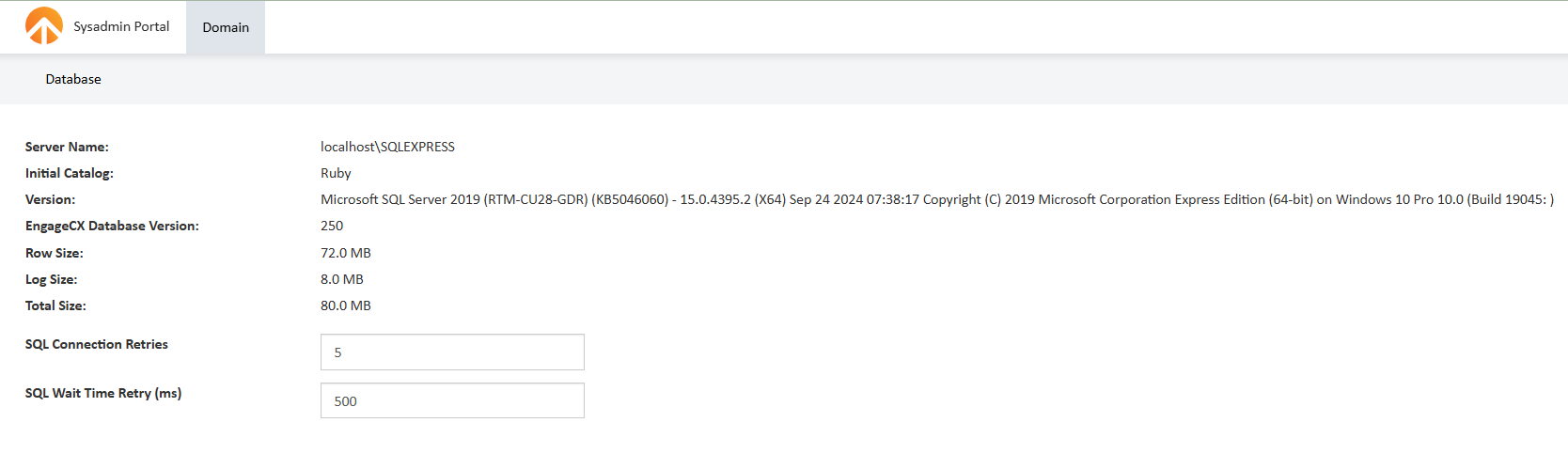
Database Errors Handling
Basically, if you have some of the options described below properly configured and a deadlock occurred, the system will retry the operation. By default, no retry is done.
- Login to the Sysadmin Website and access the
Domaintile. - Under the Summary section, you can see the Database used space. Select the
Database Detailshyperlink for more details. - The Database page provides information regarding the database used to store the data, its version, the current version of Microsoft SQL Server.
- Enter the new value under the corresponding box for
SQL Connection Retries. The value represents the number of retries whenever the database connection fails. - Provide the value for
SQL Wait Time Retry (ms), in milliseconds, under the corresponding box also. The value will represent the time to wait until the next retry will be performed.
Note
It is mandatory to have a View Definition permission on the master database for the users that utilize the Sysadmin Website.
Backup
It is important to back up your NorthStar CCM Database and Storage so you can restore the assets in case of system crashes or other issues that may occur. The NorthStar CCM Platform provides a variety of backup strategies from which you can choose the option that suits you best. In this section, you can learn about the backup types and ways to back up your NorthStar CCM Data.
Backup Types
To back up the NorthStar CCM data, you can use either the Full Backup, or the Differential Backup. Full Backup is a complete backup of all the NorthStar CCM assets stored in the database and storage. A Differential Backup captures only the changed assets since the last full backup.
A full backup needs to be performed as an initial backup, followed by a differential backup. It is highly recommended to back up your NorthStar CCM system as often as possible. Periodically full backups with a retention policy should be implemented if possible. If your objective is to create a reliable backup, with an easy recovery of your data, Full Backup is a good choice.
A differential backup is highly bounded to the Full Backup, and it's the best solution when you want to reduce the backup size and the backup time. When a differential backup is run, it will preserve data, saving only the difference in the data since the last full backup (Note that if a new full backup is created you won't be able to create a differential backup for the previous backups).
Creating a differential backup can be very fast compared to creating a full backup. Additionally, since the differential backup contains only the system changes from the last backup, its size will be much smaller compared to the full backup size, and also, it can be run much more often than a full backup. As best practice, a full backup must not be done more than a month old to a differential backup. Otherwise, the size of the differential backups will increase considerably. Furthermore, note that differential backups are not connected, as an incremental backup, even if they are saving data from the same full backup.
Note
While NorthStar CCM is running a backup process for the NorthStar CCM Database, make sure that no other external system runs full backups at the same time. Otherwise, there is a big change in failing to restore your data.
In the case of NorthStar CCM deployments, it is recommended to run a full backup for the first time, then perform a differential backup. For instance, if a differential backup will be run on the NorthStar CCM Platform 12.0 (i.e. Nido), and the last full backup was done on an older version, the differential backup will see the NorthStar CCM Storage as new and it will be considered a part of the differential backup (only the database can be made as a truly differential backup).
Backup Procedures
There are three ways to backup NorthStar CCM data. For more details regarding one of the methods, please access them from the table below.
| Using System Administrator Interface |
| Using Command Line |
| Performing a Manual Backup |
Managing Backups from the Sysadmin Interface
One of the easiest ways to create backups is by accessing the Backup page available under the system administrator interface. The Backup page allows you to configure settings, schedule periodic backups, view old backups or run backup manually.
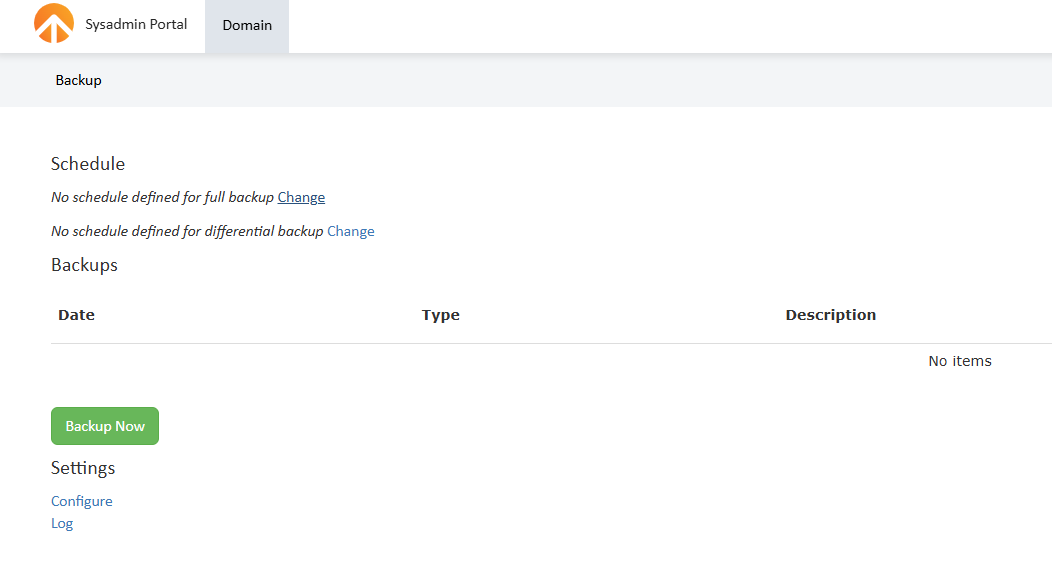
Before Backup
Before you start running a backup, it may be necessary to configure the backup settings first. In the section below you can learn how to shape the backup configuration to meet your organization's needs.
.NET Framework 4.5 & SQL
Back up requires .NET Framework 4.5 and SQL Server Command Line Utilities.
Backup Settings
Access the Backup Settings page, following the steps provided below:
- Login to the Sysadmin Website and access the
Domaintile. - Select the
Backup Detailshyperlink to navigate to the Backup page. - Click on the
Configurebutton to start configuring the backup settings. Note that the adjustments will be automatically saved, on blur input events and a feedback message will be shown.
Within the Settings page you can configure the following:
| Backup Location | Full Backup Script |
| Differential Backup Script | SQL Authentication |
Backup Location
In the Backup Location box, you can enter the local or network path to the Backup Folder destination.
Note
Please make sure the backup folder destination has enough available space.
When changing the backup folder location, the NorthStar CCM Database and NorthStar CCM Service must have write access to that folder.
After running the backup, you will be able to see the following files in the backup folder:
- The SQL Backup file;
- The Storage archive file;
- The Backup manifest file that specifies the directory structure and backup description.
Full Backup Script
The Full Backup Script box displays commands to create a full backup of your NorthStar CCM data, for both database and storage. At any time, system administrators can edit the backup script, to meet their organization's needs.
The backup script uses two commands, sqlcmd, for the NorthStar CCM database backup, and eosbackup, for the storage backup. You can customize the scripts by adding CLI commands or by using the System Placeholders, visible on the right side.
Differential Backup Script
The Differential Backup Script box displays commands to create a differential backup of your NorthStar CCM data, for both, database and storage. At any time, system administrators can edit the backup script, to meet their organization needs.
The differential backup script uses two commands, sqlcmd, for the NorthStar CCM database backup, and eosbackup, for the storage backup and the last full backup fulfilled on your system. You can customize the scripts by adding CLI commands or by using the System Placeholders, visible on the right side.
Note
Creating a differential backup requires a previous full backup. If your system has never been backed up, run a full backup before creating any differential backups.
SQL Authentication
To create a backup for the NorthStar CCM database, it is mandatory to add the user name and password used to authenticate the SQL Server. Windows Authentication is no longer accepted for backup processes.
To configure the SQL Database Permissions:
- Access the
Object Explorerpane in the SQL Server Management Studio. - Expand the
Security\Loginsoptions. - Right-click on the user you want to use to authenticate the database, and select
Properties. - Access
Server Rolesand make sure thesysadminrole is selected. - Access
User Mappingand make sure thedb_backupoperatoranddb_ownerpermissions are selected on the NorthStar CCM database.
Next, return to the NorthStar CCM Backup Configuration page, and add the SQL user name and password to the correlated fields.
Note
This configuration will avoid making the user who's running the NorthStar CCM system to be a power user in the NorthStar CCM Database.
To make sure the backup scripts are correct, the backup can be done in the specified folder and the SQL authentication is working properly, select the Test Backup button. If everything works successfully, you will notice this message: Test was successful.
Creating an On-Demand Backup
This section provides step by step instructions for creating backups from the system administrator website.
- Login to the Sysadmin website and access the
Domaintile. - Select the
Backup Detailshyperlink to navigate to the Backup page. - Next, use
Backup Nowto configure a manual backup process. - You will be prompted to select the Backup Type you want to run. Use the drop-down list to select between a
FullorDifferentialbackup. Optionally, add some comments into theDescriptionbox. - Select
Runto start the backup process. Note that while a backup is running, the Backup Now button will be disabled and the caption will be changed toRunning backup... You cannot start a new backup until the current backup is finished. - The process can take from several seconds to a few hours depending on database and storage sizes. Once the backup is complete, the new backup will show up on the list of available backups.
- Optionally, you can select the
Logpage to access the Backup Log page where additional information is displayed. The backup log can also be used for troubleshooting.
Scheduling an Automatically Backup Process
This section provides step by step instructions for scheduling a full or differential backup from the system administrator website.
- Login to the Sysadmin website and access the
Domaintile. - Select the
Backup Detailshyperlink to navigate to the Backup page. - Select the
Changehyperlink next to thefullordifferentialbackup type, to start configuring an automatic backup process. You will need to set up days and hours for when you want your full/differential backup to be run automatically. - When you're ready, check the
Enabledoption to start the backup schedule, then clickOk.
Creating Backups using the Command Line Tool
Another way to perform a backup is by using the NorthStar CCM backup tool.
The default location is :
<Installation Folder>\Windows Service\EOS Utility\EOSBackup\Tools.EOSBackup.exe.
The tool will backup and restore EngageCX Database and EngageCX Storage. As in the user interface, it can also backup and restore files in/from a shared network folder or an Amazon S3 folder.
Syntax:
Tools.EOSBackup.exe
    [ -backup2 | -restore2 | -getbackups | -examples ]
    [ -u <sysadmin username> ]
    [ -p <sysadmin password> ]
    [ -backupName <backupName> ]
    [ -backupType <full|differential> ]
    [ -backUpFolder <networkFolderPath> ]
    [ -configFile <EOS4 config file> ]
    [ -backupScript <backup script> ]
    [ -restoreScript <restore script> ]
    [ -backupDescription <backupDescription> ]
Steps:
- Navigate to your installation folder (e.g. %Installation_Path%\EngageCX\Engage 2018 (64 bit).)
- Find the EOSBackup subfolder under
Windows Service\EOS Utility\EOSBackup. - Open a command prompt to this location.
- Run the command below to create a backup for your files, using the default location. Note that you will need to provide the username and password used to access the NorthStar CCM Domain. Optionally, you can add a simple description that will appear in the backup manifest file. Use the backupType parameter to specify if you want to run a full or a differential backup.
Tools.EOSBackup.exe -backup2 -backupType full -u sysadmin -p sysadminpassword -backupDescription "some description" - When the backup is complete, a message will be displayed, confirming that NorthStar CCM has successfully written its data to the file you specified.
Note
NorthStar CCM Backup commands are case sensitive. Be careful when you're typing in the backup commands - whether a character is upper or lower case does make a difference.
Performing a Manual Backup
Before attempting a manual backup, you will need to stop all the NorthStar CCM services and websites.
To perform a manual backup, follow the steps below:
- Back up the Storage Folder, located by default at <%Application_Data%\EngageCX\EOSStorage>.
- Back up the NorthStar CCM Database.
Note
Please use the appropriate guidelines to back up a database on your version of SQL Server.
We strongly recommend saving a copy of your main configuration files (EOS.config and PublisherSvc.config mandatory, DASSvc.config and BISvc.config, if necessary) along with the backup for future reference.
Restore
In the event your NorthStar CCM data has been lost or a major system failure occurs, you have the ability to restore your back up data.
When restoring, as best practice, we recommend disabling user access to the system by stopping all NorthStar CCM websites for the duration of the restore (using IIS Manager).
Important Note
There are certain precautions that should be taken when using the options below. We highly recommend contacting NorthStar CCM Technical Support to discuss the best options to meet your company needs.
Restore Procedures
As for the backup, there are three ways to restore NorthStar CCM data. For more details regarding one of the methods, please access them from the table below.
| Using the System Administrator Interface |
| Using the Command Line |
| Performing a Manual Restore |
Restoring a Backup Using the Sysadmin Interface
Before Restore
Before you start restoring your data, it may be necessary to configure the restore settings first. In this section you can learn how to shape the restore configurations to meet your organization's needs.
Backup
- Creates at least one backup of your data before proceeding with the restore processes.
.NET Framework 4.5 & SQL
- Make sure the machine that runs the restore has .NET Framework 4.5 and SQL Server Command-Line Utilities.
Note
For remote restore, you will need an existing main configuration file with the correct addresses specified for the database and the storage folder.
Restore Settings
To access the Restore Settings page, follow the steps provided below:
- Login to the Sysadmin Website and access the
Domaintile. - Select the
Backup Detailshyperlink to navigate to the Backup page. - Click on the
Configurebutton to start configuring the back settings. Note that the adjustments will be automatically saved, on blur input events and a feedback message will be shown.
Within the Settings page you can configure the following:
| Full and Differential Restore Script | SQL Authentication |
Full Restore Script and Differential Restore Script
Restore scripts display commands to create a full/differential restore of your NorthStar CCM backup data. At any time, system administrators can edit the scripts, to meet their organization needs.
The restore scripts use two command:
sqlcmd: a command used to restore the NorthStar CCM Database;eosbackup: that contains three parameters:eosbackup -migratedatabase: a command that migrates the database version from the backup to the current database version required by the NorthStar CCM Platform. For instance, if you created a backup in the EngageCX 13.0 (i.e. Onyx) version, and you want to restore it in the NorthStar CCM 2025 (i.e. EngageCX 14.0/Ruby) version, the command will ensure that the database will be up to date.eosbackup -restore: a command used to restore the storage data. For the differential restore, the storage from the last full backup needs to be specified.eosbackup -sanitize: a command that cleans up relics (zombies) from the backup. Due to the fact that a backup is run in two steps (first backup the database, and then backup the storage), some de-synchronizations can appear, which can be cleaned by using the -sanitize parameter.
Note that these scripts can be customized as needed, either by using the CLI commands, or by adding the System Placeholders, visible on the right side.
SQL Authentication Restore
To create a restore of the NorthStar CCM database, it is mandatory to add the user name and password used to authenticate to the SQL Server. Windows Authentication is no longer accepted for the restore process.
To configure the SQL Database Permissions:
- Access the
Object Explorerpane in the SQL Server Management Studio. - Expand the
Security\Loginsoptions. - Right-click on the user you want to use to authenticate the database, and select
Properties. - Access
Server Rolesand make sure thesysadminanddbcreatorroles are selected. - Access
User Mappingsand make sure thedb_ownerpermission is selected on both, the NorthStar CCM database and the master Database.
Next, return to the NorthStar CCM Settings page, and add the SQL user name and password to the correlated fields.
To make sure the restore scripts are correct and the SQL authentication is working properly, select the Test Restore button. If everything works successfully, you will notice this message: Test was successful.
Performing a Restore from the Sysadmin Interface
This section provides step by step instructions for creating a restore of an NorthStar CCM backup from the system administrator website.
- Log in as a System Administrator and access the Domain module.
- Select the
Backup Detailshyperlink to navigate to the Backup page. - Select
Restore, to start a (manual) restore process. Note that while the restore is running, the Restore button will be disabled and the caption will be changed toRestoring... You cannot start a new restore process until the current restore is finished. - The process can take from several seconds to some hours depending on database and storage sizes. Once the restore is complete, the restore hyperlink will become available.
- Optionally, you can click
Logto access the Backup Log page where additional information is displayed. The backup log can also be used for troubleshooting.
Restoring a Backup using the Command Line
This section provides explanations on how to restore your NorthStar CCM data by using the Command Line tool.
- Navigate to your installation folder (e.g. %Installation_Path%\EngageCX\Engage 2018 (64 bit)).
- Find the EOSBackup subfolder under
Windows Service\EOS Utility\EOSBackup. - Open a Command prompt to this location.
- Run the command below to see all the backups available:
Tools.EOSBackup.exe -getbackups -u sysadmin -p sysadminpassword - Run the command below to restore a specific backup (e.g. backup with number 20180228120843):
Tools.EOSBackup.exe -restore2 -u sysadmin -p sysadminpassword -backupName 20180301101600 - When the restore is complete, a message will be displayed, confirming that NorthStar CCM has successfully finished the process.
Performing a Manual Restore
Before attempting a manual restore, you will need to stop the NorthStar CCM services and the NorthStar CCM Websites.
To perform a manual restore:
- Restore the Storage Folder from a previously created backup.
- Restore the NorthStar CCM Database from a previously created backup.
- Start the NorthStar CCM Websites from IIS Manager.
- Start the NorthStar CCM services from Windows Services.
- Sign in to the NorthStar CCM Website and ensure that the environments and project files exist and are functioning properly.
SQL server permissions for Backup/Restore
You should be aware that certain permission are needed in order to successfully perform SQL database backup and restore. In order to successfully perform this operations, the login used by NorthStar CCM Server to connect to the database should have this permissions. You can find more information about the required permissions for backup here and for restore here.
Cloning a NorthStar CCM Server
To clone an NorthStar CCM Server from a source to a target machine, the following are required:
- Back up the source machine, see the Backup section for details.
- On the target machine, run the installer for the same NorthStar CCM version as the source machine. Make sure the settings specified during installation, e.g. the IP addresses, the database connection, etc., are correct.
- Restore the backup on the target machine, see the Restore section for details.
Note
Some configuration on the target machine may need to be done by manually adding settings to the main configuration file(s), e.g. enabling cross-environment logins. We recommend reviewing the services address and port numbers from the source machine.
Note
License info will not be preserved. New licenses will need to be installed and activated on the target machine.
Rolling Back an Installation
To roll NorthStar CCM back to a previous version:
- Uninstall the newer version.
- Run the installer for the older version, using the previous configuration.
- Restore a compatible backup on the NorthStar CCM server.
Note
The backup must belong to the specific older NorthStar CCM version that is being rolled back to. Ignoring this may lead to data loss. Please contact northstarccmsupport@mhcautomation.com if your rollback scenario cannot accommodate these requirements.
Monitoring
This section provides an overview of the functions you can use to check and summarize the state of your NorthStar CCM services, storage or database.
System Status
The System Status page is a good way of monitoring and finding any major issue related to the NorthStar CCM Services or NorthStar CCM Storage.
To access the System Status page, you will have to sign in to the Sysadmin Website and select the System Status hyperlink, available in the Domain tile.

The System Status page will provide a view of all the NorthStar CCM Services and real-time information regarding their status. Here you can inspect and ensure what services are functioning properly and which are not. NorthStar CCM Platform performs automated checks on every service component to identify issues and return the results under the Health column. If the service is available and reachable, it will be marked by a green check icon, and in the Additional Information column you will be able to view the last start time of the service. If the service is not reachable or there is an issue related to it, you can view a red exclamation mark, and the error encountered in the Additional Information column.
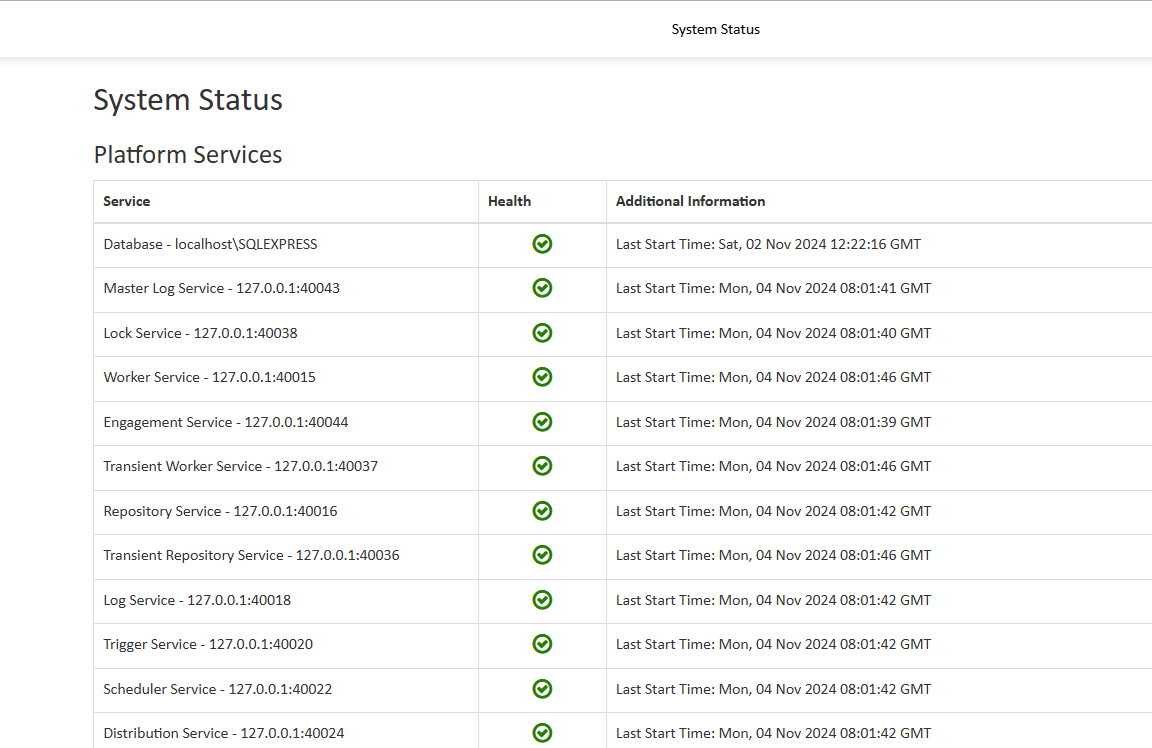
At the bottom of the System Status page, you can inspect Storage Statistics about the utilization metrics, such as versions, warnings, disk size, and activity. These statistics will get you a picture of the overall NorthStar CCM storage.
Background Services
Enable/Disable Background Services
NorthStar CCM Platform allows you to configure the running frequency of the background services and also enable or disable some of the services on an environment.
To enable/disable environment services:
- Sign in to the Sysadmin Website and select the
Environmentstile. - From the environments list, select the environment on which you want to configure background services.
- Next, navigate to the
Servicestab. Here, you can check on or off theEnabledbutton, next to the service name to enable or disable it on the current environment. Note that you cannot disable theHealth Checkservice on any environment. Additionally, enter the time in seconds within theFrequencybox to determine how often the selected service will run.
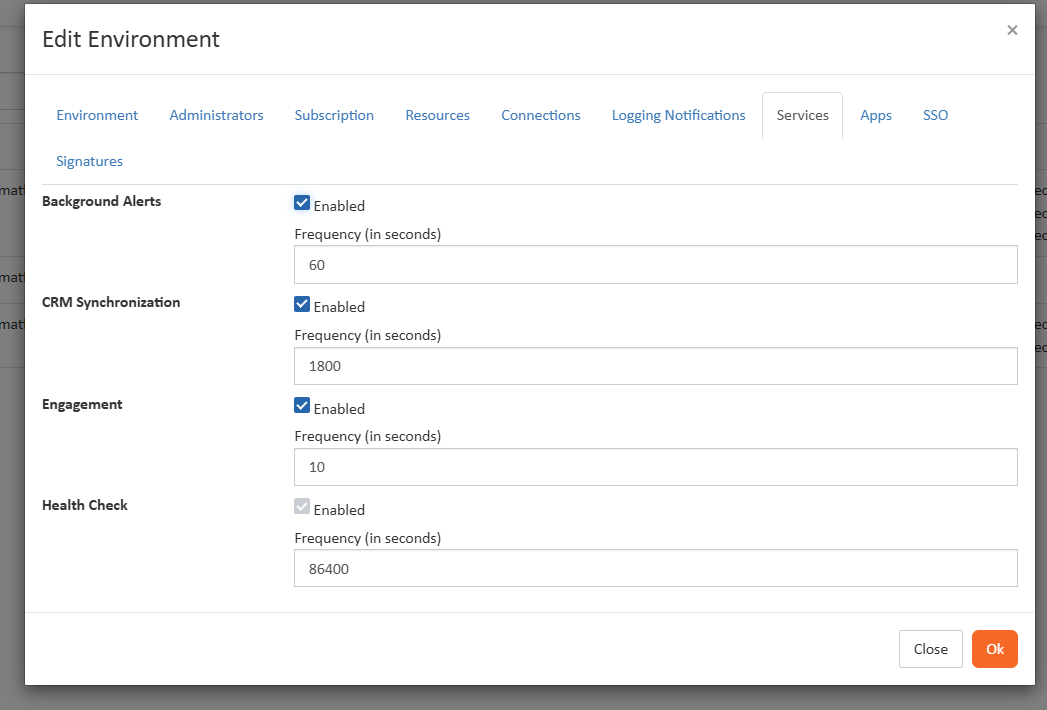
Backend Services
Within Sysadmin Website, you can monitor backend services which role is to monitor backend health according to health check and to direct traffic according to a balancing mode. To manage the backend services, you have to access Domain > Services > Backend Services > Configure.
Enable/Disable the following services:
| Analytics Crawler | If enabled, the service will crawl environment activity like document productions, distributed tickets, promotions ads, and prepare the database for environment dashboards. |
| CRM Synchronization | If enabled, services within the CRM Synchronization are handling the synchronization of accounts/contacts with connections defined in Environment Settings. |
| Background Alerts | If enabled, alerts will keep the users updated by notifying them through email whenever a report is defined on a view and an important process is encountered within that view. |
| Environment HealthCheck* | If enabled, the service computes and verifies information from the environments and keeps the application running efficiently and flawlessly. The default frequency can be updated at domain level and its default value is initially set to 1 day. In case of another value configured on the current environment, the default value will be overwritten. |
| Task Notification | If enabled, it allows users to set reminders for their manual tasks. |
| Engagement | If enabled, the engagement's role will be to perform actions defined in the Customer Journey and Touchpoints due to Engagement Services. |
| Domain health check | If enabled, the Domain Health Check is required to delete the expired tokens from the Enterprise website, in order to free storage. It is also responsible for the defragmentation of indexes within the database and cleaning up the system log. |
| Reclaim free space | If enabled, the service verifies the repository for files marked as deleted and releases the disk that was previously allocated to those files. |
| Repository stats calculator* | If enabled, it computes periodical storage size, reclaimable storage space and status of the storage files. By default, the option is enabled and its frequency is set to 1 day. |
| Check Database Defragmentation | If enabled, it maintains the database performance, reorganize and rebuild fragmented indexes. |
| Reorganize | If enabled, you can set up the Fragmentation threshold parameter. By default, its value is 5%. |
| Rebuild | If enabled, you can set up the Fragmentation threshold parameter. By default, its value is 30%. |
| Clean up Expired Tokens | If enabled, it deletes the enterprise, sysadmin and customer portal expired tokens. |
| System log maintenance | If enabled, system log will accumulate information for previous running of DOmain and Environments background services. You can set up the Maximum log age parameter. By default, its value is 5 days. |
| Environment log maintenance* | If enabled, the feature will delete all logs from all environments. The system administrators can configure retention policy for some environment logs such as schedulers, triggers, CRM synchronization, folders synchronization and execution logs. It can be set up at domain level. This maintenance occurs every day, on a local machine at midnight and it keeps only the logs from the last 30 days. |
Troubleshooting
This section help you identify common problems and includes reference to resources from where you can get more information.
Healthcheck Status Page
Enterprise Portal provides a new HTTP endpoint responsible for checking the status of NorthStar CCM Services. The HTTP endpoint is hosted by the Enterprise Website at the following path:
<EngageCX_IP_Address:portNumber>/status/check
Note
In case of HA conditions, to discover the availability of your NorthStar CCM instances, a load balancer is assigned to send HTTP requests for verification.
By default, all the services are checked, but these can be customized through the main configuration file (EOS4.config) under the path C:/ProgramData/EngageCX. All the parameters in the table below can be set up to verify on each HA node:
| Config Name | Description |
|---|---|
| ProcessReporterCheckAlerts Fallback: - Default Value: True |
Enable if check or not the alerts service. |
| ProcessReporterAlertsAddress Fallback: AlertsAddress Default Value: 127.0.0.1 |
The address of alerts service that will be tested. |
| ProcessReporterAlertsAddress Fallback: AlertsPort Default Value: 40025 |
The port of alerts service that will be tested. |
| ProcessReporterCheckBackgroundServer Fallback: - Default Value: True |
Enable if check or not the background service. |
| ProcessReporterBackgroundServerAddress Fallback: BackgroundServerAddress Default Value: 127.0.0.1 |
The address of background service that will be tested. |
| ProcessReporterBackgroundServerPort Fallback: BackgroundServerPort Default Value: 40026 |
The port of background service that will be tested. |
| ProcessReporterCheckDistribution Fallback: - Default Value: True |
Enable if check or not the distribution service. |
| ProcessReporterDistributionAddress Fallback: DistributionAddress Default Value: 127.0.0.1 |
The address of distribution service that will be tested. |
| ProcessReporterDistributionPort Fallback: DistributionPort Default Value: 40024 |
The port of distribution service that will be tested. |
| ProcessReporterCheckScheduler Fallback: - Default Value: True |
Enable if check or not the scheduler service. |
| ProcessReporterSchedulerAddress Fallback: SchedulerAddress Default Value: 127.0.0.1 |
The address of scheduler service that will be tested. |
| ProcessReporterSchedulerPort Fallback: SchedulerPort Default Value: 40022 |
The port of scheduler service that will be tested. |
| ProcessReporterCheckTrigger Fallback: - Default Value: True |
Enable if check or not the trigger service. |
| ProcessReporterTriggerServerAddress Fallback: TriggerAddress Default Value: 127.0.0.1 |
The address of trigger service that will be tested. |
| ProcessReporterTriggerServerPort Fallback: TriggerPort Default Value: 40020 |
The port of trigger service that will be tested. |
| ProcessReporterCheckWorkServer Fallback: - Default Value: True |
Enable if check or not the transient service. |
| ProcessReporterWorkAddress Fallback: WorkAddress Default Value: 127.0.0.1 |
The address of transient work service that will be tested. |
| ProcessReporterWorkPort Fallback: WorkPort Default Value: 40015 |
The port of trigger service that will be tested. |
| ProcessReporterCheckTransientServer Fallback: - Default Value: True |
Enable if check or not the transient service. |
| ProcessReporterTransientWorkPort Fallback: TransientServerAddress Default Value: 127.0.0.1 |
The address of transient work service that will be tested. |
| ProcessReporterTransientWorkPort Fallback: TransientWorkPort Default Value: 40037 |
The port of transient service that will be tested. |
| ProcessReporterTransientXFEOSServerPort Fallback: TransientXFEOSServerPort Default Value: 40017 |
The port of transient XF service that will be tested. |
| ProcessReporterTransientDASEOSServerPort Fallback: TransientDASEOSServerPort Default Value: 40021 |
The port of transient DAS service that will be tested. |
| ProcessReporterCheckRepository Fallback: - Default Value: True |
Enable if check or not the repository service. |
| ProcessReporterRepositoryAddress Fallback: RepositoryAddress Default Value: 127.0.0.1 |
The address of repository service that will be tested. |
| ProcessReporterRepositoryPort Fallback: RepositoryPort Default Value: 127.0.0.1 |
The port of transient repository service that will be tested. |
| ProcessReporterCheckLog Fallback: - Default Value: True |
Enable if check or not the log service. |
| ProcessReporterLogAddress Fallback: LogAddress Default Value: 127.0.0.1 |
The address of log service that will be tested. |
| ProcessReporterLogPort Fallback: LogPort Default Value: 40018 |
The port of log service that will be tested. |
| ProcessReporterCheckStorage Fallback: - Default Value: True |
Enable if check or not the storage service. |
| ProcessReporterESSAddress Fallback: ESSAddress Default Value: 127.0.0.1 |
The address of storage service that will be tested. |
| ProcessReporterESSPort Fallback: ESSPort Default Value: 40014 |
The port of storage service that will be tested. |
| ProcessReporterCheckSearch Fallback: - Default Value: True |
Enable if check or not the search service. |
| ProcessReporterSearchServerAddress Fallback: SearchServerAddress Default Value: 127.0.0.1 |
The address of search service that will be tested. |
| ProcessReporterSearchServerPort Fallback: SearchServerPort Default Value: 40028 |
The port of search service that will be tested. |
| ProcessReporterCheckNotifications Fallback: - Default Value: True |
Enable if check or not the notifications service. |
| ProcessReporterNotificationsServerAddress Fallback: NotificationsServerAddress Default Value: 127.0.0.1 |
The address of notifications service that will be tested. |
| ProcessReporterNotificationsServerPort Fallback: NotificationsServerPort Default Value: 40029 |
The port of notifications service that will be tested. |
| ProcessReporterCheckBackup Fallback: - Default Value: True |
Enable if check or not the backup service. |
| ProcessReporterBackupServerAddress Fallback: BackupServerAddress Default Value: 127.0.0.1 |
The address of backup service that will be tested. |
| ProcessReporterBackupServerPort Fallback: BackupServerPort Default Value: 40030 |
The port of backup service that will be tested. |
| ProcessReporterCheckRepositorySynchronization Fallback: - Default Value: True |
Enable if check or not repository synchronization service. |
| ProcessReporterRepositorySynchronizationServerAddress Fallback: RepositorySynchronizationServerAddress Default Value: 127.0.0.1 |
The address of repository synchronization service that will be tested. |
| ProcessReporterRepositorySynchronizationServerPort Fallback: RepositorySynchronizationServerPort Default Value: 40031 |
The port of the repository synchronization service that will be tested. |
| ProcessReporterCheckXfServer Fallback: - Default Value: True |
Enable if check or not XF service. |
| ProcessReporterXFServerAddress Fallback: XFServerAddress Default Value: 127.0.0.1 |
The address of XF service that will be tested. Multiple address can be configured separated by ‘;’ e.g. 127.0.0.1;127.0.2.1. |
| ProcessReporterXFEOSServerPort Fallback: XFEOSServerPort Default Value: 40017 |
The port of the XF service that will be tested. Multiple ports can be configured separated by ‘;’ e/g. 40017;40117. If no service will be available then the node will be invalidated. |
| ProcessReporterCheckDAS Fallback: - Default Value: True |
Enable if check or not DAS service. |
| ProcessReporterDASAddress Fallback: DASAddress Default Value: 127.0.0.1 |
The address of DAS service that will be tested. Multiple address can be configured separated by ‘;’ e.g. 127.0.0.1;127.0.2.1. If no service will be available then the node will be invalidated. |
| ProcessReporterDASEOSServerPort Fallback: DASEOSServerPort Default Value: 40021 |
The port of the XF service that will be tested. Multiple ports can be configured separated by ‘;’ e.g. 40021; 40121. If no service will be available then the node will be invalidated. |
| ProcessReporterCheckBI Fallback: - Default Value: True |
Enable if check or not BI service. |
| ProcessReporterBIAddress Fallback: BIAddress Default Value: 127.0.0.1 |
The address of BI service that will be tested. Multiple address can be configured separated by ‘;’ e.g. 127.0.0.1;127.0.2.1. If no service will be available then the node will be invalidated. |
| ProcessReporterBIEOSServerPort Fallback: BIEOSServerPort Default Value: 40023 |
The port of the BI service that will be tested. Multiple ports can be configured separated by ‘;’ e.g. 40023; 40123. If no service will be available then the node will be invalidated. |
| ProcessReporterCheckLicensing Fallback: - Default Value: True |
Enable if check or not Licensing service. |
| ProcessReporterLicensingServerUrl Fallback: LicensingServerUrl Default Value: 127.0.0.1 |
The address of Licensing service that will be tested. Multiple address can be configured separated by ‘;’ e.g. 127.0.0.1;127.0.2.1. If no service will be available then the node will be invalidated. |
| ProcessReporterLicensingServerPort Fallback: LicensingServerPort Default Value: 40035 |
The port of the Licensing service that will be tested. Multiple ports can be configured separated by ‘;’ e.g. 40035; 40135. If no service will be available then the node will be invalidated. |
Note
If you want to use the previous version of process checker service you have to add in the configuration file:
ProcessReporterBackwardsCompatible=true (by default, it is false).
For changing the default value of a parameter, you should access the configuration file (EOS4.config) and assign a new value. For example, ProcessReporterCheckSearch=false. If you made modifications, you should restart the NorthStar CCM website from the Internet Information Services (IIS).
The results can be of two types, either all the instances are up and running or the load balancer determines that an instance is unhealthy and it sends a server error message specifying where the server crushed.
- Success -
204 - No Content - Server Error -
50x - errorMessage
Logs
This section offers details regarding the NorthStar CCM server's log files.
Master Logs
Master Logs are the main logs of the NorthStar CCM System. All NorthStar CCM Components except native engines (analytics engine, data engine, publishing engine) log there.
Configuring Master Log
To configure master logs, you will have to navigate to the %Application_Data%/EngageCX folder and open the EOS4Svc.config file. Within the NorthStar CCM configuration file, you can set up log level or log location.
Note
Any changes made to the configuration file require a restart of the NorthStar CCM Service (e.g. using Windows Task Manager) and, in some cases of the IIS web server, if the changes impact the websites.
Log Levels
Log Levels allow system administrators to decide what activities should display in the log file.
There are 4 logging levels you can enable:
None: No logging will occur.Normal: Errors, warnings and information messages will be logged.This is the default value.All: Errors, warnings, information messages and various traces will be logged.Debug: Everything will be logged, including diagnostic information for troubleshooting.
To configure the Log Level you will have to use the LogLevel parameter. For example, to set the Log Level to Normal, you need to add the following line in the configuration file: LogLevel=Normal
Master Log Location
The default location for the NorthStar CCM master logs is %Application_Data%/EngageCX/Master. Based on user preferences, the following parameters are available for Master Logs:
-
To change the Master Log Location, use the
MasterLogFolderparameter, as follows:MasterLogFolder={Enter_New_Log_Path} -
Additionally, to decide if activities should be written in the Master Logs, use the parameter as follows:
LogToMasterLog = true | falseMasterLogServerEnabled = true | false
UI Configurations
Some Master Log's option can be also configured from the User Interface, such as log level.
Log Level
To enable/disable logging:
- Sign in to the Sysadmin Website and access the
Domaintile. - Select the
Logoption from the Settings group. - Select the required log level from the drop-down list.
Note
When you configure NorthStar CCM Logging from the user interface, the changes will be automatically saved and you will not have to restart the NorthStar CCM Service or IIS Website.
Include error details in REST response
If you are using the public REST API, it may be necessary to check the Include error details in REST response. By checking this, more explicit information will be returned when an exception is thrown.
Log Maintenance
To create policies on deleting older logs, you will have to configure log maintenance from NorthStar CCM Domain. Enabling the maintenance log, allows you to automatically delete master logs, helping you to preserve the disk space.
To configure Log Maintenance:
- Sign in to the Sysadmin Website and access the
Domaintile. - Select the
Logoption from the Settings group. - In the Log page, click the
Configure Log Maintenancebutton. - Next, check
Enabledin the Configure Log Maintenance. Then, enter the time whereupon you want to delete the old logs underMaximum log age in day'sbox and clickSave.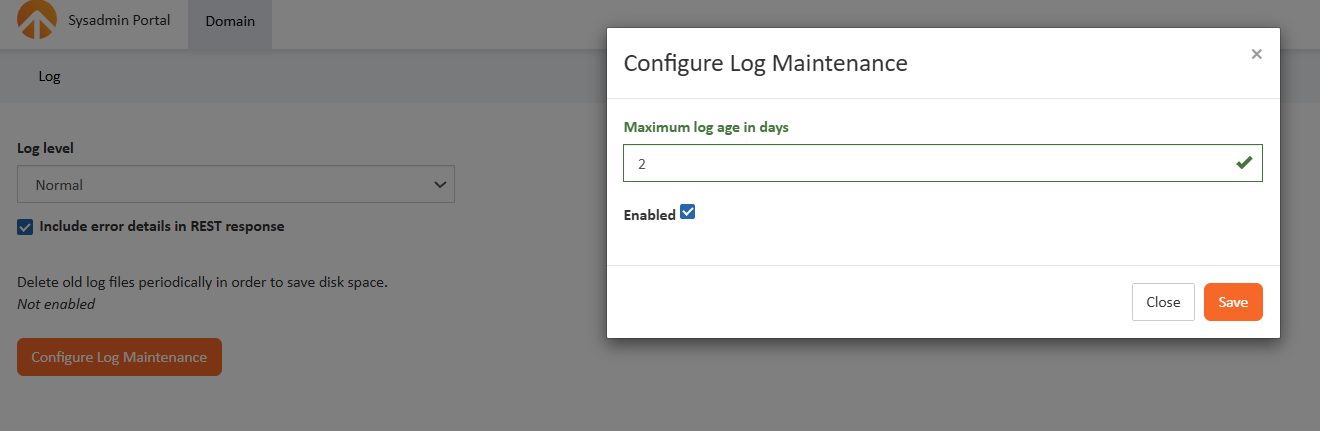
NorthStar CCM Platform will automatically delete logs older than the period you have set. If you want to delete the logs now, you can select the Run Delete Now button to start the process manually.
If you go back to the Domain page, you will notice that the Maintenance Status has been updated in the Summary group.
Engine Logs
In NorthStar CCM Platform, native NorthStar CCM Engine components will generate separate logs. By default, these are stored on a disk drive, at the default location %Application_Data%\MHC Software\Log.
Logging can be enabled/disabled from the Management Console tool, for the following NorthStar CCM Components: Publishing Engine, Data Engine and/or Analytics Engine.
To enable/disable logging:
- Open the Management Console tool from Windows Start. Or go to the NorthStar CCM Installation Folder, navigate to Engines\Bin and open
ManagementConsole.exe. - Next, in the left-hand tree-view, go to the ServerManager\Configuration and select the component on each you want to enable/disable logging.
- Expand
Engine Settings, then access theLoggingoption. - Within Logging window, double-click on the Log Level option and select the log level you want to configure.
Note
For each configuration, you will have to restart the NorthStar CCM Component service in order that the configurations be taken into account.
Dump stack trace on error
The stack trace is logged whenever an exception is thrown. This should be set to false, and must be turned on for troubleshooting, only when instructed by NorthStar CCM Technical Support.
Log Folder
By default, all NorthStar CCM log files are located in %APPLICATION_DATA/EngageCX/Log. To change the default location, you will have to follow the steps below.
For Publishing Engine
- Open the Management Console and navigate to the NorthStar CCM Publishing Engine tool.
- Next, navigate to Engine Settings\Logging and double click on the
Log Folderparameter. - Enter the path to disk drive location where you want to store the log files.
- Make sure that the
Restart the service to apply changesis checked so the Publishing service to be restarted to apply the changes. - Once you're ready, select Ok. To view the log files, double-click on the
Log Filesoption.
For Data Engine
- Open the Management Console and navigate to the NorthStar CCM Data Engine tool.
- Next, navigate to the Engine Settings\Logging and double click on the
Log Folderparameter. - Enter the path to disk drive location where you want to store the log files.
- Make sure that the
Restart the service to apply changesis checked so the Publishing service to be restarted to apply the changes. - Once you're ready, select Ok. To view the log files, double-click on the
Log Filesoption.
For Analytics Engine
- Open the Management Console and navigate to the NorthStar CCM Analytics Engine tool.
- Next, navigate to the Engine Settings\Logging and double click on the
Log Folderparameter. - Enter the path to disk drive location where you want to store the log files.
- Make sure that the
Restart the service to apply changesis checked so the Publishing service to be restarted to apply the changes. - Once you're ready, select Ok. To view the log files, double-click on the
Log Filesoption.
Lock Service Logs
In this section you can see where to find the generated logs when lock service starts.
Configuring Lock Service Log
To configure Lock Service logs, you will have to navigate to the %Application_Data%/EngageCX folder and open the EOS4Svc.config file. Within the NorthStar CCM configuration file, you can set up log level or log location.
Note
Any changes made to the configuration file require a restart of the NorthStar CCM Service (e.g. using Windows Task Manager) and the NorthStar CCM Lock Windows Service.
The logging of this service is stored in a separate file that can be accessed through the following path: C:\ProgramData\MHC Software\Log. The log file starts with LockSvc_date_modified.log.
Print Service Logs
In this section you can see where to find the generated logs when NorthStar CCM Print Info Service starts.
Configuring Print Service Log
To configure Print Service logs, you will have to navigate to the %Application_Data%/EngageCX folder and open the PrintInfoSvc.config file. Within the configuration file, you can set up log level or log location.
Note
Any changes made to the configuration file require a restart of the NorthStar CCM Print Info Service.
The logging of this service is stored in a separate file that can be accessed through the following path: C:\ProgramData\MHC Software\Log. The log file starts with PrintInfoSvc_date_modified.log.
Runtime Logs
Execution Logs
These logs are used to track brief information for everything that runs in NorthStar CCM Platform. By accessing Execution Logs, you will be able to inspect both, jobs and some API calls like Direct Render.
Synchronization Logs
These logs are used to track synchronization between Amazon S3 and NorthStar CCM.
Backend Services Logs
Other NorthStar CCM services like Analytics, Audit, Customer, Discussions, Scheduler, Triggers also provides logging. Usually the logging of this services is stored in the NorthStar CCM database and are visible in each particular service module.
Event Viewer
NorthStar CCM Platform allows users to enable event logs on an environment, permitting users to duplicate the jobs logs in the Windows Event Viewer tool. In this section, you can learn how to enable logging notifications on an environment.
Enabling Event Logs in Sysadmin Website
- Sign in to the Sysadmin Website and access the
Environmentstile. - Select the environment on which you want to enable the event logging and navigate to the
Logging Notificationstab. - Start by checking in the
Logging Notification Enabledoption, then fill in the form with the needed content:Destination: select the destination of the event logging (the logging application) Currently, you can selectWindows Events.Event Source Id: set up a unique identifiable event ID.Severities: select the appropriate security levels that will be logged.Message: create a message log. You can use the placeholders, from the right side, to create the log message.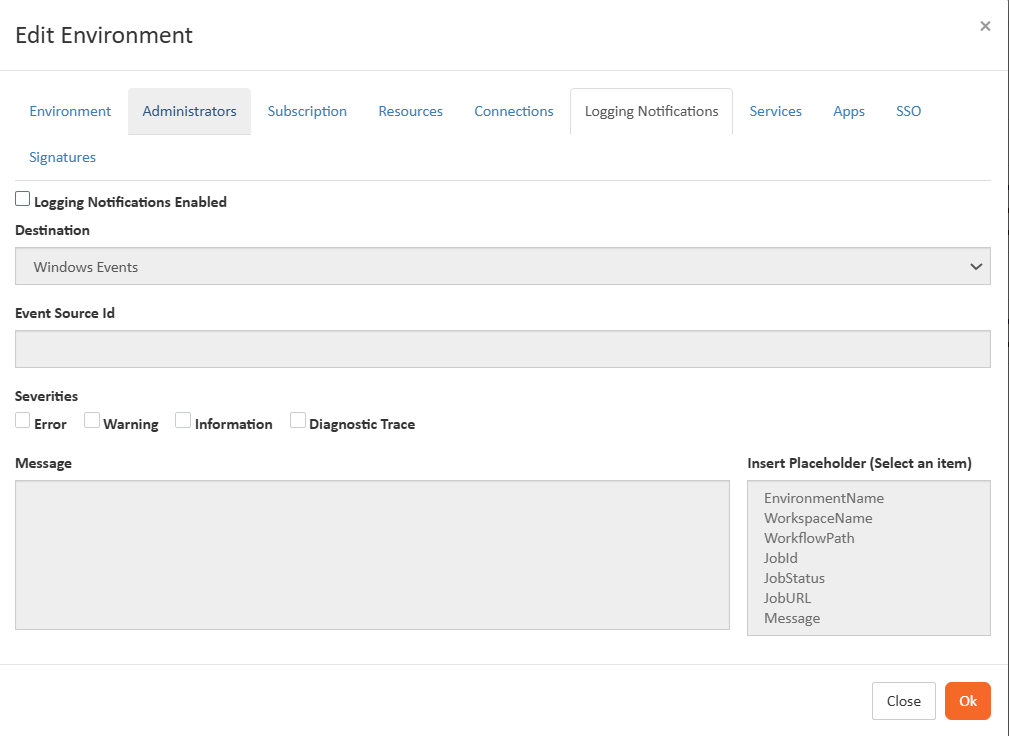
Inspecting Event Logs
- Sign in to the Enterprise Website using the environment credentials on which you enabled logging notifications.
- Navigate to the Communications module and run the project of which job you want to inspect.
- When the communication has finished, you will be able to view the logs details into the Log page.
- Next, open the Windows Event Viewer tool. In the left-hand tree view, navigate to
Windows Logs\Application. - In the Application list, search for the
Event IDyou have set up. Once selected, notice that the logs displayed in the communication log page will be also visible here in the upper part of the window.
Common Errors
This section lists troubleshooting tips for common encountered problems.
400 Bad Request
Symptoms
When accessing an NorthStar CCM Platform Website, you receive a 400 Bad Request error. This can manifest in a number of ways, depending on how NorthStar CCM Software was installed:
- The website can only be accessed from the server itself using the localhost URL, but cannot be accessed from the outside using the hostname URL.
- The website can be accessed from the outside using the hostname URL, but not from the server using the localhost URL. The website can, however, be accessed from the server using the hostname URL.
Solution
This is because of the default bindings in IIS. These will match the hostname URL(s) configured during installation. By default, these are localhost, but they should actually be set to use the hostname of the server as seen from the outside. This is important because the hostname URL will be used in emails sent to users and customers. We also recommend accessing NorthStar CCM Platform using the hostname URL, even if that access is being performed from the server itself.
To change the hostname for either of the websites, just re-run the installer and set the correct hostname for each of the websites: Enterprise Website, System Administration, Customer Portal.
You can also set up access to each website from any machine, regardless of the hostname, by setting the appropriate bindings in IIS. However, the recommendation is that the IIS bindings always match the hostname set during installation, for consistency.
500 Internal Server Error(500.19)
Symptoms
After installation, you receive a 500 Internal Server Error when trying to access NorthStar CCM Website pages from a remote computer. On the server, the detailed error is 500.19 - Internal Server Error. The requested page cannot be accessed because the related configuration data for the page is invalid, like in the screenshot below:
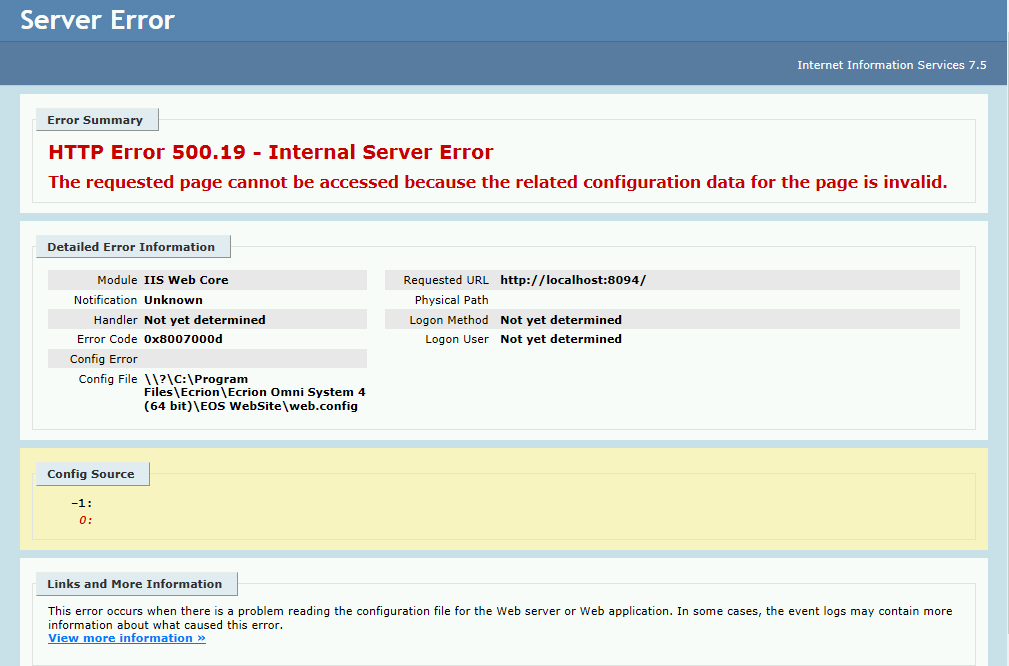
Solution
Install the URL Rewrite module for IIS 7 or later: https://www.iis.net/downloads/microsoft/url-rewrite. You can also read more details on this in the Pre-Install Requirements chapter of this guide.
Missing Modules on Home Page
Symptoms
After creating a new environment, most of the modules on the home page are missing.
Solution
Enable this functionality in the System Administration website by clicking on the corresponding environment. New environments are automatically created with a minimal set of modules enabled. The sysadmin must then enable the functionality they need from the Edit Environment dialog:
License Not Found
Symptoms
License Not Found error when accessing one of the NorthStar CCM Websites, or missing functionality.
Solution
Common license errors are:
- Missing suitable license for specific product or feature
- Suitable license found but doesn’t support the number of cores
Make sure you have the appropriate licenses installed and activated on the machine. You need a total of 8 distinct licenses for a fully functional setup, one for each of the components. Some components are optional, e.g. the Customer Portal website or the Analytics Engine.
If you are not sure whether you have the correct license(s) installed, please reach out to northstarccmsupport@mhcautomation.com.