Upgrade Process
This section describes some examples of a general upgrade process and certain particularities that differentiate one version from another. The steps in this section are for guidance only, as the step processes might change based on your organization's profile.
Review of Hardware and Software Requirements
Before you start the upgrade, ensure that the hardware meets the minimum specifications required for the updated version of MHC NorthStar CCM. Confirm compatibility with your existing operating system and software.
Back Up
It is best practice to back up your data before a software upgrade. This section provides information about the NorthStar CCM components that requires a backup.
Storage Backup
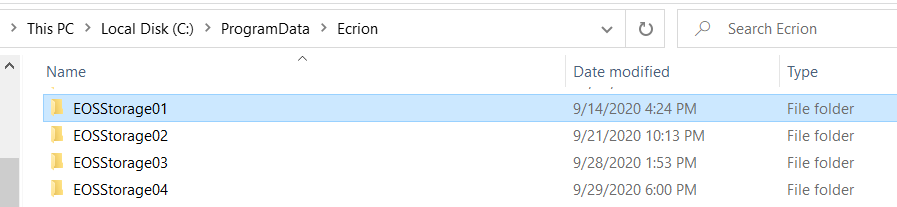
First, create a copy of the Storage Folder. It is located, by default, at the following location %Application_Data%\Ecrion\EOSStorage (i.e. C:\ProgramData\Ecrion\EcrionStorage).
The backup consists of creating a manual copy of the NorthStar CCM Storage folder and saving it on a remote location where you can access it later.
Database Backup
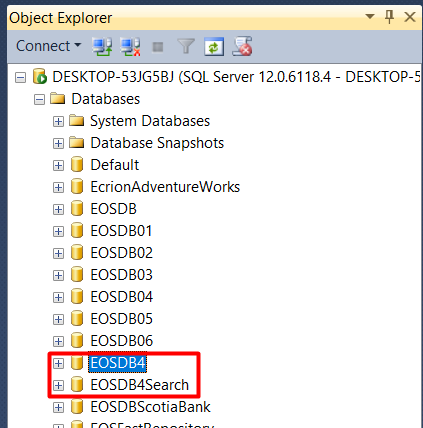
Secondly, create a backup of your NorthStart CCM Database. By default, its name will be EOSDB4.
If you are using the Search component, make sure to create a backup copy of the NorthStar CCM Search database as well. By default, its name will be EOSDBSearch.
Please use the appropriate guidelines to create a manual back up of a database, based on your version of SQL Server.
Important Note
To avoid any data loss, make sure that backups of database and storage are done at the same time.
Backup Config Files
It is best practice to save a copy of your main configuration files, along with the backup for future references.
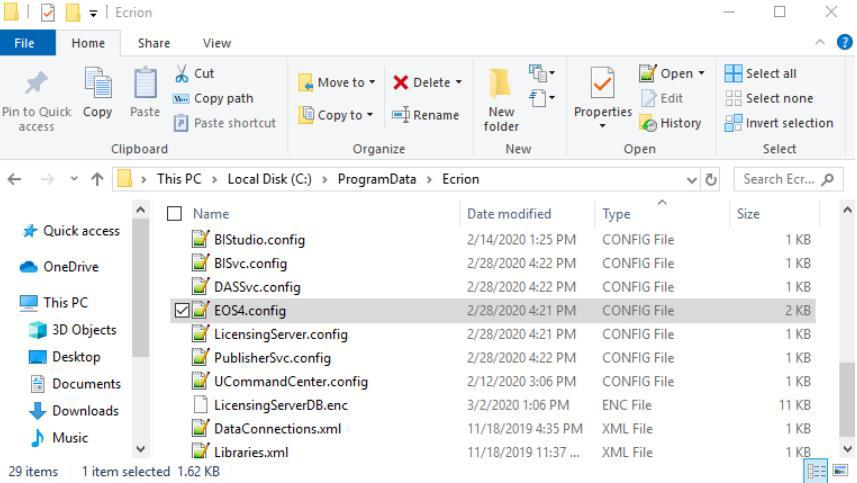
The files will be located, by default, at the following location %Application_Data%\Ecrion\ (i.e. C:\ProgramData\Ecrion).
The mandatory configuration files names will be: EOS4.config and PublisherSvc.config. Optionally, if necessary, create a copy for the following files: DASSvc.config and BISvc.config.
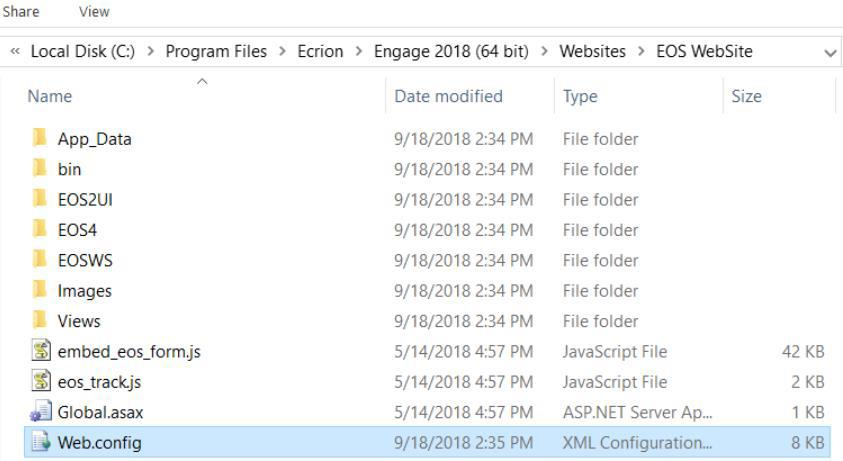
Additionally, create a copy of the web config files. The web config files are located by default, at %Installation_Folder%\Ecrion\Engage\Websites. You will see three Web.config files associated with the three NorthStar CCM IIS Websites.
Stop Services and Websites
Stop all NorthStar CCM services and shut down any associated websites. Ensure that the users using the platform are notified in advance of the maintenance window.
To stop NorthStar CCM services, open Task Manager, go to Services and stop the following services (it might differ based on the components deployed on your server): Ecrion Omni System 4 Service, EOS Analytics Engine, EOS Data Engine, EOS Publishing Engine.
To stop NorthStar CCM websites, open Internet Information Services (IIS) Manager tool, go to Sites and stop the following websites: ADMINEOS4, EOS4 and PORTALEOS4.
Uninstall Ecrion/Engage
On the server that runs the NorthStar CCM software, log in as a local or domain administrator. Open Control Panel.
Select Uninstall a program from the Programs area.
In the Uninstall or change a program window, select Ecrion (Engage). Click Uninstall from the toolbar.
A confirmation message appears. Select Yes to remove the Ecrion software from your machine.
A warning message appears. Click Yes to continue, then wait until the software finishes the un-installation.
Rename configuration folder name
Rename the folder containing the old NorthStar CCM configuration data to differentiate it from the new installation. Navigate to C:\ProgramData\Ecrion and rename the "Ecrion" folder to "MHC Software".
Set up Whitelist Folders
Configure the whitelist folders as needed for the new NorthStar CCM version. These folders should allow specific permissions and ensure smooth operation while maintaining security.
Whitelist for HTTP(s) Calls
In the latest version, to enable the Publishing/Data Engines to make HTTP(s) calls, additional configuration is required.
-
Navigate to
C:\ProgramData\MHC Software. Create a file namedappSettings.jsonand add the following content:{ "http_dns_whitelist" : [ { "address" : "*" } ] }Note
The configuration above will whitelist all URLs.
-
Add the following parameter to the configuration files for both the Publishing Engine (i.e.:
PublisherSvc.config) and Data Engine (i.e.:DASSvc.config):AppSettingsPath=appsettings.json
Whitelist Setup to Enable GetFiles and CopyToFolder Steps
- Navigate to the server where NorthStar CCM has been installed.
- Create a text file on the server – for example,
Whitelist.txt -
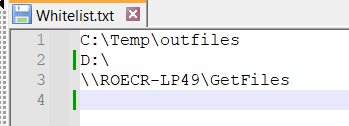
Open it with a text editor and list all directories/paths or shared network folders to be whitelisted – for example:
-
Go to
C:\ProgramData\Ecrion, openEOS4.config -
Add the following parameter, pointing to the path of the whitelist file you just created:
WorkflowWhiteListPath=<the path where your above .txt is> -
Restart the MHC services, specifically the MHC Workflow Windows Service and MHC Omni System 4 Service to apply the changes.
Additional Optional Configuration
All configurations described below can be found at C:\ProgramData\MHC Software.
EOS4.config Config Parameters
-
MaxAllowedRequestSize = 2000- Specifies the .zip size limit for the Environment imports.
- Default value: 100 MB
-
Request Body Limitation Parameters
These parameters are used to limit the request body size to prevent timeout due to data arriving too slowly:
MinRequestBodyDataRate = 240bytes per second (default)MinRequestBodyDataRateGrace = 5seconds (default)
Install NorthStar CCM version
Run the installer for the new version of NorthStar CCM. Follow the setup wizard or the installation guide to complete the process successfully.
Check & Test
Verify that all Engage services and websites are operational. Run tests to ensure data integrity, functionality, and performance. Address any issues before declaring the upgrade complete.