Overview
NorthStar CCM Workspaces enables access to files, jobs and other building blocks of your workflow in an organization.
Using Workspaces, you easily can store files, jobs and even documents produced by other NorthStar CCM apps (e.g. a contract, a letter, a claim, etc.). The app allows you to better organize your assets into meaningful categories, e.g. per department. You can also assign different permissions to workspaces so that certain users or groups will only see the workspaces you allow them to see.
With Workspaces, organizations can keep all their activity assets, such as jobs, schedules, triggers and documents in one place.
This guide covers all the information you might need while using Workspaces. For a detailed understanding of the capabilities in the Workspaces App, please skim over the functionalities detailed within this guide.
Getting Started
NorthStar CCM Workspaces helps organizations in their efforts to keep together all activity assets as a top-level folder, increasing efficiency and ensuring accuracy. If you're ready to take workspaces experience to the next level, follow the instructions in this section to find out more.
Installing the App
Follow the steps below to learn how to install the app.
- Start by accessing your NorthStar CCM Account and go to the
Benefitstab. - Access your cloud organization.
- Click your account name in the top-right corner and select
Explore Apps. - Identify the
Workspacesapp in the Grid Apps Menu and clickMore >button. - Select
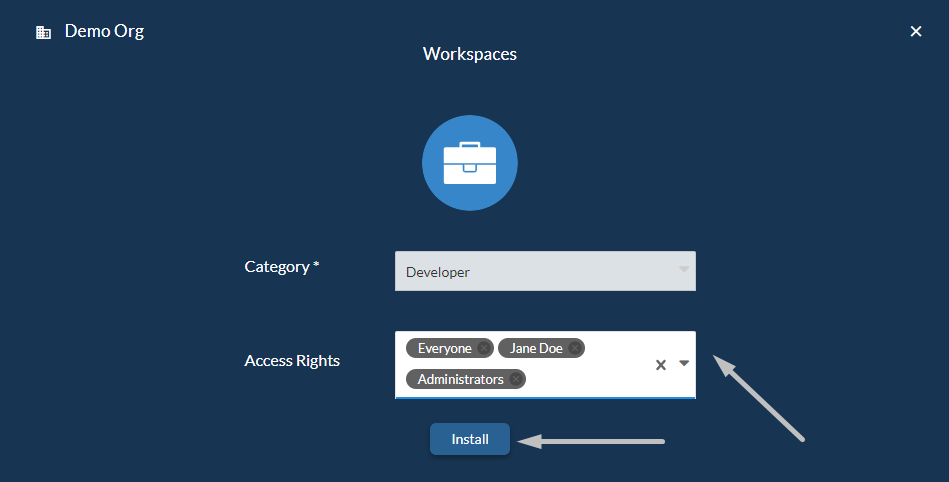
Get It Now >, then fill in the form fields as below:- Category: Choose the category where you want to include this App to;
- Access Rights: Use the drop-down list to configure the App permissions for your existing users or groups.
- Once ready, select
Install.
Note
If the user does not have the corresponding App keys installed, after the installation, you will be automatically redirected to install the licenses. To continue with this, select Manage Licenses, then click the Add button to install the product keys.
Requesting a Demo
Follow the steps below to learn how to request a demo of the app.
- Log in to your NorthStar CCM Account.
- Access your cloud organization from the
Benefitstab. - Click your account name in the right-corner of the page and access
Explore Appsfrom the sidebar menu. - Identify the
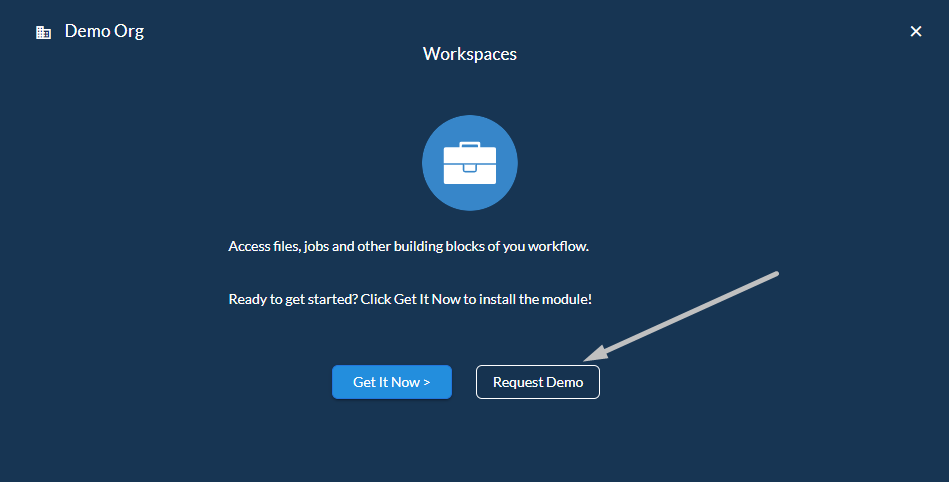
Workspacesapp in the Grid Apps Menu and clickMore >button. - Select the
Request Demobutton to send a request to the support team. - You will be redirected to a page where you will be requested to complete a form with some required fields:
- Provide your first name.
- Provide your last name.
- Provide your business email address.
- Provide your company name.
- Write some comments regarding the request you are about to send (e.g. reason, purpose).
- Once you're ready, select
Request Demo. - Verify your mail inbox where you will receive further notice regarding the request.
Workspaces Interface
This section provides a detailed tour of the most common components that add interactivity to the Workspaces Interface. Find below the touchpoints for the users as they navigate throughout the app and learn how to make full use of them.
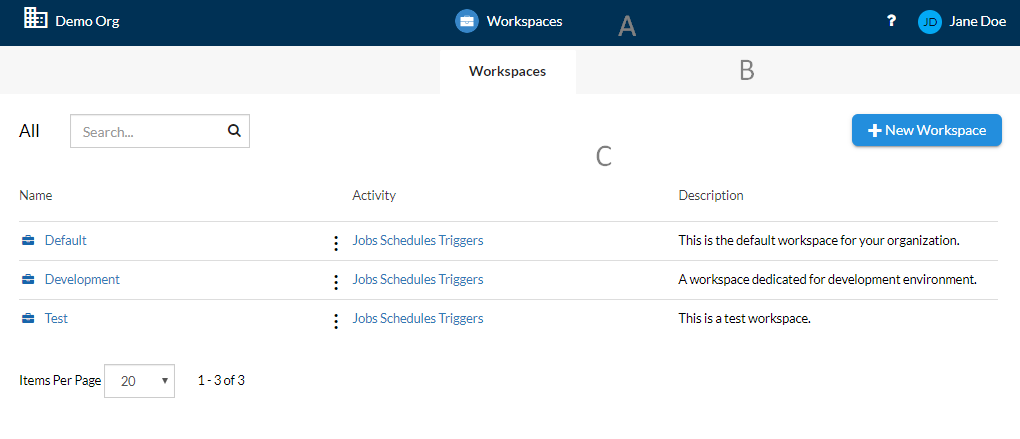
(A) Navigation Bar - appears at the top of the app screen and it is split into 3 sections - left, center and right.
- In the left side, there is the Organization name, from where you can access the Cloud Organization welcome page and view the installed apps.
- In the center of the navigation bar, there is the Name of the app from where you can redirect to the main Workspaces view whatever page you are visiting at the moment.
- In the right side of the navigation bar, there is the Help Center that offers options for support, access to the NorthStar CCM Documentation, user feedback, etc. Next to the Help Center, there is also the Account Name that enables a list of right sidebar options, such as organization, account, users' configurations or exploring the available apps.
(B) Toolbar - displays the main view of the application you are currently working with.
- Workspaces - a view with all the existing workspaces displayed in a detail mode.
(C) Workspaces View - is the dedicated region that you will use to easily navigate through your workspaces defined in your organization and find the associated information, such as the name of the workspace, its activity and its description.
Workspaces App Basics
During the software installation, a Default workspace is added to the organization. It is used to store all the projects content that you have created or worked under different NorthStar CCM Apps.
Workspace names should be meaningful and scoped to a specific group of users. If you are working on exclusive independent scopes of projects, multiple workspaces could make sense. The name must not contain special characters, but can include spaces. For example, Front Office, Operations, Bank Office, QA, Development, Production Projects, etc.
Workspace Management
The purpose of a workspace is to allow you to better organize your assets into meaningful categories and can also provide restricted access, so that certain users or groups will only see the workspaces you allow them to see.
Creating Workspaces
Follow the steps below to learn how to create a new workspace.
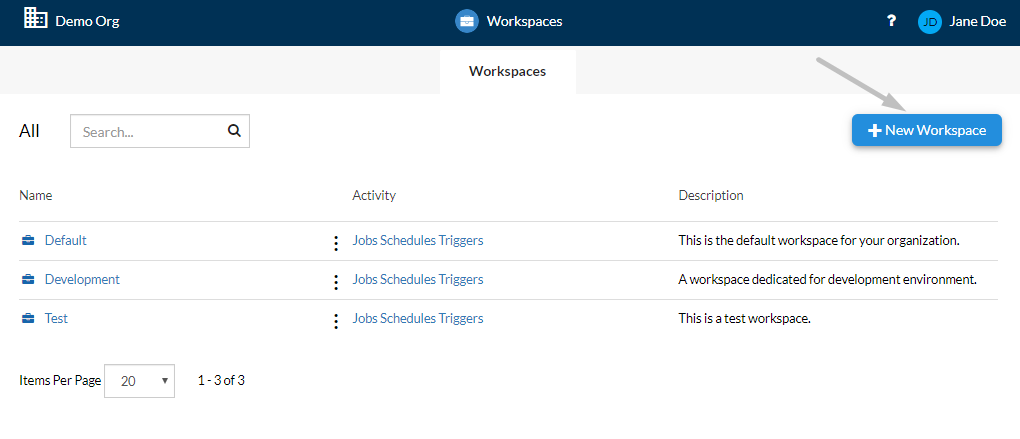
- In the Workspaces page, select the
+New Workspacebutton from the top-right corner of the page. - Fill out the form with the required values:
Workspace Name: enter a friendly name for your workspace.Description: optionally, provide information about the workspace you want to create.
- Once ready, select
Create.
Searching Workspaces
Follow the steps below to learn how to search through existing workspaces within your organization.
- Access the Workspaces page and a list with the existing workspaces will be displayed.
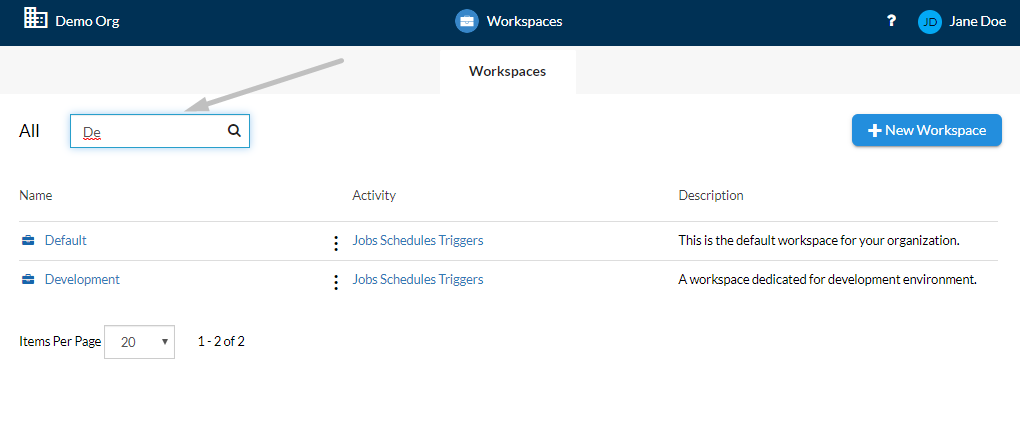
- If you want to search for a specific workspace in the list, you can use the
Searchfeature. - Type in the
Searchbox the full or just a part of the name of the needed workspace and hitENTER.
Managing Workspaces
Managing a workspace involves setting up multiple configurations at workspace level and its tasks users are authorized to work with (Review and Approval, Publish, etc.). Follow the steps below to learn how to configure a workspace.
- In the Workspaces page, identify the workspace you intend to configure.
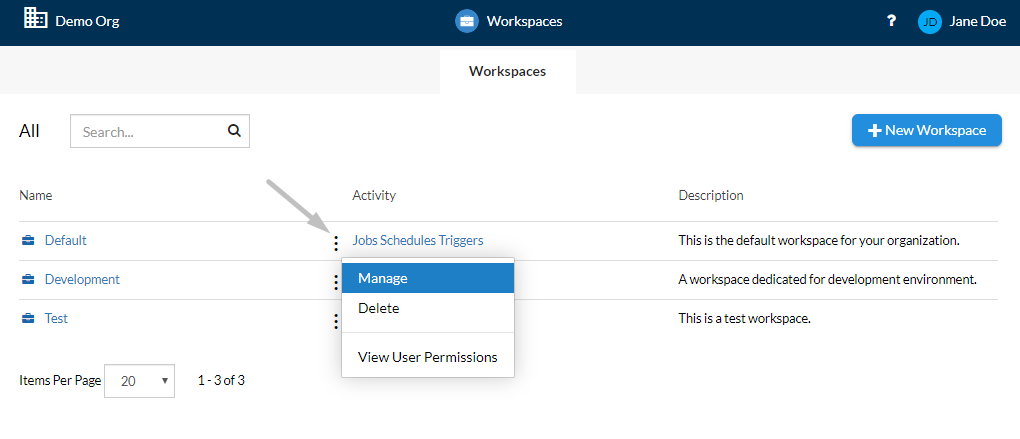
- Select the
More Actions() button, next to the workspace's name. - Choose
Managefrom the contextual menu. - Fill in the form with the appropriate values:
- Edit the
Workspace NameorDescriptionas needed. - Configure
Review and Approvalsettings:Run only approved files: enable this option to allow only the approved documents to be run.Approve communication projects before publish: enable this option to restrict the publish feature only for approved documents.
- Configure
Publishsettings:Use custom workflow: enable this option to allow the users that have Manage Permissions to this workspace to publish custom workflows.
- Configure
Taskssettings:Enforce four-eyes principle for tasks: enable this option to set that two individuals approve an action before it can be taken.
- Edit the
- Once ready, select
OKto save the changes.
Deleting Workspaces
Follow the steps below to learn how to remove a workspace from the list.
- Starting from the Workspaces page, identify the workspace you intend to delete.
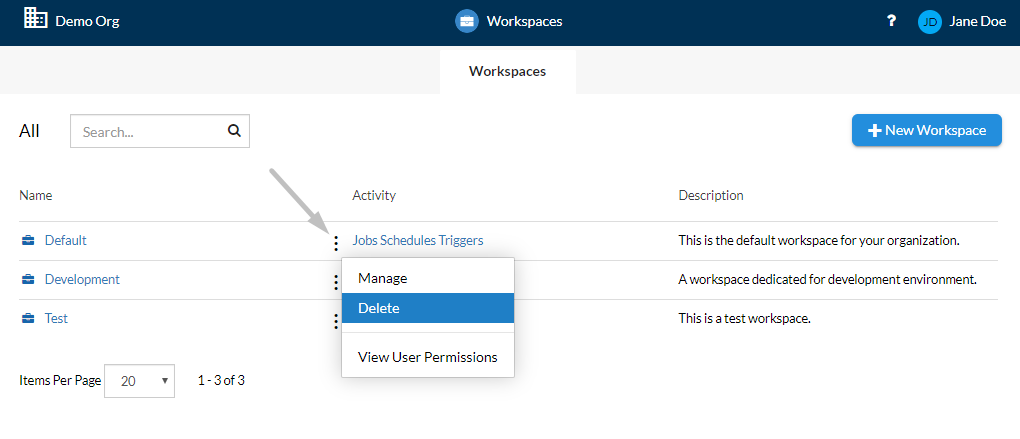
- Select the
More Actions() button next to the workspace. - Choose
Deletefrom the contextual menu. - Before permanently remove the workspace with all its assets from the list, you have to confirm the deletion by clicking
OK.
Note
It is important to know that deleting a workspace is an irreversible operation. Make sure you have created a backup copy of any files you may need before deleting the workspace.
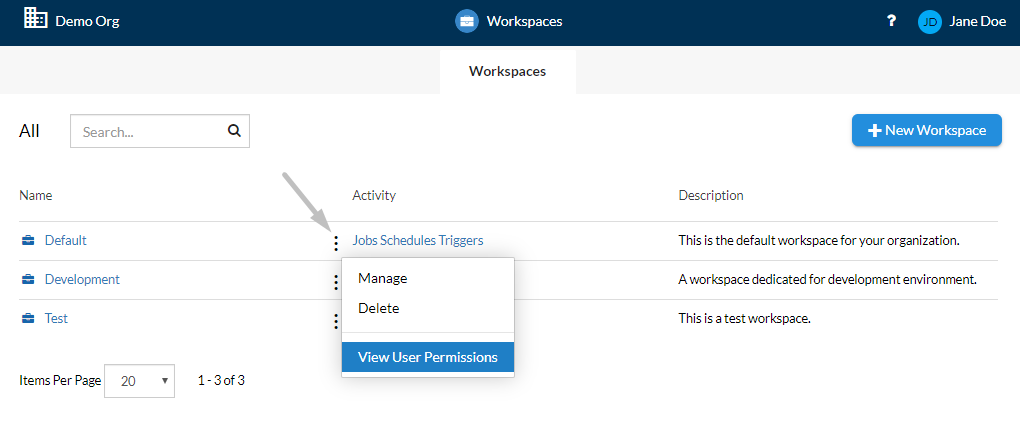
Viewing User Permissions
User permissions allow you to see and manage which users have which permissions at workspace level. Follow the steps below to learn how to see privileges that authorize a user.
- Starting from the Workspaces page, identify the workspace you intend to view its user permissions.
- Select the
More Actions() button next to the workspace. - Choose
View User Permissionsfrom the contextual menu. - Observe the Access or Manage permissions for all the users within the workspace.
- Once ready, select
OK.
Note
Users Permissions can be enabled from the Users Settings chapter.
Workspace Assets
Workspaces enable collaboration and storage of all assets involved in your customer communication management processes. These are logical divisions of environments, usually associated with departments within a company. All the files needed for document production have to be stored in workspaces.
Workspace is the place where all project assets are stored, but a user cannot make the precise difference between communications or folders until opening them.
In this section you will find about each type of these assets. For more details, select a component from the table below.
| Files | Jobs | Schedules | Triggers |
Accessing Workspace Assets
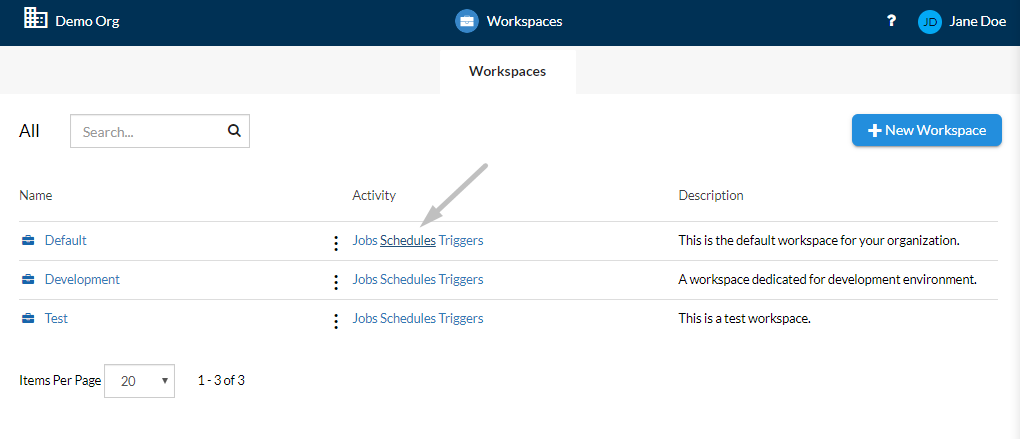
By selecting any workspace in the list, you can explore all the files and project folders within that workspace. If you want to access other specific assets (Jobs, Schedules or Triggers), you can click directly on the components available in the Activity column.
Files
You can select a workspace from the workspaces list, at any time, to access its files. The Files page allows you to view and organize all the files and folders stored within. The view provides a hierarchical structure that allows you to keep your documents organized.
Adding New Files
Follow the steps below to learn how to insert an asset to your workspace.
Note
Prior of adding a new file to your workspace, make sure you select a root folder first. If there are no existing folders, select the +New Folder button in the toolbar to create one. For more details on how to create a folder, please visit the Adding New Folders section of the same guide.
- Starting from the Files page, select the folder in which you intend to add the new file from the left sidebar.
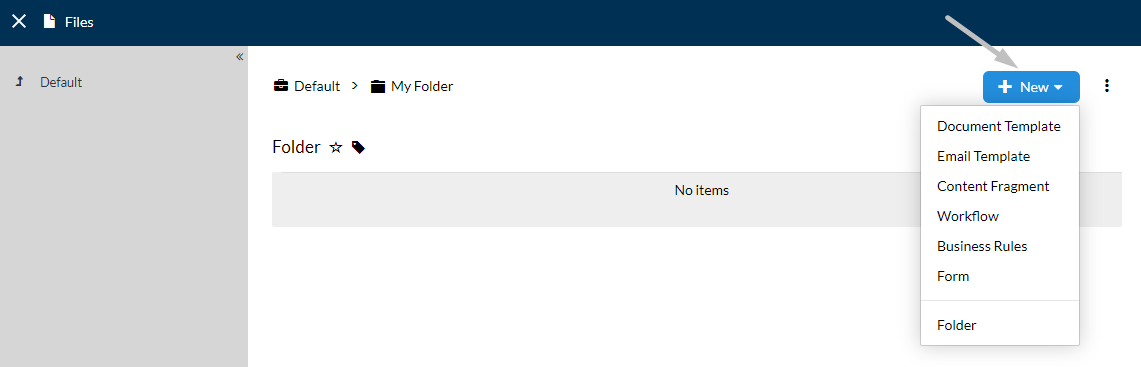
- You will be redirected to the root-folder content. Use the
+Newdrop-down from the toolbar to add new assets. The supported workspace assets are Document Template, Email Template, Content Fragment, Workflow, Business Rules and Form. - Additionally, select
Folderto create new sub-folders within the root folder. - Provide an appropriate name and optionally, a description for your new asset.
- Once you're ready, click
Ok.
Document Templates
Document Templates are .epr files created within the MHC Publisher, a standalone MHC solution, or using the online NorthStar Designer, integrated with the Workspaces app. They describe the visual look & feel as well as the business rules that apply when producing a document dynamically from data.
Email Templates
To send your correspondence as an attachment to an email, you will need to create an email template. NorthStar CCM provides an easy way to create email templates and multiple options that allow you to customize and format your emails' content. Email Templates are the .ehtml files and can be edited through the Email Editor.
Content Fragments
Content Fragments are .epb files created either through the MHC Publisher, or by using the NorthStar Designer. Fragments are a powerful way to improve efficiency and consistency across your document templates. For any of your designed content, you can preserve your work in a content fragment. By doing so, you can insert it into other templates. This means that you do not have to recreate the section of content that you had already created, but perhaps more importantly, when you need to change something within that section of content you will only need to change in one location and consequentially all of your templates using this content fragment are updated.
Workflows
Workflows are the .wk4 files, which define a series of processing steps or transformations that your data will go through, ultimately resulting in a document or set of documents being published along one or more output channels, like print, email or SMS. To build or customize a workflow, you will need to access the Workflow Editor.
Business Rules
Business behavior is governed by business rules that dictate how flows should be initiated and directed. They typically describe requirements or policies that transcend the software project they are required in the domain or business and the workflows may need to conform to them. The main utility of business rules is that these can be used when there is a set of common rules shared within workflows or in case of the conditional translation. An example of such a rule could be conditional translation.
Forms
NorthStar CCM allows you to create forms that capture data or enables users to create documents interactively. A form is a window or a screen that contains numerous fields or spaces to enter data. Each field holds a field label so that any user who views the form gets an idea of its contents. Forms are the .efd files, which can be built or customized through the Form Editor.
Sorting Files
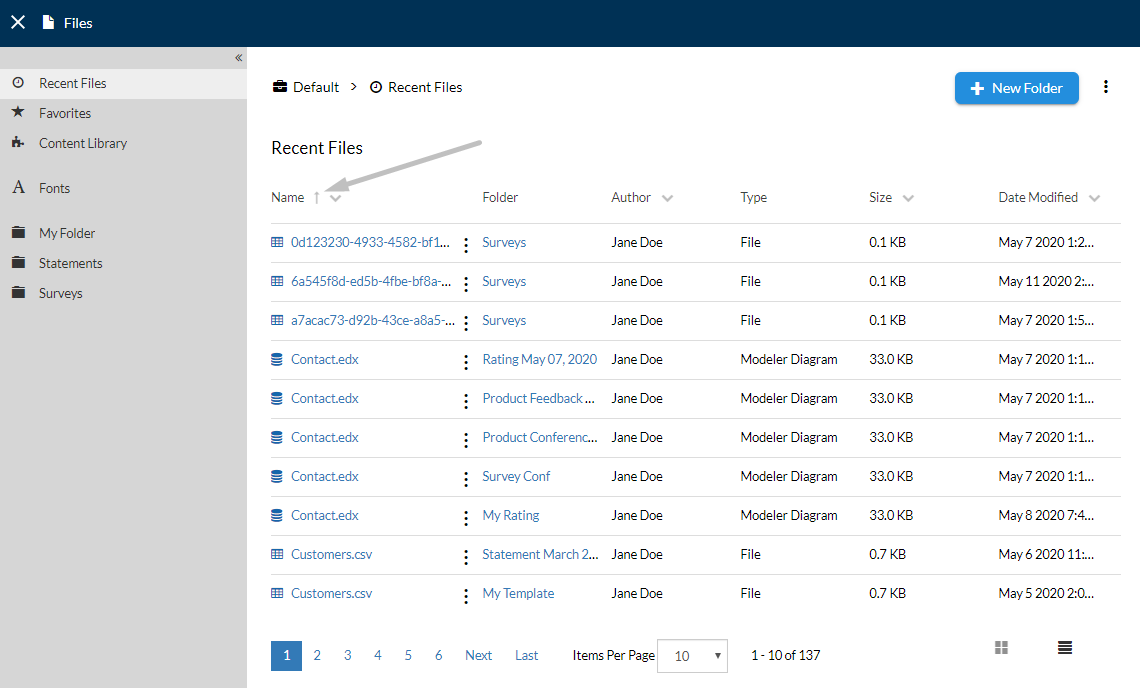
Starting from the Files page, you can sort the entities listed within by using the available column-headers, such as Name, Author, Size or Date Modified.
- To sort the files information displayed, select a column-header (e.g. Name) and the list will sort the results in ascending ( ) or descending ( ) order.
- If multiple sorting criteria are applied, such as Name, Author, and Date Modified, the high-priority is received by the last criteria set.
Filtering Files
Starting from the Files page, you can filter the entities listed within.
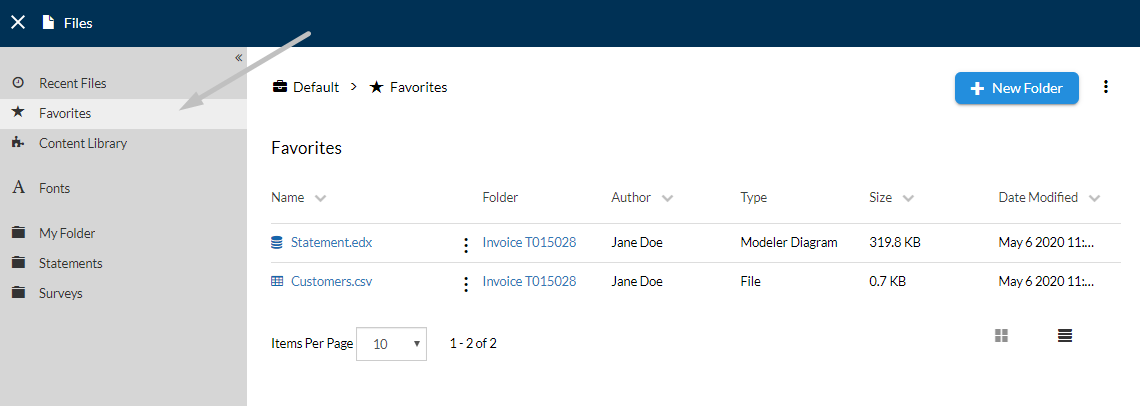
- To filter the files information displayed, select from the left sidebar a filter based on which you want to filter the results (e.g. Favorites).
Contextual Files Options
Follow the steps below to explore the options from the contextual menu of a file.
- Access the Workspace that contains the file you need.
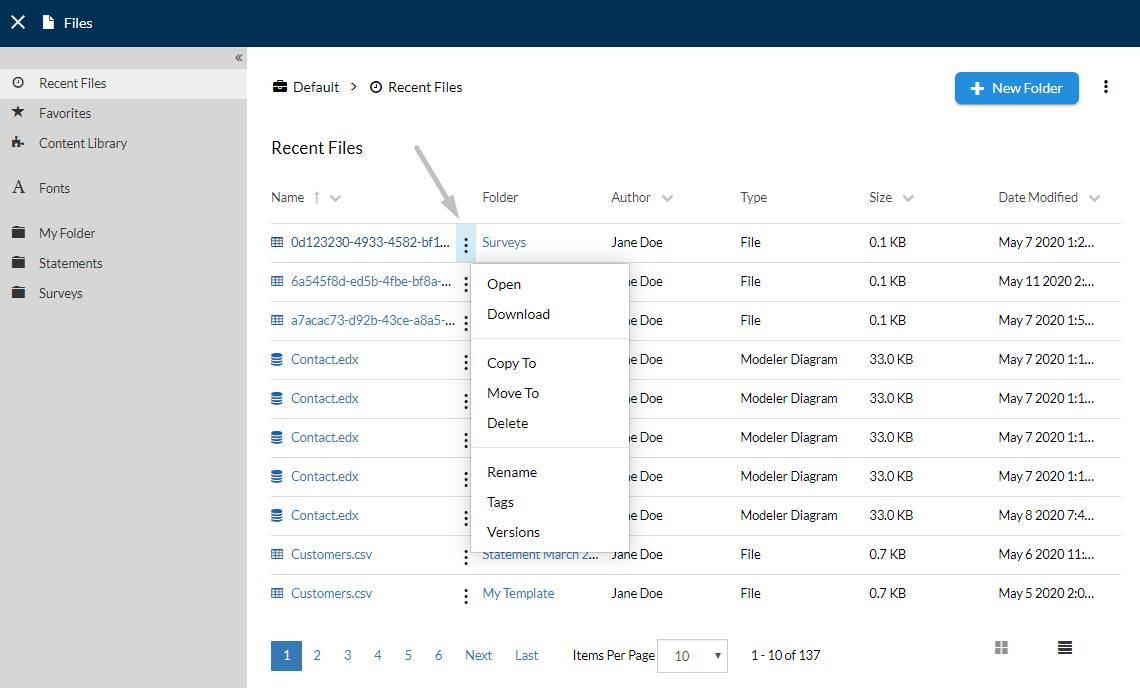
- Select the
More Actions() button of a file from the Page Content. - From the contextual menu displayed, you can select the following options, according to your needs:
- Open: Use the
Openbutton to be redirected to the File Preview page, from where you can see a more detailed view of the documents. - Download: Use the
Downloadbutton to download the file to your computer. - Copy To: Use the
Copy Tobutton to copy the file to another destination folder. Optionally, you can change the name of the copied file. - Move To: Use the
Move Tobutton to change the destination folder of a file. Optionally, you can change the name of the moved file. - Delete: Use the
Deletebutton to permanently remove the file from the list. - Rename: Use the
Renamebutton to change the name of the file. - Tags: Use the
Tagsbutton to configure (add, delete or edit) the tags of a file. For more information, please visit the Configuring Tags section of this guide. - Versions: Use the
Versionsbutton to view a list with all the versions created for the specified file. You will also be able to view and modify comments for each version or upload a new one. For more details, please visit the Configuring Versions section of this guide.
- Open: Use the
Configuring Tags
Tags are keywords associated with a folder or file from a workspace. These can be added manually and are useful when you want to find the needed content in a quick manner. Follow the steps below to learn how to add a new tag to a file/folder.
- Starting from the Workspace Details page, identify the file/folder on which you want to add tags.
- Select the
More Actions() button next to its name. - Choose
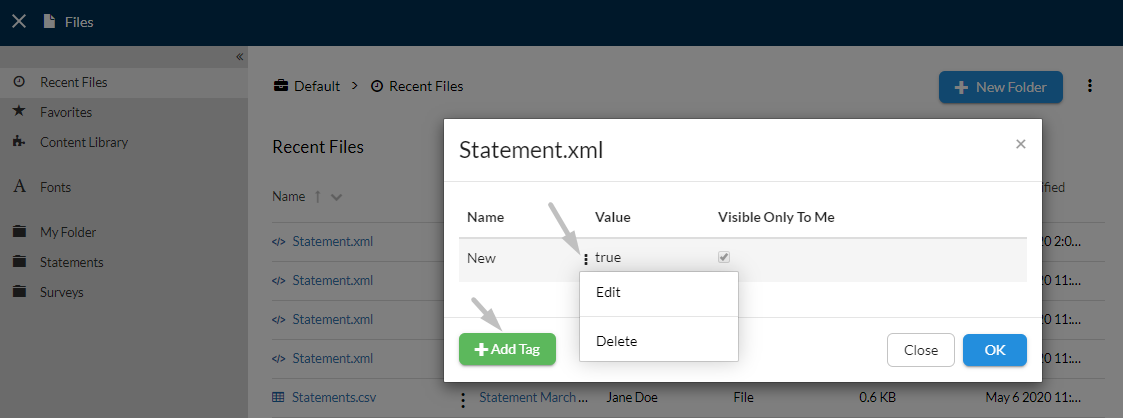
Tagsfrom the contextual menu. - Next, select the
+Add Tagbutton to add a tag for your file/folder.- In the Add Tag dialog, you can either provide a name and a value for the tag or select from the drop-down menu, indicated by the right down-arrow, a specific property that will be used as the implicit name:
- Select the
Importantoption to inform your customer about tag's high level of importance. - Select the
Newoption to inform your customer that the file on which is applied is new or has new information. - Select the
Publicoption, meaning that your files under the current folder can be accessed by anybody, without logging in.
- Select the
- By default, the tag's value is set to
true, but you can always change it according to your needs. - Set the tag visibility either by restricting access by enabling the option
Only visible to myselfor just keep the document visible to the public by disabling the option.
- In the Add Tag dialog, you can either provide a name and a value for the tag or select from the drop-down menu, indicated by the right down-arrow, a specific property that will be used as the implicit name:
- Once you're ready, click
Addto save the changes. - After the tags where added, at any time, you can use the
More Actions() menu for each of the existing tags, from where you can delete or edit the tags of the file/folder.
Configuring Versions
As you work with any of the projects you create in different NorthStar CCM Apps, you may modify files and upload newer versions. Workspaces will use a repository to store the file in its previous state and use the new file as the latest version. This process is called versioning and will prove useful to you for tracking and accessing the history of any file within your workspace.
This functionality gives you some benefits such as:
-
Provide the security needed when multiple users have access to project folders and the files within.
Example
Multiple users may have access to the same Publisher Template. In this case, versioning can be used to track the changes that have been made by each user.
-
Users can add a comment to make it easier to see what that version represents and/or what changes have been made.
Example
Each time a file is uploaded or modified, a new version is created.
Follow the steps below to learn how to configure versions of a file.
- Starting from the Workspace Details page, identify the file/folder on which you want to configure versions.
- Select the
More Actions() button next to its name. - Choose
Versionsfrom the contextual menu. - A dialog will display all the existing versions of the asset.
- Select
Upload a new versionto add a new version for your file from the computer. - You can download or select one of the versions of the file to be restored to a previous state by accessing its down-arrow ( ) drop-down menu of the Version column.
- To add a comment for any of the existing versions in the list, click
Edit( ) button under the Comments column.
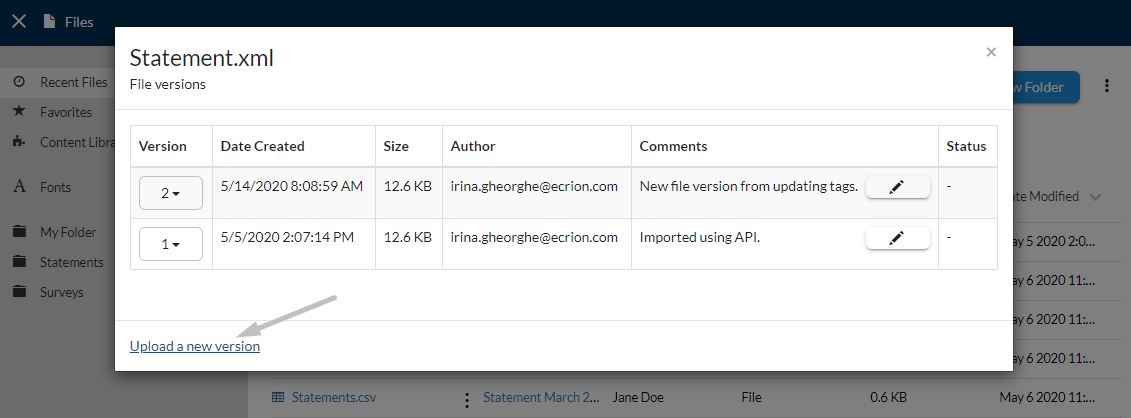
Along with each version, you can find useful information regarding the following:
| Version | The unique identifier for the current version. |
| Date Created | The date when the version was created. |
| Size | The size of the current version. |
| Author | The author that created the version |
| Comments | Comments associated with the version. |
| Status | The status of the current version. |
New versions of a file are created as a result of any action that creates or overwrites that file, for example:
- Editing a Publisher Template file using the Online Editor in Enterprise Website.
- Editing and checking in a file directly from one of the MHC Studio products.
- Uploading a new file with the same file name.
- Restoring a snapshot or a previous version of a file.
Adding or Removing Favorites
Follow the steps below to learn how to add/remove a file/folder to/from Favorites.
- Starting from the Files page, navigate to the file/folder location you intend to edit.
- Select the file/folder which you want to add/remove to/from the Favorites list.
- Choose
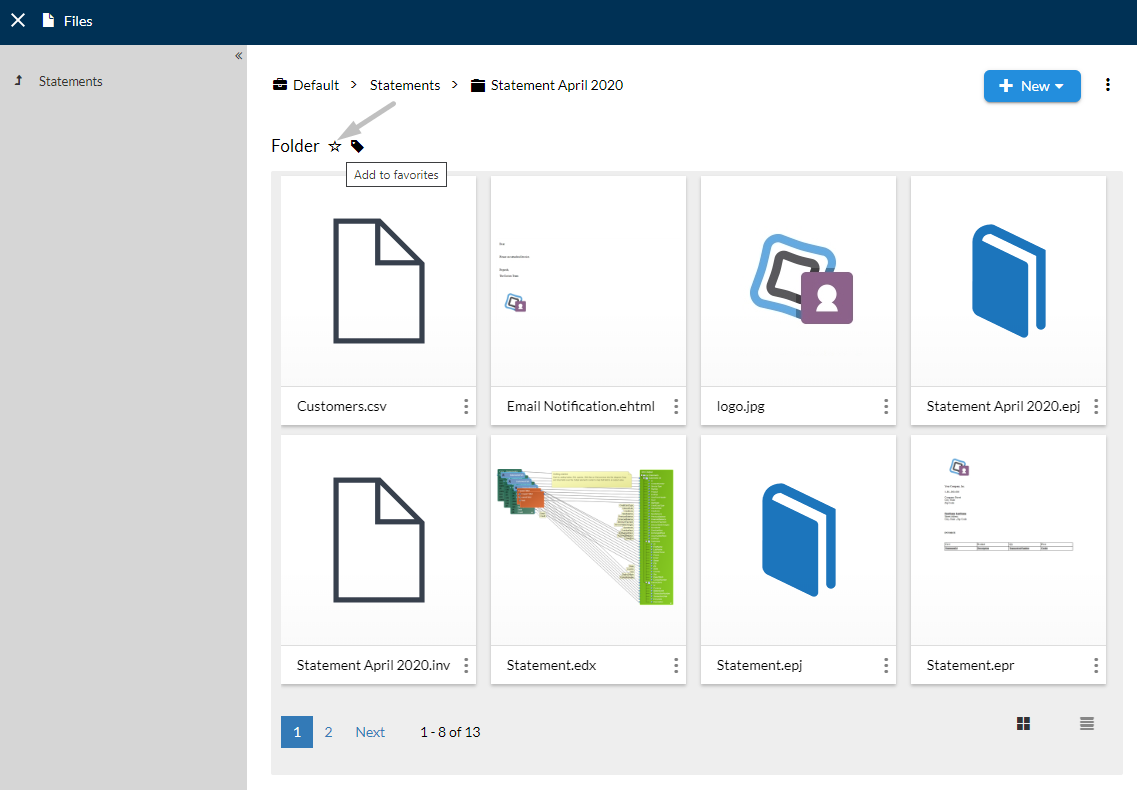
Add to favoritesorRemove from favoritesfrom the upper left side of the File Preview/Folder Content. If the file/folder has a empty star ( ), it means that the file/folder is not included in the Favorites list. Otherwise, a filled-star ( ) will be displayed.
Note
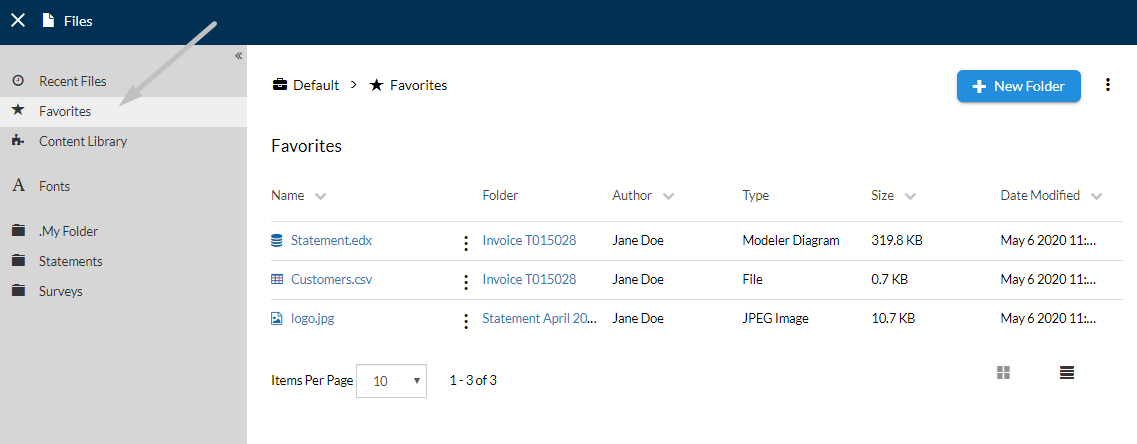
Notice that the favorite files will be displayed in the Files page if you choose Favorites from the sidebar menu.
Sharing Files
Besides folders, Workspaces also allows you to share each file, separately. To share a file within a workspace, follow the steps from below.
- Starting from the Files page, navigate to the file preview you intend to share.
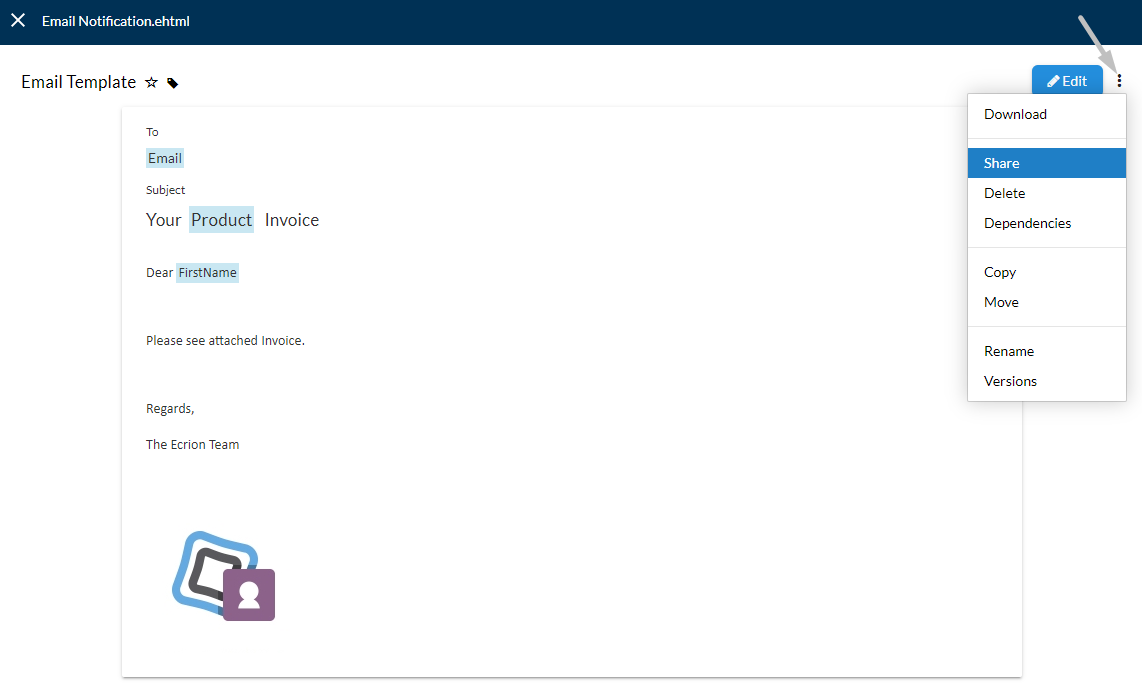
- Selecting the
More Actions() button of the right-corner of the page. - Choose
Sharefrom the contextual menu. - Select the
Sharebutton to generate a public link. - Select the
Copy to clipboard( ) button to copy the link, then send it to the persons you want to share the file with. - Once you're ready, click
OK.
Exploring File Dependencies
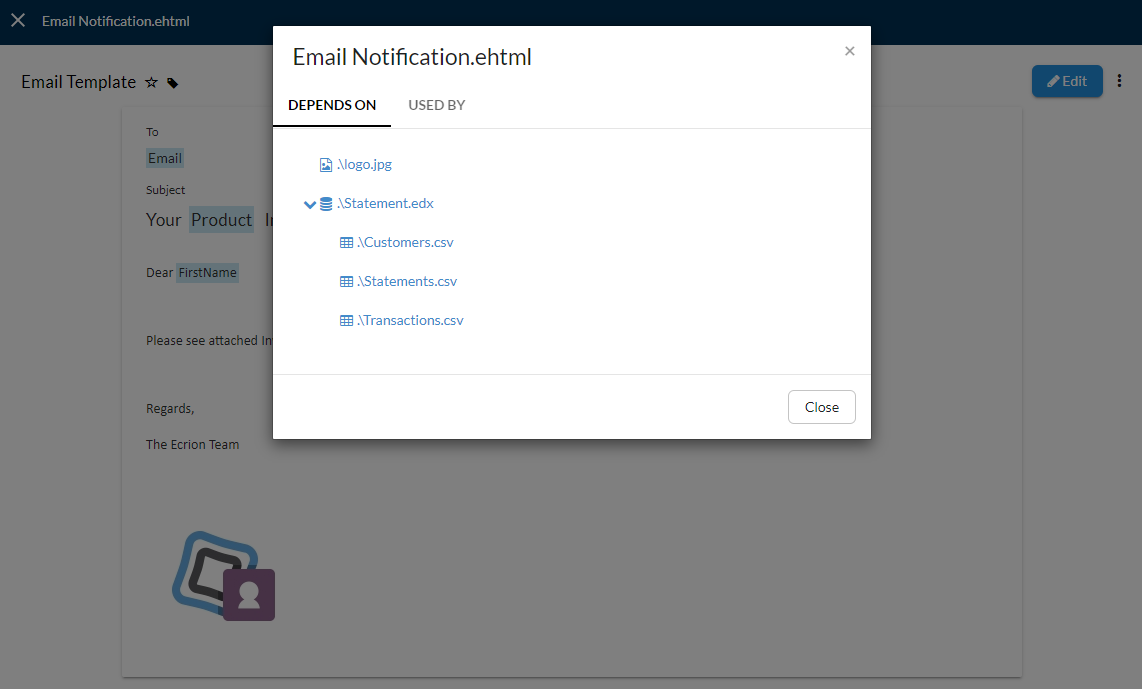
Whenever you set up a project within Workspaces, you will need many different types of files to be able to generate the needed documents. The Workspaces app rarely works in isolations. Each project relies on multiple individual and reusable components.
- The Dependencies dialog can be accessed by selecting the
More Actions() button of any file preview you choose from your workspace.
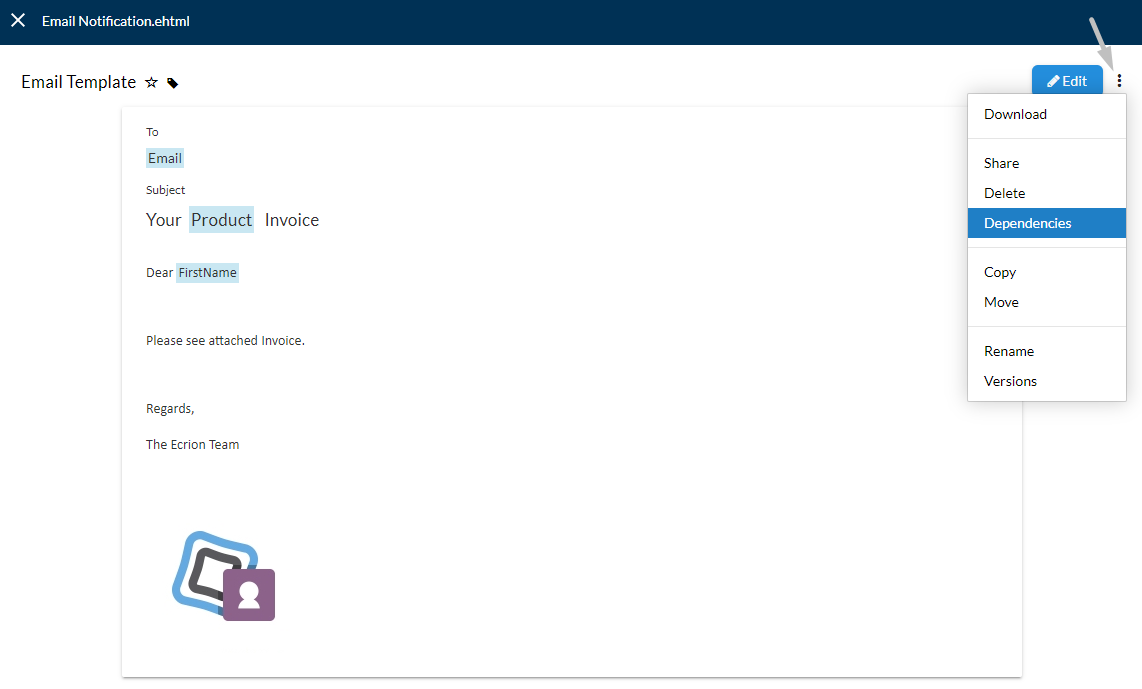
- The dialog displays all the directly-connected files and also the files where it is used, in a separate tab.
Folders
Folders provide containers that help you organize and store your production documents. Within a workspace, you can add as many folders as you want.
The top-level folder created in a workspace, is usually called a root folder or a project folder and it is used to hold all the files for a custom project you are working on. For example, it could be the name of the document you are producing. Each workspace can contain multiple root folders, but at least one is necessary in order to add your files. It can contain multiple different files, including templates, content fragments, business rules, workflows or other folders.
It would be desirable to achieve consensus on folder naming within a team or a department. You should keep the folder names short, but meaningful. The names must not contain special characters, but can include spaces. For example, Contract, Credit Order Letter, Loan Agreement, On-Boarding Package, Portfolio Analysis, Monthly Statement, etc.
Adding New Folders
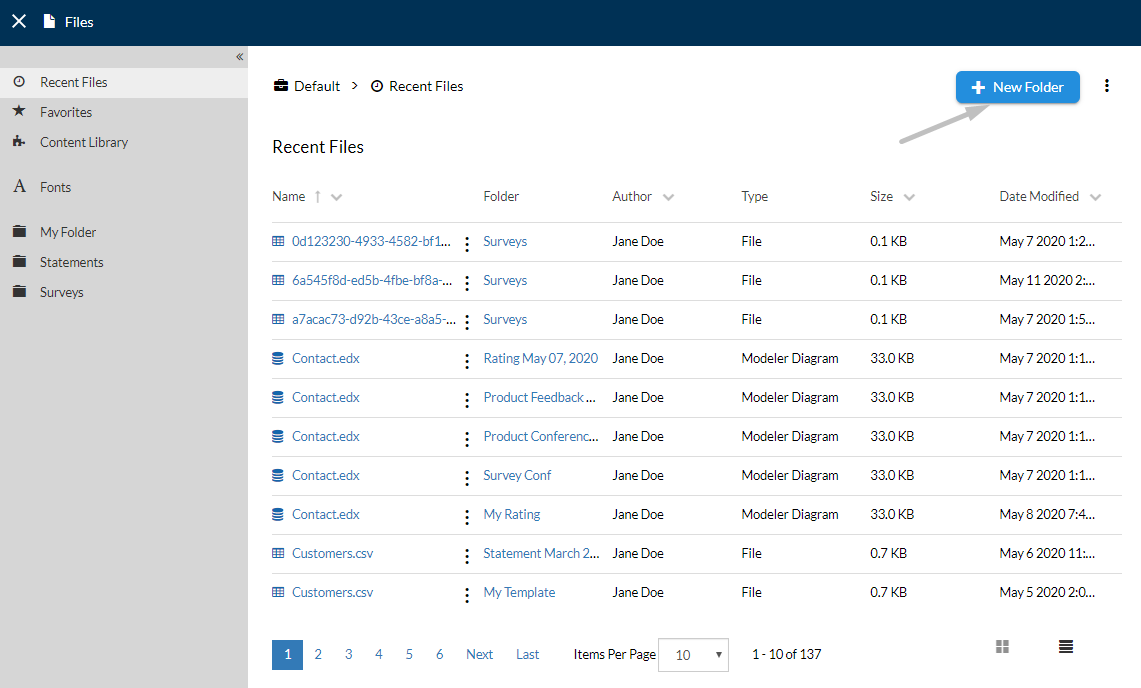
Follow the steps below to learn how to create a folder to your workspace.
- Starting from the Files Page, select
+ New Folderfrom the right-corner of the page to create your brand-new folder. - Enter a name for your folder, then click
Create. - Now the folder has been added to your workspace. To access it use the Sidebar or simply click on it from the workspace views (
Grid View( ) orList View( )).
Folder Content
In order to add a file or a folder to any project or another ordinary folder in Workspaces, you will need to understand how to use the Upload feature. This is often the first step in getting started with setting up your document production projects, but this task will also prove to be necessary as you continue to add modifications to templates, add new data sources and much more.
Uploading Single Files
Follow the steps below to learn how to upload a single file in a folder from your workspace.
- Starting from the Files page, navigate to the folder destination where you intend to upload the file.
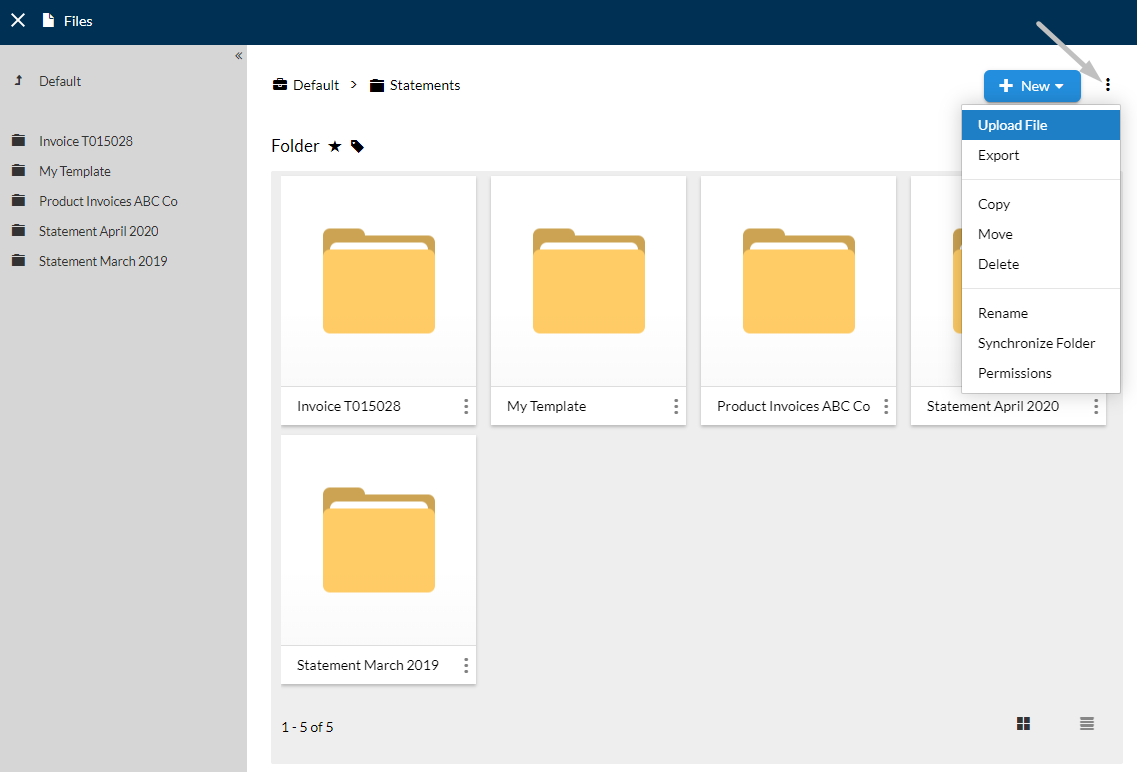
- Select the
More Actions() button from the right-corner of the page. - Choose
Upload Fileoption from the contextual menu. - Select
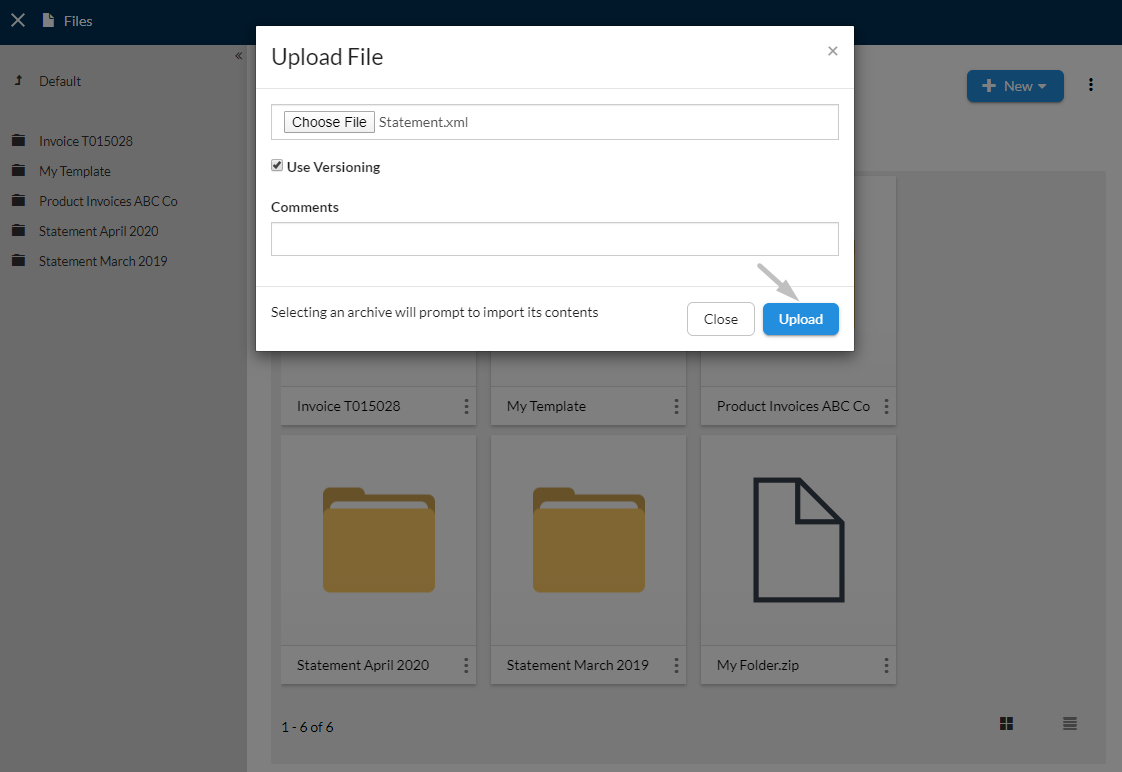
Choose Fileand search for the file you would like to upload from your local machine. - Enable
Use Versioningif you want to save a copy of the file in its initial state, and use the new file as the latest version. This will prove useful for tracking and accessing the history of any file. - Optionally, add some comments with regards to the imported file.
- Once you're ready, select
Upload.
Uploading ZIP Files
Follow the steps below to learn how to upload a ZIP file in a folder from your workspace.
- Starting from the Files page, navigate to the folder destination where you intend to upload the ZIP archive.
- Select the
More Actions() button from the right-corner of the page. - Choose
Upload Fileoption from the contextual menu. - Select
Choose Fileand search for the ZIP file you would like to upload from your local machine. - Enable the
Use Versioningoption if you want that versioning to automatically be set for every file contained in the ZIP archive. - Optionally, add some comments with regards to the imported archive.
- Once you're ready, select
Upload. - Finally, select
Importfor all of the files from your ZIP archive to be uploaded. Otherwise, if theUploadbutton is selected, the archive will upload as a .zip file without having access to its content.
Sharing Folders across Multiple Workspaces
Shared folders are useful to improve efficiency and consistency of your documents and also these are great for organizations that want to preserve disk space. For example, you can create a shared folder called Branding, containing the company logo and some common stylesheets. Then, these files can be used by a large number of users, from different workspaces, without having to add a version of your file each time is needed.
Note
Only root folders can become shared; if you are not able to see this option within the contextual menu of folders in the sidebar, use the upper menu bar to return to the main folder.
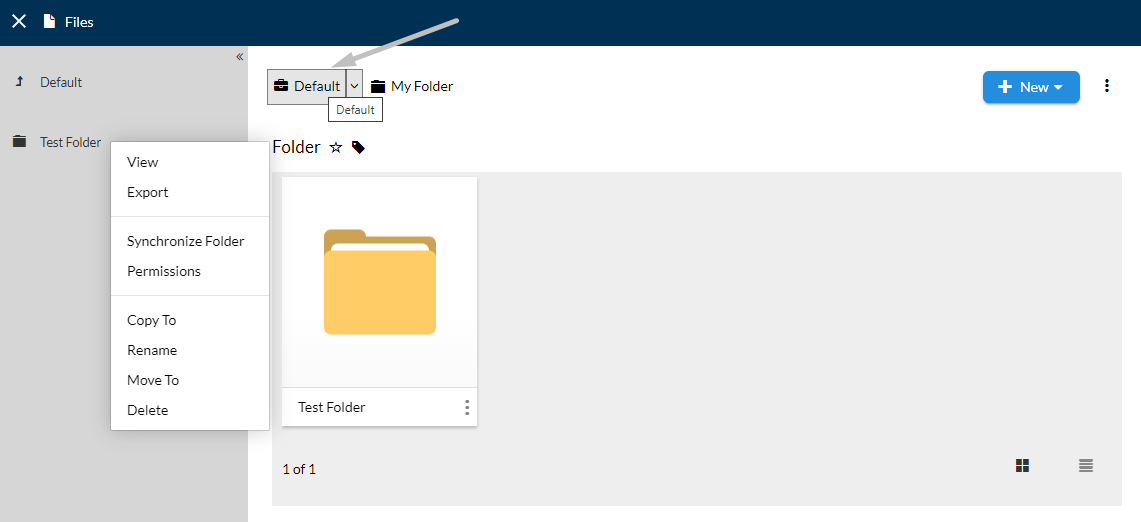
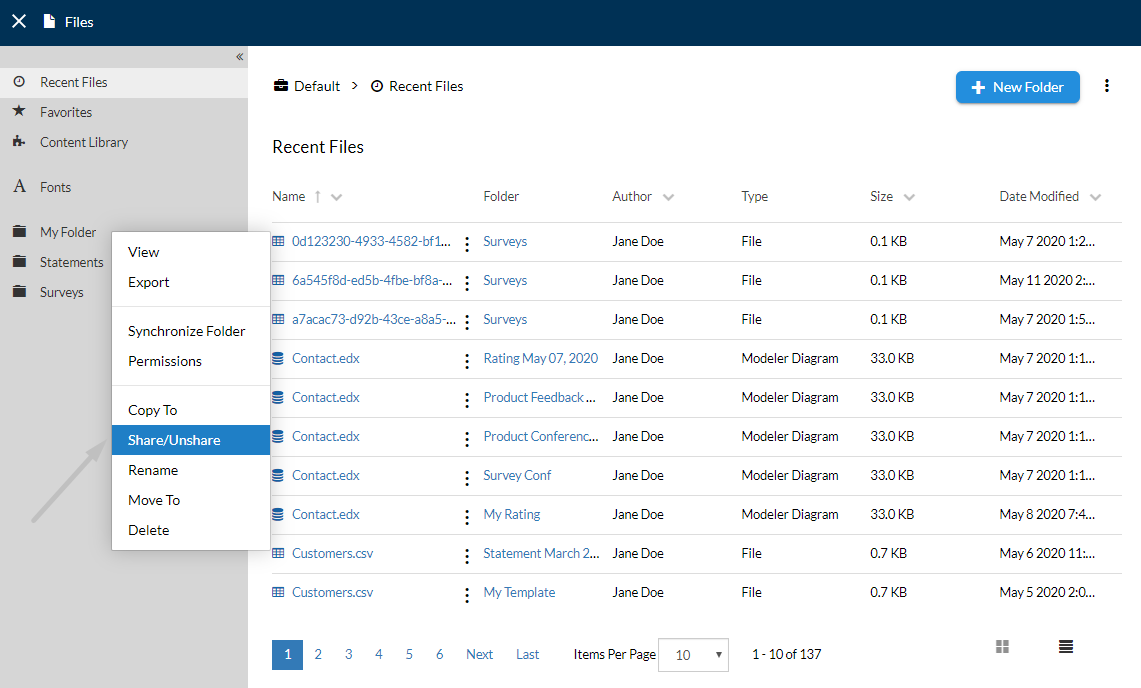
Follow the steps below to learn how to share a folder across the other workspaces of your organization.
- Starting from the Files Page, expand the Sidebar and right-click on the root-folder you want to share.
- Choose
Share\Unsharefrom the contextual menu. - Select
Shareto confirm your selection.
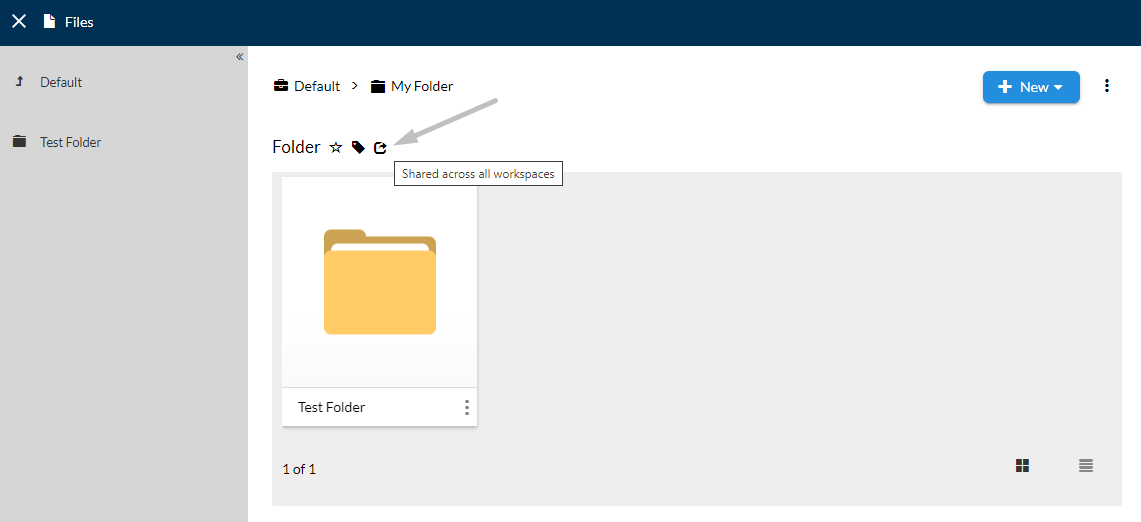
Your root-folder, together with all its assets, is now shared across all the workspaces created in the current organization. To verify, access another workspace and notice that the folder you just shared is visible from the other one.
You can identify if a folder is shared or not through its tags. Once a folder is shared, the Shared ( ) tag will be visible after access, next to its name.
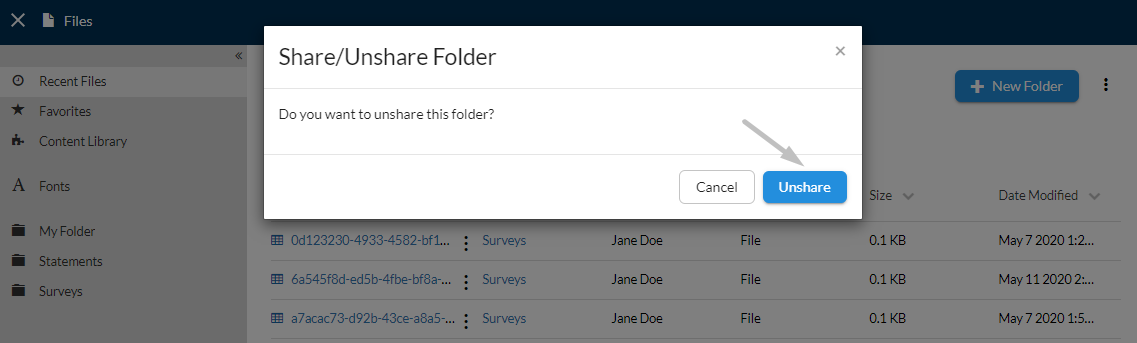
To stop sharing a folder, right-click on it within Sidebar and select the Share\Unshare option from the contextual menu and. Then, select Unshare to confirm the folder.
Creating Hidden Folders
In the Workspaces app, you can tag a folder as hidden folder. Once a folder is hidden, it will not be shown to users unless a user has specifically chosen to view hidden folders in their user profiles. Hidden folders are useful when you want to add content that you or any other user should not modify or for old folders with whom you don't want to clutter the interface by default. However, hidden folders will still be indexed by NorthStar CCM.
Follow the steps below to learn how to create a hidden folder.
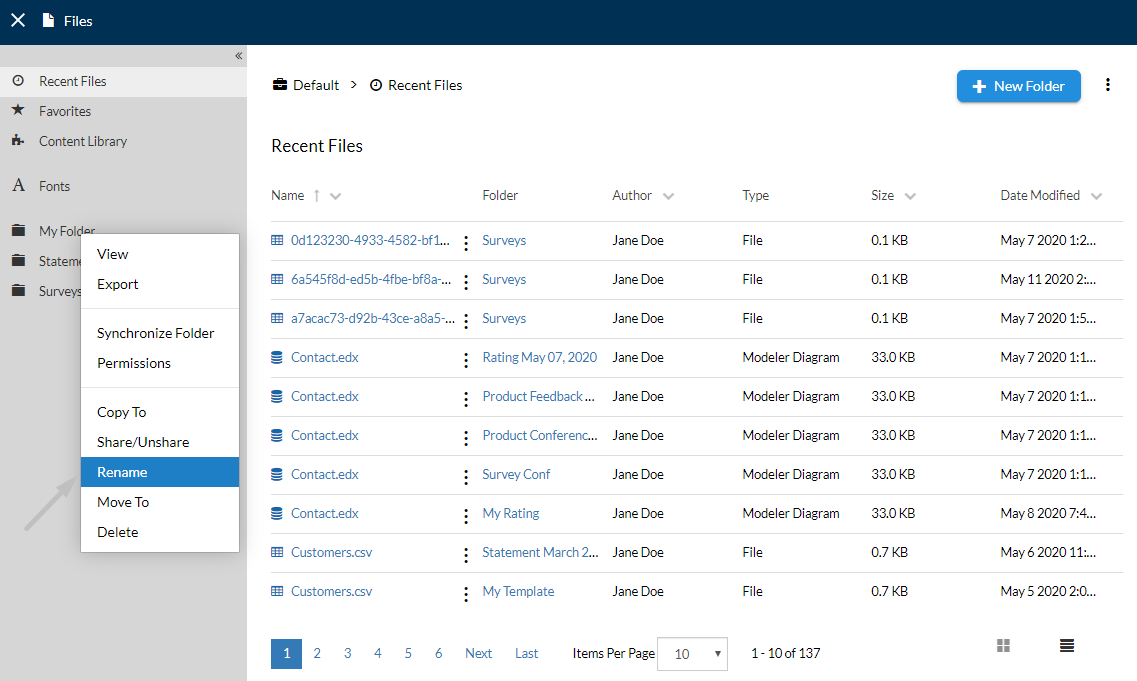
- Starting from the Files page, expand the Sidebar and right-click on the folder you want to mark as hidden.
- Choose
Renamefrom the contextual menu. - All folders that starts with the
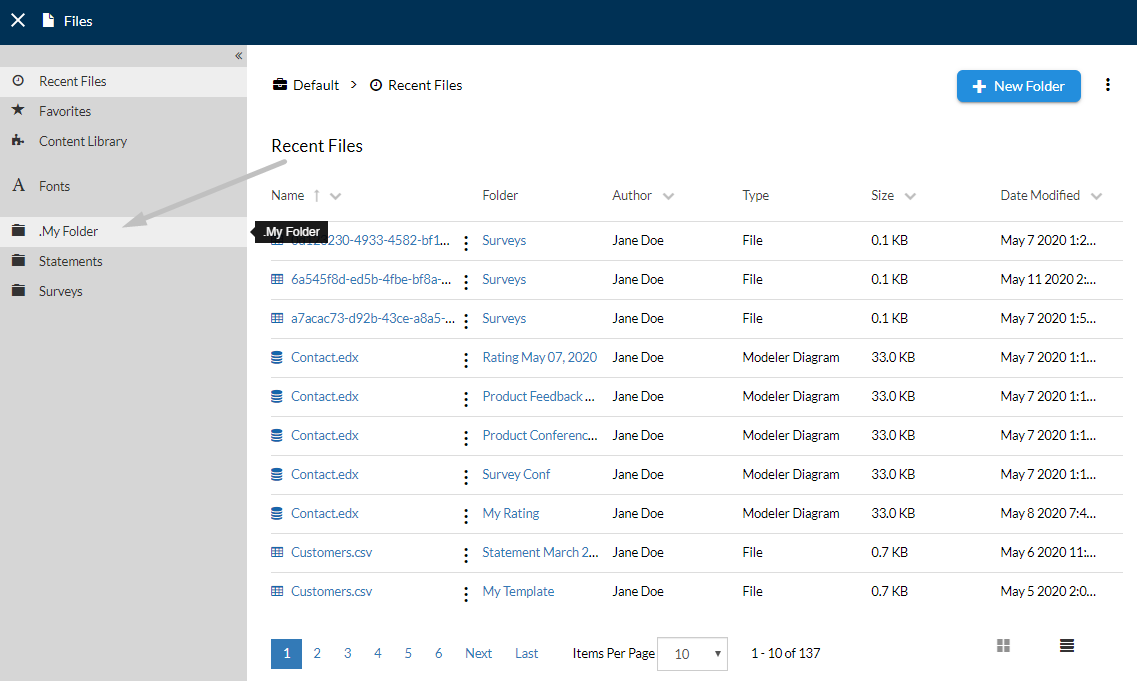
.sign will be hidden, by default. In theFolder Namebox, enter the.character at the beginning of its name, then clickRename. For example,.Credit Order Letter.
Displaying Hidden Folders
Note
This feature is available only through Admin app. Therefore, you must have installed the Admin app.
Follow the steps below to learn how to display hidden folders in your workspaces.
- Access the
Hometab in the sidebar of the Admin app. - Select the
Edit Accountbutton. - Navigate to the
Preferencestab under the Edit Account dialog. - Enable the
Show hidden foldersoption, then selectSave. - Go back to your workspace and notice that the hidden folders are accessible in the Files's sidebar with a dot in front of their names.
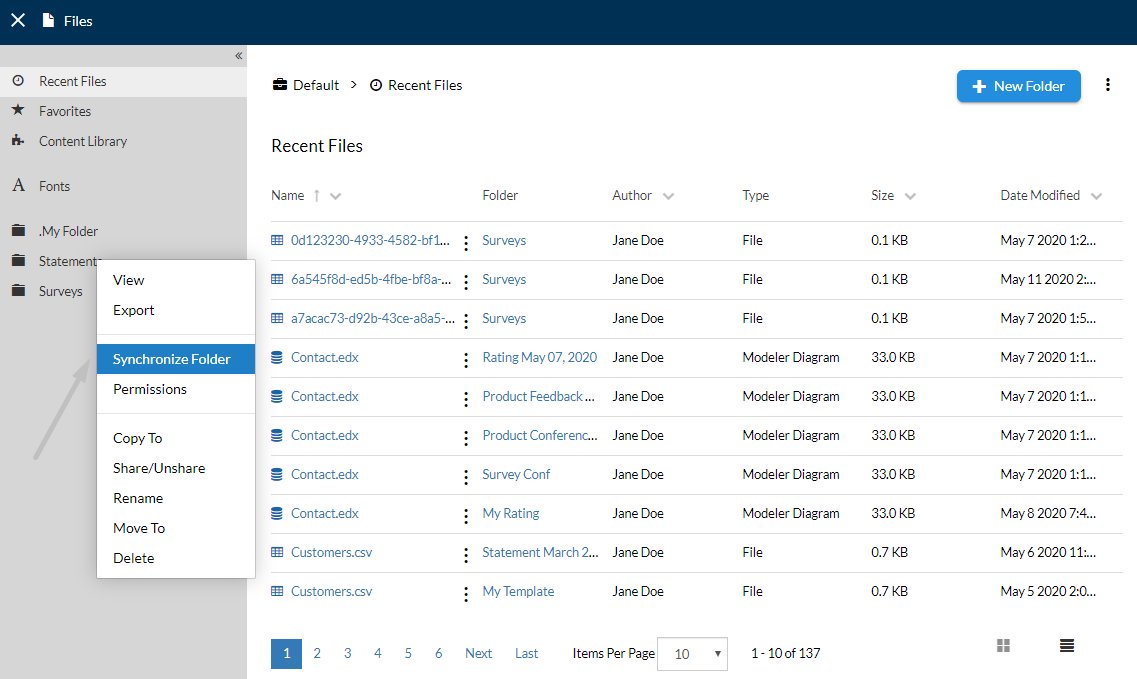
Contextual Folders Options
Follow the steps below to explore the options from the contextual menu of a folder.
- Access the Workspace that contains the folder you need.
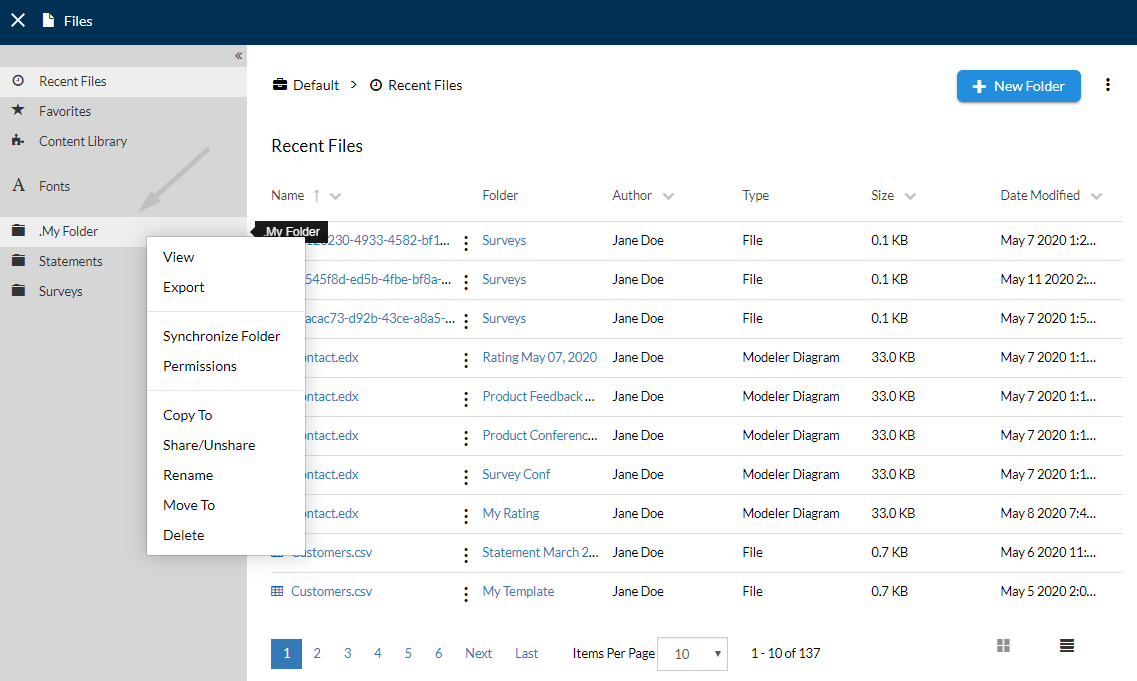
- Right-click on the folder you intend to access its contextual menu.
- From the contextual menu displayed, you can select the following options, according to your needs:
- View: Use the
Viewbutton to be redirected to the Folder's Content page, from where you can see a more detailed view of the files within. - Export: Use the
Exportbutton to download the ZIP file of the folder with all its assets to your computer. - Synchronize Folder: Use the
Synchronize Folderbutton to configure a folder to sync with the Amazon Web Service. For more details, please visit the Synchronizing Folders section of the same guide. - Permissions: Use the
Permissionsbutton to apply permissions for an individual folder in your workspace. For more details, please visit the Setting Folder Permissions section of the same guide. - Copy To: Use the
Copy Tobutton to copy the folder to another destination. Optionally, you can change the name of the copied folder. - Share/Unshare: Use the
Share/Unsharebutton to share the folder across different workspaces. Form more details, please visit the Sharing Folders across Multiple Workspaces section of the same guide. - Rename: Use the
Renamebutton to change the name of the folder. Using this option you can create hidden folders. For more details, please visit the Creating Hidden Folders section of the same guide. - Move To: Use the
Move Tobutton to change the destination of the folder. Optionally, you can change the name of the moved folder. - Delete: Use the
Deletebutton to permanently remove the folder from the list.
- View: Use the
Setting Folder Permissions
Follow the steps below to learn how to configure folder's permissions for users/groups in your organization.
- Starting from the Files page, identify the folder you intend to configure.
- Right-click on the folder's name and select
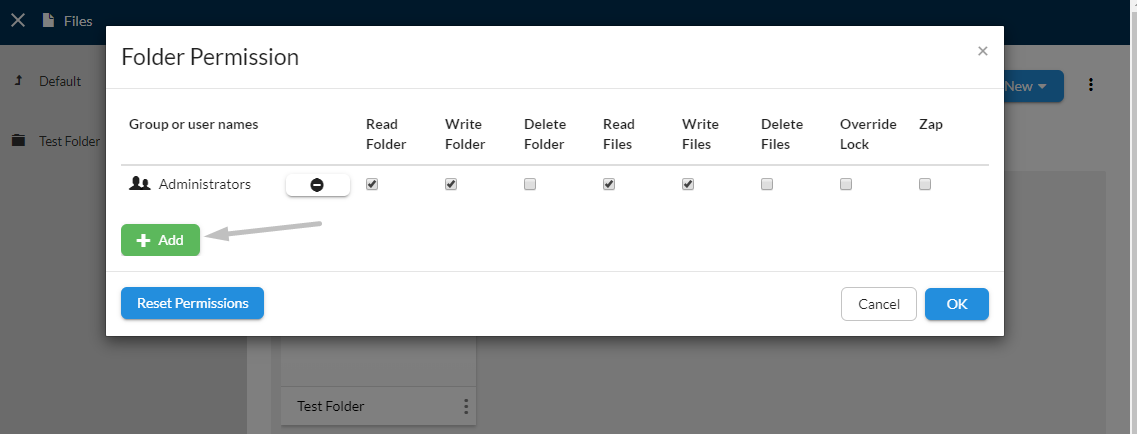
Permissionsfrom the contextual menu. - In the Folder Permissions dialog, select the
+ Addbutton and choose the user(s) or group(s) you might want to provide or deny permissions. - Once an option is selected (e.g. Administrators), tick in the boxes associated with each permission, as needed, such as read/write/delete files/folder, lock or zap.
- If you do not agree with some permissions that are already set, select
Reset Permissionsto clear all of them. - Once you're ready, select
OK.
Synchronizing Folders
Note
A reachable Amazon S3 connection is required in order to set up a synchronized folder in the NorthStar CCM Platform. To create a new connection, please visit the Amazon S3 connections section of the NorthStar CCM Admin app's documentation.
Follow the steps below to learn how to configure a folder to synchronize with the Amazon Web Service.
- When the Amazon connection is created, navigate to a workspace that contains the folder you want to synchronize.
- In the Files page, right-click on the folder, then select the
Synchronize Folderoption from the contextual menu. - Fill out the mandatory fields in the dialog:
- Choose the
Connectionyou want to use from the drop-down list. - Optionally, fill the
Amazon Pathfield, if you want to synchronize only one sub-folder of the Amazon bucket or copy the Amazon Callback URL for real-time synchronization configuration. Bidirectional synchronization: enable this option to keep the Amazon Folder on your MHC Drive and the one on the Amazon Drive in sync.
- Choose the
- Once you're ready, select the
Save and Synchronizeto start the synchronization process.
Importing Workspaces
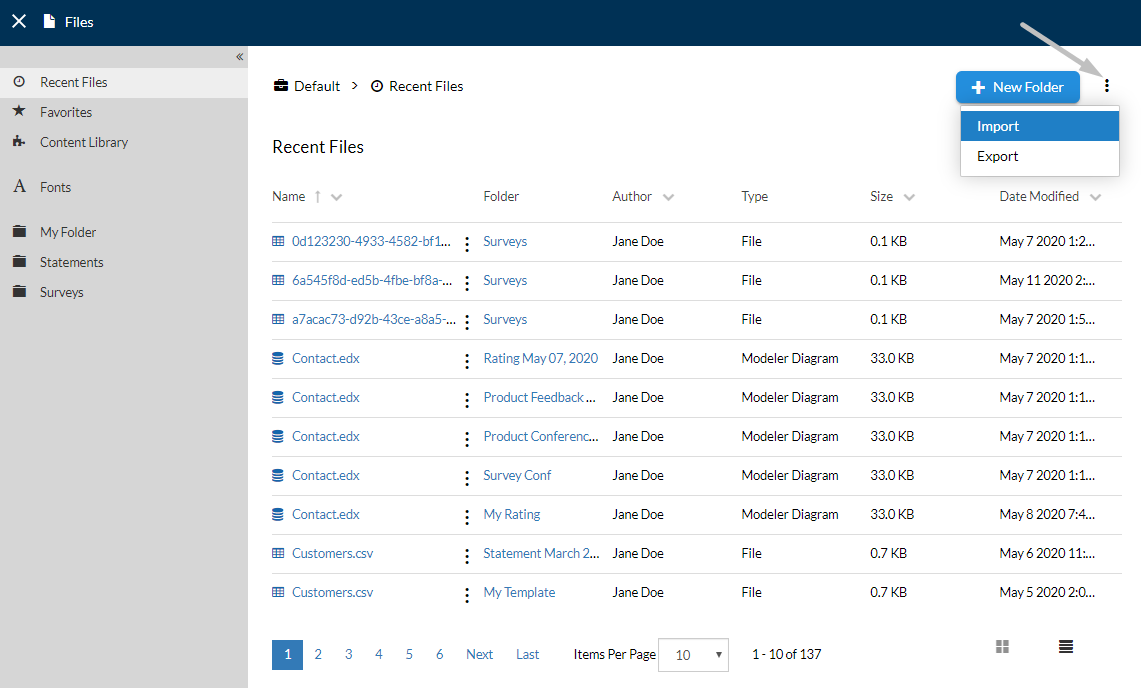
Workspaces provides the ability to import external folder archives to the Workspace and use their assets. Only ZIP archives can be imported. Follow the steps below to learn how to import a workspace to your organization.
- Starting from the Files Page, select the
More Action() button from the right-corner of the page. - Choose
Importfrom the contextual menu.- Select the
Choose Filebutton and browse for a ZIP file to upload as workspace in your organization. - Optionally, enter some information about the imported folder in the
Commentsbox. - Enable the
Resetoption if you want to clean up the destination workspace, where you will import the ZIP file. For example, assuming you have two workspaces: A and B. Firstly, you export the B workspace and import the same workspace (B) under A. In the importing process, you have the Reset option checked. Therefore, the A workspace will contains only the B's assets, because the A's assets were cleaned up.
- Select the
- Once you're ready, select
Import.
Exporting Workspaces
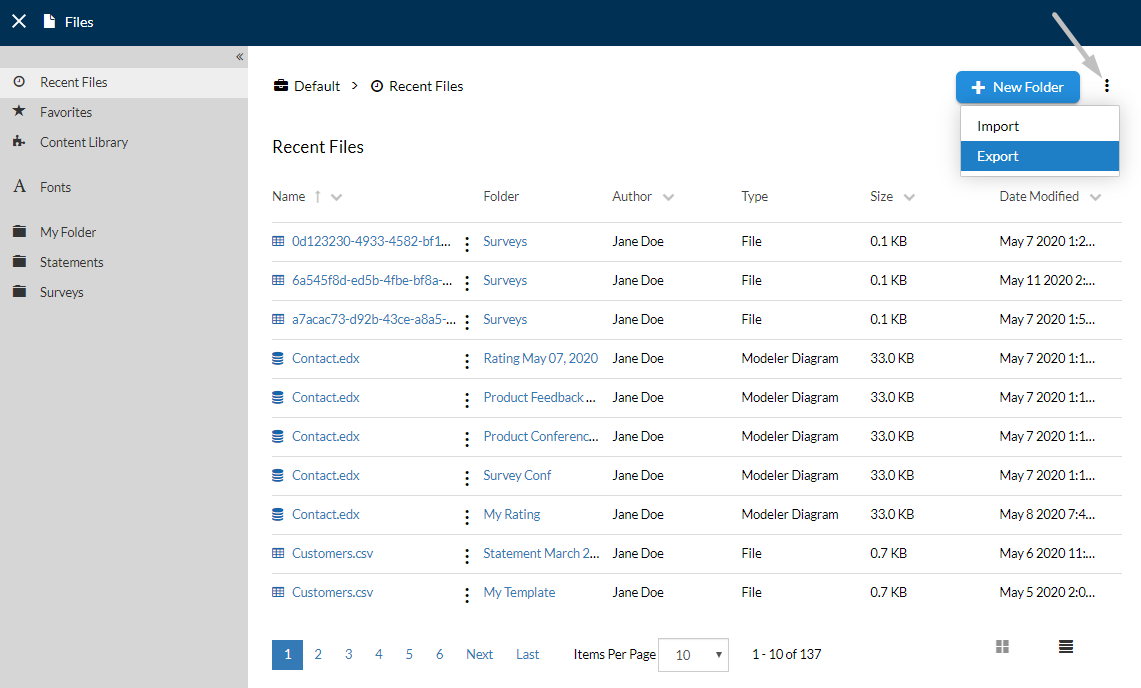
Follow the steps below to learn how to export a workspace of your organization.
- Starting from the Files Page, select the
More Action() button from the right-corner of the page. - Choose
Exportfrom the contextual menu. - A zip file containing all the assets within the workspace will be downloaded on your local machine.
Jobs
In NorthStar CCM Workspaces, we use the term job to refer to a communication workflow that is executing or has finished executing. There are some key distinctions between a workflow at design time and a workflow at runtime (i.e. a job).
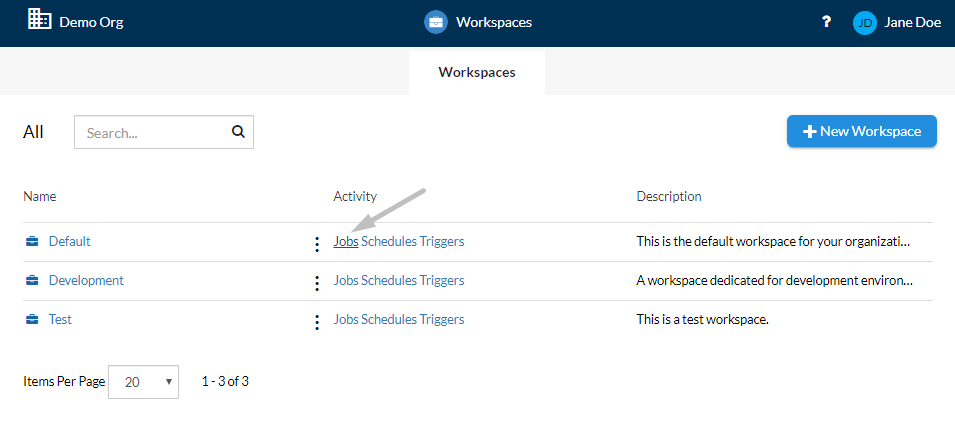
- By selecting
Jobsunder the Activity column, the app will provide a filtered view of all the jobs that have been started earlier. On this page, you can view information about existing jobs, including the job's name, the project where it belongs, the user name that has started the job, the associated workflow, the start and the end timestamp of the running process, its duration or its status.
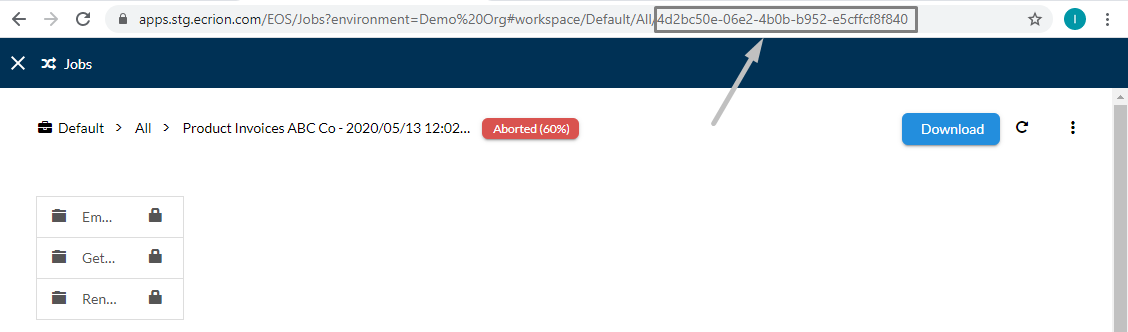
Because you can run the same workflow multiple times, each job will be assigned its own unique identifier called the Job ID. You can find it under the URL of the Job Details page.
Each job can have multiple statuses:
- Running: a job that is in the process of executing the workflow steps;
- Successful: a job that has executed all the steps defined in the workflow without any errors;
- Failed: a job that did not reached until the end of the workflow. Accessing the Job Details can provide further log information for additional troubleshooting.
Each job creates a corresponding folder for its outputs within the Jobs page. Within that folder, each step also creates its own subfolder to store its outputs, if any. Each step, as it executes, will use the outputs from the previous step as its input. There is one exception to this rule: if the previous step is of a type which does not by its nature produce any output within a project's workflow (e.g. Copy to FTP), then it will simply be ignored and the step before it will be used instead.
Sorting Jobs
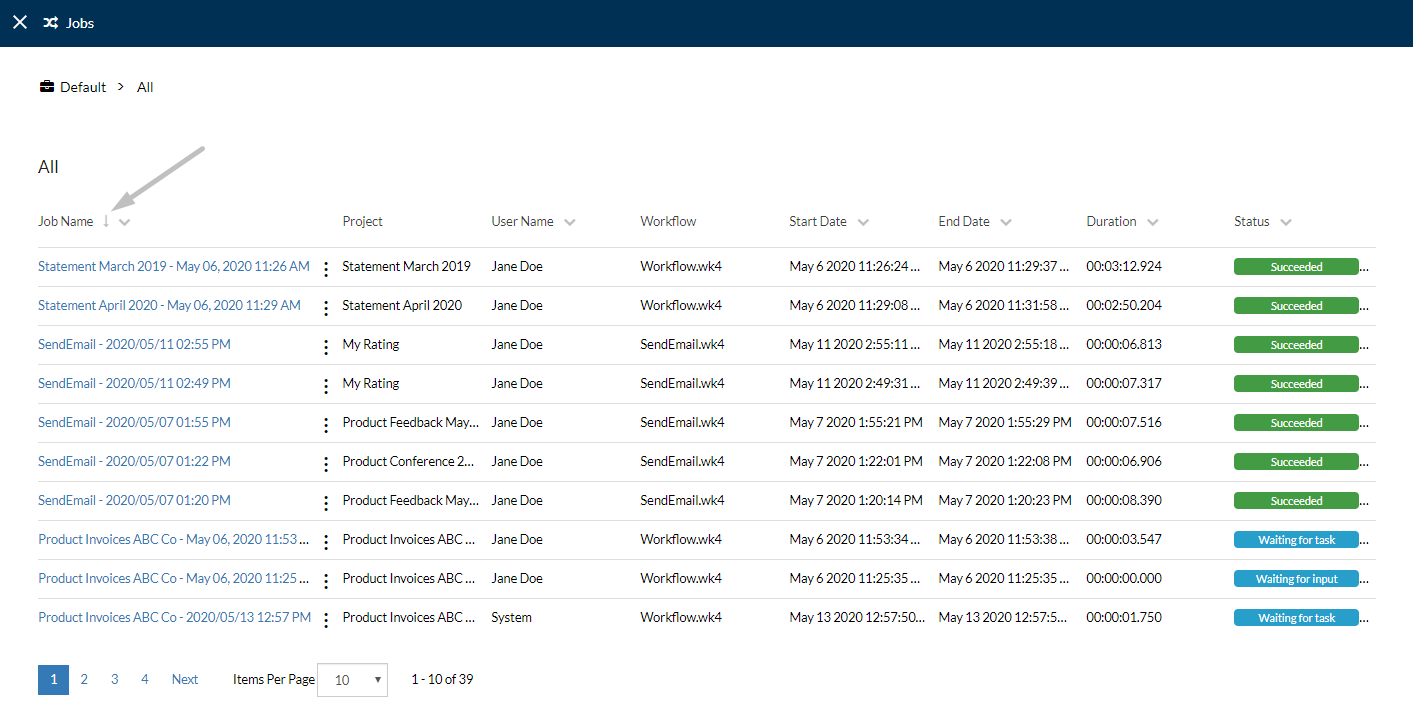
Starting from the Jobs page, you can sort the entities listed within by using the available column-headers, such as Job Name, User Name, Start Date, End Date, Duration or Status.
- To sort the jobs information displayed, select a column-header (e.g. Job Name) and the list will sort the results in ascending ( ) or descending ( ) order.
- If multiple sorting criteria are applied, such as Job Name, Start Date, and Status, the high-priority is received by the last criteria set.
Accessing Job Details
Follow the steps below to learn how to access the detailed view of a job.
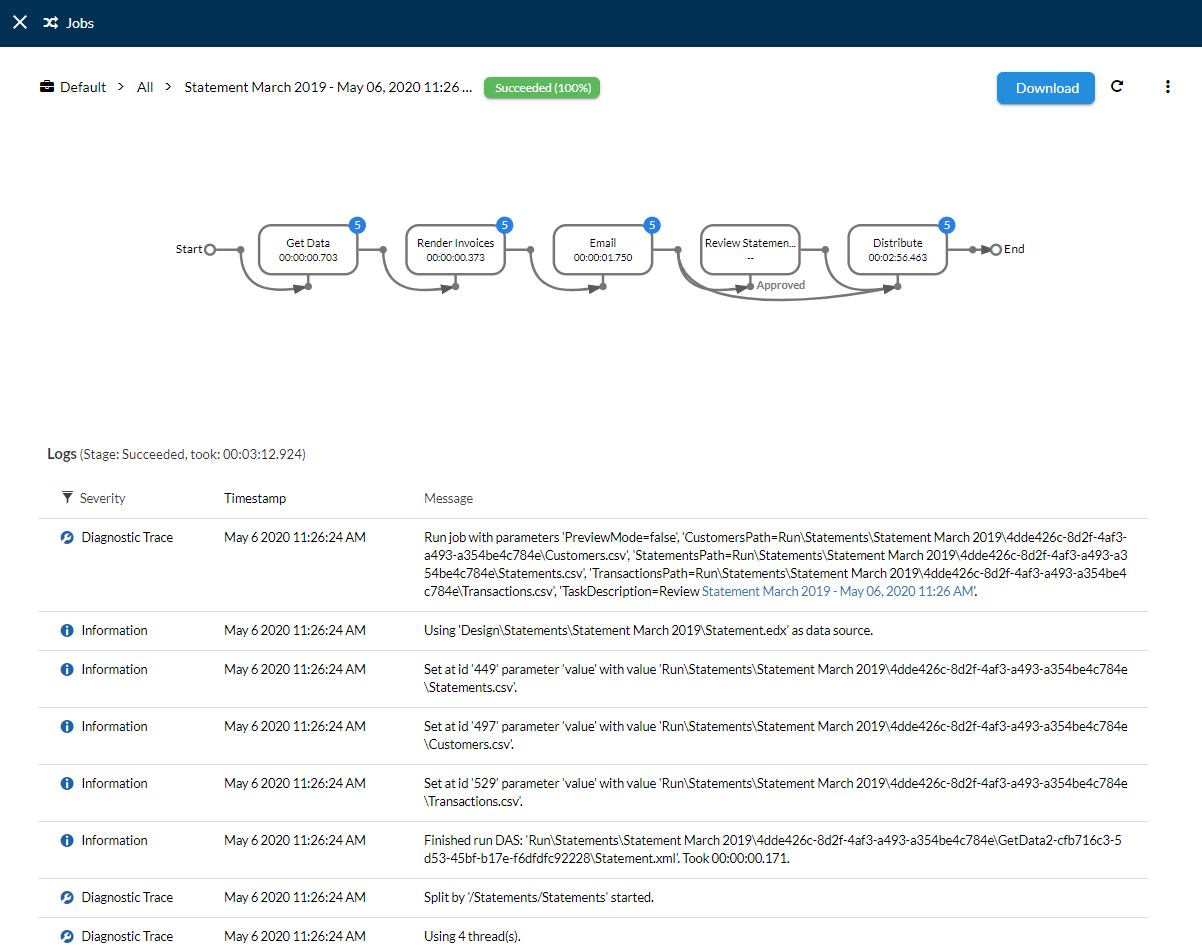
- Starting from the Files Page, identify the job you intend to view and click on it.
- The top section displays the execution flow. You can select a step to drill down and view the generated work items.
- The bottom section displays the execution log. Note that when you drill down, the execution log is filtered to show only the records for that step.
Contextual Jobs Options
Follow the steps below to explore the options from the contextual menu of a job.
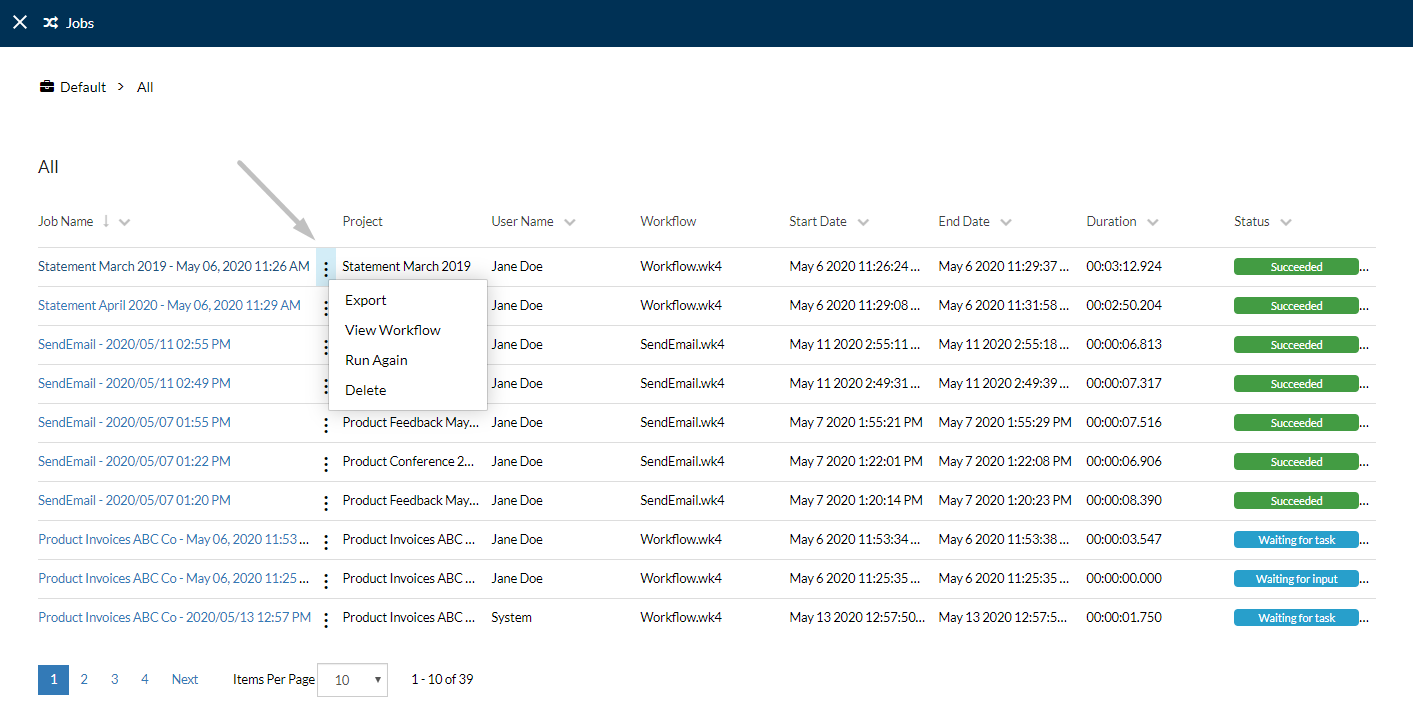
- Starting from the Jobs page, identify the job that you intend to edit.
- Select the
More Actions() button of a job from the Page Content. - From the contextual menu displayed, you can select the following options, according to your needs:
- Export: Use the
Exportbutton to create a ZIP file with all the files generated during the job execution. This includes data files also. - View Workflow: Use the
View Workflowbutton to open the Workflow preview of the current job. - Run Again: Use the
Run Againbutton to restart execution of the current job. - Delete: Use the
Deletebutton to permanently remove the job from the list.
- Export: Use the
Schedules
As well as for communications, environment administrators have the ability to configure the Workspaces app to start specific workflows at a certain time. The workflow jobs can be scheduled to run hourly, daily, weekly, monthly, or every number of minutes, on certain days of the week, several times a month, etc.
- By selecting
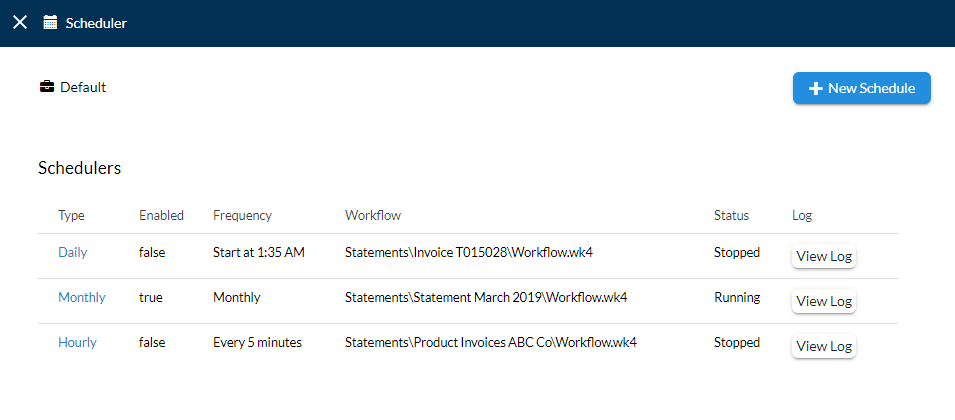
Schedulesunder the Activity column, the app will provide a filtered view of all the schedulers that have been set earlier. On this page, you can either view information about existing schedulers, including the schedule's type, its enabled status, its frequency, the workflow of the project it belongs, its status of working and the log, or you can create new schedules.
Creating New Schedules
Follow the steps below to learn how to create a new schedule for a specific workflow in the organization.
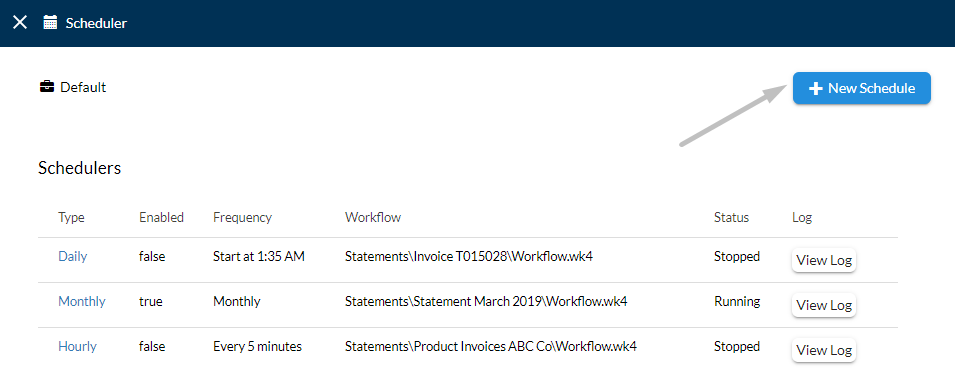
- Starting from the Schedules view, select the
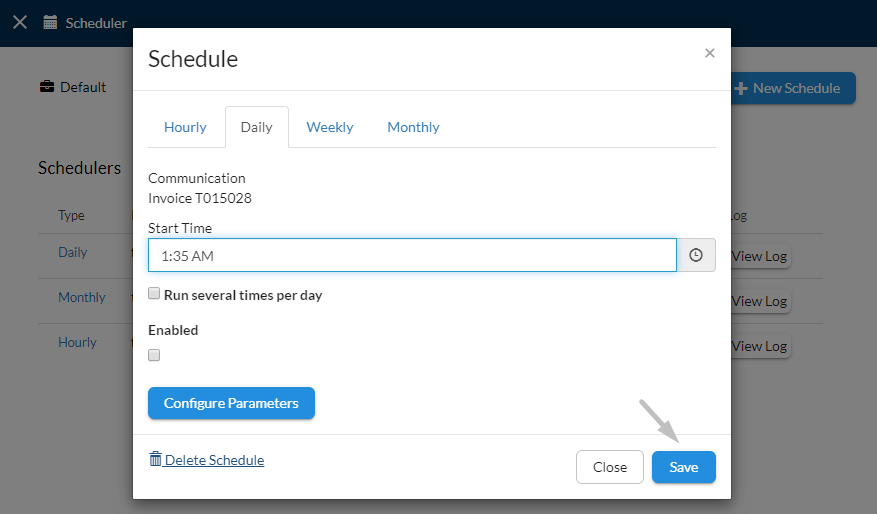
+ New Schedulebutton from the right-corner of the page. - In the Schedule dialog, select the appropriate options to set up your schedule:
- Choose the time frame you would like to schedule the project for, by selecting the available tabs (Hourly, Daily, Weekly or Monthly).
- Choose the workflow you intend to set a schedule for.
- Configure the timing of the schedule.
- Toggle on or off the
Enabledoption to activate/deactivate the schedule. - Select
Configure Parametersbutton to modify the already defined parameters(if exist) from the workflow that need to be set before the project runs.
- Once you're ready, click
Save.
Editing Schedules
Follow the steps below to learn how to edit an existing schedule.
- Starting from the Schedules page, click on the schedule you intend to edit.
- In the Schedule dialog, you can edit the time frame where your workflow will be run or update parameters.
- To delete a schedule, click on the
Delete Schedulebutton, at the bottom of the dialog. - Once you're ready, select
Saveto update the changes.
Viewing Schedule Log
Follow the steps below to learn how to access the log page of a schedule.
- Starting from the Schedules page, identify the schedule you intend to explore.
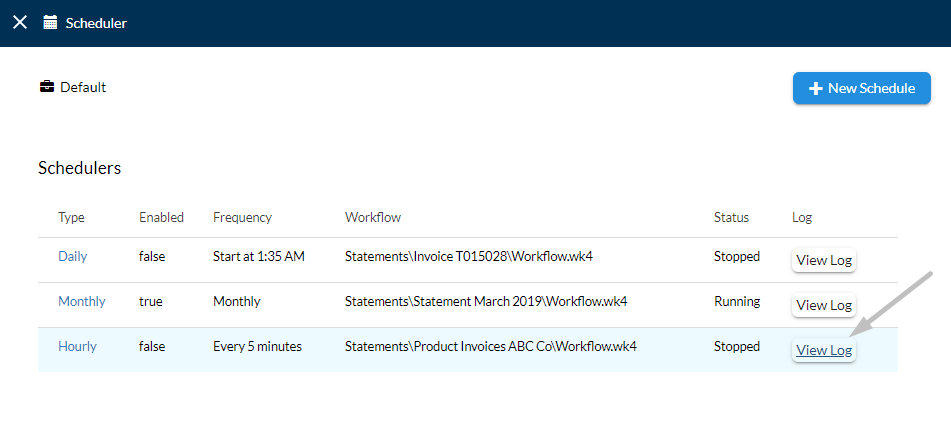
- Select
View Logcorresponding to the schedule you have identified.
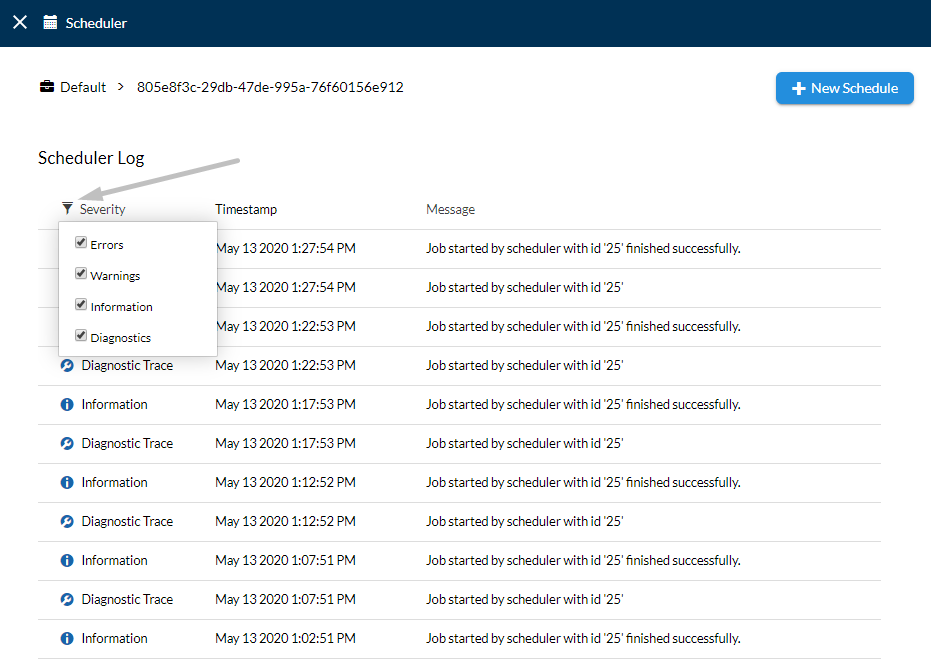
- A view will allow you to see the log messages for a specific scheduler, along with information about the severity of the log message (e.g. Information, Diagnostic, Errors and Warnings), the timestamp when it is registered and the message itself. The Severity messages can be filtered from the
Activity Filter( ) button.
Triggers
From Triggers, you can configure NorthStar CCM Workspaces to start specific jobs as an automatic response to an action. Currently, the supported methods for triggering jobs are Hot Folders and Microsoft Message Queues (MSMQ).
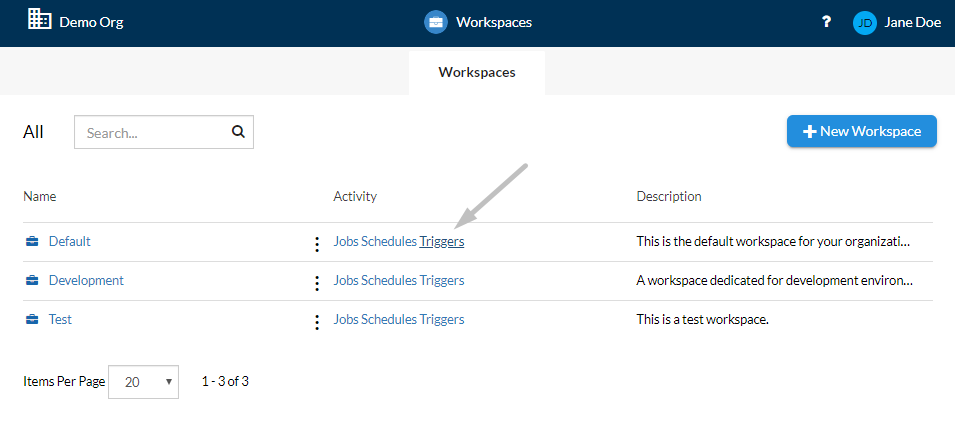
- By selecting
Triggersunder the Activity column, the app will provide a filtered view of all the triggers that have been set earlier. On this page, you can either view information about existing triggers, including the trigger's type, its enabled status, the monitored location, the workflow of the project it belongs, its status of working and the log, or you can create new triggers.
Creating New Triggers
In Workspaces, the supported methods for triggering workflows are Hot Folders and Microsoft Message Queues (MSMQ).
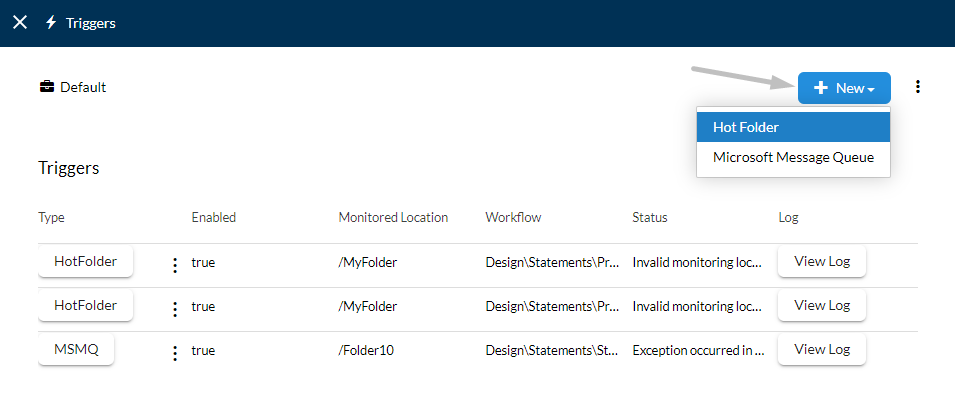
Configuring Hot Folders
A hot folder trigger monitors a specific folder looking for a user configured file pattern, e.g. all files matching "*.XML". Each time a file matching the pattern is dropped into the folder, NorthStar CCM picks it up, removes it from the folder and runs a workflow using it as input.
The following parameters need to be configured:
| Path | Provide the path of the folder. |
| Hot Folder Type | Select the Hot Folder type; Machine Physical Folder, SFTP Folder. |
| SFTP Connections | If the Hot Folder type will be an SFTP Folder, select the connection to use. To learn how to create a new connection visit creating SFTP connections. |
| File Pattern | Provide the file pattern of the data source file that NorthStar CCM should be monitoring the folder for. You can use wild cards like ' * ' to make the pattern more generic. |
| Workflow | Select the Choose File button and navigate for the workflow that should be run when a file is found. |
| Pooling Interval | The number of seconds between 2 consecutive attempts to check for new files. |
| Configure Parameters | Configure the parameters (if any) from the workflow that need to be set before it runs. |
Configuring Microsoft Message Queues
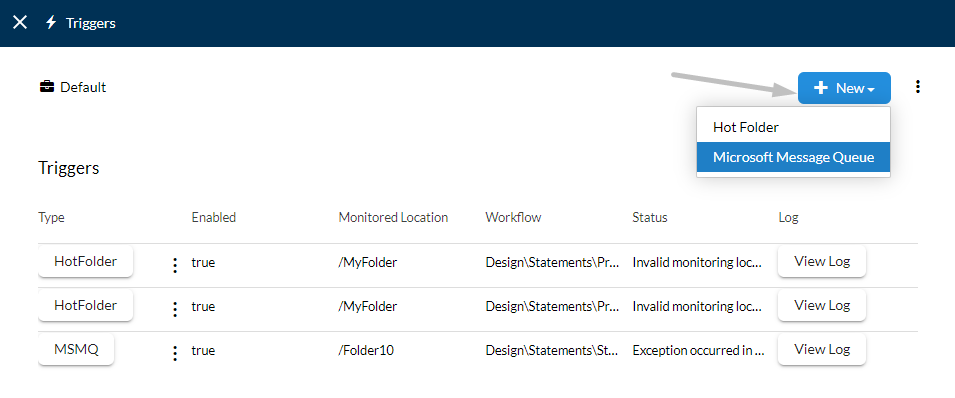
An MSMQ Trigger monitors the Microsoft Message Queue. Each time an entry is added, the Workspaces app will parse it using either a binary or XML formatter and use the result as the input. The formatter to use is specified by the user when creating or editing the trigger.
The following parameters need to be configured:
| Path | Provide the path of the MSMQ. |
| Formatter Type | Choose the Formatter Type to be used; BinaryFormatter, XmlFormatter. |
| Workflow | Select the Choose File button and navigate for the workflow that should be run when a file is found. |
| Pooling Interval | The number of seconds between 2 consecutive attempts to check for new files. |
| Configure Parameters | Configure the parameters (if any) from the workflow that need to be set before it runs. |
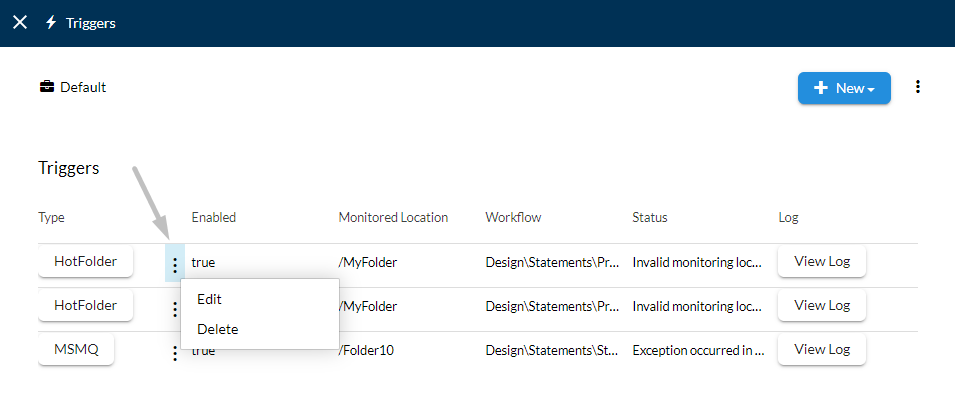
Contextual Triggers Options
Follow the steps below to explore the options from the contextual menu of a trigger.
- Starting from the Triggers page, identify the trigger that you intend to edit.
- Select the
More Actions() button of a trigger from the Page Content. - From the contextual menu displayed, you can select the following options, according to your needs:
- Edit: Use the
Editbutton to be change the properties of the trigger. - Delete: Use the
Deletebutton to permanently remove the trigger from the list.
- Edit: Use the
Viewing Trigger Options
Follow the steps below to learn how to access the log page of a trigger.
- Starting from the Triggers page, identify the trigger you intend to explore.
- Select
View Logcorresponding to the trigger you have identified.
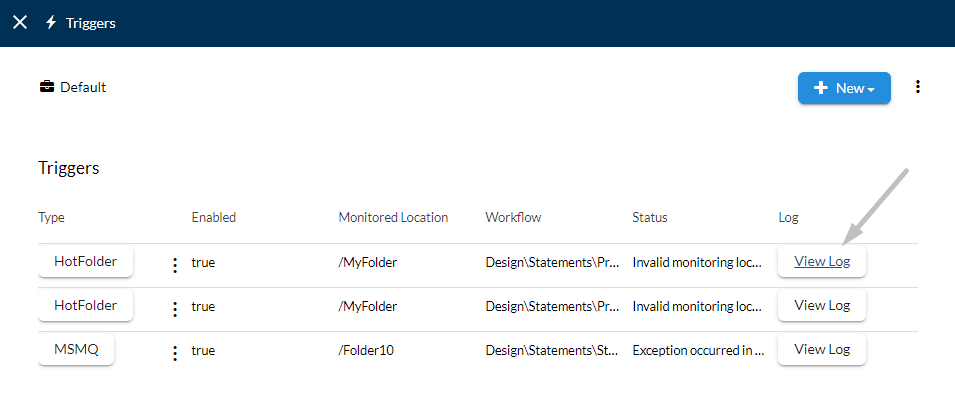
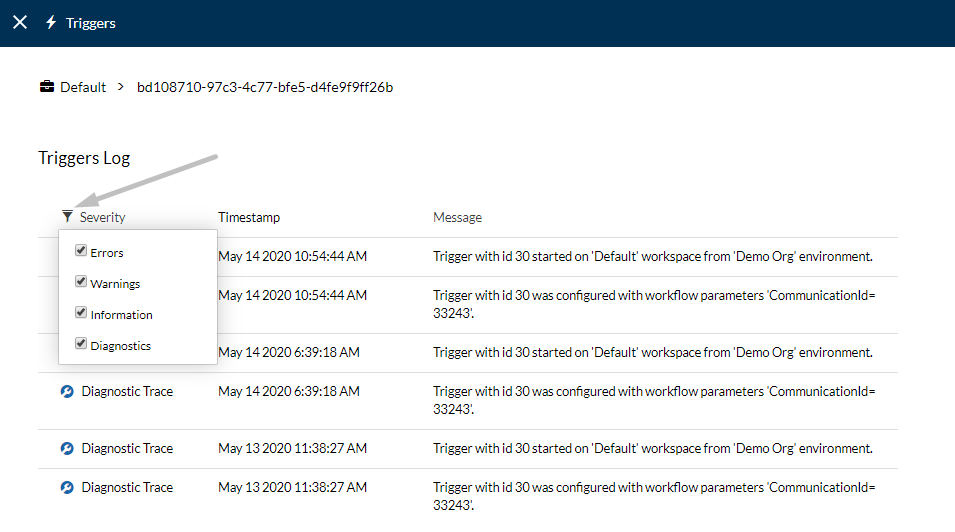
- A view will allow you to see the log messages for a specific trigger, along with information about the severity of the log message (e.g. Information, Diagnostic, Errors and Warnings), the timestamp when it is registered and the message itself. The Severity messages can be filtered from the
Activity Filter( ) button.