Installation Guide
Installer File
Download the latest version NorthStar CCM Essentials (also called MHC Create) from the MHC Community Portal Latest Release Page (login required).
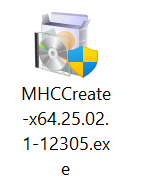
The installation files are named according to the version of the product. Generally, the setup name has the following structure:
Product Name - Architecture - Build Version - Build Number
Installing on Linux?
This guide covers installing NorthStar CCM Essentials on Windows machine. For instructions on installing Essentials on a linux machine, refer to Linux Installation Guide.
Installing on Multiple Servers?
This guide covers installing NorthStar CCM to a single machine or server. For more information on installing NorthStar CCM to multiple servers, refer to the Multi-Server Installation Guide.
Installation Steps
To open the installation wizard, double-click on the .exe file and wait for the Setup to initialize:
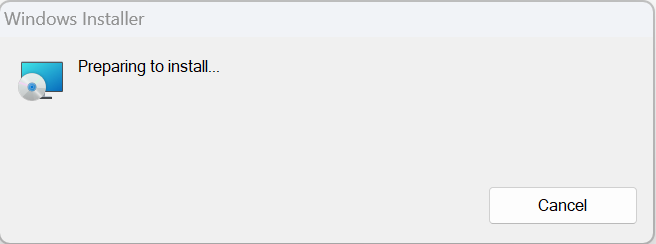
When the setup finished preparing the install, the Welcome Screen will appear. Follow the steps described below to complete the installation.
Welcome Screen
The welcome screen provides details on what product is about to be installed on your machine, as well as two options, to revert changes or to proceed with the installation of the MHC Create software.
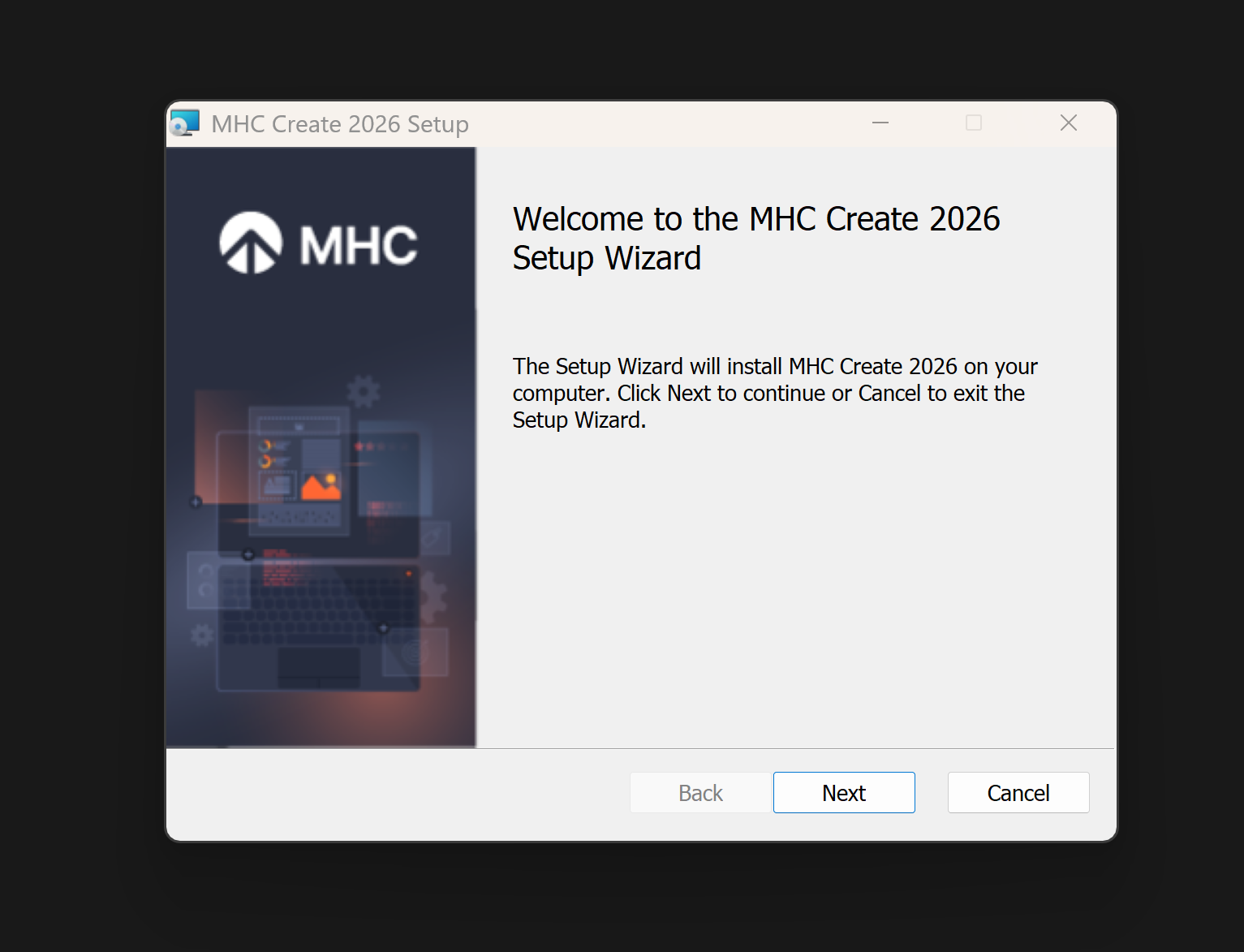
If you wish to cancel the installation, then press the Cancel button.
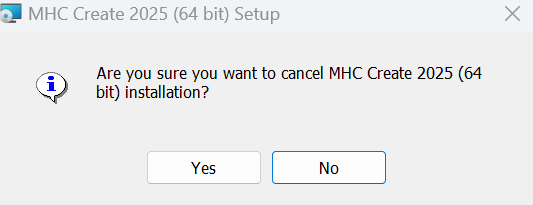
You will be prompted to confirm your decision, in order to prevent accidental cancellation.
To proceed with the installation, select the Next button, located in the bottom region of the window.
End-User Agreement
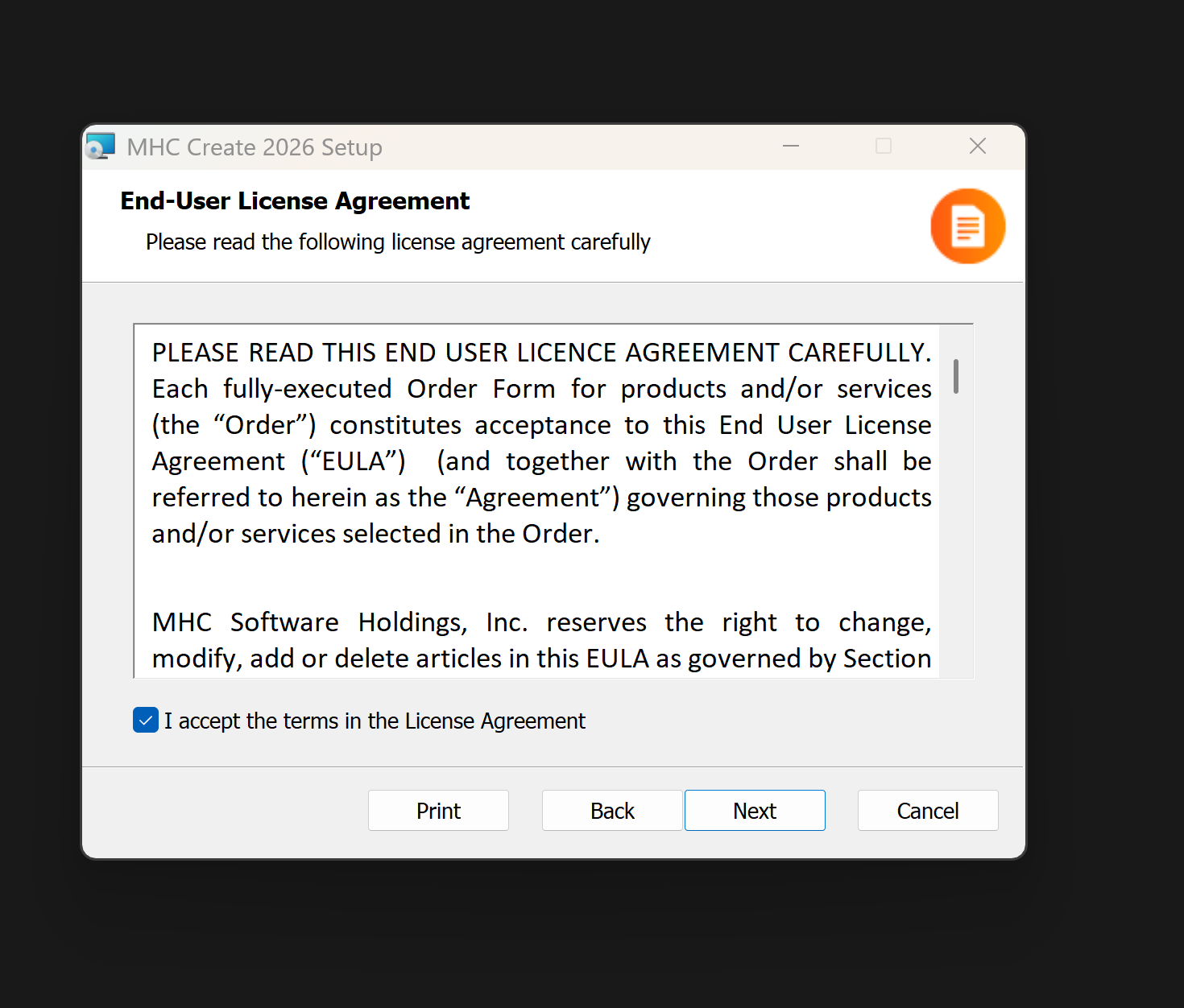
In order to continue with the installation of MHC Create, you will need to carefully read the terms and conditions for this software.
Afterwards, check the “I accept the terms in the License Agreement” checkbox and click Next.
Destination Folder
This step in the Setup Wizard offers the possibility of setting up the location where the MHC Create software will be installed. By default, Essentials will be installed at: C:\Program Files\MHC Software\MHC Create 2025 (64 bit)\Create.
To change the default path, select the Change button on the middle-left side of the window and provide a new destination folder for the MHC Create installation.
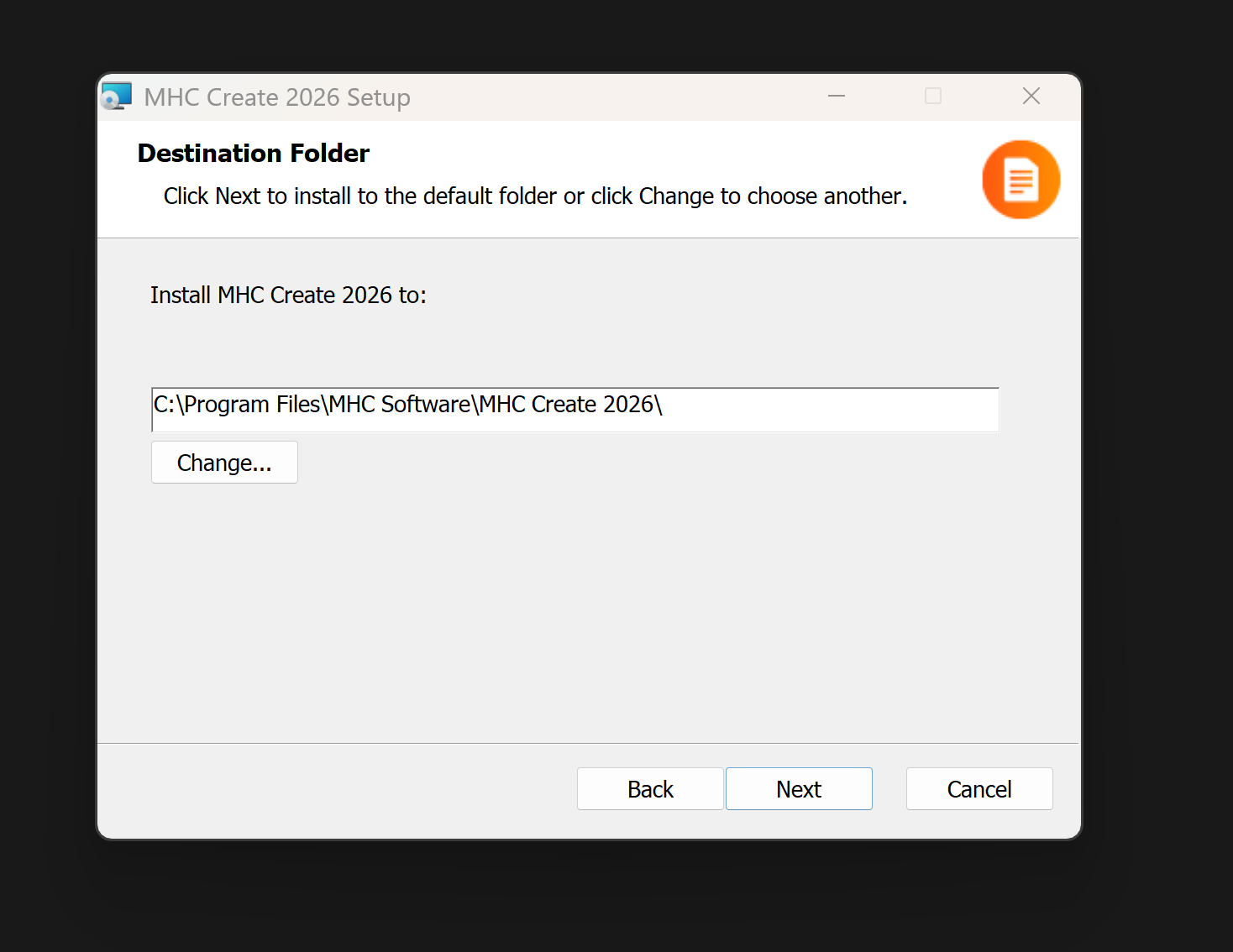
Once you have the folder set, select the Next button to continue with the installation.
Product Features Selection
MHC Create provides a suite of components which can be chosen during this step of installation. Notice that each component is provided with a short description of its functionality.
By default, all components are selected. You can decline the installation of a component by de-selecting the associated checkbox. Not selecting an option will render the user unable to finish the installation.
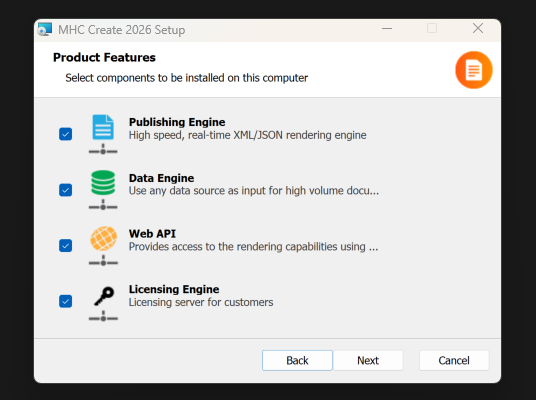
- Publishing Engine: provides high speed, real-time XML/JSON rending engine capabilities.
- Data Engine: allows using any data source as input for high volume document production.
- Web API: provides access to the rendering capabilities using a REST based API.
- Licensing Engine: provides licensing server management.
Once you select the needed products, select Next to proceed with the required settings configuration for each feature.
Configure Publishing Engine
The Publishing engine is a native server component that performs XML/JSON conversions to various output formats. It is the successor of the XF Rendering Server embedded in the new MHC Create line of products.
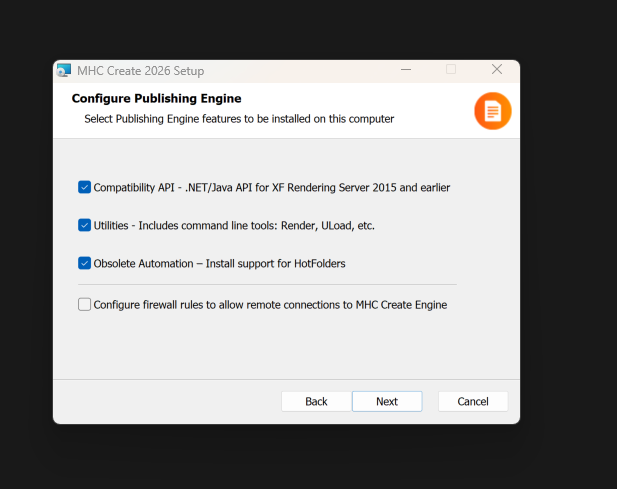
This step allows the user to choose several backwards-compatibility options:
- Enable compatibility with the obsolete EngageCX API v1.0 (i.e.: old Ultrascale Client)
- Includes additional utilities such as:
- Render.exe: a command line tool that allows users to render different input formats to the desired output;
- Uload.NET: a command line tool that allows users to measure the system’s performance under heavy load.
- Enable obsolete version of Hot Folders automation.
Additionally, users can enable firewall rules to allow incoming remote requests. Enable this option only if the Publishing Engine component is deployed on a separate machine.
Once you select the needed features, select Next to proceed to the next step.
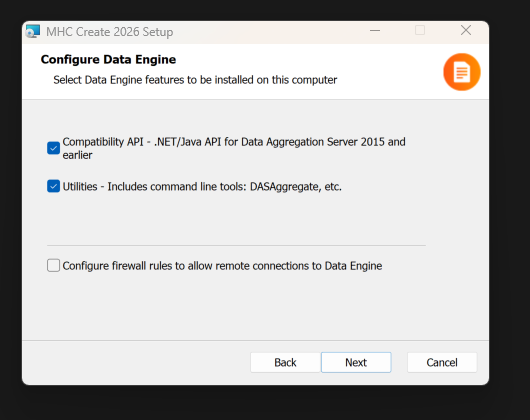
Configure Data Engine
The Data engine is a native server component that performs data aggregation from multiple data sources (XML, CSV, Relational databases, etc.). It is used in conjunction with the Publishing engine in order to create various communications from different sources. It is the successor of the Data Aggregation Server product and it is embedded in the new MHC line of products.
This step also provides the user with several backward-compatibility options:
- Enable compatibility to the obsolete EngageCX API v1.0 (i.e.: old Ultrascale Client)
- Includes additional utilities such as:
- DASAggregate.NET.exe: an application that can process .dax documents through command line.
- Enable obsolete version of Hot Folders automation.
Additionally, users can enable firewall rules to allow incoming remote requests. Notice that this option should remain un-checked for Single Instance installation.
Once you select the needed features, select Next to proceed to the next step.
Web API
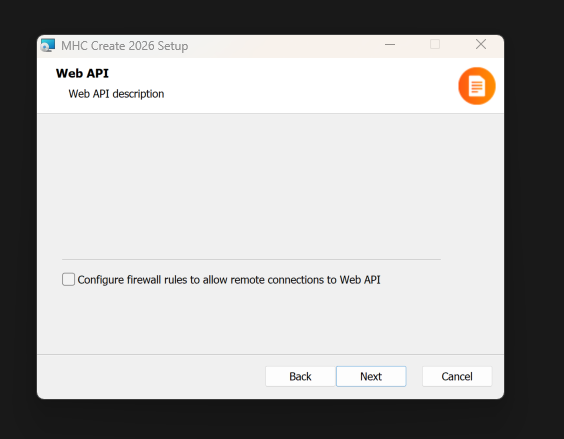
The Web API provides access to the new REST based API that allows producing of documents in high volumes.
Additionally, users can enable firewall rules to allow incoming remote requests. Notice that this option should remain un-checked for Single Instance installation.
Configure Licensing Server
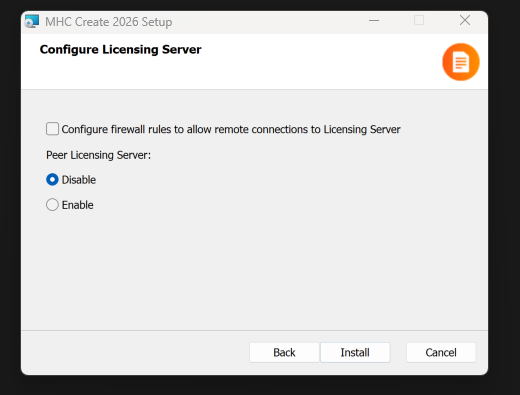
The Licensing Server allows system administrators to install and manage all MHC Create Product keys.
This step enables the user to add firewall rules to allow incoming remote requests.
In MHC Create, you can choose to install the Licensing Engine component on a single machine, or distribute it on multiple machines in a high availability scenario. The instructions below assume that you will be installing one Licensing Engine component on one server. This will not require any additional configuration during the installation. By default, the Peer Licensing Server option will be disabled. Otherwise, make sure to check the Disable option, then select Next.
If you plan to enable dual licensing servers, see the Multi-Server Installation Guide.
Completed Setup Wizard
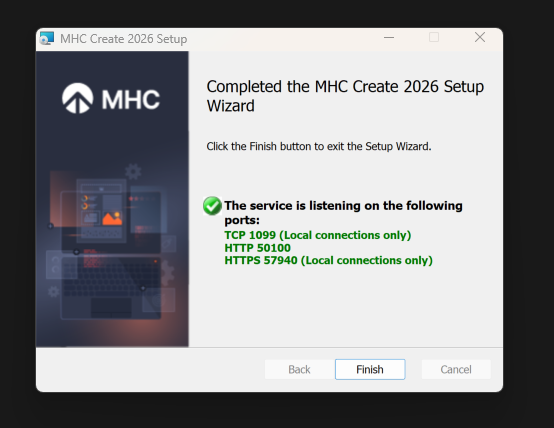
The final step of the Installation Wizard allows you to see the progress of the installation and, once completed, you can view the services and their corresponding ports.
Complete the installation by selecting the Finish button.
Multiple Workers Configuration
MHC Create provides the option to configure additional Publishing Engine components to enhance throughput. This setup is commonly referred to as “multiple workers deployment”. It involves distributing multiple Publishing Engine components across different servers, all pointing to a central Licensing Engine component or a Load Balancer connected to Licensing Engines.
Visit our Multiple Workers Configuration Guide for configuration instructions.
Post-Installation Configuration
HTTP(s) Calls
In the latest version, to enable the Publishing/Data Engines to make HTTP(s) calls, additional configuration is required.
Existing NorthStar CCM/EngageCX/Ecrion Users
If you are upgrading from an older version of Essentials/Create/Develop, follow these steps:
- Uninstall Previous Version: Uninstall the older version of Develop from the server.
- Update Configuration Folder Name: Navigate to C:\ProgramData\Ecrion and rename the “Ecrion” folder to “MHC Software”.
Whitelist for HTTP(s) Calls
-
Navigate to C:\ProgramData\MHC Software. Create a file named appSettings.json and add the following content:
{
        "http_dns_whitelist" :
        [
            {
                "address" : "*",
            }
        ]
    }
Note: The configuration above will whitelist all URLs.
-
Add the following parameter to the configuration files for both the Publishing Engine (i.e.: PublisherSvc.config) and Data Engine (i.e.: DASSvc.config):
AppSettingsPath=appsettings.json
Enable Folder Whitelist for Publishing Engine and Data Engine
This configuration allows you to whitelist specific folders by allowing the Publishing Engine and Data Engine to access them.
- Navigate to C:\Program Data\MHC Software.
- Open and edit the following files PublisherSvc.config and DASSvc.config.
-
Add the parameters below:
EnableFolderWhiteList=true | falseWhiteListedFolders=C:/path/folder1; D:/path/folder2
Note:
- If multiple folders are available, separate them by “;”
- If a parent folder is whitelisted, all the subfolders will have access.
Web API Service Config File
After the successful installation of the Essentials, you might need to update the Web API service config file. The Web API service provides access to render capabilities using REST API. This section describes how to update various setting configurations.
Note
While Web API configuration can be performed after installing Essentials, the installation process already generates a default configuration file. Users may use this file to either grab the API Key or make changes to HTTP certificates if needed. Note: API Keys are case sensitive and need to be lower case.
To update Web API related settings, please follow these steps:
- On the server where MHC Develop has been installed, navigate to C:\ProgramData\MHC Software
- Open webServerSettings.json in a text editor.
- Settings described below can be edited within the configuration file.
General Settings
AllowedHosts
- Type: string
- Value: "*"
- Description: Specifies which hosts are allowed to access the application. "*" allows all hosts.
JSON Example:
    {
    "AllowedHosts": "*"
    }
Authentication
BasicAuthenticationFilterConfig
- ApiKey: string
- Example: "0ae4af41-b530-4038-be82-a0fa8b3f1d55"
- Description: API key used for basic authentication.
JSON Example:
    {
    "BasicAuthenticationFilterConfig": {
            "ApiKey": "0ae4af41-b530-4038-be82-a0fa8b3f1d55"
        }
    }
HTTP Configuration
HttpConfig
- Address: string – IP address to bind HTTP server (e.g., "0.0.0.0")
- Port: integer – HTTP port for Publishing Engine (e.g., 50100)
HttpsConfig
- Address: string – IP address to bind HTTPS server
- Certificate: string – Certificate identifier
- Password: string – Password for the certificate
- Port: integer – HTTPS port for Publishing Engine (e.g., 50101)
Security Certificate Required for HTTPS
Note: In order to use HTTPS, you will need to set up a valid security certificate. In order to configure it, make sure to add the serial number of your security certificate under the “Certificate” parameter from above. For example, this information can be found under Windows Manage Computer Certificate pane from your server.
JSON Example:
    "KestrelConfig": {
            "HttpConfig": {
                "Address": "0.0.0.0",
                "Port": 50100
            },
        "HttpsConfig": {
            "Address": "0.0.0.0",
            "Certificate": "",
            "Password": "",
            "Port": 50101
        }
    }
Engine Configuration
DataEngineConfiguration
- Host: string – IP address of the Data Engine (e.g.,
"127.0.0.1") - Name: string – Engine name (e.g.,
"Data Engine") - Port: integer – Port number used to communicate with the Data Engine (e.g., 40021)
PublishingEngineConfiguration
- Host: string – IP address of the Publishing Engine
- Name: string – Engine name (e.g.,
"Publishing Engine") - Port: integer – Port used by the site to send data to the Publishing Engine
Note: If you are updating these configurations, please ensure that these matches the settings from the PublisherSvc.config and DASSvc.config.
JSON Example
"DataEngineConfiguration": {
    "Host": "127.0.0.1",
    "Name": "Data Engine",
    "Port": 40021
},
"PublishingEngineConfiguration": {
    "Host": "127.0.0.1",
    "Name": "Publishing Engine",
    "Port": 40017
},
Logging
- LogLevel.Default: string – Logging level description(e.g.,
"Information") - LogLevel.Microsoft.AspNetCore: string – Logging level for the Web API service (e.g.,
"Warning")
Note: The log files generated can be found by default at C:\ProgramData\MHC Software\Log\Engines.WebServer-YYYY-MM-DD.log
JSON Example
"Logging": {
    "LogLevel": {
        "Default": "Information",
        "Microsoft.AspNetCore": "Warning"
    }
}