Linux Installation
Linux Installation
This document provides instructions for installing, upgrading, and managing the NorthStar CCM Essentials Linux OS solution.
Assumptions
- This guide is compatible with NorthStar CCM Essentials Ruby 07 release or later;
- Support operating systems: Red Hat Enterprise Linux 9 (RHEL9) and other RHEL9-based distributions
System Requirements
Before installation, ensure the following dependencies are available
-
GNU lib 2.34
Check your version:
ldd –-version -
.NET Core 10.0
Installation instructions: Microsoft Docs
Verify installed versions:
dotnet --list-sdks
dotnet --list-runtimes
Solution Components
The setup consists of three components, each installed separately:
- Licensing Engine – Licensing server management;
- Publishing Engine – High-speed, real-time XML/JSON rendering engine;
- Engine Web Server – REST-based API access
Installation Locations
By default, all components are installed under:
/opt/MHC Software
Component-specific paths:
| Component name | Path |
|---|---|
| Licensing Engine | /opt/MHC Software/Licensing Server/Bin |
| Publishing Engine | /opt/MHC Software/Publishing Engine/Bin |
| Engine Web Server | /opt/MHC Software/Engines Web Server/Bin |
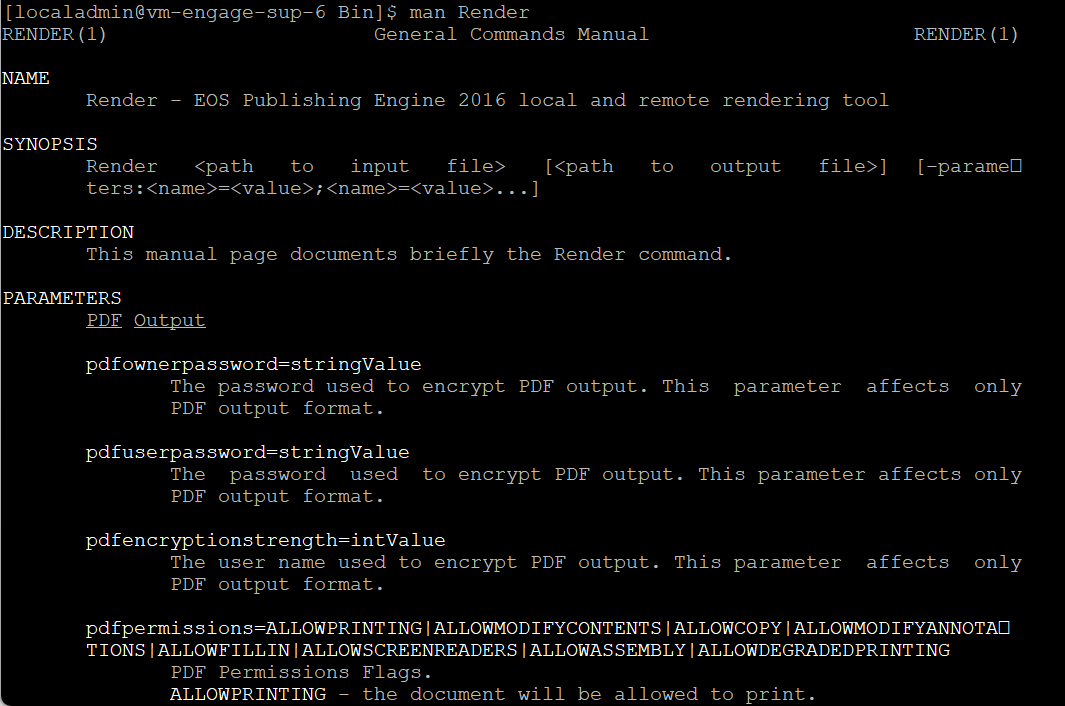
Additional scripts are stored in /usr/local/bin. To get help on all the above command and more use man.
For example: man Render
Installation Steps
Use yum or rpm to install each package:
Licensing Engine:
sudo yum install LicensingServer-<version>.x86_64.rpm
Publishing Engine:
sudo yum install PublishingEngine-<version>.x86_64.rpm
Engine Web Server:
sudo yum install EnginesWebServer-<version>.x86_64.rpm
Verifying Installation
Confirm packages are installed correctly:
- Using rpm:
rpm -q <package-name> - Using yum:
yum list installed <package-name>
Examples:
yum list installed PublishingEngine
yum list installed EnginesWebServer
yum list installed LicensingServer
Service Management
| Component | Service Name |
|---|---|
| Licensing Engine | licensing-server.service |
| Publishing Engine | ultrascaled |
| Engines Web Server | engines-web-server.service |
-
Check service status
systemctl status <licensing-server.service | ultrascaled | engines-web-server.service> -
Start service
sudo systemctl start <licensing-server.service | ultrascaled | engines-web-server.service> -
Stop service
sudo systemctl stop <licensing-server.service | ultrascaled | engines-web-server.service> -
Restart service
sudo systemctl restart <licensing-server.service | ultrascaled | engines-web-server.service>
Uninstallation
Use yum or rpm to uninstall each package:
sudo yum remove LicensingServer
sudo yum remove PublishingEngine
sudo yum remove EnginesWebServer
Upgrade from Previous Versions
If you are upgrading from older versions:
-
Previous releases included only two packages: Licensing Engine and Develop
In the latest release, the Develop Component is split into: Publishing Engine and Engine Web Server.
-
Installation path has changed:
- Old:
/opt/Ecrion - New:
/opt/MHC Software
Before installing, uninstalling the old version. Then, rename the old Ecrion folder to MHC Software to preserve licensing information and/or custom configuration files.
- Old:
Multi server Installation
The MHC solution supports scaling by deploying additional Publishing Engine components across multiple servers. This configuration—commonly referred to as a multiple-workers deployment—increases throughput by distributing processing tasks among several Publishing Engine instances.
This section outlines the required steps.
a. Setting up workers server
The Publishing Engine and Engine Web server components can be installed on servers separate from the Licensing component. To configure a worker server:
- Install the Publishing Engine component
- Install the Engine Web component
- Navigate to
/opt/MHC Software/Commonand openUDaemon.config -
Add the parameter below, replacing the placeholder with the IP address of the Licensing Engine server:
LicensingServerUrl=<Licensing_Engine_IP_Address> -
Save the configuration, and restart the MHC services.
- If you are deploying multiple worker servers, repeat these steps on each one.
b. Setting up licensing server
- a. Install the Licensing Engine component
- b. The Licensing Engine stores license information based on machine-specific identifiers. During installation, it determines whether it is running in a cloud environment or on a traditional server and selects the appropriate unique identifier accordingly.
- i. This mechanism is part of the system's security model. Any change to these identifiers can corrupt the license, so installing the Licensing Engine on a dynamic environment (e.g. Docker containers) it is recommended
- c. The Licensing Engine determines the unique identifier in the following order of priority, depending on your host server:
- i. Amazon Instance
- ii. Azure
- iii. MACAddress (Linux only)
- iv. ComputerGUID (when
SetComputerGUIDPriority=trueconfigured on the Licensing server config file) - v. ProcessorId
For additional clarification, please contact your MHC representative to discuss additional deployment options.
License Management
After the installation is completed, access the LicensingServerTools command that will help you install and manage the product keys compatible with Essentials release. The tool location is /opt/MHC Software/Publishing Engine/Bin
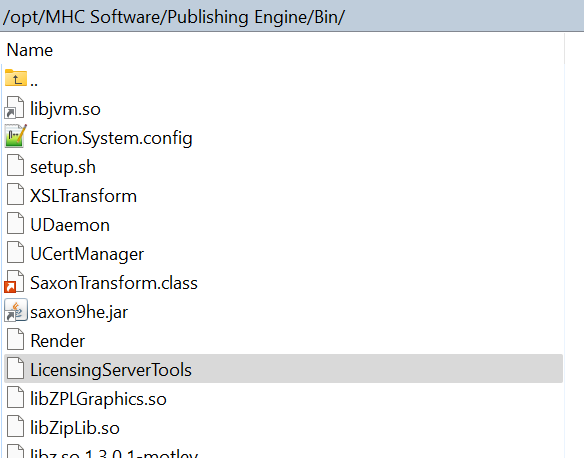
The Licensing Server tool uses a unified command line that is presented below. Run the command below to see the operations this tool provides.
LicensingServerTools -help
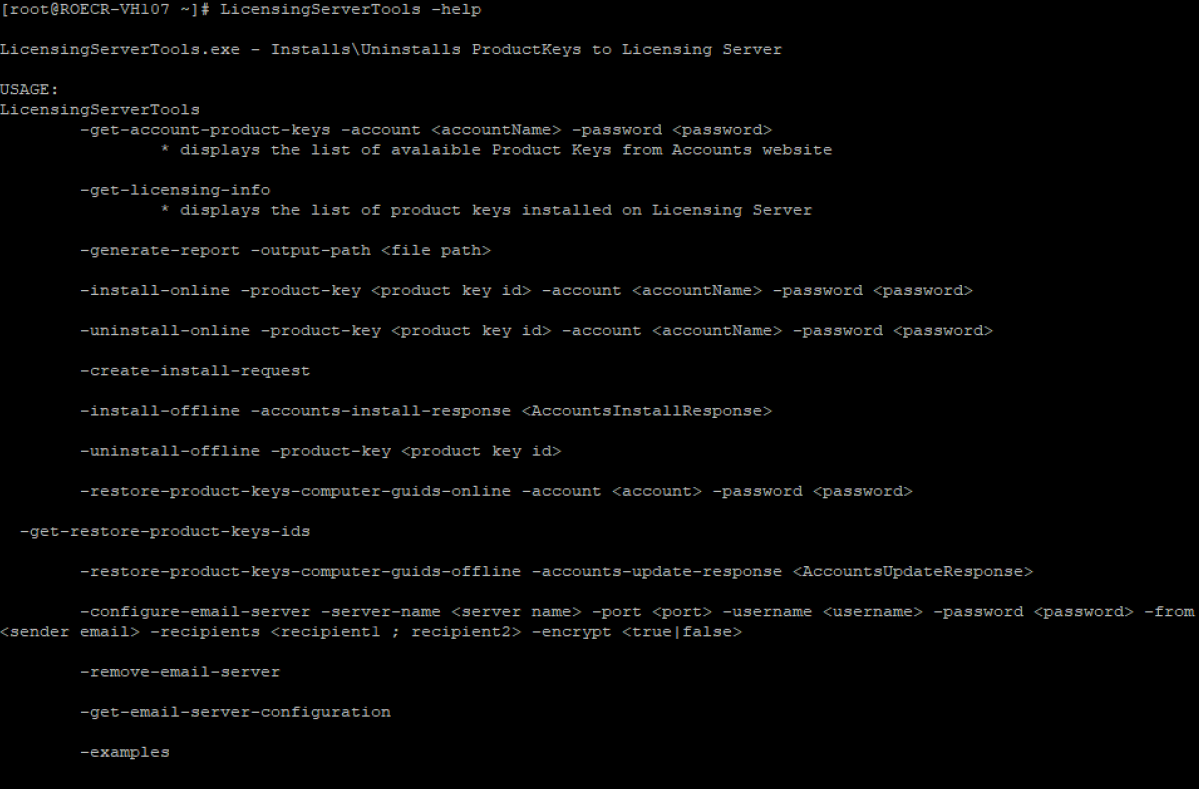
Licensing Server Tool Parameters
Check Available Licenses
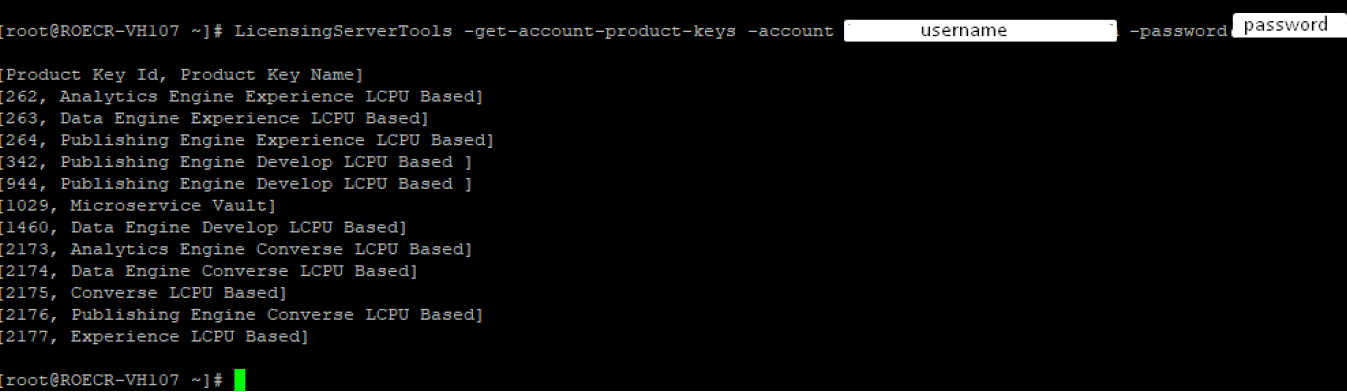
You can retrieve information related to the product keys available from your customer account by using the command below:
LicensingServerTools -get-account-product-keys -account <LicensingAccountUsername> -password <LicensingAccountPassword>
The command will send a request to the Licensing Account to display all the product keys available for the specified Licensing Account. The return type will be a key-value pair parameter, such as [productKeyId, productKeyName].
Installed Licenses
To view all the installed product keys associated with a Licensing Account, use the command below:
LicensingServerTools -get-licensing-info
This command sends a request to the Licensing Server to retrieve all the installed product keys. The return type will be a key-value pair parameter also, such as [productKeyId, productKeyName].

Online Installation
If your Linux machine is connected to the Internet you can perform the Online Installation procedure.
Use the command below to perform an online installation in Linux:
LicensingServerTools -install-online -product-key <KeyID> -account <LicensingAccountUsername> -password <LicensingAccountPassword>
The command above makes a request to Licensing Account to get the computerGUID for the further usage of it and the productKeyId to generate an install request associated with the Licensing Account. This request is sent to accounts.ecrion.com to obtain a response that will be used in the installation of the corresponding product key.

Online Uninstallation
To uninstall a product key, you have to use the following command:
LicensingServerTools -uninstall-online -product-key <KeyID> -account <LicensingAccountUsername> -password <LicensingAccountPassword>
This command makes a request to the Licensing Server to uninstall the Product Key based on the specified ID.

Offline Installation
If you are trying to install a product key on a Linux computer behind a firewall or proxy (or with no Internet connection) you will need to perform an Offline Installation.
Firstly, you have to send a request to the Licensing Server to retrieve the GUID. This data will be helpful for creating an Install request and encrypting and transforming it into a key which is found on your customer account.
To achieve this, please use the following command:
LicensingServerTools -create-install-request

The encrypted install request will be returned and you must copy the key and paste it into the Product Key Id\ Install Product Key dialog from the Product Keys page of the Licensing Account (accounts.ecrion.com). Select Install in the dialog to finish the process.
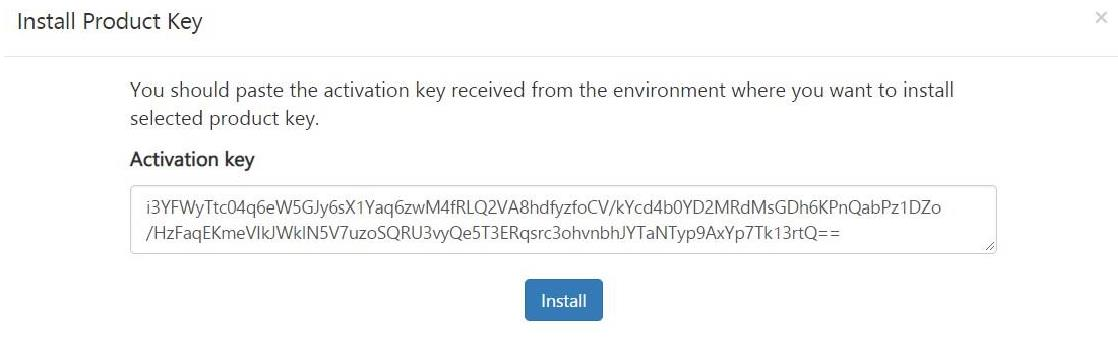
At the end, you will be provided with a string that must be copied to clipboard. The next step is to install the product key using the string by following the command below:
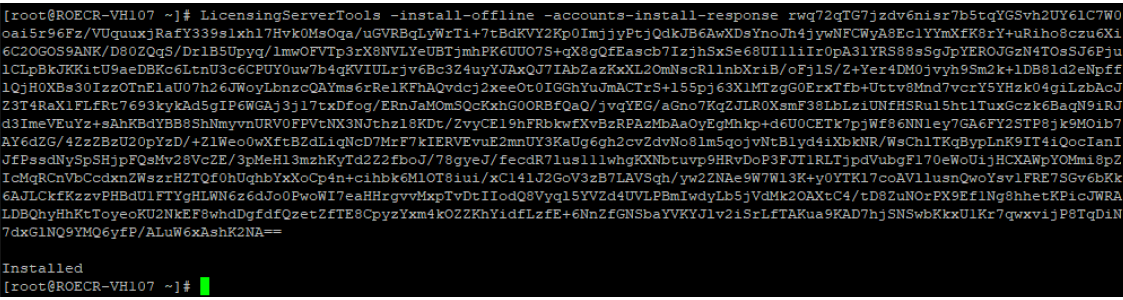
LicensingServerTools -install-offline -accounts-install-response <AccountsInstallResponse>
This will send the response in order to install the Product Key to Licensing Server.
Offline Uninstallation
If you are trying to uninstall a product key on a Linux computer behind a firewall or proxy (or with no Internet connection) you will need to perform an Offline Uninstallation.
To achieve this, please use the following command:
LicensingServerTools -uninstall-offline -product-key <KeyID>
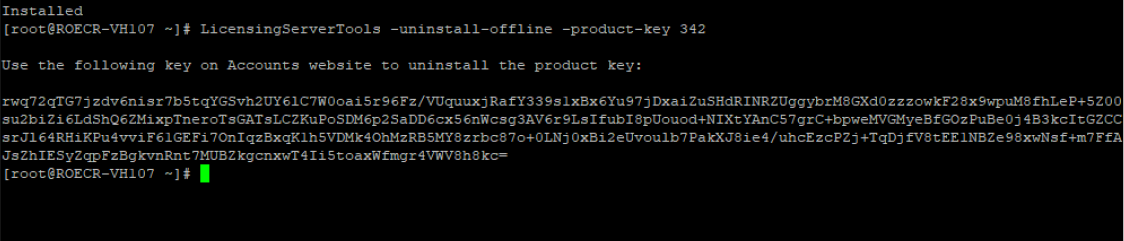
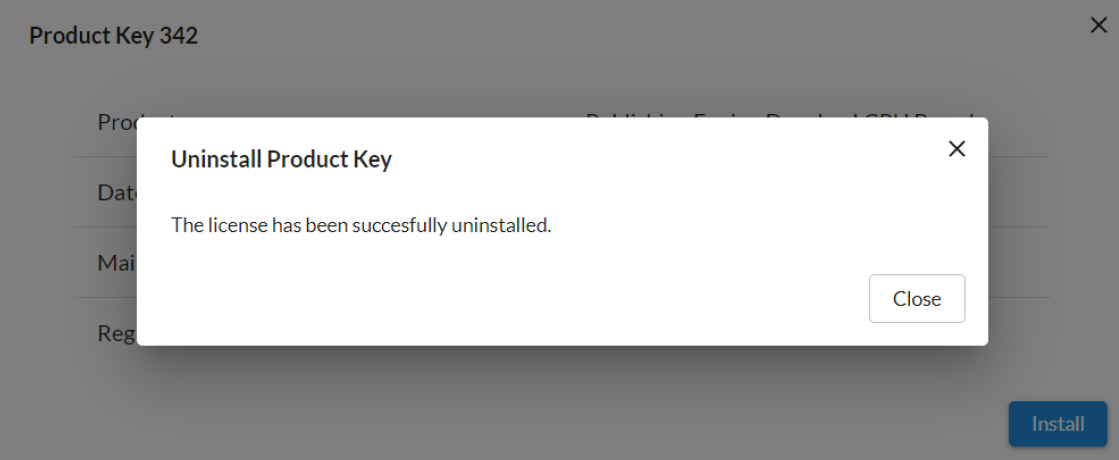
The command will send an uninstall request to the Licensing Server using the specified Product Key. Then, you have to copy and paste the encrypted response to accounts.ecrion.com under the Uninstall Product Key dialog.
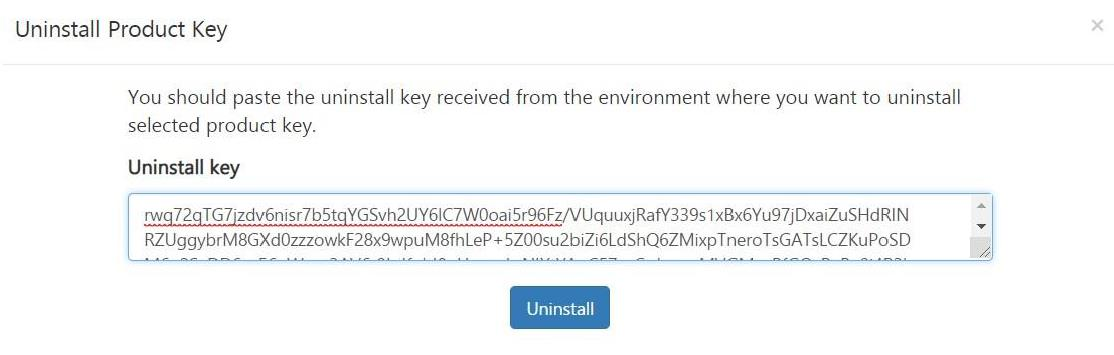
Select the Uninstall button to successfully uninstall the product key.
PostInstallation
Main Configuration Files
The primary configuration files for each engine component are located as follows:
- Publishing Engine:
/opt/MHC Software/Common/UDaemon.config - Licensing Engine:
/opt/MHC Software/Common/LicensingServer.config - Web Engine:
/opt/MHC Software/Common/webServerSettings.json
Note
Any changes made to these configuration files require a service restart for the updates to take effect.
Enabling Logging
A. Publishing Engine
For troubleshooting purposes, logging can be enabled for the Publishing Engine by adding the following parameter to the UDaemon.config file:
LogLevel = None | Normal | All | Debug | Error | Warning
Log Levels:
- None - No logging will occur.
- Normal - Errors, warnings and information messages will be logged.
- All - Errors, warning, information messages and diagnostic traces will be logged.
- Debug - Everything will be logged, including diagnostic information for troubleshooting
- Error - Only Errors will be logged
- Warning - Errors and Warnings will be logged.
B. Web Engine
To enable logging for the Web Engine, please check out the MHC Web API section.
Working with Server Templates
Server Templates are available on Linux and can be found at:
/opt/MHC Software/Common/MHC Software/ServerTemplates
Steps to add a local template as a server template:
- Access the Server Templates folder (i.e.:
/opt/MHC Software/Common/MHC Software/ServerTemplates) - Create a new folder (e.g. "ServerSample"), then copy the template (for example, "SampleTemplate.xfd") and any additional resources in it (images, Building Blocks etc.).
-
Create a file named "Application.config" and insert the following line:
AllowTo=Guest; -
You can now use the server template using the following server template id:
ServerSample:SampleTemplate.xfd -
To test the created server application, use Render with the following command:
Render -xml(path)/XMLFile.xml -parameters:servertemplateid=ServerSample:SampleTemplate.xfd
MHC Web API service
The Web API service provides access to render capabilities using REST API. This section describes how to update various setting configurations.
Downloading the SDK
To get started with the new REST API:
- The SDK is available at
http://localhost:50100/sdkon your server where Essentials is installed. - SDKs are provided for: Javascript, .NetCore and Java.
Configuration Location
To update Web API related settings:
- On the server where Essentials has been installed, navigate to
/opt/MHC Software/Common - Open
webServerSettings.jsonin a text editor. - Settings described below can be edited within the configuration file.
Note
If the file does not exist, create it manually. An example of a default configuration can be found below:
{
    "AllowedHosts": "*",
    "BasicAuthenticationFilterConfig": {
       "ApiKey": "test"
    },
    "DataEngineConfiguration": {
       "Host": "127.0.0.1",
       "Name": "Data Engine",
       "Port": 40021
    },
    "KestrelConfig": {
       "HttpConfig": {
          "Address": "0.0.0.0",
          "Port": 50100
       },
       "HttpsConfig": {
          "Address": "0.0.0.0",
          "Certificate": "<YourCertificate>",
          "Password": "<YourCertificatePassword>",
          "Port": 50101
       }
    },
    "Logging": {
       "LogLevel": {
          "Default": "Debug",
          "Microsoft.AspNetCore": "Debug"
       }
    },
    "PublishingEngineConfiguration": {
       "Host": "127.0.0.1",
       "Name": "Publishing Engine",
       "Port": 40017
    },
    "Serilog": {
       "FileLoggingEnabled": true,
       "LevelSwitches": {
          "$controlSwitch": "Information"
       },
       "MinimumLevel": {
          "ControlledBy": "$controlSwitch"
       }
    }
}
General Settings
AllowedHosts
- Type: string
- Value:
"*" - Description: Specifies which hosts are allowed to access the application.
"*"allows all hosts.
JSON Example:
{
"AllowedHosts": "*"
}
Authentication
BasicAuthenticationFilterConfig
- ApiKey: string
- Example:
"0ae4af41-b530-4038-be82-a0fa8b3f1d55" - Description: API key used for basic authentication and can be used in your application
JSON Example:
{
"BasicAuthenticationFilterConfig": {
    "ApiKey": "0ae4af41-b530-4038-be82-a0fa8b3f1d55"
  }
}
HTTP Configuration
HttpConfig
- Address: string – IP address to bind HTTP server (e.g., "0.0.0.0")
- Port: integer – HTTP port for Publishing Engine (e.g., 50100)
HttpsConfig
- Address: string – IP address to bind HTTPS server
- Certificate: string – Path to the certificate. E.g.: "folder1/folder2/my_Cert.pfx",
- Password: string – Type in the password for the certificate
- Port: integer – HTTPS port for Publishing Engine (e.g., 50101)
Note
In order to use HTTPS, you will need to set up a valid security certificate. To configure it, make sure to add the serial number of your security certificate under the "Certificate" parameter from above. For example, this information can be found under Windows Manage Computer Certificate pane from your server.
JSON Example:
"KestrelConfig": {
    "HttpConfig": {
       "Address": "0.0.0.0",
       "Port": 50100
    },
    "HttpsConfig": {
       "Address": "0.0.0.0",
       "Certificate": "",
       "Password": "",
       "Port": 50101
    }
  }
Engine Configuration
PublishingEngineConfiguration
- Host: string – IP address of the Publishing Engine
- Name: string – Engine name (e.g., "Publishing Engine")
- Port: integer – Port used by the site to send data to the Publishing Engine
Note
If you are updating these configurations, please ensure that these matches the settings from the PublisherSvc.config.
JSON Example
"PublishingEngineConfiguration": {
     "Host": "127.0.0.1",
     "Name": "Publishing Engine",
     "Port": 40017
  },
Logging
-
$controlSwitch: string –Logging level description
Available values:
- Debug: Detailed information about the internal workings of an application that is useful when debugging.
- Information: A major step in the application has started or completed. This is useful for tracking the progress of the application.
- Warning: Something unexpected has happened, but the application can still continue.
Note
The log files generated can be found by default at /opt/MHC Software/Common/Engines.WebServer-YYYY-MM-DD.log
JSON Example
"Serilog": {
    "FileLoggingEnabled": true,
    "LevelSwitches": {
       "$controlSwitch": "Information"
    },
    "MinimumLevel": {
       "ControlledBy": "$controlSwitch"
    }
  }