Installation Requirements
NorthStar CCM Database
Before proceeding to install the NorthStar CCM software, you must create a database (the default name used in the installer is EOSDB4). Its role is to store all the metadata created by the software.
The NorthStar CCM Database needs to be hosted by Microsoft SQL Server.
Tips
- We recommend using Microsoft SQL Server 2019 Standard Edition or later for your database.
- It is highly recommended to use a separate server for the SQL database.
- For HA environments, an SQL Server clustering solution is required.
Required Privileges
During the installation, the user must have db_owner rights. On runtime, the privileges below are enough. However, we recommend keeping the db_owner permissions if possible.
db_datareader
db_datawriter
db_backupoperator
GRANT EXECUTE ON TYPE::[dbo].[DateFilterArray]
GRANT EXECUTE ON TYPE::[dbo].[FileArray]
GRANT EXECUTE ON TYPE::[dbo].[FilePropertyArray]
GRANT EXECUTE ON TYPE::[dbo].[PrincipalsArray]
GRANT EXECUTE ON [dbo].[CheckConnectionDuplicate]
GRANT EXECUTE ON [dbo].[GetEnvironmentPagesRendered]
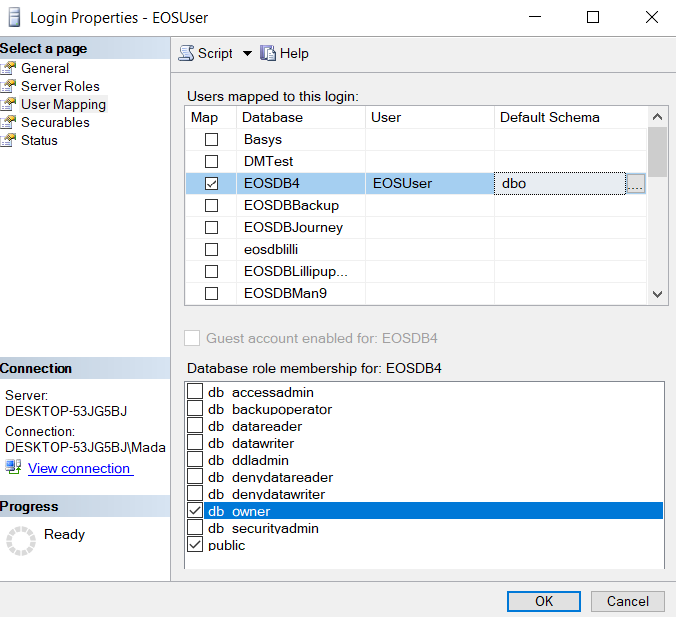
To provide user access to the database within SQL Server Management Studio, follow the steps below:
- In SQL Server Management Studio, open the Object Explorer and navigate to Security\Logins.
- Right-click on the user you want to configure, and select Properties.
- Within the Login Properties window, access the User Mapping tab.
- Select the NorthStar CCM database, then verify the user and add a default schema (e.g.,
dbo). - Check the needed permissions in the Database role membership section (at least
db_ownerneeds to be selected).
NorthStar CCM Storage
When you create or add files through the NorthStar CCM Platform, their content will be saved in a storage folder. Before you begin the installation, it is necessary to set up your storage folder.
The storage folder should be placed on the application server. By default, NorthStar CCM will create a default folder, called EOSStorage, located at:
$Application_Data$\MHC Software\EOSStorage
Note
- We recommend changing the storage location to a different drive.
- SSD storage is required to increase NorthStar CCM performance.
Because the NorthStar CCM service runs under a user account, it may be necessary to grant that account permission to read/write/list folder contents in the Storage folder.
Other Required Components
.NET 10
The setup also requires .NET 10 to be installed in IIS Components. Please download and install the hosting bundle from the Microsoft download page.
.NET Framework 4.8
The .NET Framework 4.8 can be downloaded from the Microsoft website.
IIS 10.0 or later
IIS (Internet Information Services Manager) 10.0 or later (not IIS Express) with URL Rewrite module is also required.
Internet Information Services (IIS) for Windows® Server is a flexible, secure, and manageable web server for hosting anything on the web. See Microsoft's documentation for installing IIS 10.0.
URL Rewrite
The URL Rewrite module is also a requirement. It is a free extension provided by Microsoft for IIS 10.0 or later.
SSL Certificate
If you need to handle sensitive communications and protect your files with the HTTPS protocol, you will need to install an SSL certificate in IIS.
Note
We recommend using SSL certificates when the NorthStar CCM Platform is exposed on the Internet, not just on an intranet.
Operating System
- Windows Server 2019 or later
High Availability (HA)
High Availability (HA) is a system that ensures a higher level of business continuity by reducing downtime for unplanned outages. Before proceeding with the HA configuration, we recommend:
- Check if HA is part of your subscription.
- Use at least two physical servers to install NorthStar CCM components. Using only virtual machines on the same physical server does not eliminate single points of failure.
- Use load balancers to automatically balance traffic to your NorthStar CCM instances. If you integrate the NorthStar CCM Platform into your third-party application, load balancers remove the need for writing failover code. Depending on your company's requirements, you can decide whether to use software-based or hardware-based load balancers.
- Use two storage locations. If network-attached locations are provided, we recommend placing this location in two separate physical instances to avoid single points of failure. The NorthStar CCM Platform will keep these two storage sites synchronized.
- Use an SQL Server clustering solution.
Port Requirements
Before installing the NorthStar CCM Platform, you will need to ensure that some ports used by the NorthStar CCM Services and IIS are free to enable communication between components. The tables below list the default port numbers used by the NorthStar CCM Services and the IIS websites.
NorthStar CCM Services Ports
These ports can be configured from the configuration files (EOS4.config, DASSvc.config, BISvc.config, PublisherSvc.config). For distributed configurations, the ports need to be opened and accessible in Windows Firewall.
| Port | Parameter |
|---|---|
| 40014 | ESSPort |
| 40015 | WorkPort |
| 40016 | RepositoryPort |
| 40018 | LogPort |
| 40019 | BillingPort |
| 40020 | TriggerPort |
| 40022 | SchedulerPort |
| 40023 | BIEOSServerPort |
| 40024 | DistributionPort |
| 40025 | AlertsPort |
| 40026 | BackgroundServerPort |
| 40035 | LicensingServerPort |
| 40027 | ProcessReporterServerPort |
| 40028 | SearchServerPort |
| 40029 | NotificationsServerPort |
| 40030 | BackupServerPort |
| 40031 | RepositorySynchronizationPort |
| 40021 | DASEOSServerPort |
| 40017 | XFEOSServerPort |
| 1433 | SQL Port |
IIS Website Ports
Default ports used by IIS for the NorthStar CCM websites. You can change them during the installation of each component.
| Port Number | Parameter | Description |
|---|---|---|
| 8094 | EnterpriseWebsiteURLPort | Default port for the Enterprise Website |
| 8095 | AdministrationWebsiteURLPort | Default port for the Administration Website |
| 8096 | PortalWebsiteURLPort | Default port for the Customer Portal Website |
High Availability Ports
Default ports for High Availability deployments. The same port numbers need to be free and accessible on both firewalls configured as HA peers.
| Port Number | Parameter | Description |
|---|---|---|
| 40014 | ESSPeerPort | Storage Port |
| 40022 | SchedulerPeerPort | Scheduler Port |
| 40026 | BackgroundPeerPort | Background Services Port |
| 40027 | ProcessReporterPeerPort | Process Reporter Port |
| 40030 | BackupPeerPort | Backup Port |
| 40020 | TriggerPeerPort | Trigger Port |