Studio Installation Guide
Installer Description
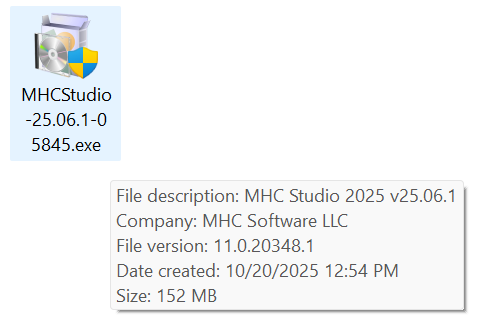
The Setup name has the following structure: ProductName – Bit Version – Build Version – Build Number.
In the example below, we can identify the details mentioned as follows:
- Product Name: MHC Studio
- Bit Version: x64
- Build Version: 13.2.4
- Build Number: 8529
Installation Steps
Starting the Installation
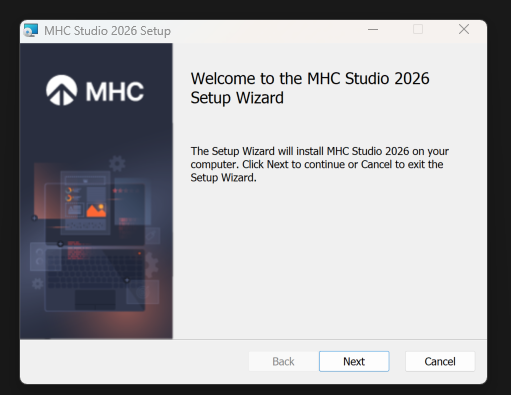
To open the installation wizard, double click on the .exe file and wait for the Setup to initialize. When the setup finished preparing the install, the Welcome Screen will appear.
The welcome screen provides details on what product is about to be installed on your machine, as well as two options, to revert changes or to proceed with the installing of the MHC Studio software.
End-User License Agreement
In order to continue with the installation of the NorthStar CCM Studio software, you will need to carefully read the terms and conditions for this software.
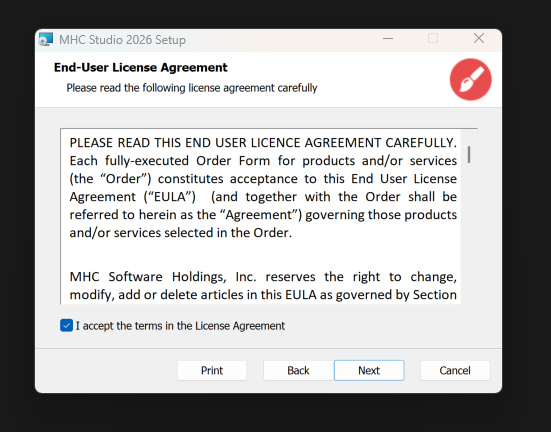
Afterwards, check the I accept the terms in the License Agreement checkbox and select Next to continue. Note that the Next button is greyed out until the above checkbox is selected.
The following screen in the Setup Wizard is the Destination Folder.
Destination Folder
This step in the Setup Wizard offers the possibility to set the location where the MHC Studio solution will be installed.
To modify the path, select the Change button in the middle-left side of the window and provide the destination folder for the installation. Once you have the folder set, select Next to continue with the installation.
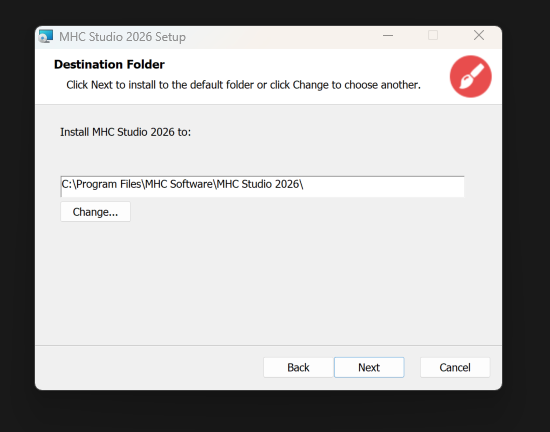
Next, you will decide which Products will be installed on the machine.
Product Features
MHC Studio provides a suite of components which can be chosen during this step of the installation. Notice that each component is provided with a short description on its functionality.
By default, all three components are selected. You can decline the installation of a component by de-selecting the associated checkbox. Not selecting an option will render the user unable to finish the installation.
- Publisher is a visual design component used to design document templates, which integrates well with the other MHC products. It contains features such as:
- Responsive Documents, depending on the device where the document is visualized;
- Data Splitting if it is used along with NorthStar CCM Platform;
- Dynamically adding stylesheets (design by the user);
- Modeler is a visual design component used for designing a singular powerful data source from combining, cleansing, and transforming your enterprise data in a graphical environment.
- Analyst is a powerful dashboard design component for visualizing, filtering, analyzing and interpreting enterprise data.
In addition, once with the components selection, MHC Studio will also install the MHC Drive tool, that allow you to synchronize your templates, diagrams and dashboards locally created with MHC Platform, automatically or manually.
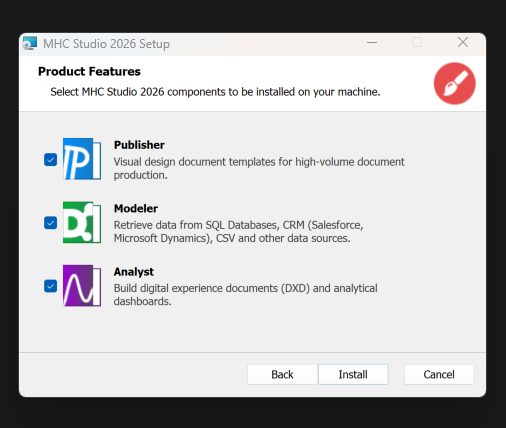
Once you select the needed components, select Install to proceed with installing the software.
Completed Installation Screen
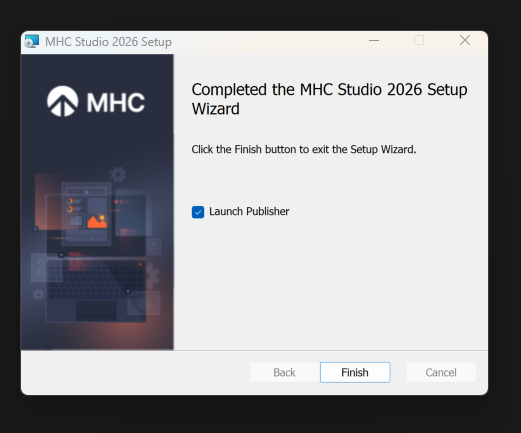
The final steps of the Installation Wizard allow you to see the progress of the installation. Complete the installation by selecting the Finish button.