Installation Guide (Single Instance)
Installer Description
The installation files are named according to the version of the product. Generally, the setup name has the following structure:
Product Name – Architecture – Build Version – Build Number
For example: MHCEngageCX-x64.15.2.1-11825.exe
| Field | Value |
|---|---|
| Product Name | MHC EngageCX |
| Architecture | x64 |
| Build Version | 15.2.1 |
| Build Number | 11825 |
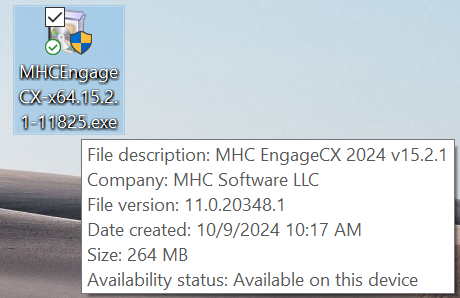
To open the installation wizard, double-click the .exe file and wait for the Setup to initialize.
When Setup finishes preparing the installation, the Welcome Screen will appear. Follow the steps described below to complete the installation.
Single Instance Installation
This section provides step-by-step instructions for installing all NorthStar CCM Platform components on the same machine (except for the database).
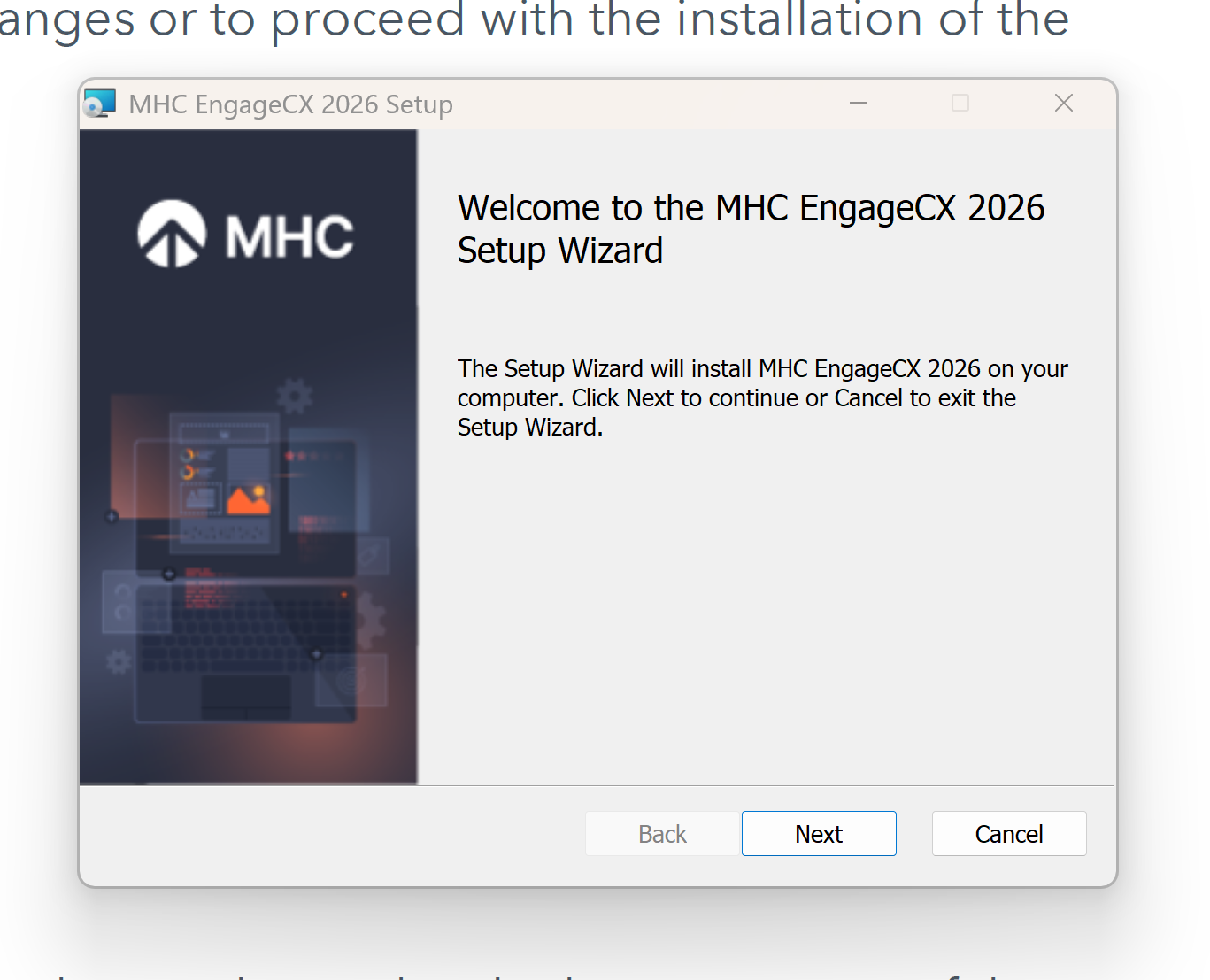
Welcome Screen
The welcome screen provides details on the product about to be installed on your machine, along with two options: to reverse changes, or to proceed with the installation of the NorthStar CCM (EngageCX) software.
To proceed, select Next, located in the bottom region of the window.
End-User License Agreement
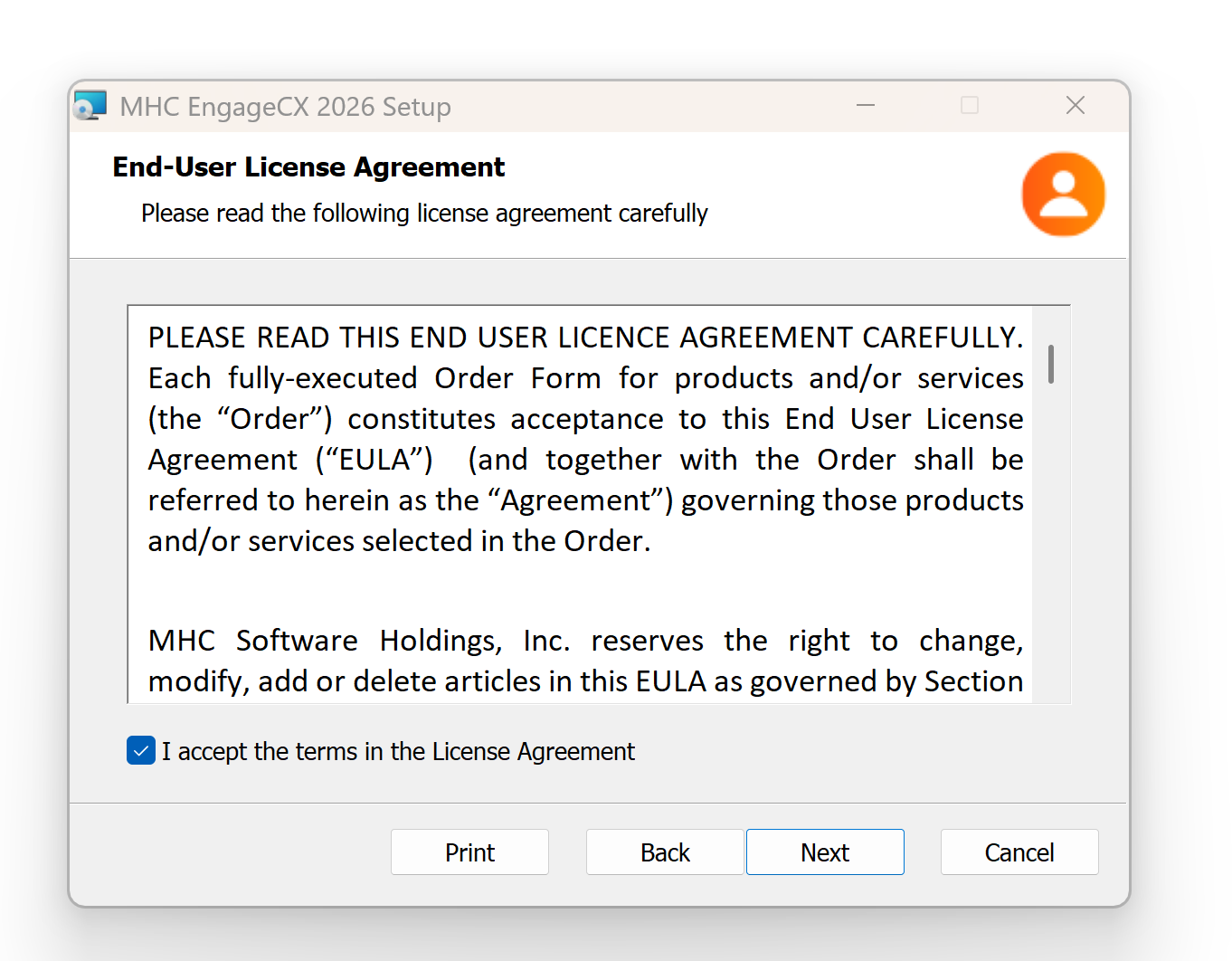
To continue with the installation of the NorthStar CCM Platform, you will need to carefully read the terms and conditions for this software. Check the I accept the terms in the License Agreement checkbox, then click Next.
The Next button is greyed out until the checkbox above is selected.
Destination Folder
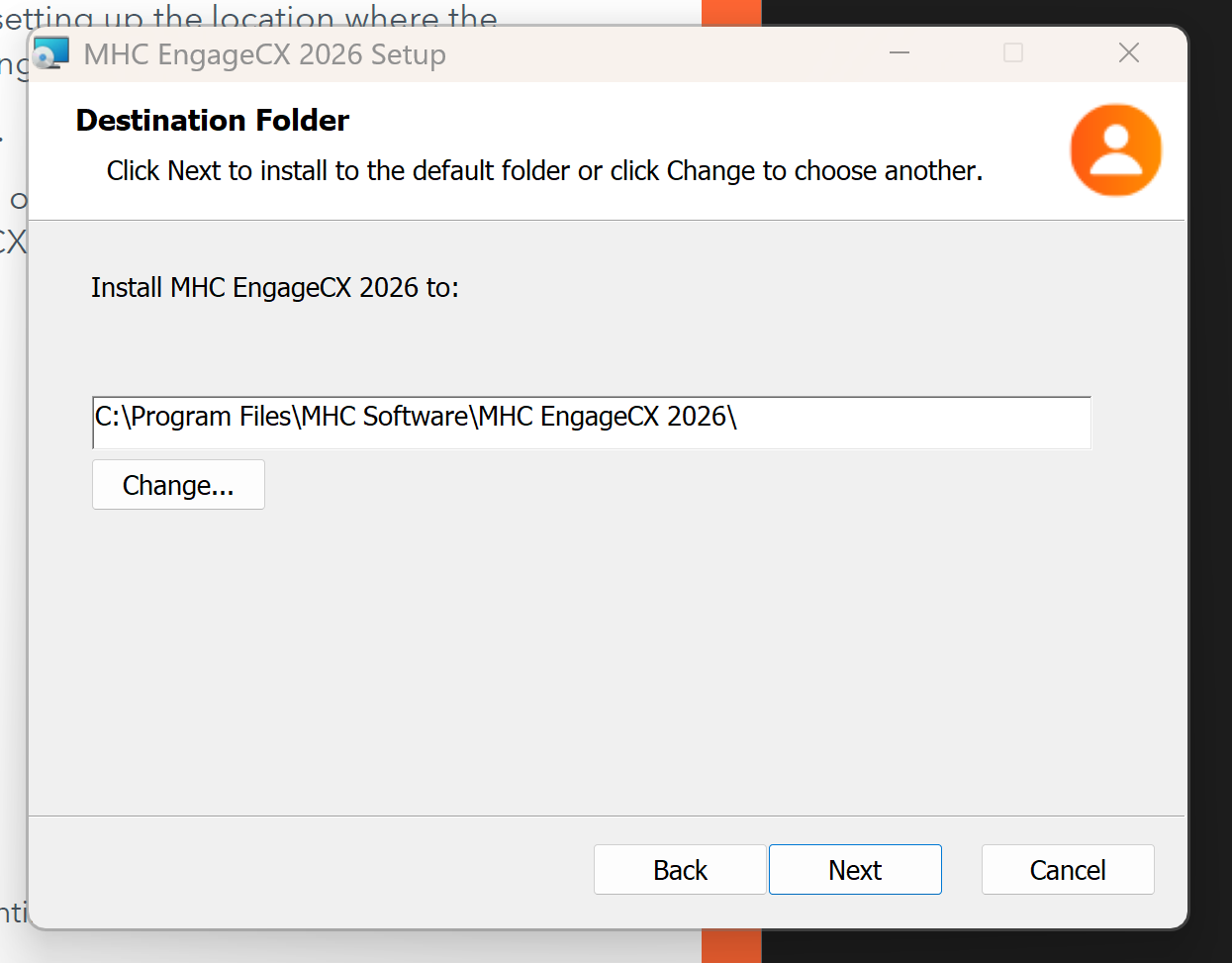
This step offers the option to set the location where the NorthStar CCM (EngageCX) software will be installed. By default, it will be installed at:
C:\Program Files\MHC Software\MHC EngageCX 2026
To change the default path, select Change on the middle-left side of the window and provide a new destination folder.
Once you have the folder set, select Next to continue.
Product Features Selection
NorthStar CCM provides a series of features which can be chosen during this step of the installation. Each component is provided with a short description of its functionality.
By default, all features are selected. You can decline the installation of a component by de-selecting the associated checkbox. If no component is selected, you will be unable to finish the installation.
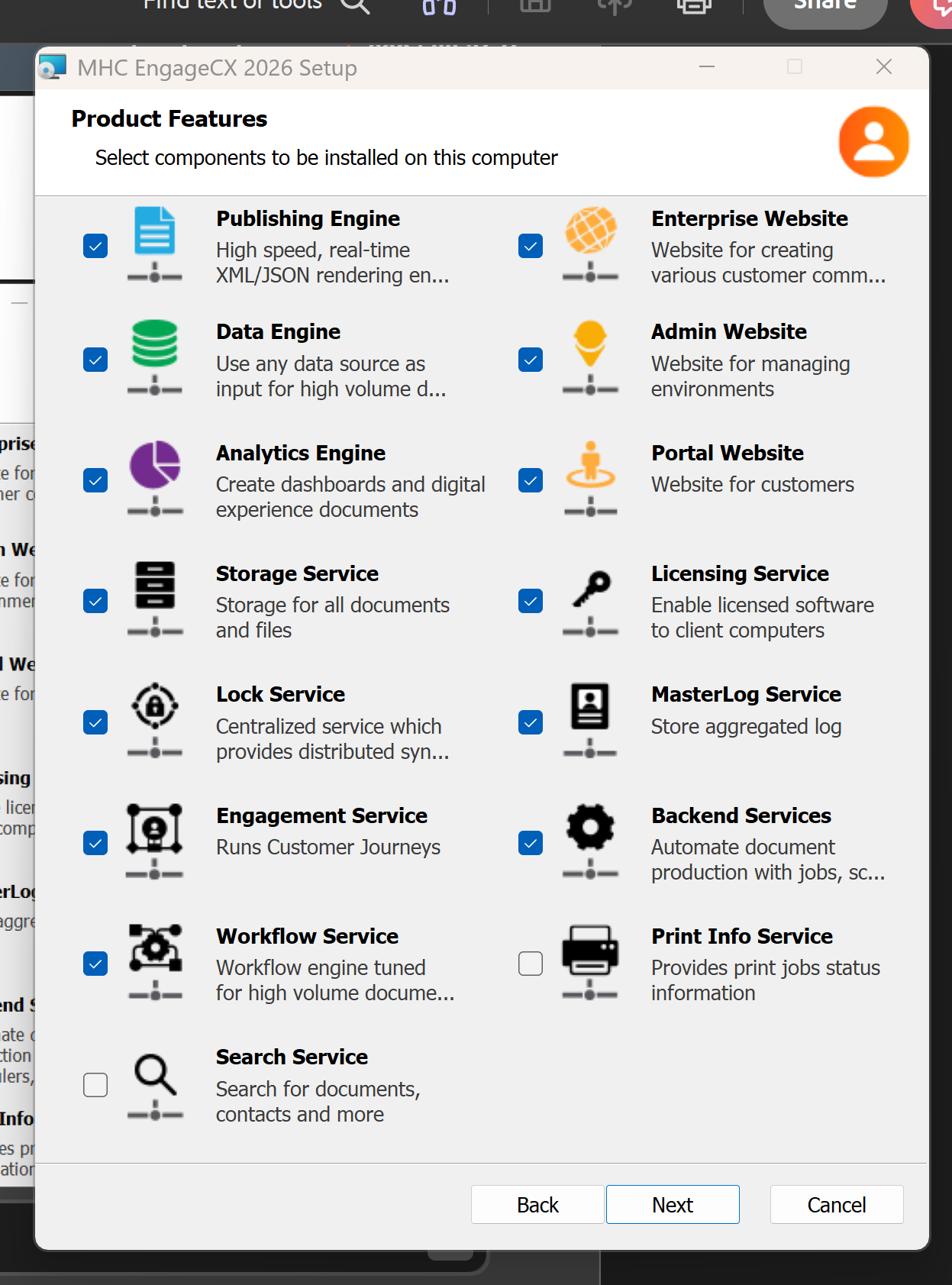
Once you select the needed features, select Next to proceed with the required settings configuration for each feature.
Set Encryption Key
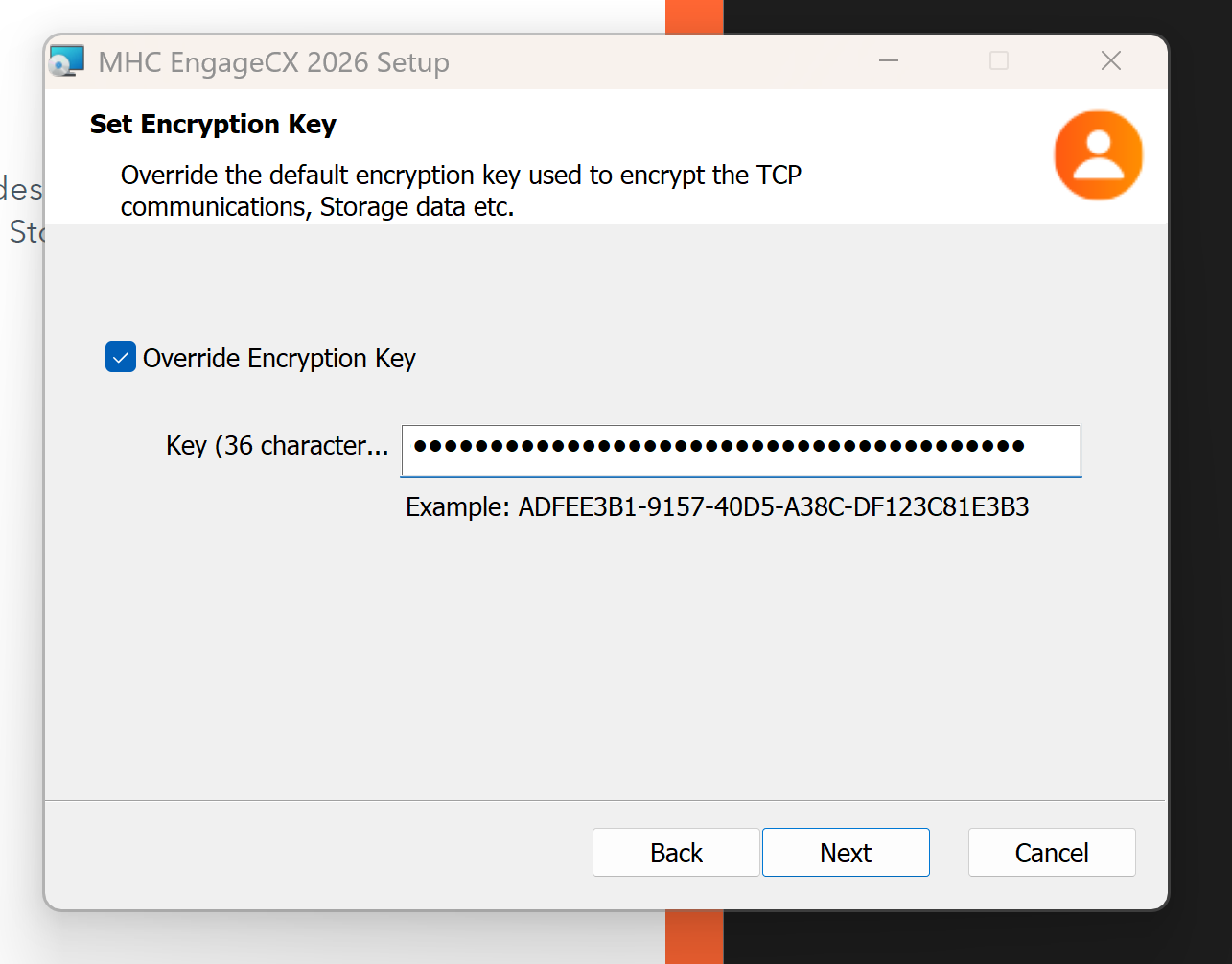
The Override Encryption Key option, if enabled, overrides the default encryption key with another one used to encrypt TCP communications, storage data, etc.
Configure Publishing Engine
The Publishing Engine is a native server component that performs XML/JSON conversions to various output formats. It is the successor of the XF Rendering Server embedded in the new NorthStar CCM line of products.
Warning
This component is a vital service. Ensure it is installed and available (either on the current machine or another) when using the NorthStar CCM software.
This step allows the user to choose several backwards-compatibility options:
- Enable compatibility with the obsolete NorthStar CCM API v1.0 (i.e., old Ultrascale Client).
- Include additional utilities such as:
Render.exe— a command line tool that allows users to render different input formats to the desired output.Uload.NET— a command line tool that allows users to measure the system's performance under heavy load.
- Enable an obsolete version of Hot Folders automation.
Additionally, users can enable firewall rules to allow incoming remote requests.
Note
This option should remain unchecked for Single Instance installation. Enable it only if the Publishing Engine component is deployed on a separate machine. For more details, see Double Instance or Complex Deployments later in this guide.
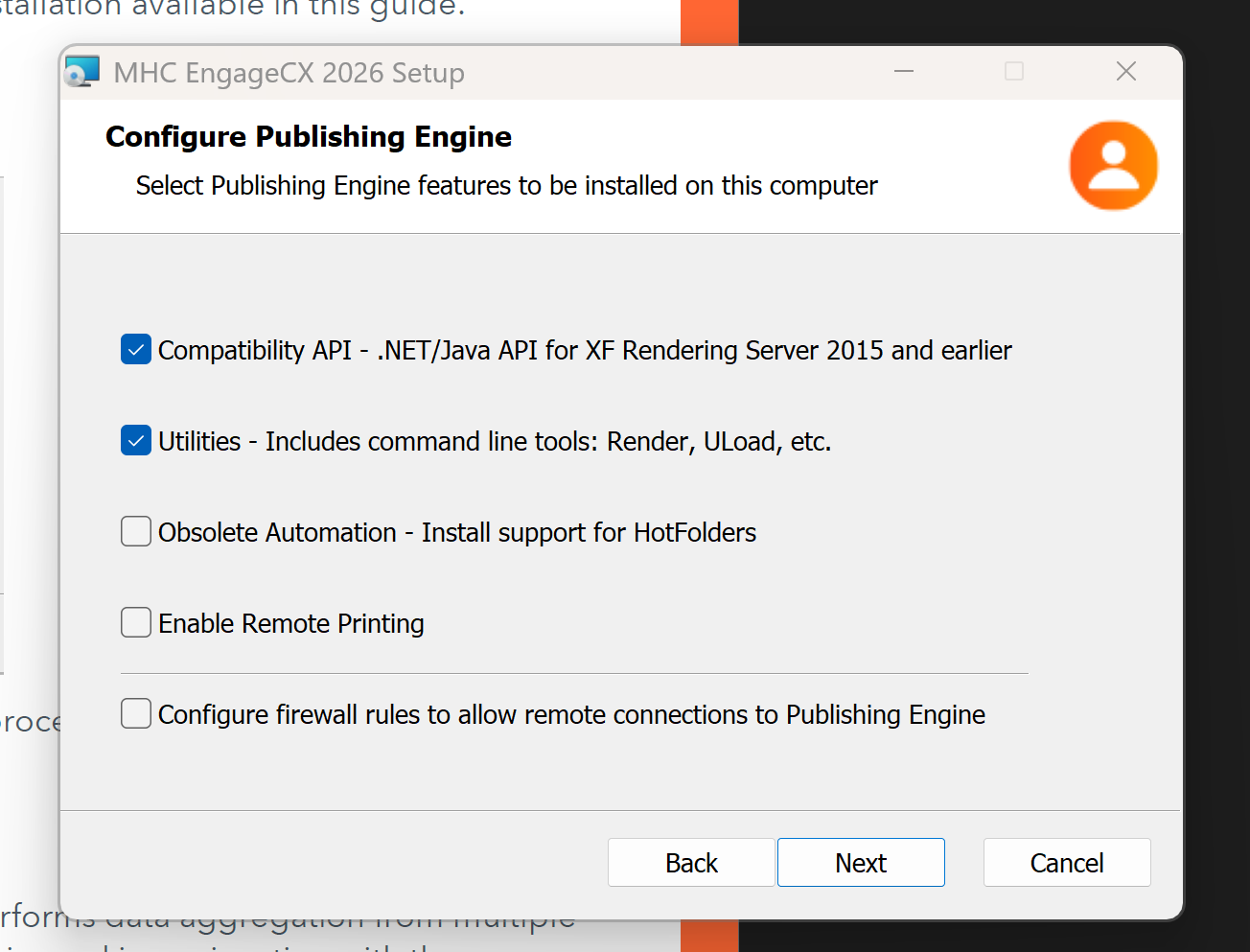
Once you select the needed features, select Next to proceed to the next step.
Configure Data Engine
The Data Engine is a native server component that performs data aggregation from multiple data sources (XML, CSV, relational databases, etc.). It is used in conjunction with the Publishing Engine to create various communications from different sources. It is the successor of the Data Aggregation Server product, and it is embedded in the new NorthStar CCM line of products.
Warning
This component is a vital service. Ensure it is installed and available (either on the current machine or another) when using the NorthStar CCM software.
This step also provides the user with several backward-compatibility options:
- Enable compatibility with the obsolete NorthStar CCM API v1.0 (i.e., old Ultrascale Client).
- Include additional utilities such as:
Render.exe— a command line tool that allows users to render different input formats to the desired output.Uload.NET— a command line tool that allows users to measure the system's performance under heavy load.
- Enable an obsolete version of Hot Folders automation.
Additionally, users can enable firewall rules to allow incoming remote requests.
Note
This option should remain unchecked for Single Instance installation. Enable it only if the Publishing Engine component is deployed on a separate machine.
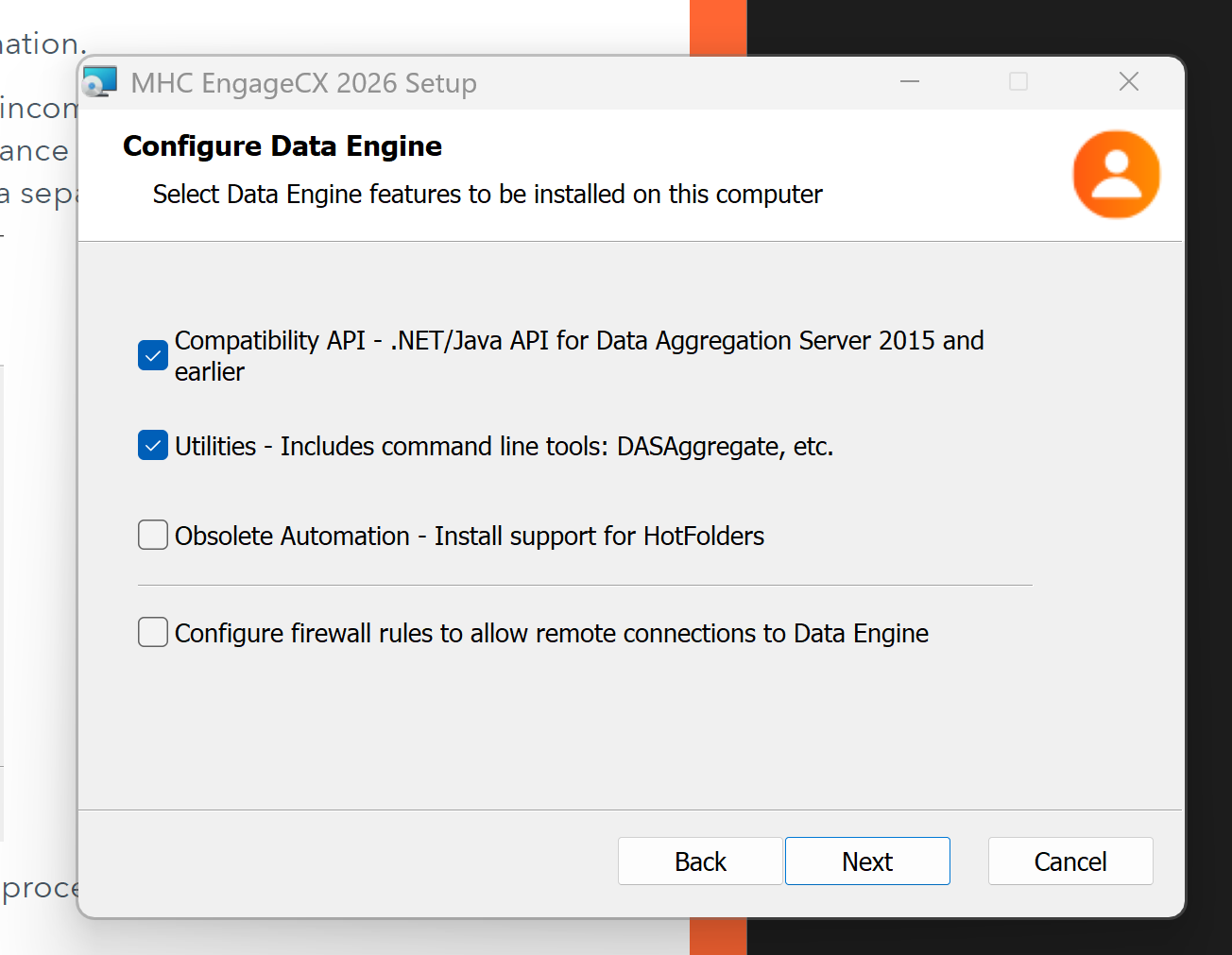
Once you select the needed features, select Next to proceed to the next step.
Configure Analytics Engine
The Analytics Engine is a native server component that performs analytic computations for NorthStar CCM systems. Installing this component is mandatory only if you want to use the Analytics module within the NorthStar CCM Platform.
Additionally, users can enable firewall rules to allow incoming remote requests.
Note
This option should remain unchecked for Single Instance installation. Enable it only if the Analytics Engine component is deployed on a separate machine.
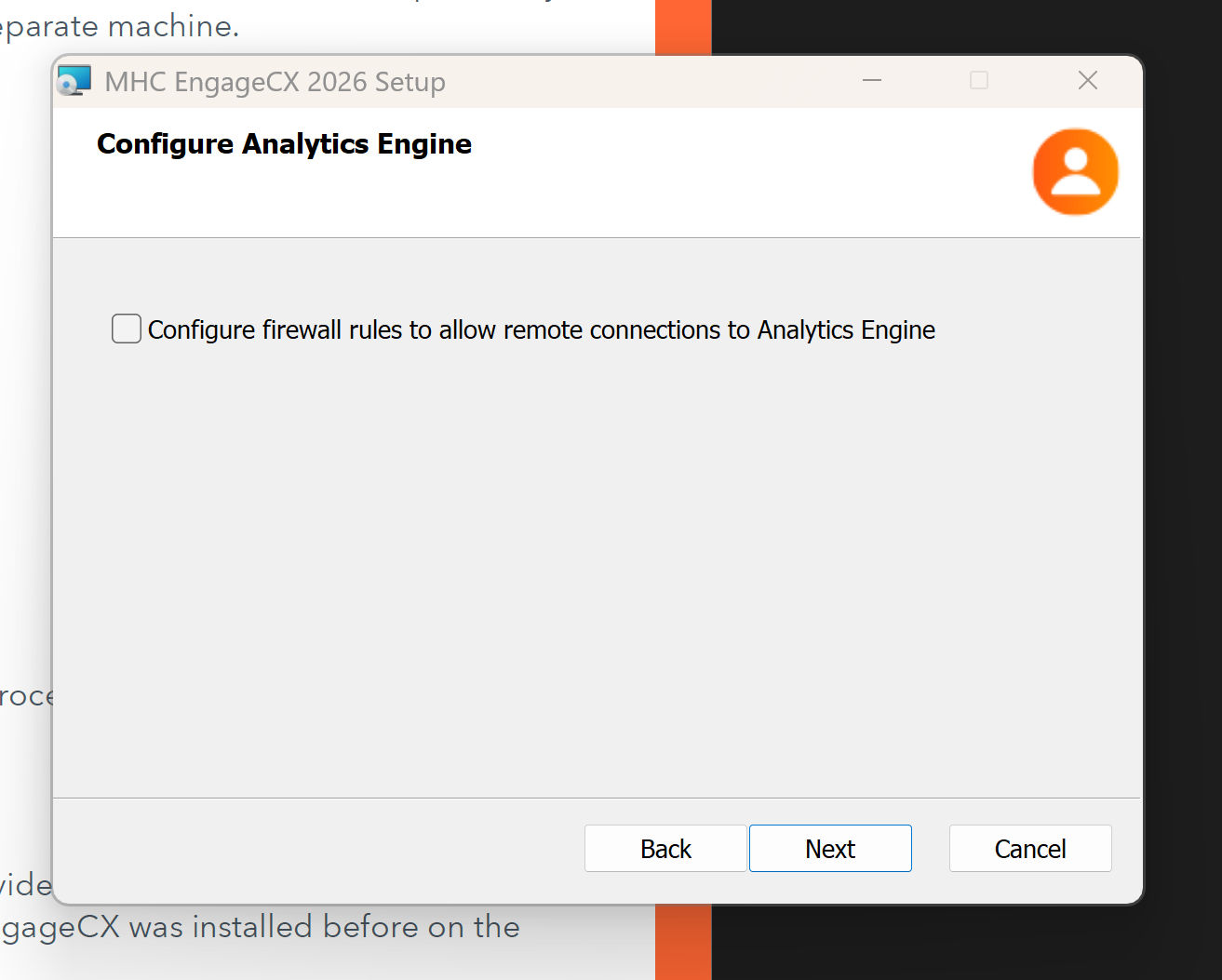
Once you select the needed features, select Next to proceed to the next step.
Database Settings
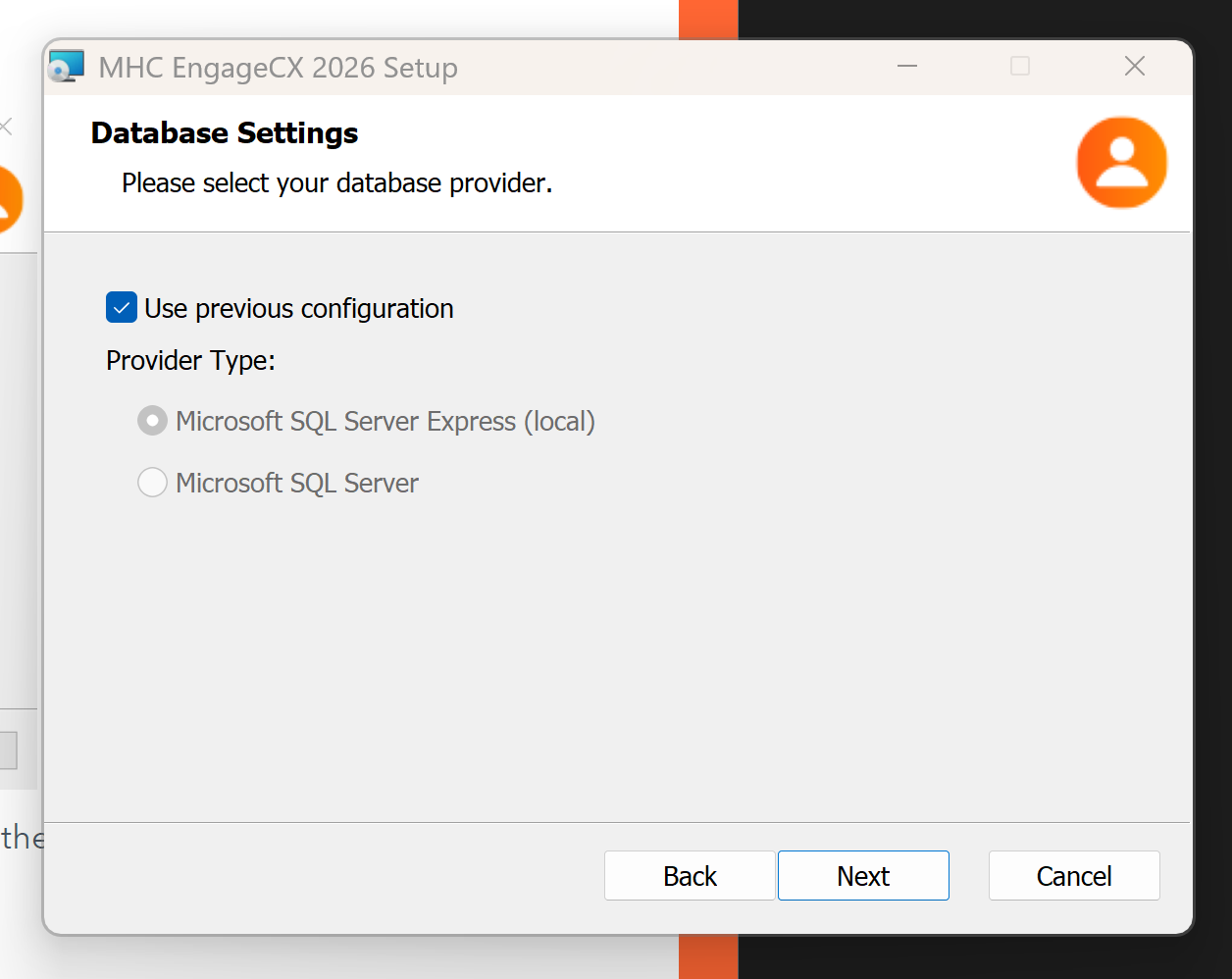
In this window, you will need to select a database provider. You have two options: use a previous configuration (only if NorthStar CCM/EngageCX was installed before on the current machine), or create a new SQL connection.
Using an existing SQL database
To use the settings made in a previous install of NorthStar CCM software, check Use previous configuration, then click Next.
If you uncheck Use previous configuration, you must choose a Provider Type:
- Microsoft SQL Server Express (local)
- Microsoft SQL Server
Using Microsoft SQL Server Express (local)
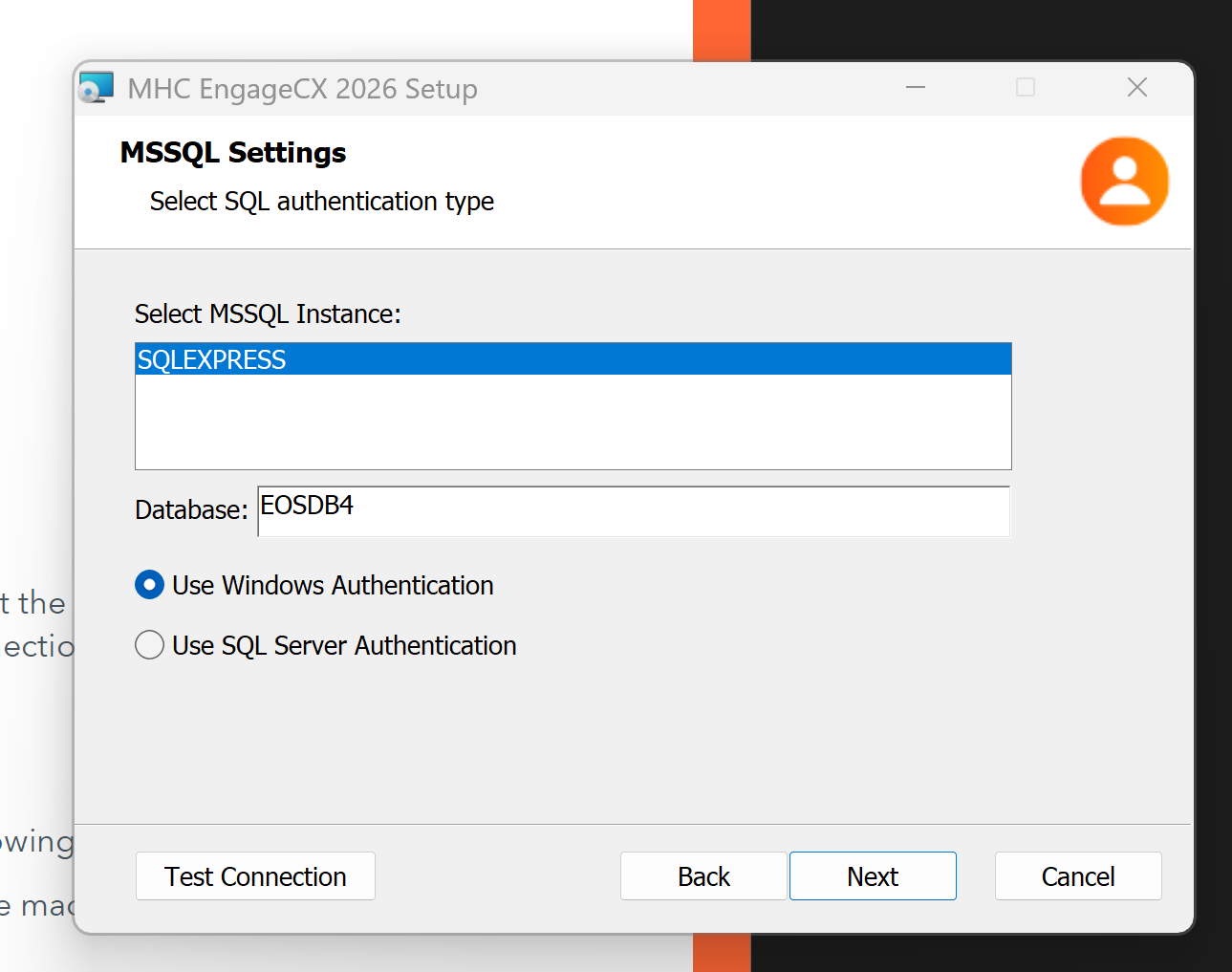
Choosing Microsoft SQL Server Express (local) requires the following information:
- Select the MSSQL instance.
- Enter the database name previously created (default database is
EOSDB4). - Select the authentication type — Windows or SQL Server — along with a username and password.
Note
The user must have db_owner rights to access the database.
Once you provide all the necessary data, you can test the connection by clicking Test Connection to ensure all fields have been set up properly.
Using Microsoft SQL Server
Choosing Microsoft SQL Server requires the following information:
- The server name or IP address of the machine where Microsoft SQL Server is installed.
- The name of the database previously created (default database is
EOSDB4). - The authentication type — Windows or SQL Server — along with a username and password.
- Optionally, the instance name, if Microsoft SQL Server is installed as a named instance.
As a best practice, use Windows Authentication if you can grant owner permissions (to the NorthStar CCM database) to a Windows user. Otherwise, SQL authentication with a username and password can be used.
Once you provide all the necessary data, click Test Connection to verify the setup.
Storage Service Settings
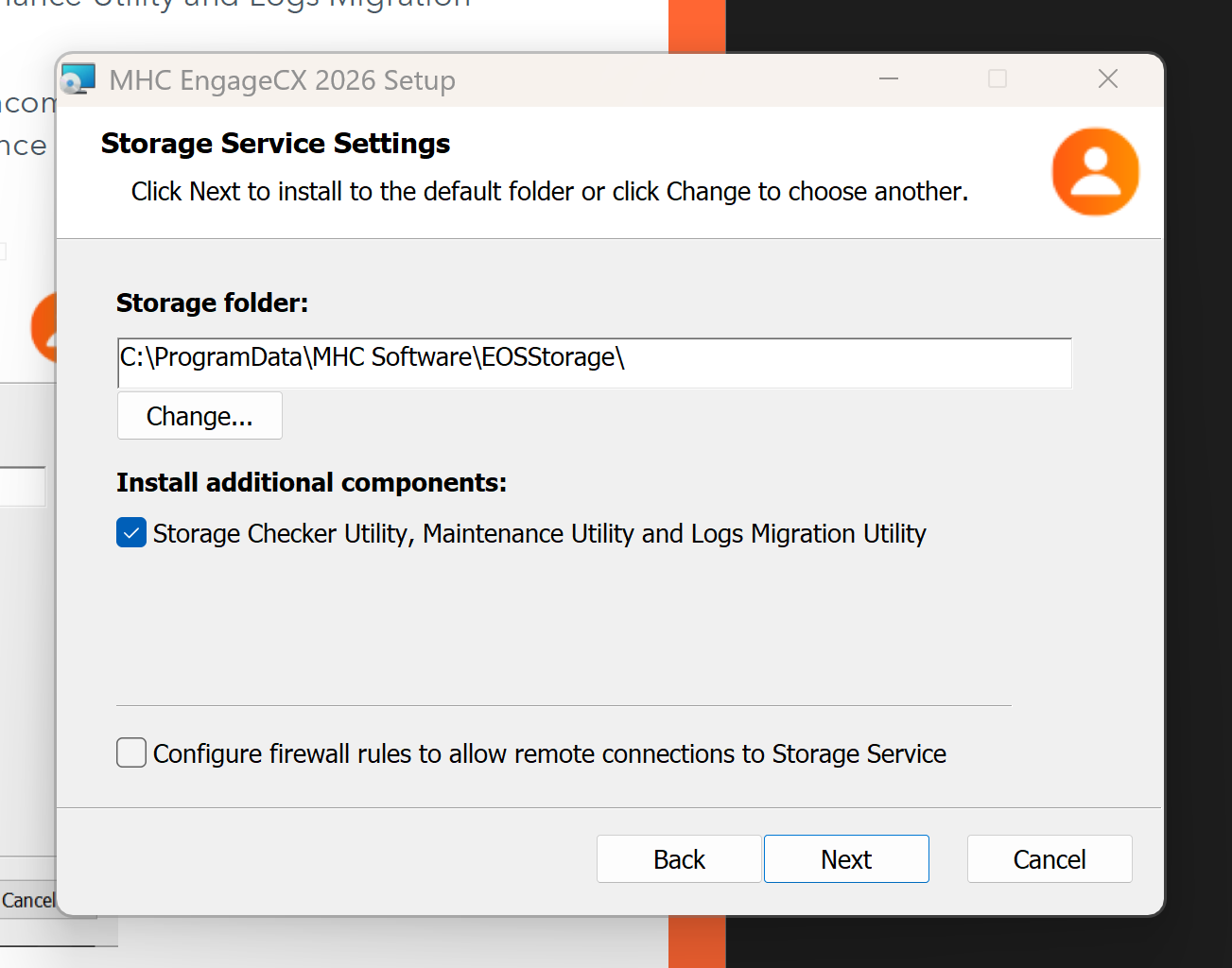
After configuring the database(s), you must set up NorthStar CCM Storage. For this scenario, the NorthStar CCM (EngageCX) Storage will be a local folder on the server. By default, it will be created at C:\ProgramData\EngageCX\, in a folder called EOSStorage. If your NorthStar CCM storage is remote, use UNC paths to point to the storage.
Optional storage tools are included with the installation setup. You can choose to deploy them by checking the Storage Checker Utility, Maintenance Utility and Logs Migration Utility option.
Additionally, users can enable firewall rules to allow incoming remote requests.
Note
This option should remain unchecked for Single Instance installation. Enable it only if Storage is located on a separate server.
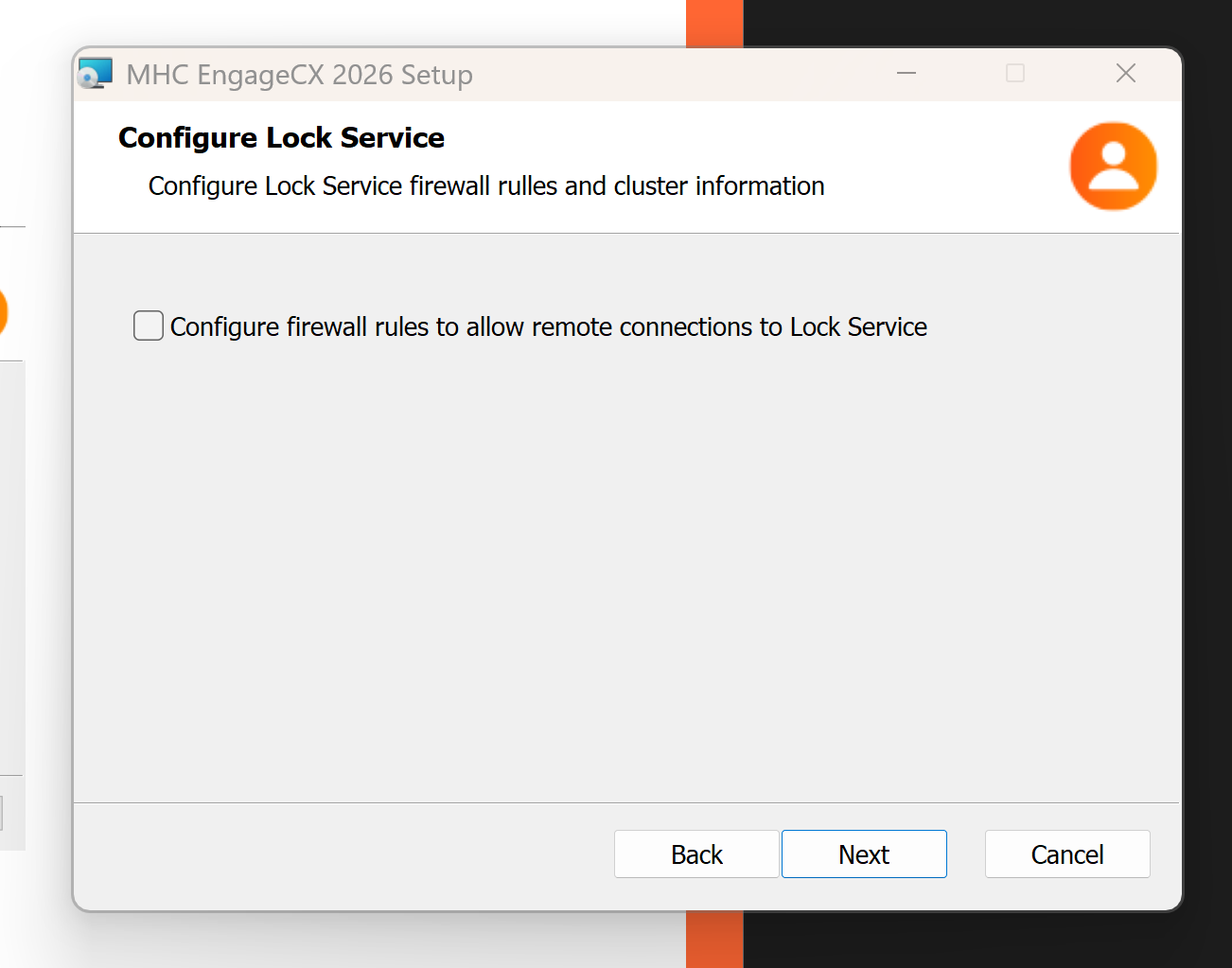
Configure Lock Service
The Lock Service is a centralized service that provides distributed synchronization.
Additionally, users can enable firewall rules to allow incoming remote requests.
Note
This option should remain unchecked for Single Instance installation. Enable it only if the Lock Service component is deployed on separate/multiple machine(s).
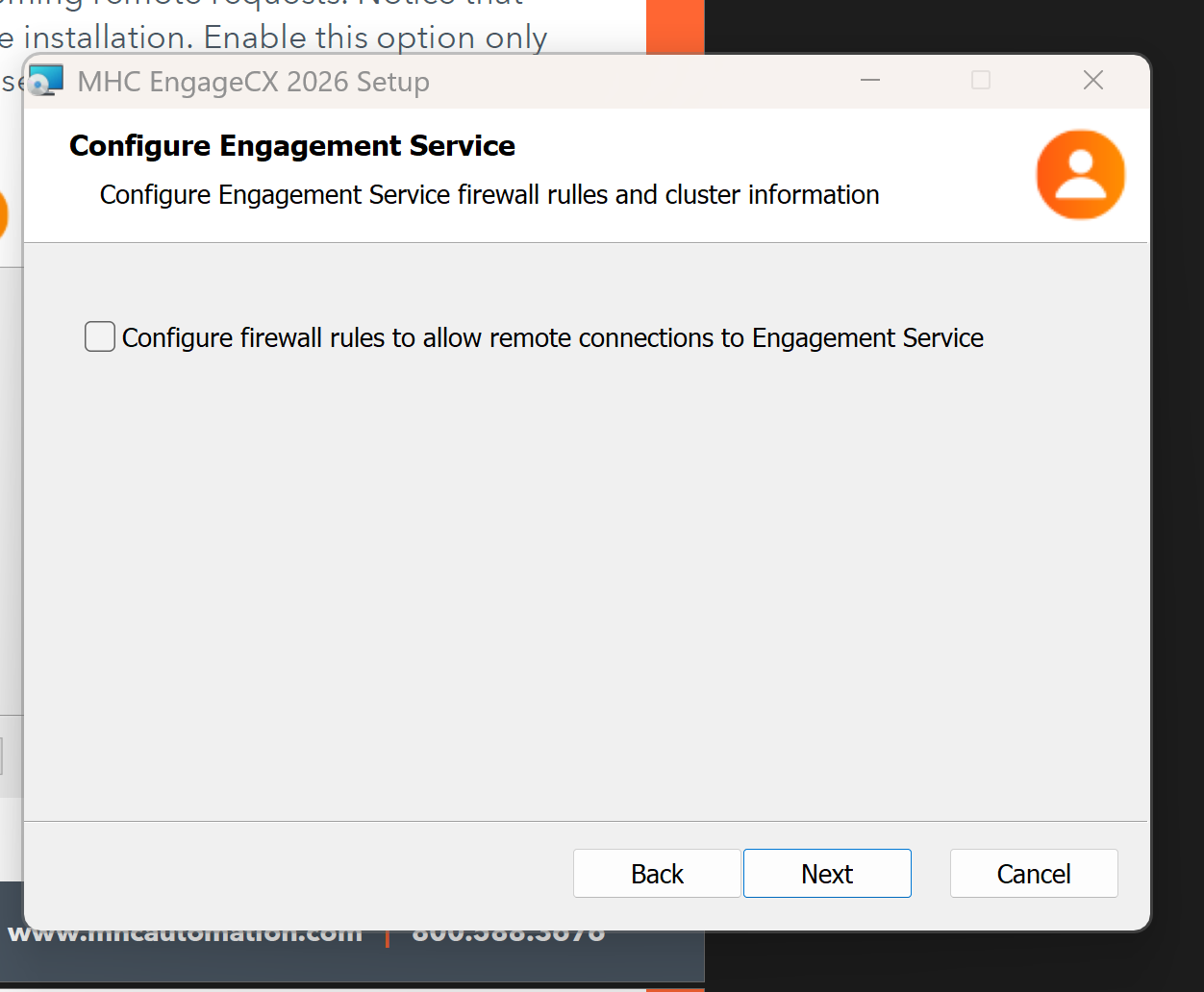
Configure Engagement Service
The Engagement Service is a standalone service that registers the TCP ports. It has an independent log file. The service can work in High Availability mode, depending on the Lock Service.
Additionally, users can enable firewall rules to allow incoming remote requests.
Note
This option should remain unchecked for Single Instance installation. Enable it only if the Engagement Engine component is deployed on separate/multiple machine(s).
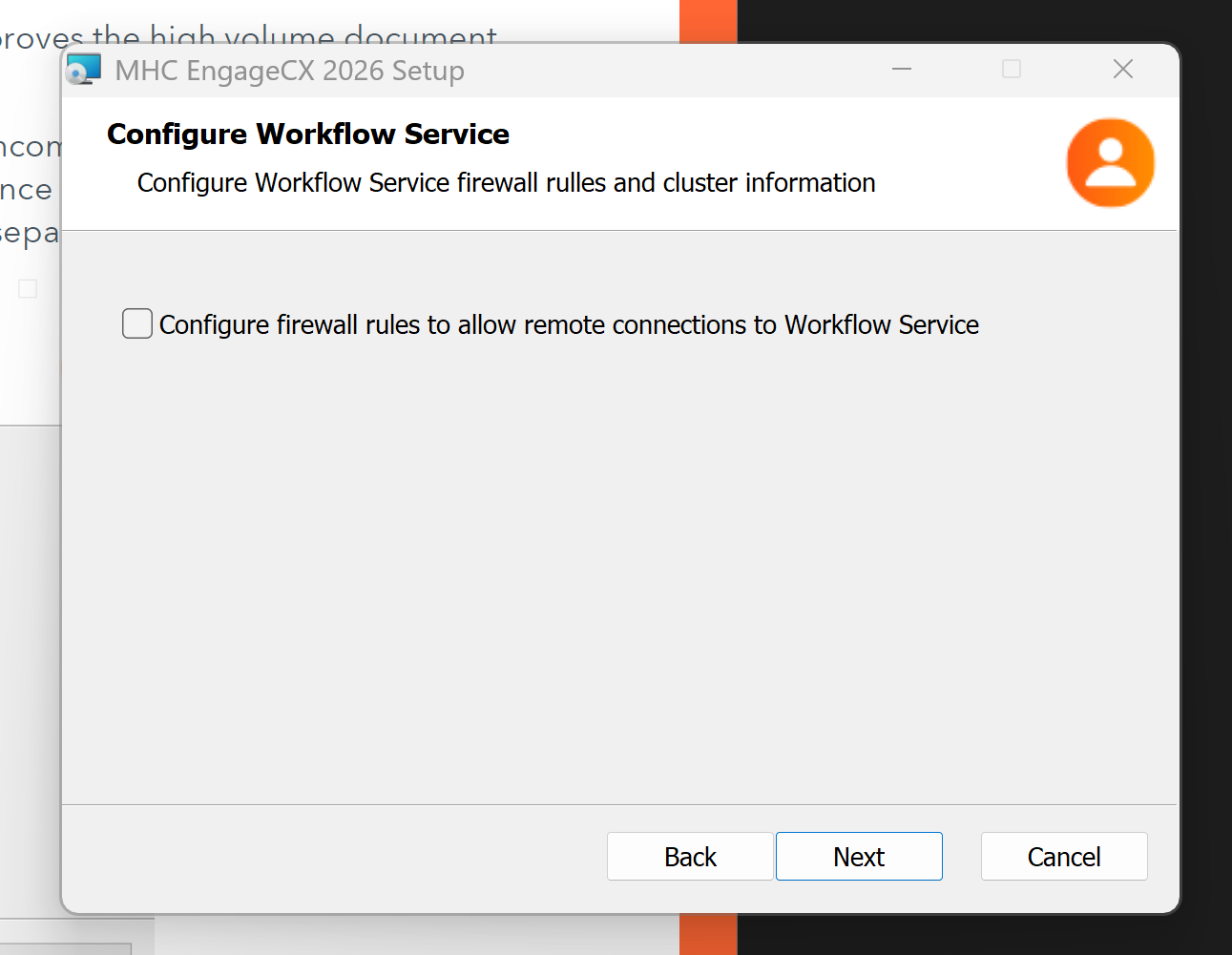
Configure Workflow Service
The Workflow Service is a standalone service that improves high-volume document production and distribution.
Additionally, users can enable firewall rules to allow incoming remote requests.
Note
This option should remain unchecked for Single Instance installation. Enable it only if the Workflow Engine component is deployed on separate/multiple machine(s).
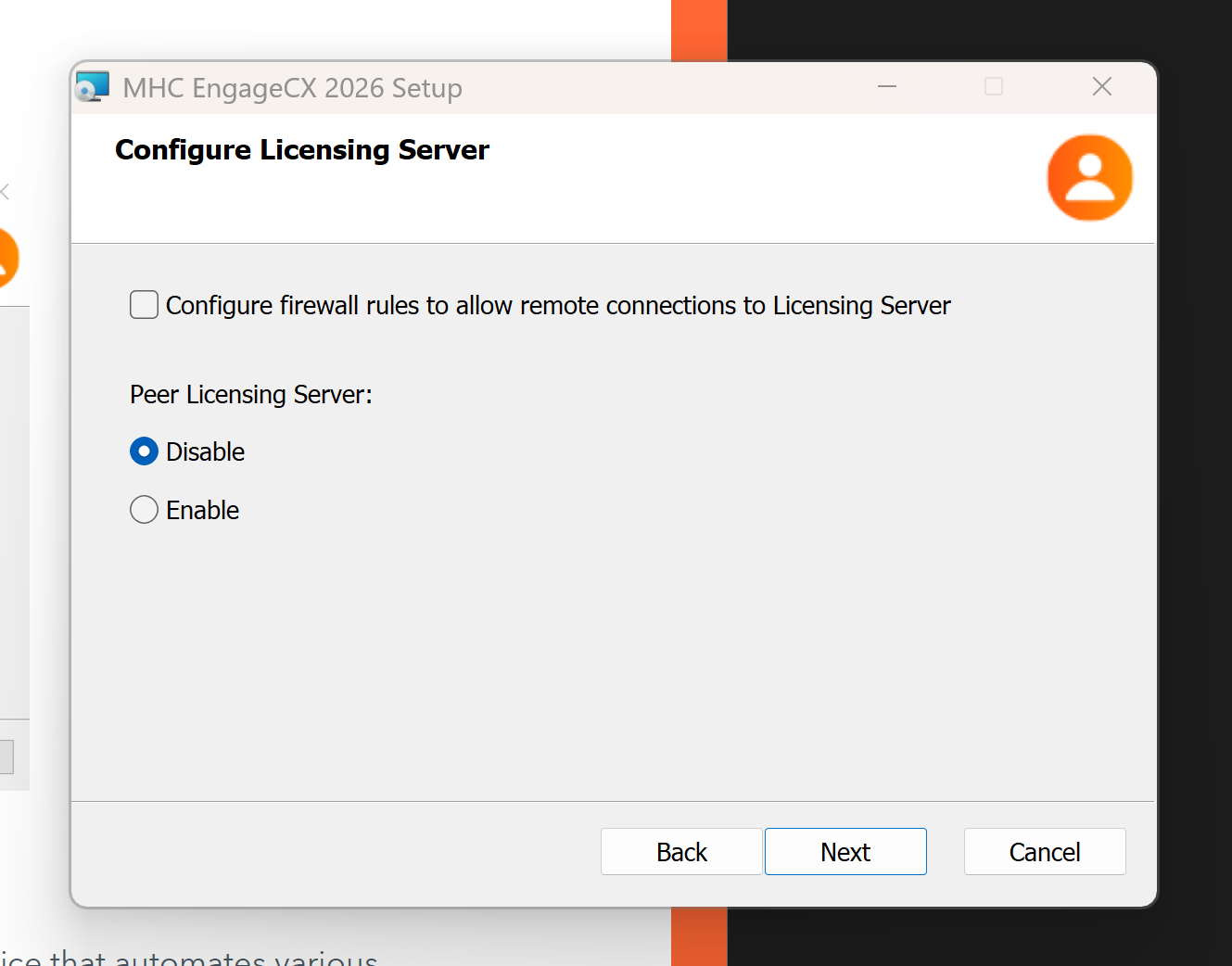
Configure Licensing Server
The Licensing Server allows system administrators to install and manage all NorthStar CCM (EngageCX) product keys that enable various features and functions.
For single instance scenarios, the Peer Licensing Server option should be Disabled.
Backend Services Settings
The Backend Services component is a Windows Service that automates various communication productions with jobs, schedules, triggers, etc. It also contains other important NorthStar CCM services such as Health Check, Billing, Analytics, etc.
Warning
This component is a vital service. Ensure it is installed and available when using the software.
During this phase, you can choose the additional components that come with the Backend Services component:
- Pre-Production Test Utility — performs a smoke check of all system functionality.
- EOS Backup Utility — performs a backup by creating supplementary exact copies of files and databases.
- EOS Encrypt Tool Utility — performs encryption to protect sensitive data and valuable information.
- Replicate Environment Utility — performs replication of your development environment and personal configurations across machines and instances.
Additionally, users can enable firewall rules to allow incoming remote requests.
Note
This option should remain unchecked for Single Instance installation. Enable it only if the Backend Services component is deployed on a separate machine.
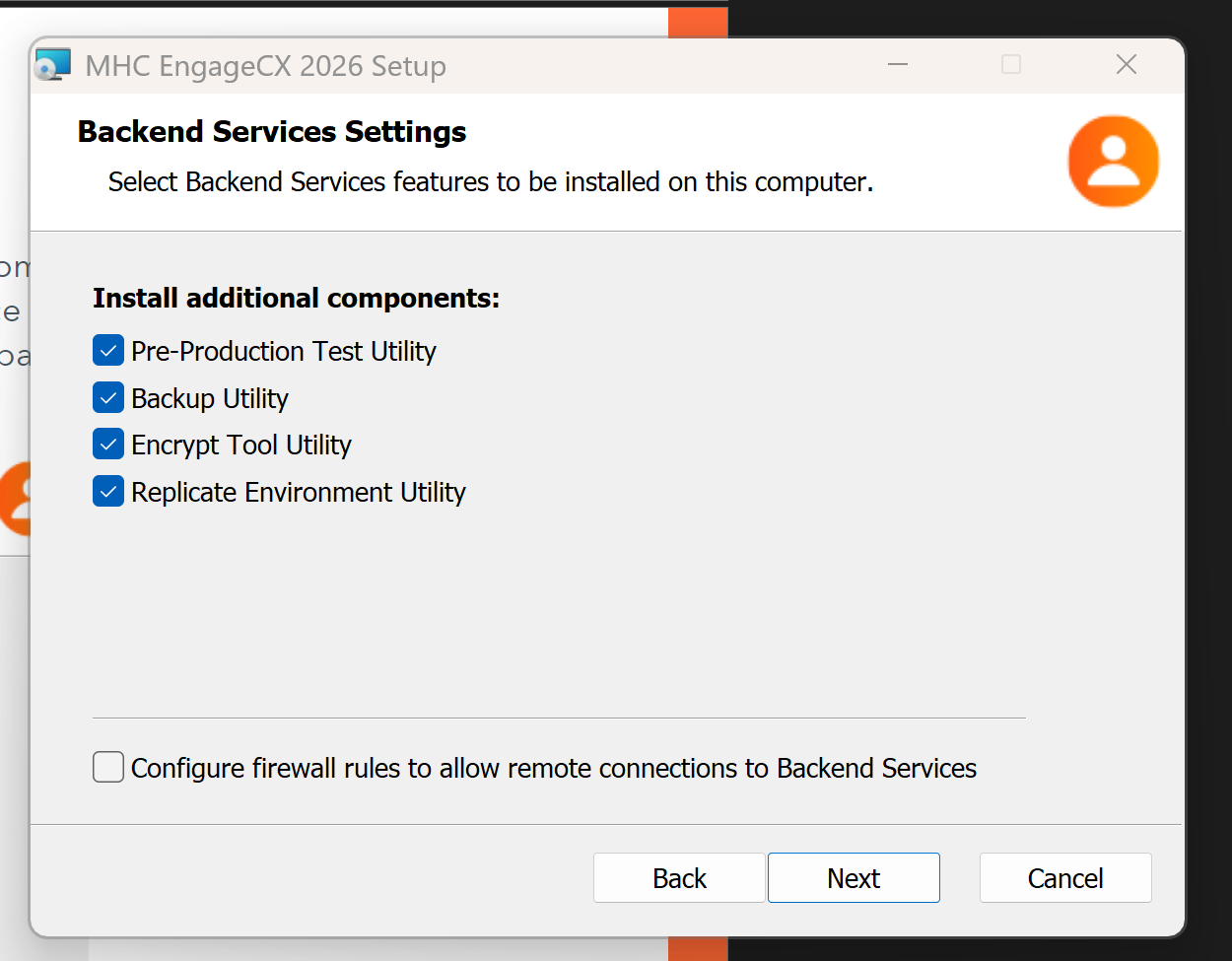
Once you select the needed features, select Next to proceed to the next step.
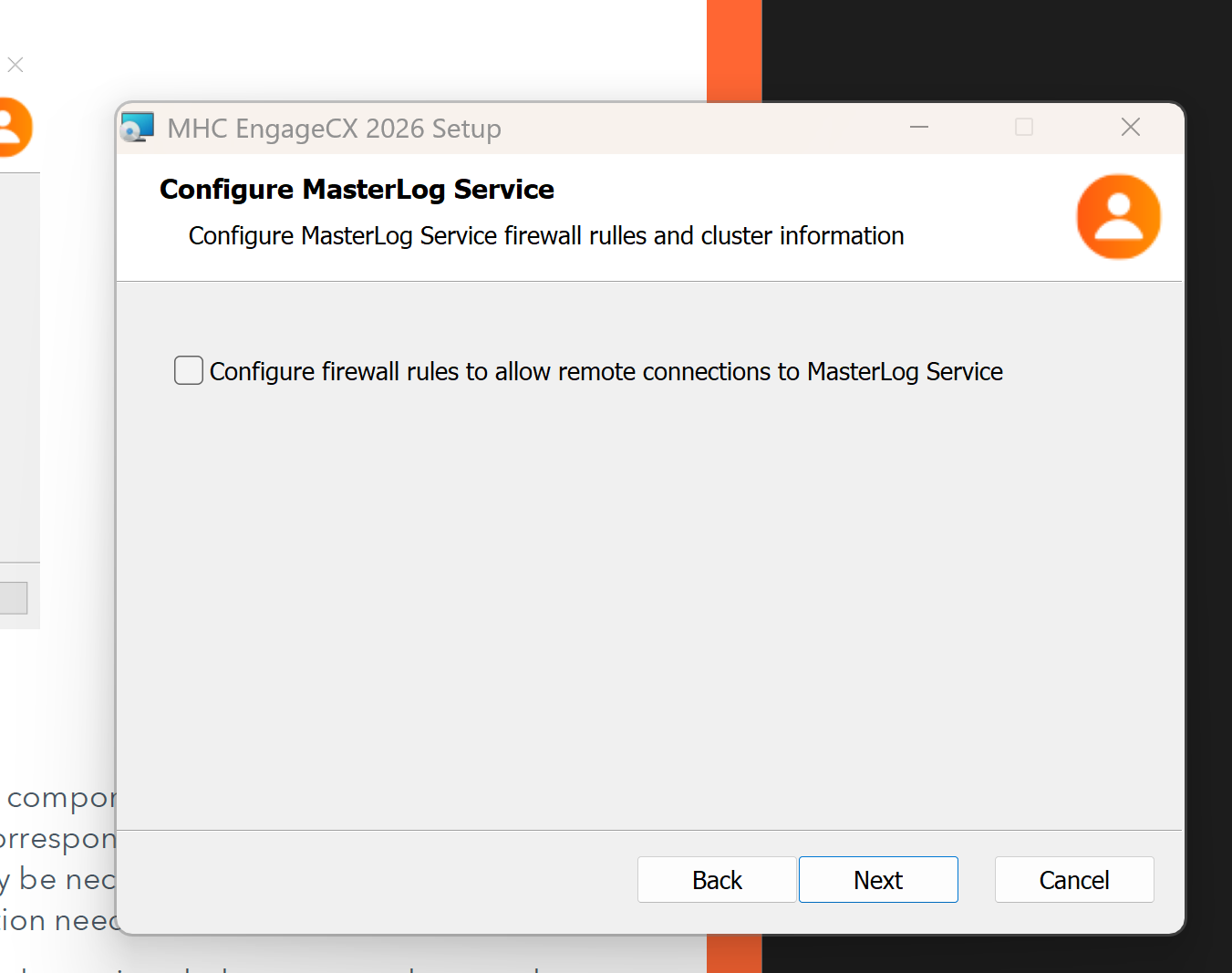
Configure MasterLog Server
The MasterLog Service is a standalone service that provides a centralized log of all the NorthStar CCM services.
Additionally, users can enable firewall rules to allow incoming remote requests.
Note
This option should remain unchecked for Single Instance installation. Enable it only if the MasterLog Engine component is deployed on a separate machine.
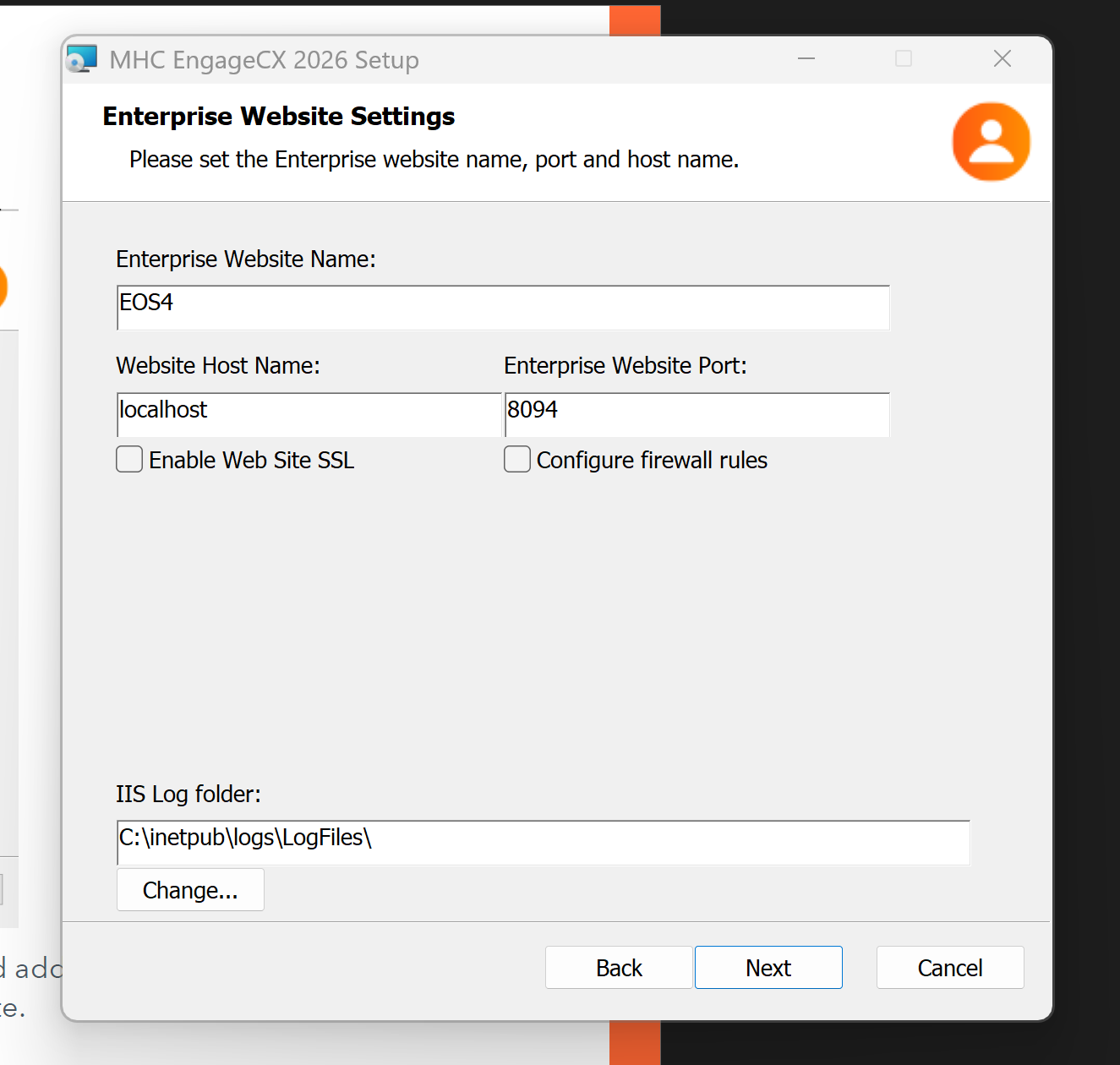
Enterprise Website Settings
The Enterprise Website is the main user interface component, allowing users to create and manage all customer communications and corresponding assets. The website will be installed on the IIS server.
If you choose the Enterprise Website component, the following settings are mandatory:
- Enterprise Website Name (default:
EOS4) - Website Host Name (default:
localhost; to enable remote access, update to the corresponding address) - Enterprise Website Port (default:
8094)
Optionally, you also have two checkbox options:
- Enable Web Site SSL — makes the site accessible via HTTPS (requires a pre-installed SSL certificate).
- Configure firewall rules — configures the firewall to allow access to the Enterprise Website via the specified port(s).
If you enable Web Site SSL, provide the following:
- Enterprise Website Secure Port — the port used for HTTPS access; this must differ from the HTTP port (and ports used by other websites). You may disable HTTP access to the website from IIS Manager after running the setup.
- SSL Certificate — the SSL certificate to use for HTTPS; it must already be installed on the system prior to launching the setup.
Note
To pick up an SSL certificate from a network share instead of the local certificate store, check Use Centralized Certificate Store, then provide the website secure port to be used.
The IIS Log folder box lets you set the website log folder for IIS logs.
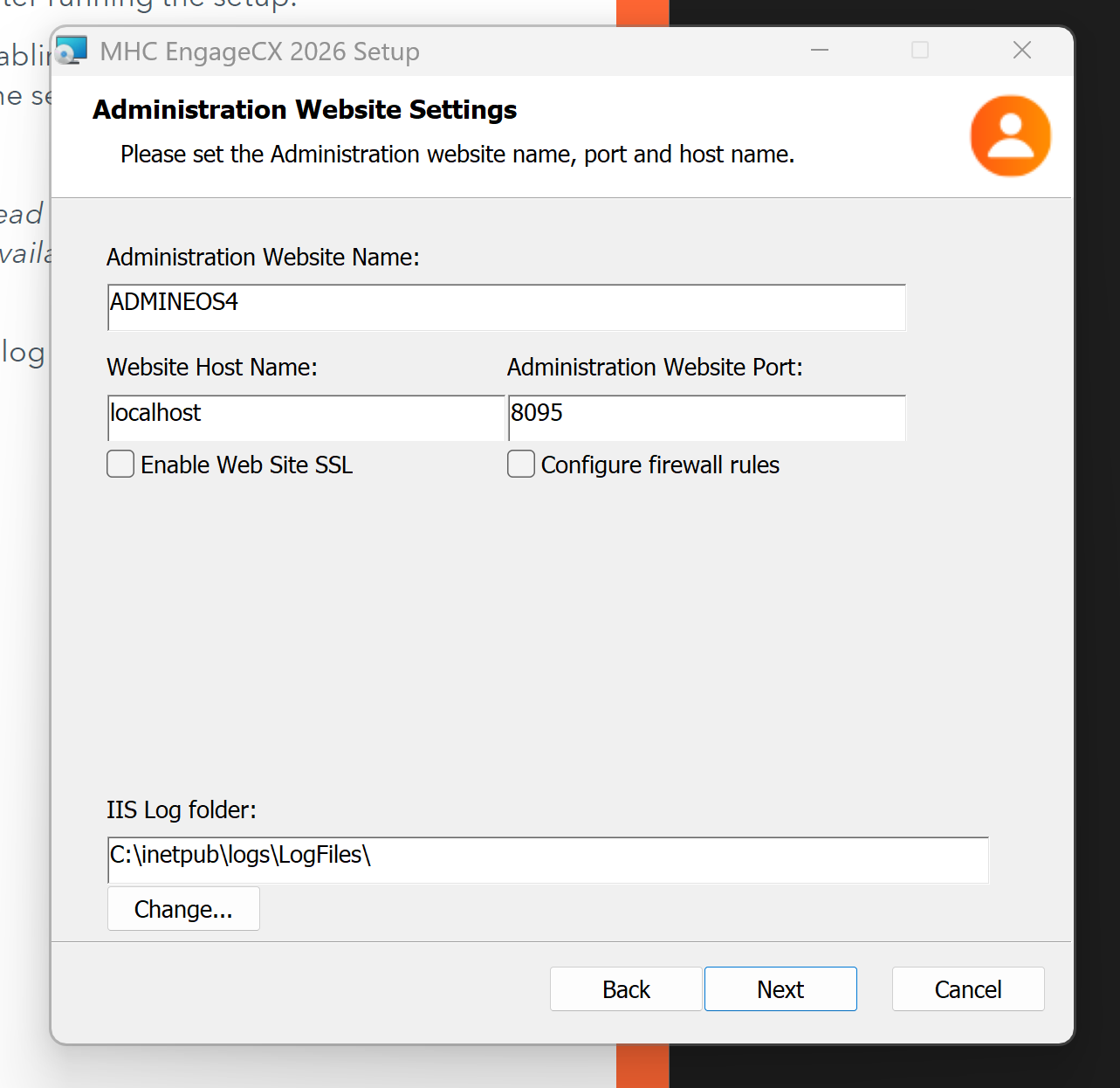
Administration Website Settings
The Administration Website performs various administrative tasks over NorthStar CCM environments (configuring worker servers and administration users, configuring environment capabilities, etc.). The website will be installed on the IIS server.
If you choose the Administration Website component, the following settings are mandatory:
- Administration Website Name (default:
ADMINEOS4) - Website Host Name (default:
localhost; to enable remote access, update to the corresponding address) - Administration Website Port (default:
8095)
Optionally, you also have two checkbox options:
- Enable Web Site SSL — makes the site accessible via HTTPS (requires a pre-installed SSL certificate).
- Configure firewall rules — configures the firewall to allow access to the Administration Website via the specified port(s).
If you enable Web Site SSL, provide the following:
- Administration Website Secure Port — the port used for HTTPS access; must differ from the HTTP port (and ports used by other websites). You may disable HTTP access to the website from IIS Manager after running the setup.
- SSL Certificate — the SSL certificate to use for HTTPS; it must already be installed on the system prior to launching the setup.
Note
To pick up an SSL certificate from a network share instead of the local certificate store, check Use Centralized Certificate Store, then provide the website secure port to be used.
The IIS Log folder box lets you set the website log folder for IIS logs.
You can also enable HTTPS traffic on this website and add firewall rules for incoming requests, in a similar fashion to the Enterprise Website.
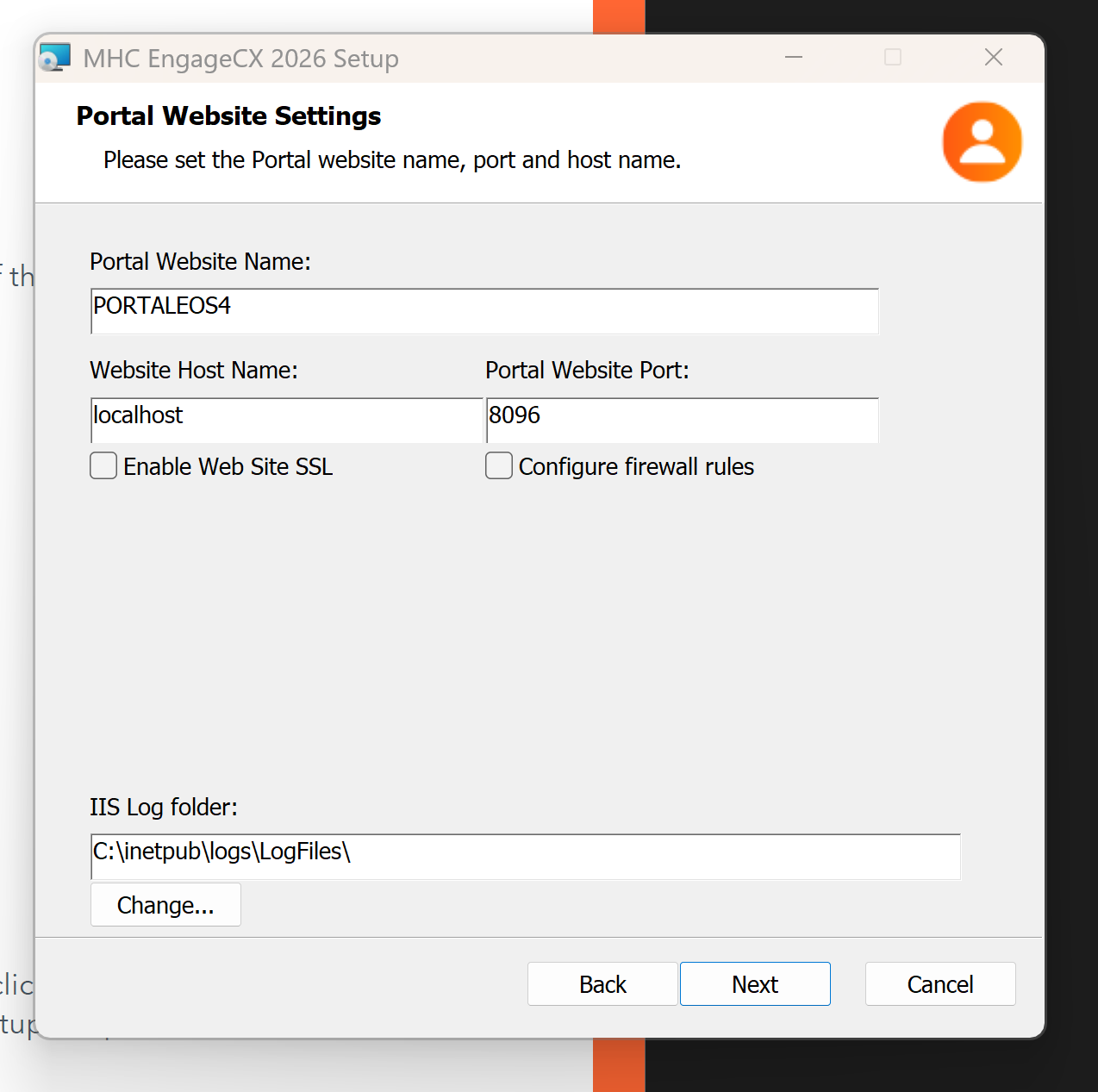
Portal Website Settings
The Portal Website allows customers to view their communications created with NorthStar CCM software. This website will be installed on the IIS server.
If you choose the Portal Website component, the following settings are mandatory:
- Portal Website Name (default:
PORTALEOS4) - Website Host Name (default:
localhost; to enable remote access, update to the corresponding address) - Portal Website Port (default:
8096)
Optionally, you also have two checkbox options:
- Enable Web Site SSL — makes the site accessible via HTTPS (requires a pre-installed SSL certificate).
- Configure firewall rules — configures the firewall to allow access to the Portal Website via the specified port(s).
If you enable Web Site SSL, provide the following:
- Portal Website Secure Port — the port used for HTTPS access; must differ from the HTTP port (and ports used by other websites). You may disable HTTP access to the website from IIS Manager after running the setup.
- SSL Certificate — the SSL certificate to use for HTTPS; it must already be installed on the system prior to launching the setup.
Note
To pick up an SSL certificate from a network share instead of the local certificate store, check Use Centralized Certificate Store, then provide the website secure port to be used.
The IIS Log folder box lets you set the website log folder for IIS logs. You can also enable HTTPS traffic on this website and add firewall rules for incoming requests, in a similar fashion to the Enterprise Website.
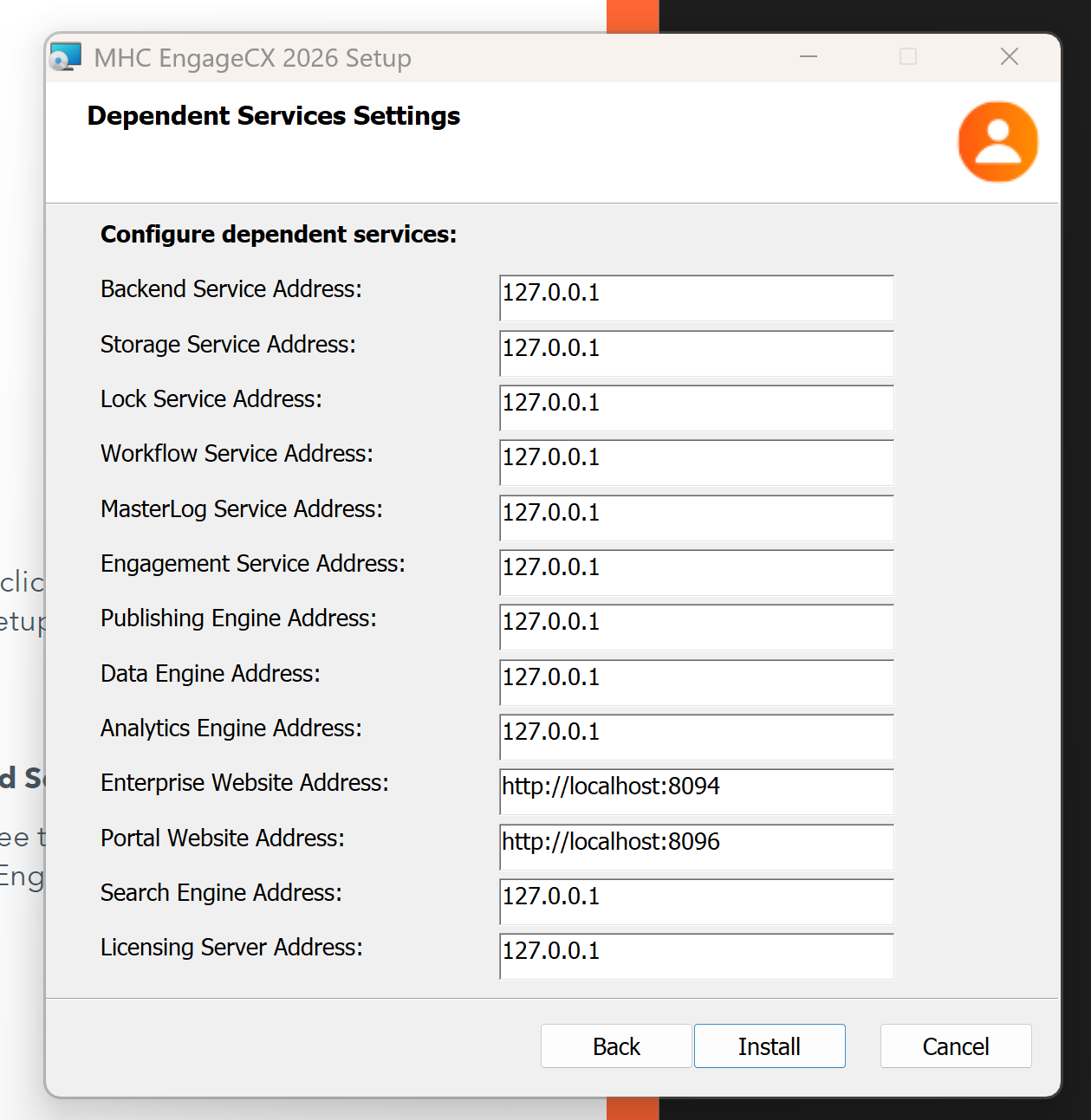
Dependent Services Settings
This step allows you to manage the addresses of the machines where you installed the NorthStar CCM components.
Once you finish configuring the components, click Install, located in the bottom region of the Setup Wizard window, to begin installing the NorthStar CCM software.
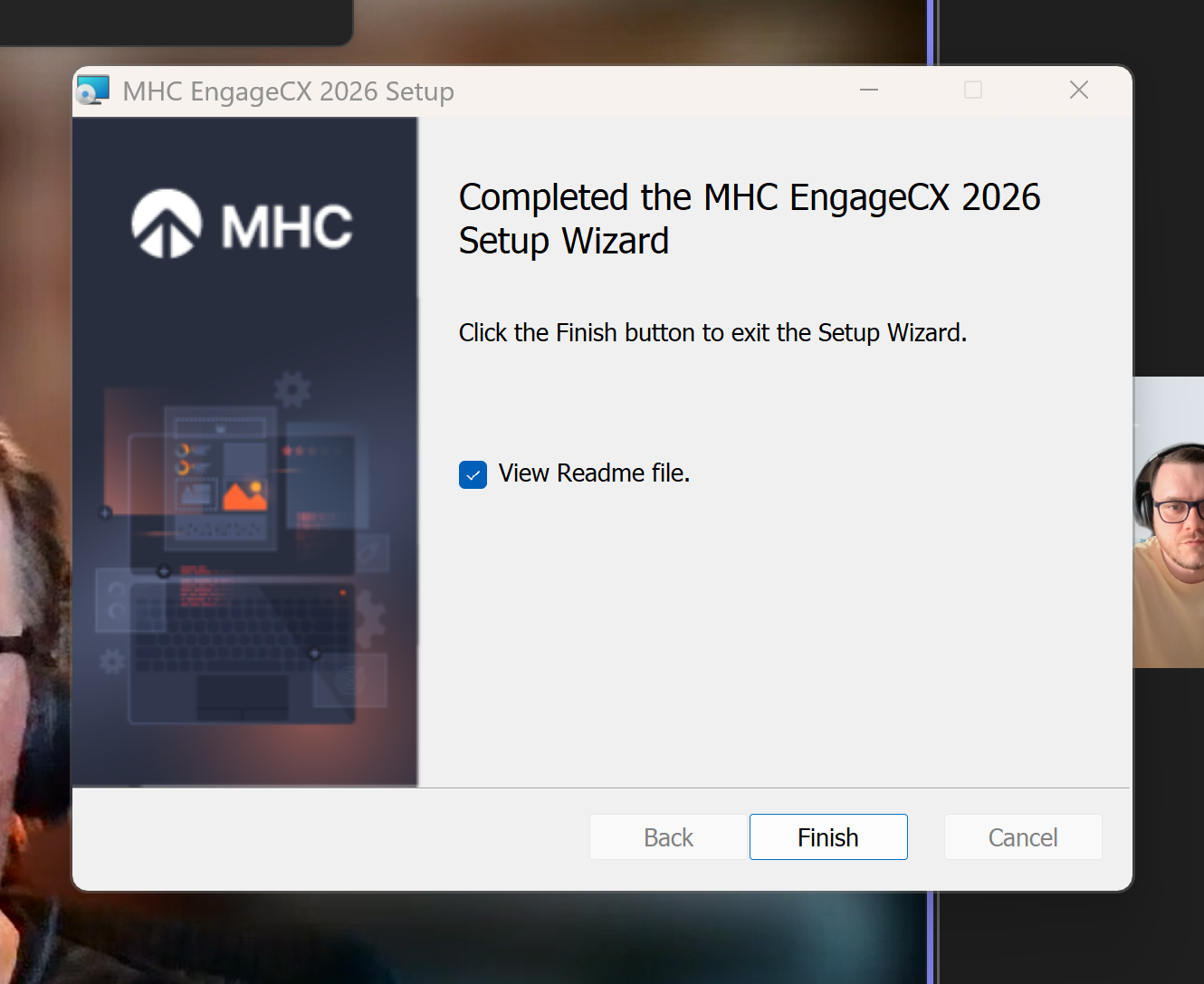
Installation Completed
The final steps of the Installation Wizard let you see the progress of the installation and, once completed, view the Readme file of the NorthStar CCM software.
Complete the installation by selecting Finish.
Configuring High Availability (HA)
To enable High Availability (HA), see the High Availability (Double Instance) section for setting up HA using two servers, each with a full instance of the NorthStar CCM deployment (except the database). The instances in this topology are configured to synchronize both storage and their background activity (triggers, schedules, health check, search data crawling, etc.).