Tasks
NorthStar CCM Tasks enables access to files by selecting available tasks. In order to be accessed, the tasks must be assigned to a user from your organization.
Tasks are part of the document production. The app allows organizations to manage all their production tasks in one place.
This guide covers all the information you might need while using Tasks. For a detailed understanding of the capabilities in the Tasks App, please skim over the functionalities detailed within this guide.
Getting Started
NorthStar CCM Tasks helps organizations in their efforts to create, assign and track progress of different tasks. If you're ready to take tasks experience to the next level, follow the instructions in this section to find out more.
Installing the App
Follow the steps below to learn how to install the app.
- Start by accessing your NorthStar CCM Account and go to the
Benefitstab. - Access your cloud organization.
- Click your account name in the top-right corner and select
Explore Apps. - Identify the
Tasksapp in the Grid Apps Menu and clickMore >button. - Select
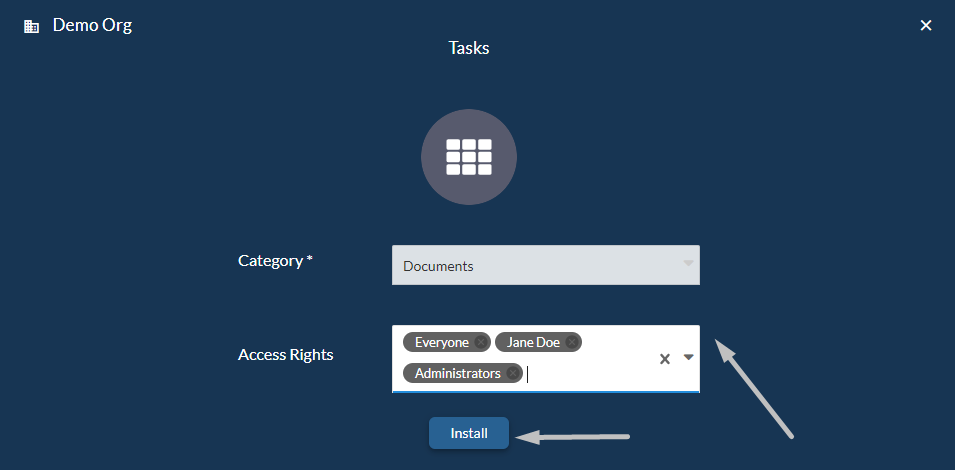
Get It Now >, then fill in the form fields as below:- Category: Choose the category where you want to include this App to;
- Access Rights: Use the drop-down list to configure the App permissions for your existing users or groups.
- Once ready, select
Install.
Note
If the user does not have the corresponding App keys installed, after the installation, you will be automatically redirected to install the licenses. To continue with this, select Manage Licenses, then click the Add button to install the product keys.
Requesting a Demo
Follow the steps below to learn how to request a demo of the app.
- Log in to your NorthStar CCM Account.
- Access your cloud organization from the
Benefitstab. - Click your account name in the right-corner of the page and access
Explore Appsfrom the sidebar menu. - Identify the
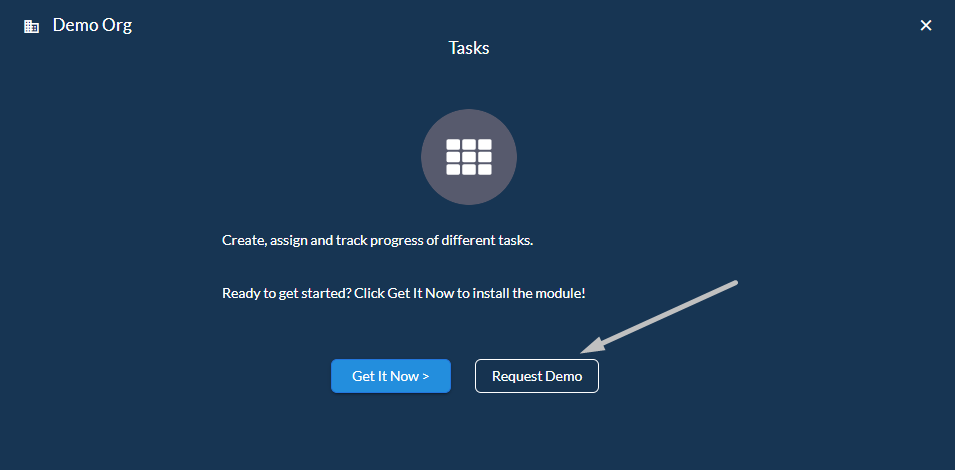
Tasksapp in the Grid Apps Menu and clickMore >button. - Select the
Request Demobutton to send a request to the support team. - You will be redirected to the NorthStar CCM website, where you will be requested to complete a form with some required fields:
- Provide your first name.
- Provide your last name.
- Provide your business email address.
- Provide your company name.
- Write some comments regarding the request you are about to send (e.g. reason, purpose).
- Once you're ready, select
Request Demo. - Verify your mail inbox where you will receive further notice regarding the request.
Tasks Interface
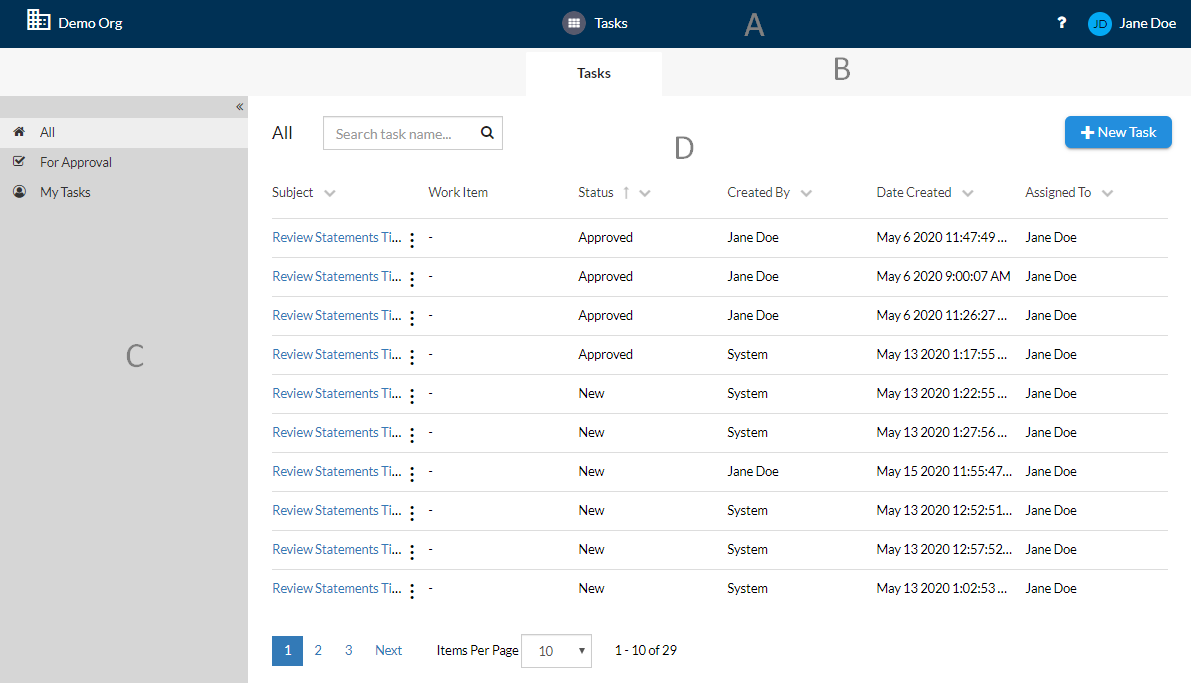
This section provides a detailed tour of the most common components that add interactivity to the Tasks Interface. Find below the touchpoints for the users as they navigate throughout the app and learn how to make full use of them.
(A) Navigation Bar - appears at the top of the app screen and it is split into 3 sections - left, center and right.
- In the left side, there is the Organization name, from where you can access the Cloud Organization welcome page and view the installed apps.
- In the center of the navigation bar, there is the Name of the app from where you can redirect to the main Tasks view whatever page you are visiting at the moment.
- In the right side of the navigation bar, there is the Help Center that offers options for support, access to the NorthStar CCM Documentation, user feedback, etc. Next to the Help Center, there is also the Account Name that enables a list of right sidebar options, such as organization, account, users configurations or exploring the available apps.
(B) Toolbar - displays the main view of the application you are currently working with.
- Tasks - a view with all the existing tasks displayed in a detail mode.
(C) Sidebar - contains the two views for displaying the tasks data; it has to states: hidden or locked, that can be set up by clicking on the Shrink ( ) or Expand ( ) buttons. It contains three options that are listed in the left sidebar:
- All - displays a view with all types of tasks (tasks waiting for approval and the tasks created by the current user).
- For Approval - displays a view with the tasks waiting for approval only.
- My Tasks - displays a view with the tasks that are created by the current user only.
(D) Page Content - is the dedicated region that you will use to easily navigate through your tasks and find the associated information, such as the subject of the task, its work item, its status, the author who created it, the date of creation and the person to whom it is assigned. Additionally, this area gives you access to some options for filtering and sorting the existing tasks within the page.
Tasks App Basics
Tasks were created to help you split your work with other team members, allowing you to improve the way you plan and track the life-cycle of a project. Using tasks, you can stay constantly connected with your team's work, have a good view and clear idea of the project's onset, enhancing your organization to a successful management and completion of your document production.
Tasks Management
In the Tasks page, you are allowed to create new tasks and issues for other users, review files and approve or add new document versions.
Additionally, the purpose of a task could be to provide restricted access, so that certain users or groups will only create the tasks and others will only review the assets you allow them to approve. For more details, please visit the Enforcing four-eyes principle section of the same guide.
Creating Tasks
Follow the steps below to learn how to create a new task.
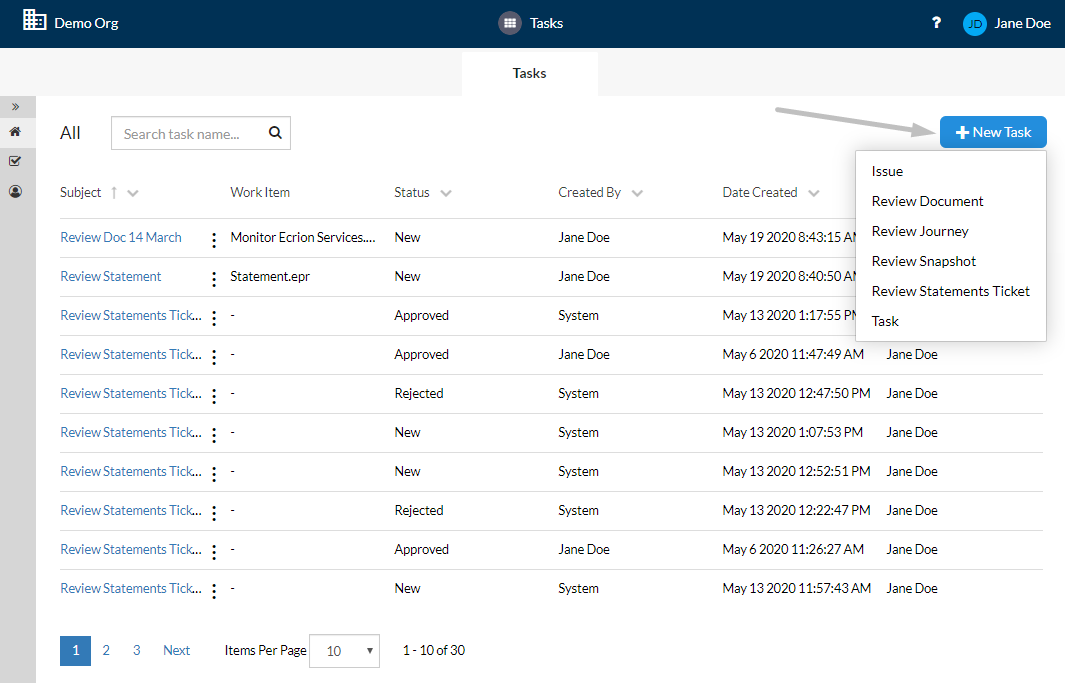
- In the Tasks page, select the
+New Taskbutton from the top-right corner of the page. - Select the type of task you intend to create from the contextual menu. By default, there are six types of tasks that can be customized:
- Issue
- Review Document
- Review Journey
- Review Snapshot
- Review Statements Ticket
- Task
- Fill out the form with the required values:
- Provide a name for your task.
Assign To: select a user or a group within the current organization from the drop-down list to whom to assign the task.Description: optionally, provide a description to highlight the purpose of this task.Notification Recipients: add email addresses of other users you intend to collaborate to the current task.- Select the
Moredrop-down menu to include other essentials assets to the current task.- Select the
Add( ) button to upload attachments from your computer.
- Select the
- Once ready, select
OKto create the task.
Enforcing four-eyes principle
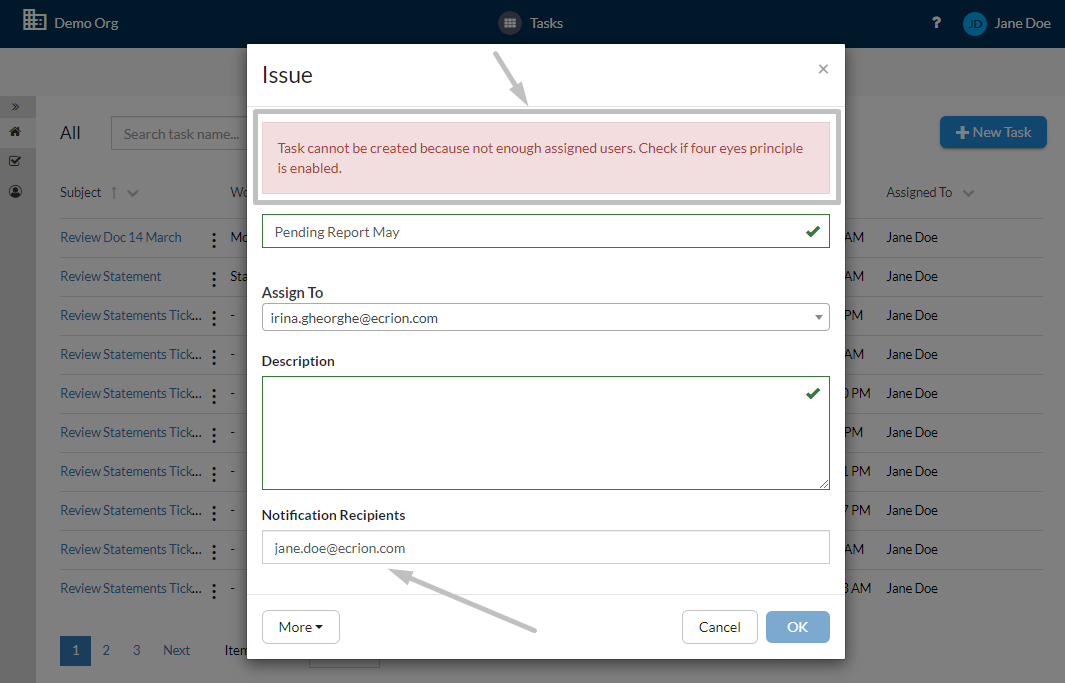
When requesting a review for a document or snapshot, you can enable the four-eyes principle for tasks. If this configuration is enabled, a user who requested the Review will not be able to Approve any changes. To disable this option, please access the Workspaces Guide. Otherwise, you must assign another user (other than the current user that creates the task) to review the task, under the Assign To field.
Review and Approval
NorthStar CCM provides many ways to review your project assets, by allowing you to:
- Set the Review and Approval process for an entire workspace;
- Review and Approve a project before deploying a Project Version in a production environment;
- Manually create and configure a workflow to approve your projects.
Note
In NorthStar CCM Tasks, you will be able to set a Review and Approval for all the files within a workspace or for a version of any other NorthStar CCM App project (e.g. Statements, Contracts, Letters, etc.). Enabling options for the Review & Approval process can be done from the Workspaces app.
Requesting Review and Approval
The next step after enabling the Review and Approval process is to request a review for your work to be able to run the approved files. Below you can find step by step instructions in order to request a review and approval.
-
When the
Run only approved filesis enabled, you will not be able to run any communication project containing files that are not approved. There are two ways to request a review for workspace's files:- From the Tasks app, by creating a new
Review Documenttask. - From Workspaces app, by requesting review for a workspace folder or file.
- From the Tasks app, by creating a new
-
When the
Approve communication projects before publishis enabled, you will not able to publish any project version that is not approved. There are two ways to request a review for a snapshot project:- From the Tasks app, by creating a new
Review Snapshottask. - From Workspaces app, by requesting review for a Project Version.
- From the Tasks app, by creating a new
Filtering Tasks
Starting from the Tasks page, you can filter the entities listed within.
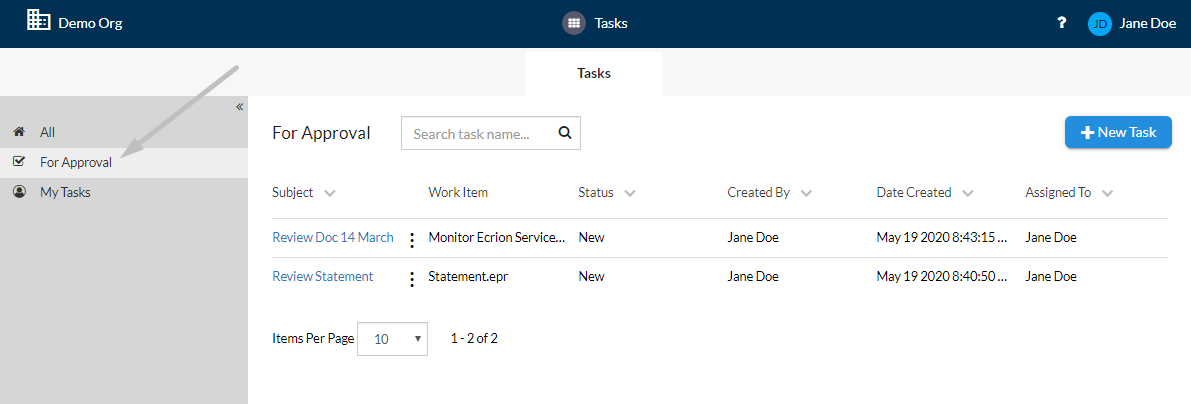
- To filter the tasks information displayed, select from the left sidebar a filter from the list based on which you want to filter the results (e.g. For Approval).
Sorting Tasks
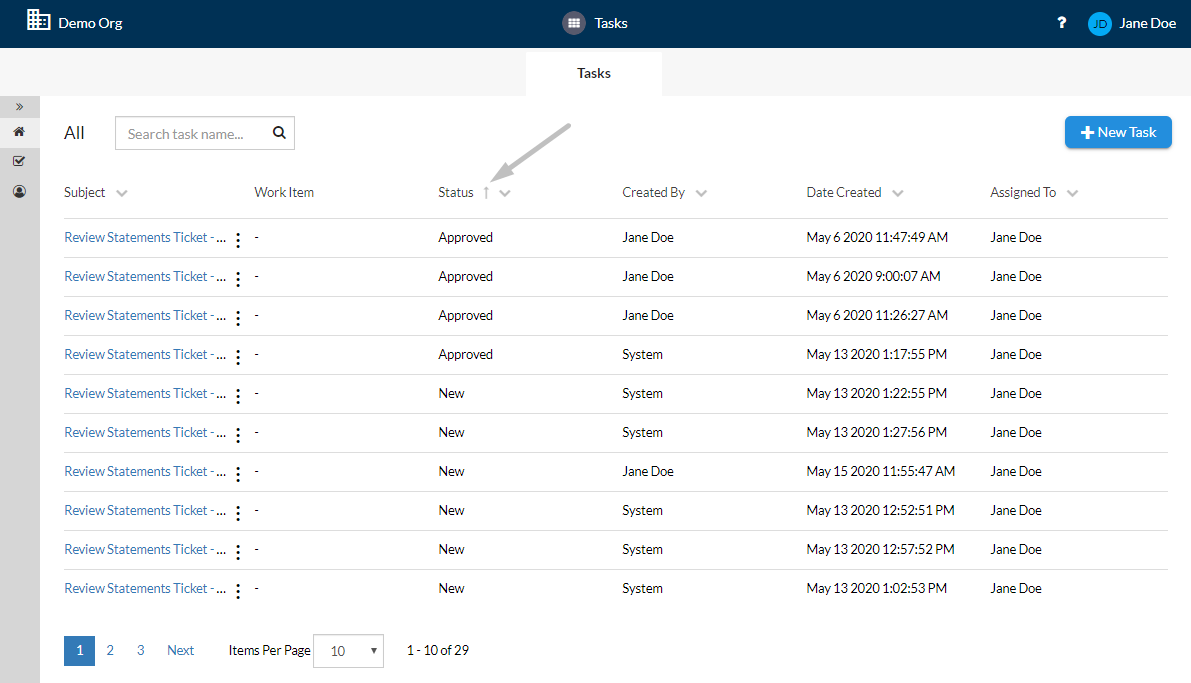
Starting from the Tasks page, you can sort the entities listed within by using the available column-headers, such as Subject, Status, Created By, Date Created, or Assigned To.
- To sort the tasks information displayed, select a column-header (e.g. Status) and the list will sort the results in ascending ( ) or descending ( ) order.
- If multiple sorting criteria are applied, such as Subject, Status, and Assigned To, the high-priority is received by the last criteria set.
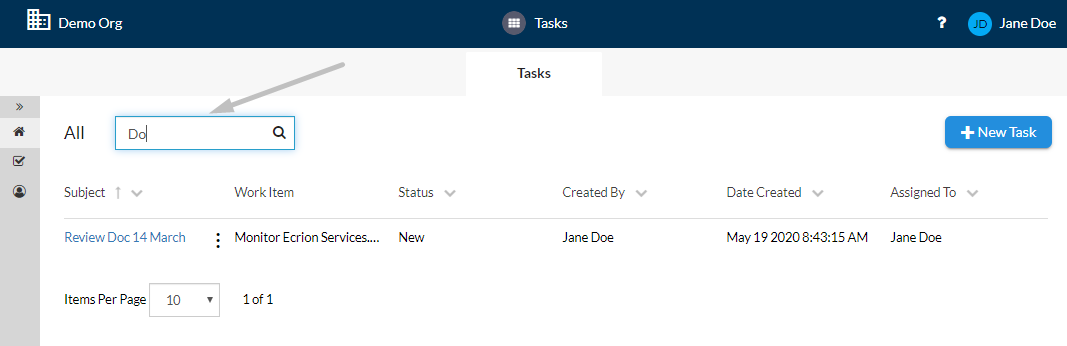
Searching Tasks
Follow the steps below to learn how to search through existing tasks within your organization.
- Access the Tasks page and a list with the existing tasks will be displayed.
- If you want to search for a specific task in the list, you can use the
Searchfeature ( ). - Type in the
Searchbox the full or just a part of the name of the needed task and hitENTER.
Contextual Tasks Options
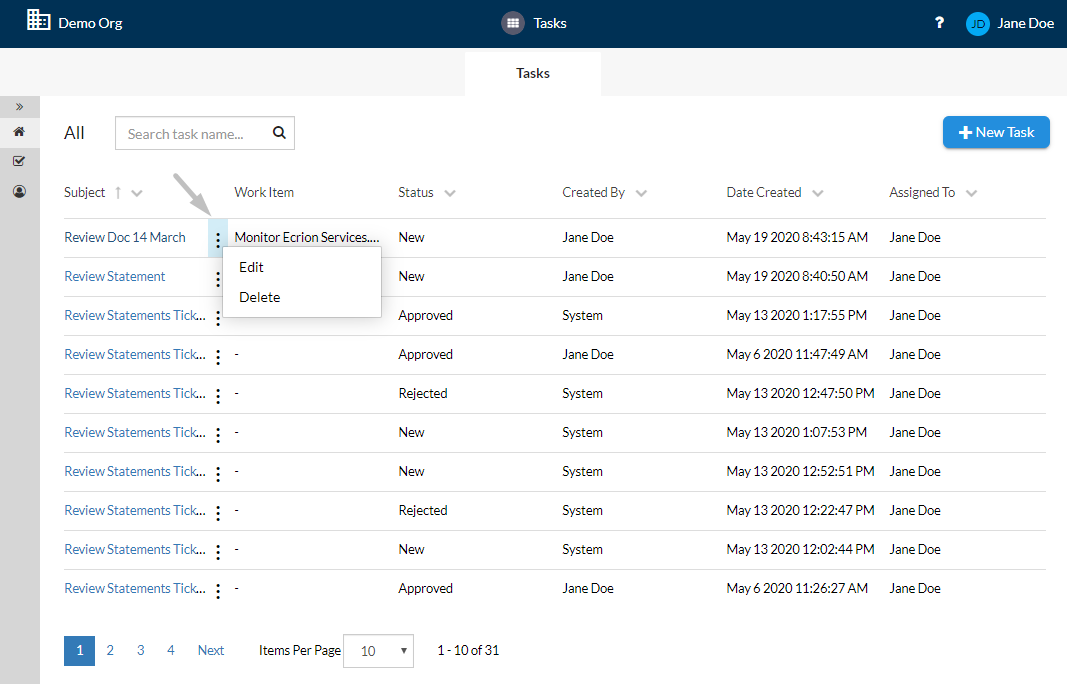
Follow the steps below to explore the options from the contextual menu of a task.
- Access the
Taskstab from the toolbar. - Select the
More Actions( ) button of a task from the Page Content. - From the contextual menu displayed, you can select the following options, according to your needs:
- Edit: Use the
Editbutton to edit the task and update its configurations. - Delete: Use the
Deletebutton to permanently remove the task from the list.
- Edit: Use the
Task Information
In the Task Information page, you are allowed to edit the existing task and issues for other users, review files and approve/reject, or add new document versions or comments related to task's activities (Start Work, Approve, Reject).
Monitoring Tasks
Even if you need to review and approve project content or you just want to create a task or issue for another member of your team, in both ways, you can monitor the overall progress of each task.
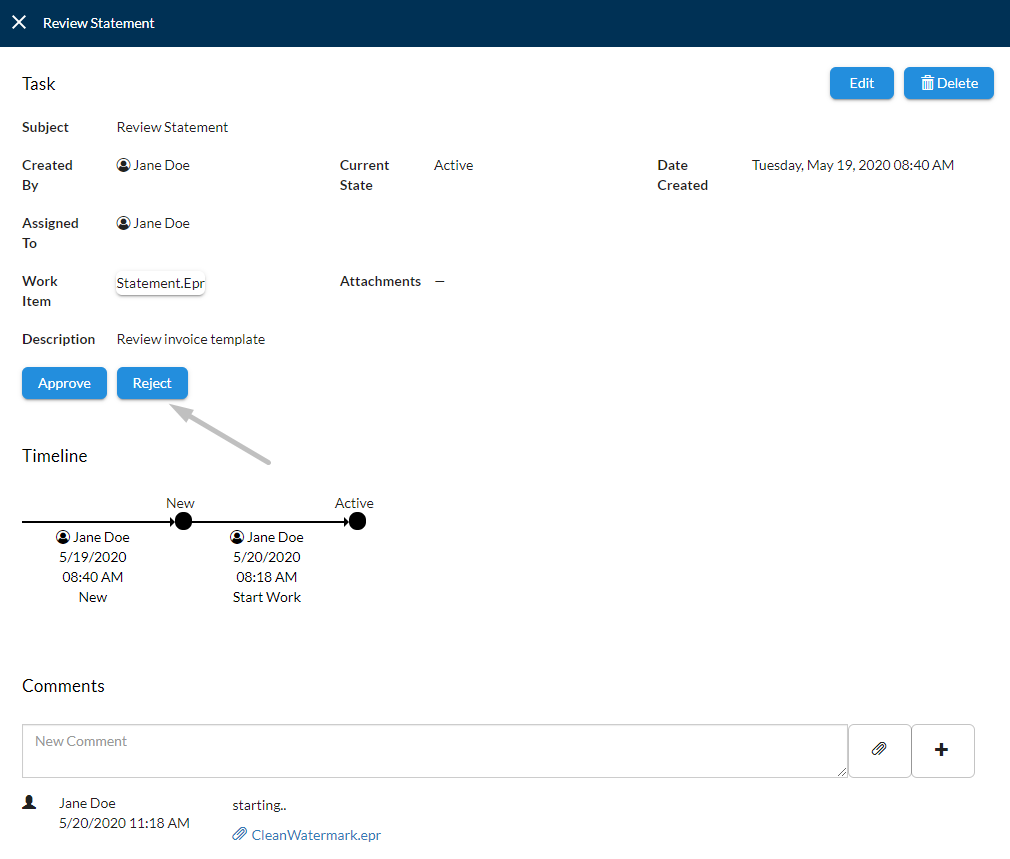
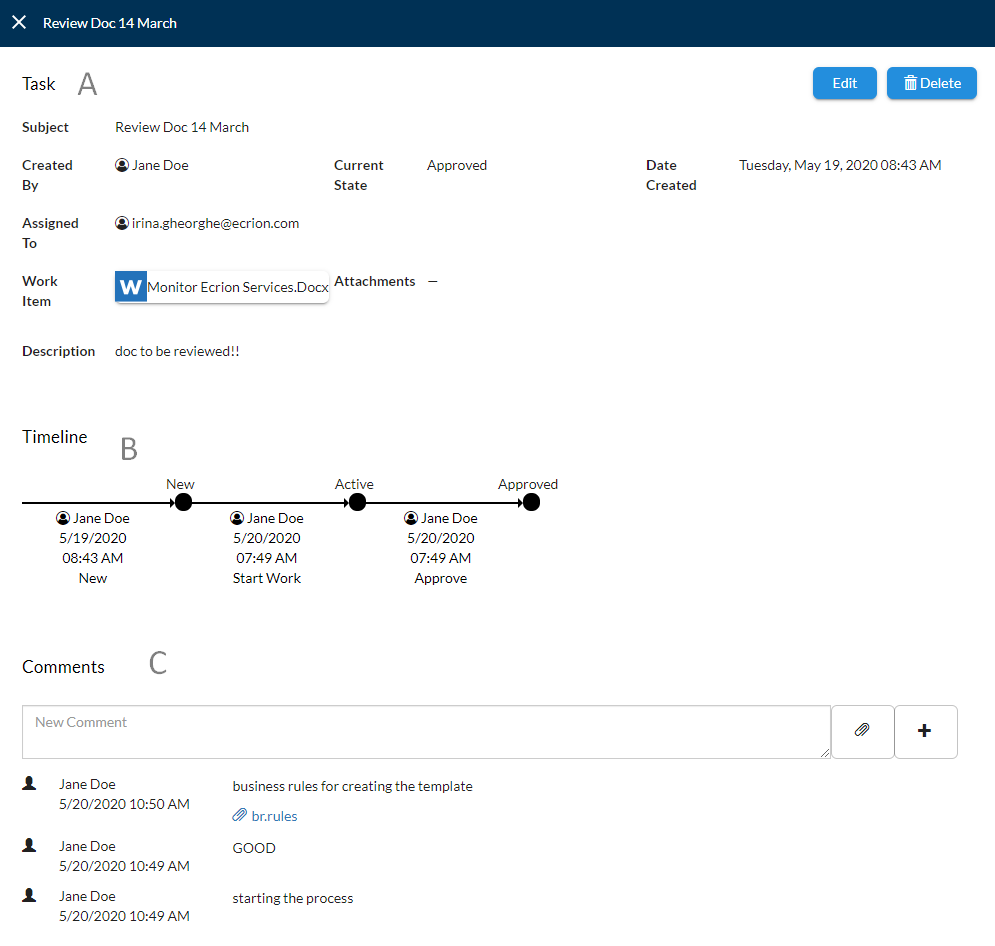
To open the Task monitor page, simply access the Tasks page and then select the one you want to analyze. Within the task monitoring page, you can view:
(A) Task Board - shows the team member to whom the task has been assigned, creation date, the current state, the user that created the task, the work item to be reviewed, the description of the task and attachments, if any.
(B) Timeline Board - providing a clear map of all the stages on which a task went through. (e.g. New - Active - Approved)
(C) Comments Board - section where you can add and view comments ( ) or attachments ( ).
Editing Existing Tasks
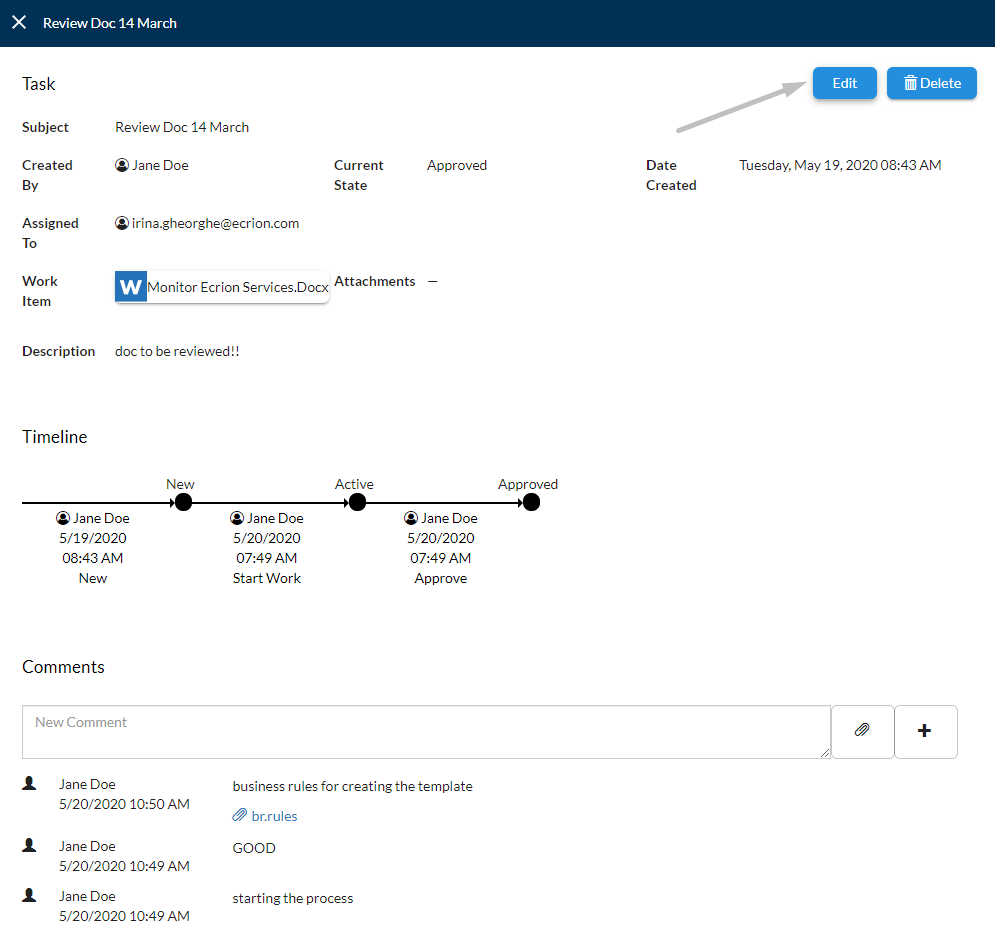
Follow the steps below to edit the properties of an existing task.
- Starting from the Tasks page, identify the task you intend to edit and click on it.
- In the Task Information page, select
Editin the right-corner of the page. - Update the necessary fields from the dialog related to the current task.
- Once you're ready, select
OK.
Removing Existing Tasks
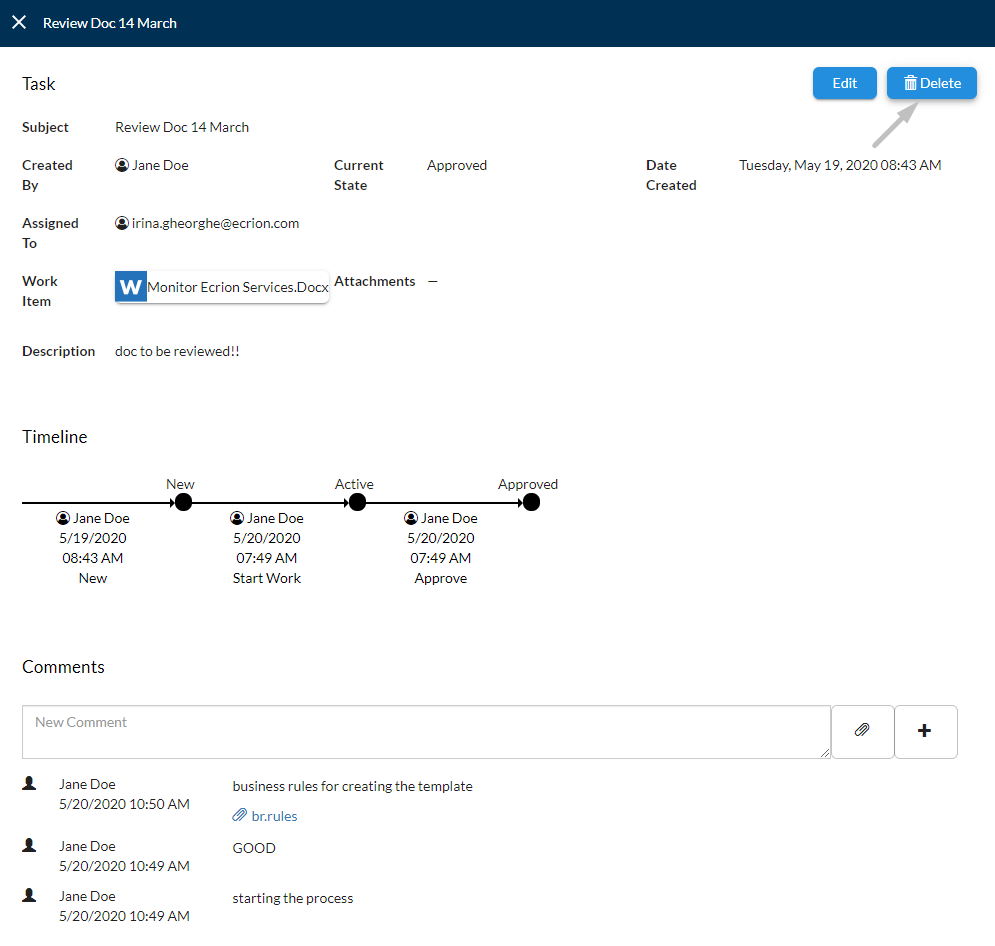
Follow the steps below to remove an existing task.
- Starting from the Tasks page, identify the task you intend to edit and click on it.
- In the Task Information page, select
Deletein the right-corner of the page. - Confirm the deletion and click
OK.
Downloading Work Items
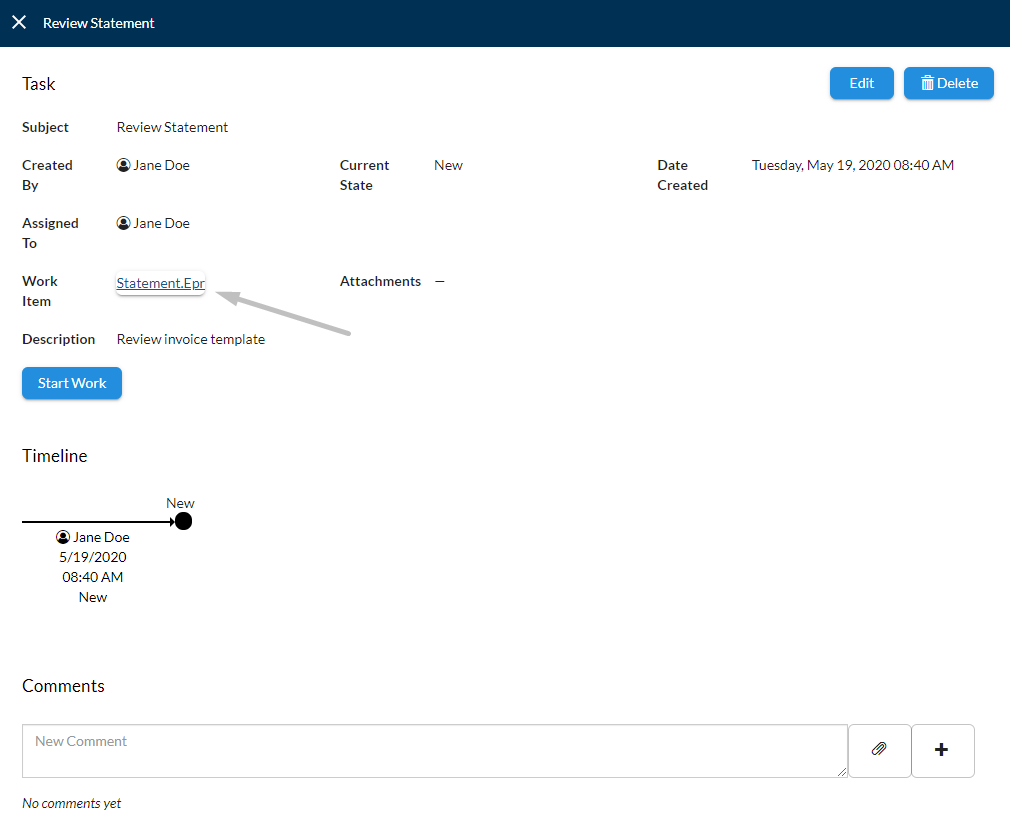
Follow the steps below to open/download the work item of an existing task.
- Starting from the Tasks page, identify the task you intend to edit and click on it.
- In the Task Information page, select the corresponding
Work Itemfrom the Task Board. - The work item to be reviewed will be downloaded on your computer or open in the associated app (e.g. Microsoft Word).
Starting a Task
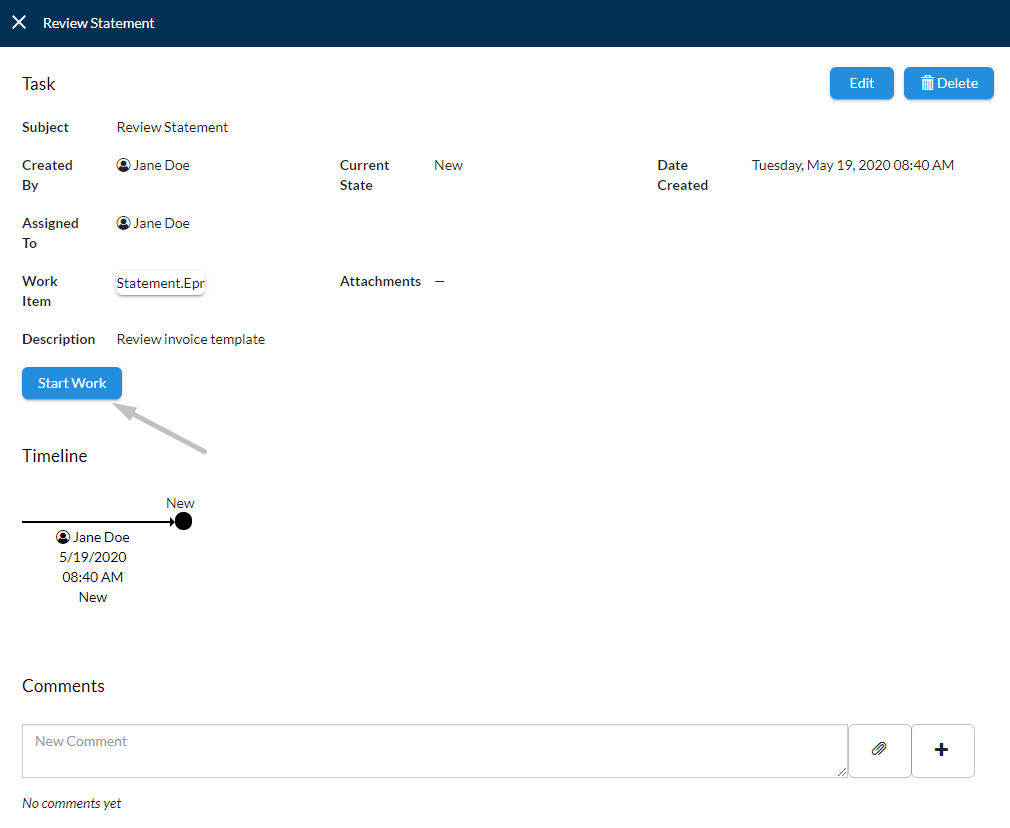
Follow the steps below to learn how to start working on a task.
- Starting from the Tasks page, identify the task you intend to start and click on it.
- In the Task Information page, select
Start Workfrom the Timeline Board. - In the Start Work dialog, you can choose another document to work on from the
Choose Documentdrop-down menu. You can upload a document from the computer or choose an existing one from your workspace. - To add new attachments, select
+ Add Attachmentand upload a file from your computer, then clickAdd. - Additionally, add a comment in the corresponding box when starting the task.
- Once you're ready, select
OKto start working process. - In the Timeline Board, the Task has changed its status from New to Active.
Approving a Task
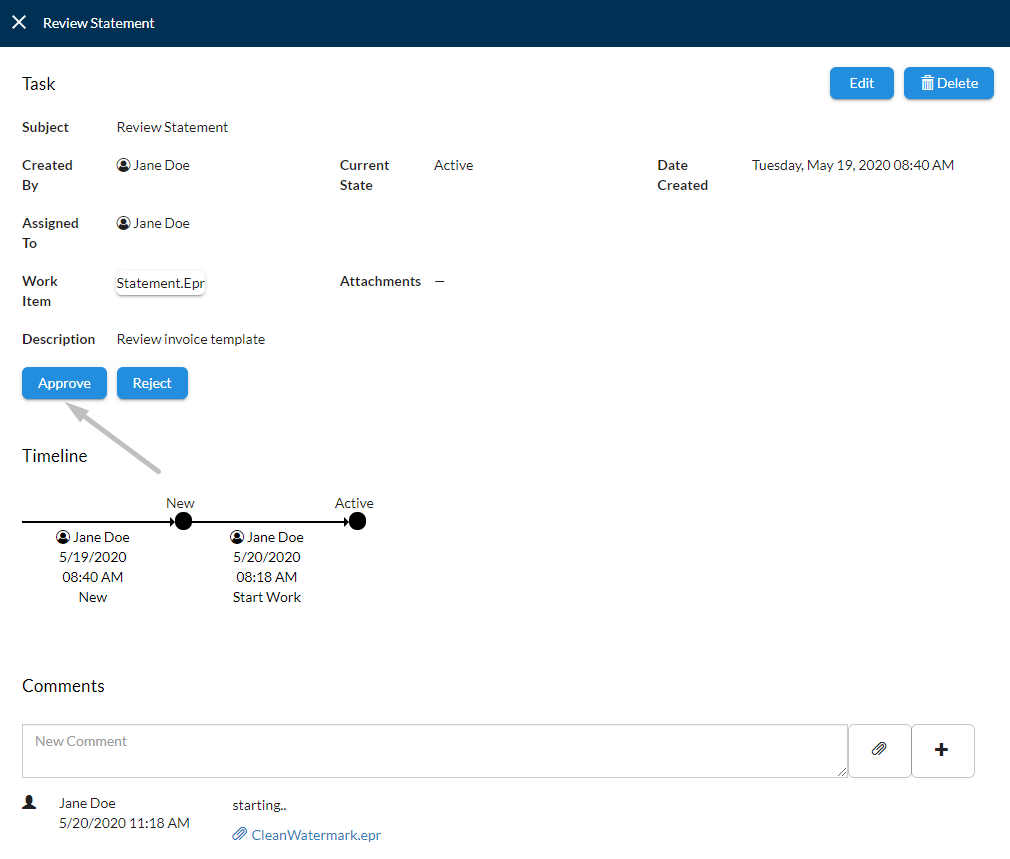
After the task has started, the assigned user will receive a notification email that informs it about the status change of the task. To access the Task Information page, the user must select View Task from the email message. Follow the steps below to learn how to approve a task.
- Starting from the Tasks page, identify the task you intend to approve and click on it.
- In the Task Information page, select
Approvefrom the Timeline Board. - In the Approve dialog, you can choose another document to be approved from the
Choose Documentdrop-down menu. You can upload a document from the computer or choose an existing one from your workspace. - To add new attachments, select
+ Add Attachmentand upload a file from your computer, then clickAdd. - Additionally, add a comment in the corresponding box when approving the task.
- Once you're ready, select
OK. - In the Timeline Board, the Task has changed its status from Active to Approved.
Rejecting a Task
After the task has started, the assigned user will receive a notification email that informs it about the status change of the task. To access the Task Information page, the user must select View Task from the email message. Follow the steps below to learn how to reject a task.
- Starting from the Tasks page, identify the task you intend to reject and click on it.
- In the Task Information page, select
Rejectfrom the Timeline Board. - In the Timeline Board, the Task has changed its status from Active to Rejected.