Studio Licenses
Before you Install Product Keys
This guide outlines the fundamental steps for installing and activating MHC Studio. While it's possible to install product keys on a computer that is behind a firewall, proxy, or lacks internet access, you must connect to a server with internet connectivity to retrieve and activate the product key.
Assumptions:
- This guide assumes you have MHC Studio 2025 or later.
Installing MHC Studio Keys on the Server
-
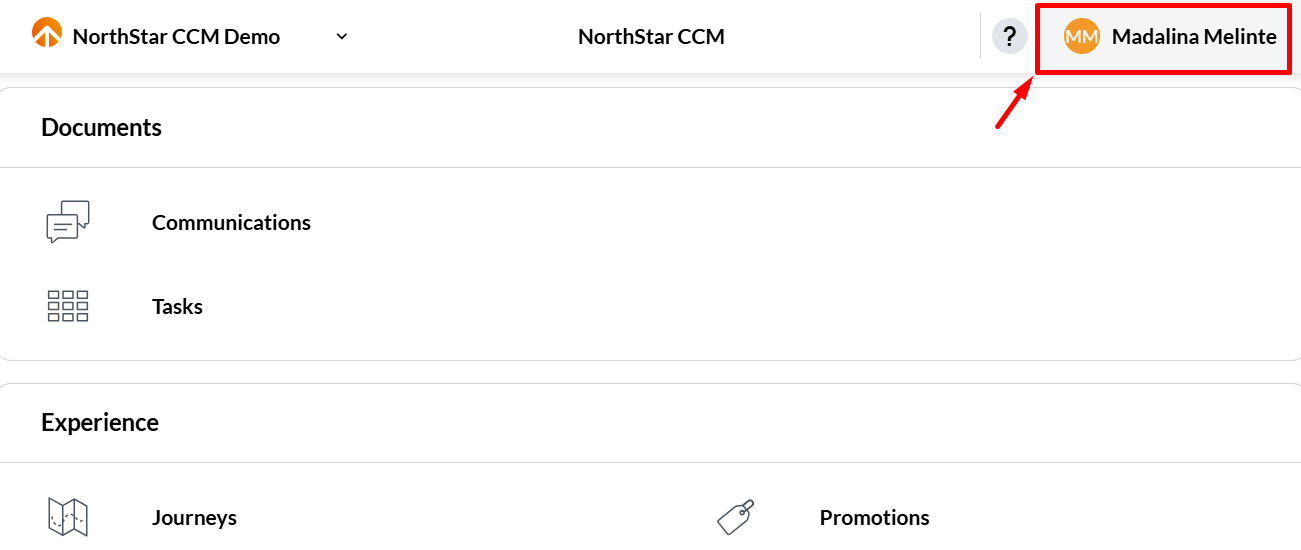
Log in to your Non-Production NorthStar CCM environment and click your username located in the top-right corner.
-
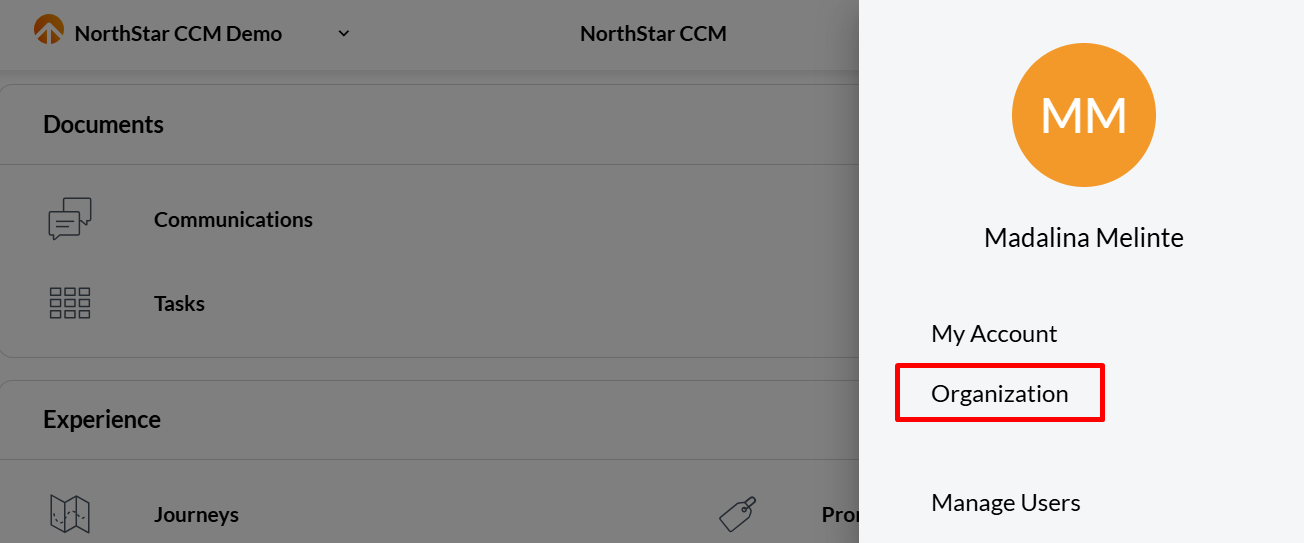
From the dropdown menu, choose Organization
-
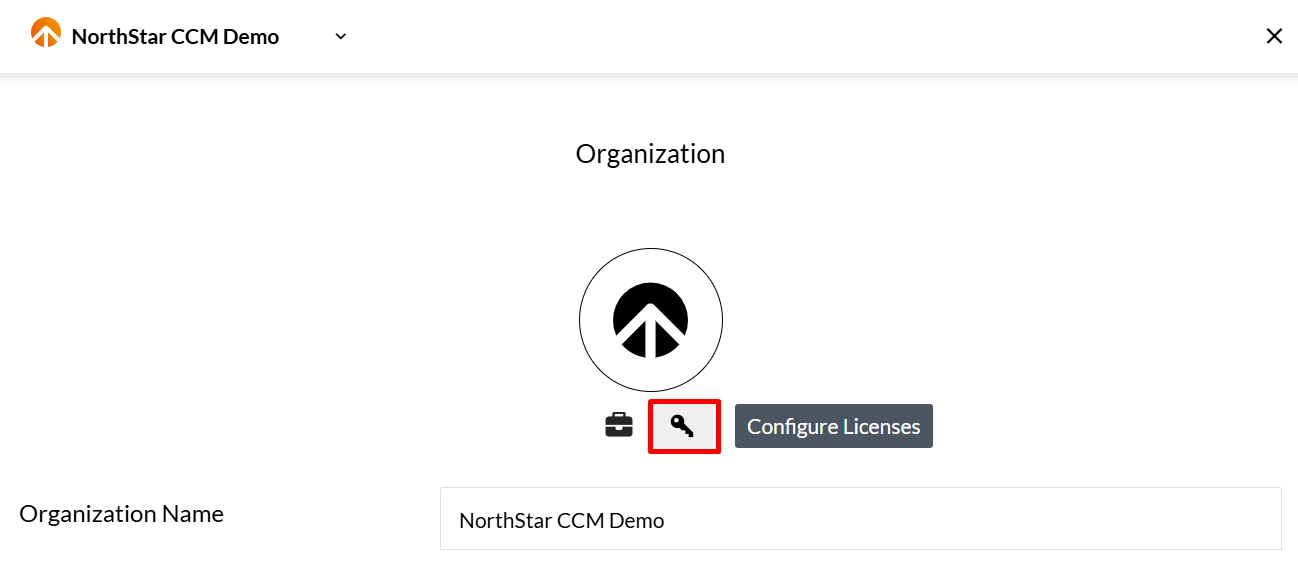
Click the Configure Licenses key button
-
Select Sign in to access your NorthStar CCM Licensing Account. You'll be redirected to the NorthStar CCM Licensing portal to complete the login process.
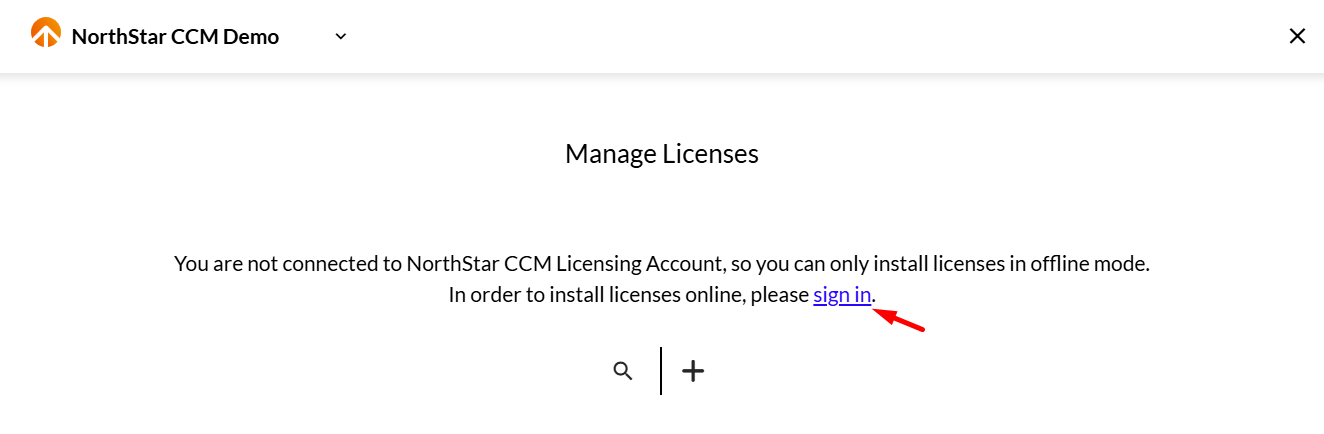
-
Once signed in, click the Add button to begin installing your Studio Keys on the server.
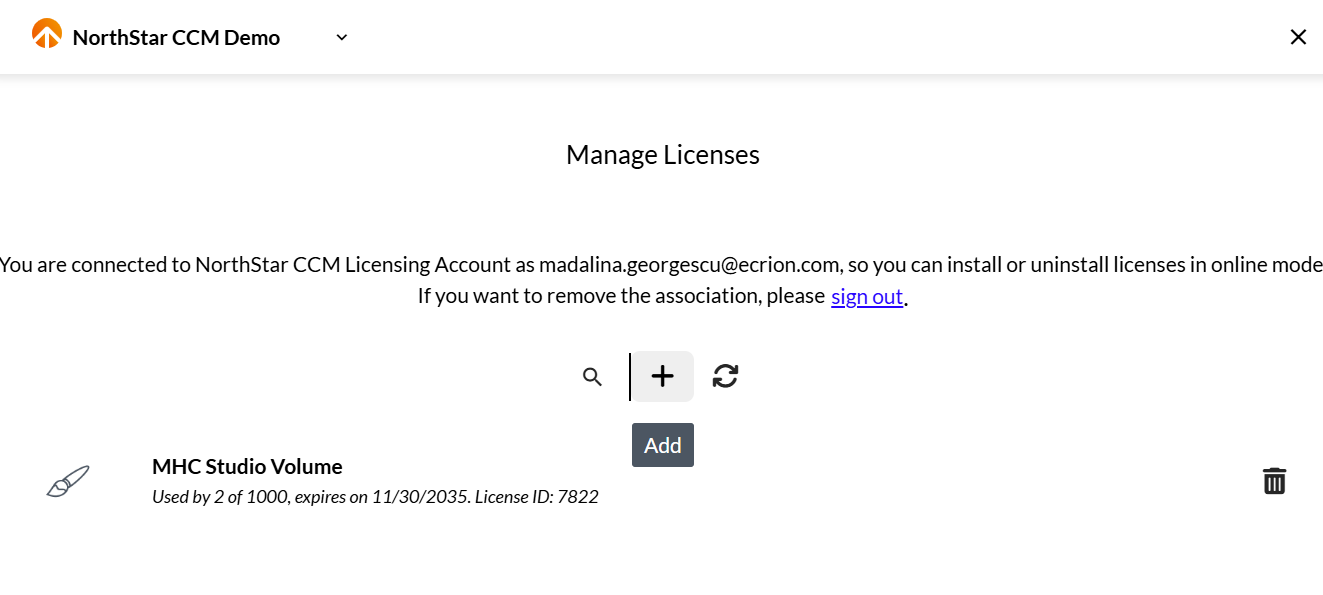
-
From the dropdown list, choose the appropriate MHC Studio keys to install. When finished, click Save
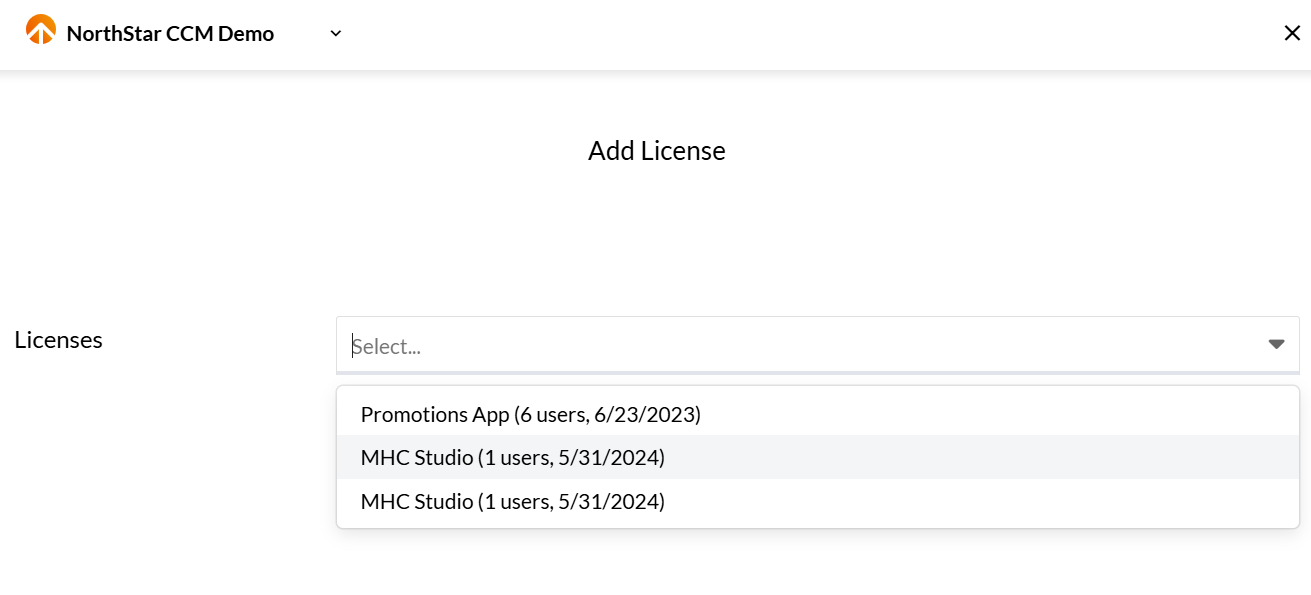
-
Your Studio licenses are now installed on the server. Users can begin connecting to the NorthStar CCM Platform to obtain a license.
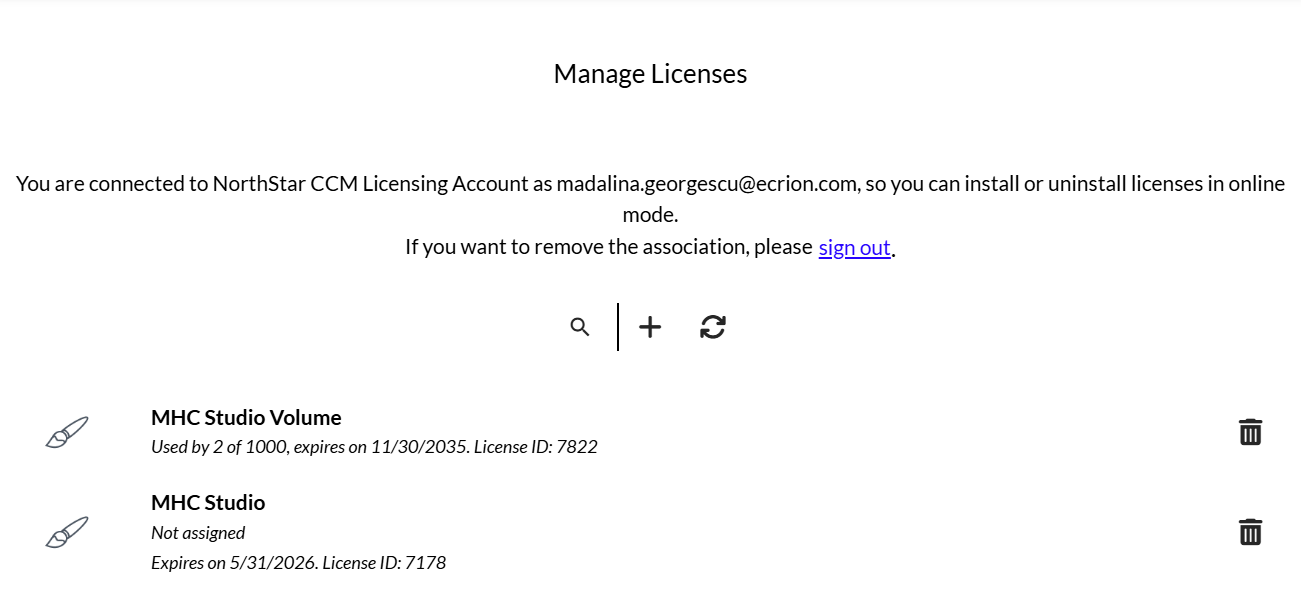
Activating Studio Keys
Note
To activate a Studio key on a local computer and begin using the tool, users should follow these steps:
- Ensure you have an active account on the Non-Production NorthStar CCM Platform.
- Verify that your computer can successfully connect to the Non-Production server—make sure the connection is not blocked by firewalls or network restrictions.
- Follow the activation process as outlined in your platform's licensing interface to install the Studio key locally.
-
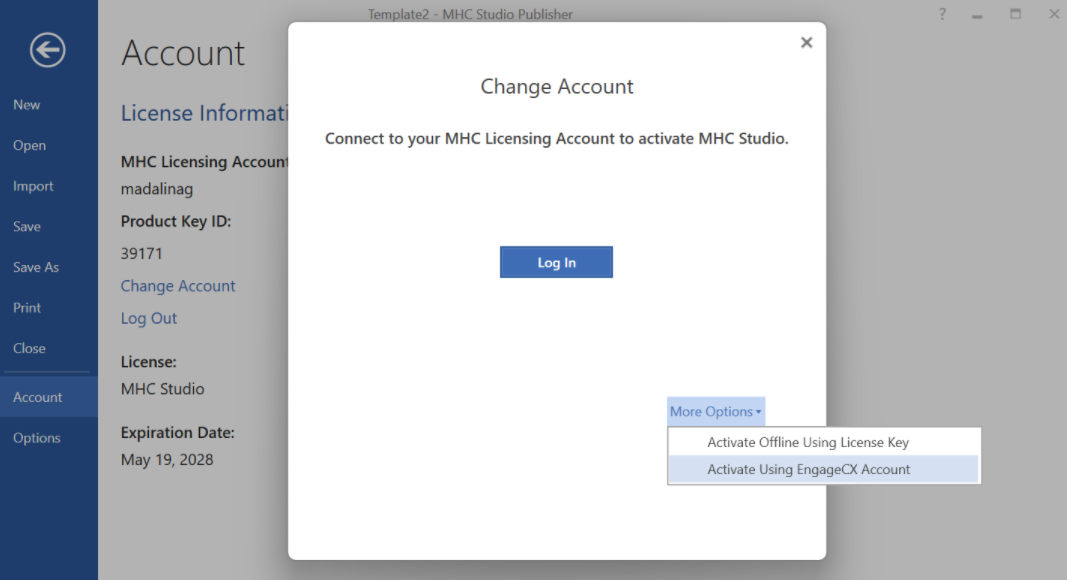
Launch the Studio tool and select More Options -> Activate Using EngageCX Account.
-
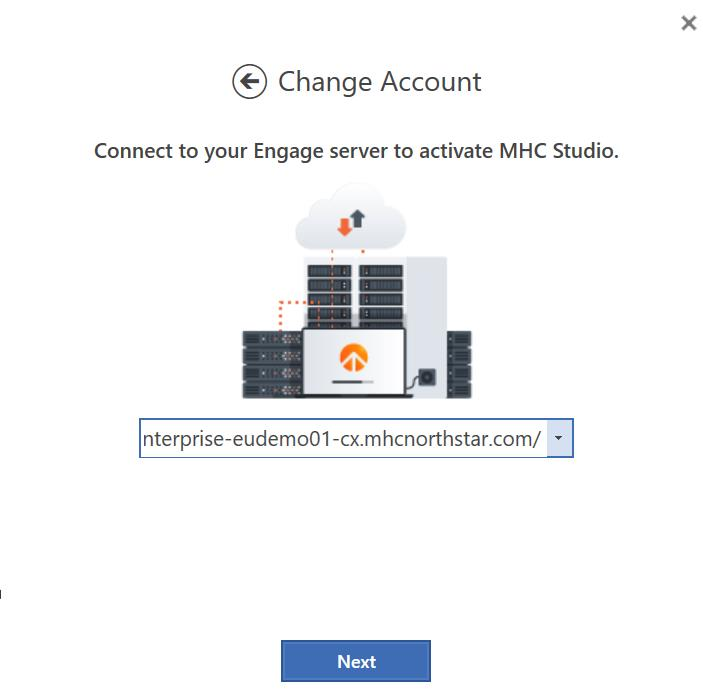
In the provided field, enter your NorthStar CCM URL, then click Next. Please contact your admin to get the correct Non-Production URL for your organization.
-
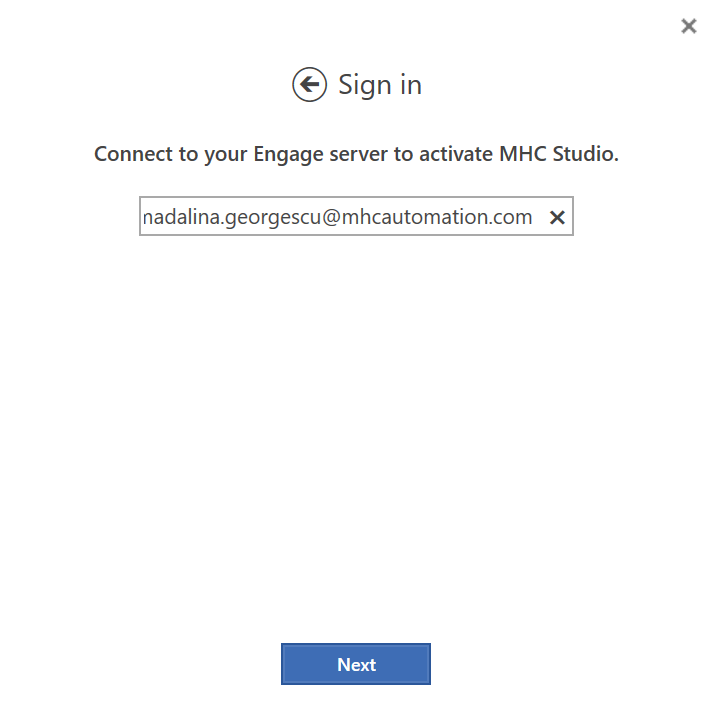
Enter the email address you use to log in to the NorthStar CCM Platform.
-
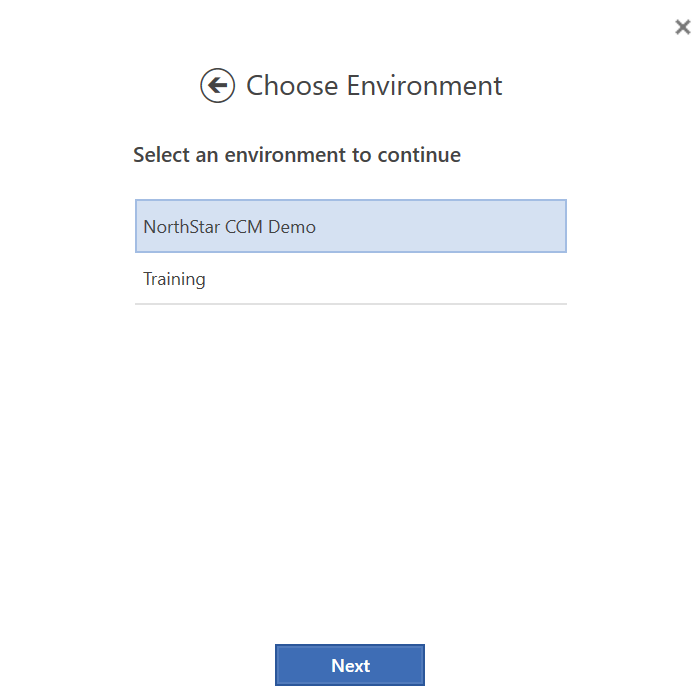
If multiple environment are available, you'll be prompted to select the one associated with your Studio license.
-
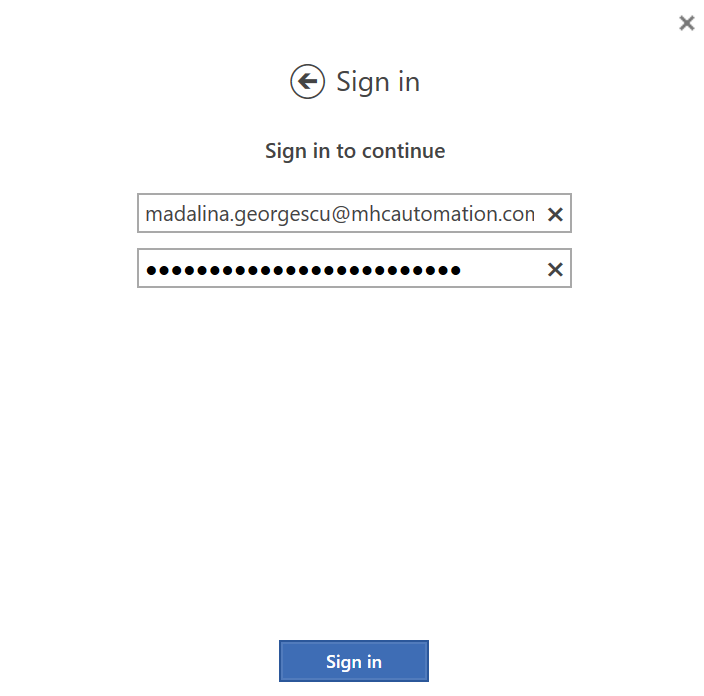
After completing all required fields, click Sign in.
-
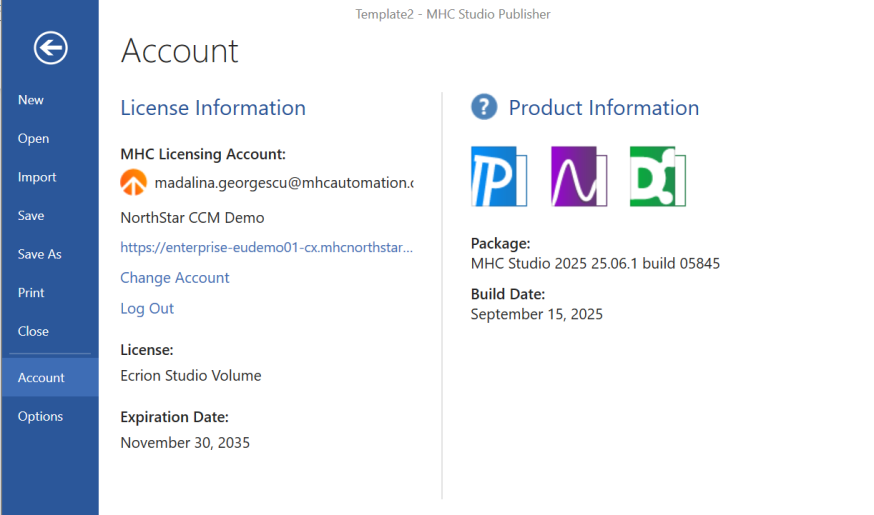
Your Studio license is now successfully activated on your local account. To view license details, go to File > Account.