Multi-Server Installation Guide
Overview
NorthStar CCM offers two options for multi-server installations:
-
Dual Licensing Node Deployment: Two dedicated Licensing Engine servers are deployed behind a load balancer. If one Licensing Engine node becomes unavailable, the second node automatically takes over, ensuring that document generation continues without interruption.
-
Multi-Server Publishing Engine Deployment: Additional Publishing Engine components are deployed across multiple servers. This increases document generation throughput by distributing processing tasks across multiple Publishing Engine instances. This configuration is also referred to as a multiple workers deployment.
Dual-Licensing Nodes
This type of deployment assumes that you will be installing two Licensing Engine components on two separate machines. Follow the standard installation guide for each machine, but at the Configure Licensing Server step, follow these instructions:
- Select the Enable option in the Configure Licensing Server step.
- Enter the IP Address of the opposite Licensing Engine component in the Peer Licensing Server Address box.
- Once you are ready, select Install to complete the software installation.
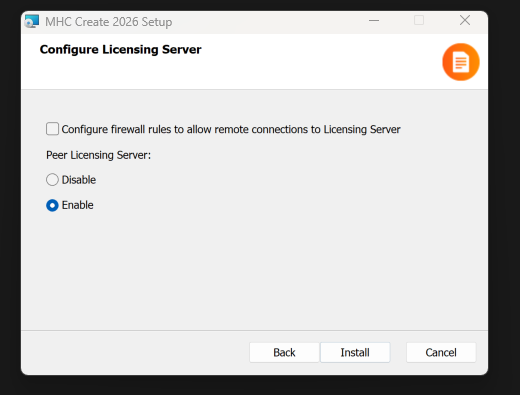
It might be necessary to configure firewall rules to allow remote connections to the Licensing Server.
Multi-Server Publishing Engine Deployment
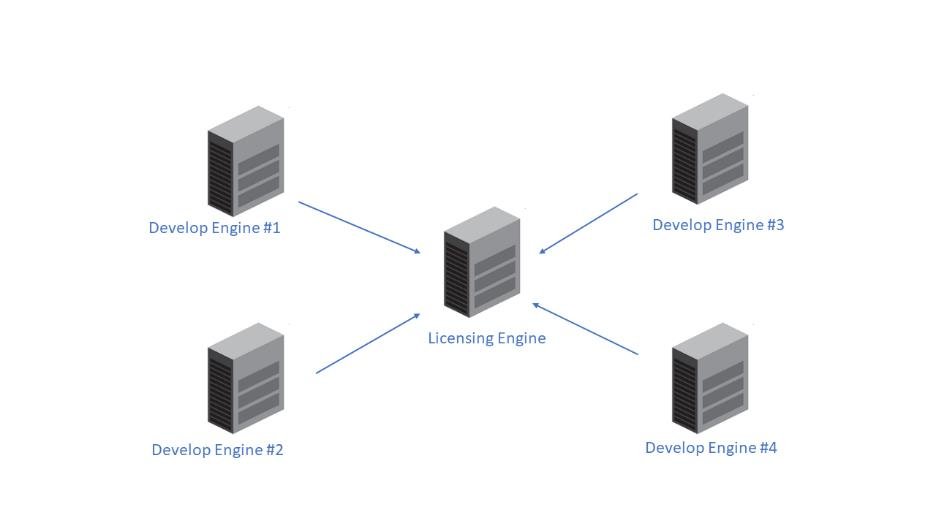
NorthStar CCM provides the option to configure additional Publishing Engine components to enhance throughput. This setup is commonly referred to as "multiple workers deployment". It involves distributing multiple Publishing Engine components across different servers, all pointing to a central Licensing Engine component or a Load Balancer connected to Licensing Engines.
In this configuration, each worker shares the resource limit of the license key(s) installed on the central Licensing Engine. For example, if the License Engine has a product key allowing a 1K documents volume limit, the volume is synchronously distributed across all worker engines.
The figure below illustrates a setup with four Publishing Engine components acting as multiple workers, all connected to a single Licensing Engine. This topology can be scaled up or down based on organizational needs.
Installing Components
Follow the steps below to learn how to install each component on a different machine.
- Run the MHC Create setup on each of the machine.
- Follow the on-screen instructions to install the solution. Note that when arriving at the Product Features step, you must check only the component that needs to be installed and uncheck the other one. For example, to install only the Create component, make sure to check only Create Engine.
- Repeat these steps on each machines, as needed for your deployment.
Connecting Workers
Follow the steps below to learn how to connect the workers with the Licensing Server. Please keep in mind that the instructions below must be done on each worker machine.
- Go to MHC Create application data folder. In a default installation, it should be located at
C:\ProgramData\ MHC Software. - Open the
PublisherSvc.configfile in a text editor. - When the Licensing Engine is installed on the same machine as the MHC Create workers, notice that the LicensingServerURL parameter is set to 127.0.0.1. If multiple workers are configured, make sure to update the LicensingServerURL parameter with the corresponding IP Address of the Licensing Server machine as below:
LicensingServerUrl=<Licensing_Engine_IP_Address>
- Save the configuration file. It is recommended to perform a restart of the MHC Create Engine service to update the changes.