Template Editor
Overview
NorthStar Designer is an online template creation tool available through NorthStar CCM. It allows you to create styled PDF templates that render dynamically based on linked data.
The features of the NorthStar Designer editor are spread across multiple tabs:
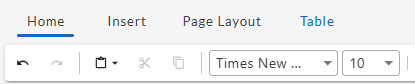
- Home: Style and format the text in the document. Also, select a data source for the dynamic elements of the template, set criteria for conditional formatting, and preview the template as a word doc or web page.
- Insert: Insert images, tables, fields, content fragments, or conditional text into the document. Also add page numbers and date & time.
- Page Layout: Adjust page margins, document orientation (portrait or landscape), and select the paper size for printing (Letter, A3, etc.).
- Table: Format tables and create repeating rows to display varying data elements.
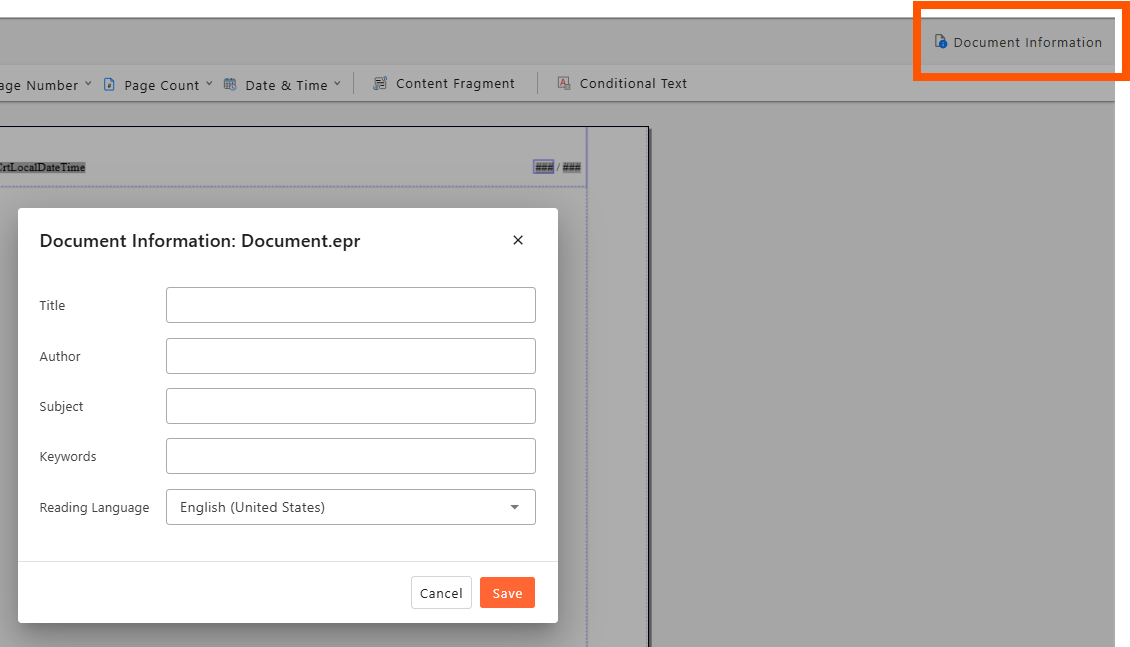
- Document Information: The document information element allows you to view and modify the document metadata, including Title, Author, Subject, Keywords, and Reading Language.
This guide will walk you through:
- Creating or opening a template in NorthStar Designer
- Adding and formatting static content (such as text, images, and metadata)
- Adding and editing dynamic elements (such as data fields, conditional text, and repeating rows)
- Saving and Previewing your Document
Is Designer enabled?
If NorthStar Designer hasn't been enabled for your environment, you may still be using the legacy template editor. See the legacy editor documentation.
Opening or Creating a Template
All your templates can be found in folders in the Workspaces area of NorthStar CCM. Any templates that are associated with a project can also be found in the Projects area.
You can create a new template from either location.
Opening a Template in a Workspace
-
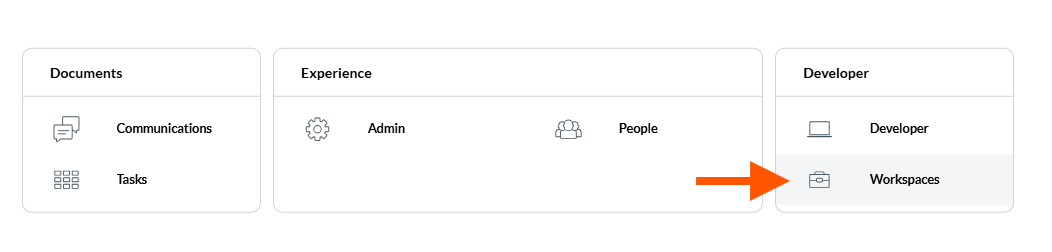
From the homepage, click on Workspaces.
-
Select the Workspace containing your template folder, or where you’d like to create a new template.
-
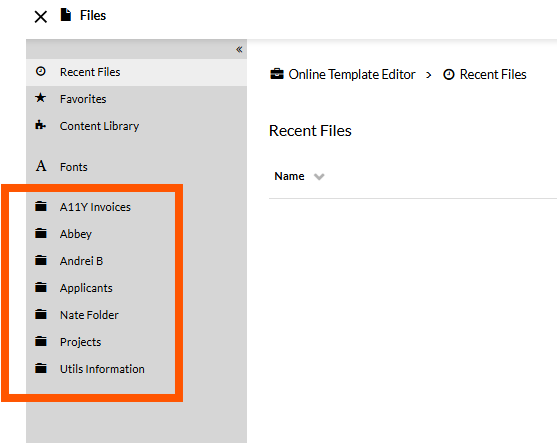
Select a folder from the left panel. Alternatively, you can create a new folder by clicking + New Folder in the upper right corner.
-
Within the folder, click on the template you’d like to open.
-
To create a new template, click “New” in the upper right corner:
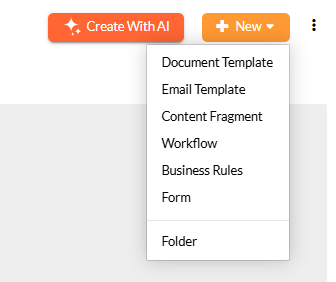
- Select "Document Template” if you’re creating a template for an entire document (this will be saved as an .epr file) .
- Select “Content Fragment” if you’re creating a section of content to be used in multiple other documents (this will be saved as an .epbfile).
The template will open in the NorthStar Designer (see below).
Opening a Template in a Project
-
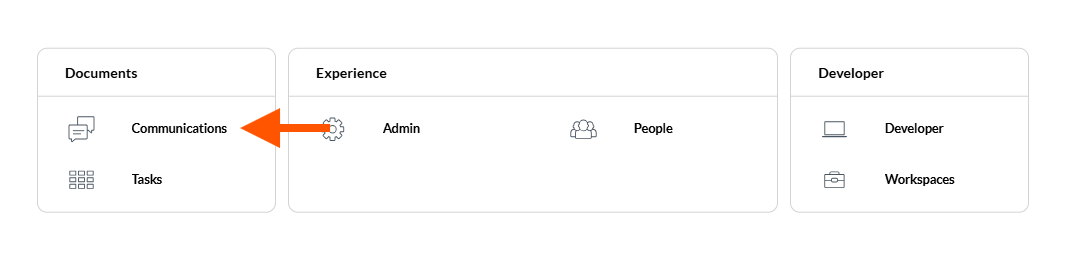
From the homepage, click on “Communications”
-
Select the “Projects” tab.

-
Select a project from the list. A panel will display all the files associated with that project:
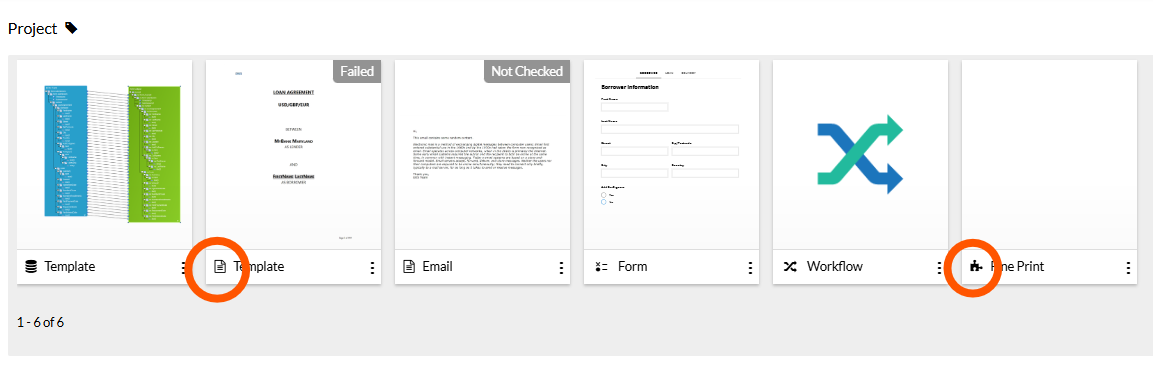
- Page icon: Document Template
- Puzzle Piece Icon: Content fragment
-
Open one of the Document Templates or Content Fragments. To create a new document, click “New” in the upper right and select “Document Template” or “Content Fragment” from the dropdown.
The template will open in NorthStar Designer.
Building Static Content
Static content consists of the text, images, and other elements of your template that should appear the same for all recipients. This includes metadata and page layout.
To add dynamic elements that will render differently depending on linked data, see the "Adding Data and Dynamic Content" section.
Adding and Formatting Text
Within NorthStar Designer, you can add basic text directly to the template and then style and format it with the suite of standard formatting and styling tools on the Home tab.
Editing Page Layout
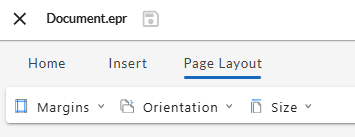
The Page Layout tab lets you change the margins, orientation, page size, or number of columns in your template.
Changing Margins
From the Margins dropdown menu, you can select Normal, Narrow, Moderate, or Wide margins.
Changing Orientation
From the Orientation dropdown menu, you can set the orientation of your document to Portrait or Landscape. The orientation that you select will be applied to every page of the document.
Changing Page Size
From the Size dropdown menu, you can set the page size of your document to Letter, A3, A4, or A5. The page size you select will be applied to every page of the document.
Changing Number of Columns
Select "Columns," and choose One, Two, or Three from the dropdown menu. Your selection will be applied to the entire template.
Changing Letter Spacing and Line Height
Right-click on a paragraph and select "Spacing...". A Paragraph Properties panel will open to the right. From that panel you can:
- Enter a number and unit value in the Letter Spacing field to change the space between letters (e.g., 2px, 3pt, .5cm). Note: Rem and em values will be converted into px.
- Enter a number and select a unit from the Line Height field to change the spacing between the base of one line and the base of the line above or below it.
Adding and Formatting Text
Within NorthStar Designer, you can add basic text directly to the template and then style and format it with the suite of standard formatting and styling tools on the Home tab.

Inserting a Text Box
To add a freely moveable and resizable box for text, select “Text Box” from the Insert tab ribbon. This will add a text box to your template, which you can resize by dragging it from the corners or sides, or move it by dragging and dropping from edges.
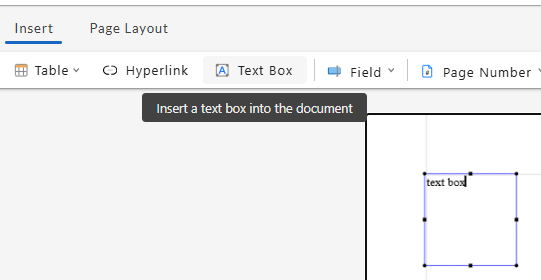
You can format or style text within a text box using formatting and style options on the Home tab.
Checking Spelling
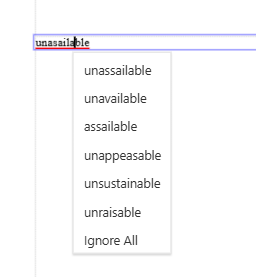
Words that don’t match the spelling of the Designer’s dictionary will be underlined in red. Left clicking on an underlined word will provide correction suggestions, if any can be found. Selecting “Ignore All” will add the underlined word to your dictionary.
Revising Text with AI
If you have enabled the MHC AI Studio, you'll find an "Open AI Writing Assistant" icon in Home tab of NorthStar Designer. Selecting this icon will open the AI writing assistant panel.
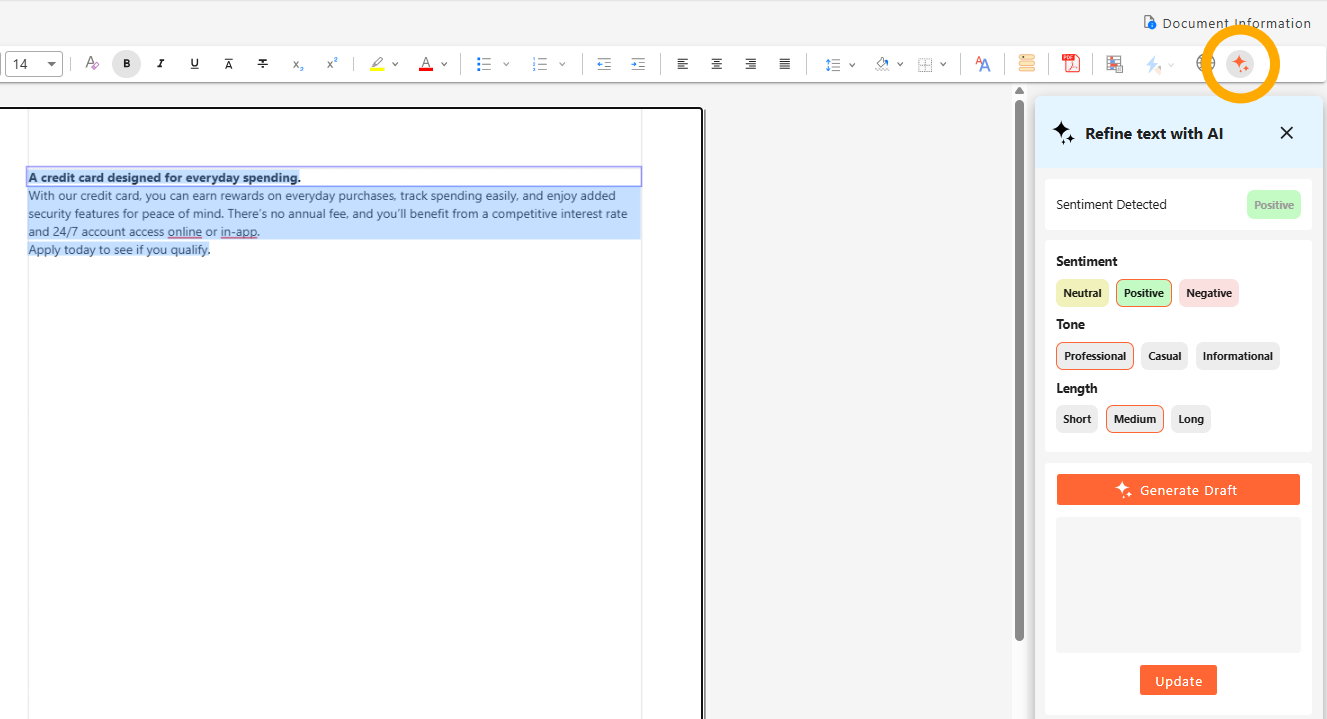
When you select text from your templates, the AI writing assistant panel will analyze the sentiment of your text. To refine your text, choose your desired sentiment (positive, neutral, negative), tone (professional, casual, informational), and length. Then click "Generate Draft" for a revised version of your selected text. If you approve of the revision, you can instantly update the original text by clicking "Update."
Inserting Images
Clicking the “Image” button in the Insert tab will open a Choose File panel. You can select any image from your NorthStar CCM files or upload a new file.
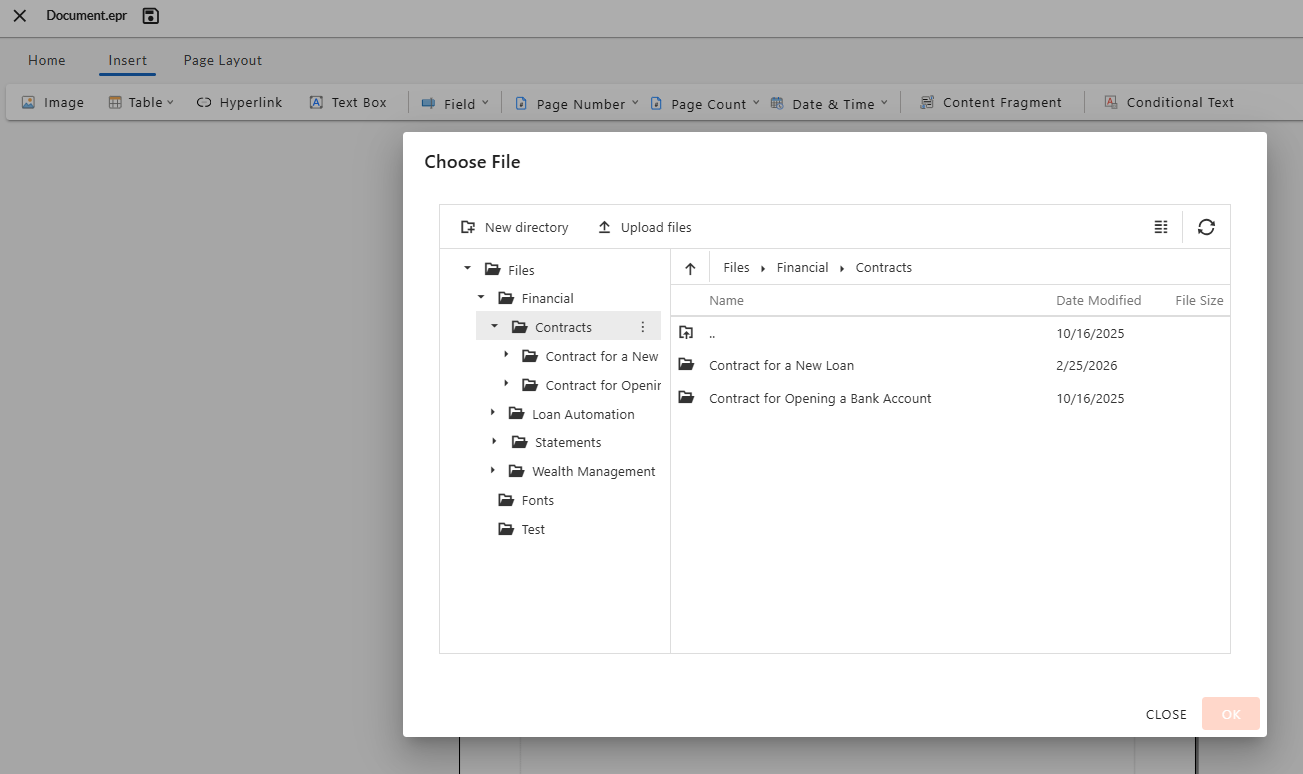
Once you’ve inserted an image, you can resize it by dragging it from the corners or sides. You can move it by dragging and dropping from the center of the image.
Inserting and Editing Tables
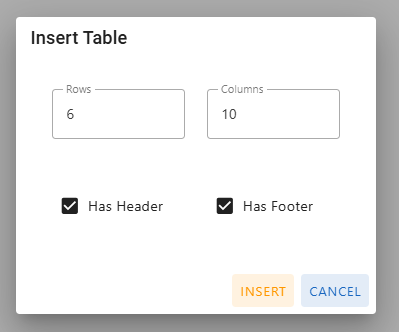
From the Insert tab, clicking “Table” will allow you to select how many rows and columns you’d like the table to have. You can also manually enter the number of rows and columns by selecting “Insert Table.”
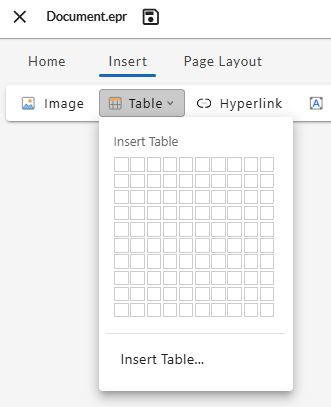
Table Header and Footer Rows
If you want the table to have a dedicated header and/or footer row, check the “Has Header” and/or “Has Footer” checkboxes in the “Insert Table...” panel before selecting “Insert". This will insert a table with the indicated number of rows and columns, plus an additional row for each header and/or footer. The header and/or footer rows will have embedded HTML tags, which can provide context for screen readers and other accessibility tools.
Column Width and Row Height
You can adjust the width of table columns by dragging and dropping the border between two columns. The height of a row will automatically expand or contract to contain the text contained in the row.
Formatting a Table
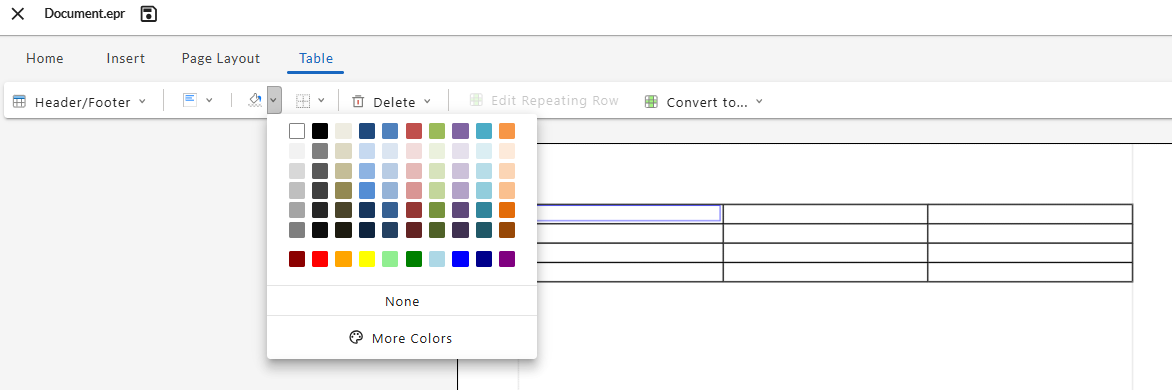
Once you add a table, selecting any cell on the table will add the “Table” tab to the toolbar. This tab allows you to modify the alignment, shading, and borders of the table. The Table tab also allows you to create repeating rows (see "Adding Repeating Rows").
Adding Data Elements
Data elements or expressions can be added to tables (see "Inserting Data Fields").
Splitting Table Cells
If you need to subdivide an existing cell, you can now select the cell and click on the "Split" button in the table tab. This will allow you to choose how many rows and columns you'd like to split the cell into, clicking "OK" to apply your changes.
Note: A cell can only be split up to 15 times.
Inserting Hyperlinks
To insert hyperlinked text into your document, first click on the point at which you’d like to insert the hyperlink. Then, from the Insert tab, select “Hyperlink” to open the Insert Hyperlink panel:
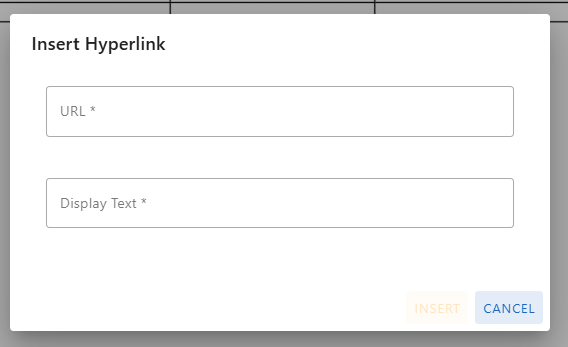
- Add the web address to the URL field.
- Add the linked text as you’d like it to appear in the document to the Display Text Field. Note: You can also select existing text in the document and select “Hyperlink” to add a link to that text, in which case the selected text will appear in the Display Text Field.
Once you’re satisfied with your URL and Display Text, select “Insert.”
You can test your hyperlinked text by saving your changes, generating a PDF preview, and clicking on the hyperlinked text.
Note: If your PDF is opened in a browser, clicking on a hyperlink will open the linked page in the same browser tab (replacing the PDF).
Adding Alternative Text for Hyperlinks
Right-click on hyperlinked text and select "Alt text..." to open a Hyperlink Properties panel. In the Alt Text field you provide a written description of the link's purpose and destination, which is particularly helpful to users employing screen readers or assistive technologies.
Editing Headers and Footers
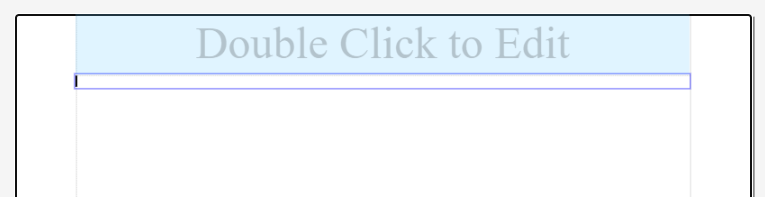
To edit your document headers or footers, you’ll need to double-click the header or footer area. Whatever text you add to the header or footer will appear on each page of your rendered document. Header and footer text can be edited using the formatting tools on the Home tab.
Adding a Logo
You can add an image to your header or footer by selecting “Insert Image” from the Insert tab.
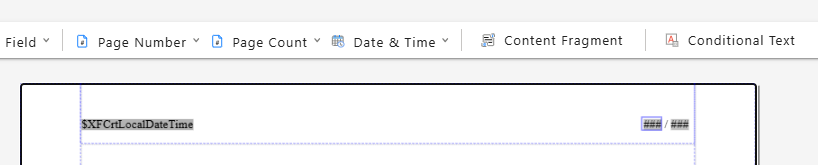
Adding Page Numbers
From the Insert tab, you can select “Page Number” to insert a page number in the format of your choice. You can also insert the Page Count to show the total number of pages in the document (i.e., Page Number / Page Count).
Adding a Date or Timestamp
From the Insert tab, you can select “Date & Time” to insert a timestamp in the format of your choice.
Adding data elements or expressions
Data elements or expressions can be added to your headers or footers (see "Inserting Data Fields").
Editing Page Layouts
The Page Layout tab lets you change the margins, orientation, page size, or number of columns in your template.
Changing Margins
From the Margins dropdown menu, you can select Normal, Narrow, Moderate, or Wide margins.
Changing Orientation
From the Orientation dropdown menu, you can set the orientation of your document to Portrait or Landscape. The orientation that you select will be applied to every page of the document.
Changing Page Size
From the Size dropdown menu, you can set the page size of your document to Letter, A3, A4, or A5. The page size you select will be applied to every page of the document.
Changing Number of Columns
Select Columns, and choose One, Two, or Three from the dropdown menu. Your selection will be applied to the entire template.
Changing Letter Spacing and Line Height
Right-click on a paragraph and select Spacing.... A Paragraph Properties panel will open to the right. From that panel you can:
- Enter a number and unit value in the Letter Spacing field to change the space between letters (e.g., 2px, 3pt, .5cm). Note: Rem and em values will be converted into px.
- Enter a number and select a unit from the Line Height field to change the spacing between the base of one line and the base of the line above or below it.
Managing Multiple Layouts
If you're building a template that requires different layouts, page sizes, or orientations for different pages, you can manage this with sections and layout presets. Sections hold the content, and layout presets define how the content in a section is rendered.
Adding or Deleting Sections
In NorthStar Designer, Sections are flexible content containers within a template. By default, each template has a single section that holds all the content, and any layout changes are applied to the entire section. Adding additional sections can help you manage different styles or types of content across your document, such as a cover letter followed by an attached form.
There are two ways to add a new section to your template:
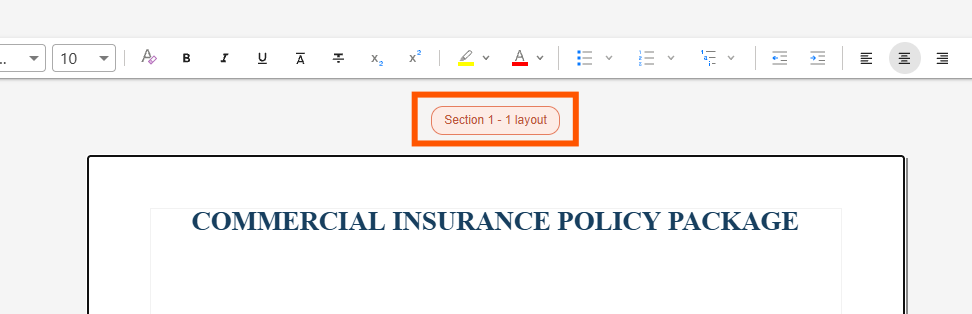
- Click on the "section label" above any page, select Add Section, and click Apply.
- From the Page Layout tab, select Layouts > Multiple Layouts Sections..., then select Add Section, and click Apply.
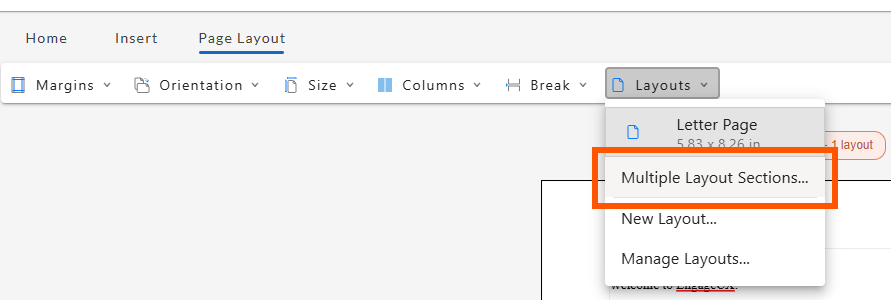
To delete a section, click the section label or select Multiple Layouts Sections... and then click the icon in the section. Warning: This will delete all content in the section.
Section Print Properties
After clicking on the red "section label" above a page, you can select the Print Properties button on any section to customize how the pages in that section will print:
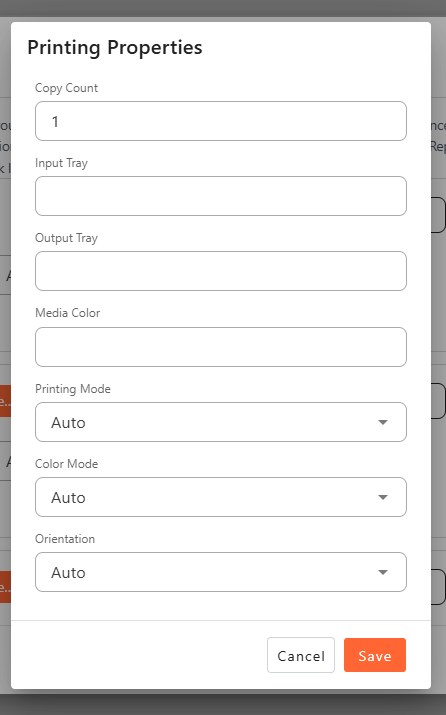
- Copy Count: The number of copies to print of this section. The default is 1.
- Input Tray: The printer tray to take paper from, for example to print a cover page on letterhead loaded in a separate tray. Enter the tray name or number used by your printer. Leave blank to use the printer's default tray.
- Output Tray: The printer tray or bin that printed pages go to, for example to separate certain pages for mailing. Enter the tray name or number used by your printer. Leave blank to use the printer's default output tray.
- Media Color: The color of paper to print on, for example
blueoryellow, when the printer has colored paper loaded. Leave blank to use the printer's default paper. - Printing Mode: Whether to print on one or both sides of the paper.
- Auto: Uses the printer's default setting.
- Simplex: Prints on one side of each sheet.
- Duplex: Prints on both sides of each sheet.
- Color Mode: Whether to print in color or black and white.
- Auto: Uses the printer's default setting.
- Color: Prints in color.
- Monochrome: Prints in black and white, or grayscale.
- Orientation: The direction the page is printed on the paper.
- Auto: Uses the orientation of the layout.
- Portrait: Prints with the short edge at the top.
- Landscape: Prints with the long edge at the top.
Adding External Document Sections
After clicking on the "section label" above a page or selecting Layouts > Multiple Layout Sections... from the Page Layout tab, you can add an External Document as a section of your template:
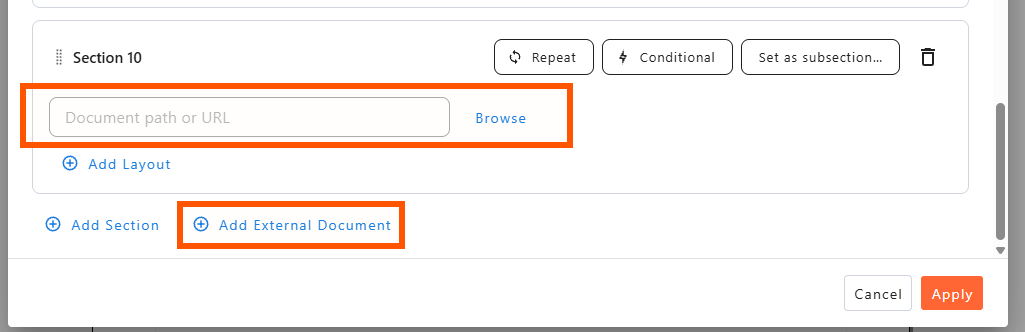
- From the Multiple Layouts window, select Add External Document. A new section will be added at the bottom of the template sections.
- In the Document path or URL field, enter the external document's path. You can also select Browse to choose a file from your CCM project folders.
Reordering Sections
You can change the order in which sections appear in the document by clicking the icon and dragging the section to a new position in the order.
Adding or Deleting Layout Presets
In NorthStar Designer, a layout preset is a set of rules that define the size, orientation, margins, and print properties of a page, along with the padding and alignment of the parts of the page (body, header, footer, etc.).
There are three ways to add a new layout preset to your template:
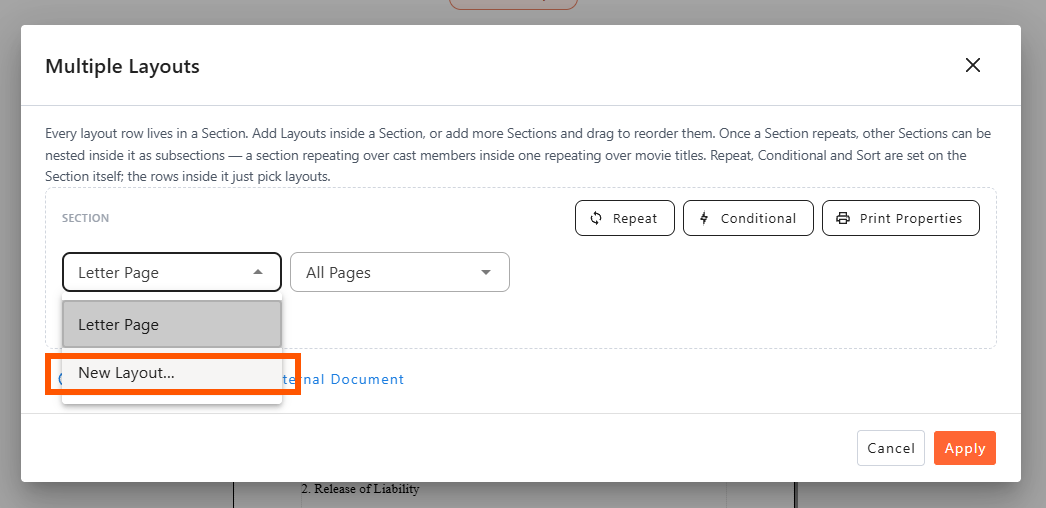
- Click on the red "section label" above any page. Then open the dropdown menu in any existing layout row (e.g., Letter Page). Select New Layout...
- From the Page Layout tab, select Layouts > New Layout...
- From the Page Layout tab, select Layouts > Manage Layouts... and then click Add Preset.
A New Layout Preset window will appear, with multiple options for customizing your layout (see custom layout options below). Once you've set the layout, give the layout a distinctive name in the Preset Name field, then select Save Preset.
To delete a Layout Preset, select Layouts > Manage Layouts... from the Page Layout tab, and then click the icon by a layout preset row. Note: You cannot delete a layout preset that has been assigned to a section.
Applying a Layout Preset to a Section
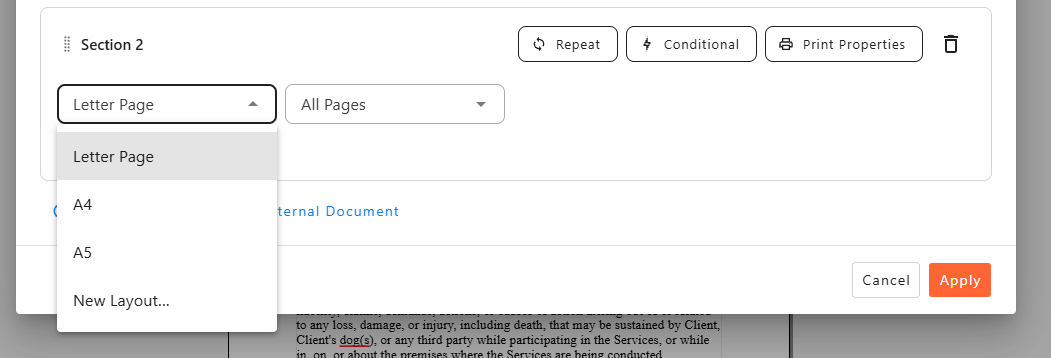
To open the Multiple Layouts window, click on the "section label" above any page or select Layouts > Multiple Layouts Sections... from the Page Layout tab. From there, select your Layout Preset from the dropdown menu in the section, and click Apply.
Applying Multiple Layouts to a Single Section
By default, a layout is applied to all pages of a section. If you want to apply different layouts to different pages of a given section, select one of the options from the page dropdown:
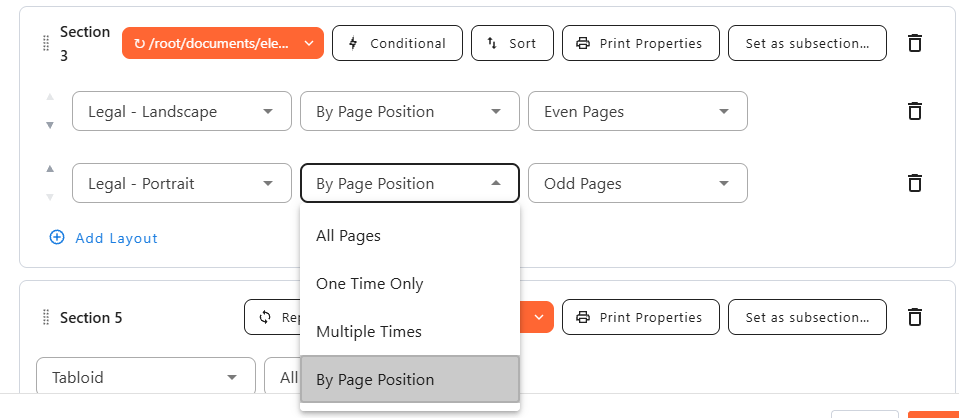
- All Pages (default setting): Applies chosen layout to all pages of the section. If a section has other layout rows, having All Pages as your first layout prevents the other rows from being used.
- One Time Only: Applies the selected layout to exactly one page, and then applies the next layout starting with the next page in the section (e.g., apply a "Cover Page" layout once, to the very first page of the section).
- Multiple Times: Applies the selected layout to a number of pages, choosing from 1, 2, 3, or 4 pages, or an unlimited number of pages (e.g., apply a "terms layout" to the 2 pages of terms and conditions following the cover page).
- By Page Position: Applies the selected layout to pages based on their position in the section:
- First Page Only: Applies the layout to the first page of the section.
- Last Page Only: Applies the layout to the last page of the section.
- One Page Only: Applies the layout when the section's content fits on a single page. That page is both the first and the last page.
- Odd Pages: Applies the layout to odd-numbered pages of this section (1, 3, 5, and so on).
- Even Pages: Applies the layout to even-numbered pages of this section (2, 4, 6, and so on).
- Blank Pages: Applies the layout to pages that are inserted with no content.
- Non-Blank Pages: Applies the layout to any page that contains content.
- All Other Pages: Applies the layout to any page that doesn't match a layout rule above it.
Layout rows are evaluated and applied one at a time, from top to bottom. Each page can only have a layout applied to it once; if a layout row would assign a layout to a page that was already assigned a layout by a higher row, the lower row is ignored for that page.
To change the order of the layout preset rows, select the up () or down () arrows to the left of the row.
Previewing Layouts
Once you've applied layout presets to your sections, you can preview those layouts by selecting Preview from the Home tab; see Saving and Previewing your Template.
Custom Layout Options
When creating a new Layout preset, you can customize the page size, orientation, margins, printing properties, and elements of the body, header, footer, left margin, and right margin. These options are spread across several tabs in the New Layout Preset window.
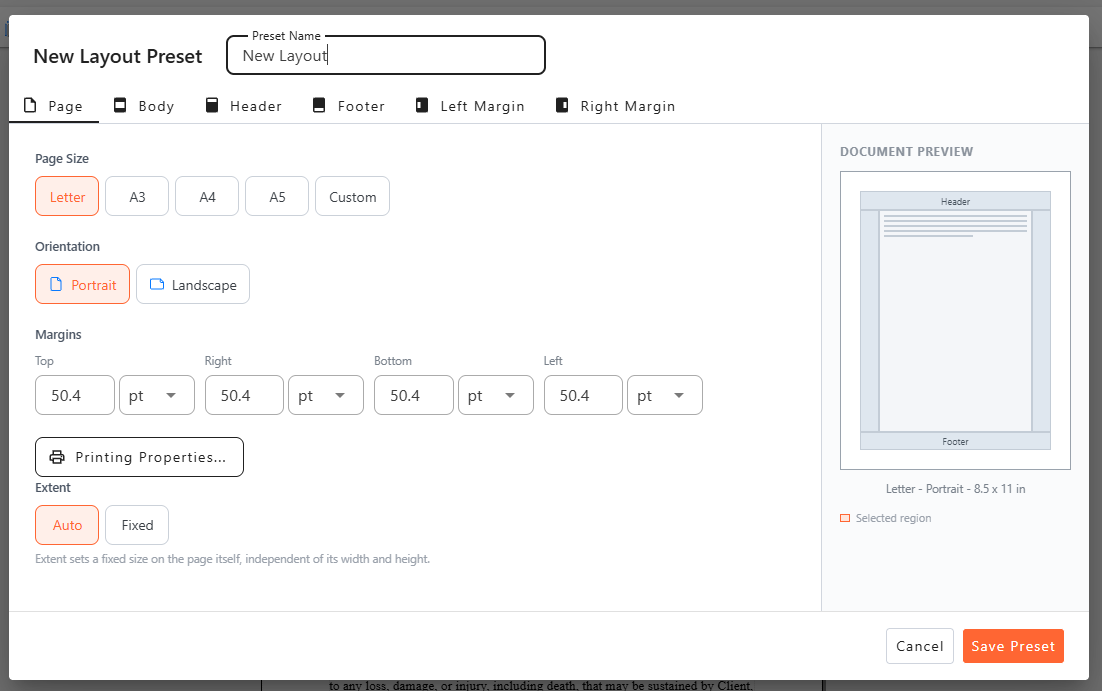
- Preset Name: Give your layout a clear and distinct name that is easy to select from a dropdown menu.
- Page tab
- Page Size: The paper size of the layout.
- Letter: 8.5 × 11 in.
- A3: 297 × 420 mm.
- A4: 210 × 297 mm.
- A5: 148 × 210 mm.
- Custom: Lets you enter your own width and height in points (pt), inches (in), centimeters (cm), or millimeters (mm).
- Orientation: The direction of the page (Portrait or Landscape).
- Margins: The space between the edges of the paper and the page content, including the header and footer.
- Printing Properties: The print settings for pages that use this layout:
- Copy Count: The number of copies to print. The default is 1.
- Input Tray: The printer tray to take paper from.
- Output Tray: The printer tray or bin that printed pages go to.
- Media Color: The color of paper to print on, when the printer has colored paper loaded. Leaving this blank uses the printer's default paper.
- Printing Mode: Whether to print on one side (Simplex) or both sides (Duplex) of the paper, or use the printer's default setting (Auto).
- Color Mode: Whether to print in color, black and white (Monochrome), or use the printer's default setting (Auto).
- Orientation: The direction the page is printed on the paper.
- Extent: Whether the page area is calculated from the page size and margins (Auto) or set to a fixed size that doesn't change with the page's width and height (Fixed).
- Page Size: The paper size of the layout.
- Body, Header, Footer, Left Margin, and Right Margin tabs
- Layout toggle
- Padding: The space between the edges of the region and its content. Padding is inside the region, so a background color or border on the region includes it.
- Margins (Page and Body tabs only): The space between the page edge and the content (including the header and footer). Changes you make to the margins in the Page tab will be reflected in the Body tab, and vice versa.
- Text Orientation: Rotates the content of the region by the selected angle. For example, 90° turns the text sideways. 0° is normal, upright text.
- Vertical Alignment: Where content sits vertically within the region when it doesn't fill the region.
- Auto: Uses the default alignment, which is usually the top.
- Top: Aligns content to the top of the region.
- Middle: Centers content vertically.
- Bottom: Aligns content to the bottom of the region.
- Justify: Spreads content out to fill the full height of the region.
- Writing Mode: The direction in which text and content flow.
- Left→Right: Horizontal text that reads from left to right, as in English.
- Right→Left: Horizontal text that reads from right to left, as in Arabic or Hebrew.
- Vert. L→R: Vertical text, with lines that progress from left to right.
- Vert. R→L: Vertical text, with lines that progress from right to left, as in traditional Japanese or Chinese.
- Columns: Splits the body into multiple columns, with the space between the columns defined as the Gap.
- Extent (Header/Footer/Margins only): Whether that region's area is calculated from the page size and margins (Auto) or set to a fixed size that doesn't change with the page's width and height (Fixed).
- Appearance toggle
- Border: Adds a border around the region.
- Style: The line style of the border, such as solid, dashed, dotted, or double.
- Width: The thickness of the border line(s).
- Color: The color of the border line.
- Sides: Which sides of the region get the border.
- Background: Fills the area behind the region's content.
- Color: The Background color is Automatic by default, meaning the region has no background color. Clear the Automatic checkbox to choose a color.
- Image: An image to display behind the region's content. Enter an image path or URL, or select Browse to choose a file from your CCM project folders.
- Repeat Mode: How the background image fills the region.
- Repeat: Tiles the image horizontally and vertically to fill the whole region.
- Repeat X: Tiles the image horizontally only, in a single row.
- Repeat Y: Tiles the image vertically only, in a single column.
- No Repeat: Displays the image once.
- Offset X: How far the background image is moved horizontally from the region's left edge.
- Offset Y: How far the background image is moved vertically from the region's top edge.
- Border: Adds a border around the region.
- Layout toggle
Warning
It is possible to set certain layout elements at multiple levels. For example, you could set page orientation in the section printing properties, in a layout used in that section, and in the printing properties in that layout. If you encounter issues with page orientation or print settings, please ensure that the settings are aligned across the section and layout configurations, or leave all but one level of settings as Auto.
Find & Replace Text
You can find and replace all instances of a term in your template by using the Ctrl+F keyboard shortcut, or by selecting the magnifying glass icon from the Home tab toolbar.
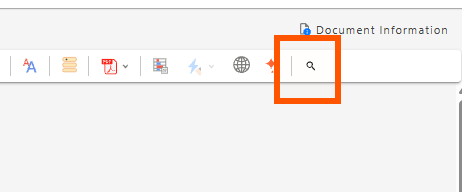
Note: Depending on your screen size and resolution, you may need to select it from the "more options" dropdown.
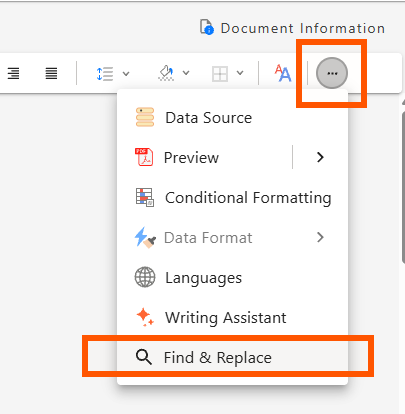
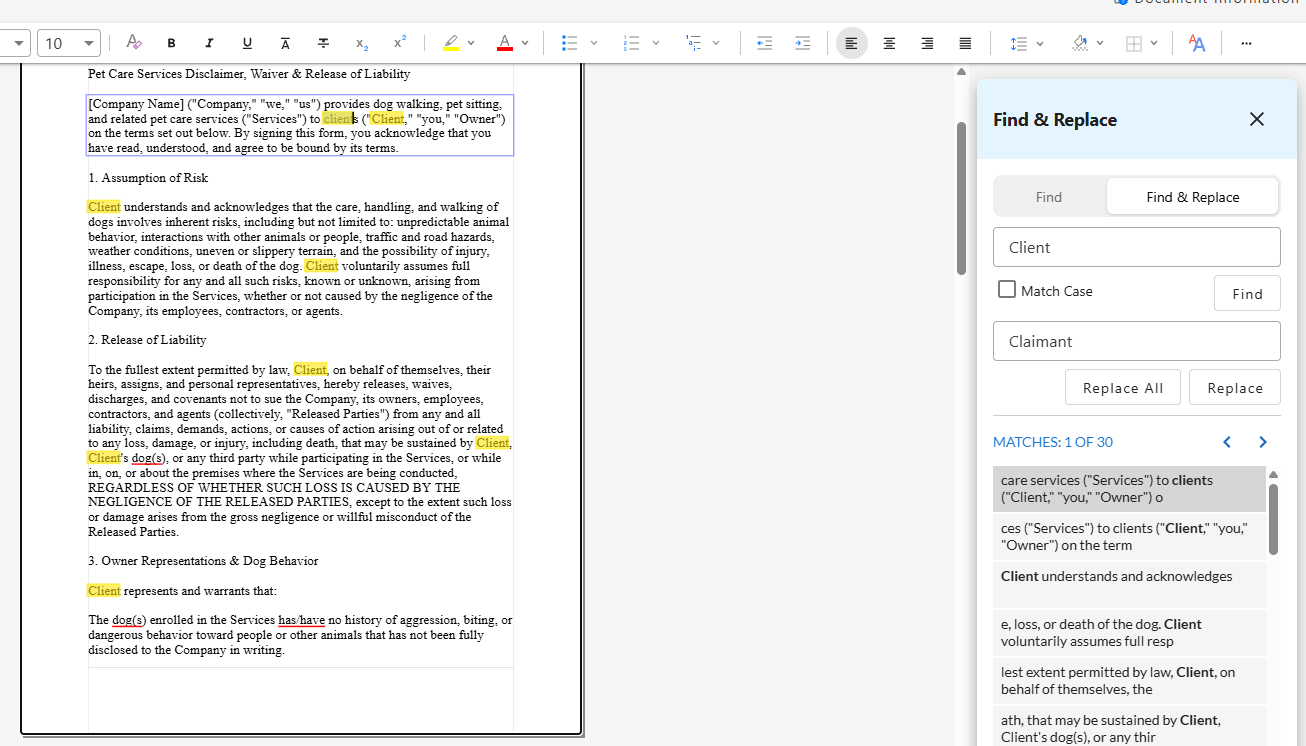
This will open the Find & Replace side panel. Entering a term in the "Find" field will highlight all instances of that term in your template and build a list of matches in the side panel. You can select the "Match Case" checkbox to exclude terms that match your search term's spelling but not its capitalization.
Switching the toggle from "Find" to "Find & Replace" allows you to provide a substitute term in the "Replace with" field. Once you've entered text in the "Replace with" field, you can click "Replace All" to replace all instances of the term.
Alternatively, you can click through the list of matches in the side panel and select "Replace" for each individual replacement you'd like. Each time you click a match in the side panel, the main display will advance to that point in the template.
Setting Metadata
Metadata is used by accessibility tools and other technologies to help identify and process a PDF. Selecting the Document Information button in the upper right corner of the Designer will allow you to view and edit metadata information for that template, including the document title, author, subject, keywords, and reading language.
Setting a Document Title
Document title is required by most accessibility standards and is typically the first thing announced by a screen reader when the file opens.
Setting a Reading Language
This metadata element specifies the primary language of the document and is required by most accessibility standards. It is used by assistive technologies and screen readers to determine how to pronounce and interpret the text.
Setting Author, Subject, and Keywords
These metadata elements can assist in searchability and document management but are not always strictly required by all accessibility standards.
Adding Data and Dynamic Content
NorthStar Designer allows you to link your template to an .EDX or .XML data file, and then add elements from that file into your template. You can add data fields and expressions directly into the document, add conditional text or formatting, and create tables with repeating rows.
Selecting a Data Source
If you plan to dynamically insert data into your template or use data to drive conditional elements of the template, you’ll first need to select a data source.
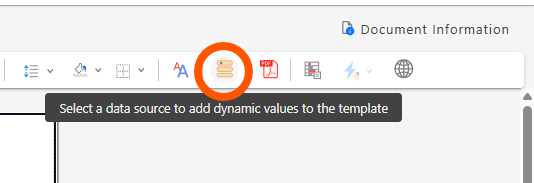
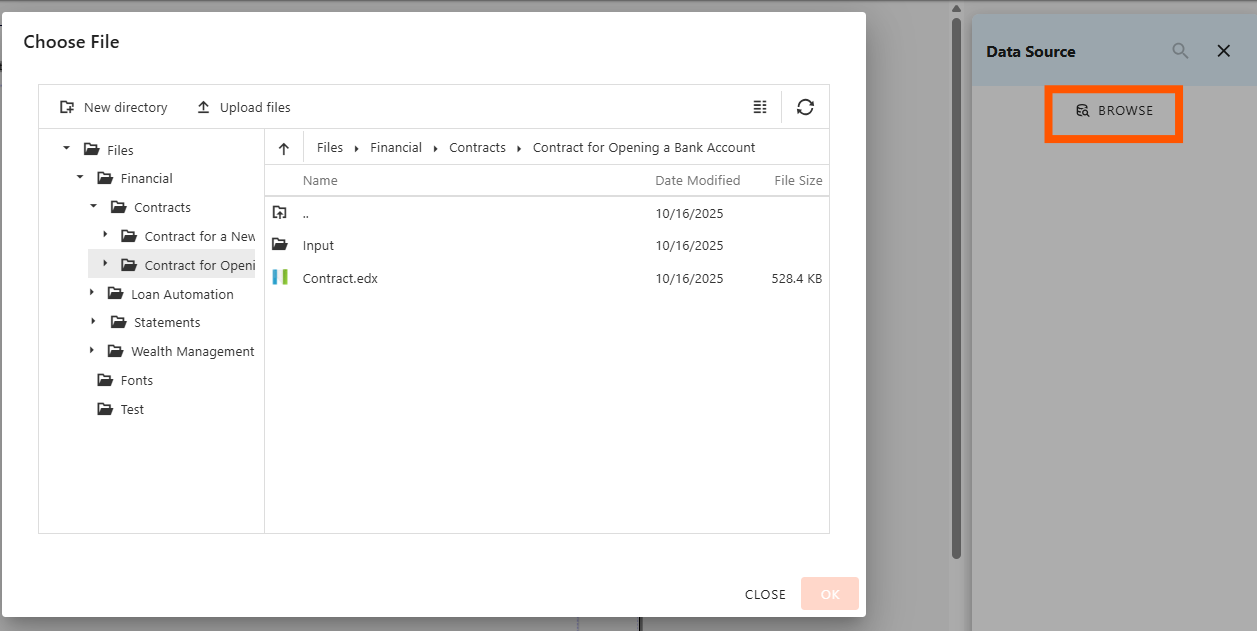
Click the “Select Data Source” icon. A panel will open on the right side of the screen. Click “Browse” and select a correctly formatted .EDX or .XML data file in the same folder as the template (or in a sub-folder).
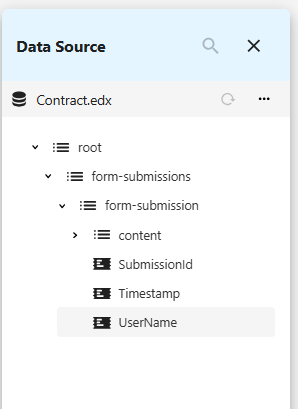
Once you’ve selected a data source, you’ll be able to inspect the data structure of the file, including the root, subfolders, and data elements in the data source panel. You’ll also be able to insert data elements or expressions into the document (see below).
Inserting Data Fields
Once you’ve selected a data source, you can insert elements from that data source into your document as fields. You can add individual elements from the Data Source panel, or you can add data elements or expressions from the “Insert Field” option on the Insert tab.
Adding data elements from the Data Source panel
From the Home tab, clicking on the “Select Data Source” icon will open the Data Source panel. From there, you can drag and drop individual data elements directly into the template, which will be added as a data field.
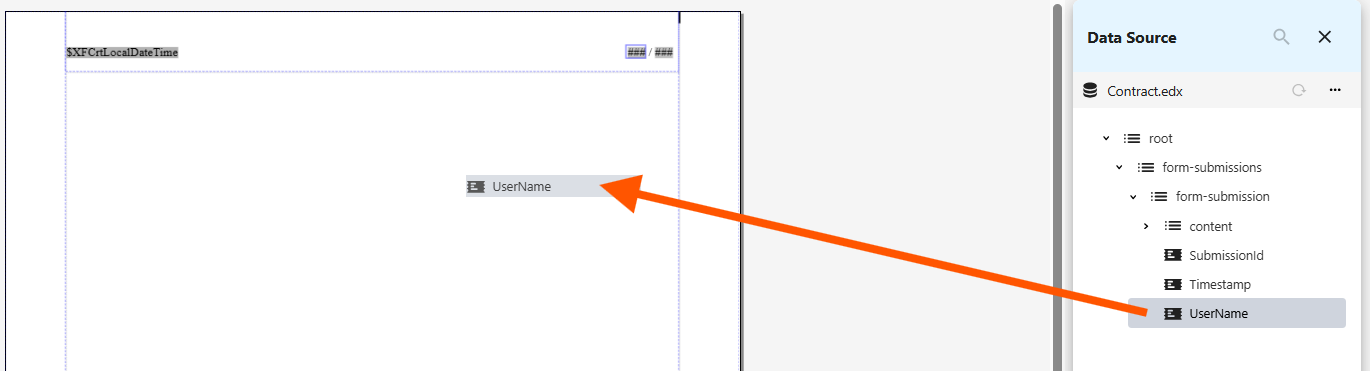
Once you’ve added a data field to the document, you can double click on it to open the “Edit Field” panel, which will allow you to label the field, change the selected element, or replace it with an expression. This is identical to the "Insert Field" panel (see below).
Adding data fields, elements, or expressions from the Insert tab
You can add a data element or expression as text in your template by selecting “Field” from the Insert tab ribbon. This will automatically open an Insert Field panel.
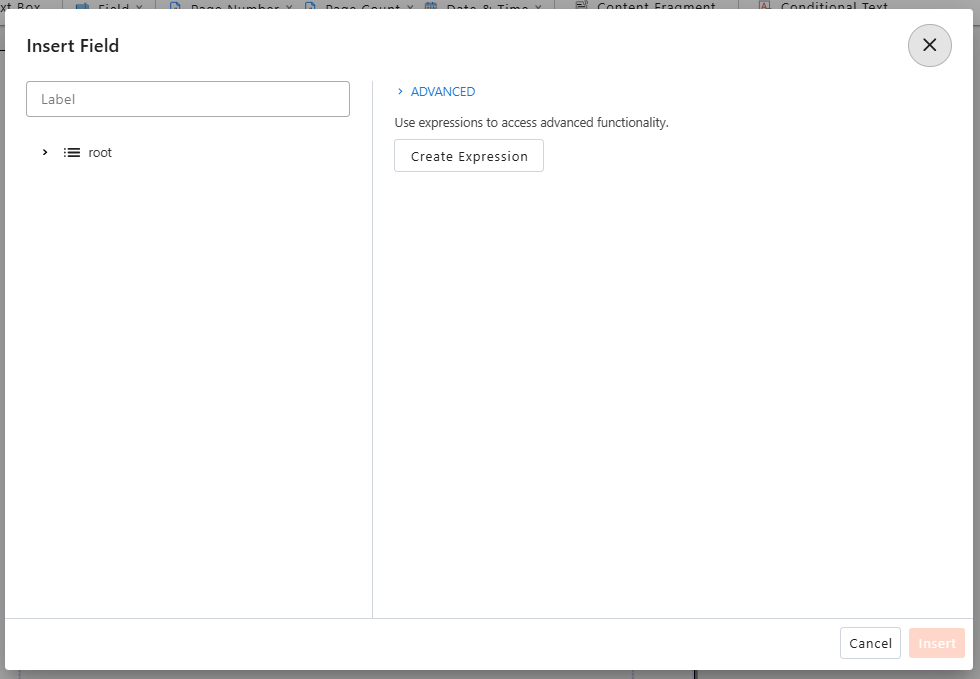
- Select an element: Choose your element from the data source from the panel on the left. If you want to simply insert this data element into the template (without modifying it with an expression), you can select “Insert.”
- Create an expression (alternative): If you want to use an expression instead of a single data element, select “Create Expression.” Insert the selected element or selected path using the icons above the expression field, and then add functions, operators, parameters, or constants, using the options listed.
- Label (optional): If a data element or expression is lengthy or unclear at a glance, you can add text to the label field to set how the field will appear in the template designer. Labels are only used for design and will never be visible in rendered documents.
Notes:
- Selecting the Field dropdown menu will display some inactive options (Current Date & Time, Current Page Number, Total Page Count). These are represented by other options on the Insert tab ribbon.
- Selecting “Custom Field” from the Field dropdown menu will bring up the Insert Field panel (the same as if you click on “Field”).
Building Expressions with AI Assist
When inserting data fields, dynamic elements, or conditional text into your document, NorthStar Designer allows you to create expressions to filter or transform your data, and Designer's AI Assist functionality can now help transform plain language instructions into formatted expression syntax.
To build an expression with AI Assist, click on the AI Assist tab within the expression builder when adding a data field, content fragment, conditional text/formatting, or repeating rows. Type a simple description of the expression you want to build in the text window, and then click "Send."
AI Assist will build an XPath expression based on your description, which you can either revise or click "Apply" to add to your document.
AI Validation
Your expression will automatically be checked for syntax errors.
- If the syntax is valid, a green checkmark icon will appear above the input window.
- If the expression contains syntax errors, a red exclamation point will appear above the input window. Clicking the exclamation point will open a popup window explaining the error.
You can also click the "Check this expression" button in the input window to have the syntax and data references in your expression checked by AI. The AI Assist tab will open with an explanation of any syntax or data reference issues (if any), and suggestions for correcting them.
Reviewing Expressions with AI Assist
When reviewing an XPath expression in the template designer's expression builder, you can open the AI Assist tab and select the "Explain the above XPath" button to receive an AI-generated explanation of the expression in natural language.
From there, you can use the AI XPath Builder to edit or replace the expression, and use the "Explain the above XPath" button to have AI confirm your expression's behavior in simple terms.
Formatting Date and Number Fields
When adding date or number data fields to your template, you can set how this data will be formatted when the document is rendered.
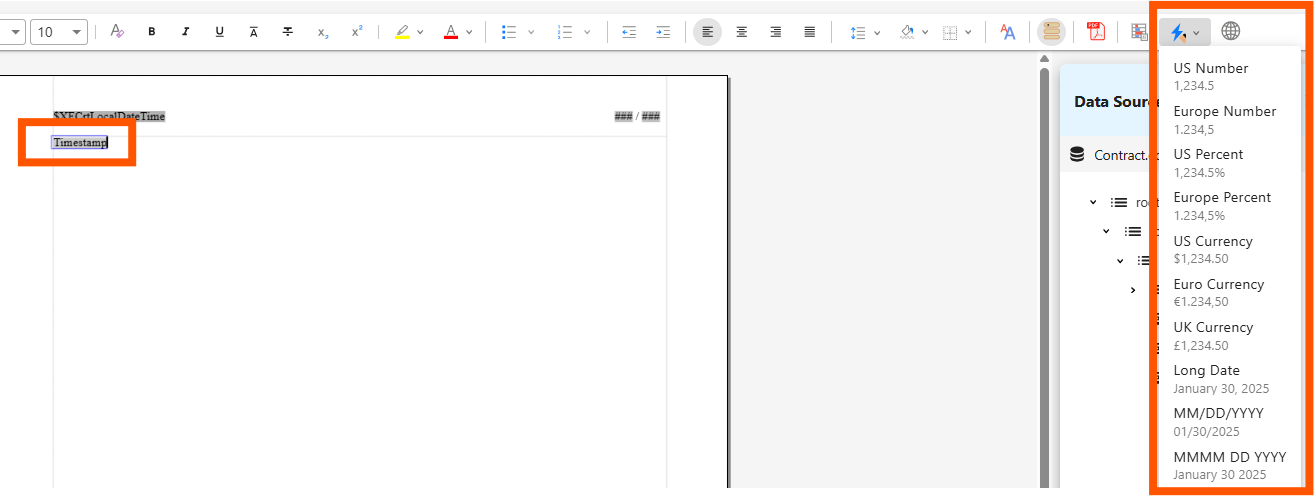
- Select the date or number data field.
- From the Home tab, select the “Apply a data format to the field” icon.
- Select a format from the dropdown options.
Inserting Conditional Text
Conditional text allows you to display one of two text strings depending on whether the data meets a certain condition or not. It consists of three parts:
- Condition: An expression that checks if an element in your data source meets a specific requirement. This condition can be a simple condition (“Greater than 0”) or an advanced expression.
- Text displayed when condition is true: The text that’s displayed when the data element meets the condition.
- Else Text: The text that’s displayed when the data element(s) fail to meet the condition.
To add conditional text to your template, follow these steps:
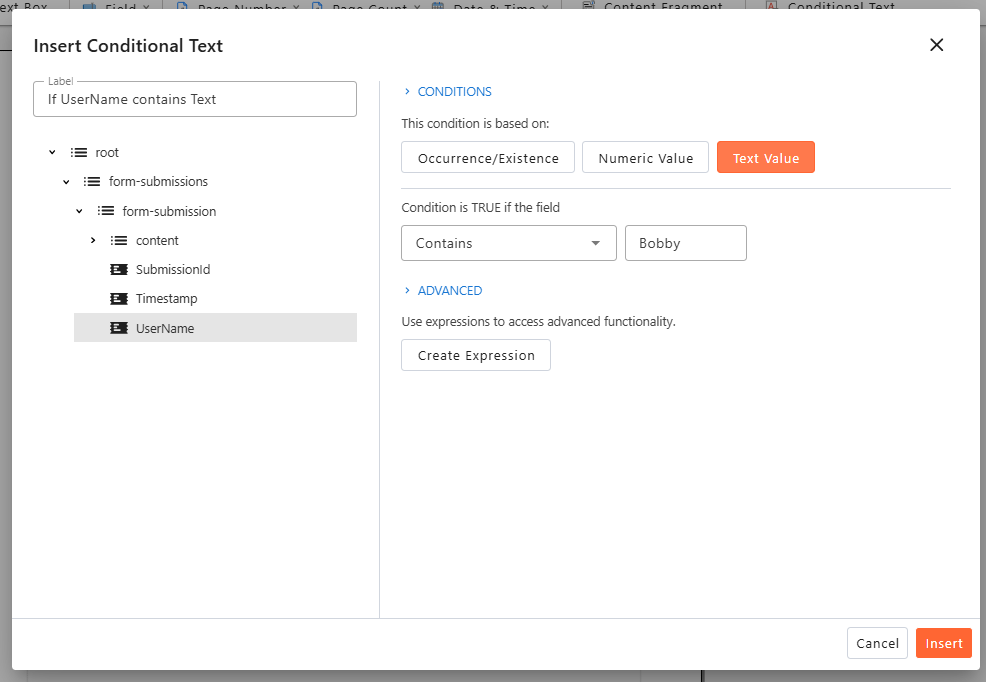
- Select “Conditional Text” from the Insert tab ribbon.
- Select an element: Choose your element from the data source from the panel on the left. If you want to simply insert this data element into the template (without modifying it with an expression), you can select “Insert.”
- Create an expression (alternative): If you want to use an expression to modify the data element, select “Create Expression.” Insert the selected element or selected path using the icons above the expression field, and then add functions, operators, parameters, or constants, using the options listed.
- Label (optional): Labels aren’t generally relevant for conditional text; this field can be left blank.
- Select “Insert.”
Your conditional text will be inserted with the placeholder “Text displayed when condition is true.” and “Else Text.” Replace these placeholders with the desired text.
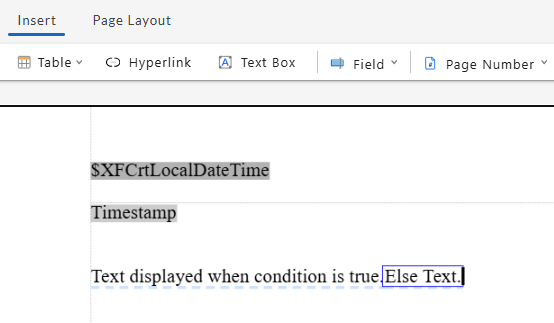
Note: You can include data fields, hyperlinks, and conditional formatting in your conditional text. You can also leave the “Else Text” empty to create text that will only appear when a condition is met.
Setting Conditional Formatting
Conditional formatting allows you to apply font or background styling to a section of text based on a data value.
Example: Your document contains due date, and you want this due date to appear in red if the due date has already passed when the document is created.
To apply conditional formatting, a data source must be assigned to your template (see “Select a Data Source” above). Then follow these steps:
-
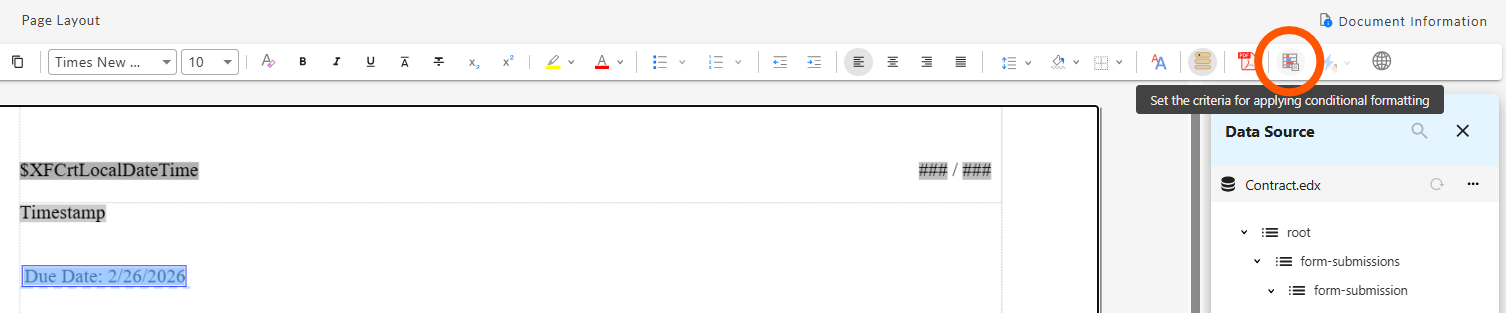
Highlight a section of text or select a text element, and then click on the “Set the criteria for applying conditional formatting” icon.
-
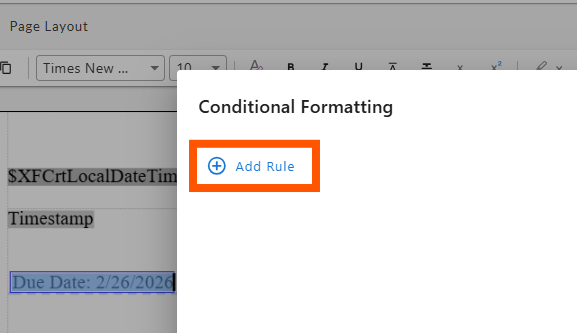
Click “Add Rule.”
-
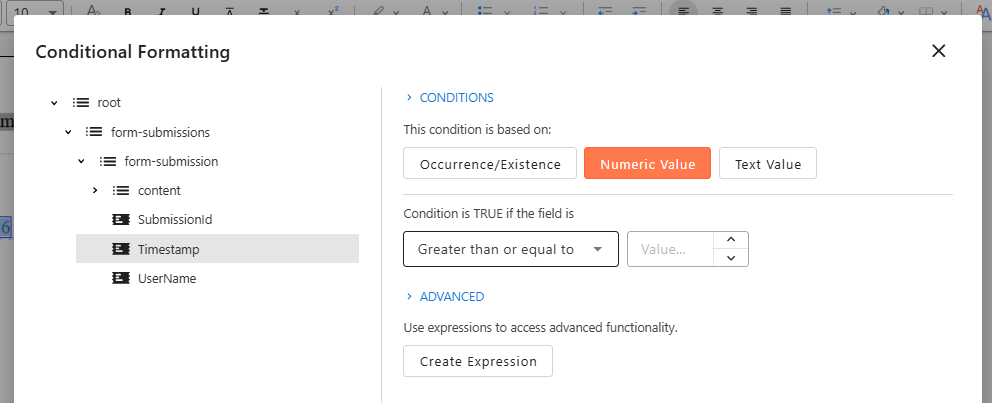
Select a data element. On the left side of the panel, expand the data source and select the element you’d like to condition against.
-
Select the condition type. On the right side of the panel, choose what the condition should be based on:
- Occurrence/Existence: Allows you to apply the formatting depending on whether the selected element is present (or absent from) the data. When selecting this condition type, you can choose from the following operators:
- Exists (the element is present in the data at least once)
- Doesn’t Exist (the element is not present in the data)
- Occurs several times (the element is present in the data more than once)
- Numeric Value (number values only): Allows you to apply the formatting based on the numerical value of the element. You can select from the following operators:
- Less than or equal to
- Greater than or equal to
- Less than
- Greater than
- Not equal
- Equal
- Text Value (text string values only): Allows you to apply the formatting based on the text value of the data. You can use the following operators:
- Contains
- Starts with
- Is empty (the data element is present but has no text in it)
- Is not empty
- Doesn’t exist or is empty (the data element has no text, or is missing altogether)
- Equal
- Not equal
- Occurrence/Existence: Allows you to apply the formatting depending on whether the selected element is present (or absent from) the data. When selecting this condition type, you can choose from the following operators:
-
Select a value (Numeric Value/Text Value conditions only). Enter a number or text string in the “Value” field that the data element will be compared against.
-
Construct advanced expression (alternative option). Selecting “Create Expression” allows you to create a custom expression instead of choosing a single data element. Custom expressions can contain multiple data elements, functions, operators, and parameters.
-
Select “Next.”
-
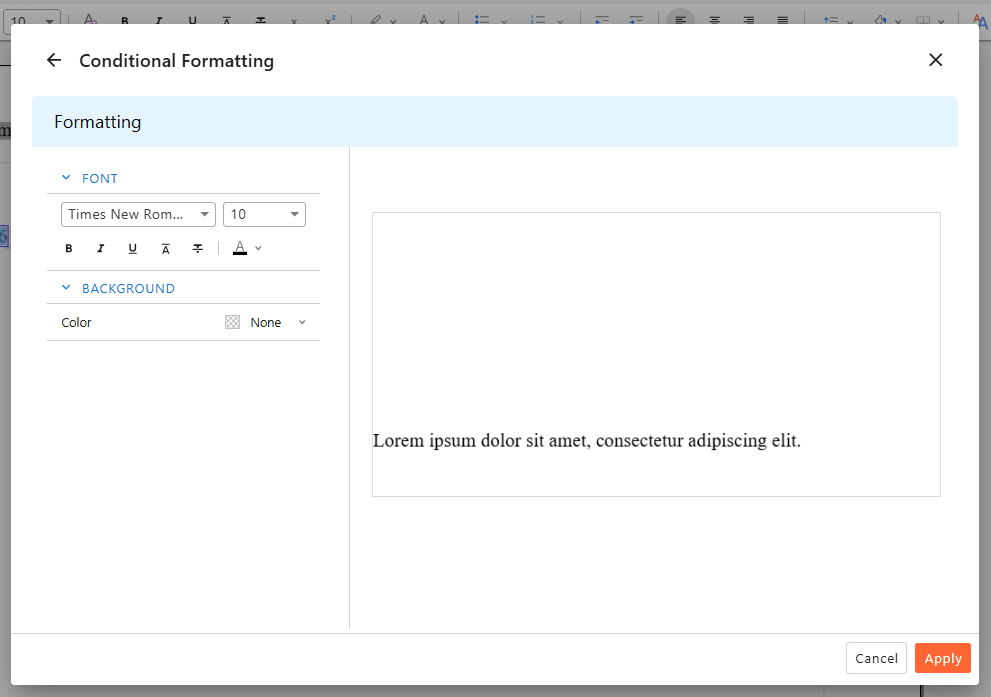
Add conditional formatting. From the Font and Background menus, set the formatting you would like to use when the condition is met. The preview panel on the right will display dummy text in your chosen format.
-
Select “Apply” to finish creating the rule.
-
Add, edit, or confirm rules: You’ll see the rule added to the Conditional Formatting window for the selected text element. From here you can add another rule or edit/delete any existing rules. Once you’re satisfied with the rule(s) you’ve created, select “Apply.”
Once you’ve applied conditional formatting to an element, that element will be displayed with a dotted underline to show its formatting is conditionally tied to data. You can reopen the conditional formatting of a text element at any time by selecting the element and clicking on the “Set the criteria for applying conditional formatting” icon on the Home tab.
Inserting Content Fragments
Content Fragments are independent sections of text that can be shared across multiple documents and templates. This is an extremely helpful feature for boilerplate text like disclosures or fine print, because:
- Reusing the same content fragment is more efficient than repeatedly copy/pasting the same text, and;
- Updating the original content fragment will automatically update all templates using that content fragment.
Building a content fragment is almost identical to building a document template (see “Opening or Creating a Template”).
Once you’ve created a content fragment, you can add it to your document template by selecting “Content Fragment” from the Insert tab ribbon of NorthStar Designer. Then select your content fragment from the “Choose File” panel and click “OK.”
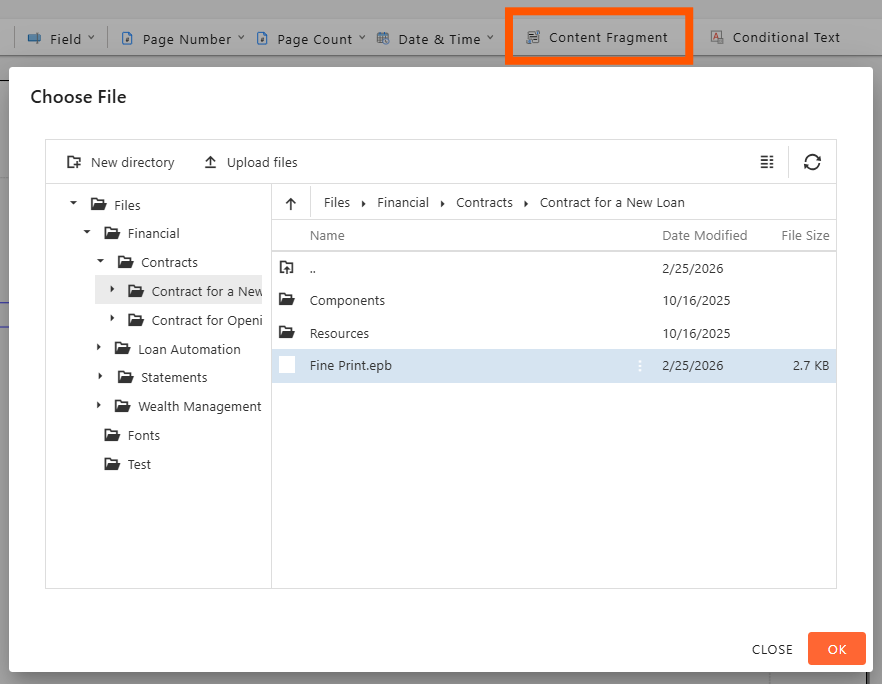
Note: Content fragments cannot be edited or modified for your document template. To change a content fragment, open and edit the original content fragment. This will change the content fragment for all templates using it.
Converting Static Content into Content Fragments
You can easily turn template content into reusable content fragments, which can be used repeatedly in your template and shared across other templates.
Select the content you want to convert into a fragment, right-click, and select "Create Content Fragment" from the context menu. You can then name the fragment and select a save location (by default, the location will be the same folder as the current template).
Once you click Save, the selected content in your template is replaced by the newly created content fragment. You can add additional instances of the fragment to any template by selecting Insert > Content Fragment from the Designer toolbar.
Reminder: Content fragments can only be edited by opening them individually from the project folder. A content fragment that has been added to a template cannot be edited within that template.
Adding Repeating Rows
Repeating rows are table rows that dynamically duplicate based on the data source they are connected to. Repeating rows can be used to create dynamic, personalized communications when the number of items on a list or table varies based on the recipient, such as line items on an invoice or transactions on a banking statement.
To create a Repeating Row, follow these steps:
-
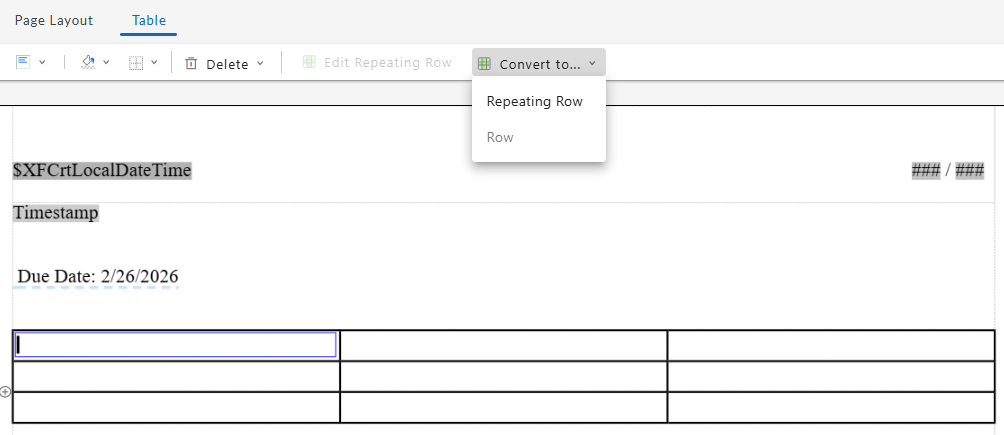
Select a table row, and then select “Convert to...” from the Table tab. Select “Repeating Row” from the dropdown menu.
-
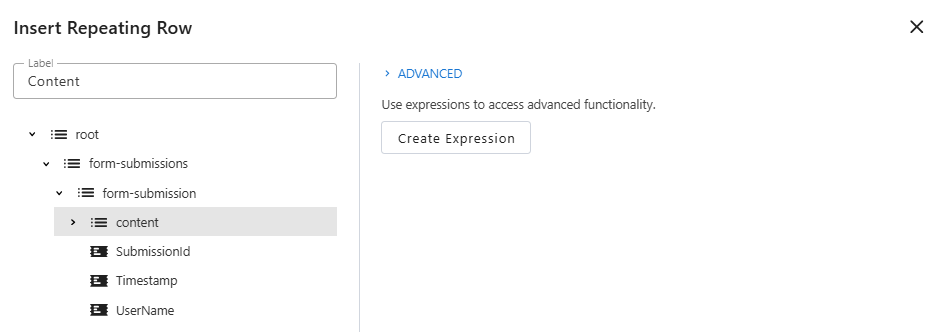
Select a data element: On the left side of the panel, expand the data source and select the element you’d like to base the repeating row on. Once the data element is selected, an empty row will be added to your table for each object in the data element (when rendering). You can specify the contents of this row in the next step.
-
Create an expression (optional): You can apply an expression to the data element if you wish to modify or filter it.
-
Add label (optional): This label will only be visible when editing the repeating row; it will not be visible from the template view or in the rendered document.
-
Select “Insert.”
Once created, the row will be highlighted to indicate that it is a repeating row; this highlight is only visible within the designer and will not be visible in the rendered PDF.
Sorting Repeating Rows
NorthStar Designer allows you to sort repeating rows as they are rendered, displaying them in a more intuitive order than in the raw data.
When you select a table with repeating rows, the Table tab will display a "Sort Rows" option. Clicking this option will open an "Edit Sort" modal, within which you can add, edit, or remove "Sort By" rules. For each rule, you select a data element to sort by, an order (ascending or descending), and a data type for the sorted element (number or string). If "String" is selected, you can also choose a "Case Order" to add a case-sensitive tiebreaker when sorting two entries with the same letters -- "upper-first" will put the capitalized version before the lowercase version, and "lower-first" will do the opposite. Adding a second or third rule provides additional levels of sub sorting, providing greater granularity and control over how rows are displayed in rendered documents.
Once you've saved your sorting rules, both previews and rendered documents will be sorted according to the rules. You can return to the Edit Sort modal at any time to edit, adjust, or remove any rules.
Managing Languages
NorthStar Designer allows you to build translations for each of the text strings in your template. These translated strings can be used when rendering the PDF to create versions of the PDF in multiple languages.
Once you’ve added text to the document, follow these steps:
-
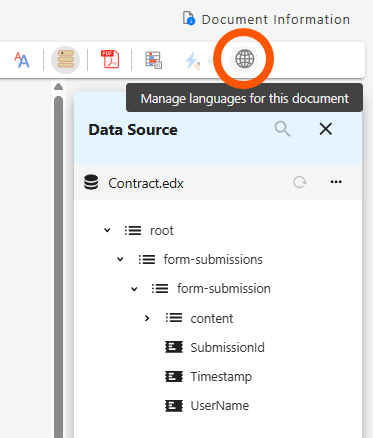
Click on the “Manage Languages” icon on the Home tab. The Languages panel will open displaying your primary language in bold.
-
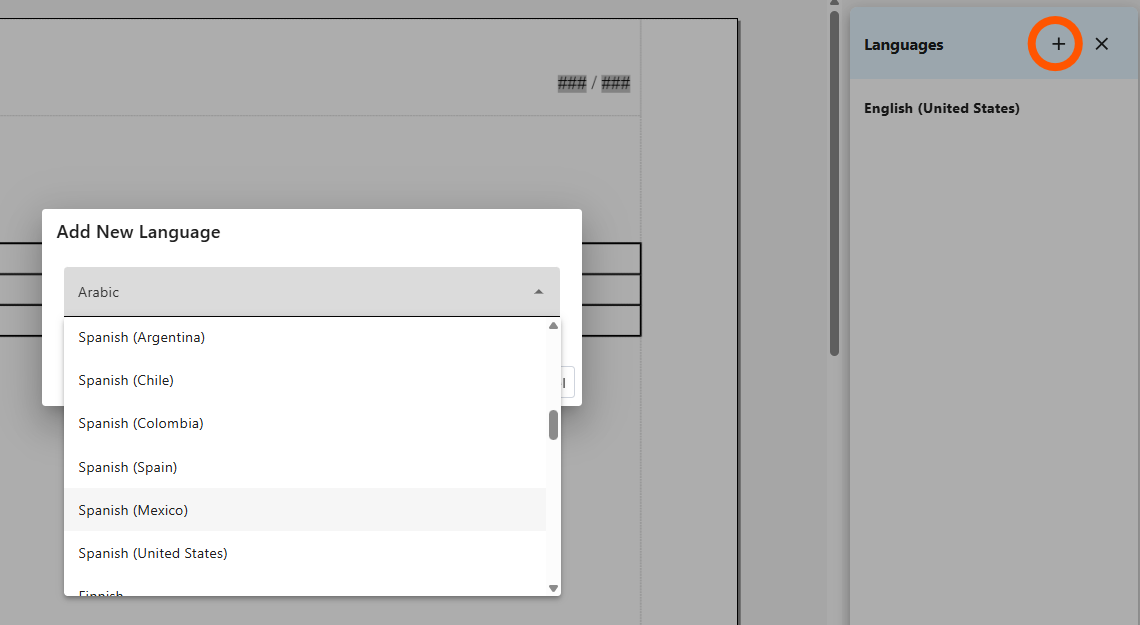
Click on the + icon to add a language. Select a language from the drop-down menu and select “Save.”
-
Once a language has been added, select the language from the panel.
-
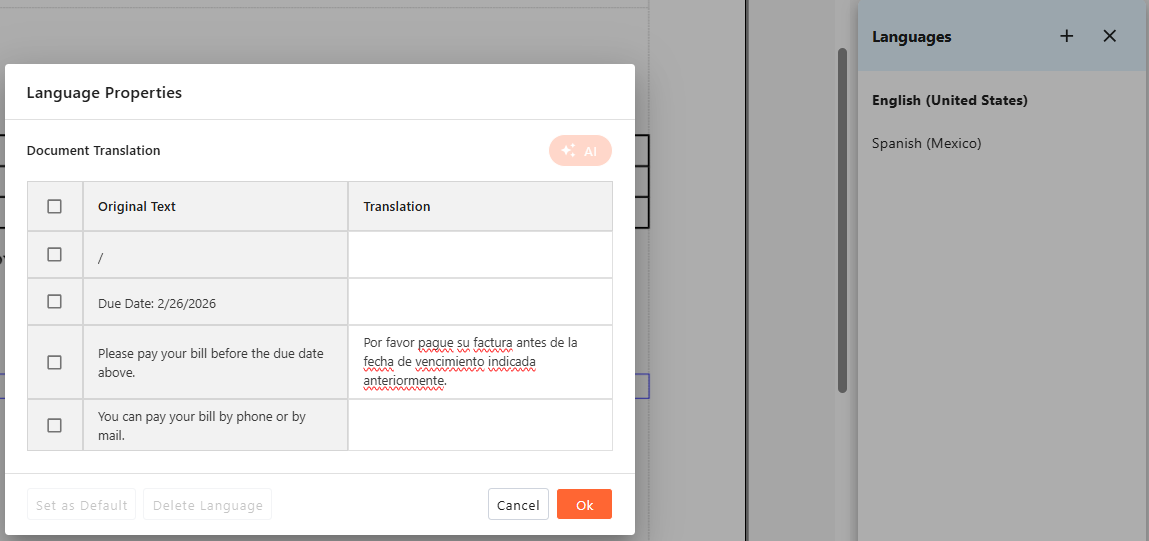
A Language Properties panel will open with the original text of each text string in your document.
-
For each text string, enter the desired translation of that string into the translation column. Note: The checkboxes beside each string support an upcoming feature and currently have no function.
-
When you are satisfied with translation of each string, select “Ok.” Your translated string will be saved in the template. Repeat for each language you’d like to support.
Note: If you change a text string in the designer after translating it, the original text string and translation will be preserved in the Language Properties panel, and the new text string will display without a translation. Before rendering a template in multiple languages, ensure that there is a translation for each text string used in the template.
Deleting Languages
If one of the languages you've added to a template ceases to be necessary, you can remove it by opening the Language Properties panel and selecting the Delete Language button. Once you've confirmed your choice, the language and all its translations will be deleted. Note: you cannot delete the default language of a template.
Adding Translations with AI
If you have the MHC AI Studio enabled, when you click on the "Manage Languages" icon in the Home tab, you'll see an "AI" button on the Language Properties panel.
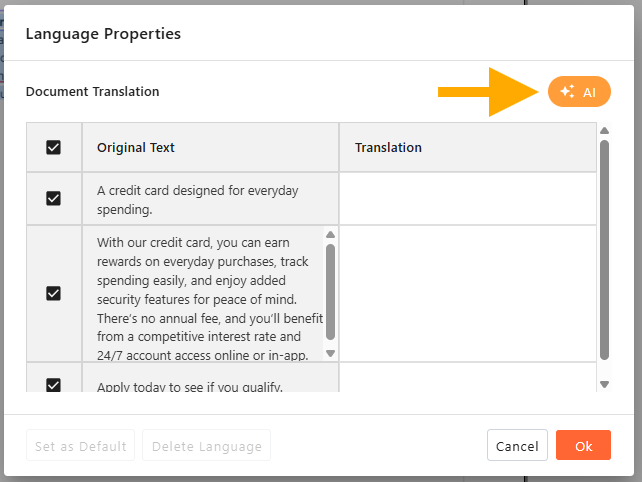
Clicking the AI button will immediately generate an AI-provided translation for each text string in your document. Note: This action will overwrite any existing translations.
If you approve of the translations, you can save them by clicking "OK," or you can manually revise any number of translations before saving. You can also click "Cancel" to discard all changes and revert to the prior state.
Saving and Previewing your Template
To save your template, click the disk icon located in the upper right corner of the screen beside the template name. You must save your template before previewing it.
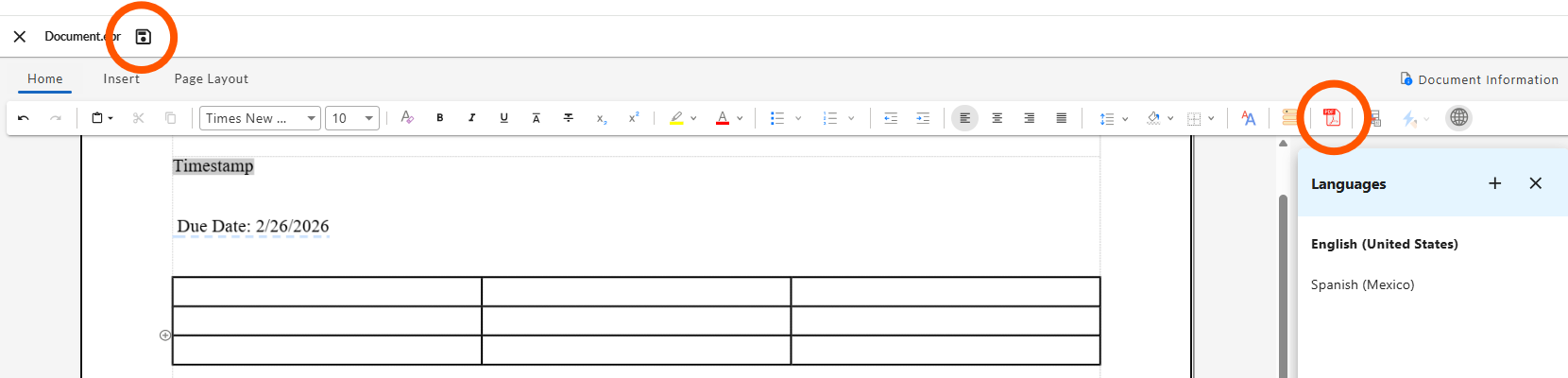
Clicking the “Preview Template” button on the Home tab will create a preview of your template. Previews are available in three formats:
- PDF (default)
- Word
- PowerPoint
Note: the DOCX and HTML preview options in the dropdown menu are in development and not currently functional. There is currently no way to preview a template in another language.
Once you’ve saved the template, click on the Preview Template icon. A PDF preview of your template will be generated in a new browser window. Note: If you are using an .EDX file as the data source and have AI studio enabled, Designer will auto-generate sample data when displaying the preview. Otherwise, the linked data will be used for the preview.
PDF Previews
Opening a PDF preview will generate a preview window and a Sample Records side-panel. The Sample Records panel allows you to preview how the template will render different data values.
Choosing Preview Data
Adding a Sample Record
Selecting Add Sample Record from the Sample Records panel will open a window with a blank record. You can fill in the value of each data element to preview how those values would be displayed by the template.
- Hovering over a data element will display "Duplicate item" and "Add item" icons. Clicking on "Duplicate item" will create a copy of that data element and all its values. Clicking on "Add item" will create a copy of that data element with blank values.
- Once you've created a sample record, you can click on the three-dot icon to the right of the record and select "Duplicate" from the dropdown to create a duplicate of that record (along with all its data elements and values). You can then edit the duplicate by clicking the pencil icon.
Generating Sample Records with AI Assist
Selecting AI Assist from the Sample Records panel opens an AI Sample Data Generator window. Use the prompt input to describe the type of records you want:
- AI Assist feature will generate up to 50 records at once to meet your specifications, with sample values for each parameter.
- You can also click the "Create Sample Data with various scenarios" button to have AI automatically generate a variety of sample records for previewing.
Editing Sample Records
Clicking the pencil icon beside a sample record will open an Edit Sample Record window. From there, you can modify the values of any of the sample data fields and click Save to preview the template with your changes.
Duplicating Sample Records
Once you've created a sample record, you can click on the "three dots" icon to the right of the record and select Duplicate from the dropdown to create a duplicate of that record (along with all its data elements and values). You can then edit the duplicate by clicking the pencil icon. This can be useful once you've created a representative sample record, and you want to preview how the template renders differently with specific changes to the data value.
Exporting and Importing Sample Records
If you have multiple templates that share a common data source, you can transfer sample records between them for easier and more consistent previewing.
- When previewing the first template, click the "three dots" icon to the right of the record in the Sample Records side panel, and select Export from the dropdown menu. The record will automatically download in .xml format. Alternatively, you can click the "three dots" icon in the Sample Record panel header and choose "Export All" to download all sample records.
- Open the second template, select Preview Template from the Home tab, and click the "three dots" icon in the Sample Records panel header. Choose "Import" from the dropdown, then select or drag and drop a sample record file into the Import Sample Data window to import it to the template preview.
Word and PowerPoint Previews
You can preview your template as a Word or PowerPoint document by selecting "Preview as Word" or "Preview as PowerPoint" from the Preview dropdown menu. This will trigger a download of the template in the selected format, populated with auto-generated data.
Selecting a Preview Language
You can preview your template in multiple languages, as long as you've added those languages to the template (see Managing Languages).
From the Home tab, click the dropdown arrow by the Preview Template icon, and select "Set preview language..." from the dropdown. You can choose any of the languages you've added to the template and click "save." The language you've saved will persist for all future previews (and CCM sessions), until you manually change it again.
Note: When you preview a template in another language, the previewed text will be taken from the translations you've added in the Language Properties panel. If the translations of any text sections are absent, those sections will be previewed in the default language.