NorthStar CCM R2025 Installation Guide
Overview
This document provides step by step instructions for installing NorthStar CCM software on one single server or across multiple servers. Follow these guidelines if you want to install the NorthStar CCM Platform for the first time and you've gone through the pre-installation requirements.
Assumptions: Application Version – MHCEngageCX-x64.15.2.1-11825 (Ruby) or higher
Installer Description
The installation files are named according to the version of the product. Generally, the setup name has the following structure:
Product Name – Architecture – Build Version – Build Number.
In the example below, you can identify the details mentioned as follows:
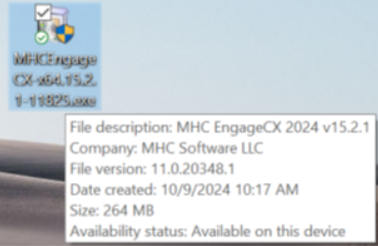
Starting the Installation
To open the installation wizard, double-click on the .exe file and wait for the Setup to initialize:
When the setup finishes preparing the installation, the Welcome Screen will appear. Follow the steps described below to complete the installation.
Single Instance Installation
This section provides step by step instructions for installing all NorthStar CCM Platform components on the same machine (except for the database).
Step 1 - Welcome Screen
The welcome screen provides details on what product is about to be installed on your machine, as well as two options, to reverse changes or to proceed with the installation of the NorthStar CCM software.
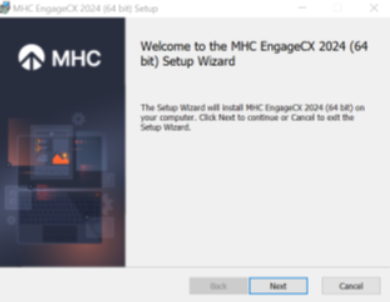
To proceed with the installation, select the Next button, located in the bottom region of the window.
Step 2 - End-User License Agreement
To continue with the installation of the NorthStar CCM Platform, you will need to carefully read the terms and conditions for this software.
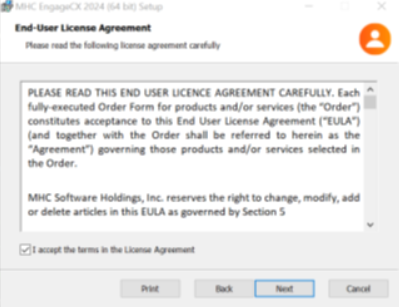
Afterwards, check the I accept the terms in the License Agreement checkbox and click Next.
Note: The Next button is greyed out until the above checkbox is selected.
Step 3 - Destination Folder
This step in the Setup Wizard offers the possibility of setting up the location where the NorthStar CCM software will be installed. By default, the NorthStar CCM software will be installed at:
C:\Program Files\ MHC Software \EngageCX_Product.
To change the default path, select the Change button on the middle-left side of the window and provide a new destination folder for the NorthStar CCM installation.
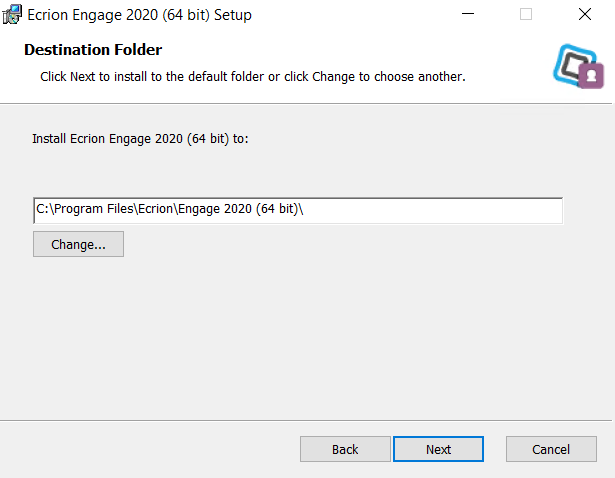
Once you have the folder set, select the Next button to continue with the installation.
Step 4 – Product Features Selection
NorthStar CCM provides a series of features which can be chosen during this step of the installation. Each component is provided with a short description of its functionality.
By default, all features are selected. You can decline the installation of a component by de-selecting the associated checkbox. If no component is selected, you will be unable to finish the installation.
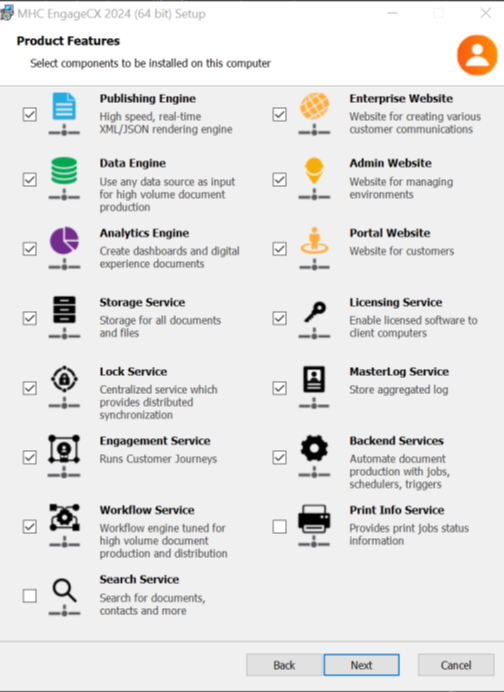
Once you select the needed features, select Next to proceed with the required settings configuration for each feature.
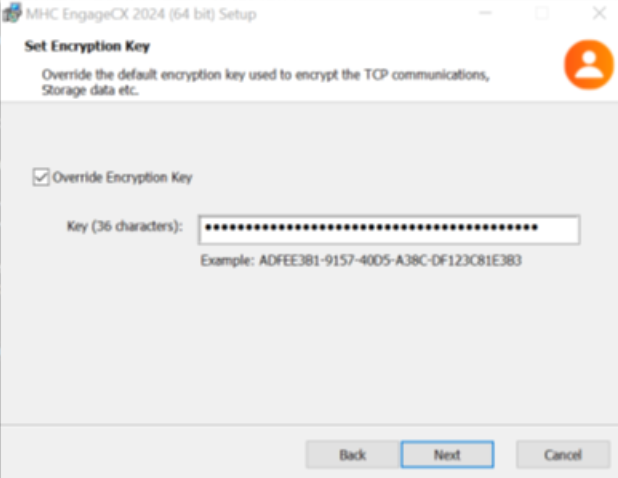
Step 5 - Set Encryption Key
The Override Encryption Key option, if enabled, overrides the default encryption key with another one used to encrypt the TCP communications, Storage data, etc.
Step 6 - Configure Publishing Engine
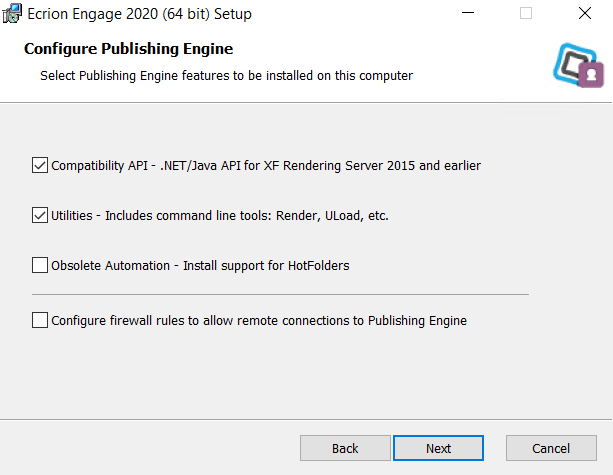
The Publishing engine is a native server component that performs XML/JSON conversions to various output formats. It is the successor of the XF Rendering Server embedded in the new NorthStar CCM line of products.
Warning This component is a vital service, so you will need to ensure that it is installed and available (either on the current machine or another) when using the NorthStar CCM software.
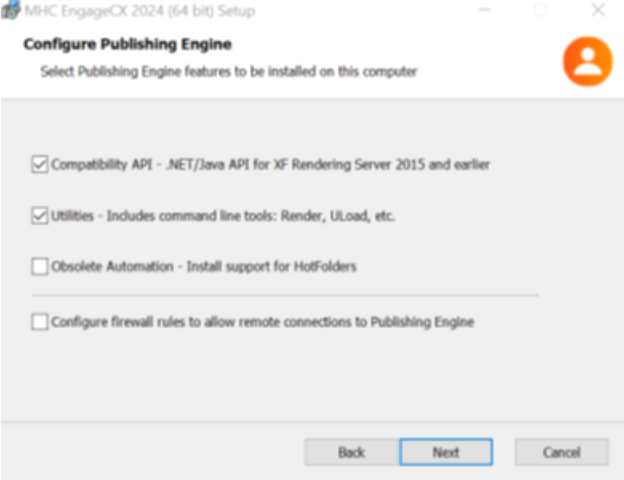
This step allows the user to choose several backwards-compatibility options:
- Enable compatibility to the obsolete EngageCX API v1.0 (i.e.: old Ultrascale Client)
- Includes additional utilities such as:
- Render.exe: a command line tool that allows users to render different input formats to the desired output;
- Uload.NET: a command line tool that allows users to measure the system’s performance under heavy load.
- Enable obsolete version of Hot Folders automation.
Additionally, users can enable firewall rules to allow incoming remote requests. Notice that this option should remain un-checked for Single Instance installation. Enable this option only if the Publishing Engine component is deployed on a separate machine. For more details on this, please view the Double or Complex Instances installation available in this guide.
Once you select the needed features, select Next to proceed to the next step.
Step 7 - Configure Data Engine
The Data engine is a native server component that performs data aggregation from multiple data sources (XML, CSV, Relational databases, etc.). It is used in conjunction with the Publishing engine to create various communications from different sources. It is the successor of the Data Aggregation Server product, and it is embedded in the new NorthStar CCM line of products.
Warning This component is a vital service, so you will need to ensure that it is installed and available (either on the current machine or another) when using the NorthStar CCM software.
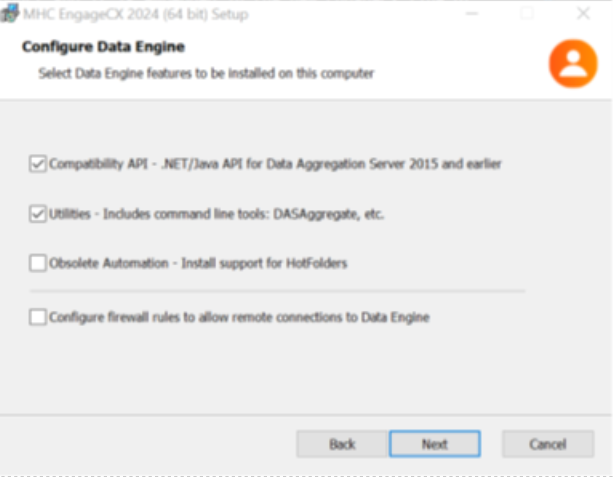
This step also provides the user with several backward-compatibility options:
- Enable compatibility to the obsolete EngageCX API v1.0 (i.e.: old Ultrascale Client)
- Includes additional utilities such as:
- Render.exe: a command line tool that allows users to render different input formats to the desired output.
- Uload.NET: a command line tool that allows users to measure the system’s performance under heavy load.
- Enable obsolete version of Hot Folders automation.
Additionally, users can enable firewall rules to allow incoming remote requests. Notice that this option should remain un-checked for Single Instance installation. Enable this option only if the Publishing Engine component is deployed on a separate machine.
Once you select the needed features, select Next to proceed to the next step.
Step 8 - Configure Analytics Engine
The Analytics engine is a native server component that performs analytic computations for NorthStar CCM systems. Installing this component is mandatory only if you want to use the Analytics module within NorthStar CCM Platform.
Additionally, users can enable firewall rules to allow incoming remote requests. Notice that this option should remain un-checked for Single Instance installation. Enable this option only if the Analytics Engine component is deployed on a separate machine.
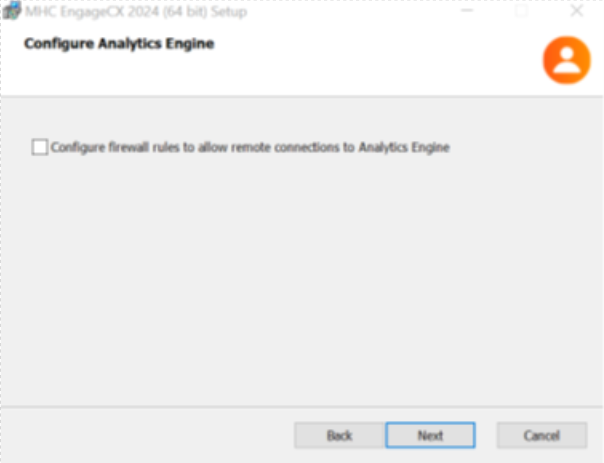
Once you select the needed features, select Next to proceed to the next step.
Step 9 - Database Settings
In this window, you will need to select a database provider. To proceed, you have two options: * Use a previous configuration (only if NorthStar CCM/EngageCX was installed before on the current machine). * Create a new SQL Connection.
Using Existing SQL Database
To use the settings made in a previous install of NorthStar CCM/EngageCX software, check the Use previous configuration option, then click Next.
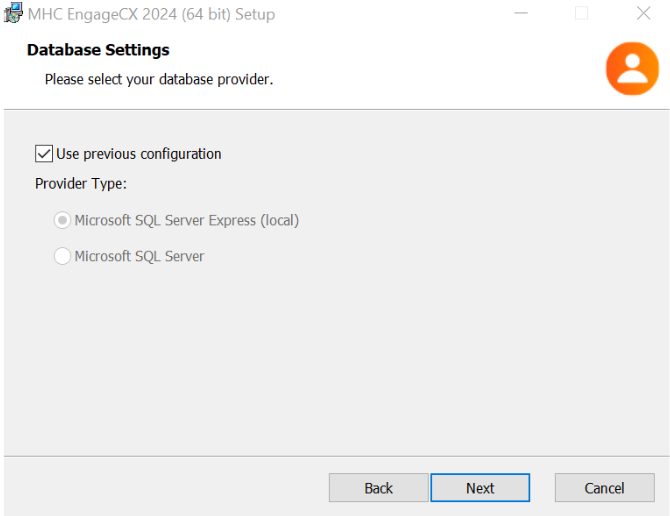
If you un-check the option Use previous configuration, then you must choose the Provider Type out of two options: - Microsoft SQL Server Express (local) - Microsoft SQL Server
Using Microsoft SQL Server Express (local)
Choosing the Microsoft SQL Server Express (local) requires the following information:
- Select the MSSQL Instance.
- Enter the Database name previously created. (Default database is EOSDB4)
- Select the Authentication Type: Windows or SQL Server, along with a username and password. Note that the user must have db_owner rights to access the database.
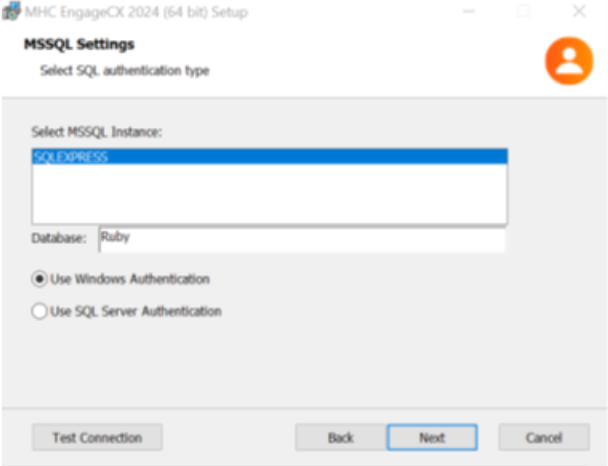
Once you provide all the necessary data, you can test the connection to ensure that all fields have been set up properly, by clicking the Test Connection button.
Using Microsoft SQL Server
Choosing the Microsoft SQL Server requires the following information:
- Enter the Server Name or the IP Address of the machine where the Microsoft SQL Server is installed.
- The name of the Database previously created (Default database is EOSDB4).
- Select the Authentication Type: Windows or SQL Server, along with a user name and password. Note that the user must have db_owner rights.
- Optionally, add the Instance Name, if you have the Microsoft SQL Server installed as a named instance.
Note As best practice, use Windows Authentication in case you have the possibility of giving owner permissions (to NorthStar CCM Database), to a windows user. Otherwise, SQL authentification with username and password can be used.
Once you provide all the necessary data, you can test the connection to ensure that all fields have been set up properly, by clicking the Test Connection button.
Step 10 - Storage Service Settings
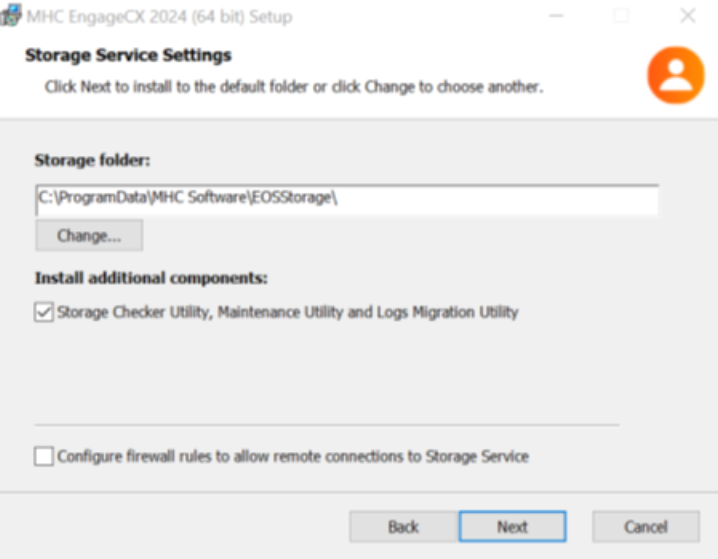
After you finish configuring the database(s), you must proceed to set up NorthStar CCM Storage. For this scenario, the NorthStar CCM Storage will be a local folder on the server. By default, it will be created at C:\ProgramData\EngageCX\, and the folder will be called EOSStorage. In case your NorthStar CCM storage is remote, make sure to use UNC Paths to point the storage.
Optional storage tools are included with the installation setup. Users can choose to deploy them by checking the Storage Checker Utility, Maintenance Utility and Logs Migration Utility option.
Additionally, users can enable firewall rules to allow incoming remote requests. Notice that this option should remain un-checked for Single Instance installation. Enable this option only if the Storage is located on a separate server.
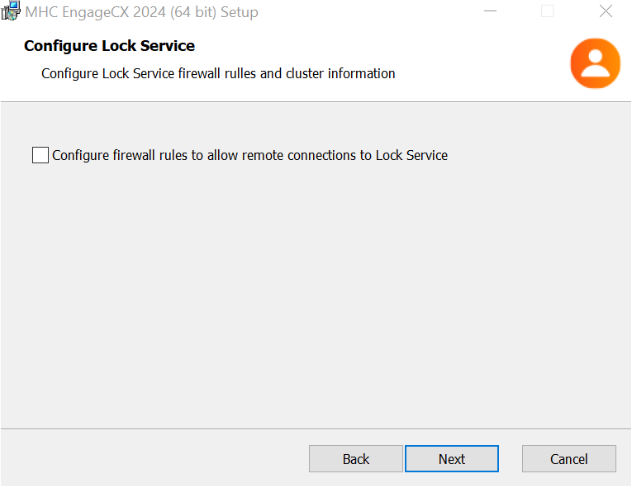
Step 11 - Configure Lock Service
The Lock Service is a centralized service that provides distributed synchronization.
Additionally, users can enable firewall rules to allow incoming remote requests. Notice that this option should remain un-checked for Single Instance installation. Enable this option only if the Lock Service component is deployed on a separate/multiple machine(s).
Step 12 - Configure Engagement Service
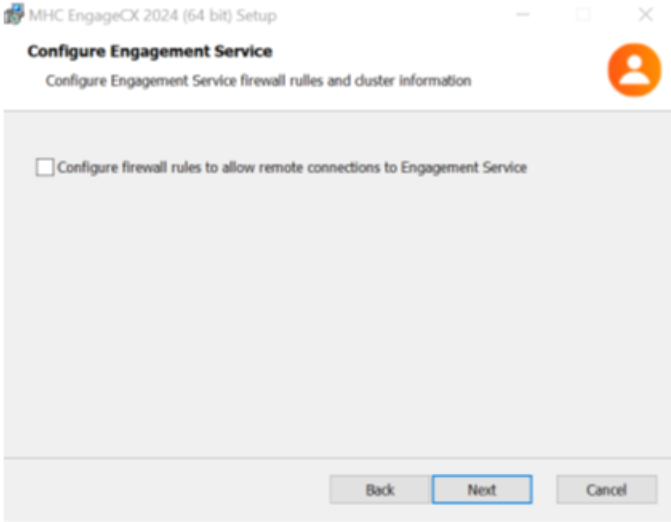
The Engagement Service is a standalone service that registers the TCP ports. It has an independent log file. The service can work in High Availability mode, being dependable on the Lock Service.
Additionally, users can enable firewall rules to allow incoming remote requests. Notice that this option should remain un-checked for Single Instance installation. Enable this option only if the Engagement Engine component is deployed on a separate/multiple machine(s).
Step 13 - Configure Workflow Service
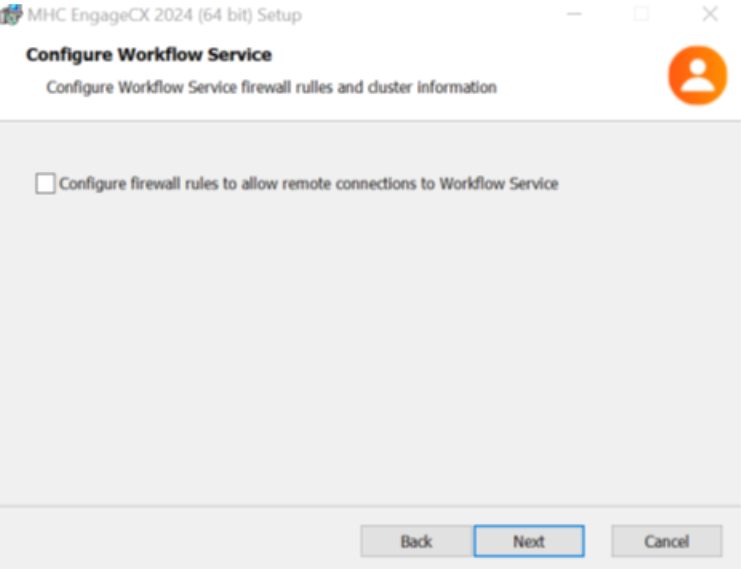
The Workflow Service is a standalone service that improves the high-volume document production and distribution.
Additionally, users can enable firewall rules to allow incoming remote requests. Notice that this option should remain un-checked for Single Instance installation. Enable this option only if the Workflow Engine component is deployed on a separate/multiple machine(s).
Step 14 - Configure Licensing Server
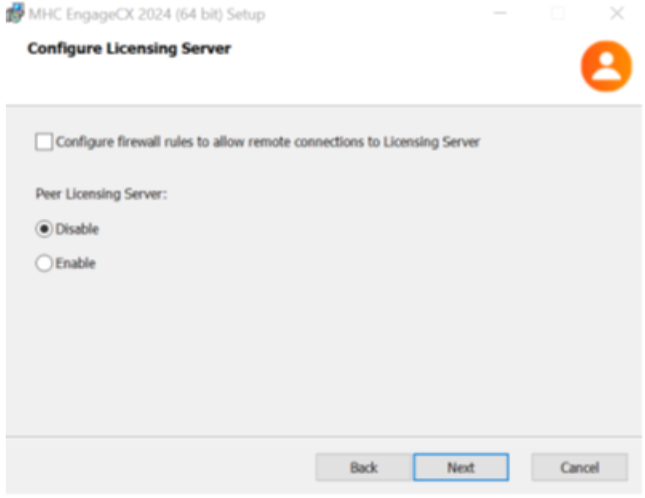
The Licensing Server allows system administrators to install and manage all the NorthStar CCM Product keys that enables various features and functions. For single instance scenarios, the Peer Licensing Server option should be Disabled.
Step 15 - Backend Services Settings
The Backend Services component is a Windows Service that automates various communication productions with jobs, schedules, triggers, etc. It also contains other important NorthStar CCM services such as Health Check, Billing, Analytics, etc.
Warning
This component is a vital service, so you will need to ensure that it is installed and available when using the software.
During this phase of the Installation Wizard, you can choose the additional components that come with the Backend Services component:
- Pre-Production Test Utility - Performs a smoke check of all the functionality of the system.
- EOS Backup Utility - Performs a backup by creating supplementary exact copies of files and databases.
- EOS Encrypt Tool Utility - Performs encryption to protect your sensitive data and valuable information.
- Replicate Environment Utility - Performs replication on your development environment & personal configurations across machines and instances.
Additionally, users can enable firewall rules to allow incoming remote requests. Notice that this option should remain un-checked for Single Instance installation. Enable this option only if the Backend Services component is deployed on a separate machine.
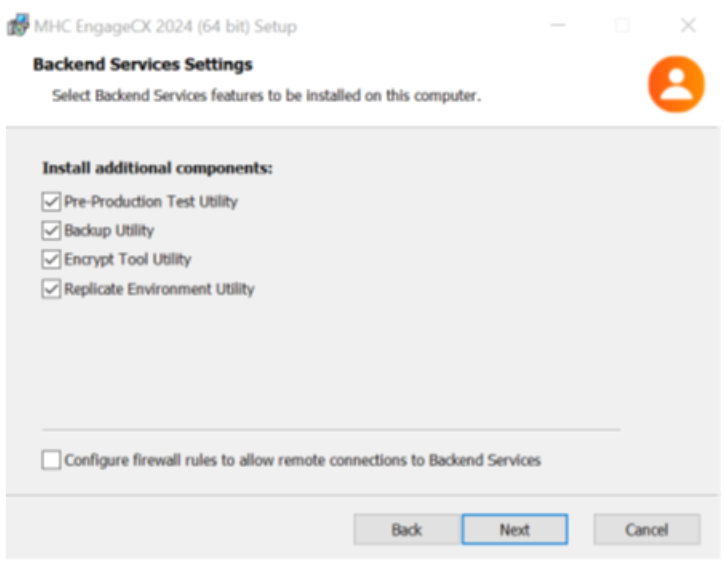
Once you select the needed features, select Next to proceed to the next step.
Step 16 - Configure MasterLog Server
The MasterLog Service is a standalone service that provides a centralized log of all the NorthStar CCM services.
Additionally, users can enable firewall rules to allow incoming remote requests. Notice that this option should remain un-checked for Single Instance installation. Enable this option only if the MasterLog Engine component is deployed on a separate machine.
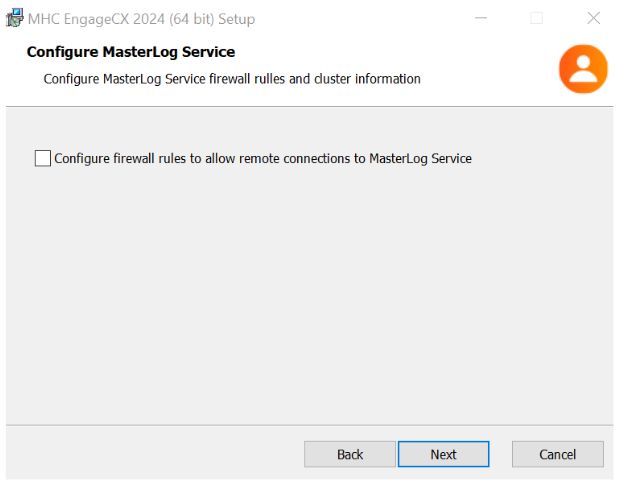
Step 17 - Enterprise Website Settings
The Enterprise Website is the Main User Interface component, which allows the user to create and manage all customer communications and corresponding assets. The website will be installed on the IIS server. During the setup, it may be necessary to check some of the options described below to accommodate your organization needs.
If you choose the Enterprise Website component, the settings below are mandatory to be configured. This information will be used to access the Enterprise website.
- Enterprise Website Name (By default, it is EOS4)
- Website Host Name; (By default, it is localhost. To enable remote access, update the box to the corresponding address).
- Enterprise Website Port (By default, it is 8094).
Optionally, you also have two options that can be checked/un-checked:
- Enable Web Site SSL - Makes the site also accessible via HTTPS (requires a preinstalled SSL Certificate)
- Configure firewall rules - Configures firewall to allow access to the Enterprise Website via the specified port(s).
If you enable the Web Site SSL option, make sure to provide the information below:
- Enterprise Website Secure Port - Select the port to use for HTTPS access; this must be different than the HTTP port (and ports used by the other websites). You may disable HTTP access to the website from IIS Manager after running the setup.
- SSL Certificate - Select an SSL Certificate for enabling HTTPS access; this must already be installed on the system, prior to launching the setup.
Note To pick up a SSL certificate from a network share instead of using the local certificate store, check the Use Centralized Certificate Store feature available, then provide the website secure port to be used.
The IIS Log folder box allows users to set the Website log folder for the IIS logs.
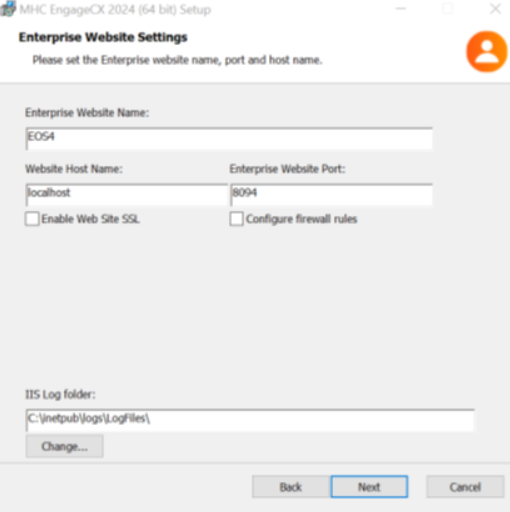
Step 18 - Administration Website Settings
The Administration Website performs various administrative tasks over NorthStar CCM environments (configuring worker servers and administration users, configuring environment capabilities, etc.). The website will be installed on the IIS server. During the setup, it may be necessary to check some of the options described below to accommodate your organization needs.
If you choose the Administration Website component, the settings below are mandatory to be configured. This information will be used to access the Administration website.
- Administration Website Name (By default, it is ADMINEOS4)
- Website Host Name; (By default, it is localhost. To enable remote access, update the box to the corresponding address).
- Administration Website Port (By default, it is 8095).
Optionally, you also have two options that can be checked/un-checked:
- Enable Web Site SSL - Makes the site also accessible via HTTPS (requires a preinstalled SSL Certificate)
- Configure firewall rules - Configures firewall to allow access to the Administration Website via the specified port(s).
If you enable the Web Site SSL option, make sure to provide the information below:
- Administration Website Secure Port - Select the port to use for HTTPS access; this must be different than the HTTP port (and ports used by the other websites). You may disable HTTP access to the website from IIS Manager after running the setup.
- SSL Certificate - Select an SSL Certificate for enabling HTTPS access; this must already be installed on the system, prior to launching the setup.
Note To pick up a SSL certificate from a network share instead of using the local certificate store, check the Use Centralized Certificate Store feature available, then provide the website secure port to be used.
The IIS Log folder box allows users to set the Website log folder for the IIS logs.
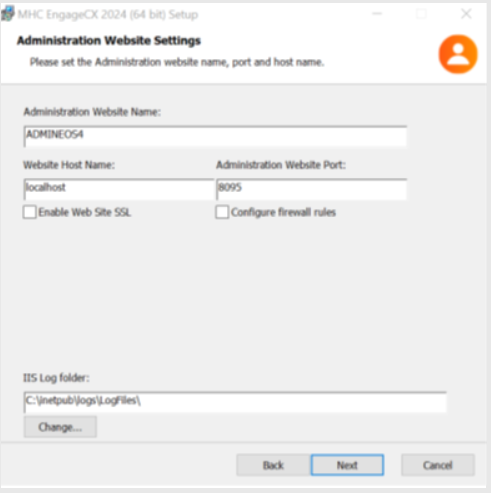
You can also enable HTTPS traffic on this website and add firewall rules for incoming requests, in a similar fashion to the Enterprise Website.
Step 19 - Portal Website Settings
The Portal Website allows customers to view their communications created with NorthStar CCM software. This website will be installed on the IIS server.
During the setup, it may be necessary to check some of the options described below to accommodate your organization’s needs.
If you choose the Portal Website component, the settings below are mandatory to be configured. This information will be used to access the Portal website.
- Portal Website Name (By default, it is PORTALEOS4)
- Website Host Name: (By default, it is localhost. To enable remote access, update the box to the corresponding address).
- Portal Website Port (By default, it is 8096).
Optionally, you also have two options that can be checked/un-checked:
- Enable Web Site SSL - Makes the site also accessible via HTTPS (requires a preinstalled SSL Certificate)
- Configure firewall rules - Configures firewall to allow access to the Portal Website via the specified port(s).
If you enable the Web Site SSL option, make sure to provide the information below:
- Portal Website Secure Port - Select the port to use for HTTPS access; this must be different than the HTTP port (and ports used by the other websites). You may disable HTTP access to the website from IIS Manager after running the setup.
- SSL Certificate - Select an SSL Certificate for enabling HTTPS access; this must already be installed on the system, prior to launching the setup.
Note To pick up an SSL certificate from a network share instead of using the local certificate store, check the Use Centralized Certificate Store feature available, then provide the website secure port to be used.
The IIS Log folder box allows users to set the Website log folder for the IIS logs.
You can also enable HTTPS traffic on this website and add firewall rules for incoming requests, in a similar fashion to the Enterprise Website.
Step 20 - Dependent Services Settings
This step allows customers to manage the addresses of the machines where you installed the NorthStar CCM components.
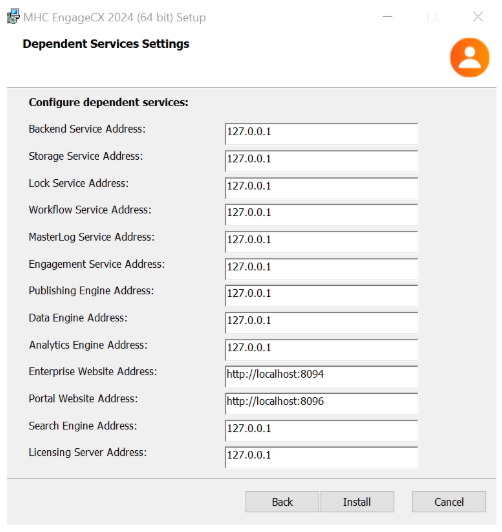
Once you finish configuring the components, you can click the Install button, located in the bottom region of the Setup Wizard window, and the setup will proceed to install the NorthStar CCM software.
Step 21 – Installing NorthStar CCM Platform and Completed Screen
The final steps of the Installation Wizard allow you to see the progress of the installation and, once completed, you can view the Readme file of the NorthStar CCM Software.
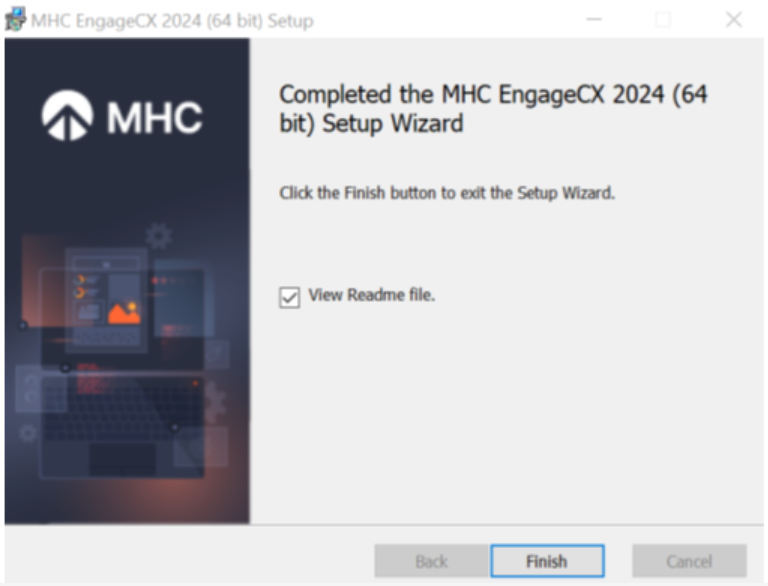
Complete the installation by selecting the Finish button.
Double Instance Installation
This section describes how to set up HA using two servers, each with a full instance of NorthStar CCM deployment (except the database). The instances in this topology are configured to synchronize both storage and their background activity (triggers, schedules, health check, search data crawling, etc.).
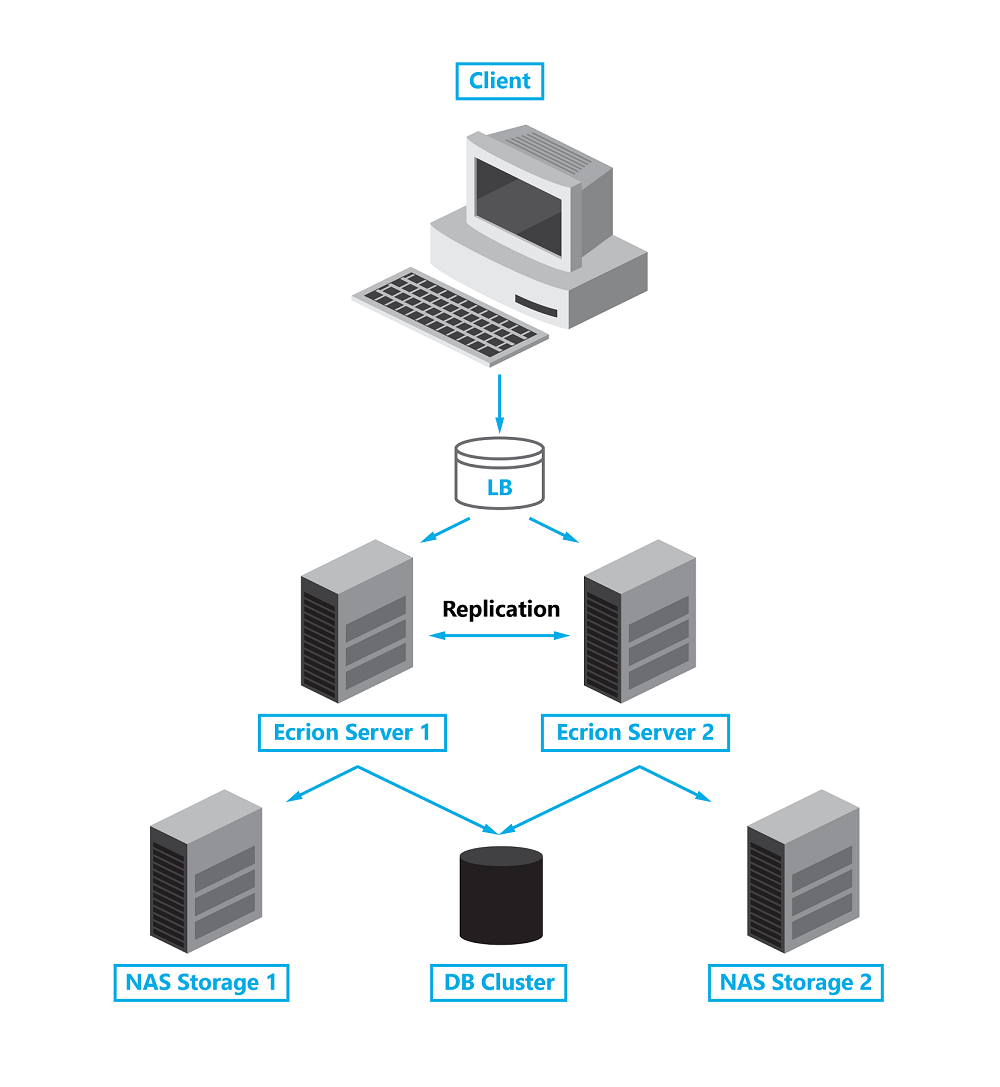
Conventions
For the example below, we will use the following conventions: - Server 1: EngageCXServer1 (with the IP Address: X.X.X.X) - Server 2: EngageCXServer2 (with the IP Address: Y.Y.Y.Y)
Overview
- Both server nodes must meet the system requirements. See Basic Installation Requirements.
- Prepare the SQL Database cluster. See NorthStar CCM Database.
- Make sure that both servers have the appropriate ports open. See Ports Availability.
- Run the NorthStar CCM setup and complete the installation process on each of the server nodes, by ensuring the HA Configuration below.
HA Configuration
Particular configuration is required for setting up High Availability successfully.
1- Running the Setup
While running the Engage setup, make sure that the following options are enabled. The settings are required for both nodes.
- Step - Configure Publishing Engine: Enable Configure firewall rules to allow remote connections.
- Step - Configure Data Engine: Enable Configure firewall rules to allow remote connections.
- Step - Configure Analytics Engine: Enable Configure firewall rules to allow remote connections.
- Step - Database Settings:
- Note that in this scenario NorthStar CCM instances must point to the same database.
- Step - Storage Service Settings: Enable Configure Firewall rules to allow remote connections.
- Step - Configure Lock Service: Enable Configure firewall rules to allow remote connections.
- Step - Configure Engagement Service: Enable Configure firewall rules to allow remote connections.
- Step - Configure Workflow Service: Enable Configure firewall rules to allow remote connections.
- Step - Configure Search:
- Enable Configure Firewall rules to allow remote connections.
- Note that in this scenario NorthStar CCM instances must point to the same Search database.
- Step - Configure Licensing Server:
- Enable Configure Firewall rules to allow remote connections.
- Enable Peer Licensing Server.
- Enter the IP Address of the opposite NorthStar CCM server used in the Peer Licensing Server Address box.
- Step - Backend Services Settings: Enable Configure firewall rules to allow remote connections.
- Step - Configure MasterLog Server: Enable Configure firewall rules to allow remote connections.
- Step - Enterprise Website Settings:
- Enable Configure Firewall rules to allow remote connections.
- To ensure remote access to the Enterprise website, it might be necessary to replace localhost with * (i.e.: to accept all connections) on the Website Host Name box.
- Step - Administration Website Settings:
- Enable Configure Firewall rules to allow remote connections.
- To ensure remote access to the Administration website, it might be necessary to replace localhost with * (i.e.: to accept all connections) on the Website Host Name box.
- Step - Portal Website Settings:
- Enable Configure Firewall rules to allow remote connections.
- To ensure remote access to the Portal website, it might be necessary to replace localhost with * (i.e.: to accept all connections) on the Website Host Name box.
- Step - Dependent Services Settings:
- Verify that the correct IP Addresses and Ports are set up for your Engage Deployment.
- If a Load Balancer is added between the two NorthStar CCM Server Nodes, it might be necessary to configure the Load Balancer IP Address in the services boxes.
2- Updating the Configuration Files
After the setup is completed install, make sure to stop the NorthStar CCM Services and Websites, to proceed with the server synchronization config:
- One easier way of stopping NorthStar CCM Services would be from Windows Task Manager\Services. NorthStar CCM is using the following services: EngageCX Analytics Engine, EngageCX Data Engine, Engagement Windows Service, EngageCX Licensing Server Service, EngageCX Lock Windows Service, EngageCX Omni System 4 Service, EngageCX Publishing Engine, EngageCX Storage Windows Service, EngageCX Workflow Windows Service;
- One easier way of stopping EngageCX Websites would be from ISS Manager. EngageCX is using the following websites: ADMINEOS4, EOS4, PORTALEOS4;
On EngageCXServer1, access the main configuration file (i.e. EOS4.config) and add the lines below, based on your needs:
| EngageCX Server 1 (IP Address: X.X.X.X) | |
|---|---|
| ClusterNodeName=EngageCXServer1 | Set up a unique name for the server. |
| ClusterServiceEnabled=true | Enable HA Clustering. |
| StorageFolder={Path_To_EngageCXServer1_Storage_Folder} | Configure the path to the storage location. |
| StorageEncrypted=true | Enable Storage encryption. |
| ESSPeerAddress=Y.Y.Y.Y | Set up the IP Addressed for the HA Peer services |
| TriggerPeerAddress=Y.Y.Y.Y | |
| SchedulerPeerAddress=Y.Y.Y.Y | |
| BackgroundPeerAddress=Y.Y.Y.Y | |
| BackupPeerAddress=Y.Y.Y.Y |
On EngageCXServer2, access the main configuration file (i.e. EOS4.config) and add the lines:
| EngageCX Server 2 (IP Address: Y.Y.Y.Y) | |
|---|---|
| ClusterNodeName=EngageCXServer2 | Set up a unique name for the server. |
| ClusterServiceEnabled=true | Enable HA Clustering. |
| StorageFolder={Path_To_EngageCXServer2_Storage_Folder} | Configure the path to the storage location. |
| StorageEncrypted=true | Enable Storage encryption. |
| ESSPeerAddress=X.X.X.X | Set up the IP Addressed for the HA Peer services |
| TriggerPeerAddress=X.X.X.X | |
| SchedulerPeerAddress=X.X.X.X | |
| BackgroundPeerAddress=X.X.X.X | |
| BackupPeerAddress=X.X.X.X |
When the Peer Licensing property is enabled during the setup, you will be able to notice the following configurations inside the LicensingServer.config file.
StorageClustered=true
ClusterSynchronizationEnabled=true
LicensingPeerServerAddress=<Peer_Server_IP_Address>
Note
To specify how much time a peer should wait for a response from another peer until the connection will fail through the parameter below, add in the Licensing.config file: ClusteredPeerConnectionTimeout=
Once the above configurations have been applied on both EngageCXServer1 and EngageCXServer2, save and close the main config files updated (i.e. EOS4.config, LicensingServer.config).
Then, start the NorthStar CCM services and websites.
3- Testing the Configuration
Once the above setup is completed, it is best practice to check the following and ensure the HA configuration is working properly.
- On both servers, open the EOS4.log file (by default, located here: C:\ProgramData\EngageCX\Log), and wait until the storage synchronization is finished. This can be checked by opening the NorthStar CCM log file and looking after the information, as stated in the picture below.
- Access EngageCXServer1 and install your domain product keys (HA Experience or HA Converse keys). Once installed, access EngageCXServer2 and verify if installed keys are available on the second server.
- On EngageCXServer1, create an environment and add some projects to it, then access EngageCXServer2, and verify if the newly created environment and assets are synchronized.
Complex Deployments
NorthStar CCM Platform provides a scalable architecture that can accommodate various scenarios. This section describes how to install NorthStar CCM Platform across multiple servers.
Briefly, when installing NorthStar CCM components across multiple servers, you need to consider some of the following:
- Run the executable on each server you want to deploy NorthStar CCM software.
- On the Product Features Selection step, select only the components that you want to install on the server you run the executable.
- Check the Configure firewall rules to allow remote connections for each component.
- On the Dependent Services Settings step, configure the Host Name and Port Number for each component to ensure that your components are connected and can communicate.
- On the Licensing Server step, configure the IP Address of the Peer Licensing Server component or of the Load Balancer IP Address.
Example
Below we will describe a scenario in which we will install the NorthStar CCM websites on a server (e.g. FrontEnd Server), the NorthStar CCM Database is placed on a separate server (e.g. SQL Server) and the other components (Publishing Engine, Data Engine, Analytics Engine, Licensing Engine, Backend Engine, Storage Engine, Lock Engine) are installed on a separate server (e.g. BackEnd Server).
SQL Server
When configuring the NorthStar CCM Database on the SQL Server, you will have to ensure the following: - Create a new Database to use it for the NorthStar CCM software. - The database needs to be created under the Microsoft SQL Server tool 2008 or later. - After the database is created, you need to make sure that the user under which the database authentication will be made has at least Database Admin rights (db_owner). For Windows Authentication, the Network Service account must have permission to log on as a service.
NorthStar CCM Back End Server
Run the NorthStar CCM executable on the Back-End Server to start the installation. The steps below highlight the changes that you need to perform within the Installation Wizard, for this scenario. For more details regarding the installation process, please see the Single Instance chapter of this guide.
- Start the Installation Wizard and accept the End-User License Agreement, then click Next.
- On the Destination Folder step, you can either change the default installation location (C:\Program Files\EngageCX\Engage) or let the default settings, then click Next.
- On the Product Features Selection dialog, select all components other than websites: Publishing Engine, Data Engine, Analytics Engine, Search Engine, Storage Engine, Lock Engine, Backend Services, Licensing Server and Print Info Service.
On the Set Encryption Key step, check Override Encryption Key to override the default encryption key with another one used to encrypt the TCP communications, Storage data, etc., then click Next.
On the Configure Publishing Engine step, check Configure firewall rules to allow remote connections to Publishing Engine, then click Next.
On the Configure Data Engine step, check Configure firewall rules to allow remote connections to Data Engine, then click Next.
On the Configure Analytics Engine step, check Configure firewall rules to allow remote connections to Analytics Engine, then click Next.
On the Database Settings step, make sure to establish a reliable connection to the SQL Server. You will need to select the Provider Type, add the Server Name, Database Name and login credentials for SQL or Windows Authentication. Make sure the user provided has permission to read/write/list in the specified database.
On the Storage Service Settings dialog, add a path to the storage folder. If using NAS Storage, make sure to use network paths. (e.g. \ServerName\EngageCXStorage).
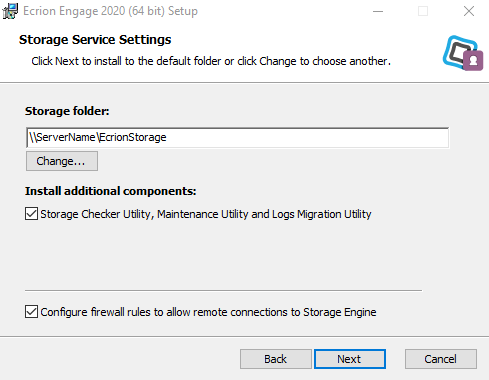
On the Configure Lock Service step, check Configure firewall rules to allow remote connections to Lock Engine, then click Next.
On the Configure Engagement Service step, enable firewall rules to allow incoming remote requests by checking Configure firewall rules to allow remote connections to Lock Engine, then click Next.
On the Configure Workflow Service step, enable firewall rules to allow incoming remote requests by checking Configure firewall rules to allow remote connections to Workflow Engine, then click Next.
On the Search Engine Settings step, make sure to establish a reliable connection to the SQL Server that contains your Search Database. You will need to select the Provider Type, add the Server Name, Database Name and login credentials for SQL or Windows Authentication. Make sure the user provided has permissions to read/write/list in the specified database.
On the Configure Licensing Server step, check Configure firewall rules to allow remote connections to Licensing Server, then click Next. In case you have a HA deployment for the Licensing Server, then enable the Peer Licensing Server Address and enter the IP Address of the Peer Licensing Server in the empty box. For more information, please check Double Instance scenario.
On the Backend Services Settings step, check Configure firewall rules to allow remote connections to Backend Services, then click Next.
On the Configure MasterLog Service step, enable firewall rules to allow incoming remote requests by checking Configure firewall rules to allow remote connections to MasterLog Engine, then click Next.
On the Dependent Services Settings make sure to update the Host Names/IP Addresses for the Engaged websites. In our case, the host’s name will be the NorthStar CCM Front-End Server.
Once you’re ready, select the Install button to start the installation process
Post-Installation
After successful installation using the NorthStar CCM installer, you will need to follow these additional steps to ensure your machine is configured properly.
Changing Initial Configuration
Some settings like database, storage, ports or SSL are configured during installation. To modify these settings, we recommend running the installer again.
The installer will automatically detect previous database/storage configurations and offer to use them. We recommend using this option if you want to review and modify the settings for your database and storage.
If you need to specify database and storage explicitly, read below. Note that this is NOT recommended when there is a previous configuration available.
-
If you point the installer explicitly to a database previously used, the installer will upgrade the database to the current version while preserving its contents.
-
If you point the installer explicitly to a storage folder previously used, the installer will use the contents of that folder without deleting them.
Note
The database and storage are deeply linked with each other and cannot function properly if they are out of sync. It is critical that the selected database and storage have been used by NorthStar CCM Platform in the same configuration before and these have not been altered since the last time they were used.
IIS Manager Configuration
Updating Bindings for Website Remote Access
If you want to access one of the NorthStar CCM Platform Websites remotely, you will need to follow these steps for each NorthStar CCM Website.
- Open IIS Manager.
- From the Connections Tree View, navigate to the NorthStar CCM Website exhibiting the issue.
- On the right-side pane, select Bindings.
- Edit the existing binding and change localhost to * (to accept all connections) or specify an IP Address.
- Click OK to save the changes.
Note
If you do this, the website will be accessible from the intranet if the firewall allows it. Make sure that this is the intended functionality and that website access (especially for System Administration) is properly secured before making the change.
Enabling Secure Connections
Enabling HTTPS can be done in two ways:
- Automatically, by re-running the installer.
- Manually, by changing bindings in IIS and updating the main configuration file.
Note that both these methods require that a valid and appropriate SSL certificate is installed on the server hosting the website(s) that you wish to enable HTTPS for.
Note
In a multi-server setup, regardless which of the methods described below (automatic or manual) is used, the steps must be performed on all servers in the multi-server setup. This includes HA scenarios.
Enabling HTTPS Automatically
To enable HTTPS automatically, simply re-run the installer and choose Enable Web Site SSL for each of the websites that you wish to make accessible through HTTPS. When ticking the box, make sure to select the correct certificate from the list that appears.
Enabling HTTPS Manually
Please follow the steps below to learn how to enable the HTTPS manually, after the installation.
- First, the appropriate bindings in IIS must be added:
- Open IIS Manager.
- From the Connections Tree View, navigate to the NorthStar CCM Website that you wish to enable HTTPS.
- On the right-side pane, select Bindings.
- Add a new binding or edit the existing binding and change http to https.
- Click OK.
- Afterward, the corresponding host URL must be updated in Domain Settings.
- For the Enterprise Website, update: Enterprise Website: https://
: - For the Sysadmin Website, update: Sysadmin Website: https://
: - For the Portal Website, update: Customer Portal Website: https://
:
- For the Enterprise Website, update: Enterprise Website: https://
Usually, this only means changing http to https in the configuration file, with the hostname and port (if present) left the same. - After making these changes, perform the following actions so that the new configuration values to be loaded: - Restart the NorthStar CCM service: open Windows Task Manager and restart the NorthStar CCM Omni System 4 Service. - Restart the IIS service either from the IIS Manager tool or by opening an administrator command and running the iisreset command.
Note
This procedure can also be applied in reverse, to change from HTTPS to HTTP.
Uninstallation
Below you can find details on how to remove NorthStar CCM from your computer.
Uninstall Procedure
Please follow the steps below to learn how to uninstall the NorthStar CCM product from the computer.
- On the computer that runs the NorthStar CCM software, log in as a local or domain administrator.
- Open Control Panel.
- Select Uninstall a program from the Programs area.
- In the Uninstall or change a program window, select NorthStar CCM.
- Click Uninstall from the toolbar.
- A confirmation message appears. Select Yes to remove the NorthStar CCM software from your machine.
- A warning message appears. Click Yes to continue, then wait until the software finishes the un-installation.