EngageCX 13.0 (Onyx) Maintenance Guide
Getting Started
Overview
About Maintenance Guide
Scheduling regular maintenance is an important part to the ongoing reliability of any software product, and a critical requirement if you want to keep your system always available and running at peak efficiency.
To avoid unscheduled downtime, document production stops or any other significant system halts, it might be necessary to build regular maintenance routines and keep continuous monitoring of the EngageCX Apps components (e.g. services, websites, database, etc.).
This guide provides some maintenance approaches and recommended tasks that can help you maintain and monitor the EngageCX Apps and to easy the recovery of important components in case of a system failure in the future.
Audience
This guide is written with the assumption that most readers have a basic background of the EngageCX Apps, SQL Databases or Operation Systems. It is intended for Database and System Administrators responsible for the configuration and maintenance of the EngageCX solutions.
Contact Us
If you have any comments regarding this guide or want to find out more about maintenance and monitoring routines around your company's individual needs, please contact us, at engagecxsupport@mhcautomation.com.
Maintenance Routines
The EngageCX solution, like any other system platform, requires that certain operations to be consistently performed in order to achieve optimum system performance. Based on your specific configuration and business requirements, a particular maintenance schedule must be set up for the existing EngageCX Apps in the organization.
This documentation provides comprehensive guidance and recommendations for maintaining the EngageCX Solutions. The first part covers information that need to be considered on day-to-day system maintenance tasks, such as regular backups of the EngageCX database and storage or cleanup system logs. The second part includes maintenance routines that need to be acknowledged on a weekly-basis, including topics such as Repository Diagnostics, SQL Server Health Check or how to clear older jobs.
Daily Maintenance
When it comes to the daily maintenance tasks, there are two primary key points that need to be consider for maintaining the EngageCX organization: daily system backups and daily log cleanup. This particular section provides instructions and recommendations to follow when building and scheduling the daily maintenance tasks for the system.
Daily Backups
Based on your company’s governance policies, the available backup space and needs, you will need to set up a backup retention policy. We strongly recommend daily backups to prevent accidental data loss that you may be faced with any given time.
EngageCX solutions provides two ways to schedule a daily backup:
- Scheduling a daily backup from the System Administrator website, or
- Scheduling a daily backup with the Command Line tool
Scheduling Backups from the System Administrator website
The easiest method to create backups in EngageCX is by accessing the Backup page available under the System Administrator interface. The Backup page allows you to configure settings, schedule periodic backups, view old backups or even run backups manually.
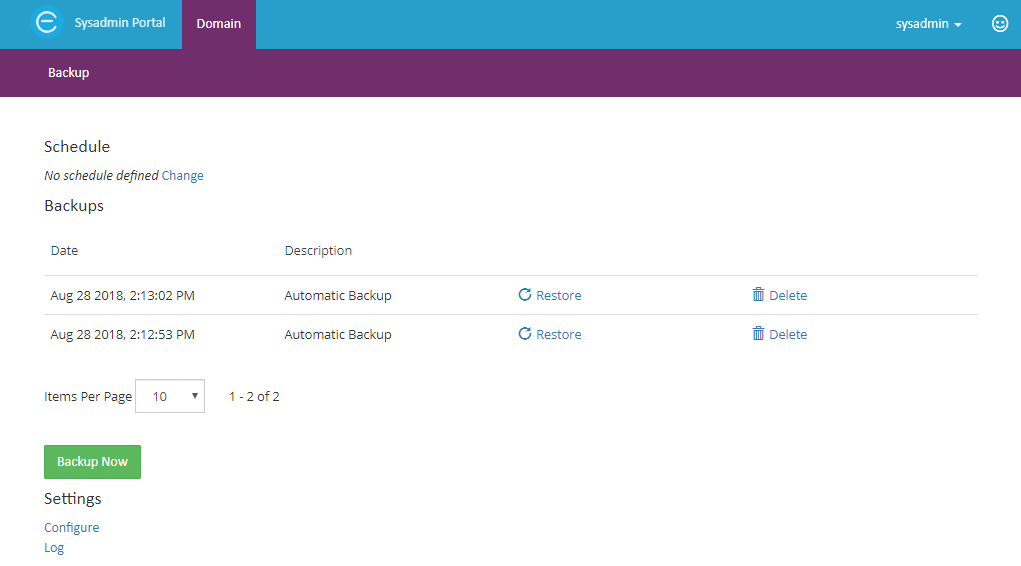
Configuring Backup
Before you start running a backup, it is necessary to configure the backup settings first. In the section below, you can learn how to shape the backup configuration to meet your organization needs.
As a prerequisite, the backup procedure requires .NET Framework 4.5 and SQL Server Command Line Utilities.
- Login to the Sysadmin Website and access the
Domaintile. - Select the
Backup Detailshyperlink to navigate to the Backup page. - Next, select
Configureto start configuring backups from the Settings section. All updates will be automatically saved, on blur input event and a feedback message will be shown.
Within the Backup Settings page you can configure the following:
-
The Backup Location
In the Backup Location box, you can enter the local or network path to the Backup Folder destination. To verify if the backup can be done in the specified folder, click on the
Testbutton. If everything works successfully, you will notice the following message: "Test was successful".
Note
Please make sure the backup folder destination has enough available space.
When changing the backup folder location, the EngageCX Database and Service must have write access to that folder. After running the backup, you will be able to see the following files in the backup folder:
- The SQL Backup file;
- The Storage archive file;
-
The Backup manifest file that specifies the directory structure and backup description.
-
Full Backup Script
The Full Backup Script box displays commands to create a full backup of your EngageCX data, for both, database and storage. At any time, system administrators can edit the backup script to meet their organization needs.
The backup script uses two commands, sqlcmd, for the EngageCX database backup, and eosbackup, for the storage backup. You can customize the scripts by adding CLI commands or by using the System Placeholders, visible in the right side.
Scheduling an Automatically Backup Process
- Login to the Sysadmin website and access the
Domaintile. - Select the
Backup Detailshyperlink to navigate to the Backup page. - Select the
Changehyperlink, to start configuring an automatic backup process. You will need to set up days and hours for when you want the backup to be run automatically. - When you're ready, check the
Enabledoption to start the backup schedule, then clickOK.
Creating an On-Demand Backup
Below you can find step by step instructions for creating backups from the system administrator interface:
- Login to the Sysadmin website and access the
Domaintile. - Select the
Backup Detailshyperlink to navigate to the Backup page. - Use
Backup Nowto start a manual backup process.- While a backup is running, the
Backup Nowbutton will be disabled and the caption will be changed toRunning backup. - You cannot start a new backup until the current backup is finished.
- The process can take from several seconds to some hours depending on the database and storage sizes.
- While a backup is running, the
- Once the backup is complete, the new backup will show up in the list of available backups.
- Optionally, you can select the
Logpage to access the Backup Log page, where additional information is displayed. The backup log can also be used for troubleshooting.
Note
EngageCX always recommends an on-demand backup before a software upgrade or patch.
Scheduling Backups with the Command Line tool
Another method to perform a backup is by using the EngageCX backup tool. The tool will backup and restore the EngageCX Database and Storage. A Daily Backup will impact also the User Interface as backup and restore files in/from a shared network or an Amazon S3 folder. The default location of EOSBackup tool is:
<Installation Folder>\Windows Service\EOS Utility\EOSBackup\Tools.EOSBackup.exe.
Tools.EOSBackup.exe
 [ -backup2 | -restore | -getbackups | -examples ]
 [ -u <sysadmin username> ]
 [ -p <sysadmin password> ]
 [ -backupName <backupName> ]
 [ -backupFolder <networkFolderPath> ]
 [ -configFile <EOS4 config file> ]
 [ -backupScript <backup script> ]
 [ -restoreScript <restore script> ]
 [ -backupDescription <backupDescription> ]
Before proceeding with the steps of running backup from command line, keep in mind that EngageCX Backup commands are case sensitive. You should be careful when you are typing in the backup commands - whether a character is upper or lower case does make a difference.
- Navigate to your installation folder (e.g. %Installation_Path%\EngageCX\Engage 2018 (64 bit)).
- Find the EOSBackup subfolder, following the Windows Service\EOS Utility\EOSBackup path.
- Open a Command Prompt on this location.
-
Run the command below to create a backup for your files, using the default location:
- You will need to provide the username and password used to access the EngageCX Domain.
- Optionally, you can add a simple description that will appear in the backup manifest file.
Tools.EOSBackup.exe -backup2 -u sysadmin -p sysadminpassword -backupDescription "some description". -
When the backup is completed, a message will be displayed, confirming that EngageCX has successfully written its data to the file you specified.
EngageCX backups should generally be schedule during off-peak time.
Note
The system backup should not be done simultaneously with storage compacting. Please contact EngageCX Technical Support to discuss the best time during the day for doing backups.
Log Cleanup
If you are running into space issues, there might be the log files that are exacerbating the issue. EngageCX provides a couple of options to clean up the application logs to free some space.
Log Review
The EngageCX solutions generate multiple logs created on a daily basis by various platform components. By default, the log output folder is found at the following path: C:\ProgramData\EngageCX\Log. It is recommended for a system administrator to regularly review and report on log activity stored within those files. These logs provide insight into any abnormalities in the system network and server.
The table below provides a list will all the EngageCX components, their corresponding log files that can be found within the Log folder, and the configuration files from where the components can be configured.
| Components | Log Name | Configuration File |
|---|---|---|
| Backend Services, Engagement Service, Workflow Service, Print Info Service, Document Repository, Search | EOS4Svc-YYYY-MM-DD.log | EOS4.config |
| Enterprise Website | w3wp (EOS4)-YYYY-MM-DD.log | EOS4.config |
| System Administrator Website | w3wp (ADMINEOS4)-YYYY-MM-DD.log | EOS4.config |
| Customer Portal Website | w3wp (PORTALEOS4)-YYYY-MM-DD.log | EOS4.config |
| Licensing Server | LicensingServerSvc-YYYY-MM-DD.log | LicensingServer.config |
| Publishing Engine | PublisherSvc-YYYY-MM-DD.log | PublisherSvc.config |
| Data Engine | DASSvc-YYYY-MM-DD.log | DASSvc.config |
| Analytics Engine | BISvc-YYYY-MM-DD.log | BISvc.config |
| Lock Engine | LockSvc-YYYY-MM-DD.log | EOS4.config |
| Master Log Service | MasterLogSvc-YYYY-MM-DD | EOS4.config |
To learn more about each of the above components, check the Components section.
Notes
- The Log output folder for each component can be changed by editing the following line in the corresponding
configuration file: LogFolder = <
path_to_new_folder> - For the Master Log Location, use the following two parameters: LogToMasterLog=true and MasterLogFolderPath = <
path_to_new_folder> - You can change the logging level for each component by editing the following line in the correspondent
configuration file: LogLevel = <
level> - The valid configurations are Normal, All, Debug, Warning and Error.
- The Debug log level can be used only for troubleshooting as it tends to be very verbose and make sure you restore it to normal after the troubleshooting is finished.
Cleanup Logs (External tools)
The system administrator should perform a daily cleanup routine for removing or archiving older logs. The retention duration for the logs depends on the available space and your organization governance policies. If the EngageCX solution is distributed across multiple physical machines, it might be necessary to build a cleanup procedure for each machine. Logs can potentially fill up an entire hard drive, therefore Cleanup avoids consuming large amount of disk space.
Cleanup Logs (EngageCX solution)
The cleanup procedure can be managed directly from the organization for some of the logs. The delete operation will clean up only the logs for the services that can be configured from the main configuration file – EOS4.config (for example, Backend Services, Document Repository, Search, Enterprise Website, System Administrator Website, and Customer Portal Website).
Note
The only option to operate with logs is deleting, not archiving them.
Enabling the maintenance log allows you to automatically delete some logs, helping you to preserve the disk space.
- Sign in to the Sysadmin Website and access the
Domaintile. - Select the
Logoption from the Settings group. - In the Log page, click the
Configure Log Maintenancebutton. - Next, check
Enabledin the Configure Log Maintenance. Then, enter the time whereupon you want to delete the old logs under Maximum log age in day's box and clickSave.
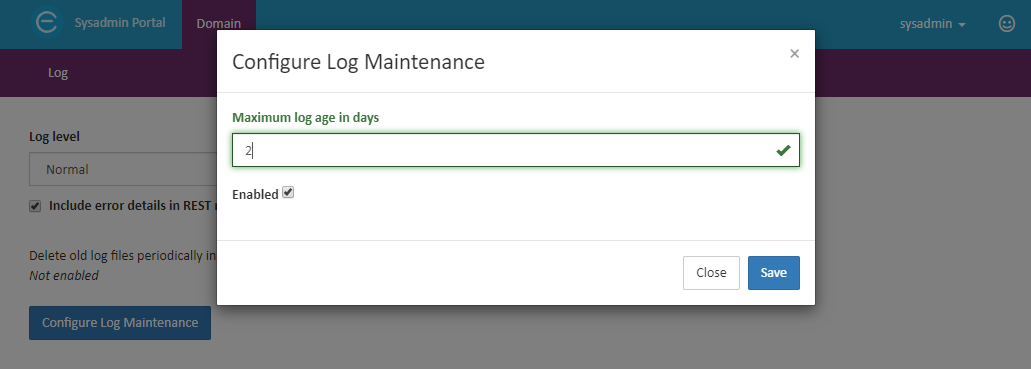
Cleanup Master Log (EngageCX solution)
In addition to the general Log Cleanup, the Master Log has an additional cleanup configuration that can be enabled. This involves the following steps:
- Sign in to the Sysadmin Website and access the
Domaintile. - Select
Servicesfrom the Settings section, then chooseConfigurenext to MasterLog Service. - Check the
Master log maintenanceoption to enable log maintenance. Then, enter the time whereupon you want to delete the old master logs under the Maximum log age in day's box.
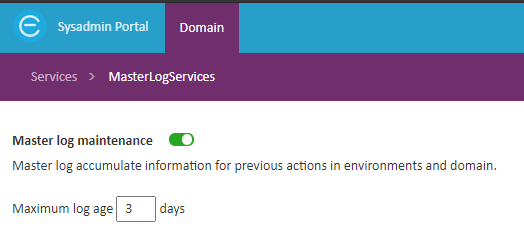
EngageCX solution will automatically delete logs older than the period you have scheduled. If you want to delete the logs now, you can select the Run Delete Now button to start the process manually. If you go back to the Domain page, you will notice that the Maintenance Status has been updated in the Summary group.
Weekly Maintenance
Regular maintenance is important to ensure correct system operations. Common maintenance can include both the built-in maintenance tasks and other tasks to maintain compliance with your company policies. The following are maintenance tasks that you might consider for a weekly schedule:
- Removing unnecessary files from the database system;
- System event logs removal;
- Verifying the database size and the available disk space on the database server;
- Running disk defragmentation tools.
Clear Old Jobs
Using the Maintenance Tool
The Maintenance tool allows you to delete jobs across the entire installation. It can be accessed from the Engage installation folder, under the following path:
<Installation Folder>\Windows Service\EOS Utility\EOSMaintenance\Tools.EOSMaintenance.exe
Note
The Maintenance tool is used to delete all jobs older than a certain time, across all environments. In case you want to run the clean up only for certain communications, you will need to create a maintenance workflow described in the further section.
Using Maintenance Workflows
A maintenance workflow can be created in order to clean up only certain communications and it typically consists of a single Maintenance task. This task can be configured to delete jobs older than a certain amount of time, allowing filters to limit the area of possibilities (e.g. job status (stage), communication name, etc.). To learn more information about this, please access the Maintenance task.
Using Retention Policies
Retention Policies refers to retaining content for a specific period of time. Policies for retaining/deleting older jobs may be created by running maintenance workflows on a schedule. The workflows are created as described in the previous section and are scheduled using the Engage scheduling capabilities.
Repository Diagnostics
EngageCX includes an advanced fault diagnose infrastructure for collecting and managing diagnostic data such as trace core, log files and dumps. For example, when a critical error occurs, it is immediately captured and tagged. All this data is stored in a file-base repository which can be later retrieved or analyzed. To better prevent failure diagnosis and to limit damage and interruption across EngageCX solution, the following tools are recommended:
- Offline Storage Diagnostics tool;
- Storage Checker tool.
Using the Offline Storage Diagnostics Tool
The most comprehensive and in-depth way to collect and manage repository diagnostics is via the Offline Storage Diagnostics tool. It is recommended to be used when invalid index from storage occurs in order to obtain a diagnosis report of the storage status. Being an offline tool, a successful execution requires the EngageCX Service (EOS4Svc) to be disabled. This is a command-line tool, available under the following path:
<Installation Folder>\Windows Service\EOS Utility\OfflineStorageDiagnostics\Tools.OfflineStorageDiagnostics.exe.
Using the Storage Checker Tool
Another way to manage the Repository Diagnostics is by using the Storage Checker tool. It is also a command-line tool, available under the following path:
<Installation Folder>\Windows Service\EOS Utility\StorageChecker\Tools.StorageChecker.exe
SQL Server Health Check
Any SQL Server Database Administrator should perform maintenance operations to make sure that the EngageCX database and the database server instances are up and running and the risks of a SQL server failure are minimized. Please see below the measures that should be taken to assure an adequate Health Check:
- Check the index fragmentation of the Engage database;
- Check the transaction log;
- Check the free space on the database server.
Checking Index Fragmentation
Indexes should be checked periodically for fragmentation as fragmentation level can degrade performance over time, behaving slower than normal. For example, when a database is frequently updated via SQL Statements, we can expect to become fragmented and this will affect the overall query performance. When analyzing fragmentation in the EngageCX database, please refer to Microsoft’s SQL Server Monitoring and Tuning tools.
Checking SQL Transaction Log
The transaction log is utilized to write all transactions prior to committing the data to the data file (log). Over time, the SQL transaction log can get quite large and it can cause performance issues, determined by various reasons (for example, not knowing what contains the log and how much space is being used). Therefore, it is recommended to check it periodically, either manually or by running the diagnostic tools provided by Microsoft.
Checking Free Space on SQL Server
Another good practice for a Database Administrator (DBA) is to check the free space for a SQL Server Database to ensure there is still enough storage for the server to perform properly. To display data and log space information, you have to use the SQL Server Management Studio. Free space verification can be accomplished either manually by remoting into the SQL Server machine, or automatically, by running the diagnostic tools provided by Microsoft.
Active Monitoring
Permanently monitoring of the EngageCX solution and associated components (EngageCX Apps) can help you in detecting bottlenecks, downtime or potential issues in an earliest time, enabling time for fixes before end users experience any significant impact on their side.
This section provides information about the essential EngageCX components that are recommended to be proactively monitored and also best practices and endorsements on how to monitor them.
Monitoring EngageCX Services
EngageCX Services are critical parts of any installation, as these contribute to the well management operational tasks performed through the EngageCX solution. There are two ways for monitoring the EngageCX organization services:
- By using the System Status web page available in the Sysadmin Website. To learn more, please access the System Status section of the Sysadmin Guide.
- By using programmatically, the Service Reporter. It can be used to monitor internal services and to alert for any service malefaction. The service reporter listens by default on the TCP port 40027. To check if all the services are working properly, you just need to open a connected socket and write a message. If the message is received back, then all the services are working properly; otherwise, one or more services are not responding and/or are stopped.
Monitoring the Windows Event Log
EngageCX users can use the Windows Event Log application for monitoring different type of errors that may occurs on the EngageCX Services. There are two types of logs that can be monitored within the Event Log:
- Monitor the System Event Log for services failure (for example, services restarted, stopped, etc.)
- Monitor the Application Event Log for jobs failure within the environments created in the Enterprise Home Website. To learn more, please access the Troubleshooting section of the Sysadmin Guide.
Monitoring the EngageCX Log files for Errors or Warnings
In addition to the Windows Event Log, it is recommended to monitor and look after the following errors in the EngageCX log files:
| Log Input | Description |
|---|---|
| Cannot access storage file ‘{0}’ | The message states that the EngageCX storage folder cannot be accessed, because there is no such file or directory or the repository is corrupted. |
| [Storage] Cannot compact {0} file with index{1}. Error {2}. | A specific file cannot be compacted in the EngageCX storage folder. |
| [Storage] Cannot repair {0} file with index{1}. Error {2}. | A specific file cannot be repaired from the EngageCX storage folder. |
| Failed to create backup for file '{0}'.Error: {1} | The backup process cannot be completed because of a specific file. |
| Insufficient space for finish compacting for file {0}. | Files cannot be compacted successfully because there is not enough free disk space. |
| Insufficient space for start compacting for file {0}. | When trying to start a compaction, it does not appear to be enough room to even start the process. |
| Data file '{0}' is corrupted. Length '{1}' expected, found '{2}'. | The length of a specific data file is found different from the estimated one. |
| Invalid offset value '{0}'. | The invalid offset is generated from a value too big. |
| Invalid records after compact file '{0}'. | Some files are often plagued by corruption, which can pose a threat to the data present in them, so these become invalid. |
| Invalid index '{0}' specified for data file '{1}' (#records = '{2}'). | The index of a specific file mismatches. |
| Record #{0}: Corrupted content. | Invalid data found within a specific record. |
| Record #{0}: Data header signature not found as expected | Invalid header signature found within a specific record. |
| Record #{0}: Length '{1}' expected, found '{2}' | The length of a specific record is found different from the estimated one. |
| [Storage] Cannot synchronize file '{0}' with peer {1}:{2}. Error: '{3}' | The synchronization process cannot be performed between two specific files from the EngageCX storage folder. The reasons could be that the files are protected by other applications, one file is being ignored by a remote peer, Sync encounters a file system error and it will abandon the process, etc. |
| [Storage] Failed to synchronize with peer {0}:{1}. Error: '{2}'. {3} | Synchronization process has stopped because either the peers disconnect or the connection status changes from Synced. |
| Unexpected service response: ({0}). | If an operation does not execute as it should, the service delivers a response which is different from the expected one. |
| Server exception occurred: {0}. | An un-handled exception occurred at the EngageCX server level. |
| Cannot connect to the '{0}' service on '{1}', port {2} with error: {3}. | Verify that the service is running and that the port is not blocked by a firewall. |
| Exception occurred in BackgroundServices : '{0}'. {1}. | Some errors were found at the Background Services level. |
| BackgroundService '{0}' has thrown exception '{1}' for environment '{2}'. {3}. | A specified Background Service founds an error on a specific environment. |
| Backup '{0}' failed. Error {1}. Stack trace {2}. | The backup command failed because of an internal error. |
| Exception occurred while checking health of '{0}' environment: {1}. | The Healthcheck encounters an error at the environmental level. |
| Exception occurred while processing request:{0} | An error appeared after a process request has been made. |
| Exception occurred while processing repository request: {0} | An error appeared after a process request has been made at EngageCX repository level. |
Monitoring System Healthcheck
An important key that can help you avoid service failure or timeout is monitoring the system health (for example, CPU/Memory usage, network throughput, especially the disk space).
There are multiple ways to actively monitor the hardware and system health. For example, you can either use free tools (for example, Resource Monitor, Performance Monitor, PowerShell, SolarWinds Server Health Monitor, Zabbix, Nagios Core, etc.) or by using commercials tools (such as SCOM, Nagios IX, SolarWinds Server and Application Monitor, etc. ).
As best practice, it is recommended to send alerts in order to take appropriate actions as soon as possible to prevent or minimize the service disruption.
Monitoring SSL Certificates
One of the maintenance tasks for the web administrators is to ensure that the website SSL Certificate is renewed before its expiration date. Having the certificate expired it may cause service disruptions and security vulnerability.
Monitoring the SSL Certificate can be done in many ways either by using tools such as OpenSSL, Certificate Expiry Monitor, StatusCake, etc., or by writing a small C# code that load the certificate.
Monitoring the EngageCX Websites
The EngageCX Website must be up and running for a proper functionality. The website availability is a critical part of a business and it is essential for the administrators to ensure that proper alerting is set up in order to get notified if one website is not available.
This can be achieved either by using desktop tools such as SolarWinds Web Performace Monitor, SiteMonitor, etc., or online services such Uptime, Pingdom or StatusCake.
In addition, you can use the EngageCX API to monitor the responsiveness of the solution by performing different queries.
Monitoring the EngageCX Database
Monitoring the SQL Server instances and databases help you to gather information necessary to diagnose and troubleshoot the SQL Server performance issues, as well as to fine-tune the SQL Server. Optimal performance is not easy to define and set, as there is usually a trade-off between multiple software and hardware factors.
These commonly monitored SQL Server performance metrics are memory and processor usage, network traffic, and disk activity. Besides monitoring the SQL Server parameters, it is recommended to monitor parameters for the specific database, as well as Windows system parameters.
Microsoft SQL Server provides a set of tools for monitoring events and tuning in SQL Server. For more information, please see Performance Monitoring and Tuning Tools.
Monitoring 3rd Party Services if being used by Integrations and Custom Workflow Steps
It is recommended to monitor any other services that are using in integration or in workflow steps using specific tools that applies. For example, if the service is a REST API service then this can be monitored using tool like SiteMonitor, SolarWinds Web Performance Monitor, etc.