NorthStar CCM R2025 Pre-Installation Checklist
Overview
This document provides step by pre-installation steps and requirements for installing NorthStar CCM software on one single server or across multiple servers. Follow these guidelines if you want to install the NorthStar CCM Platform for the first time.
Assumptions: Application Version – MHCEngageCX-x64.15.2.1-11825 (Ruby) or higher
Prerequisites
NorthStar CCM Database
Before proceeding to install the NorthStar CCM software, you must create a Database (the default name used in the installer is EOSDB4). Its role is to store all the metadata created by the software.
The NorthStar CCM Database needs to be created under the Microsoft SQL Server tool 2022 or later.
Tips:
- We recommend using the Microsoft SQL Server tool 2016 or later for your database.
- It is highly recommended to use a separate server for the SQL Database.
- For HA environments, an SQL Server clustering solution is required.
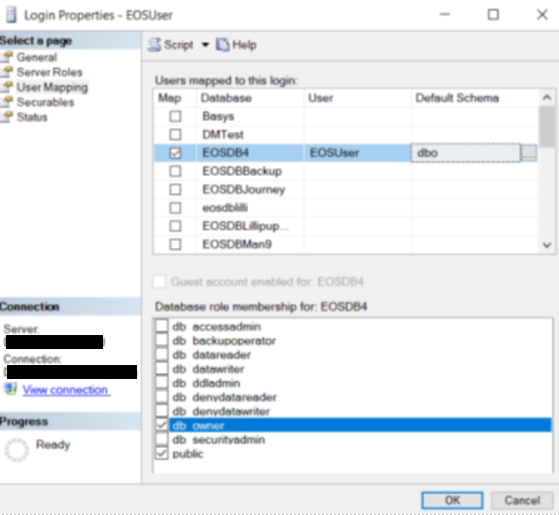
After creating the database, you need to ensure that the user under which the database authentication will be made has at least Database Admin rights (i.e., db_owner).
Note: In case of Production upgrade, the user must have db_owner rights. On runtime, the privileges below are enough:
db_datareader
db_datawriter
db_backupoperator
GRANT EXECUTE ON TYPE::[dbo].[DateFilterArray]
GRANT EXECUTE ON TYPE::[dbo].[FileArray]
GRANT EXECUTE ON TYPE::[dbo].[FilePropertyArray]
GRANT EXECUTE ON TYPE::[dbo].[PrincipalsArray]
GRANT EXECUTE ON [dbo].[CheckConnectionDuplicate]
GRANT EXECUTE ON [dbo].[GetEnvironmentPagesRendered]
To provide user access to the database within the SQL Server Management Studio follow the steps below:
- In SQL Server Management Studio, open the Object Explorer and navigate to Security\Logins;
- Right-click on the user you want to configure, and select
Properties. - Within the Login Properties window, access the
User Mappingtab. - Select the NorthStar CCM Database, then verify the user and add a default schema (e.g. dbo).
- Check the needed permissions in the Database role membership section (at least, db_owner needs to be selected).
NorthStar CCM Storage
When you create or add files through NorthStar CCM Platform, their content will be saved in a storage folder. Before you begin the installation, it may be necessary to set up your storage folder.
The storage folder can be placed either locally or on a shared network location (which may or may not reside on a Network Attached Storage device). By default, NorthStar CCM will create a default folder, called EOSStorage, and it will be located at $Application_Data$\MHC Software\EOSStorage.
As a best practice, SSD Storage will help you increase NorthStar CCM performance.
Because the NorthStar CCM service runs under a user account, it may be necessary to have permission to read/write/list folder contents to the Storage folder. We also recommend using a folder on a network path if you want to do your own storage backup.
.NET Framework 4.8
The .NET Framework 4.8 can be downloaded from the Microsoft website, using this download link.
For important information about this release, consult the .Net Framework 4.5 Readme File.
IIS (Internet Information Services Manager) 10.0 or later (not IIS Express) with URL Rewrite module
The Internet Information Services (IIS) for Windows® Server is a flexible, secure and manageable Web server for hosting anything on the Web. You can read more on installing IIS 10.0 here.
URL Rewrite
The URL Rewrite module is also a requirement. It is a free extension provided by Microsoft for IIS 10.0 or later. See this link for overview and installation steps.
ASP.NET
The setup also requires ASP.NET to be installed in IIS Components. To do this, open Windows Features, expand Internet Information Services\World Wide Web Services\Application Development Features and check ASP.NET Core 8 Runtime x64 and ASP.NET Core 8 Hosting Bundle.
SSL Certificate
If you need to handle sensitive communications and protect your files with the HTTPS Protocol, you will need to install an SSL Certificate in IIS.
Note
We recommend using SSL Certificates when the NorthStar CCM Platform is included on the Internet, not to an intranet.
NorthStar CCM Search Database - Optional
If you want to use the Search feature within NorthStar CCM Platform, you will need to ensure the following:
- Standard NorthStar CCM Prerequisites (described above).
- A connection to a Microsoft SQL Server 2008 or later. For the Search feature, you need to create an additional database (the default name used in the installer is EOSDB4Search).
- The user under which the Authentication will be made needs to have db_owner rights.
High Availability (HA)
HA is a system to ensure a higher level of business continuity by reducing the downtime for unplanned outages. Before proceeding with the HA Configuration, we recommend:
- Use at least two physical servers to install NorthStar CCM components. Using only virtual machines on the same physical server does not eliminate single points of failure.
- Use load balancers in order to automatically balance your traffic to your NorthStar CCM instances. If you integrate NorthStar CCM Platform into your third-party application, load balancers will remove the need for writing failover code. According to your company requirements, you can decide if you want to use software-based or hardware-based load balancers. A common choice for load balancing is using the HAProxy (High Availability Proxy) solution.
- Use two storage locations. If network-attached locations are provided, we recommend placing this location in two separate physical instances to avoid single points of failure. Note that NorthStar CCM Platform will keep these two storage sites synchronized.
- Use an SQL Server clustering solution.
Software and Hardware Requirements
| Optimal | Minimal | |
|---|---|---|
| Operating System | Windows Server 2019 | Windows 10 |
| Hardware | 2 CPU/8 Cores XEON @ 3GHZ | 1 CPU/4 Cores i5 @ 2 GHZ |
| 16 GB RAM | 4 GB of RAM | |
| 1 TB disk space | 10 GB disk space | |
| Software | Microsoft SQL Server 2022 | Microsoft SQL Server 2016 or later |
| Other Software Required |
|---|
| IRL Rewrite 2.1 as a prerequisite for IIS |
| IIS (Internet Information Services Manager) 10.0 or later (not IIS Express) |
| .Net 8 Runtime x64, ASP.NET Core 8 Runtime x64, and ASP.NET Core 8 Hosting Bundle |
| .Net Framework 4.8 |
| Microsoft Visual C++ 2015-2022 Redistributable (x64) |
| (Optional) For EPS resources, Postscript Interpreter Ghostscript |
Port Requirements
Before installing the NorthStar CCM Platform, you will need to ensure that some ports used by the NorthStar CCM Services and IIS are free to enable communication between components. The tables below list the default port numbers used by the NorthStar CCM Services and the IIS Websites.
Table 1.0 (NorthStar CCM ports)
Default ports used by the NorthStar CCM Services. These ports can be configured from the configuration files (EOS4.config, DASSvc.config, BISvc.config, PublisherSvc.config). For distributed configurations, the ports need to be opened and accessible in Windows Firewall.
| PORT | PARAMETER |
|---|---|
| 40014 | ESSPort |
| 40015 | WorkPort |
| 40016 | RepositoryPort |
| 40018 | LogPort |
| 40019 | BillingPort |
| 40020 | TriggerPort |
| 40022 | SchedulerPort |
| 40023 | BIEOSServerPort |
| 40024 | DistributionPort |
| 40025 | AlertsPort |
| 40026 | BackgroundServerPort |
| 40035 | LicensingServerPort |
| 40027 | ProcessReporterServerPort |
| 40028 | SearchServerPort |
| 40029 | NotificationsServerPort |
| 40030 | BackupServerPort |
| 40031 | RepositorySynchronizationPort |
| 40021 | DASEOSServerPort |
| 40017 | XFEOSServerPort |
| 1433 | SQL Port |
Table 1.1 (IIS ports)
Default ports used by IIS for the NorthStar CCM Websites. You can change them during the installation of each component.
| PORT | PARAMETER | DESCRIPTION |
|---|---|---|
| 8094 | EnterpriseWebsiteURLPort | The default port for Enterprise Website. |
| 8095 | AdministrationWebsiteURLPort | The default port for Administrator Website. |
| 8096 | PortalWebsiteURLPort | The default port for Customer Portal Website. |
Table 1.2 (HA ports)
Default ports for High Availability deployments. The same port numbers need to be free and accessible on both firewalls configured as High Availability peers. The table below lists the ports required to be accessible for HA deployments.
| Port Number | Parameter | Description |
|---|---|---|
| 40014 | ESSPeerPort | Storage Port |
| 40022 | SchedulerPeerPort | Scheduler Port |
| 40026 | BackgroundPeerPort | Background Services Port |
| 40027 | ProcessReporterPeerPort | Process Reporter Port |
| 40030 | BackupPeerPort | Backup Port |
| 40020 | TriggerPeerPort | Trigger Port |